
0%On this pageContents
An automated webinar plays a recording at the times your registrants choose, so one good session can run all week without you presenting it again. EasyWebinar builds that from three parts: the recording, the webinar type, and the schedule that turns the recording into sessions. This page explains how those parts fit together, so you can pick a set-up before you build.
At a glance
| What it is | A recording that plays as scheduled sessions, without you presenting each one |
| Types that run on a recording | Simulive (set times, everyone watches together) and Evergreen (a repeating schedule each registrant picks from) |
| Ways to watch an evergreen webinar | Just-in-time Registration, On Demand and Recurring Schedule, in any combination |
| Recurring times | Daily or Weekly, with Add Time for more than one slot a day |
| Timezone | Just-in-time sessions follow each attendee's local time; set times use the webinar's timezone |
| The recording | Uploaded and hosted by EasyWebinar, or imported from YouTube, Vimeo, Wistia or a direct MP4 link |
| Changing the recording later | The Webinar Video panel on the Content tab, with schedule and registrations untouched |
| Changing the type later | Not possible; clone the webinar and pick the new type on the copy |
What an automated webinar is
Say you run the same product walkthrough every week, and each run is nearly word for word the last one. Moving it on to a recording frees that hour, and lets people who can't make your slot still watch.
An automated webinar is a webinar whose content is a recording rather than a live presenter. The platform plays that recording at scheduled times, and registrants join a session the way they would join a live one. In EasyWebinar, two of the three webinar types work this way: Simulive and Evergreen. A Live webinar needs no recording, because you supply the content by presenting. Automated webinars on EasyWebinar gives the product overview.
This short EasyWebinar video walks through how an automated webinar formula turns one recording into a repeating funnel.
What you see when you create one
You choose the type on the first step of the builder, before anything else. The choice shapes how content is delivered, what your schedule looks like and what attendees can do in the room.
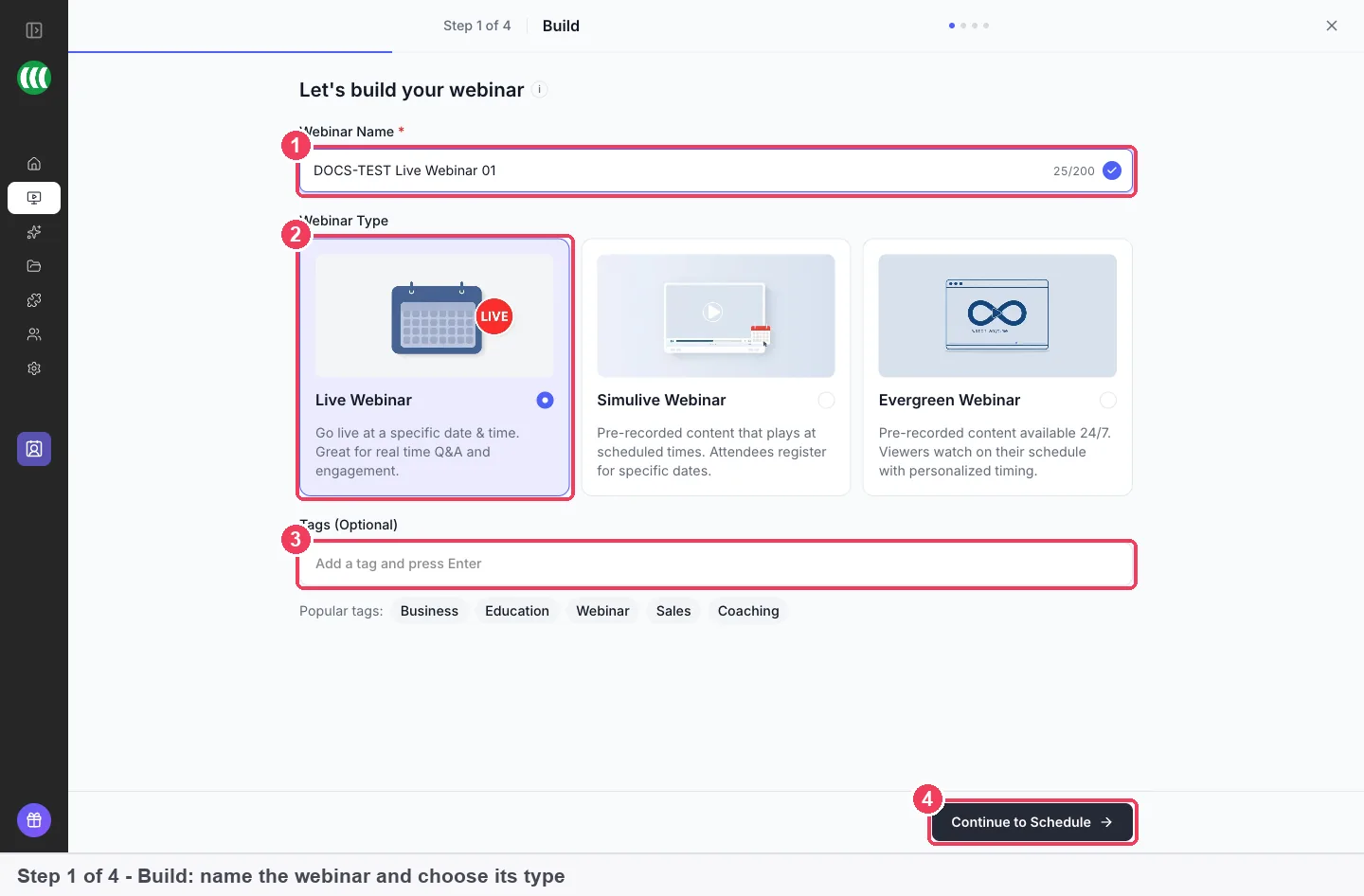
The type can't be changed once the webinar exists. If you pick the wrong card, clone the webinar and choose the right type on the copy.
Why automated webinars matter
What it's for
An automated webinar lets a session you deliver often keep running without you in the room. People who find your registration page can watch soon, at a time that suits them, instead of waiting for your next live slot.
How it helps
- More sessions, same effort. One recording fills a daily or weekly schedule with no extra presenting.
- Less waiting. A just-in-time session starts a few minutes after someone registers.
- Times that fit your audience. Registrants pick a session, and just-in-time sessions follow their local time.
- The same room tools. Chat, Q&A, polls, offers, emails and analytics work as they do on a live webinar.
- Easy updates. You can swap the recording later without touching the schedule or the registrations.
What happens without it
Every session needs you live, at one fixed time. Someone who registers on a Tuesday for a Thursday slot has two days to lose interest. Anyone in a distant timezone may never find a slot at all. Your reach stops at the number of hours you can present.
Why buyers care
This matters most to SaaS teams, marketers and course creators. For them, the webinar is a step in a funnel, such as a demo, an onboarding session or an offer. It matters most when a live session already works and the next question is how to run it more often.
The EasyWebinar approach to automated webinars
Take a typical case. A project-management software company's product team runs a 40-minute onboarding walkthrough for new trial users every Thursday at 15:00. A product manager presents it, and the content barely changes from week to week.
The usual answer is to keep presenting it live, or to email a recording link to people who missed it. Presenting live ties up a senior person every week, and the trial user who signs up on Friday may wait almost a week. A bare video link usually loses the chat, the polls and the offer that made the session work.
What changed is that the walkthrough is now stable. Once the content is settled, the value is in getting each new trial user into a session quickly. The presenter's live delivery adds less than the timing does.
EasyWebinar lets the team clone the live webinar and choose Evergreen on the copy. On the video step, they pick the recording of a past Thursday session. EasyWebinar then offers each registrant a just-in-time session, instant viewing or set weekly times. The polls, offers and emails carry on working as before.
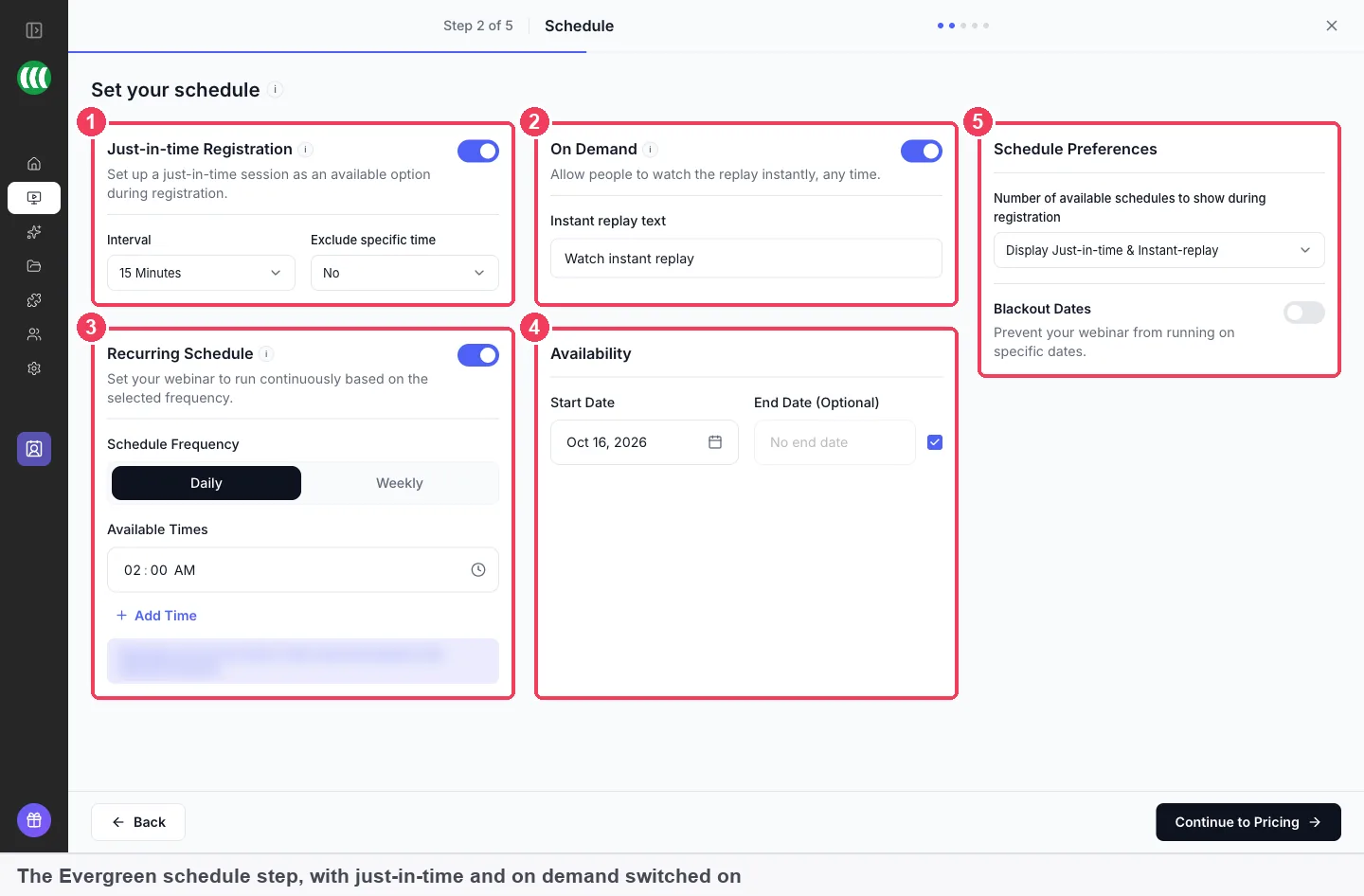
On the schedule step, Just-in-time Registration, On Demand and Recurring Schedule sit side by side and can all be on at once. How that set-up stands against other platforms is covered in How EasyWebinar compares for automated webinars, below.
How an automated webinar delivers a session
Every automated webinar plays a recording. What differs is when each session starts and who watches it together. Each way below catches a different kind of registrant and misses another.
Simulive: set times, one shared room
A simulive webinar broadcasts the recording at times you set, like a scheduled television programme. Everyone in a session sees the same moment, so the chat works as a shared room, and you can answer questions live while the recording plays. It catches people who value the event feeling. It misses anyone who can't make your times, because attendees register for specific dates.
Evergreen recurring schedule: set times that repeat
An evergreen webinar can run Daily or Weekly at the times you choose, with Add Time for more than one slot a day. These sessions run in the webinar's timezone. This catches people who like to plan ahead. It misses people who arrive keen right now and face a long wait.
Just-in-time: a session starting shortly
Just-in-time sessions start a few minutes after someone registers, in their own local time. The Interval setting decides how often they come round, and Exclude specific time keeps chosen hours clear. This catches the visitor at the moment of interest. It suits a funnel, though people arriving at the same minute are rarely numerous, so the room is usually small.
On demand: watch straight away
On Demand lets a registrant start the recording immediately, with no session to wait for. The button reads Watch instant replay by default, and you can reword it. It catches people who want the content and nothing else. It gives up the sense of a scheduled event, so leave it off when you want people to turn up.
What's confirmed in EasyWebinar
EasyWebinar is confirmed to run simulive webinars, and evergreen webinars with any mix of just-in-time, on-demand and recurring sessions. In an evergreen webinar, your registrant picks from the options you switch on.
Live vs automated webinar: which to run
Pick by what your audience came for. If the value is you being there, run it live. If the value is the content, a recording will do.
| If you want | Choose |
|---|---|
| To present in real time and answer questions as they come | Live |
| A polished recording at set times, with you in the chat | Simulive |
| A session running continuously, with each registrant picking a time | Evergreen |
| The same session weekly without presenting it again | Simulive or Evergreen |
| To record once and let the session sell on its own | Evergreen |
A common path is to run the session live a few times to sharpen it, then clone it as Evergreen. Create and schedule a live webinar covers the live side, and EasyWebinar's post on live vs automated vs evergreen webinars goes further into the choice.
Plan the schedule around your audience's calendar
A schedule set once keeps running until you stop it, so check it against the calendar your registrants live by.
Clock changes shift recurring sessions for some viewers. Set times run in the webinar's timezone, so a session fixed in UK time moves by an hour for viewers whose clocks change on other dates. In the UK, the clocks went back on 25 October 2026 and go forward on 28 March 2027, according to GOV.UK. Just-in-time sessions avoid this, because they follow each attendee's local time.
Holidays are the other check. GOV.UK lists 25 and 28 December 2026 as bank holidays in England and Wales, with 28 December as the Boxing Day substitute day. If nobody will attend then, add those dates under Blackout Dates so the webinar doesn't run.
How to measure an automated webinar
Two measures tell you whether the schedule is doing its job.
The first is show-up rate: attendees divided by registrants. It shows whether your session times suit people. Its weak spot is that on-demand viewers start at once, so a high on-demand share can make the scheduled sessions look stronger or weaker than they are. Compare scheduled and on-demand viewers separately.
The second is time to first watch: how long a registrant waits between signing up and the session starting. Shorter waits are the reason just-in-time exists, and HBR's research on online leads found that most companies are not responding nearly fast enough to people who show interest. Its weak spot is that you work it out from your schedule, not from a single number.
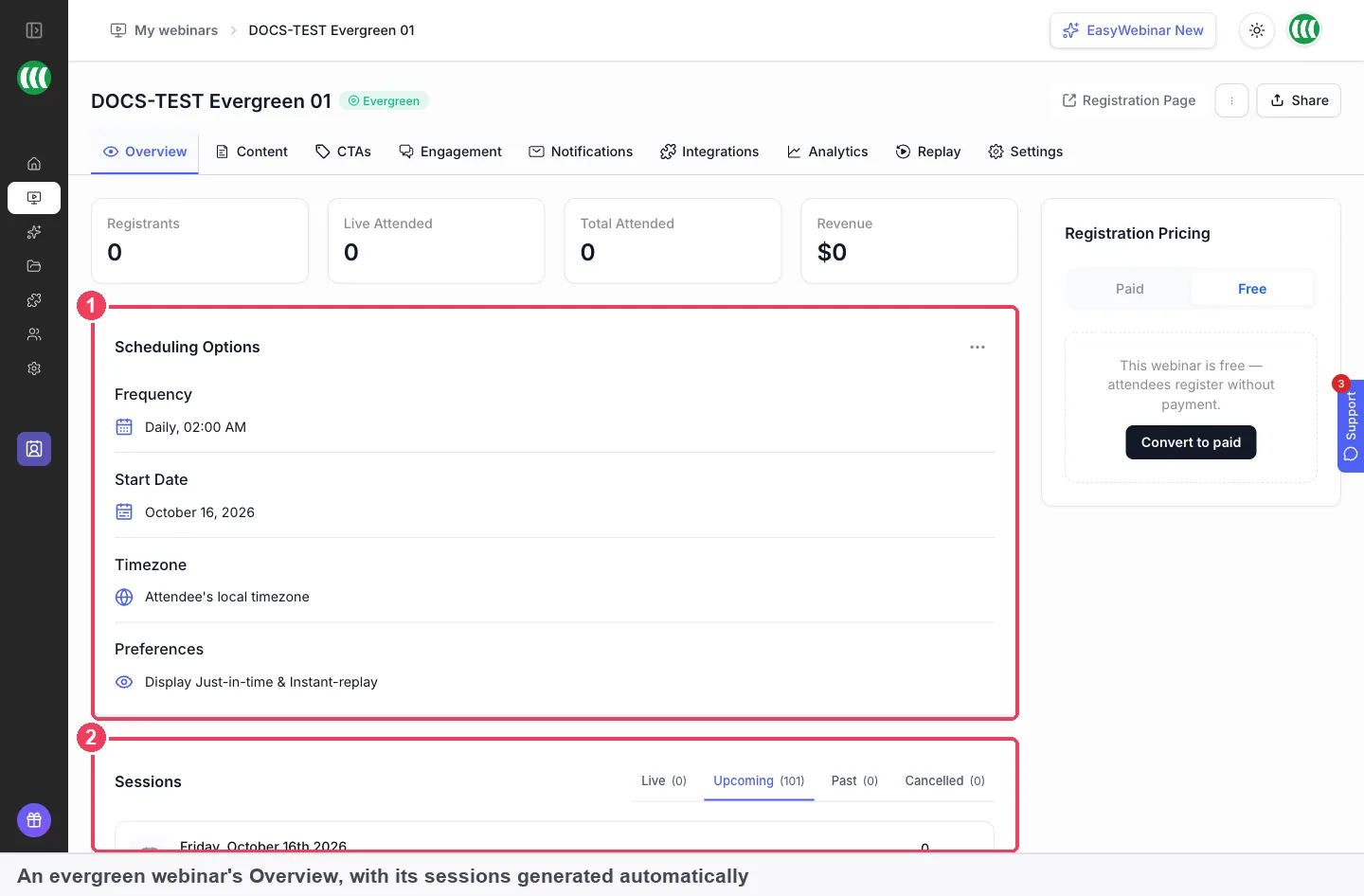
In EasyWebinar, the Overview tab shows your scheduling options and every session the schedule generated, with Live, Upcoming, Past and Cancelled tabs. Attendance, offers and watch behaviour sit in webinar analytics, which works on automated webinars as it does on live ones. To see which channel each registration came from, tag your shared links with campaign parameters such as utm_source and utm_campaign, which Google Analytics reads.
How to run a session on a repeating schedule by hand
Without automation, keeping a session available means doing the scheduling yourself.
- Record the session, or keep the recording of a live run.
- Pick the days and times you will run it, and publish a page listing them.
- Collect registrations and send each person the link for their slot.
- Start the recording at each slot yourself, or present it live again.
- Skip holidays by hand, and move slots when clocks change.
- Send a replay link to anyone who missed their time.
Every step repeats for every session, and anyone who arrives between slots waits for the next one.
The same job in EasyWebinar
EasyWebinar does steps 2 to 6 from the schedule step. You choose the recording once, switch on the ways to watch, and set a start date with No end date if it should run indefinitely. The sessions list then fills itself: a daily schedule generates a long run of upcoming sessions without you adding any. Blackout Dates handles the holidays, and On Demand covers the person who would otherwise wait.
Worked example: one week of a weekday schedule
This is an illustrative calculation with sample figures, not an EasyWebinar output. A team runs its walkthrough Weekly on Monday to Friday at 11:00 and 16:00, and expects 300 registrants that week.
| Step | Working | Result |
|---|---|---|
| Set sessions in a normal week | 5 days × 2 times | 10 sessions |
| Blackout Dates in Christmas week | 25 and 28 December removed, 2 days × 2 times | 4 sessions removed |
| Set sessions left that week | 10 − 4 | 6 sessions |
| Registrants per set session, all on set times | 300 ÷ 6 | 50 per session |
| If 40% of registrants choose On Demand | 300 × 40% | 120 watch at once |
| Registrants left for set sessions | 300 − 120 | 180, or 30 per session |
The blackout dates cut the week's set sessions by 40%, so each remaining session gets busier. Turning on On Demand spreads that load and takes the waiting out for a large share of people. Turning on just-in-time would do the same for those who still want a session.
How to set up an automated webinar
These steps create an evergreen webinar, the type with the most scheduling choices. A simulive webinar uses the same builder with set dates; Create a simulive webinar covers it.
What to have ready
You need a recording. EasyWebinar can host it, or play one from YouTube, Vimeo or Wistia, and you can add it during setup without leaving the flow. Any team member can create a webinar, and the team members guide explains roles. To charge for registration, connect a Stripe account first.
Create the webinar
- On My Webinars, click Create a Webinar, then Create Manually.
- Give it a name, choose Evergreen Webinar, and click Continue to Schedule.
Set your schedule
- Turn on any mix of Just-in-time Registration, On Demand and Recurring Schedule.
- For just-in-time, set the Interval to every 2, 15, 30, 45 or 60 minutes, and use Exclude specific time for hours to keep clear.
- For the recurring schedule, choose Daily or Weekly and add times with Add Time.
- Under Availability, set the Start Date, and leave End Date as No end date to run indefinitely.
- Under Schedule Preferences, choose how many options a registrant sees, and add any Blackout Dates.
This EasyWebinar video shows how to set a daily or weekly schedule on a webinar.
Set your pricing
Click Continue to Pricing, choose Free or Paid, then click Continue to Video Selection. Paid webinars and paid registration covers the paid set-up.
Choose the recording
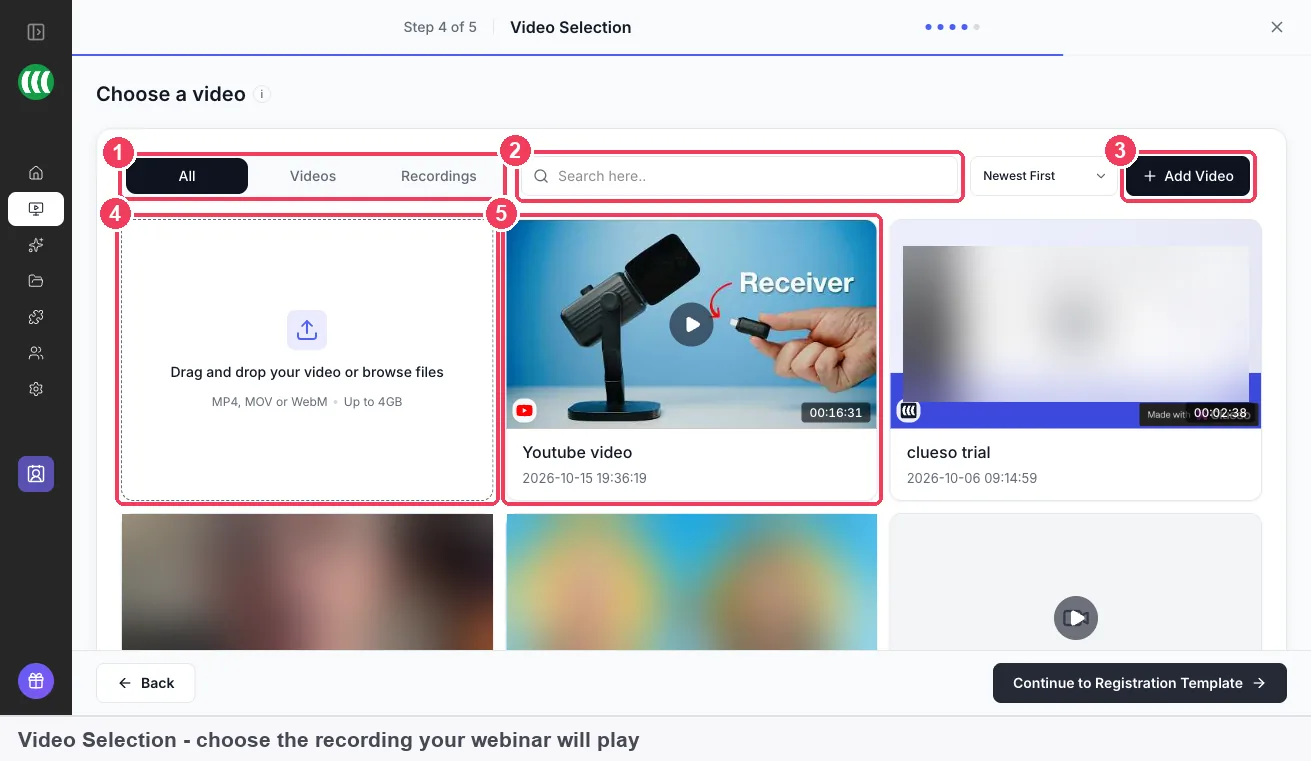
- Use the All · Videos · Recordings tabs, or search, to find your video.
- Click the video, then Continue to Registration Template.
- If it isn't there yet, click Add Video, or drag a file straight on to the page.
Local import uploads from your computer, and EasyWebinar hosts the video, so no YouTube or Vimeo account is needed. Import from URL plays a video hosted on YouTube, Vimeo, Wistia or a direct MP4 link, and asks for its length. Either way, the video lands in the Library for reuse. To use a past live session, pick it from the Recordings tab; automatic recording explains how those are made.
This EasyWebinar video shows how to upload a webinar video to the library.
Pick a template and publish
Pick a registration template, or click Skip & Create Webinar to choose one later. The webinar opens in the registration page builder, and the page stays private until you click Publish.
Check it before you share the link
Open the webinar's Overview tab and confirm the sessions list looks right. With just-in-time on, the timezone reads Attendee's local timezone. If the schedule is wrong, fix it now, before anyone registers. For a fuller walkthrough of the first launch, EasyWebinar's getting started guide to automated webinars covers the funnel around it.
What works with automated webinars
- Chat and Q&A. Live chat and Q&A work as on a live webinar; on simulive you can answer while the recording plays.
- Chat Simulation (Beta). Chat Simulation (Beta), turned on in the Engagement tab, makes the room feel populated.
- Polls and offers. Polls and offers run on recorded webinars too.
- Emails. Confirmation emails and reminder emails go out for each session.
- People. The People list shows who registered and what they did.
- Replays. Replay pages cover the viewer who wants to watch again.
Who uses automated webinars
SaaS and product teams
A product team records its best onboarding or demo session and runs it as evergreen, so a new trial user can watch within minutes of signing up. The team then keeps a live slot only for launches and release briefings.
Course creators
A creator runs a free class live a few times to refine it, then clones it as evergreen to keep enrolment open between launches. EasyWebinar handles the session and the offer, while the course itself stays on the creator's own course platform.
Customer success teams
A customer success team turns a recurring "getting started" session into a simulive webinar at set weekly times. The recording keeps the content consistent, and a team member stays in the chat to answer account questions.
Agencies
An agency builds an evergreen webinar for a client's lead-generation funnel and adds blackout dates for the client's holidays. The recording can be swapped later without disturbing registrations.
How EasyWebinar compares for automated webinars
EasyWebinar runs simulive and evergreen webinars on the same recording, and an evergreen webinar can offer just-in-time, instant and set-time sessions together. It also runs live webinars in the same product, so a live session can be cloned straight into an automated one.
Automated webinar features, from each platform's public documentation:
| Platform | Just-in-time sessions | Watch now, soon or at set times | Live webinars in the same product |
|---|---|---|---|
| EasyWebinar | Yes | Yes | Yes |
| WebinarJam and EverWebinar | Yes (sessions starting soon) | Yes (instant replay and scheduled) | Partly (separate WebinarJam product) |
| eWebinar | Yes (with any event type) | Yes (on-demand beside schedule) | Pre-recorded only |
| StealthSeminar | Yes (Just In Time option) | Partly (instant is yesterday's replay) | Partly (via YouTube Live or Twitch) |
| Demio | Not in docs | Not in docs | Yes (Standard Events) |
| Livestorm | Not in docs | Not in docs | Yes (live sessions too) |
Yes: documented and built in. Partly: documented with a limit, shown in brackets. Not in docs: not found in the vendor's public documentation.
Why EasyWebinar is the stronger choice for automated webinars
- Live and automated in one account. EasyWebinar clones a live webinar into an evergreen one using the live session's recording. EverWebinar's live webinars run in the separate WebinarJam product. Compare EasyWebinar vs EverWebinar.
- A real instant option. EasyWebinar's On Demand starts the recording the moment someone registers. StealthSeminar's instant choice plays yesterday's session as a replay. Compare EasyWebinar vs StealthSeminar.
- Present live when it counts. EasyWebinar keeps live webinars beside simulive and evergreen. eWebinar describes its product as pre-recorded. Compare EasyWebinar vs eWebinar.
- Sessions minutes away. EasyWebinar's just-in-time sessions follow each attendee's local time. Demio's automated event docs describe scheduled and on-demand sessions, with no just-in-time option documented. Compare EasyWebinar vs Demio.
Competitor details checked against each vendor's public documentation on 4 November 2026. Features and plans change, so confirm with the vendor before you decide.
Limits and things to know
- The type is fixed. You can't change a webinar's type after creating it; clone it instead.
- Simulive and evergreen need a recording. Only live webinars run without one.
- Set times use the webinar's timezone. Daily and weekly sessions don't shift to each attendee's local time; only just-in-time sessions do.
- No zooming in on shared content. Attendees of a live room can zoom in on a shared screen or file, but automated webinars use a separate attendee page where that isn't available.
- A recurring schedule runs until you stop it. Set an End Date, or use Blackout Dates to skip days.
Common questions
How does an automated webinar work?
You choose a recording and a schedule. EasyWebinar then plays the recording at each session time, and registrants join as they would a live webinar. On an evergreen webinar, each registrant picks from the just-in-time, on-demand or set times you switch on.
What is the difference between a live and an automated webinar?
A live webinar is presented in real time at one fixed date and time. An automated webinar plays a recording instead, either at set times (simulive) or on a repeating schedule each registrant chooses from (evergreen).
What is webinar automation?
Webinar automation means the platform runs your sessions from a recording, on a schedule, instead of you presenting each one. In EasyWebinar, simulive and evergreen webinars work this way, and chat, Q&A, polls, offers and emails still run in the room.
How do I create an automated webinar?
On My Webinars, click Create a Webinar, then Create Manually. Choose Evergreen Webinar or Simulive Webinar, set the schedule and pricing, pick the recording on the video step, then choose a registration template and publish the page.
What's the difference between simulive and evergreen?
Both play a recording. Simulive broadcasts it at times you set, so everyone in a session watches together and you can chat live. Evergreen runs on a repeating schedule and lets each registrant choose a time that suits them.
Do I need YouTube or Vimeo to run an automated webinar?
No. Upload your file with Local import and EasyWebinar hosts the video in your library. Importing from YouTube, Vimeo, Wistia or a direct MP4 link is an option if the video is already hosted there.
Can I turn a live webinar into an automated one?
Yes. Clone the live webinar, choose Evergreen on the copy, and select the recording of the live session on the video step. Many people run a session live a few times first, then clone it this way.
Can I change the recording after the webinar is running?
Yes. Open the Webinar Video panel on the Content tab and choose another video. Your schedule and your existing registrations stay as they were.
What timezone do automated sessions run in?
Just-in-time sessions start shortly after each person registers, in their own local time. Daily and weekly sessions run at the times you set, in the webinar's timezone, so check those times against clock changes.
How often do just-in-time sessions start?
You set this with the Interval setting on the schedule step: every 2, 15, 30, 45 or 60 minutes. Exclude specific time keeps chosen hours free of just-in-time sessions.
Can I stop an automated webinar running on holidays?
Yes. In Schedule Preferences, turn on Blackout Dates and pick the days to skip. The webinar won't run on those dates, and the rest of the schedule carries on.
Can I chat with attendees during an automated webinar?
Yes. On a simulive webinar, the recording plays while you and your moderators answer in the chat live. Chat and Q&A also work on evergreen webinars, and Chat Simulation (Beta) can make the room feel populated.
Can attendees zoom in on slides in an automated webinar?
No. Attendees can zoom in on a shared screen or file in a live room, but automated webinars use a separate attendee page, and zooming in isn't available there.
Is my registration page public as soon as I create the webinar?
No. The webinar opens in the registration page builder with your schedule applied, but the page goes public only when you click Publish. Use Preview to check it first.
Further reading
- When do the clocks change? (GOV.UK): the UK clock change dates, to check fixed session times against.
- UK bank holidays (GOV.UK): the bank holidays to consider as blackout dates.
- The Short Life of Online Sales Leads (Harvard Business Review): research on how slowly companies respond to interested people.
- URL builders for campaign data (Google Analytics Help): what each campaign parameter means, for tagging the links you share.
Related
Updated 4 November 2026: first published, with how delivery works, the schedule calendar checks, measurement, the manual method and a worked example.