
0%On this pageContents
A live webinar is a session you present in real time, at a date and time you set, while your audience chats, asks questions, answers polls and sees your offers as they happen. The hard part is rarely the presenting. It's knowing what the room can do before you commit to live rather than a recording. EasyWebinar is a webinar platform that runs live, simulive and evergreen webinars in one product, and every plan includes live webinars that attendees join in the browser. This page walks through a live session from scheduling to the replay, and shows when a recorded format would serve you better.
At a glance
| What it is | A webinar you present in real time at one scheduled date and time, in the timezone you set |
| Choose it when | The value is in you being there: a launch, a workshop, or a session where you answer real questions |
| What you need | A working camera and microphone. You don't need a recording, because you supply the content by presenting |
| Where you get ready | The green room, where nothing is broadcast until you click Go Live |
| Co-presenters | Co-hosts and moderators join backstage and appear only when you move them to the stage |
| In the room | Chat, Q&A, polls you launch by hand, offers you push to the room, screen sharing and reactions |
| Newer extras | Attendees on desktop can zoom in on what you share, up to 400%. Hosts and co-hosts can draw on their own share |
| Afterwards | Recording is on by default, and the file lands in Library → Recordings |
| Changing format later | The type is fixed. Clone the webinar to turn a live session into an evergreen one |
What a live webinar is
Say you have a talk ready and 300 people on your list, and you're unsure whether to present it live or record it once. The deciding question is whether those people need you in the room. A live webinar means you present at a fixed moment, attendees join at that moment, and chat and questions happen as they happen.
That's the plain meaning of the term, and it answers the common question of whether a webinar is live. Some are and some aren't. A live webinar has a person presenting in real time. A simulive or evergreen webinar plays a recording, even when it looks like a broadcast.
In EasyWebinar you choose Live Webinar when you create the webinar, and it's selected by default. You set a date, time and timezone, publish a registration page, and present from the live room on the day. Our blog covers the format in more depth in its guide to live webinars.
What you see on the screen
When you click Enter Room from the webinar's Overview, you first check your camera, microphone and speakers. Then you arrive in the green room. Its header reads Not Live, and it tells you whether recording is on. The top bar holds Settings, Reactions, EasyCast and Full Screen, and the bottom bar holds your camera, microphone and Share.
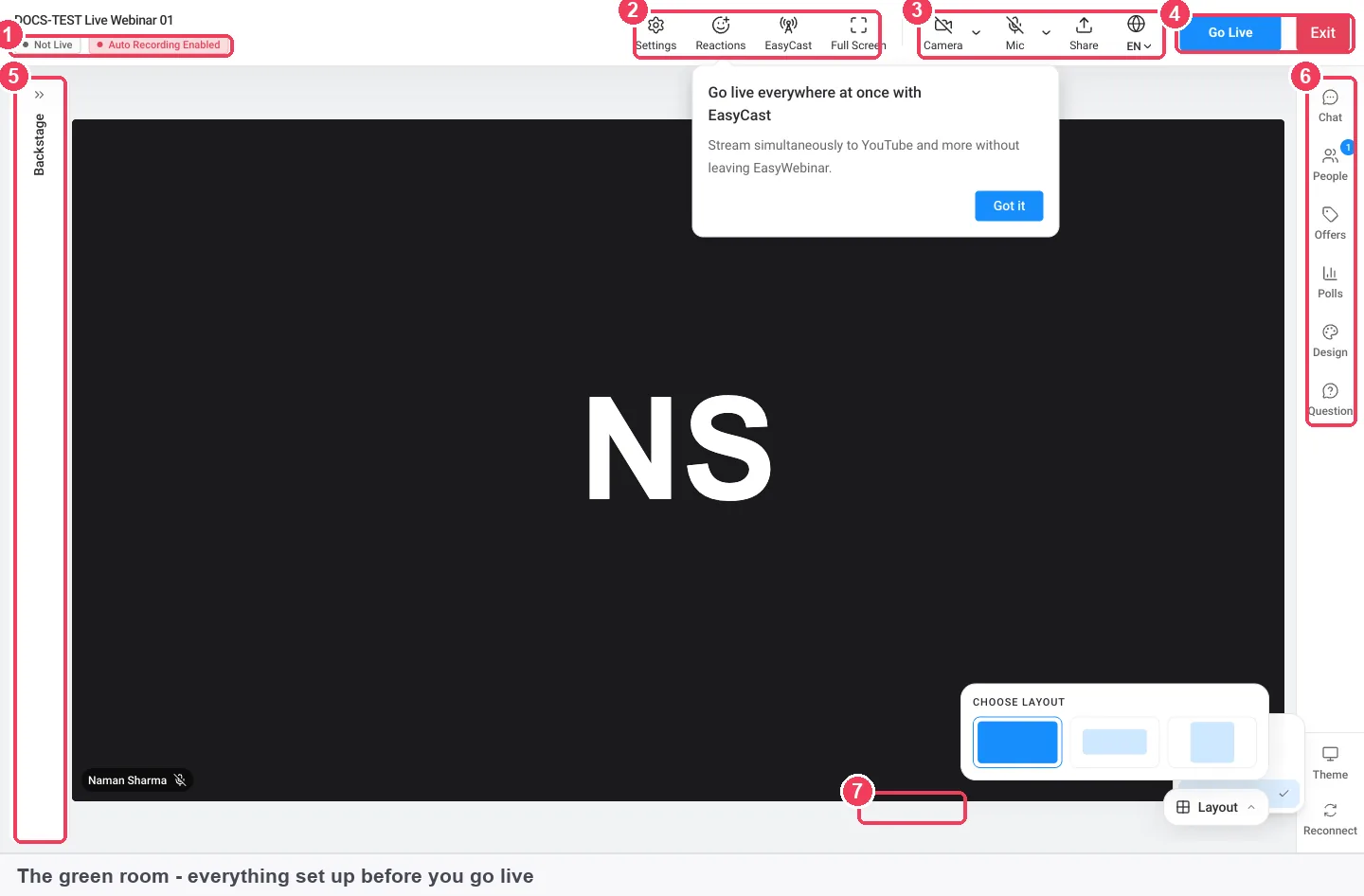
The side rail on the right holds Chat, People, Offers, Polls, Design, Question and Theme. Layout sets how presenters are arranged on stage. The green room and backstage page explains each control in full.
Why live webinars matter
What it's for
A live webinar is for sessions where your presence is the point. People come to hear you answer their question, react to their comment or make an offer while they're paying attention. Live is the format that gives them that.
How it helps
- Real conversation: attendees ask in chat or Q&A and hear the answer within the same session.
- A composed start: you and your co-hosts get ready in private, so the audience sees the session only once it's ready.
- Timing you control: you launch each poll and push each offer at the moment the talk earns it.
- Two uses from one session: the recording can become an evergreen webinar's video once the live run is done.
What happens without it
Without a live session, every question waits for an email reply, and nobody hears it answered in front of the group. A launch loses its shared moment, because each viewer meets the offer alone and at a different time. You also lose the chance to hear real objections and fix the talk before you automate it.
Who this falls to, and when
The choice usually falls to the person who presents: a coach, a consultant, a marketer or a trainer. It matters most before a launch, a first run of a new talk, or any session sold on access to the presenter. It also matters when you're deciding whether to rely on a recording at all.
The EasyWebinar approach to live webinars
Take a typical case. A leadership coach who works with first-time managers runs a free 60-minute live workshop each month with a business partner. They take questions from the audience, then invite people to apply for their group coaching programme.
The usual setup can be fiddly. Many presenters join a meeting link early and hope the audience doesn't arrive while they're still testing audio. The partner may appear on camera mid-sentence. Questions can get lost in a busy chat, and the recording may be an afterthought.
The logic of the situation is simple. A live session has two audiences. The team needs a private space to get ready, and the attendees should see only the finished room. Questions and offers need their own places, and the recording should start without anyone remembering it.
EasyWebinar separates those jobs inside one live room. The coaches arrive in a green room that broadcasts nothing. The partner waits backstage until moved to the stage, and questions sit in their own queue. Recording is on by default, and an offer card can open the coaches' own application or checkout page.
One detail shows the design. The green room's header reads Not Live until you click Go Live, and co-hosts land backstage, not on stage. How this compares with other platforms is covered in How EasyWebinar compares for live webinars, below.
Live, simulive or evergreen: how each format runs
There are three ways to put a webinar in front of an audience, and each one handles real-time interaction differently. The right choice depends on whether your attendees need you, the recording, or a time that suits them. This video shows live and evergreen webinars in EasyWebinar side by side.
Live: you present in real time
A live webinar catches everything that depends on the moment: a question you didn't expect, a comment you can answer by name, a poll result you can react to. What it misses is reach across timezones and repetition. Everyone has to turn up at one fixed time, and you have to present every session yourself.
Simulive: a recording at set times
A simulive webinar plays a recording at scheduled times, so everyone in a session watches the same moment together. The chat still works as a shared room, and you can answer in it while the recording plays. It catches polish and reliability, but it misses anything that would change your talk on the spot.
Evergreen: a recording on a repeating schedule
An evergreen webinar runs on a repeating schedule, and each registrant picks a session that suits them. It catches people who would never make a fixed time, and it works whether or not you're available. It misses the shared room, because each viewer meets the content on their own schedule.
What's confirmed in EasyWebinar
EasyWebinar offers all three types, and you pick one when you create the webinar. All three use the same pages, emails, polls, offers and analytics, and only the delivery differs. The type can't be changed afterwards, so cloning a webinar is how you move a live session to another format.
What happens in the room during a live webinar
The live room has a fixed order: get in, get ready, go live, run the session and end it. Each part below covers one stage and the setting that matters for it.
The green room and backstage
You need a working camera and microphone to enter, and the Continue to Green Room button stays greyed out until the room can see both. You can turn them off afterwards. If the room can't find your camera, the camera troubleshooting guide covers the usual causes.
Backstage is the waiting area for your team. When a co-host or moderator joins, they land backstage, and your audience can't see or hear them. You move each person to the stage when it's their turn and back again when they're done. Presenters and moderators get their join links from Invite People in the People panel, and team members and roles explains who can do what.
Chat and questions
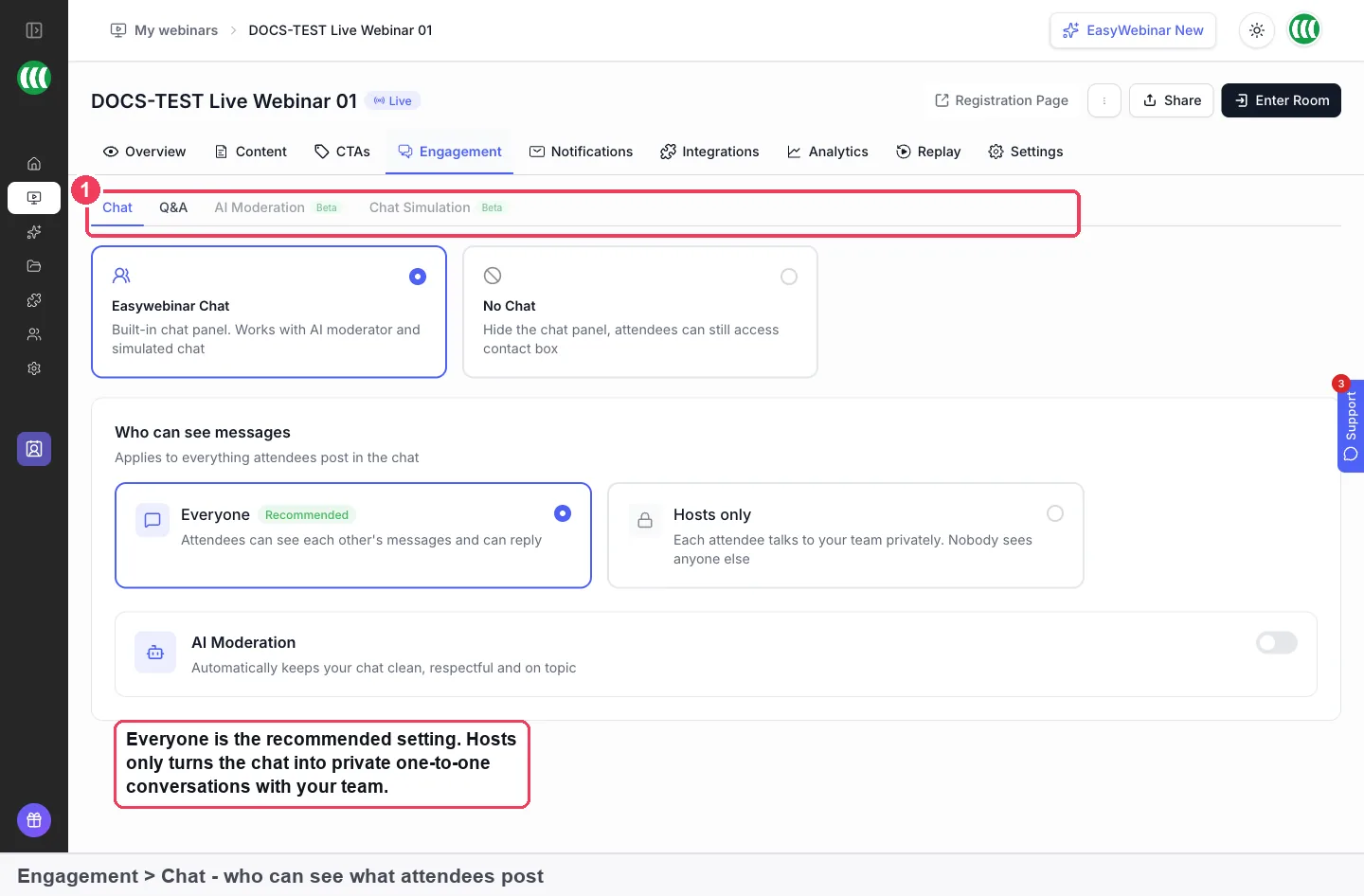
Chat is set on the webinar's Engagement tab before the session. Everyone lets attendees see and reply to each other. Hosts only makes every message a private conversation with your team, and No Chat removes the panel.
Questions arrive in the Question panel, split into Active and Answered, so they don't get buried in chat. The live chat and Q&A pages cover each setting. Whether attendees can see each other in the attendee list is a separate setting, Show Attendees, on the Settings tab.
Polls and offers
On a live webinar you launch polls by hand from the Polls panel, at the moment you choose. You build polls and offers in advance on the webinar's CTAs tab, then push them to the room during the session. An offer's Button URL is where attendees land when they click, such as your checkout, booking page or sales page. This video shows an offer being made to attendees during a webinar.
You can add a countdown timer to an offer card, and the offers page explains the editor. Payments run through your own Stripe account, and checkout starts on the Growth plan.
Sharing your screen, zooming in and drawing
Share in the top bar shares your screen. Two newer features make a shared screen easier to follow.
Attendees on desktop can zoom in on a shared screen, video or file, up to 400%. The zoom happens only in that attendee's browser, so your stream and everyone else's view stay as they were. It isn't available on phones, in browser windows narrower than 768px, or in automated webinars. It also resets to 100% when you move to another slide or a new share starts.
Hosts and co-hosts can draw on their own shared screen or slides, and everyone in the session sees each line as it's drawn. Only the person sharing can draw. Drawings disappear for everyone when the share stops, and they aren't in the recording. Drawing isn't available on video shares.
Zooming in helps people who read small text with difficulty. The GOV.UK Service Manual notes that some users use a screen magnifier to enlarge part of a screen. Even so, large text on your slides is still the safer plan for phone viewers.
Recording
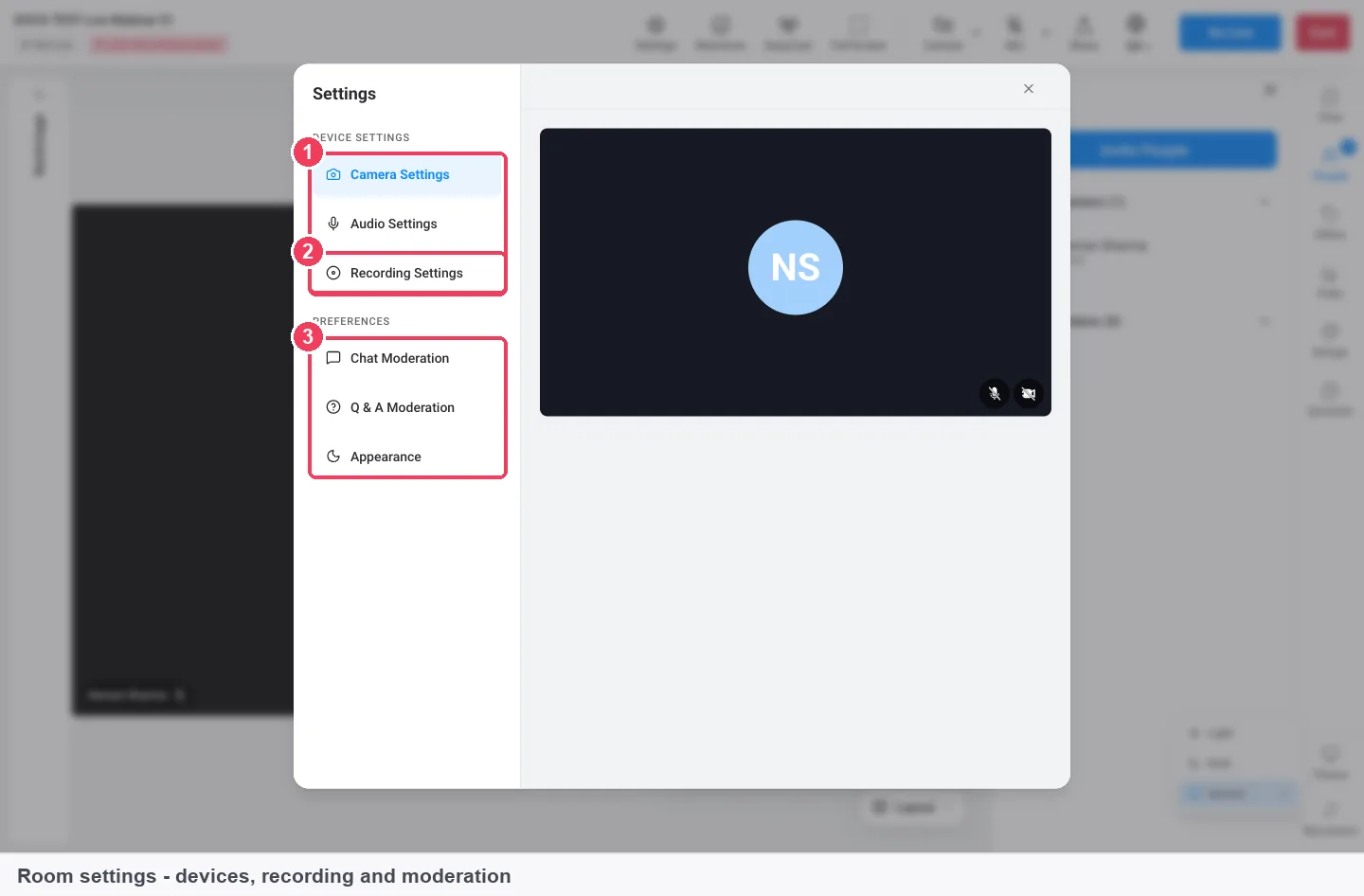
The header shows Auto Recording Enabled when recording is on, and the badge changes to Recording once you're live. To change it, open Settings and then Recording Settings.
Recorded sessions land in Library → Recordings. The automatic recording guide walks through the check step by step. A recording holds attendees' names, voices and messages, and UK guidance says personal data must be used fairly, lawfully and transparently, so tell people you're recording.
Streaming out and ending
With EasyCast, you can broadcast the live webinar to YouTube, LinkedIn or a custom RTMP destination at the same time. Registered attendees watch in the webinar room, and everyone else can watch on those platforms. EasyCast starts on the Growth plan.
Go Live asks you to confirm, because anyone in the waiting area is moved in automatically. Once live, the header shows LIVE with a timer, and Go Live becomes End Session. Ending disconnects everyone, and nobody can rejoin.
How to measure a live webinar
Two measures tell you whether a live session did its job. Neither is perfect, so read them together.
Live show-up rate
Divide the people who joined the live broadcast by the people who registered. A low figure usually points to reminders, not content, because the people who registered never reached the room. Its weak spot is that it counts arrivals, not attention. Someone who joined for two minutes counts the same as someone who stayed.
Live, replay or both
Split your attendees into those who came live, those who watched only the replay, and those who did both. This shows how much of your audience the live moment reached. Its weak spot is timing: replay numbers keep growing for days, so a count taken the next morning undercounts.
Where EasyWebinar shows them
The webinar's Analytics tab shows Registered, Live Attended, Replay Watched and Missed. Total Attended counts unique people, broken into Live only, Replay only and Both. Further down, Offers Performance shows views, clicks and purchases for each offer. The webinar analytics page explains each panel, and People lists everyone individually.
How to run a live webinar by hand
Whatever tool you use, a live session follows the same order. Doing it with general tools looks like this:
- Pick a date, time and timezone, and write them on a registration page.
- Collect sign-ups in a form and send the join link by email.
- Send reminders before the session so registrants actually turn up.
- Join early with your co-presenter to test camera, microphone and screen sharing.
- Start a recording, then let attendees in.
- Present, take questions from chat, and run any polls you've prepared.
- Share your offer link at the right moment.
- End the session, find the recording file and send the replay to everyone who missed it.
Each step lives in a different place, and steps 4 and 5 are where sessions most often go wrong. An audience that arrives during a sound check, or a session nobody remembered to record, can't be fixed afterwards.
The same job in EasyWebinar
In EasyWebinar the same steps happen in one product. The builder sets the schedule and opens the registration page builder. Reminder emails go out from the webinar's own settings. The green room covers step 4, and recording is on by default, which covers step 5. Polls and offers are built ahead on the CTAs tab, and the recording lands in the Library when you end.
Worked example: reading one live session's results
This is an illustrative calculation with sample figures, not an EasyWebinar output. Say the coaching workshop from earlier had 400 registrants.
| Measure | Sample figure | Arithmetic | Result |
|---|---|---|---|
| Registered | 400 | ||
| Live Attended | 140 | 140 ÷ 400 | 35% live show-up |
| Replay Watched | 120 | ||
| Both live and replay | 40 | ||
| Live only | 100 | 140 − 40 | 100 people |
| Replay only | 80 | 120 − 40 | 80 people |
| Total Attended | 220 | 100 + 80 + 40 | 55% of registrants |
| Missed | 180 | 400 − 220 | 45% of registrants |
| Offer clicks from views | 26 of 130 | 26 ÷ 130 | 20% click rate |
The live room reached 35% of registrants, and the replay added another 80 people the live moment missed. The 180 people in Missed are the clearest next step: send them the replay. The follow-up email guide covers what to send. Harvard Business Review's research on online leads found that most companies are not responding nearly fast enough, so send it while the session is fresh.
How to set up a live webinar
The builder has four steps and takes about two minutes. Any team member can create a webinar, and you only need a connected Stripe account if you plan to charge.
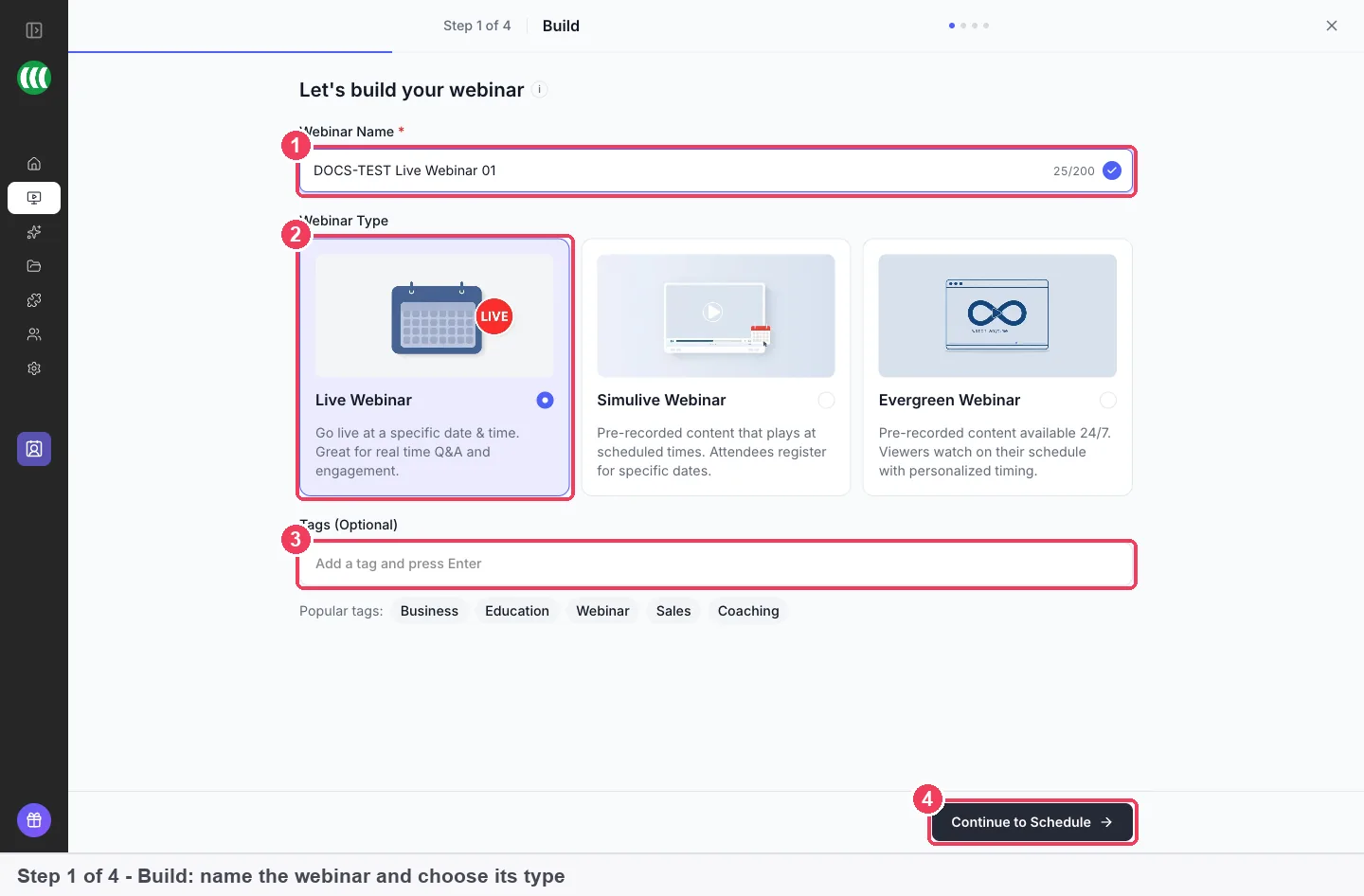
- In My Webinars, click Create a Webinar and choose Create Manually. Create with AI is the other route if you'd like a draft to start from.
- Name the webinar and keep Live Webinar selected. Click Continue to Schedule.
- Choose Specific Date, Daily or Weekly, check the Timezone, and set the session date and time.
- Choose Free or Paid. Paid webinars need a connected Stripe account.
- Pick a registration template, or click Skip & Create Webinar and choose one later.
- Click Publish on the registration page. It isn't public until you do.
The step-by-step guide to creating a live webinar covers every field, including weekly schedules and blackout dates. On the day, the guide to running a live webinar takes you from the green room to End Session.
What works with live webinars
A live webinar connects to the rest of the platform in a few places:
- Registration and links: the registration page, plus sharing links for attendees, presenters and moderators.
- Notifications: confirmation and reminder emails sent from the webinar's own settings.
- Engagement: chat, Q&A, polls and offers, set up before the session and run in the room.
- EasyCast: streaming to YouTube, LinkedIn or a custom RTMP destination, from the Growth plan.
- Media: the recording in Library → Recordings, and replay pages for people who missed it.
- Other formats: cloning the webinar as simulive or evergreen once the live run is done.
Plan details are on the pricing page, and defaults are in limits and defaults.
Who runs live webinars
Coaches and consultants
A coach or consultant runs live sessions because clients buy access to their judgement. A live workshop lets prospects hear real questions answered, and an offer card can open a booking or application page at the end.
Course creators
A course creator often opens enrolment with a live session, because launch week needs a shared moment. EasyWebinar is the conversion layer in front of their course platform, and the recording can run as an evergreen webinar afterwards.
SaaS and product teams
A product team runs a live session for a release or a demo where customers ask hard questions. Co-hosts from support or engineering wait backstage until a question needs them.
B2B marketing teams
A marketing team runs a live panel with guest speakers and streams it out with EasyCast for wider reach. The analytics then show who came live, who watched the replay and who missed it.
How EasyWebinar compares for live webinars
EasyWebinar's live room gives you a private green room, drawing on your own share and streaming out, and the same product runs your recorded webinars. Its strength is that the live session and its automated afterlife sit together.
Live webinar features, from each platform's public documentation:
| Platform | Private room before going live | Draw on a shared screen or slides | Stream to YouTube or LinkedIn | Live and recorded webinars in one product |
|---|---|---|---|---|
| EasyWebinar | Yes | Yes | Yes | Yes |
| Demio | Partly (Event Room before going live) | Partly (third-party whiteboard by screen share) | Yes (YouTube, Facebook, LinkedIn) | Yes (Standard and Automated Events) |
| Livestorm | Yes (green room) | Partly (Visme whiteboard app) | Yes (YouTube and other platforms) | Yes (on-demand events) |
| WebinarJam / EverWebinar | Yes (off air up to 60 minutes) | Partly (whiteboard, not on mobile) | Yes (YouTube Live) | Partly (automated in separate EverWebinar) |
| Zoom | Yes (practice session staging area) | Yes (annotate on a screen share) | Yes (Facebook, YouTube, custom) | Partly (simulive needs an extra licence) |
Yes: documented and built in. Partly: documented with a limit, shown in brackets. Not in docs: not found in the vendor's public documentation.
Why EasyWebinar is the stronger choice for live webinars
- Drawing is built in. Hosts and co-hosts draw on their own shared screen or slides, while Demio's help centre says to share a third-party whiteboard app instead. EasyWebinar vs Demio
- Live and automated in one product. A live session clones into an evergreen webinar, while WebinarJam runs automated sessions in EverWebinar, a separate product. EasyWebinar vs WebinarJam
- Recorded formats without an extra licence. Simulive and evergreen sit beside live in EasyWebinar, while Zoom's simulive webinars need a Zoom Events or Webinars Plus licence. EasyWebinar vs Zoom
- Drawing without a separate app. Your drawings appear on your own share for everyone, while Livestorm documents a Visme whiteboard for whiteboarding. EasyWebinar vs Livestorm
Competitor details checked against each vendor's public documentation on 4 November 2026. Features and plans change, so confirm with the vendor before you decide.
Limits of live webinars
- The type is fixed. A live webinar can't become simulive or evergreen. Clone it and choose the new type on the copy.
- A camera and microphone are required to enter, even if you turn them off afterwards.
- Polls are launched by hand on a live webinar.
- One fixed time. A live session runs at one time for everyone, in the timezone you set.
- Ending is final. End Session disconnects everyone, and nobody can rejoin.
- Zooming in is desktop only. It isn't available on phones, in windows narrower than 768px or in automated webinars, and it resets on a new slide or share.
- Drawing belongs to the person sharing. Drawings disappear when the share stops, aren't in the recording, and can't be made on video shares.
- Some features depend on plan. EasyCast and offer checkout start at Growth.
Common questions
What does live webinar mean?
A live webinar is a session presented in real time at a set date and time. Attendees join at that moment, and chat, questions and polls happen as the presenter speaks.
Is a webinar live or recorded?
It can be either. A live webinar has someone presenting in real time. Simulive and evergreen webinars play a recording, at set times or on a repeating schedule.
When should a webinar be live rather than automated?
Choose live when people come for the interaction: a launch, a workshop or a session where you answer real questions. Choose a recorded format when the session should run without you.
Does anything in the green room get broadcast?
No. The header reads Not Live until you click Go Live, and nothing in the green room reaches your audience.
Where do co-hosts appear when they join?
Co-hosts and moderators land backstage, where the audience can't see or hear them. You move each one to the stage when it's their turn.
Is a live webinar recorded automatically?
Yes, by default. The header shows Auto Recording Enabled, and you can change it under Settings → Recording Settings in the live room.
Where does the recording go?
Recorded live sessions land in Library → Recordings, where they can become the video for an evergreen webinar if you clone the live one.
Can I turn a live webinar into an evergreen one?
Not directly, because the type is fixed. Clone the webinar, choose Evergreen on the copy, and use the recording of the live session.
Can attendees zoom in on my slides?
Yes, on desktop, up to 400%, in their own browser only. It isn't available on phones, in windows narrower than 768px or in automated webinars.
Can I draw on my slides during a live webinar?
Yes. A host or co-host who is sharing a screen or slides can draw, and everyone sees it. Drawings disappear when the share stops and aren't recorded.
Can attendees chat privately with my team?
Yes. On the Engagement tab, set chat to Hosts only, and each attendee talks privately to your team. No Chat removes the panel instead.
Can I stream a live webinar to YouTube or LinkedIn?
Yes, with EasyCast, which starts on the Growth plan. It broadcasts to YouTube, LinkedIn or a custom RTMP destination while the webinar runs in the room.
Can I run the same live webinar every week?
Yes. Choose Weekly on the schedule step, pick the days and a start date, and use Blackout Dates to skip holidays.
What happens when I end a live webinar?
End Session asks you to confirm, because ending disconnects everyone and nobody can rejoin. The recording then appears in your Library.
Further reading
- Understanding WCAG 2.2, GOV.UK Service Manual: how people with low vision enlarge content, and why text should still work at 400%.
- Data protection, GOV.UK: the UK principles that apply when you record attendees' names, voices and messages.
- The Short Life of Online Sales Leads, Harvard Business Review (2011): research on how quickly companies respond to interested leads.
Related
Updated 4 November 2026: first published, with the three formats compared, a measurement guide, a worked example, and attendee zoom-in and drawing on shared screens.