
 Product documentation
Change your dashboard language
Change the EasyWebinar dashboard language from the flag button in the top bar or from My Profile, find a language by search or its own name, and check the result.
- Applies to
- The EasyWebinar dashboard
- Status
- Live
- Verified
- Page type
- How-to guide
The dashboard language is the EasyWebinar setting for your dashboard's language, from 11 languages. Click the round flag button in the top bar, then click a language. It switches at once, with no Save button. The same setting is under Settings → My Profile → General Settings → Language.
Expected result: the sidebar, top bar and main dashboard pages show in the language you picked, and stay that way after a reload.
At a glance
| Where | The flag button in the top bar, or Settings → My Profile → General Settings → Language |
| How you change it | Click a language in the list. There is no Save button |
| Languages | 11, listed under AVAILABLE LANGUAGES · 11 |
| When it applies | At once, and it stays after a reload and as you move between pages |
| Finding a language | Type in Search languages…, or read each language's own name |
| What changes | The dashboard interface, such as the sidebar, top bar, Home, Settings, Library and Integrations |
| What stays as it is | Your own content, brand and integration names, your plan's name and each language's own name |
| Related setting | Webinar Language, the default language for attendees, set on each webinar |
Before you begin
- Sign in to the dashboard. You change the dashboard language while signed in to EasyWebinar.
- Pick the right setting. The dashboard language changes the screens you work in. To set the default language for attendees, use Webinar Language on the webinar instead.
- Expect your own content to stay as it is. Your content, brand and integration names don't change.
- Know each language's own name. Every entry shows it on a second line, so you can find your language in any menu language.
You can reach the dashboard language in two ways. Use the flag button in the top bar and pick a language, or go to Settings → My Profile → General Settings → Language. Both routes reach the same setting, with the same 11 languages, and the change applies at once.
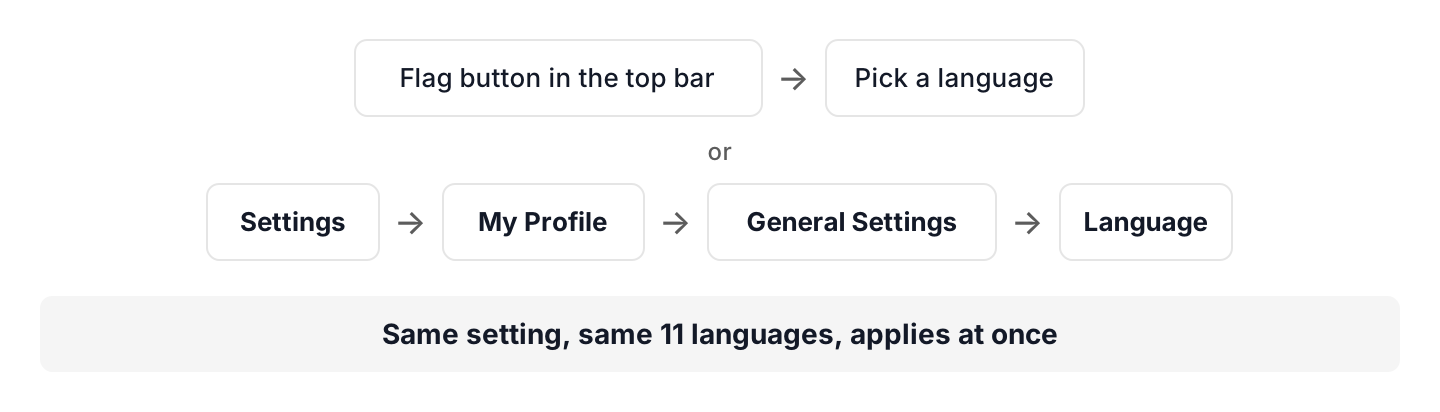
Both routes change the same setting.
Step 1: Open the language list
- Find the round flag button at the right-hand end of the dashboard's top bar. For English, it shows the US flag.
- Click the flag button.
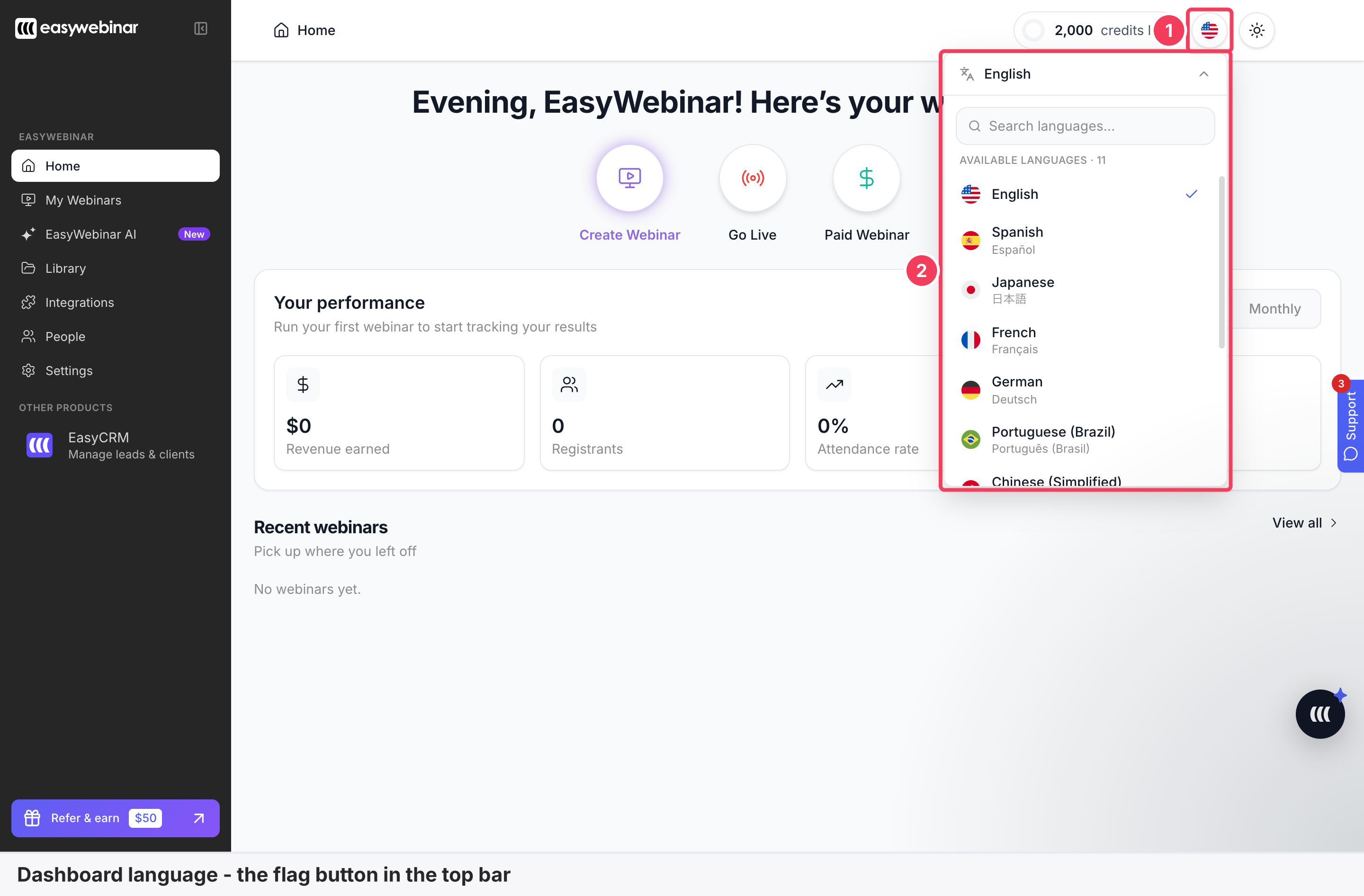
1 The flag button · 2 The language list.
The list opens under the button, headed AVAILABLE LANGUAGES · 11. Your current language has a tick next to it.
| Area | What it shows | |
|---|---|---|
| 1 | Flag button | Opens the language list, showing your current language's flag |
| 2 | Language list | Search languages…, the AVAILABLE LANGUAGES · 11 heading and the 11 languages, with your current one ticked |
Step 2: Find your language
- Type part of the name in Search languages…. Typing Ja leaves only Japanese.
- Or scroll the list. Each entry shows the language's name, with its own name on the line underneath.
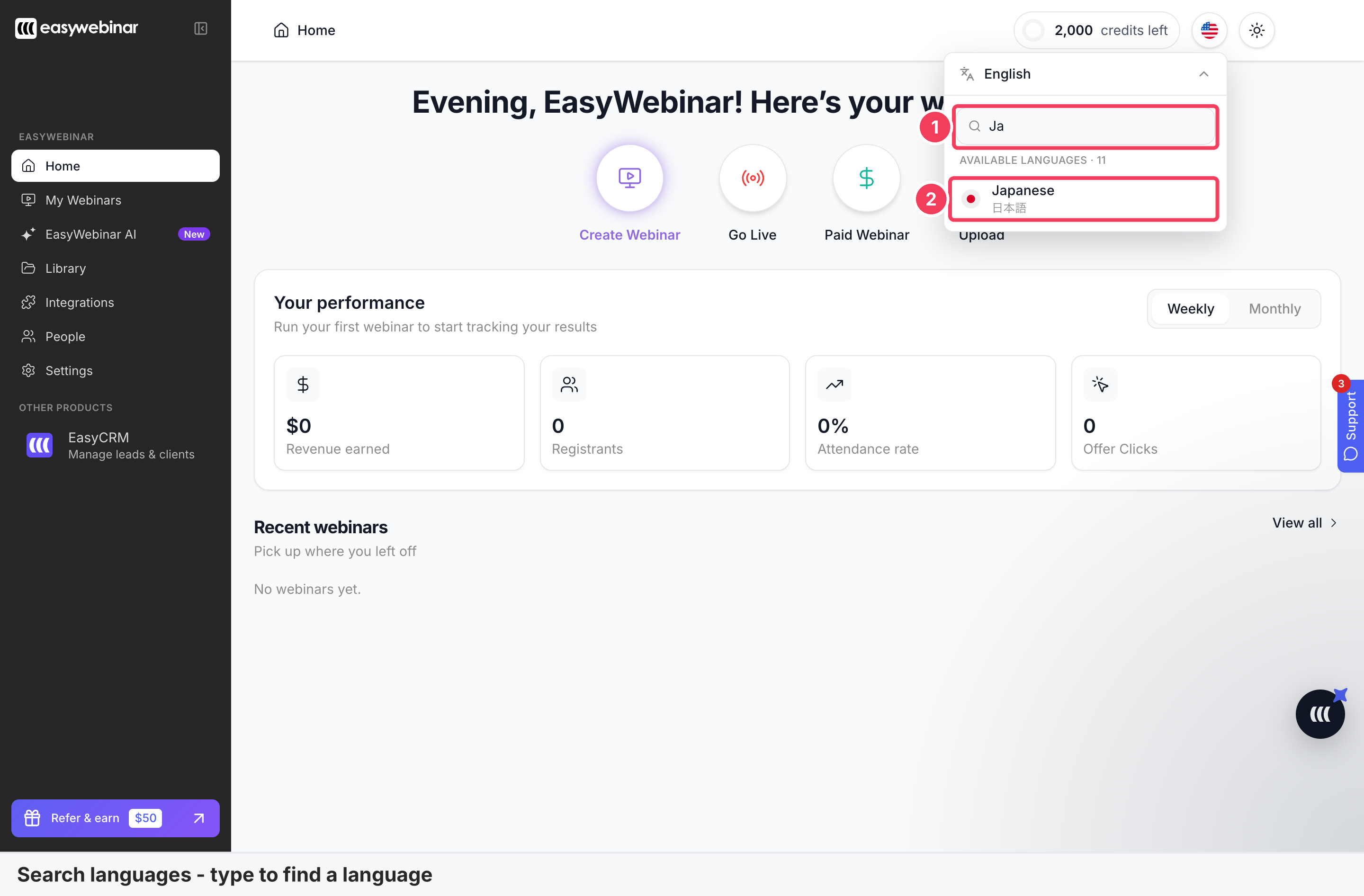
1 Search languages…, with Ja typed · 2 Japanese, the only match.
Scroll to the end and the list finishes with Portuguese (Brazil), Chinese (Simplified), Korean, Hindi, Danish and Arabic.
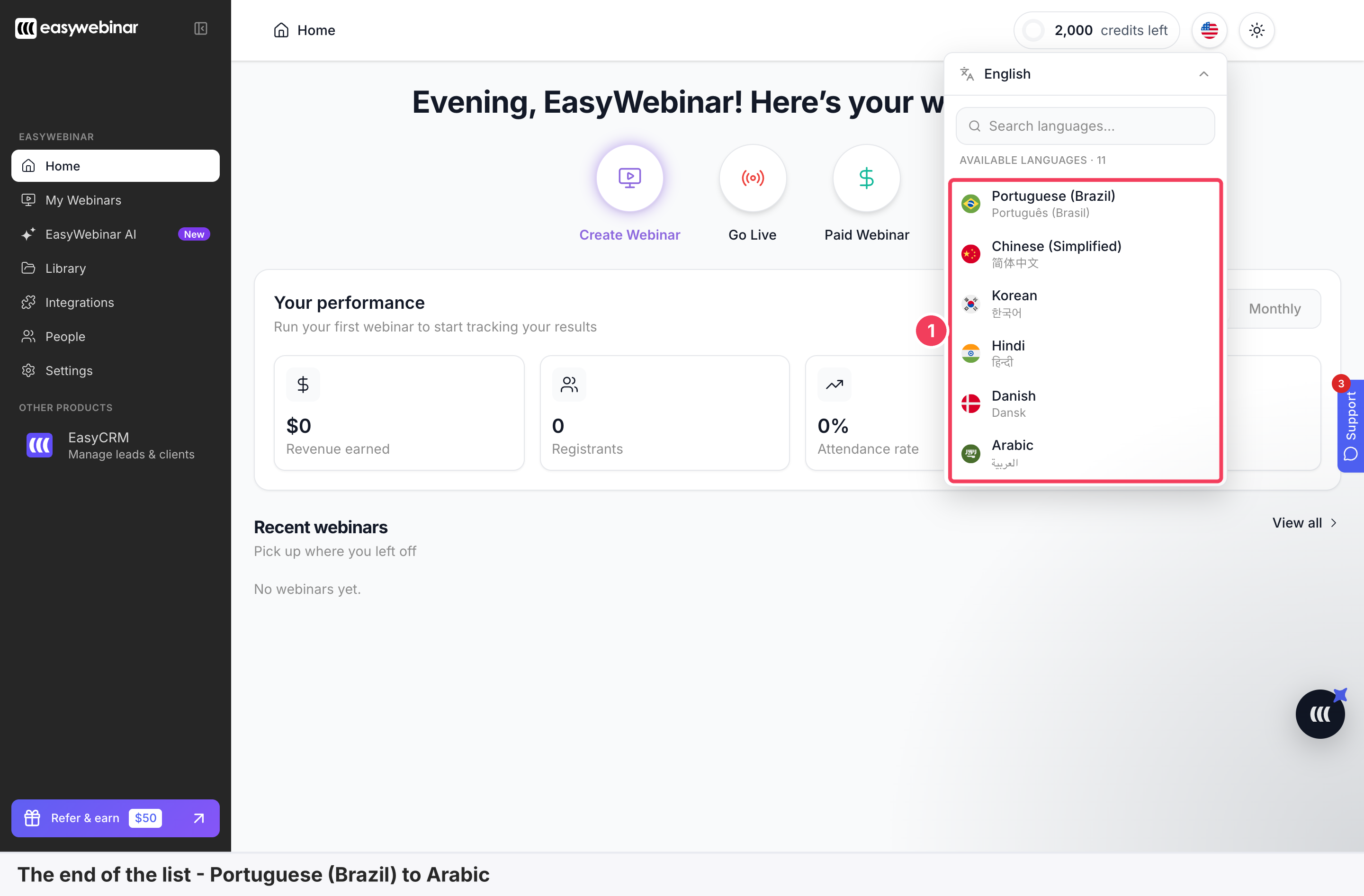
1 Portuguese (Brazil) to Arabic, the end of the list.
These are the 11 dashboard languages, in list order.
| Language | Its own name |
|---|---|
| English | English |
| Spanish | Español |
| Japanese | 日本語 |
| French | Français |
| German | Deutsch |
| Portuguese (Brazil) | Português (Brasil) |
| Chinese (Simplified) | 简体中文 |
| Korean | 한국어 |
| Hindi | हिन्दी |
| Danish | Dansk |
| Arabic | العربية |
The own name helps when the menus are in a language you don't read. With the dashboard in Spanish, the list heading reads IDIOMAS DISPONIBLES · 11. The search box reads Buscar idiomas…, and English shows as Inglés, with English underneath.
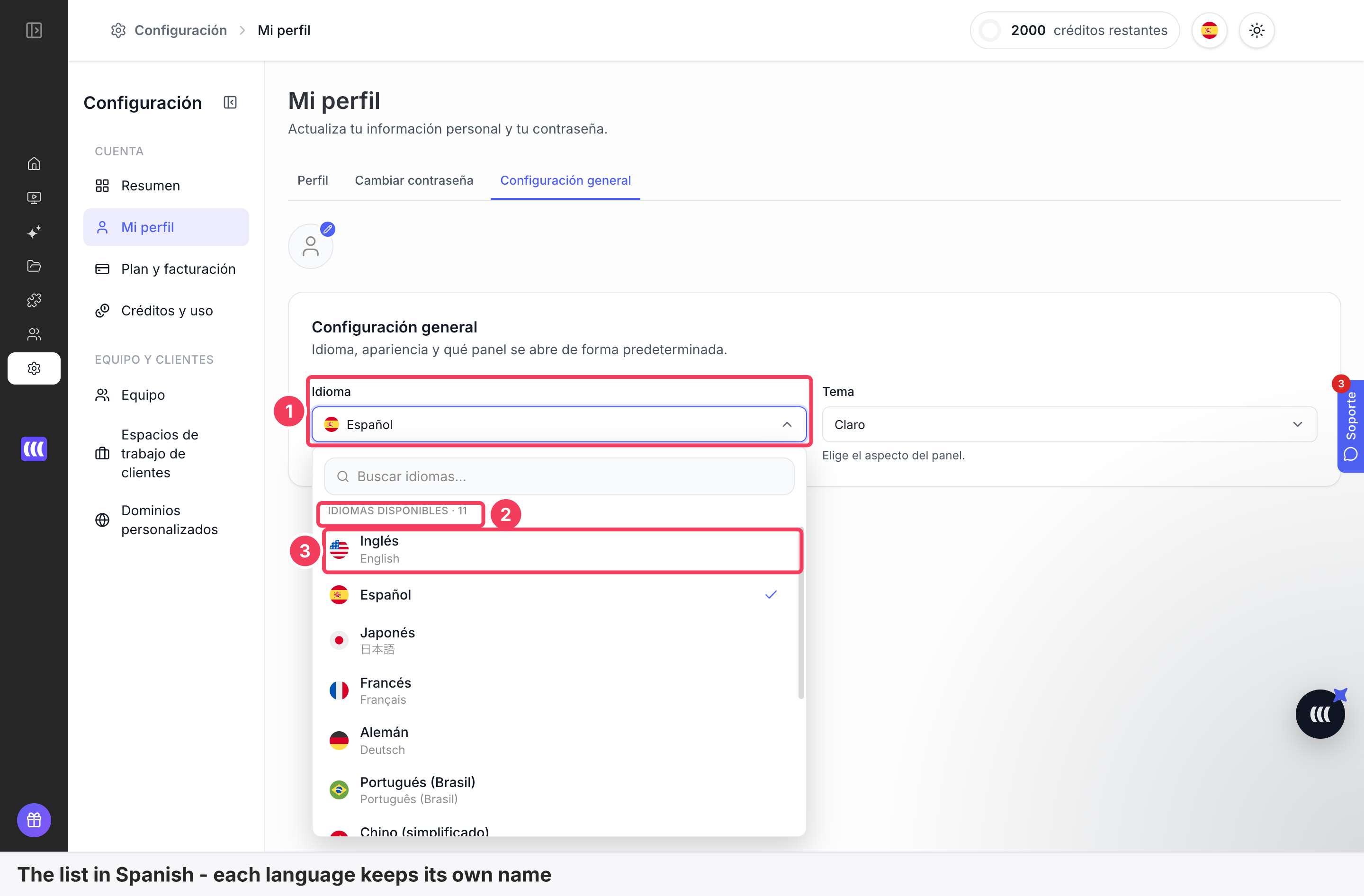
1 Idioma, set to Español · 2 IDIOMAS DISPONIBLES · 11 · 3 Inglés, with English underneath.
Can't read the menus?
Open the flag button and look for English on the second line. In Spanish, it's the first entry, Inglés.
Step 3: Change it from My Profile
- Click Settings in the sidebar, then My Profile.
- Open the General Settings tab.
- Click Language, then click a language.
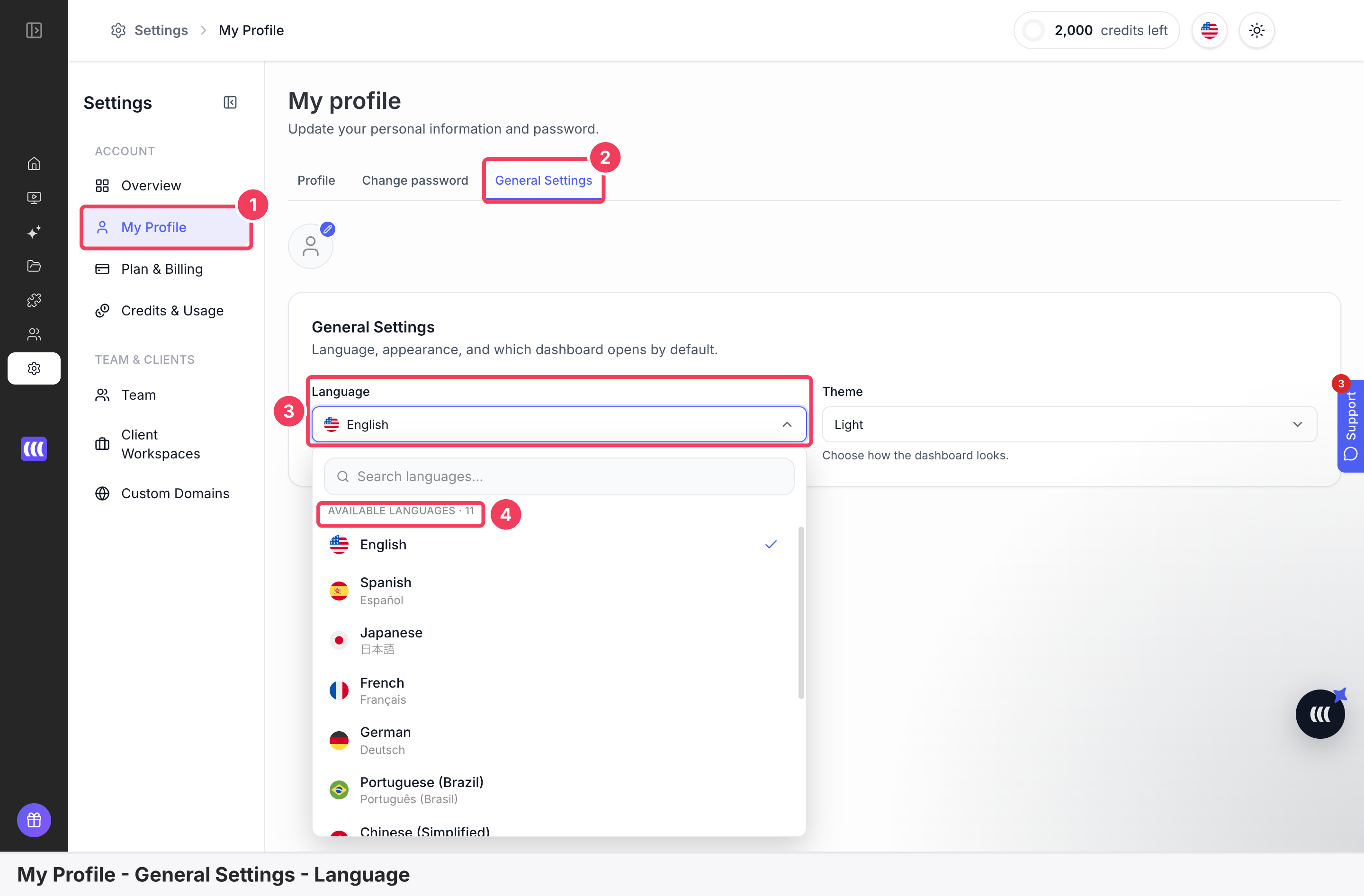
1 My Profile · 2 General Settings · 3 Language · 4 AVAILABLE LANGUAGES · 11.
| Area | What it shows | |
|---|---|---|
| 1 | My Profile | In the Settings sub-menu |
| 2 | General Settings | The tab that holds Language and Theme |
| 3 | Language | The dashboard language field |
| 4 | AVAILABLE LANGUAGES · 11 | The same 11 languages as the flag button |
The panel describes itself as Language, appearance, and which dashboard opens by default. Theme sits beside Language, as a separate field.
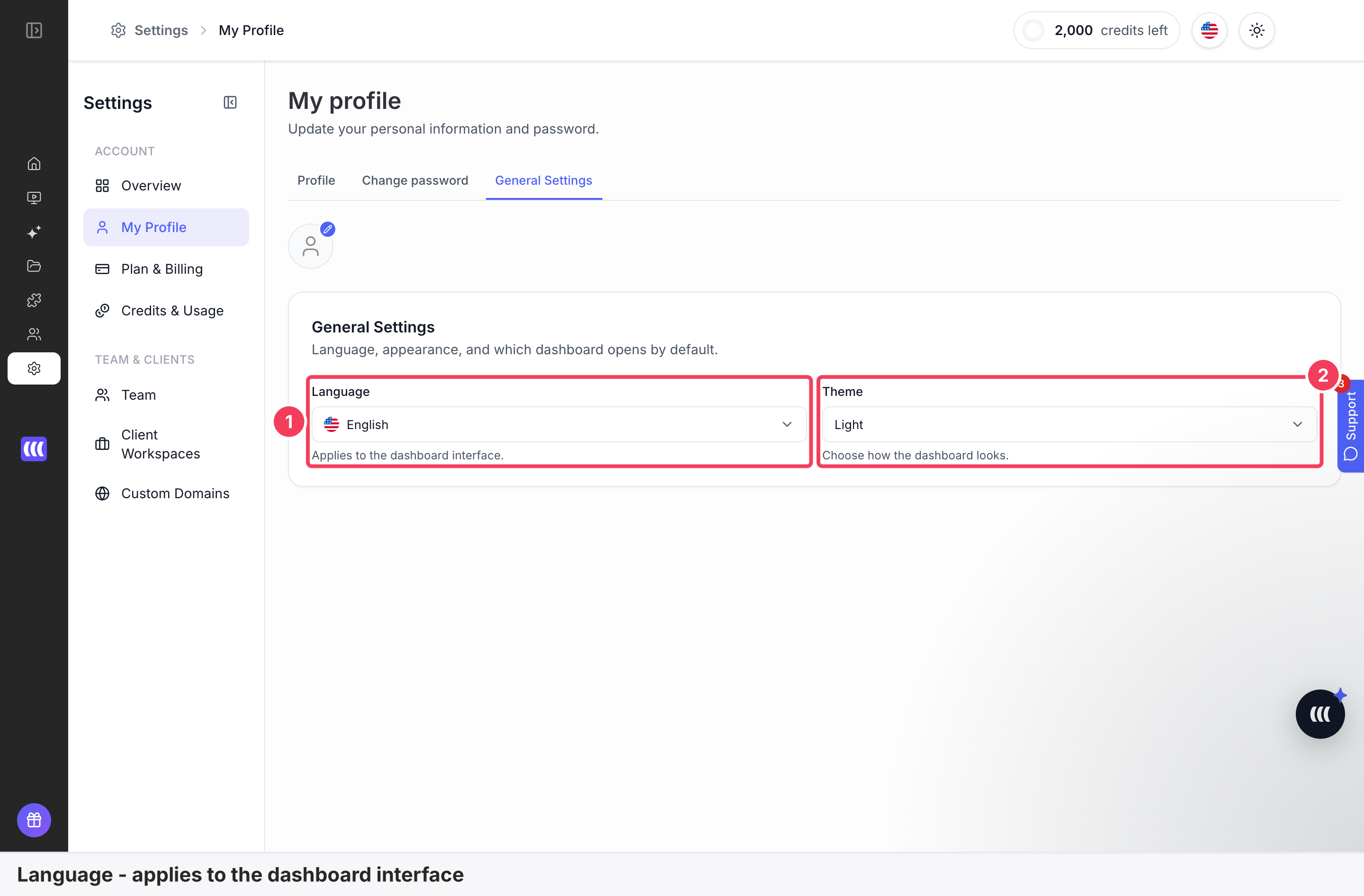
1 Language, with its helper text · 2 Theme.
The helper text under the field reads Applies to the dashboard interface. There is no Save button, because the change applies as soon as you click.
Step 4: Check the result in another language
- Look at the sidebar. In Spanish it reads Inicio, Mis webinars, EasyWebinar AI, Biblioteca, Integraciones, Personas and Configuración.
- Open Home. The quick actions, such as Crear webinar, and Tu rendimiento are in Spanish too.
- Reload the page. The dashboard stays in the language you chose.
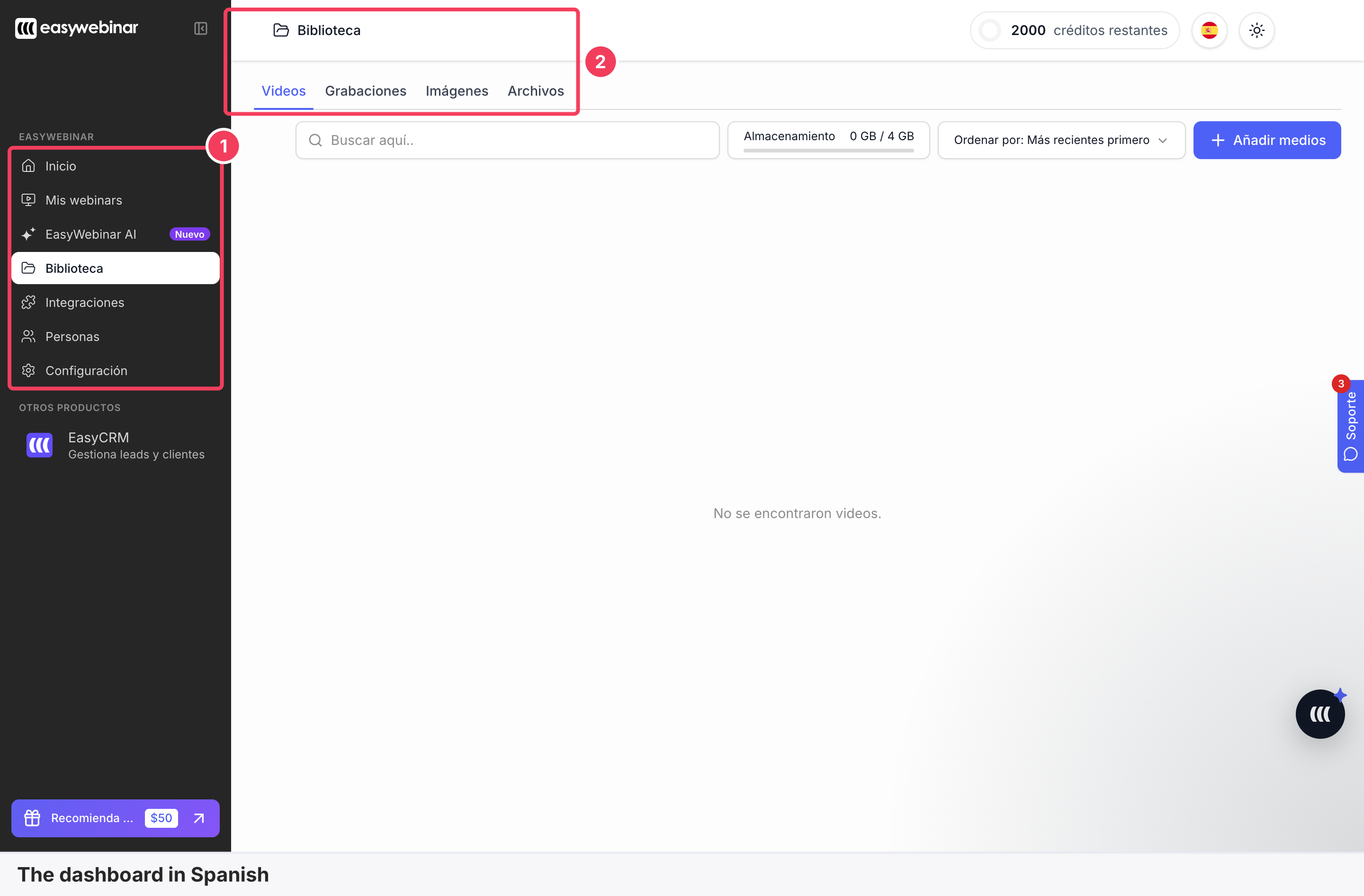
1 The sidebar in Spanish · 2 Biblioteca, the Library page.
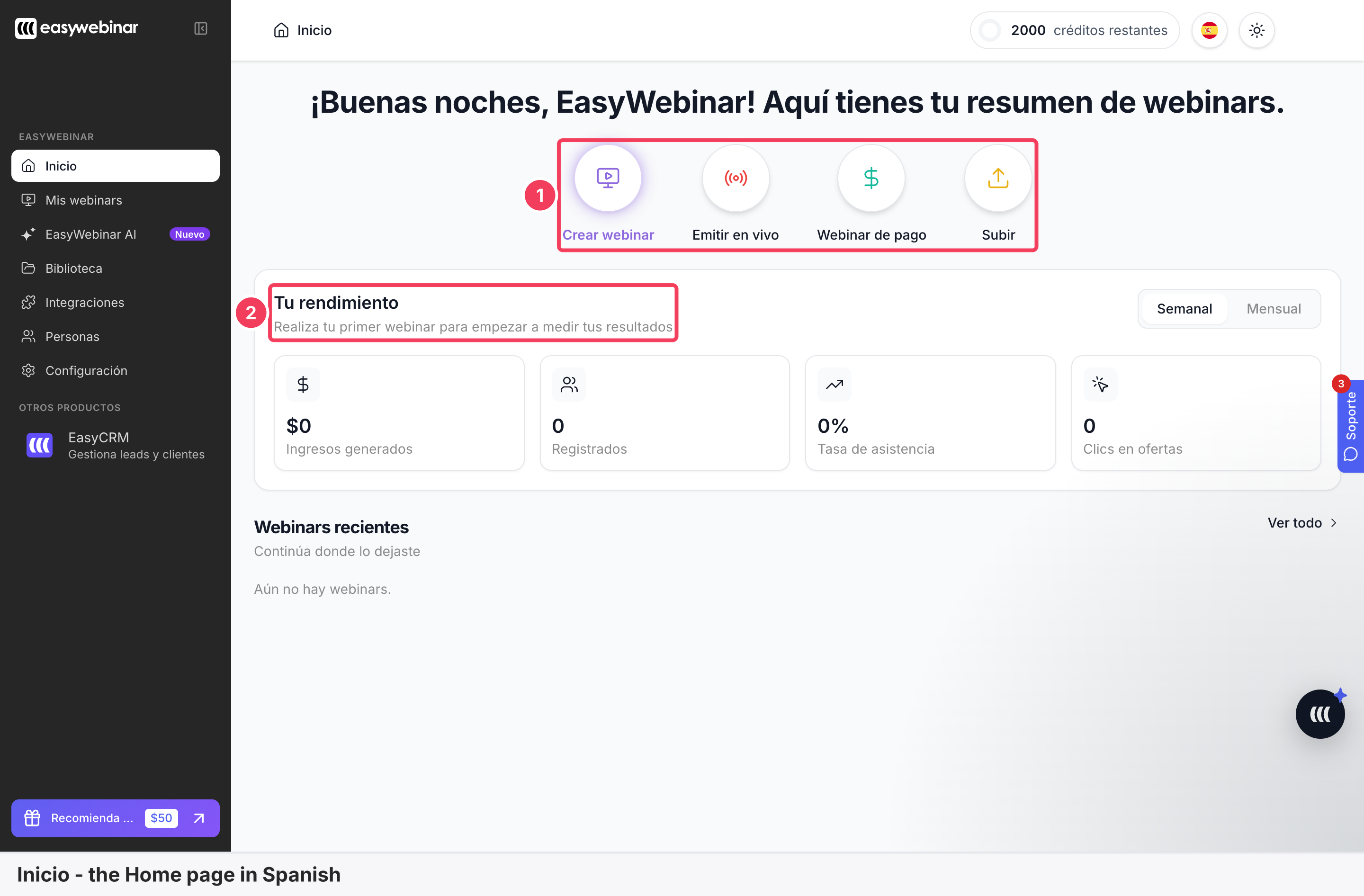
1 Crear webinar and the other quick actions · 2 Tu rendimiento.
On Integraciones, the integration names stay as they are. Keap, HubSpot and EasyCRM keep their names, while the buttons read Conectar.
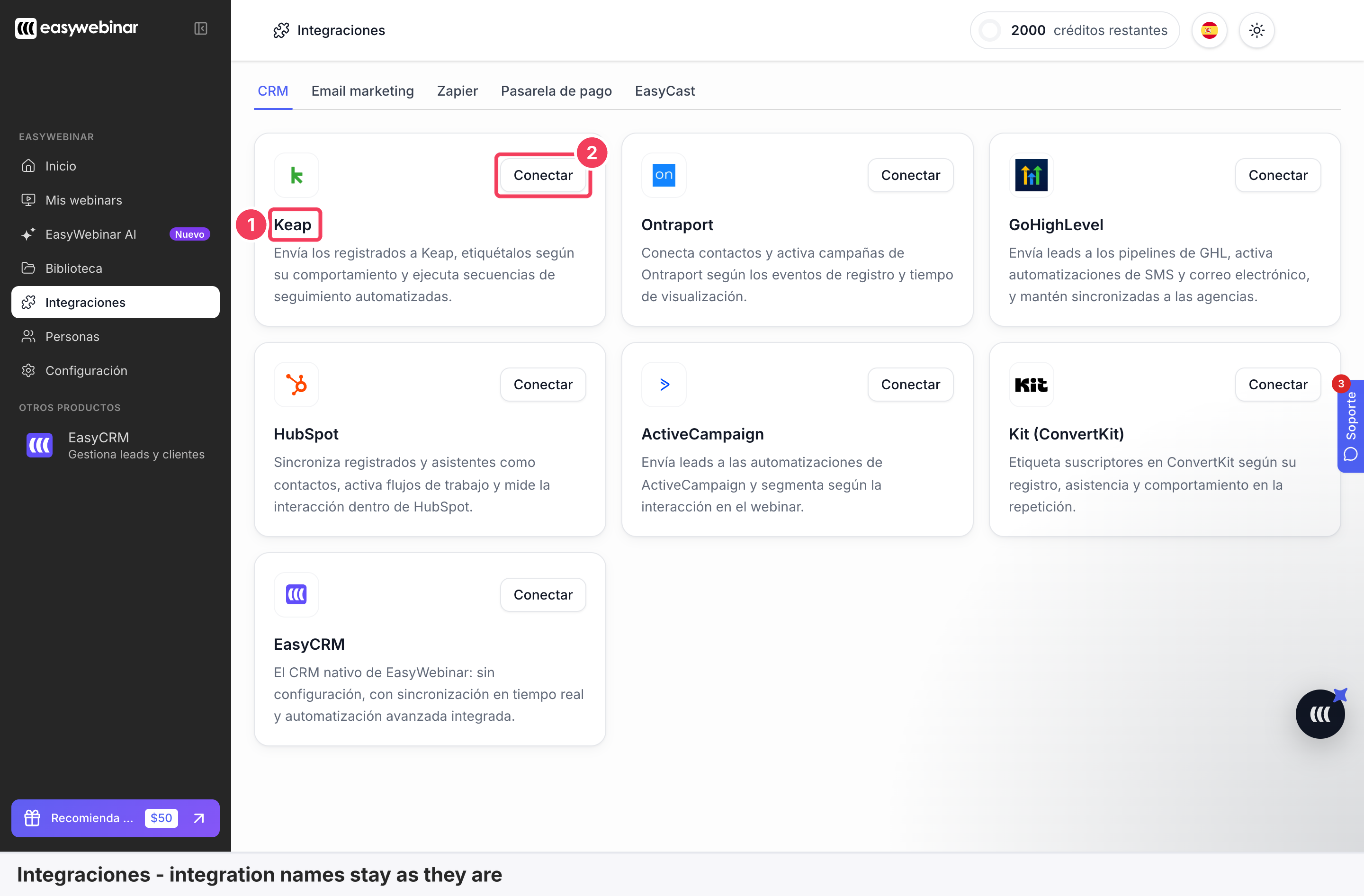
1 Keap, an integration name that stays as it is · 2 Conectar.
Verify the result
- The menus have changed. The sidebar, top bar and Home show the language you picked.
- The setting matches. Settings → My Profile → General Settings → Language shows the language in its own name, such as Español.
- It holds after a reload. Reload, or move to another page, and the language stays.
What the dashboard language is
The dashboard language is the EasyWebinar setting for the language of the dashboard interface, chosen from 11 languages. Its helper text says it Applies to the dashboard interface. It changes the screens you work in, such as the sidebar, Home, Settings and Library.
The dashboard language is separate from Webinar Language, which sits on each webinar's Settings tab. Webinar Language sets the default language attendees get when they join. Date Display Language is another separate field on the webinar. The table and diagram below set the two language settings side by side.
| Dashboard language | Webinar Language | |
|---|---|---|
| Where you set it | The flag button in the top bar, or Settings → My Profile → General Settings → Language | The webinar's Settings tab → General → Webinar Language |
| Who sets it | You, while signed in to the dashboard | The host |
| What it changes | The dashboard interface, such as the sidebar, top bar, Home, Settings, Library and Integrations | The default language attendees get when they join |
| Applies to | The EasyWebinar dashboard | Live webinars |
| Languages | 11 | The same 11 |
| When it takes effect | At once, with no Save button | When you click Save Changes |
| What stays the same | Your own content, brand and integration names | Your own titles and text: it sets the interface default, not your content |
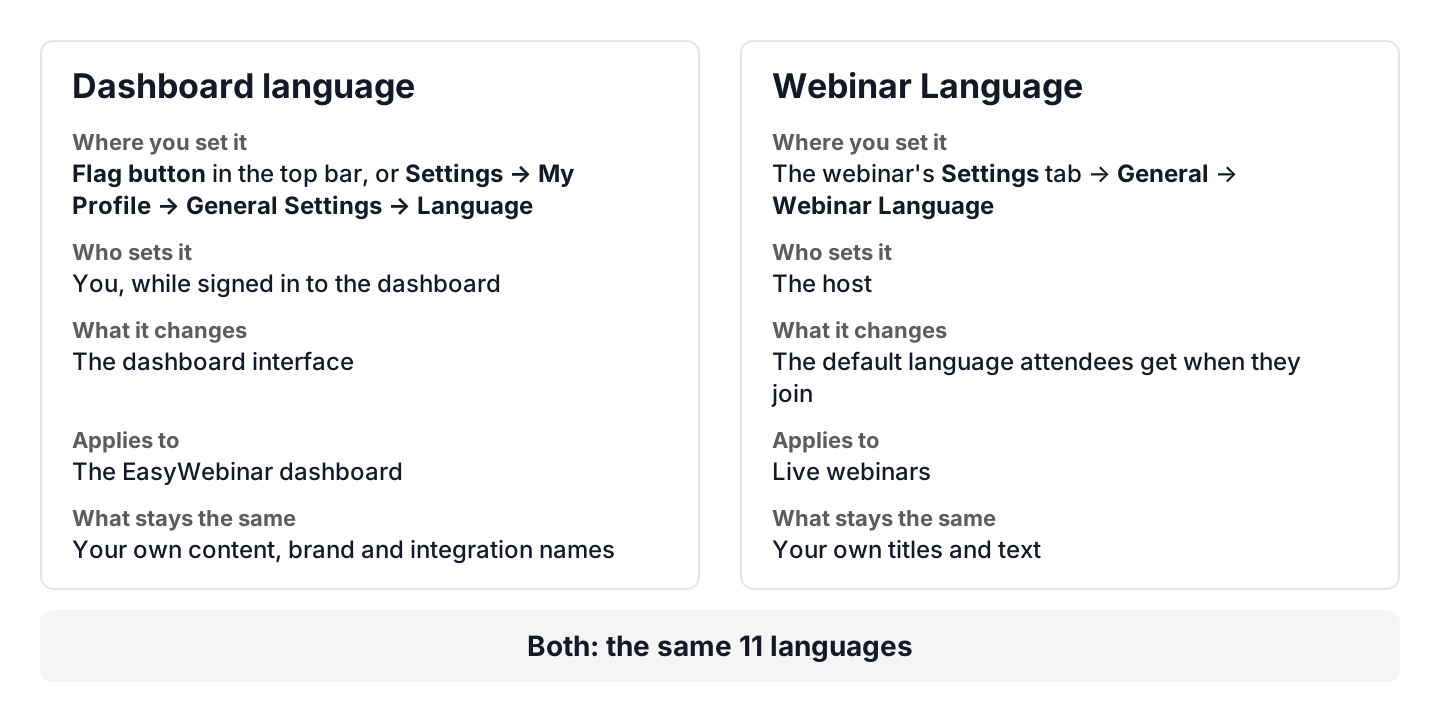
Dashboard language changes your dashboard. Webinar Language sets the default for attendees.
Why the dashboard language matters
What it's for
The dashboard language lets you work in EasyWebinar's menus and settings in a language you read well. You change it from the top bar with two clicks. Nothing needs saving.
How it helps
- Settings read in your language. Labels such as Configuración general and Idioma appear in the language you chose.
- No save step. The dashboard language applies the moment you click, with no Save button.
- Easy to undo. Each language shows its own name, so you can find English again from any language.
- Your content stays put. Your own content, brand and integration names stay as they are.
What happens without it
Without a dashboard language setting, everyone reads the same menu language. Someone who reads Spanish or Japanese more easily works through English settings more slowly.
Why buyers care
The dashboard language matters most when the people who build webinars read another language more easily than English. The list holds 11 languages, and Italian isn't one of them. Check the list under Step 2 before you rely on a language.
The EasyWebinar approach to the dashboard language
Take a typical case. A small team runs webinars for coaches. Its next webinar is for coaches in Brazil, so it runs in Portuguese. The team works in English and keeps its own dashboard in English.
A common approach is to assume one language switch covers everything. Someone changes the dashboard to Portuguese to prepare the webinar. The team then works through menus it reads less easily.
The problem sits in mixing up two questions. The language the team works in and the language attendees get are separate settings.
EasyWebinar keeps them apart. The dashboard stays in English, set with the flag button or under Settings → My Profile → General Settings → Language. On the webinar, the host sets Webinar Language to Portuguese (Brazil) on the Settings tab → General. That happens without entering the live room.
The language list pictured under Step 1 is headed AVAILABLE LANGUAGES · 11. The end of the list, pictured under Step 2, shows Portuguese (Brazil) with Português (Brasil) underneath. How other platforms handle dashboard languages is covered in How the dashboard language compares, below.
How the dashboard language works with other features
Webinar Language
Webinar Language is a separate setting on each webinar's Settings tab → General. It sets the default language attendees get when they join. Set the webinar language for attendees shows where to find it.
Team
The Team screen has no per-member language column. In Spanish its columns read MIEMBRO, ROL, SE UNIÓ and ACCIONES, and join dates keep their format. Team members and roles explains the screen.
The EasyWebinar AI page
The EasyWebinar AI chat page shows in the language you chose. In Spanish it asks ¿Qué te gustaría hacer hoy? Create with AI explains what the AI builds.
Integrations
The Integrations page switches language, but integration names stay as they are. Connect a CRM and map your webinar data covers connecting one.
A webinar's own tabs
A webinar's settings live on its own tabs, which the Overview tab page lists. Webinar Language is on the last of them, Settings.
Who uses the dashboard language, and how
These are typical patterns, shown to illustrate how the dashboard language fits different teams.
Coaches and consultants
A coach who reads Spanish more easily than English switches the dashboard to Spanish from the flag button. The sidebar then reads Inicio, Mis webinars and Configuración.
Agencies
A producer on an agency webinar team checks a client's settings with the dashboard in French. The producer switches back to English with the flag button, finding it by its own name.
B2B marketing teams
A marketing team in Germany works with the dashboard in German. Integration names such as HubSpot stay as they are.
Course creators
A course creator in Japan types Ja in Search languages… and picks Japanese, shown as 日本語 underneath.
How the dashboard language compares
EasyWebinar's dashboard comes in 11 languages, and each webinar also has its own Webinar Language for attendees. EasyWebinar documents the most dashboard languages in this table. Rivals document more attendee languages, which Set the webinar language for attendees covers.
Dashboard and attendee languages, from each platform's public documentation:
| Platform | Dashboard in 11 languages | Attendee language set per webinar |
|---|---|---|
| EasyWebinar | Yes | Yes |
| Livestorm | Partly (4 languages) | Yes (detail) |
| Demio | Partly (English only) | Yes (detail) |
| WebinarJam and EverWebinar | Not in docs | Yes (setup guide) |
Yes: documented and built in. Partly: documented with a limit, shown in brackets. Not in docs: not found in the vendor's public documentation.
Why EasyWebinar is the stronger choice for the dashboard language
- More dashboard languages than Livestorm. EasyWebinar's dashboard offers 11 languages. Livestorm's help centre says its dashboard is available in English, French, German and Spanish. Compare EasyWebinar vs Livestorm.
- A dashboard beyond English. EasyWebinar's dashboard switches to any of 11 languages from the top bar. Demio's help centre says its host dashboard is available only in English. Compare EasyWebinar vs Demio.
Competitor details checked against each vendor's public documentation on 27 October 2026. Features and plans change, so confirm with the vendor before you decide.
Limits and things to know
- There are 11 languages. Italian isn't one of them.
- Your own content isn't translated. Your content, brand and integration names, your plan's name and each language's own name stay as they are.
- Team join dates keep their format. The date format on the Team screen's join dates doesn't change.
- There is no per-member language column. The Team screen doesn't show a language for each member.
- It doesn't set the language for attendees. That default comes from each webinar's Webinar Language.
Common questions
How do I change the language of my EasyWebinar dashboard?
Click the round flag button in the EasyWebinar top bar, then click a language. You can also go to Settings → My Profile → General Settings → Language.
Do I need to click Save after changing the dashboard language?
No. The EasyWebinar dashboard language applies as soon as you click a language, and there is no Save button.
Does the dashboard language stay after I reload the page?
Yes. The EasyWebinar dashboard keeps the language you chose after a reload and as you move between pages.
Which languages can the EasyWebinar dashboard use?
The EasyWebinar dashboard has 11 languages. They are English, Spanish, Japanese, French, German, Portuguese (Brazil), Chinese (Simplified), Korean, Hindi, Danish and Arabic.
Is Italian available as a dashboard language?
No. Italian isn't one of the 11 languages in the EasyWebinar dashboard.
How do I get back to English if I can't read the menus?
Open the flag button in the EasyWebinar top bar and look for English on the second line of an entry. In a Spanish dashboard it's the first entry, Inglés.
Can I search for a dashboard language?
Yes. Type in Search languages… at the top of the EasyWebinar language list. Typing Ja leaves only Japanese.
Does the dashboard language translate my own content?
No. In EasyWebinar, your own content, brand and integration names and your plan's name stay as they are.
Does the dashboard language set the language my attendees get?
No. The EasyWebinar dashboard language Applies to the dashboard interface. The default for attendees is set on each webinar with Webinar Language.
Does the Team screen show each member's language?
No. The EasyWebinar Team screen has no per-member language column.
Do integration names change when I switch the dashboard language?
No. On the EasyWebinar Integrations page, names such as Keap, HubSpot and EasyCRM stay as they are.
Is the language list itself translated?
Yes. In Spanish, the EasyWebinar list heading reads IDIOMAS DISPONIBLES · 11 and the search box reads Buscar idiomas…. Each language's own name stays the same.
Related
- Set the webinar language for attendees: choose the default language attendees get on a live webinar.
- Team members and roles: open the Team screen and give colleagues their own login.
- Create with AI: build a webinar from the EasyWebinar AI page.
- Connect a CRM and map your webinar data: connect one of the integrations whose names stay as they are.
- The webinar Overview tab: find the Settings tab among a webinar's tabs.