
0%On this pageContents
Email domain authentication, or verifying one business address instead, has to be done before any broadcast or workflow can leave your account. The job has three parts: choose an email service, verify the domain or business address you send as, and decide where replies go. In EasyWebinar you do all of it once, on the Configurations screen of its built-in CRM, EasyCRM. A webinar's own confirmation and reminder emails aren't part of this setup, because each webinar has separate settings for them. It's your CRM or ours, so if you already run HubSpot, Salesforce Pardot or ActiveCampaign, you can keep it and skip this setup.
At a glance
| What you set up | The email service, sending identity and reply address for CRM broadcasts and workflows |
| Where you set it | EasyCRM → Configurations → Email Integration |
| To send from your own domain | Complete Domain Configuration, which takes more setup and gives better deliverability |
| To send from one address | Validate a single business email address, which is quicker and suits lower volume |
| Email services on the screen | EasyCRM Mail, marked Default, or your own Amazon SES, SendGrid or Mailgun account |
| When to do it | Once, before you build any broadcast or workflow |
| Also on this screen | Call Integration and SMS Integration (Beta) |
| What sends count against | Your monthly Wallet allowance |
| Your CRM or ours | Keep the CRM you have and skip this setup, or use EasyCRM |
| What it leaves alone | A webinar's own emails, set under Email Settings on its Notifications tab |
What webinar CRM email setup covers
You have written your first broadcast, and it can't go out yet because sending isn't set up. That setup is what this page covers.
Webinar CRM email setup is the step between having contacts and being able to message them. People arrive in the CRM from your webinars, and broadcasts and workflows handle the communication after that. Neither can send until this step is finished.
The setup rests on two separate decisions, and it helps to keep them apart. The email service is the system that carries your mail out of the CRM. The sending identity is the domain or address your mail comes from, verified so the CRM will send as you. Choosing a service doesn't verify your identity, and verifying your identity doesn't choose a service.
What you see on the screen
Configurations opens on a row of channel tabs, one for each way the CRM can reach someone:
| Tab | What it connects |
|---|---|
| Email Integration | Your email service, sending identity and reply settings |
| Call Integration | Calling, with minutes metered in your Wallet |
| SMS Integration (Beta) | Text messages, with a separate allowance in your Wallet |
| Marked Coming soon in EasyCRM |
Email Integration has four parts. Email provider lists your services, Reply & forwarding settings decides where replies go, and Analytics sits beside those two. Domains is a button on the provider list.
Keep your CRM or use ours
Keep HubSpot, Salesforce Pardot (Account Engagement), ActiveCampaign, Mailchimp or Kit (formerly ConvertKit), or use EasyCRM natively. Both are supported. That means no paying twice and no migration: if you have a CRM, keep it, and if you have none, EasyCRM is built in.
If you keep your own, connect it on a webinar's Integrations tab. Attendee engagement then flows into your system of record, with each contact tagged by what they did, such as attending or missing the session. Your broadcasts go out from that tool, so you don't need this setup. Your webinar's own confirmation, reminder and follow-up emails still go out from EasyWebinar either way.
Why webinar CRM email sending matters
What it's for
This setup answers one question: how do my CRM broadcasts and workflows go out from my own domain or address? It connects an email service and proves who you send as. You do it once, before you build anything.
How it helps
- It opens the gate. Broadcasts and workflows can go out once a service and a verified sender are in place.
- It puts your name on the mail. Your contacts see a domain or address that belongs to your business.
- It improves your deliverability. A verified domain gives you better deliverability than a verified single address.
- It brings replies back to you. You choose the address, so a reply reaches someone who reads it.
What happens without it
Nothing sends from EasyCRM. A broadcast you have written can't go out, and a published workflow can't reach anyone. People often find this out on the day of their first send, when an offer or a replay link is already due.
Who this falls to, and when
This matters most to the admin or marketer who owns the first send, and to the owner whose domain carries the mail. It matters at the very start, before lists and campaigns exist. Domain work can need help from whoever holds your DNS, so leave time for it.
The EasyWebinar approach to webinar CRM email sending
Take a typical case. A family-run garden centre with two branches has 1,800 leads from its spring planting webinars. The office admin is asked to send the first broadcast on Monday, for an offer closing on Friday. She opens the CRM, writes the email, and learns that nothing can go out yet.
The usual workaround is to export the list and send from the shared office mailbox or a separate email tool. That may get one message out, but it tends to cost more with each send. Results sit apart from the lead records, replies scatter, and the next send starts from a fresh export.
The job itself hasn't changed. Mail has to leave under a name that belongs to the business, and someone has to read the replies. That work only needs doing once if it lives where the broadcasts and workflows live. Every later send can then rely on it, so a busy admin doesn't repeat it.
EasyWebinar puts that job on one screen, Configurations, inside its CRM. It lists your email services, asks you to verify a domain or a single business address, and lets you choose where replies go. The garden centre's admin could validate the office address for Monday's send and plan the domain work for when volume grows.
One detail shows how firm the gate is. The screen tells you to verify your sending identity before you can start sending email, and that notice sits right above the list of services. The other platforms' options are covered in How EasyWebinar compares for email domain authentication, below.
How email sender authentication works
Verifying a domain makes more sense once you know what a receiving mail system checks. Three open standards do most of the work, and each relies on records in your domain's DNS. This section explains them in general, so read it as background rather than as EasyCRM steps.
SPF: who may send for your domain
SPF lets a domain owner name the hosts allowed to use its domain, and a receiving system can check that permission. Think of it as a published guest list. A domain can't have several competing SPF records, so a new sending service joins your existing record rather than getting a second one.
DKIM: a signature on each message
DKIM lets the owner of a signing domain claim some responsibility for a message. The sending system adds a cryptographic signature, and the receiver fetches the matching public key from that domain. When the signature checks out, the message is tied to your domain.
DMARC: your policy when checks fail
DMARC lets a domain owner state policies for validation, handling and reporting, which receiving systems can use. It also brings in alignment, which means the domain in your From address has to match a domain that SPF or DKIM has validated. A policy of none requests no specific action on delivery, so it's a gentle place to start.
Alignment is the idea that links all this to your goal. Your contacts see your From address, so these checks only help your name when they pass for that same domain.
What's confirmed for EasyCRM
These standards are general, and they don't describe EasyCRM's screens. What's confirmed for EasyCRM is narrower: you complete Domain Configuration for a dedicated domain, it involves DNS work, and a verified domain gives better deliverability than a single address. Follow what that screen asks for, rather than copying records from another service or guide. This page names no specific EasyCRM records for that reason.
What mailbox providers ask of senders in 2026
Two large mailbox providers publish rules that apply to whatever your CRM sends, and both pages were checked on 2 November 2026. Gmail's requirements have applied since 1 February 2024, and they concern personal accounts ending in @gmail.com or @googlemail.com. Providers change these rules, so check the source pages before a large send.
| Requirement | Gmail | Yahoo |
|---|---|---|
| Authentication, all senders | SPF or DKIM | SPF or DKIM at a minimum |
| Spam rate, all senders | Below 0.3% in Postmaster Tools | Below 0.3% |
| Who counts as bulk | More than 5,000 messages a day to Gmail accounts | Bulk senders, with no figure on the page |
| Authentication, bulk | SPF and DKIM, plus DMARC | Both SPF and DKIM, plus a DMARC policy of at least p=none |
| From address, bulk | Aligned with the SPF or DKIM domain | Aligned with the SPF or DKIM domain |
| Unsubscribe, bulk | One-click, plus a visible link in the message | One-click, with requests honoured within 2 days |
These are the providers' rules for senders, and they don't describe what EasyCRM does on your behalf. If your volume is nearing the bulk level, confirm with EasyWebinar how your setup meets each row before you scale up.
Domain or single address: which to verify
You don't need your own domain to send broadcasts, because a single business email address also counts as a sending identity. The choice depends on how much you send and how much setup you can take on now.
| Domain Configuration | A single business email address | |
|---|---|---|
| What you verify | A dedicated domain you own | One address |
| Setup effort | More setup, including DNS work | Quicker |
| Suits | Sending in any volume | Lower volume and small sends |
| Deliverability | The better of the two | Weaker than a verified domain |
| Who may need to help | Whoever holds your DNS | Usually nobody else |
EasyWebinar's guidance is that a verified domain is worth the DNS work if you send in any volume. If your first send is a small list and it's due soon, the single address is the quicker way to start. Neither route can promise that a given message lands in the inbox, since the receiving mail system makes that decision. For the wider picture, our guide to webinar email marketing covers what happens after your mail is sending.
A sending domain isn't a page domain
Two settings use the word "domain", and they do different jobs. Domain Configuration under Configurations concerns the email your CRM sends. Custom domain (C-Name) under Settings → Edit Profile points your own domain at your webinar pages, so links read webinars.yourcompany.com.
The page setting needs the C-Name add-on plus a CNAME record, and it changes the public links people click. Treat them as two separate jobs, even if you use the same company domain for both.
Built-in mail or your own SMTP provider
Yes, you can use your own SMTP provider. Three are offered, and each sends through an account you hold with that company, so you need an account there first. EasyCRM sends through your provider rather than instead of it.
| Option on the screen | Powered by | What you need |
|---|---|---|
| Amazon SES SMTP Mail | Amazon SES | Your own Amazon SES account and its credentials |
| Sendgrid SMTP Mail | SendGrid | Your own SendGrid account and its credentials |
| Mailgun SMTP Mail | Mailgun | Your own Mailgun account and its credentials |
EasyCRM Mail appears above any provider you add. It carries the Default badge and has no Configure button of its own, and a connected provider shows a Connected badge with its server address. You pick between them with the selector at the left of each row.
The choice usually comes down to what you already run. If your company has an SES, SendGrid or Mailgun account that someone manages, connect it. If you have no provider account, start from the default row and leave provider work for later. Whichever you select, the verification notice still applies, so choosing a service never replaces verifying your identity.
How to authenticate a sending domain by hand
Without a setup screen, this job happens directly in DNS. These steps show the general method, and they're useful for briefing whoever holds your DNS.
- List every service that sends mail as your domain, including your office mailbox.
- Find out who controls the domain's DNS, and agree a time to make the changes.
- Add each sending service to one SPF record, keeping a single record for the domain.
- Publish the DKIM public key that your sending service gives you.
- Publish a DMARC record with a policy of
none, and include a reporting address so you can monitor the initial setup. - Send a test to a mailbox you control, then read its full header, using Show original in Gmail.
- Watch your spam rate after each large send, and keep it below 0.3%.
The same job in EasyWebinar
In EasyWebinar the job starts on Configurations rather than in your DNS settings. Steps 1 and 2 still apply, because they're about your own company. From there, you complete Domain Configuration or validate a single business email address, following what the screen asks for. The set-up steps below cover the rest, including replies.
Worked example: sizing the garden centre's first month
This is an illustrative calculation with sample figures, not an EasyWebinar output. It uses the garden centre from earlier and asks two planning questions. Does the month fit the Wallet allowance, and how close is the largest day to the level Gmail treats as bulk?
| Check | Sample figures | Arithmetic | Result |
|---|---|---|---|
| Broadcast to the whole list | 1,800 leads, 1,000 emails included | 1,800 − 1,000 | 800 over the allowance |
| Broadcast to a targeted list | 600 people, one email each | 600 × 1 | 600 emails |
| One workflow | 100 new leads, three emails each | 100 × 3 | 300 emails |
| Month's total | Broadcast plus workflow | 600 + 300 | 900 emails |
| Allowance left | 1,000 emails included | 1,000 − 900 | 100 emails |
| Largest day against Gmail's bulk level | 600 emails, 5,000 a day | 600 ÷ 5,000 | 12% of the level |
| Complaints that would reach 0.3% | 600 emails on that day | 600 × 0.003 | 1.8 complaints |
A whole-list send would overrun the allowance, so the targeted list is the better first broadcast. Even if every address were at Gmail, the largest day stays well under the bulk level, though the rules for all senders still apply. Two complaints on 600 emails would pass 0.3%, so this rough guide favours people who expect to hear from you. Each provider measures its own traffic, so treat the last row as a planning figure.
How to set up webinar CRM email
Check What to have ready, below, first, because a domain can stall on DNS access. Then work through these steps in order, and do them before you build anything else in the CRM:
- Click Configurations in the EasyCRM sidebar and stay on Email Integration.
- Choose your email service under Email provider, connecting your own SMTP account if you use one.
- Verify your sending identity, either a whole domain or a single business address.
- Open Reply & forwarding settings and set an address someone reads.
- Set up Call Integration and SMS Integration (Beta) if you need them.
- Run the checks described below, then build your broadcasts and workflows.
What to have ready
EasyCRM starts at Growth, and plans and add-ons are on the pricing page. You reach it by clicking EasyCRM under Other Products in the EasyWebinar sidebar, using the same login.
A few things save time once you start. If you're verifying a domain, you need access to its DNS settings, or a colleague who has it. That colleague can work from their own team member login. If you're connecting a provider, have your account credentials to hand. You also need a reply address that a person actually reads.
Open the Configurations screen
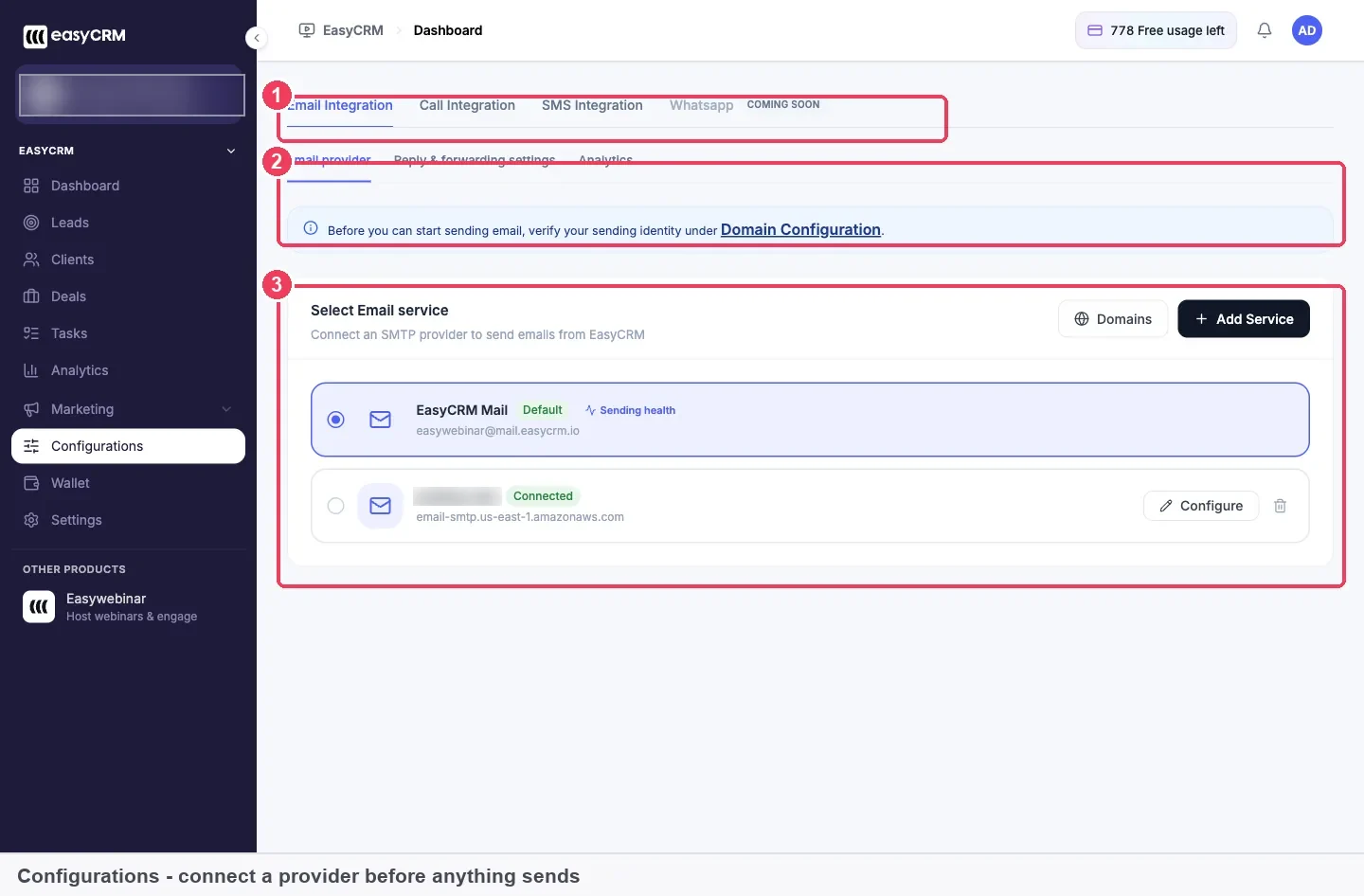
Click Configurations in the EasyCRM sidebar. Three areas on the screen do most of the work: the channel tabs, the verification notice and the list of services.
Choose an email service
The list is headed Select Email service, and it invites you to connect an SMTP provider to send emails from EasyCRM. EasyCRM Mail is already on the list, marked Default. To use your own provider, click Add Service, then Configure on the one you use, and enter its credentials. The section on built-in mail or your own SMTP provider, above, explains how to choose.
Verify who you send as
The notice on the screen sets out the requirement. You must either complete Domain Configuration for a dedicated domain, or validate a single business email address under Email addresses. Either route counts, and nothing sends until one of them is done. The Domain Configuration link in the notice and the Domains button both sit on this screen.
Decide where replies go
Reply & forwarding settings decides where replies to your email go. Point it at an address someone reads, because people reply to marketing email more than you might expect. A monitored team inbox is a sensible choice for a small business, since replies still get seen when one person is away.
Add call and SMS (Beta) sending
Call Integration and SMS Integration (Beta) have their own tabs, and you set them up the same way as email. Skip both if your first sends are email only, and come back when you need them. Calling is connected here, and your Wallet meters the minutes.
WhatsApp (Beta) can't be set up here yet, because the Whatsapp tab in EasyCRM is marked Coming soon. WhatsApp (Beta) notifications are available on the EasyWebinar side, under a webinar's Notifications tab.
Check sending before your first broadcast
Run through this short list once the steps are done, and again before any large send:
- Email service. The service you want is selected under Email provider, and a provider you added shows Connected.
- Sending health. Look at Sending health, beside EasyCRM Mail, before you send through that service.
- Sending identity. Your domain or single address has finished verification.
- Replies. Reply & forwarding settings points at an address someone reads.
- Allowance. Your Wallet has room for the send. A channel that runs out stops sending until the cycle resets.
- List size. Send to a targeted list rather than everyone, because it helps on both allowance and open rate.
It's also worth making your first broadcast a small one. Broadcasts send to the list you pick, so a short list of your own colleagues lets you see the message arrive and test a reply. Workflows are safe to build at this stage, since a draft sends nothing until you publish it.
Read the first results
Once a broadcast has gone out, Marketing → Broadcasts is the first place a sending problem shows. The screen sets your average open rate against an industry average of 21%, and your average click rate against 2.6%.
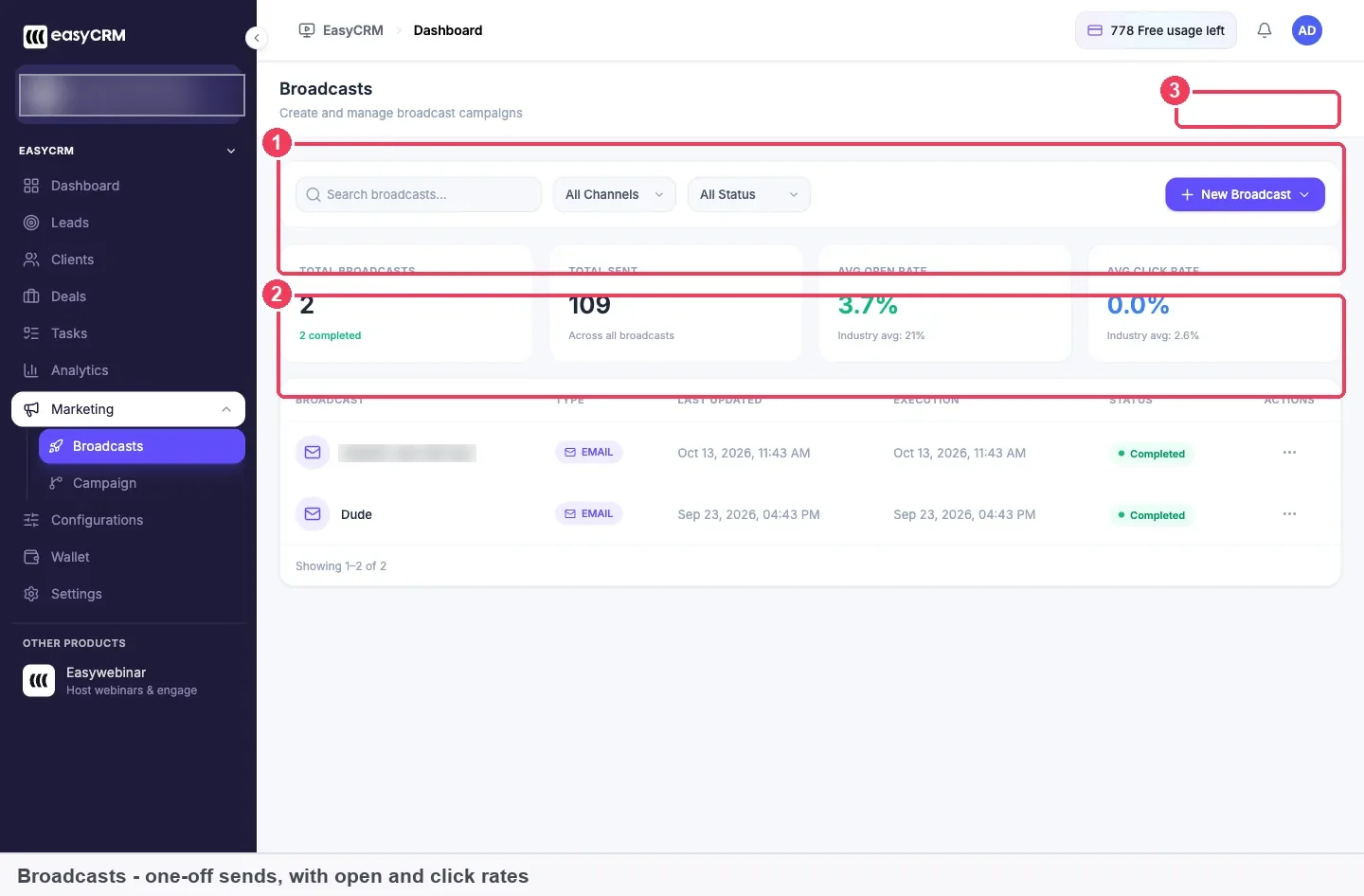
A low open rate usually points to the subject line or the sender, so recheck your sending identity along with your wording. A good open rate with a low click rate means the email was opened and the offer didn't land, which isn't a setup problem.
How sending health is measured
No single number proves your email setup is healthy, so it helps to know what each common measure can and can't tell you:
| Measure | What it tells you | Its weak spot |
|---|---|---|
| Spam complaint rate | The share of mail people mark as spam, which Gmail and Yahoo want below 0.3% | Each provider measures its own traffic, and Yahoo bases its rate on mail delivered to the inbox |
| Authentication results | Whether SPF, DKIM and DMARC passed on a message | A pass doesn't promise inbox placement |
| Open rate | How many people opened the message | A low figure can come from the subject line or the sender |
| Click rate | Whether the content landed | It says little about your setup |
In EasyWebinar, two places help. The Broadcasts screen shows your open and click rates beside industry averages, and Sending health sits beside EasyCRM Mail on the service list. Outside the product, Google's guidelines point to Postmaster Tools for monitoring your domain's spam rate with Gmail.
When CRM emails aren't sending
Most failures trace back to one of a few causes, and each has a place to look:
| What you notice | Likely cause | Where to fix it |
|---|---|---|
| Nothing goes out at all | The sending identity isn't verified, or no provider is connected | Configurations → Email Integration |
| A workflow never sends | It's still a draft, because only published workflows send | Marketing → Campaign |
| A channel stops partway through a cycle | That channel's allowance has run out | Wallet, then wait for the cycle to reset |
| The meter looks wrong | Your cycle follows your signup date, and older rows show Not counted | Wallet → recent activity |
| A meter moved more than you expected | Usually a workflow running automatically | Wallet → recent activity |
| Replies don't reach anyone | The reply address is one nobody reads | Reply & forwarding settings |
What this setup leaves alone
These settings don't change your webinar reminder emails. They cover EasyCRM broadcasts and workflows, and a webinar's own messages are set on that webinar.
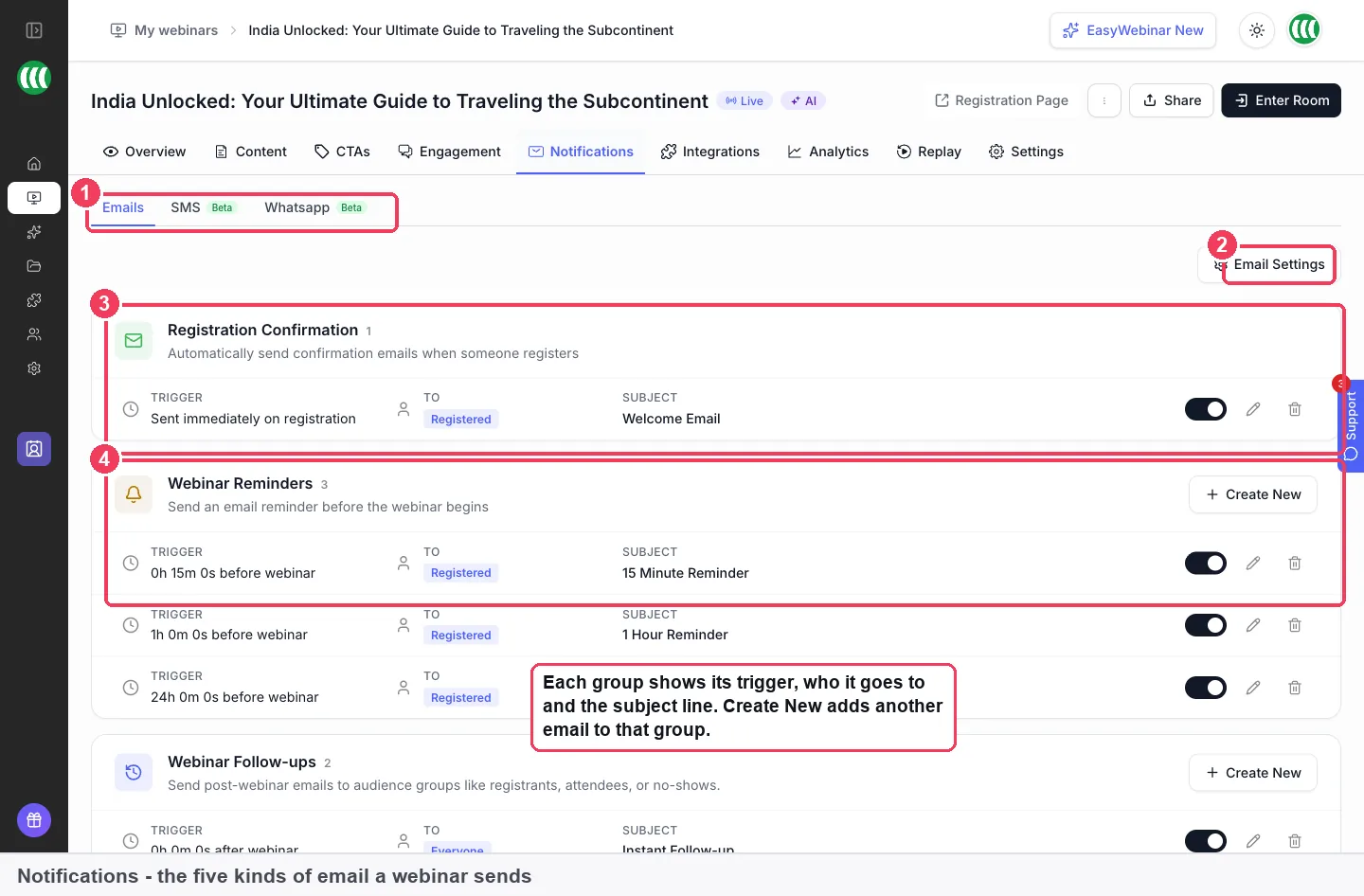
Each webinar's registration confirmation, reminders and follow-ups live on its Notifications tab. Their Email Settings button holds the Sender name, Reply-to email and Notify admin settings. So if your reminder shows the wrong sender name, look there rather than in Configurations.
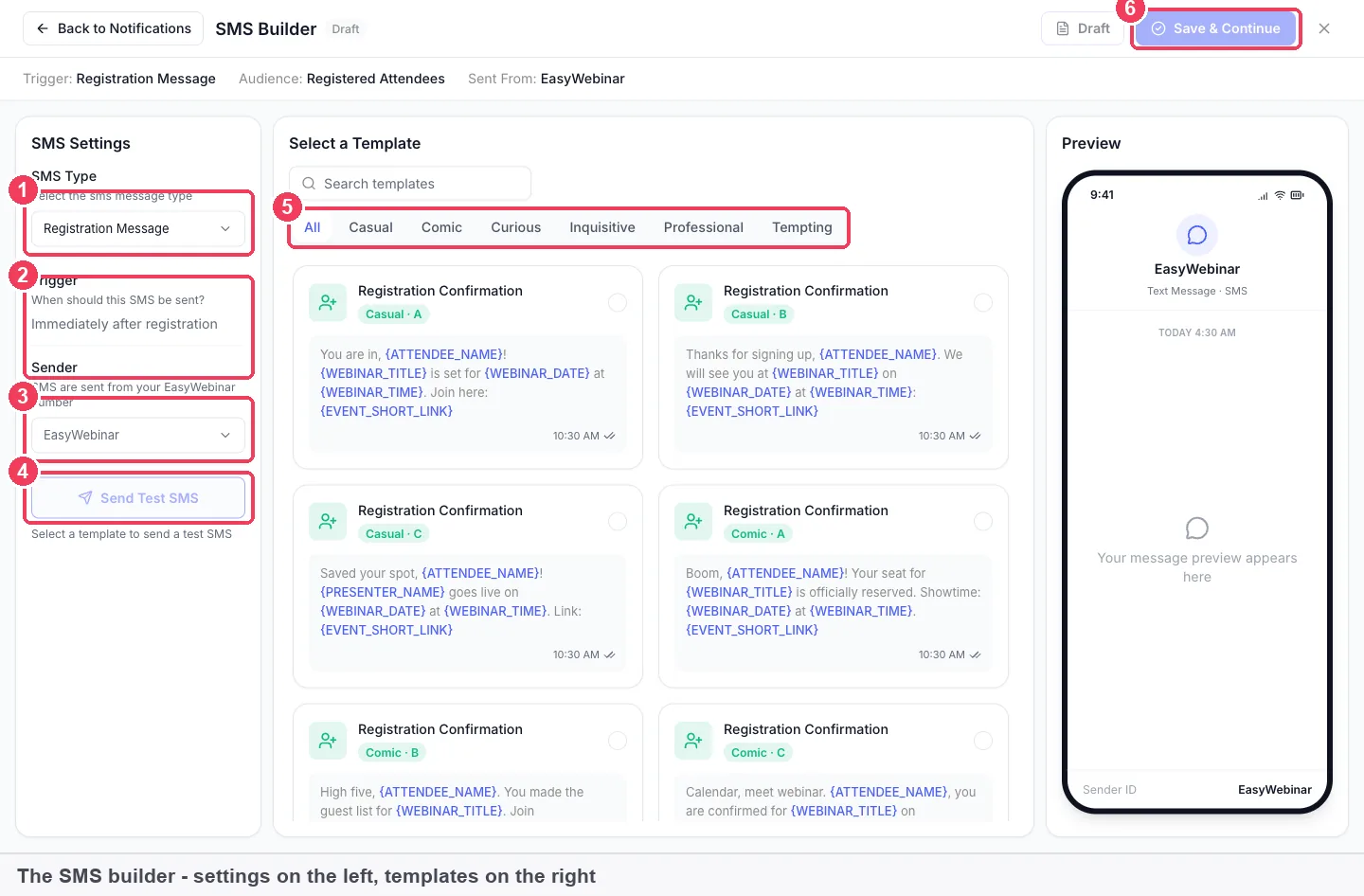
The same split applies to text messages. A webinar's own SMS (Beta) is built on the same Notifications tab, and those messages go from your EasyWebinar number. That builder needs a phone number for each person, which comes from the Phone field on your registration form.
| Message | Where it's set | Covered by this setup |
|---|---|---|
| CRM broadcast | Marketing → Broadcasts | Yes |
| CRM workflow | Marketing → Campaign | Yes |
| Webinar confirmation, reminder or follow-up email | The webinar's Notifications tab | No |
| Webinar SMS (Beta) or WhatsApp (Beta) | The webinar's Notifications tab | No |
What works with webinar CRM email setup
Several parts of the product rely on this setup or sit right beside it:
- Broadcasts. A broadcast is a one-off send to a list, such as a replay link after a webinar or an offer that's about to close. Each one depends on this setup being finished.
- Workflows. A workflow is an automated sequence, and webinar follow-up is the sensible first one to build. It keeps sending once published, so it relies on these settings for as long as it runs.
- Wallet. Email, SMS (Beta) and call minutes each have a monthly allowance, listed with the other limits and defaults. Workflows use more over time than broadcasts, because they keep sending every day.
- Leads. Import from EasyWebinar pulls registrants and attendees across from a webinar, so the people in your webinar records can be sent to once sending works.
- Your own CRM. You may prefer to send from the CRM you already use. In that case, skip this setup, since you don't need EasyCRM to run webinars.
Who sets up webinar CRM email
Small businesses and solo operators
An office admin or owner usually does this alone, with a first send already in the diary. Validating a single business address is the quick way to get going. Move to a domain once sending becomes regular, and ask whoever manages your website to help with the DNS.
B2B marketing teams
A marketing team sending regularly gets the most from Domain Configuration, because volume is where a verified domain pays back. If the company already runs SES, SendGrid or Mailgun, connect that account with Add Service and agree who looks after the credentials.
Coaches and consultants
For a coach, the reply is often the point of the email, because a reply can start a client conversation. Set Reply & forwarding settings with the same care as the identity, and use an address you check daily. A single business address often suits this kind of low-volume sending.
Agencies
An agency often sends for a client whose domain it doesn't control, so the DNS work may sit with the client's own team. Raise it early, because DNS changes can take a few hours to propagate. A separate client workspace keeps that client's webinars, registrants and settings apart from yours.
How EasyWebinar compares for email domain authentication
EasyWebinar sets the email service, the sending identity and the reply address on one screen in its own CRM. Those settings then serve broadcasts and workflows, with calling on the next tab. And it's your CRM or ours: keep the CRM you have, or use EasyCRM natively.
Webinar CRM email sending features, from each platform's public documentation:
| Platform | Your own SMTP provider | Domain or single address verified | CRM broadcasts and workflows | Calling set up beside email |
|---|---|---|---|---|
| EasyWebinar | Yes | Yes | Yes | Yes |
| eWebinar | Yes (SMTP service integration) | Partly (verified in SendGrid) | Not in docs | Not in docs |
| WebinarJam and EverWebinar | Yes (third-party SMTP service) | Partly (DKIM on your domain) | Not in docs | Partly (voice call reminders) |
| Demio | Not in docs | Partly (technical sender address is fixed) | Not in docs | Not in docs |
| Livestorm | Partly (your own email app via Zapier) | Not in docs | Not in docs | Not in docs |
| WebinarKit | Not in docs | Not in docs | Partly (broadcasts in its CRM) | Not in docs |
| Kajabi | Not in docs | Partly (custom email domain) | Partly (email sequences) | Not in docs |
Yes: documented and built in. Partly: documented with a limit, shown in brackets. Not in docs: not found in the vendor's public documentation.
Why EasyWebinar is the stronger choice for email domain authentication
- Sending is part of the product. EasyWebinar connects your service directly under Configurations, while Livestorm's guide sends your own emails through a Zapier automation. More in EasyWebinar vs Livestorm.
- Two routes to a verified sender. EasyWebinar accepts a dedicated domain or a single business address on the same screen, while eWebinar's SendGrid steps run through verification in SendGrid. More in EasyWebinar vs eWebinar.
- One setup for a CRM's sends. EasyWebinar's setup serves CRM broadcasts and workflows, while WebinarJam's third-party SMTP service is described for webinar emails. More in EasyWebinar vs WebinarJam.
- A sending identity you verify. EasyWebinar lets you verify your own domain for sending, while Demio's technical sender address stays fixed. More in EasyWebinar vs Demio.
Competitor details checked against each vendor's public documentation on 2 November 2026. Features and plans change, so confirm with the vendor before you decide.
Limits of this sending setup
These are the boundaries to plan around:
- It covers the CRM only. Broadcasts and workflows use it. A webinar's own emails, SMS (Beta) and WhatsApp (Beta) use that webinar's Notifications tab.
- Verification comes first. Nothing sends until your domain or address is verified, and no setting skips this step.
- Three SMTP providers are offered. They are Amazon SES, SendGrid and Mailgun, and each needs your own account with that company.
- WhatsApp (Beta) isn't on this screen yet. The Whatsapp tab in EasyCRM is marked Coming soon.
- Sends draw on a monthly allowance. Emails, SMS (Beta) and call minutes are counted separately, so running out of one leaves the others working. The cycle follows your signup date, not the calendar month.
Common questions
Can I use my own SMTP provider?
Yes. EasyCRM offers Amazon SES, SendGrid and Mailgun. Click Add Service, then Configure on the provider you use, and enter its credentials. You still verify your domain or address, and sends still count against your Wallet allowance once sending is working.
Do I need my own domain to send broadcasts?
No. You can validate a single business email address instead, which is quicker and suits lower volume. EasyWebinar's guidance is to verify a domain if you send in any volume, since a domain gives better deliverability than a single address.
Do these settings change my webinar reminder emails?
No. They apply to EasyCRM broadcasts and workflows. A webinar's confirmation, reminder and follow-up emails are set on that webinar's Notifications tab, and its Email Settings button holds their sender name and reply-to address.
Why isn't my CRM email sending?
Almost always, the sending identity isn't verified or no provider is connected. Open Configurations, check the notice on Email Integration, and finish whichever step is missing. If only a workflow is silent, check that it's published, because a draft sends nothing.
Do I need EasyCRM if I already use HubSpot?
No. You can keep your CRM or use EasyCRM, which is built in. Connect HubSpot on a webinar's Integrations tab, and your broadcasts go out from HubSpot, so you can skip this setup. Your webinar's own emails still go out from EasyWebinar.
Do I need an account with the SMTP provider?
Yes. When you connect Amazon SES, SendGrid or Mailgun, EasyCRM sends through your account with that company rather than replacing it. So set up the account first, then bring its credentials to the Configure step on the Email provider tab.
Should I verify a domain or a single address?
Choose a domain if you send in volume and can make DNS changes. Choose a single business address if your sends are small or your first one is due soon. The domain route takes more setup, and it gives you better deliverability in return.
Where do replies to my broadcasts go?
Replies go wherever you set under Reply & forwarding settings, on the Email Integration tab. Point that setting at an address someone actually reads, such as a monitored team inbox, because people often reply to marketing email and expect an answer.
What is EasyCRM Mail?
EasyCRM Mail is the service listed first under Select Email service, marked Default. Unlike a provider you add, its row has no Configure button. The verification notice sits above the whole list, so verify your domain or address whichever service you select.
Where do I check sending health?
On Configurations, under Email Integration and Email provider. Sending health sits beside EasyCRM Mail on the service list. Look there before your first send, then watch your open rate on the Broadcasts screen once mail has gone out.
What does call and SMS (Beta) setup involve?
Call Integration and SMS Integration (Beta) each have their own tab on Configurations, and you set them up the same way as email. Your Wallet meters call minutes and SMS (Beta) messages separately from your email allowance.
Do broadcasts and workflows need separate setup?
No. You set up sending once on Configurations, and both broadcasts and workflows depend on it. Both also draw on the same Wallet allowance, so a workflow running every day leaves less room for your one-off broadcasts in that cycle.
Does my custom webinar page domain count for email?
No. Custom domain (C-Name) points your own domain at your webinar pages, and Domain Configuration concerns the email your CRM sends. They are separate settings on separate screens, so finishing one doesn't complete the other, even with the same company domain.
Do mailbox providers require email authentication?
Yes. Gmail asks all senders for SPF or DKIM, and asks for SPF, DKIM and DMARC above 5,000 messages a day to Gmail accounts. Yahoo's rules are similar. On EasyCRM, you complete Domain Configuration or validate a single business address on Configurations.
Further reading
- Gmail's email sender guidelines: the full requirements for all senders and for those above 5,000 messages a day.
- Yahoo's sender best practices: the matching rules for all senders and bulk senders, including how Yahoo calculates spam rate.
- RFC 7208 on SPF: the standard behind authorising hosts to send for your domain.
- RFC 6376 on DKIM: the standard behind signing messages with your domain.
- RFC 7489 on DMARC: the standard behind domain policies, reporting and alignment.
- Gmail's guide to full headers: how to open the header of a test message.
Related
Updated 2 November 2026: added how sender authentication works, mailbox provider rules, the manual method, a worked example and how sending health is measured.