
 Product documentation
Change your EasyCRM language
Change the EasyCRM interface language from the flag button in the header, find one of 11 languages by search or its own name, and keep EasyCRM and EasyWebinar in the same language.
- Applies to
- EasyCRM · the language is shared with your EasyWebinar dashboard
- Status
- Live
- Verified
- Page type
- How-to guide
The EasyCRM language is the setting that decides which of 11 languages the EasyCRM screens use. Click the round flag button in the EasyCRM header and pick a language. It applies at once, with no Save button. EasyCRM and EasyWebinar share the setting, so the EasyWebinar dashboard follows your choice, and a change made there carries over to EasyCRM.
Expected result: the EasyCRM menu, header, dashboard, charts and AI assistant show in the language you picked, and stay that way after a reload.
At a glance
| Where | The flag button in the EasyCRM header, labelled Change language |
| How you change it | Click a language in the list. There is no Save button |
| Languages | 11, listed under AVAILABLE LANGUAGES · 11 |
| When it applies | At once, and it stays after a reload |
| Shared with | The EasyWebinar dashboard language: change it in either app and the other follows |
| What changes | The EasyCRM interface: dashboard, leads, clients, deals, tasks, broadcasts, campaigns, configurations, wallet and the AI assistant. Dates follow the language too |
| What stays as it is | What you and your team type, such as lead names, notes and pipeline stage names, and the content of your emails, SMS and WhatsApp messages |
| Related setting | Webinar Language, the default language attendees get, set on each webinar |
Before you begin
- Open EasyCRM. From EasyWebinar, open EasyCRM under Other products in the sidebar, or go to EasyCRM directly.
- Know which setting you need. The EasyCRM language changes the screens you and your team work in. To set the language attendees see in a webinar, use Webinar Language on that webinar instead.
- Expect EasyWebinar to change too. The language is shared, so switching EasyCRM to German also switches your EasyWebinar dashboard to German.
Step 1: Open the language list
- Find the round flag button in the EasyCRM header, between Ask AI and the notifications bell. Its flag shows the current language.
- Click it. The language list opens under the button.
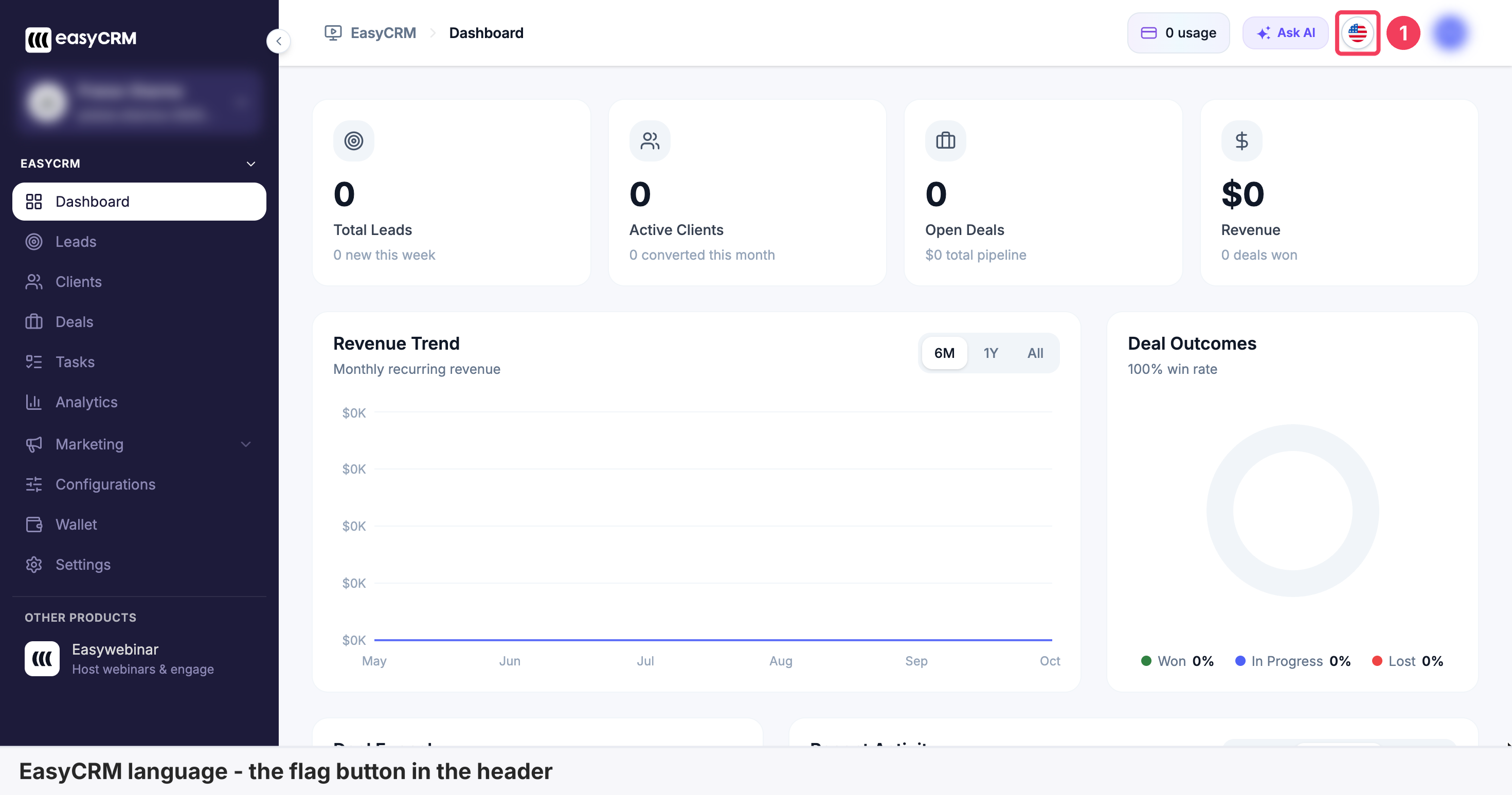
You will find the flag button in the EasyCRM header, next to Ask AI.
Step 2: Find your language
The list shows the current language at the top, a Search languages… box, and AVAILABLE LANGUAGES · 11. Each language appears with its English name and, underneath, its own name, such as Español or 日本語, so you can find yours even if the screen is in a language you don't read.
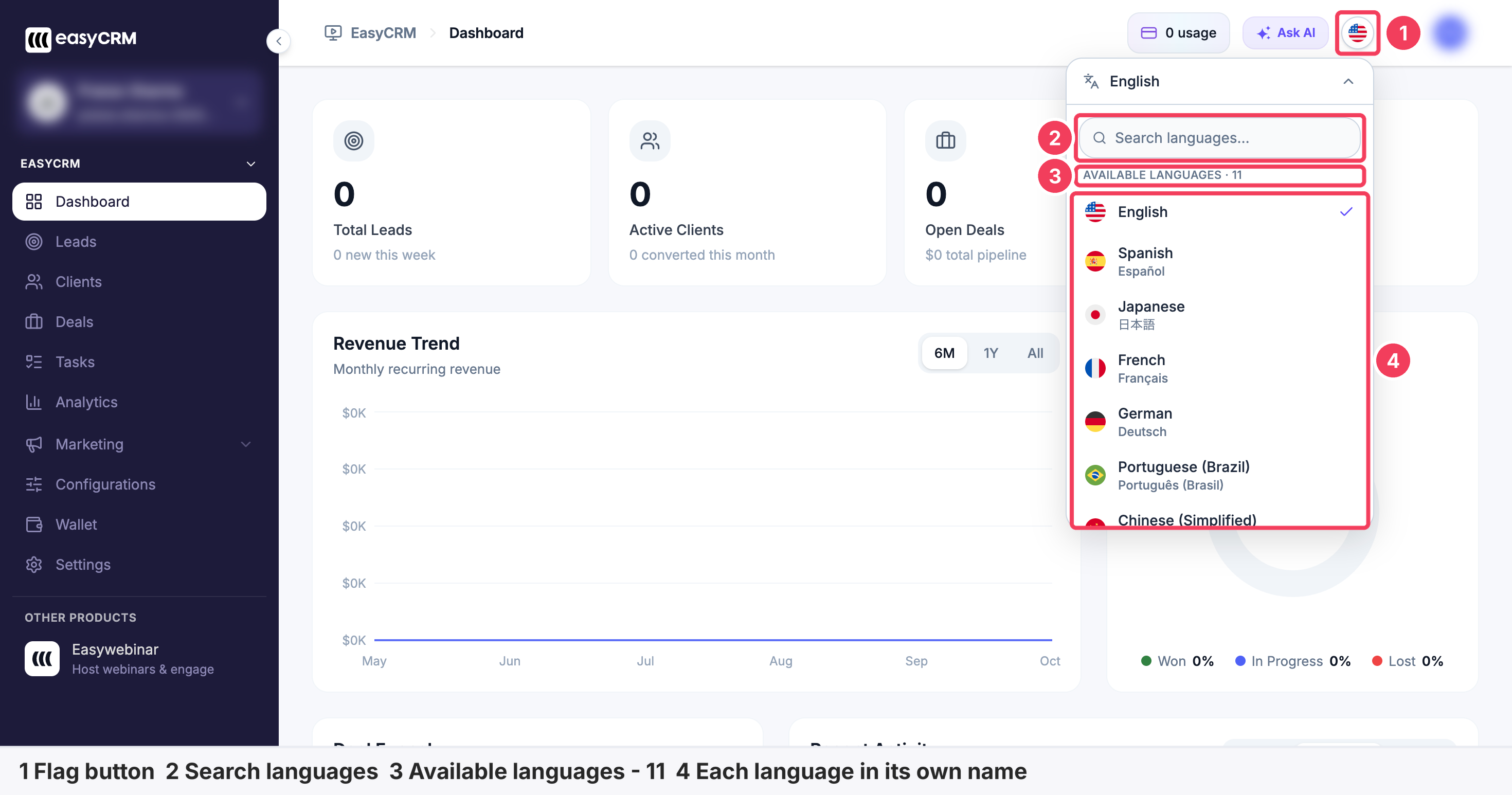
| Area | What it shows | |
|---|---|---|
| 1 | Flag button | Opens and closes the list |
| 2 | Search languages… | Filters the list as you type |
| 3 | AVAILABLE LANGUAGES · 11 | The number of languages you can pick |
| 4 | Language list | Each language, with a tick on the current one |
To find a language quickly, type part of its name. Typing Ja leaves only Japanese.
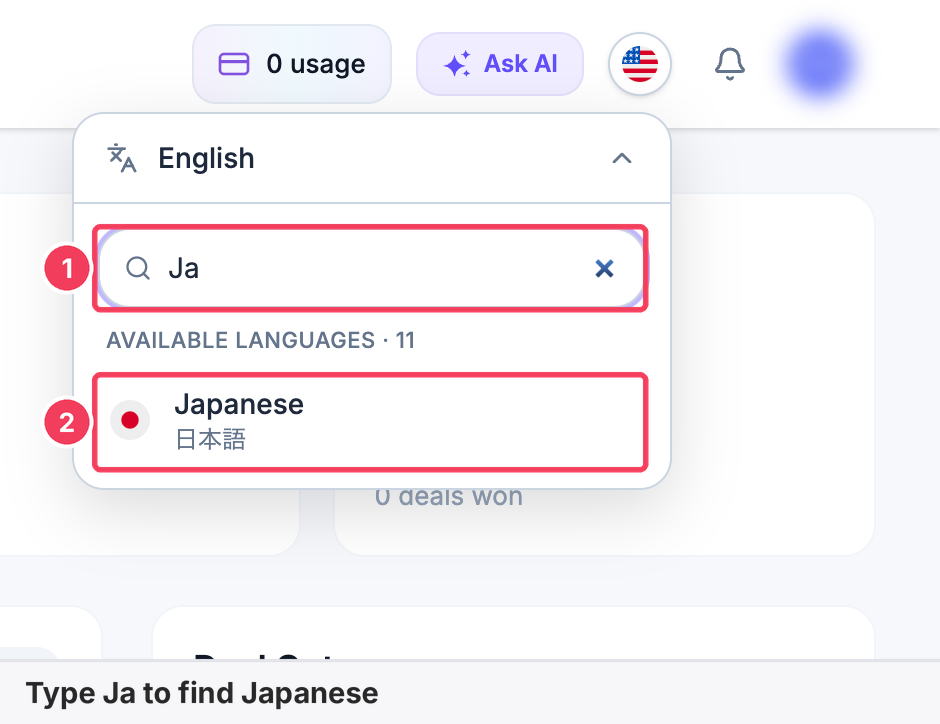
The 11 languages are English, Spanish, Japanese, French, German, Portuguese (Brazil), Chinese (Simplified), Korean, Hindi, Danish and Arabic.
Step 3: Pick the language
- Click the language you want.
- EasyCRM switches straight away. You don't need to click Save or reload.
The flag on the button changes to match, and the button's own label follows the language, so in Spanish it reads Cambiar idioma.
Step 4: Check EasyCRM in the new language
Look at the sidebar, the header and the dashboard. In Spanish, for example, Dashboard becomes Panel, Clients becomes Clientes, Deals becomes Negocios and Wallet becomes Billetera. The chart months change too, from May, Jun, Jul to may, jun, jul.
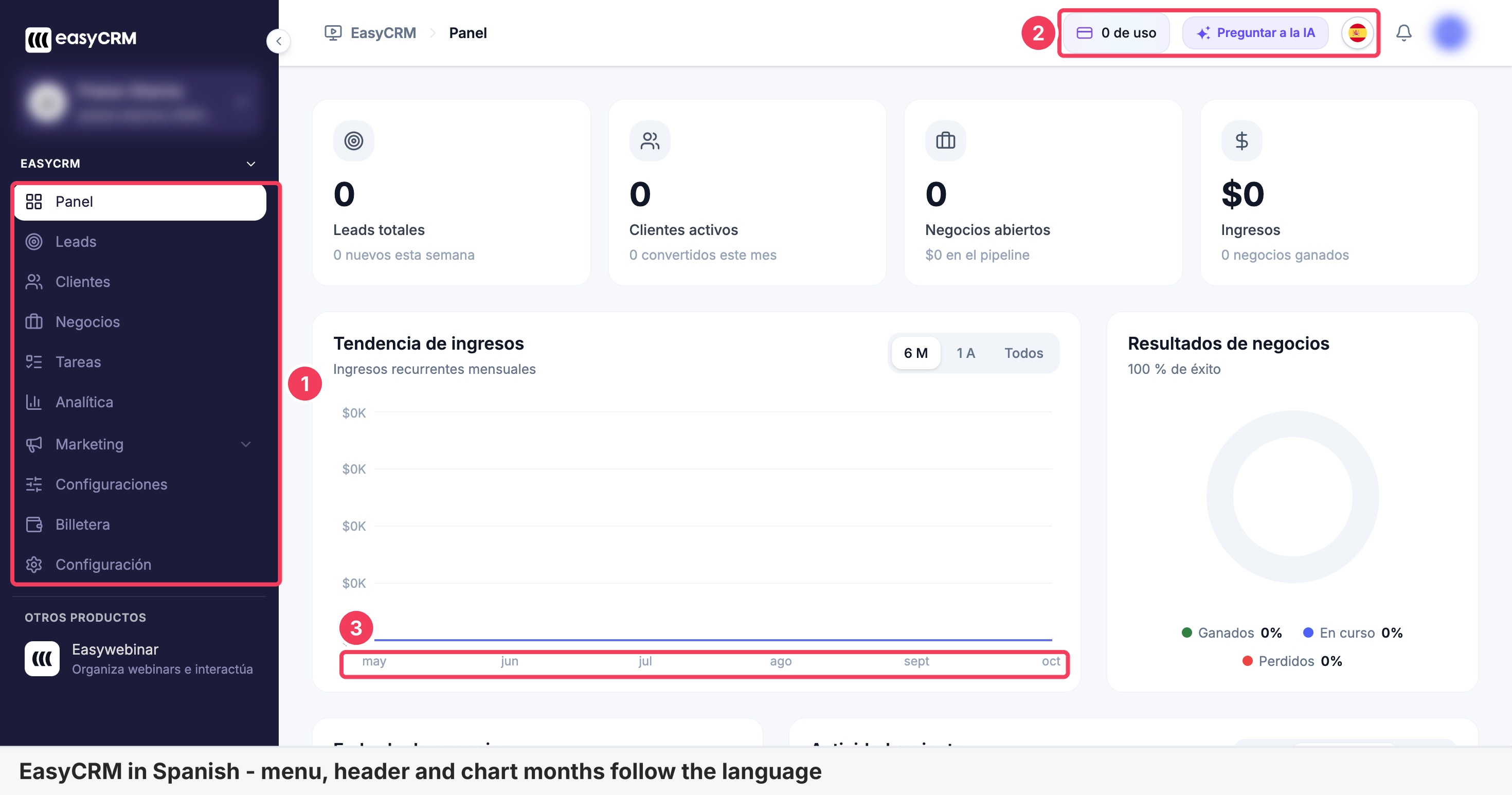
Menu, header, cards and chart months follow the language. Your own data does not change.
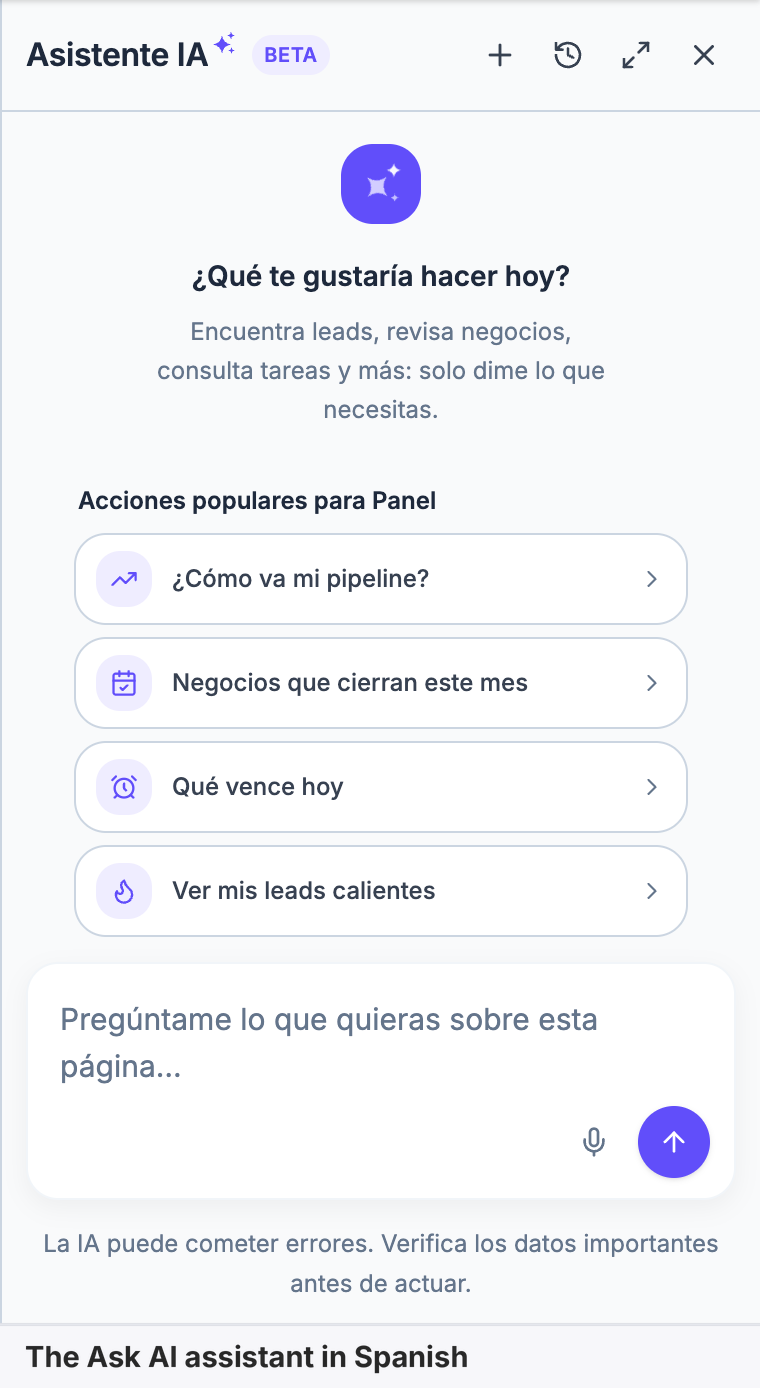
The AI assistant follows the same language. Open Ask AI and its welcome text, suggested actions and input box appear in the language you picked.
Verify the result
- The EasyCRM sidebar, header and dashboard show in the language you picked.
- Reload the page. EasyCRM opens in the same language.
- Open the language list again. Your language has the tick, and every language name is now shown in that language, with its own name underneath.
- Open your EasyWebinar dashboard. It shows in the same language, because the setting is shared.
What the EasyCRM language is
The EasyCRM language is the interface language of EasyCRM, EasyWebinar's built-in CRM. It is one setting with 11 choices, shared with your EasyWebinar dashboard, so the webinar side and the CRM side of your account read the same way. It translates the screens, labels, dates and AI assistant. It does not translate what you write: lead names, notes, pipeline stage names and the messages you send stay exactly as typed.
Why the EasyCRM language matters
What it's for
It lets each person work with their webinar leads in a language they read easily. A coach who follows up in Spanish, or a team in Japan working its pipeline, sees EasyCRM in that language instead of translating labels in their head.
How it helps
- Faster follow-up. People act on leads quicker when the deal stages, tasks and buttons are in their language.
- One setting, two apps. Webinar work and CRM work stay in the same language without changing two settings.
- Fewer mistakes. Translated labels make it harder to send the wrong broadcast or move a deal to the wrong stage.
What happens without it
Working a CRM in a second language slows every task: reading a lead record, scheduling a follow-up, checking what a broadcast will do. Teams that run webinars in one tool and a CRM in another also end up with two language settings to keep in step, and often two different sets of supported languages.
Why buyers care
The webinar is only half the job. The leads it brings in have to be worked, and that happens in the CRM. When the people doing that work read the CRM easily, more leads get a timely follow-up. That matters most to teams outside English-speaking markets and to agencies running clients in several languages.
The EasyWebinar approach to the EasyCRM language
Take a typical case. A course creator in Brazil runs weekly webinars in Portuguese and follows up every registrant in EasyCRM. Her assistant, who reads Portuguese far more easily than English, handles the follow-up tasks.
A common setup pairs a webinar tool with a separate CRM. Each has its own language setting, and the two rarely offer the same languages, so one of them often stays in English. The assistant then works the pipeline in a language she reads slowly.
The webinars don't need to change. What needs to change is where the leads land and how the screens read.
In EasyWebinar, she picks Portuguese (Brazil) once, from the flag button in either app. EasyWebinar and EasyCRM both switch, the chart dates read in Portuguese, and the AI assistant answers in the same language. Lead names and the messages she writes stay as she typed them.
How the EasyCRM language works with other features
Your EasyWebinar dashboard language
The two apps share one language. Change your dashboard language explains the EasyWebinar side: the same flag button, the same 11 languages, and the same route under Settings → My Profile → General Settings → Language.
Webinar Language for attendees
Webinar Language is separate. It sets the default language attendees get in a live webinar and is set on each webinar's Settings tab. See Set the webinar language for attendees.
Emails, SMS and WhatsApp messages
EasyCRM sends your broadcasts and workflow messages exactly as you write them. Changing the EasyCRM language changes the editor around your message, not the message. Sending allowances are listed under EasyCRM sending allowance.
The AI assistant
The Ask AI assistant shows its welcome text, suggested actions and input box in the chosen language. It is marked Beta in the app.
Leads, deals and pipelines
Everything your team types stays as typed, whatever the language: lead names, notes, pipeline stage names and custom labels. Leads imported from your webinars keep their names and details. Moving webinar leads into EasyCRM is covered in Connect a CRM and map your webinar data.
Who uses the EasyCRM language, and how
These are typical patterns, shown to illustrate how the setting fits different teams.
Coaches and consultants
A coach selling a programme in Mexico switches EasyCRM to Spanish so the follow-up tasks after each webinar read in her language.
Agencies
An agency team member checks a client's pipeline in French, then switches back to English from the same flag button, finding English by its own name.
B2B marketing teams
A marketing team in Germany works EasyCRM in German. Integration names and its own pipeline stage names stay as they are.
Course creators
A course creator in Japan types Ja in Search languages…, picks Japanese, and finds EasyWebinar already in Japanese the next time she opens it.
How the EasyCRM language compares
EasyCRM comes in 11 languages and shares one language setting with EasyWebinar. Teams that pair a webinar tool with a separate CRM manage two settings, each with its own list of languages.
Webinar and CRM language, from each vendor's public documentation:
| Setup | Webinar dashboard language | CRM interface language | One setting for both |
|---|---|---|---|
| EasyWebinar with EasyCRM | Yes (11 languages) | Yes (11 languages) | Yes |
| Demio with ActiveCampaign | Partly (English only) | Yes (14 languages) | No, two separate products |
| Livestorm with HubSpot | Partly (4 languages) | Yes (set per user) | No, two separate products |
Yes: documented and built in. Partly: documented with a limit, shown in brackets.
Why EasyWebinar is the stronger choice for the CRM language
- One language for webinars and leads. EasyWebinar and EasyCRM share one setting, so a team switches both with one click. A webinar tool and a separate CRM keep two settings in step.
- Languages your CRM may not offer. EasyCRM includes Japanese, Korean, Hindi and Arabic. ActiveCampaign's help centre lists 14 fully supported languages, none of them Japanese, Korean, Hindi or Arabic, and says Danish and Simplified Chinese are no longer supported. Compare EasyWebinar vs Demio.
- A webinar dashboard beyond English. Demio's help centre says its host dashboard is available only in English, and Livestorm's lists four dashboard languages. Compare EasyWebinar vs Livestorm.
Competitor details checked against each vendor's public documentation on 29 October 2026. Features and plans change, so confirm with the vendor before you decide.
Limits and things to know
- It translates the interface, not your content. Lead names, notes, pipeline stage names and anything else your team types stay as typed.
- Messages are sent as written. The content of emails, SMS and WhatsApp messages is not translated.
- Some terms stay as they are. In Spanish, for example, Leads and Marketing keep their names. Brand and integration names, currency symbols and each language's own name don't change.
- The setting is shared. Changing the language in EasyCRM changes your EasyWebinar dashboard too, and the other way round.
- It isn't Webinar Language. The language attendees get is set on each webinar.
- The AI assistant is in Beta. It follows the chosen language.
Common questions
How do I change the language in EasyCRM?
Click the round flag button in the EasyCRM header and pick a language from the list. It applies at once.
Which languages does EasyCRM support?
11: English, Spanish, Japanese, French, German, Portuguese (Brazil), Chinese (Simplified), Korean, Hindi, Danish and Arabic.
Do I need to click Save?
No. EasyCRM switches as soon as you click a language, and it stays after a reload.
If I change the language in EasyCRM, does EasyWebinar change too?
Yes. The two apps share one language setting, so changing it in either app changes the other.
Are my leads, notes and pipeline stages translated?
No. Everything your team types stays as typed. Only the interface is translated.
Are my emails, SMS and WhatsApp messages translated?
No. EasyCRM sends message content exactly as you write it.
Do dates change with the language?
Yes. Dates follow the chosen language. In Spanish, for example, the chart months read may, jun, jul.
Does the AI assistant use the same language?
Yes. The Ask AI assistant shows its text and suggested actions in the chosen language. It is marked Beta.
How do I find my language if I can't read the current one?
Each language is shown with its own name underneath, such as Español or 日本語. You can also type part of the name in Search languages….
Is the EasyCRM language the same as Webinar Language?
No. The EasyCRM language changes the screens you work in. Webinar Language sets the default language attendees get, on each webinar's Settings tab.
Why do some words stay in English?
Some product terms, such as Leads and Marketing in Spanish, keep their names. Brand names, integration names and what you typed don't change.
Related
- Change your dashboard language: the EasyWebinar side of the same setting.
- Set the webinar language for attendees: the default language attendees get in a live webinar.
- Connect a CRM and map your webinar data: how webinar leads reach EasyCRM or your own CRM.
- Limits and defaults: EasyCRM's monthly sending allowance next to every other limit.
- Team members and roles: give colleagues their own login.
Change your dashboard language
Change the EasyWebinar dashboard language from the flag button in the top bar or from My Profile, find a language by search or its own name, and check the result.
Limits and defaults
Every limit, allowance and default setting in EasyWebinar in one place, with its unit and where it applies.