
0%On this pageContents
Webinar planning goes wrong in a predictable way: the teaching runs long, the offer gets squeezed into the last three minutes and the questions never happen. A webinar outline fixes that before you open a slide tool, because it decides what each section is for and how long it gets. The webinar outline template below gives you the sections in order, rough timings for a 45-minute and a 60-minute session, and the points where polls and your offer belong. Once the outline is done, EasyWebinar can turn the same plan into a timed script, polls and an offer you edit and run.
At a glance
| Question | Short answer |
|---|---|
| What sections should a webinar have? | Opening and housekeeping, the promise, three teaching points, a bridge, the offer, then questions and a close |
| How long should each one run? | In 45 minutes: about 4, 2, 24 (8 each), 2, 6 and 7 minutes. The full template below has a 60-minute column too |
| Where does the offer go? | After the last teaching point, through a short bridge, with time left for questions afterwards |
| Where do polls go? | One early to learn who is in the room, one mid-way, and one just before the offer to gauge interest |
| What does EasyWebinar add? | A script written slide by slide in named, timed sections, polls written from the goals you pick, and offers with an optional countdown |
| What stays yours? | The outline itself. The template on this page is a planning document you fill in; the product works from the description you give it |
Where a webinar outline fits
Picture the week before a webinar. You have a title, a date and a registration page, and someone asks what the second half covers. If the answer is "we'll see how it goes", the session will run long and the ask will be rushed. A webinar outline is the one-page plan that answers it. It sets the sections, their order, their length and the moments you ask the audience to act.
What it's for
An outline turns a topic into a running order. It tells you which three ideas you are teaching, how long each one gets, and where the offer and polls sit. The slides and script then follow a plan instead of creating one.
How it helps
- Time stays honest. Each section has a budget, so you can see an overrun on paper before it happens on air.
- The offer gets its room. Planning the bridge and the offer as real sections stops them shrinking to a final slide.
- Polls do a job. Each poll is placed for a reason, such as learning who is attending or gauging interest before the pitch.
- Writing gets faster. A script, a registration page and follow-up emails are all easier to write from one agreed outline.
What happens without it
Without an outline, the session grows around whatever you most enjoy explaining. Questions get cut, the offer lands when people are already leaving, and the follow-up emails promise things the session never covered.
Who this falls to, and when
It falls to whoever owns the session, usually the presenter or the marketer running the programme. The moment is before any slide or page exists, when moving a section costs nothing.
The EasyWebinar approach to webinar planning
Take a typical case. A two-person product marketing team at a project-management software company is planning its first quarterly webinar for operations managers who are evaluating tools. They have a strong topic, a 45-minute slot and a free trial to offer at the end. They also have three weeks to build everything.
The usual route is to start with slides. Someone opens last quarter's deck, adds new material and only later works out where the trial offer goes. It tends to work, but the timing is often guessed and the polls are written the night before. The registration page and emails can also drift from what the session teaches.
What has changed is that the slow part of webinar planning is no longer the writing. Once the outline exists, the script, the pages, the polls and the offer can be drafted from it in one pass. That moves the real decisions, the sections and their timings, to the front, where they belong.
EasyWebinar builds on that order. Its Create with AI flow starts from your description of the webinar. That covers who it is for, what it teaches, its length, its tone and what you sell. It then writes the script slide by slide. It drafts the pages and emails from that script, and writes polls and offers you can edit on the CTAs tab.
Here is one detail you can check. The script step asks for the number of slides and the duration before it writes anything. The script then comes back in named sections, each with its own timing and speaker notes. How this compares with other platforms is covered in How EasyWebinar compares for webinar planning, below.
The webinar outline template
Copy this webinar outline template into a document and fill in each line before you write a slide. The timings are a starting point for a session that teaches and then makes an offer. Move minutes between sections to suit your topic, but keep the total fixed, so every minute you add somewhere comes out of somewhere else.
| # | Section | 45 min | 60 min | What goes in it | Fill in |
|---|---|---|---|---|---|
| 1 | Opening and housekeeping | 4 | 6 | Welcome, who you are in one line, how to ask questions, how long the session runs, whether there is a replay | Your one-line introduction: |
| 2 | The promise | 2 | 3 | The one result attendees leave with, and the three points you will cover | "By the end you'll be able to …" |
| 3 | Teaching point 1 | 8 | 10 | The first idea, one example and one takeaway | Idea / example / takeaway: |
| 4 | Teaching point 2 | 8 | 10 | The second idea, building on the first | Idea / example / takeaway: |
| 5 | Teaching point 3 | 8 | 10 | The idea that leads most naturally to your offer | Idea / example / takeaway: |
| 6 | The bridge | 2 | 3 | What attendees can now do alone, and what is still hard | The gap your offer closes: |
| 7 | The offer | 6 | 9 | What it is, who it is for, what is included and the one next step | Offer name / button text / link: |
| 8 | Questions and close | 7 | 9 | Live questions, a repeat of the next step, and what happens after the session | The last thing you say: |
| Total | 45 | 60 |
Add the poll plan underneath, using the same section numbers:
WEBINAR OUTLINE
Title:
Audience (be specific):
Length:            Type: live / simulive / evergreen
One result attendees leave with:

1. Opening and housekeeping   [  min]
   Poll A (who is here):
2. The promise                [  min]
3. Teaching point 1           [  min]  Idea:          Example:
4. Teaching point 2           [  min]  Idea:          Example:
   Poll B (check understanding or experience):
5. Teaching point 3           [  min]  Idea:          Example:
6. The bridge                 [  min]  Gap the offer closes:
   Poll C (interest in going further):
7. The offer                  [  min]  Button text:   Button link:
   Countdown on the offer?  yes / no
8. Questions and close        [  min]  Next step repeated:

Follow-up promise (what the emails will send):
The template is yours to keep and reuse. EasyWebinar does not ship a blank outline; it works from the description you write, so a filled-in outline is the best input you can give it.
How webinars are structured
There are three common ways to arrange a webinar that ends in an offer. They share the same sections and differ in how early, and how often, the offer appears. Choosing one before you fill in the template decides how long sections 6 and 7 need to be.
Teach first, offer at the end
The whole first part is teaching, and the offer comes once, near the close. It builds trust well and suits a cold audience meeting you for the first time. What it misses is attention: if the teaching overruns, the offer arrives after people have left.
Value with the offer woven through
The offer is mentioned lightly during the teaching, then made properly at the end. Attendees are not surprised by it, and the close can be stronger. The risk is that early mentions feel like interruptions if they are not tied to the point you just made.
Offer-led, with repeated calls to action
The session is built around the offer, with several calls to action and a clear deadline. It suits a warm audience that already knows the product. It misses people who came to learn, who may feel sold to before they have been taught anything.
Answer first, inside every section
Whichever arrangement you choose, open each section with its main point and then support it. This is the inverted-pyramid idea from writing, where the most important information comes first and detail follows. On a webinar it means an attendee who drifts for two minutes still knows what each section was about.
What EasyWebinar confirms
The offer step in Create with AI asks you to choose one of three positionings: Soft Pitch, which is education-focused with the offer at the end; Balanced Approach, which gives value plus a clear offer throughout and a strong close; and Direct Pitch, which is offer-focused with repeated calls to action and strong urgency.
What each section of the outline should do
The template names eight sections. This is what each one has to achieve, and what usually goes wrong in it.
Opening and housekeeping
Welcome people, say who you are in a sentence and set the rules of the room. The common mistake is a long biography. Attendees came for the promise, so keep your introduction short and let your teaching earn the credibility.
The promise
State the one result attendees will leave with, then name your three teaching points. This is the agenda in spoken form. If you cannot write the promise as one sentence starting "By the end you'll be able to", the topic is still too wide.
Three teaching points
Three points are enough for 45 or 60 minutes. Each one gets an idea, an example and a takeaway. Research on memory suggests people hold a small number of chunks at once, which is a good reason to resist a fourth or fifth point. Put the point that leads most naturally to your offer last.
The bridge
The bridge is the two or three minutes between teaching and selling. Sum up what attendees can now do alone, then name what is still hard. Your offer should close exactly that gap. Without a bridge, the pitch feels like a change of subject.
The offer
Say what it is, who it is for, what is included and the single next step. Write the button text before the session, because it should say what happens when someone clicks. If the offer has a deadline, decide now whether it carries a countdown.
Questions and close
Protect this time in the plan. Answer live questions, repeat the next step once, and tell people what will arrive by email afterwards. If you are running short, cut teaching, not questions, because questions are often where buyers raise the objections your offer has to answer.
Where polls and the offer belong in a webinar
Polls work best with a job to do. Plan each one against a section in the outline, not as a break when energy dips.
- Poll A, in the opening. Ask who is in the room: role, company size or how far along they are. It warms people up and tells you which examples to stress.
- Poll B, after teaching point 2. Ask about their experience with the problem. The answers give you a live example to use in point 3.
- Poll C, in the bridge. Ask how interested people are in going further. It gauges interest in your offer just before you make it.
The offer itself belongs after the bridge and before the questions. Placing it there means the questions can deal with objections while the offer is still on screen. On a simulive or evergreen webinar the same order holds, because polls and offers appear at the points you set rather than when you remember them.
What goes on a webinar housekeeping slide
The housekeeping slide sits in section 1 and answers the questions people would otherwise type into chat. Keep it to four lines:
- How to ask a question, and whether you will answer during the session or at the end.
- How long the session runs, so people can plan to stay for the offer and the questions.
- Whether there is a replay, and how people will get it.
- Where to click when you share a link, if you plan to show an offer or a download.
Say these out loud as well as showing them, because some people join late and miss the slide. If you take questions in a separate panel, point to it now; the questions and answers page covers how that panel works.
Outline mistakes to avoid
- Timing only the teaching. If the bridge, the offer and the questions have no minutes against them, they lose out first.
- Five teaching points in 45 minutes. Each point gets too little time to land, and the offer comes late.
- An offer with no bridge. The pitch reads as a change of subject instead of the next step.
- Polls with no purpose. A poll that tells you nothing you will act on wastes a minute of the session.
- Emails that promise a different session. Write the registration page and follow-ups from the finished outline, not the first idea.
How to create a webinar outline by hand
- Write the audience in one specific sentence, such as "operations managers comparing project tools", not "managers".
- Write the one result they leave with, starting "By the end you'll be able to".
- List every idea you could teach, then keep the three that lead most directly to that result.
- Order the three so the last one leads naturally to your offer.
- Choose an arrangement: teach first, value throughout or offer-led.
- Fill in the minutes column of the template so the total matches your slot exactly.
- Write the bridge sentence: what attendees can do now, and what is still hard.
- Write the offer in four lines: what it is, who it is for, what is included and the button text.
- Place three polls against sections 1, 4 and 6, each with its purpose written beside it.
- Read the outline aloud with a timer and move minutes until the questions still have their time.
This is the same planning work the webinar agenda guide on our blog covers from the attendee's side, where the agenda is the promise you publish in advance.
Turn your outline into a webinar in EasyWebinar
Once the outline is filled in, it becomes the description you give EasyWebinar. The product then writes the script, pages, emails, polls and offers from it, and you edit each part before you go live.
Describe the webinar from your outline
Click Create with AI in the sidebar and write your prompt from the outline. Include who it is for, the three or four things it covers, how long it runs, the tone and what you are selling at the end. Choose the Type: Live, Simulive or Evergreen.
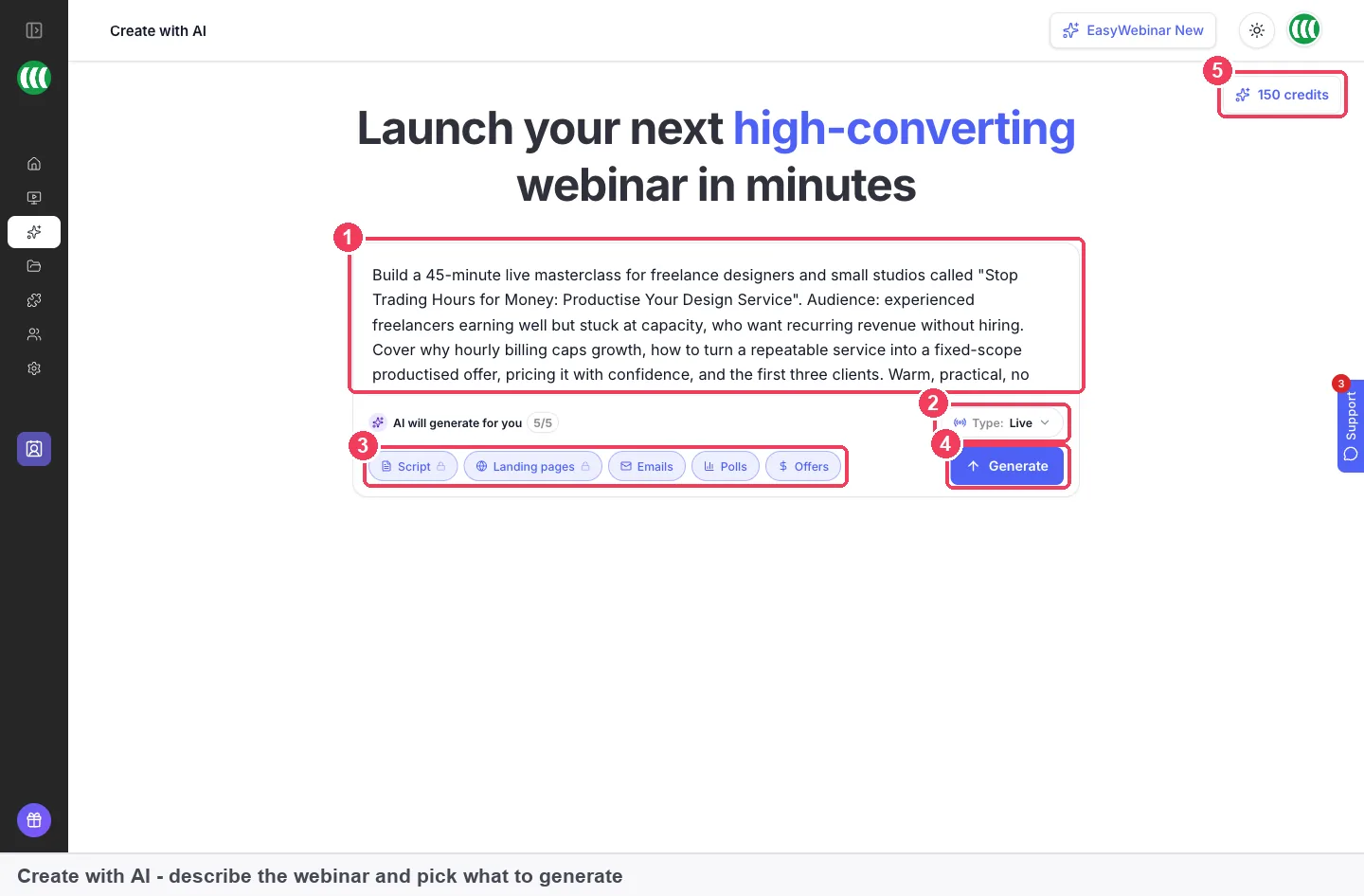
Script, landing pages and emails are selected by default. Click Polls and Offers as well, so the poll and offer lines in your outline get drafted too. A weak prompt produces generic output, which is why the outline comes first. You can read more about the whole flow on the Create with AI page.
Check the script against your timings
The script step asks for the number of slides and the duration, then writes the script slide by slide. It comes back in named sections, such as the hook and welcome and the problem framing, each with its own timing and speaker notes.
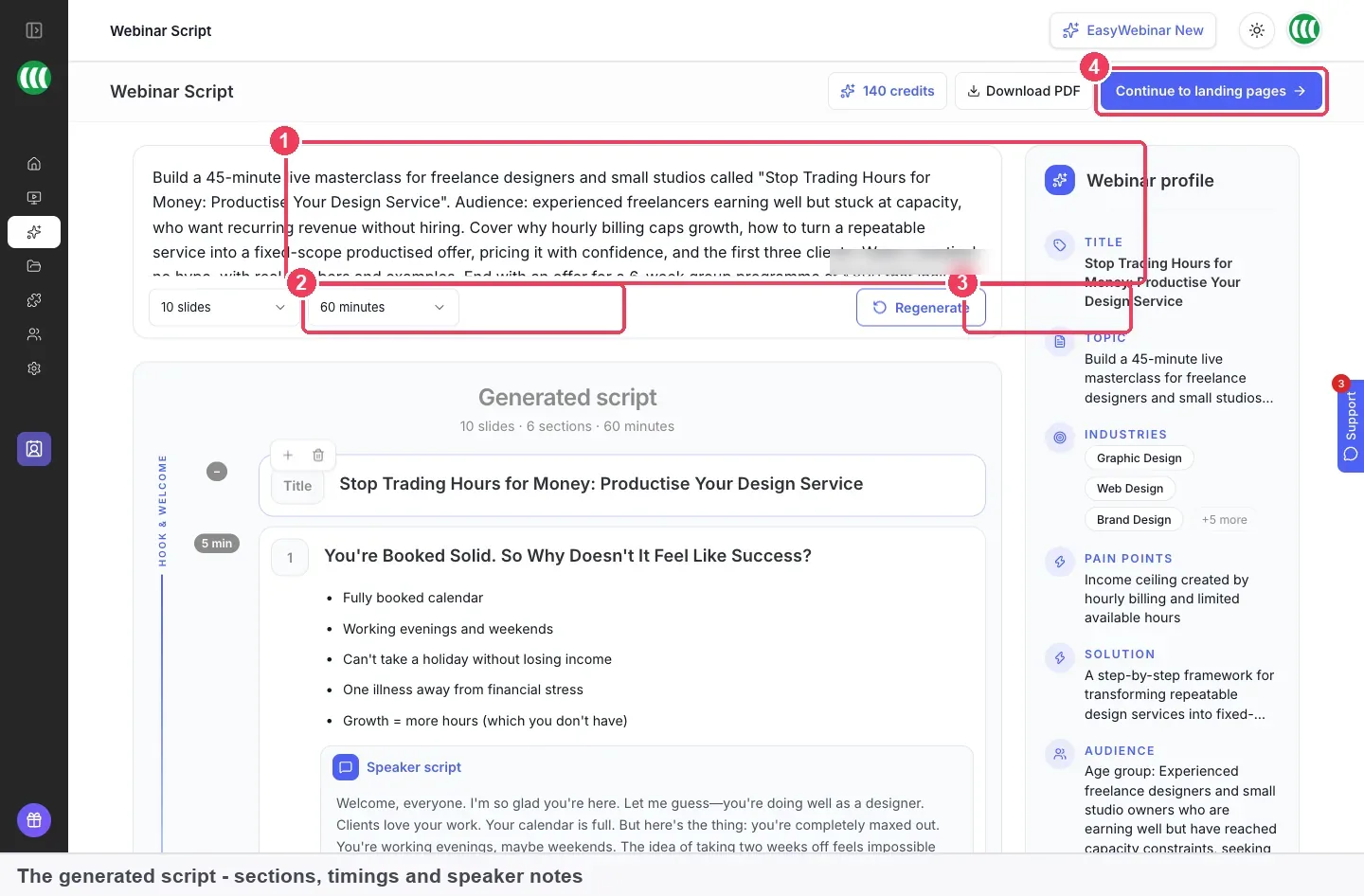
Read it before you move on. It is much easier to fix the script now than to fix the pages and emails built from it. If the timings drift from your plan, change the slides or duration and click Regenerate. Download PDF takes the script away so you can present from it. The AI webinar script generator page explains the same step for people starting from a blank page.
Draft polls from their purpose
The poll step asks what the polls are for rather than what to ask. Pick the goals that match polls A, B and C in your outline, such as increasing engagement, understanding pain points or gauging interest in your offer. Click Generate polls and you get five, each with its question, its options and a short explanation of where it fits in the run of show. Keep the three that match your outline and edit them on the Polls side of the CTAs tab.
Write the offer and its positioning
Choose Soft Pitch, Balanced Approach or Direct Pitch to match the arrangement you picked. Then describe what you are selling and where the button should send people, pick a category and click Generate Offers. Each offer comes with a title, headline, sub-headline, button text and link, and you keep the ones you want with Save and continue.
Place polls and offers on the CTAs tab
Everything the outline planned for the audience to answer or click lives on the CTAs tab. Open the webinar and click CTAs to see every poll and offer, filter by All, Polls or Offers, and switch each one on or off from its row.
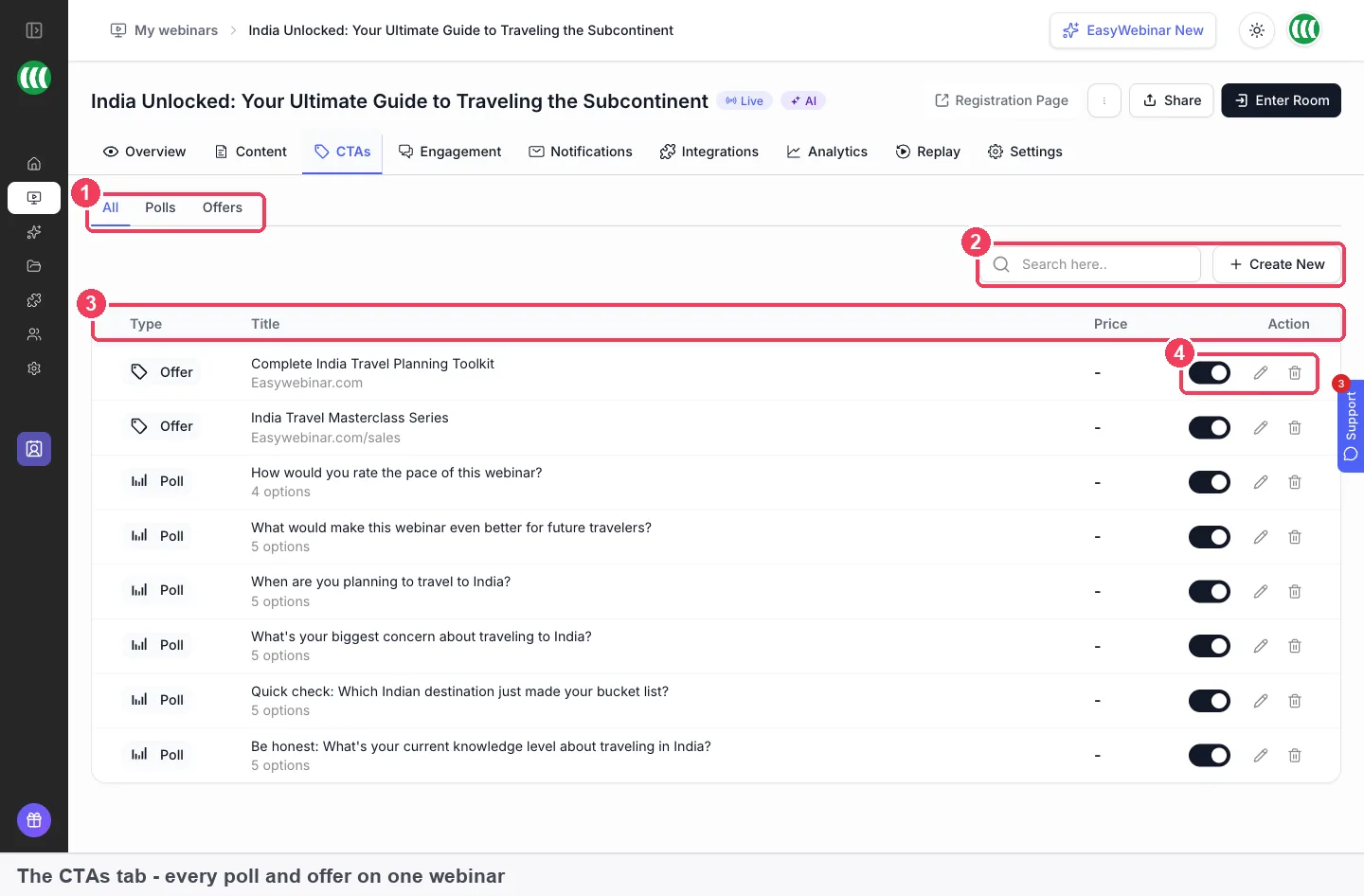
The row toggle turns a CTA on or off without deleting it, which helps when you want the offer ready but not live until section 7. In the offer editor, switch on Countdown timer if your outline gives the offer a deadline, and set Button URL to your own checkout, booking or sales page. The offers and countdown timers pages cover both settings in detail. Testing your room and rehearsing belong to your preparation checklist, and the green room page covers the private space for that run-through.
Check whether the outline worked
Two measures tell you whether the plan held up, and both come from the sections you timed.
Offer views to clicks
Divide offer clicks by offer views. A low figure means the offer itself is not landing, which often points back to a thin bridge or an offer that arrived too late. Its weak spot is that it says nothing about checkout: a strong click rate with few purchases is a checkout or pricing problem, not an outline problem.
Questions asked and answered
Compare how many questions were asked with how many you answered. If many go unanswered, section 8 was squeezed, and the usual cause is an overrun in the teaching points. Its weak spot is that a quiet audience asks little, so a low count can mean disinterest rather than a well-timed session.
Where EasyWebinar shows them
The webinar analytics Overview shows Offers Performance, with offers, views, clicks and purchases and a click rate, alongside Views to Clicks and Clicks to Purchases. Its Questions & Answers panel shows how many questions were asked and how many you answered. Use both after each session, then adjust the minutes in your outline before the next one.
Worked example: timing a 60-minute webinar
This is an illustrative calculation with sample figures, not an EasyWebinar output. It takes the 60-minute column of the template, works out the running clock and share of time, then shows what a small overrun does.
| Section | Minutes | Starts at | Share of 60 |
|---|---|---|---|
| Opening and housekeeping | 6 | 0:00 | 6 ÷ 60 = 10% |
| The promise | 3 | 0:06 | 3 ÷ 60 = 5% |
| Teaching points 1 to 3 | 3 × 10 = 30 | 0:09 | 30 ÷ 60 = 50% |
| The bridge | 3 | 0:39 | 3 ÷ 60 = 5% |
| The offer | 9 | 0:42 | 9 ÷ 60 = 15% |
| Questions and close | 9 | 0:51 | 9 ÷ 60 = 15% |
| Total | 60 | ends 1:00 | 100% |
Now suppose each teaching point runs 3 minutes over. That is 3 × 3 = 9 extra minutes, so the bridge starts at 0:48 instead of 0:39 and the offer at 0:51 instead of 0:42. With a hard stop at 1:00, the questions shrink from 9 minutes to 9 − 9 = 0.
The conclusion is that a small overrun in each teaching point removes the whole question section. Give each teaching point a hard end time in the outline, and treat the questions as fixed time rather than whatever is left over.
What works with your webinar outline
- Polls carry out the poll plan from sections 1, 4 and 6.
- Offers deliver section 7, with the button pointing to your own checkout.
- Replay pages keep the same offers and polls when the replay uses Webinar Replica.
- Registration page builder turns the promise in section 2 into the page people sign up on.
- Webinar follow-up emails send what your close promised.
Who plans webinars with an outline
B2B marketing teams
A team running a quarterly programme writes one outline per session, then builds the registration page, invitations and follow-ups from it. The outline is also the brief a subject expert presents from, so the session matches what the campaign promised. The webinar lead generation page covers what happens to the registrants afterwards.
Coaches and consultants
A coach selling a programme uses the bridge and the offer sections most. Planning them as timed sections stops the pitch shrinking to a final slide, and the countdown line in the template decides whether the offer has a deadline.
Course creators
A creator opening enrolment plans the teaching points to lead into the course offer, then reuses the same outline for an evergreen version. The selling online courses with webinars page covers the rest of that launch.
How EasyWebinar compares for webinar planning
EasyWebinar turns a description of your session into a script with named, timed sections, then writes polls from the goals you choose and offers with an optional countdown. That keeps the outline, the script and the moments you ask for action in one plan.
Webinar planning features, from each platform's public documentation:
| Platform | AI writes the script from a description | AI writes the polls | Countdown on the offer |
|---|---|---|---|
| EasyWebinar | Yes | Yes | Yes |
| WebinarKit | Yes (AI Creator Suite writes scripts) | Not in docs | Partly (claimed on its Live product page) |
| WebinarJam and EverWebinar | Partly (AI Agenda Planner drafts an agenda) | Not in docs | Yes (Apply urgency countdown) |
| eWebinar | Not in docs | Yes (suggested from your uploaded video) | Partly (shown in one guide example) |
| Demio | Not in docs | Not in docs | Not in docs |
Yes: documented and built in. Partly: documented with a limit, shown in brackets. Not in docs: not found in the vendor's public documentation.
Why EasyWebinar is the stronger choice for webinar planning
- A full script, not just an agenda. EasyWebinar writes the script slide by slide in timed sections with speaker notes, while WebinarJam's help centre describes an AI Agenda Planner that generates an agenda. EasyWebinar vs WebinarJam
- Polls planned from their purpose. EasyWebinar writes polls from goals such as gauging interest in your offer, while WebinarKit's AI Creator Suite covers scripts and its help docs describe no AI-written polls. EasyWebinar vs WebinarKit
- Polls before the video exists. EasyWebinar drafts polls when you plan the session, while eWebinar suggests interactions once your video is uploaded. EasyWebinar vs eWebinar
Competitor details checked against each vendor's public documentation on 4 November 2026. Features and plans change, so confirm with the vendor before you decide.
Limits of this planning flow
- The outline template lives on this page. EasyWebinar works from the description you write, so the planning decisions stay with you.
- The script step needs a number of slides and a duration before it writes, and changing either changes the result when you regenerate.
- AI generation uses credits, shown at the top right of every step. The script and the pages cost the most, at 10 credits each.
- You still set the schedule yourself, and a simulive or evergreen webinar needs a video chosen afterwards.
- An offer's button opens the URL you set, such as your own checkout, booking or sales page.
Common questions about webinar outlines
What sections should a webinar have?
A webinar that teaches and then sells needs eight sections: opening and housekeeping, the promise, three teaching points, a bridge, the offer, and questions with a close. Each one gets a time budget so the offer and questions keep their room.
Where in a webinar should the offer go?
Put the offer after your last teaching point, through a short bridge that names the gap it closes. Leave time for questions afterwards, because that is where attendees raise the objections the offer has to answer.
How long should each section of a webinar run?
In a 45-minute session, try 4 minutes of opening, 2 for the promise, 8 for each of three teaching points, 2 for the bridge, 6 for the offer and 7 for questions. Adjust the split, but keep the total fixed.
What goes on a webinar housekeeping slide?
Four things: how to ask a question, how long the session runs, whether there is a replay, and where to click when you share a link. Say them aloud too, because people who join late miss the slide.
What is the difference between a webinar outline, agenda and script?
The outline is your private plan of sections, timings and asks. The agenda is the public version you promise attendees. The script is the word-for-word talk written from the outline, slide by slide.
How many teaching points should a webinar have?
Three is enough for 45 or 60 minutes. Each point needs an idea, an example and a takeaway, and more points leave each one too little time while pushing the offer later.
Where should polls go in a webinar?
Plan one poll in the opening to learn who is attending, one after the second teaching point about their experience, and one in the bridge to gauge interest in going further before you make the offer.
Can EasyWebinar write my webinar outline for me?
EasyWebinar writes a timed script from a description you give it, in named sections with speaker notes. It does not hand you a blank outline, so fill in a template like the one on this page and use it as your description.
Can I edit the script EasyWebinar writes?
Yes. Everything the AI produces is a draft you can change. You can also change the number of slides or the duration and click Regenerate to get a fresh script.
Does the same outline work for a simulive or evergreen webinar?
Yes. The sections and timings stay the same, and you set the webinar type before generating. A simulive or evergreen webinar then needs a video chosen afterwards.
Will my polls and offers appear on the replay?
They do when the replay page uses Webinar Replica, which duplicates the live webinar with the same video, offers, polls and chat replay. Your outline's asks then keep working for people who watch later.
Should my webinar offer have a countdown?
Only if the offer has a real deadline. In EasyWebinar, switching on Countdown timer in the offer editor puts a countdown on the offer card, so decide this in the outline before you build the offer.
How do I know my webinar outline worked?
Check offer views against clicks and questions asked against questions answered. A low click rate points to the bridge or the offer, and many unanswered questions point to teaching that overran.
How do I stop my webinar running over time?
Give every section a fixed end time in the outline, treat questions as protected time, and rehearse with a timer. If you run long on the day, shorten the last teaching point rather than the offer or questions.
Further reading
- Inverted Pyramid: Writing for Comprehension (Nielsen Norman Group, 2018) explains why the main point should come first, which is how each section of an outline should open.
- How Chunking Helps Content Processing (Nielsen Norman Group, 2016) explains why content split into a few distinct units is easier to follow and remember.
- How Users Read on the Web (Nielsen Norman Group, 1997) found that most people scan pages, which matters when you turn the outline into a registration page.
Related
Updated 4 November 2026: page created with a fill-in outline template, section timings, a poll plan and a worked timing example.