
0%On this pageContents
Webinar script writing is usually the job that holds everything else up. You have a topic and a date, but until the script exists you can't build slides, write the registration page or plan the offer. This page gives you a webinar script template you can fill in yourself, section by section. Then it shows how EasyWebinar's AI writes a slide-by-slide draft from a short description, which you edit and regenerate until it sounds like you.
At a glance
| The fast answer | Fill in the template on this page, or describe your webinar and let the AI write a draft script |
| What you set first | The number of slides and the duration |
| What comes back | A script written slide by slide, in named sections, each with its own timing and speaker notes |
| Change it | Edit the topic, slides or duration, then click Regenerate for a fresh script |
| Take it away | Download PDF gives you the script to present from |
| Cost | The script step uses 10 credits |
| Time | Roughly a minute and a half for the script |
| What it feeds | The registration page, thank-you page and waiting area are written using the script as source material |
What a webinar script template covers
Picture the week before a free webinar. The slides are half done, the invitation needs a description, and you still don't know what you'll say in the first two minutes. A webinar script template fixes that by giving you a set order of sections, so you fill in blanks instead of facing an empty page.
A working template covers the whole run of the session. It starts with the welcome and housekeeping, moves through the problem and your teaching points, and ends with the offer and the close. Each section has a rough share of the running time. Each slide has notes on what you say, not just what the slide shows.
You can fill in a template by hand, and the template further down this page gives you one to copy. Or you can have the AI write the first draft. In EasyWebinar, the AI asks for the number of slides and the duration, then writes the script slide by slide in named sections such as hook and welcome and problem framing.
What you see on the screen
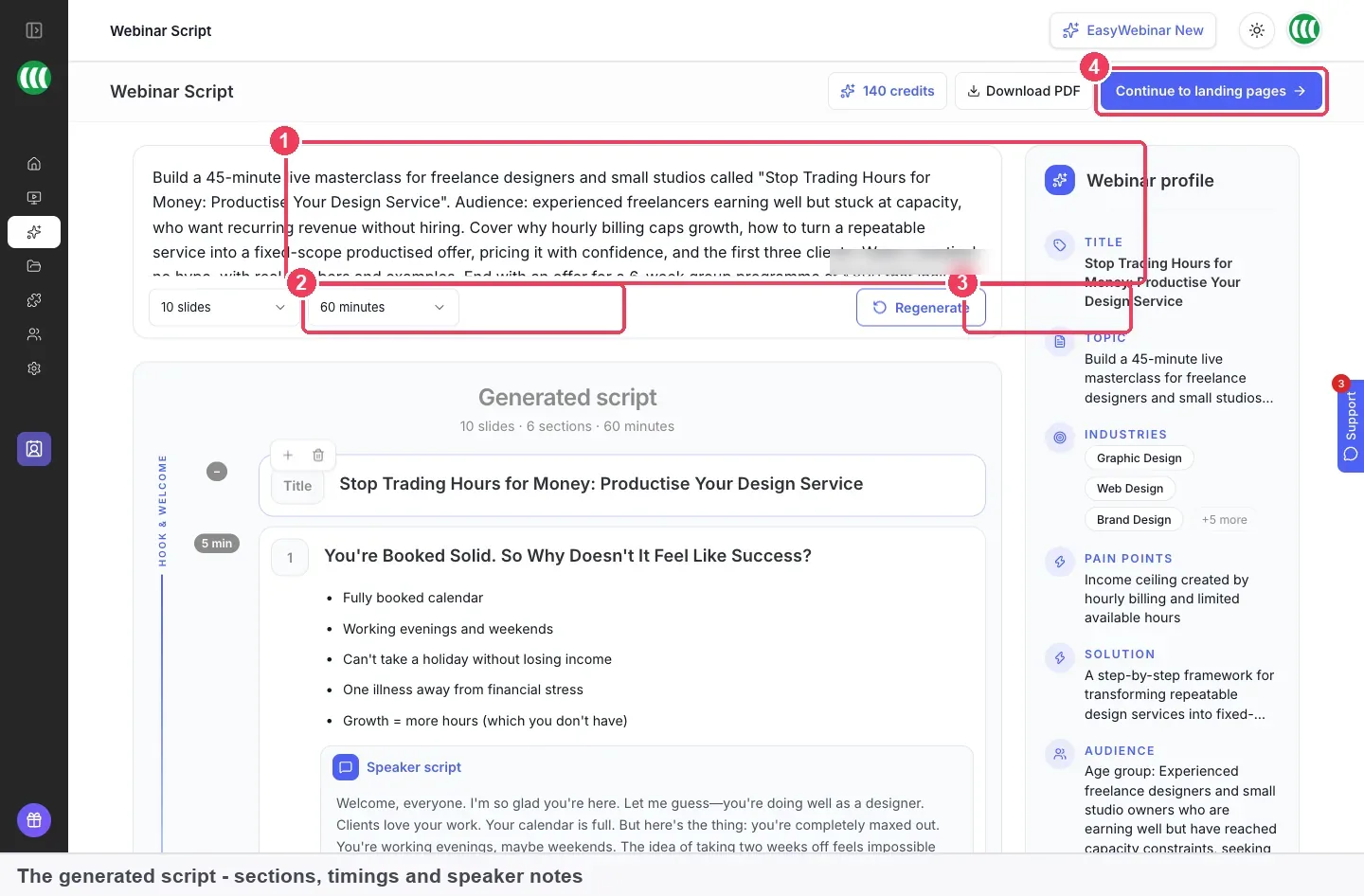
The script step shows four controls. Webinar topic holds your prompt, and you can still edit it. Slides and duration let you change either number and regenerate. Regenerate writes a fresh script, and Download PDF takes the script away so you can present from it. Below them sits the script itself, organised into sections with a timing and speaker notes for each.
The screenshots in the set-up steps below show the prompt screen and the finished script.
Why webinar script writing matters
What it's for
A webinar script turns a topic into something you can say out loud in a set time. It decides what comes first, how long each part runs and where the offer lands. Everything else in the webinar, from the slides to the registration page, is built from it.
How it helps
- You start from a draft. A template or an AI draft gives you sections to react to, which is faster than writing the first line from nothing.
- Your timing is planned. Each section gets a share of the running time, so the offer doesn't get squeezed into the last two minutes.
- Your notes match your slides. Speaker notes per slide mean you know what to say when each slide appears.
- The pages say the same thing. When the registration page is written from the script, what you promise matches what you teach.
What happens without it
Without a script, presenters tend to overrun the teaching and rush the close. The invitation promises one thing and the session delivers another. Each new webinar starts from a blank page again, so the prep takes days instead of an afternoon.
Who this falls to, and when
It falls to whoever presents. For a coach or consultant working alone, that means the same person who books the date also writes the script, the pages and the emails. The pressure peaks in the week before the session, when the date is fixed and the registration page has to go live.
The EasyWebinar approach to webinar script writing
Take a typical case. A leadership coach who works with newly promoted managers wants to run a free 40-minute live session on handling a first difficult conversation. She has the topic, three points she always teaches and a six-week group programme to offer at the end. What she doesn't have is a script, and the date is two weeks away.
The usual route is to open a blank document, or to borrow a script template and rewrite every line of it. That often takes a full day, and the timing is a guess until the first rehearsal. The registration page then gets written separately, so its promises can drift away from what the session actually covers.
The logic of the job has not changed: a script needs an order, a running time and words for each slide. What can change is who writes the first draft. If the draft arrives already split into timed sections, the coach's job becomes editing rather than writing from nothing.
EasyWebinar writes that draft. She describes the session, its audience, its tone and the offer, then sets the number of slides and the duration. EasyWebinar writes the script slide by slide, in named sections with their own timings and speaker notes. If the draft runs long or sounds wrong, she changes the slides or duration and regenerates.
One detail you can check on this page: Regenerate writes a fresh script rather than patching the old one. Changing the slides or the duration first changes what you get. How that compares with other platforms is covered in How EasyWebinar compares for webinar script writing, below.
How webinar scripts get written
There are four common ways to get from a topic to a script. Each one catches some problems early and leaves others for the rehearsal.
From a blank page
You write every word yourself, in your own voice. This catches tone problems early, because the script already sounds like you. It misses timing, since you rarely know how long a page of text takes to say until you read it aloud. It is also the slowest route, and it is where most webinar prep stalls.
From a fill-in template
You copy a set of section headings and fill in the blanks. This catches structure problems: you won't forget the housekeeping, the transition or the close. It misses voice, because template wording sounds like a template until you rewrite it. It also misses timing unless the template gives each section a share of the minutes.
From your slides first
You build the deck, then write notes under each slide. This catches visual flow, since every slide has a reason to be there. It misses the spoken links between slides, so the talk can feel like a list of points. It also tends to overrun, because slides get added without anyone counting the minutes.
With AI from a prompt
You describe the webinar and an AI writes the first draft. This catches the blank-page problem and gives you structure and timing at once. It misses your voice and your facts, so a generic prompt produces a generic script. You still have to read every line and check what it says about your offer.
What EasyWebinar is confirmed to do
EasyWebinar takes the fourth route. It asks for the number of slides and the duration, writes the script slide by slide, and organises it into named sections, each with its own timing and speaker notes. You can edit all of it, regenerate a fresh version, and download it as a PDF.
Webinar script template: what each section says
This is a fill-in template written for this page. EasyWebinar does not supply it, and its AI writes its own sections rather than filling in these headings. Copy it into a document, replace the bracketed parts, and adjust the minutes to your running time. The shares below assume a 45-minute session.
1. Welcome and introduction (about 3 minutes)
This is your webinar opening script, and it does two jobs: it welcomes people and tells them why staying is worth it. Put the main point first. Nielsen Norman Group's guidance on the inverted pyramid says to start with the most important information, so people get the point however much they take in. The same logic suits a spoken opening, because people join late and drift in and out.
A webinar introduction script sample you can adapt:
"Hi, and welcome. I'm [name], and I help [who you help] [do what]. In the next [minutes] minutes you'll learn [main result]. By the end you'll know [point 1], [point 2] and [point 3]. Stay to the end, because I'll share [what you'll share or offer] then."
2. Housekeeping (about 1 minute)
Tell people how the session works before you start teaching.
"A few quick things before we start. Use the chat to say hello and tell me where you're joining from. If you have a question, [where to ask it], and I'll answer as many as I can at the end. This session runs for about [minutes] minutes."
3. Who you are (about 2 minutes)
Keep this short and tie it to the audience's problem, not your full career.
"Quick bit about me. I've worked with [type of client] on [problem] for [time]. The reason I'm running this session is [why this topic matters to you]."
4. The problem (about 5 minutes)
Describe the situation your audience is in, in their words. Use words they already use. Nielsen Norman Group's plain-language guidance recommends simple, familiar words over complicated ones, and that matters even more when people hear a sentence only once.
"If you're [audience], you've probably found that [problem]. Most people try [usual fix], and it doesn't work because [reason]. Here's what's really going on."
5. Teaching points (about 20 minutes)
Give each point its own block of time, roughly six to seven minutes each for three points. For each one, say the idea, give an example, then say what the viewer can do this week.
"Point [number]: [the idea]. Here's what that looks like in practice: [example]. What you can do this week is [action]."
6. Transition to the offer (about 2 minutes)
Link what they learned to what you sell, so the offer doesn't arrive out of nowhere.
"So that's [recap of the three points]. Some of you will take this and run with it. If you'd like help putting it into practice, here's how I can help."
7. The offer (about 7 minutes)
Say who it is for, what is included, how it works and what to do next. Say the call to action out loud and point to where the offer button appears.
"[Offer name] is for [who]. Over [length], you get [what's included]. To join, [action, for example click the button below the video]."
8. Questions (about 4 minutes)
Leave room for questions from the audience. Prepare two or three answers to the questions you hear most often, in case the queue is quiet.
"Let's take your questions. [Question]. Good question: [answer]."
9. Close (about 1 minute)
Thank people, repeat the next step once, and tell them what happens after the session.
"Thanks for spending this time with me. If you want [offer result], [action]. You'll get an email from me shortly with [what follows]."
How long should a webinar script be
A webinar script is the right length when it fits the running time with room to spare. The simplest way to check that is to measure it, section by section, before the day.
Running time per section
Read each section aloud with a timer and compare it with the minutes you planned. This is the measure that matters most, because overruns usually land at the end, where the offer and questions sit. Its weak spot is that a solo read-through runs faster than a live session. Chat, questions and pauses all add time, so leave a margin.
Words per section
Once you know your speaking pace in words per minute, you can size a script before you rehearse it. Time yourself reading a paragraph aloud and count the words to find your pace. The weak spot is that pace changes with nerves and with the material, so treat the count as a first check, not a promise.
Where EasyWebinar shows timing
In EasyWebinar, every section of the generated script carries its own timing. You set the overall duration before the script is written, and changing it and regenerating changes the result. Compare your read-through times with those section timings to see where the draft runs long.
How to write a webinar script by hand
If you'd rather write the script yourself, this order keeps the work moving.
- Write one sentence on who the webinar is for and what they'll be able to do afterwards.
- Pick your running time, then split it across the sections in the template above.
- Choose three teaching points and one example for each.
- Decide what you'll offer at the end and write the transition that leads into it.
- Draft each section in plain spoken English, then read it aloud with a timer.
- Cut anything that pushes a section past its minutes.
- Write short speaker notes for each slide, so you know what to say when it appears.
- Rehearse once from start to finish and fix the slowest section.
The same job in EasyWebinar
In EasyWebinar, steps 1 to 5 collapse into a prompt and two numbers. You describe who the webinar is for, what it covers, how long it runs, the tone and what you're selling. Then you set the slides and duration, and the AI writes the script slide by slide, with timings and speaker notes per section. Steps 6 to 8 stay yours: read it, cut what runs long, regenerate if needed and rehearse.
This video shows the AI drafting a webinar script from a description, then carrying it into the rest of the build.
Worked example: sizing a 45-minute coaching webinar script
This is an illustrative calculation with sample figures, not an EasyWebinar output. Suppose a career coach times herself and finds she speaks at about 130 words a minute. She plans a 45-minute session and holds back 5 minutes as a margin for chat and pauses, leaving 40 scripted minutes.
| Section | Minutes | Words (minutes × 130) |
|---|---|---|
| Welcome and housekeeping | 4 | 4 × 130 = 520 |
| Who you are and the problem | 6 | 6 × 130 = 780 |
| Three teaching points | 18 | 18 × 130 = 2,340 |
| Transition and offer | 8 | 8 × 130 = 1,040 |
| Questions and close | 4 | 4 × 130 = 520 |
| Total | 40 | 40 × 130 = 5,200 |
The script should come to about 5,200 words, and the teaching points take 45% of it (2,340 ÷ 5,200). If her draft runs to 6,500 words, it is 25% too long (1,300 ÷ 5,200), which at her pace is 10 extra minutes. That is time taken straight from the offer and the questions.
How to generate a webinar script with AI
These steps take you from a description to a finished script you can present from. The script is the first step of an AI webinar build, and the later steps use it.
What to have ready
- Who it's for, specifically. "Experienced freelance designers stuck at capacity" works better than "designers".
- What it covers. The three or four things you'll actually teach.
- How long it runs, and roughly how many slides you want.
- The tone you want.
- What you're selling at the end, and the price.
- Credits. The script step uses 10 credits, and your balance shows at the top right of every step.
A weak prompt produces generic output, so this list is worth five minutes before you start.
Describe the webinar
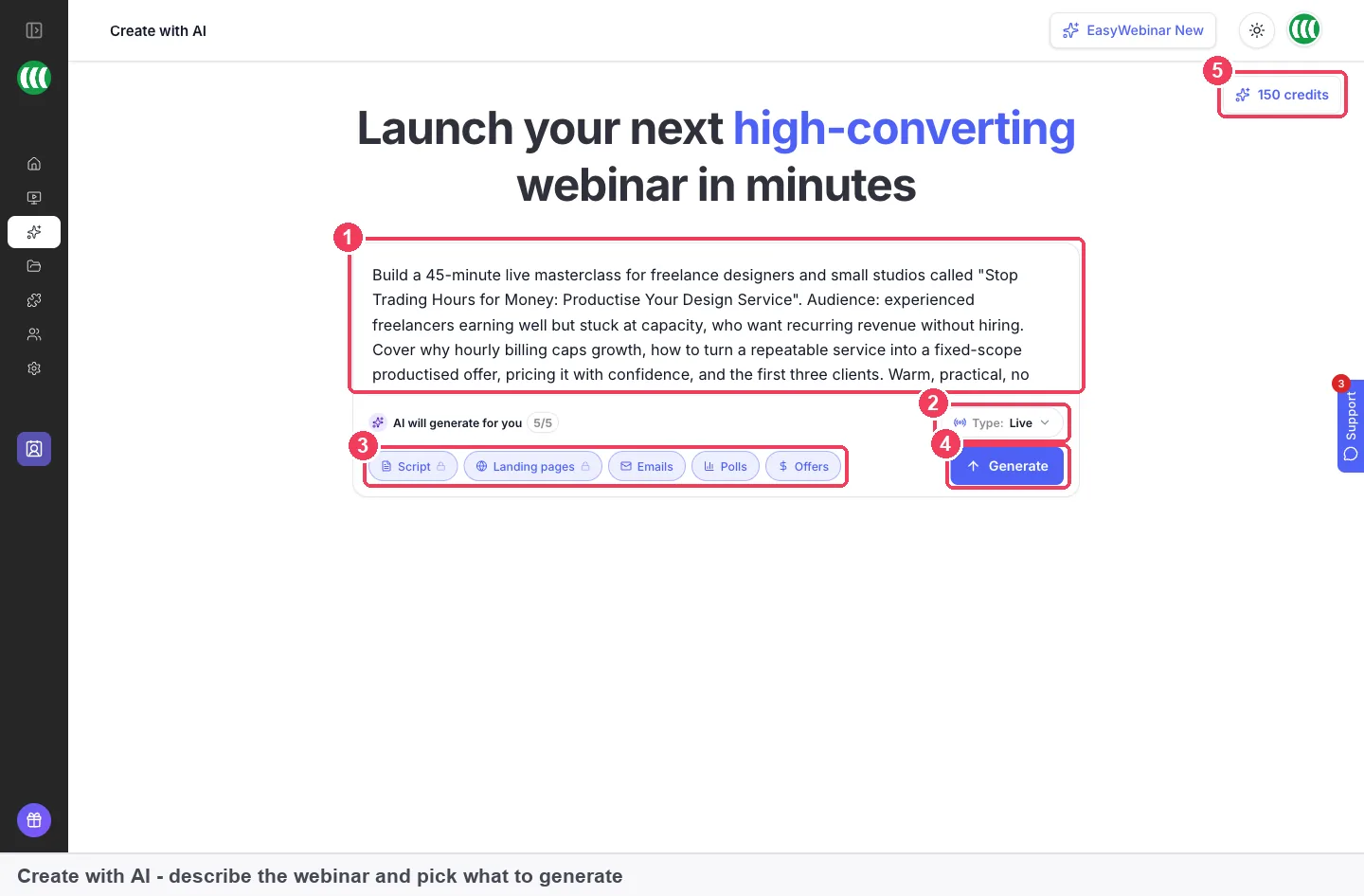
- Click Create with AI in the sidebar.
- Write your description in the Prompt box.
- Choose the Type: Live, Simulive or Evergreen.
- Check the output chips. Script, Landing pages and Emails are selected by default. Turn off the ones you don't want, or click Polls and Offers to add them.
- Click Generate.
Set the slides and duration
Before the script is written, you're asked for the number of slides and the duration. Use the running time from your invitation, and a slide count that suits how you present. Then the script is written slide by slide, which takes roughly a minute and a half.
Read and edit the script
The script comes back organised into named sections, such as hook and welcome and problem framing. Each section has its own timing and speaker notes. Read it all before you move on. It's much easier to fix the script now than to fix the pages and emails that get built from it.
Check three things as you read. First, does the opening say what the viewer will get, in the first few lines? Second, do the section timings add up to a close and offer with enough room? Third, is everything it says about your offer, its price and what's included correct? You can edit all of the AI's output, so treat it as a draft.
Regenerate until it sounds like you
If the draft is the wrong length, change Slides and duration. If it misses your audience or your tone, edit the Webinar topic to be more specific. Then click Regenerate. It writes a fresh script, not a patched version of the old one, so copy any lines you want to keep before you regenerate.
Download the script and continue
Click Download PDF to take the script away and present from it. Then click Continue to landing pages. The AI writes your registration page, thank-you page and waiting area using the script as source material, as covered in AI landing page generation.
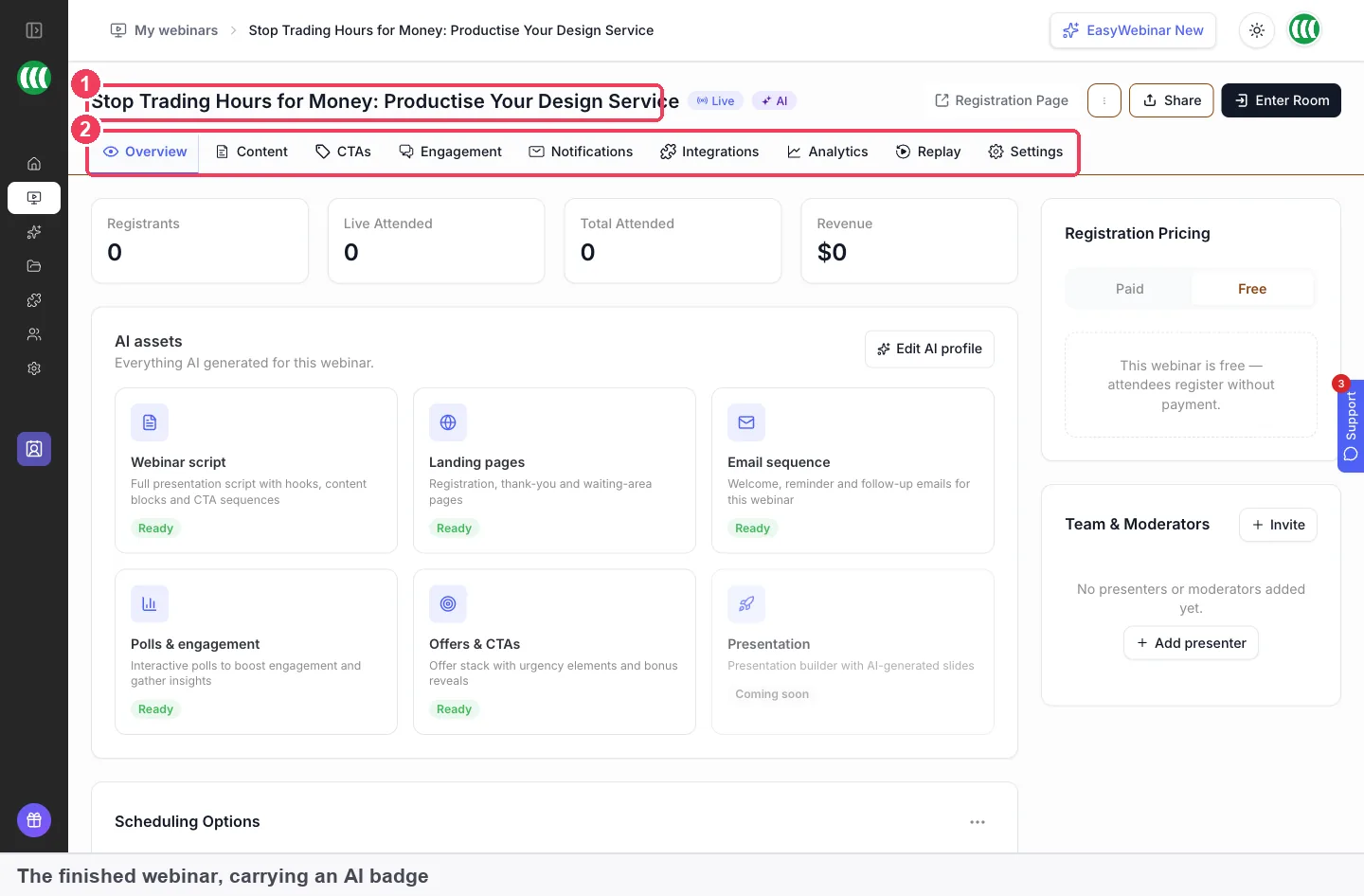
When the build is done, it drops you on the finished webinar's Overview. The webinar carries an AI badge in My Webinars, and from there it behaves like one you built by hand. You still need to set your schedule and, for simulive or evergreen, choose a video.
What works with webinar script generation
The script is the source for the rest of an AI build, so it's worth getting right first.
- Pages. The registration page, thank-you page and waiting area are written using the script as source material, then open in the registration page builder.
- Emails. The same build drafts the welcome email, reminder emails and follow-ups, with merge tags already in place.
- Polls. The build can write five polls, each with a note on where it fits in the run of show.
- Offers. Pick a soft, balanced or direct pitch and the build writes offers with a title, headline and button text.
- Webinar types. The script works for live webinars, simulive webinars and evergreen webinars. Set Type before you generate.
This video shows the same AI build on live and evergreen webinars.
For the wider planning around a session, the blog's guide on how to create webinars covers topic, format and promotion.
Who uses AI webinar scripts
Business coaches
A business coach running a monthly free session needs a fresh script each time without starting from scratch. The template keeps the structure the same, and the AI draft gives each month's topic its own sections and timing. The coach then edits the stories and examples into their own voice.
Independent consultants
A consultant who sells advisory work uses a webinar to show how they think. The script needs strong teaching points and a gentle close, so they write the prompt for a soft, education-first session. They check every line about scope and fees before the pages go live.
Career and life coaches
A career coach who runs a free session before opening a group programme needs the offer to land at the right moment. Setting the duration first means the AI's section timings leave room for the offer. The coach downloads the PDF and rehearses against those timings.
Small coaching practices
A practice with several coaches wants each presenter's session to follow the same shape. Each coach starts from the same template, generates a draft for their own topic, and regenerates until it sounds like them. A cloned webinar can then carry the settings from one session to the next.
How EasyWebinar compares for webinar script writing
EasyWebinar writes the webinar script slide by slide from your description, after you set the slide count and duration. Each section comes with its own timing and speaker notes, and the registration, thank-you and waiting pages are written from the same script, so what you promise matches what you teach.
Webinar script writing features, from each platform's public documentation:
| Platform | AI writes the webinar script | Slide count and duration set first | Timing and speaker notes per section | Pages written from the script |
|---|---|---|---|---|
| EasyWebinar | Yes | Yes | Yes | Yes |
| WebinarKit | Yes (script from prompt questions) | Not in docs | Not in docs | Partly (slide deck built from script) |
| eWebinar | Partly (a script template to adapt) | Not in docs | Not in docs | Not in docs |
| Zoom | Not in docs | Not in docs | Partly (AI speaker notes in Slides) | Not in docs |
| Demio | Not in docs | Not in docs | Not in docs | Not in docs |
| WebinarJam | Not in docs | Not in docs | Not in docs | Not in docs |
| ON24 | Not in docs | Not in docs | Not in docs | Not in docs |
Yes: documented and built in. Partly: documented with a limit, shown in brackets. Not in docs: not found in the vendor's public documentation.
Why EasyWebinar is the stronger choice for webinar script writing
- The script feeds your pages. WebinarKit documents building a slide deck from the script. EasyWebinar writes the registration, thank-you and waiting pages from the script as well. EasyWebinar vs WebinarKit
- A written draft, not a blank template. eWebinar documents a standard script template to start from. EasyWebinar writes the script itself from your prompt, with timing and speaker notes in every section. EasyWebinar vs eWebinar
- The whole script, not just the notes. Zoom documents AI that generates speaker notes for Zoom Slides. EasyWebinar writes the full script slide by slide, in named, timed sections. EasyWebinar vs Zoom
Competitor details checked against each vendor's public documentation on 4 November 2026. Features and plans change, so confirm with the vendor before you decide.
Limits of AI webinar script generation
- The script is a draft. The AI writes from your prompt, so a vague prompt produces a generic script. Read every line, especially anything about pricing and what your offer includes.
- Regenerate replaces the script. It writes a fresh version, so lines you liked in the old one don't carry over unless you copy them first.
- The script step costs credits. It uses 10 credits, and the script and landing pages are the most expensive steps of a full build.
- It doesn't schedule the webinar. After the build you still set the schedule and, for simulive or evergreen, choose a video.
Common questions
What is a webinar script template?
A webinar script template is a set order of sections, such as welcome, problem, teaching points, offer and close, with blanks to fill in and a share of the running time for each. It lets you write a webinar script by filling in sections instead of starting from an empty page.
Does EasyWebinar give me a script template?
No. The fill-in template on this page is written for this page, not supplied by EasyWebinar. Inside EasyWebinar, the AI writes a full draft script from your description, in its own named sections with timings and speaker notes.
Can AI write a webinar script?
Yes. In EasyWebinar you describe the webinar, set the number of slides and the duration, and the AI writes the script slide by slide. You then edit it, regenerate it or download it as a PDF.
How long should a webinar script be?
Long enough to fill your running time with a margin for chat and questions. Time yourself reading aloud to find your words per minute, then multiply by the scripted minutes. At 130 words a minute, 40 scripted minutes is about 5,200 words.
What should a webinar introduction script say?
Who you are, who the session is for, what viewers will learn and why they should stay to the end. Put the main result in the first few lines, because people join late. The welcome section of the template above gives a sample you can adapt.
What goes in the speaker notes?
What you'll say while each slide is on screen. In EasyWebinar's generated script, every section has its own speaker notes and timing, so you can see what to say and how long to spend on it.
How long does the AI take to write the script?
Roughly a minute and a half for the script. A full build of the script, pages, emails, polls and offers takes about ten minutes end to end.
How many credits does the script use?
The script step uses 10 credits. A full build of all five parts uses around 23. Your credit balance shows at the top right of every step.
What does Regenerate do?
It writes a fresh script. If you change the slides or the duration first, the new script changes to match. Copy any lines you want to keep before you regenerate.
Can I generate only the script?
Yes. Turn off the other output chips before you click Generate. Script, Landing pages and Emails are selected by default.
Can I edit the script the AI writes?
Yes. Everything the AI produces is editable, and the output is a draft rather than a finished product. You can also edit the webinar topic and regenerate.
Does it work for evergreen and simulive webinars?
Yes. Set Type to Live, Simulive or Evergreen before you generate. For simulive and evergreen you still choose a video afterwards.
Can I present from the script?
Yes. Download PDF gives you the script to present from. Rehearse against the section timings before the day so you know where you run long.
What makes a good prompt for a webinar script?
Be specific about who it's for, the three or four things you'll teach, how long it runs, the tone and what you're selling, with the price. A vague prompt produces a generic script.
Further reading
- Inverted Pyramid: Writing for Comprehension: Nielsen Norman Group on putting the main point first, which suits a webinar opening.
- Plain Language Is for Everyone, Even Experts: why simple, familiar words help every audience, including experts.
- AI webinar script generator: EasyWebinar's overview of writing webinar scripts with AI.
- Plans and pricing: what each plan includes.
Related
Updated 4 November 2026: first version, with a fill-in webinar script template, a guide to script length, a worked example and the AI script steps.