
 Product documentation
Set the webinar language for attendees
Set a live webinar's Webinar Language from its Settings tab, choose from 11 languages by search or own name, and tell it apart from your dashboard language and Date Display Language.
- Applies to
- Live webinars
- Status
- Live
- Verified
- Page type
- How-to guide
Webinar Language is the EasyWebinar setting that picks the default language attendees get, from 11 languages. Open the webinar's Settings tab, stay on General and pick a language under Webinar Language. Then click Save Changes. You never need to enter the live room.
Expected result: the Webinar Language field shows your choice, such as Spanish · Español, and keeps it after a reload.
At a glance
| Where | My Webinars → open the webinar → Settings tab → General → Webinar Language |
| What it sets | The default language attendees get when they join |
| Languages | 11, listed under AVAILABLE LANGUAGES · 11 |
| Default | English |
| Finding a language | Use Search languages…, or read each language's own name underneath |
| Saving | Click Save Changes. The app confirms General settings saved successfully. |
| Applies to | Live webinars |
| Next to it | Date Display Language, a separate field in the Date & Time Display section |
| Related setting | Your dashboard language, under Settings → My Profile → General Settings → Language |
Before you begin
- Open a live webinar. This page covers live webinars. If you don't have one yet, start with Create and schedule a live webinar.
- Stay out of the room. You set Webinar Language from the webinar's settings, without entering the live room.
- Write your own text in the language you want. Webinar Language sets the interface default, not your content. Your titles and page text stay as you wrote them.
- Know which setting you need. Your dashboard language is a separate setting that Applies to the dashboard interface. Change your dashboard language covers it.
Step 1: Open the webinar's General settings
- Click My Webinars in the sidebar, then click the live webinar.
- Click the Settings tab, the last of the webinar's tabs.
- Stay on the General sub-tab. Webinar Language has its own section, and shows English by default.
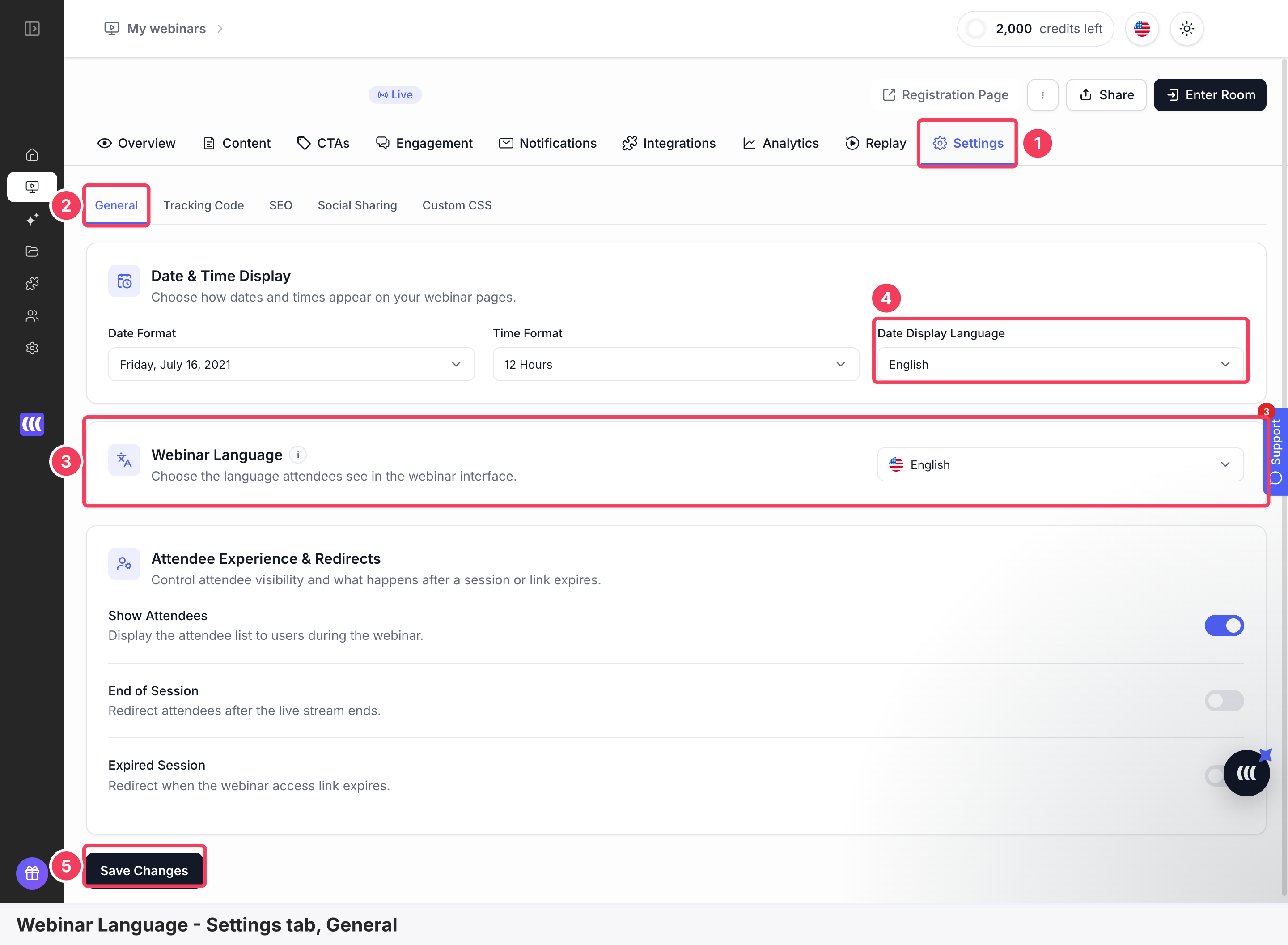
1 Settings · 2 General · 3 Webinar Language · 4 Date Display Language · 5 Save Changes.
| Area | What it shows | |
|---|---|---|
| 1 | Settings | The last of the webinar's tabs |
| 2 | General | The first sub-tab, beside Tracking Code, SEO, Social Sharing and Custom CSS |
| 3 | Webinar Language | Choose the language attendees see in the webinar interface. |
| 4 | Date Display Language | A separate field in Date & Time Display |
| 5 | Save Changes | Saves everything on the General sub-tab |
General has three sections. Date & Time Display comes first, then Webinar Language, then Attendee Experience & Redirects.
Changing your own menus?
That's your dashboard language, under Settings → My Profile → General Settings → Language. Change your dashboard language covers it.
Step 2: Choose the language
- Click the Webinar Language field. A list opens under the heading AVAILABLE LANGUAGES · 11, with a tick on the current language.
- Use Search languages… at the top, or scroll the list. Each entry shows the language's English name, with its own name underneath.
- Click the language attendees should get by default. The field then shows it, such as Spanish · Español.
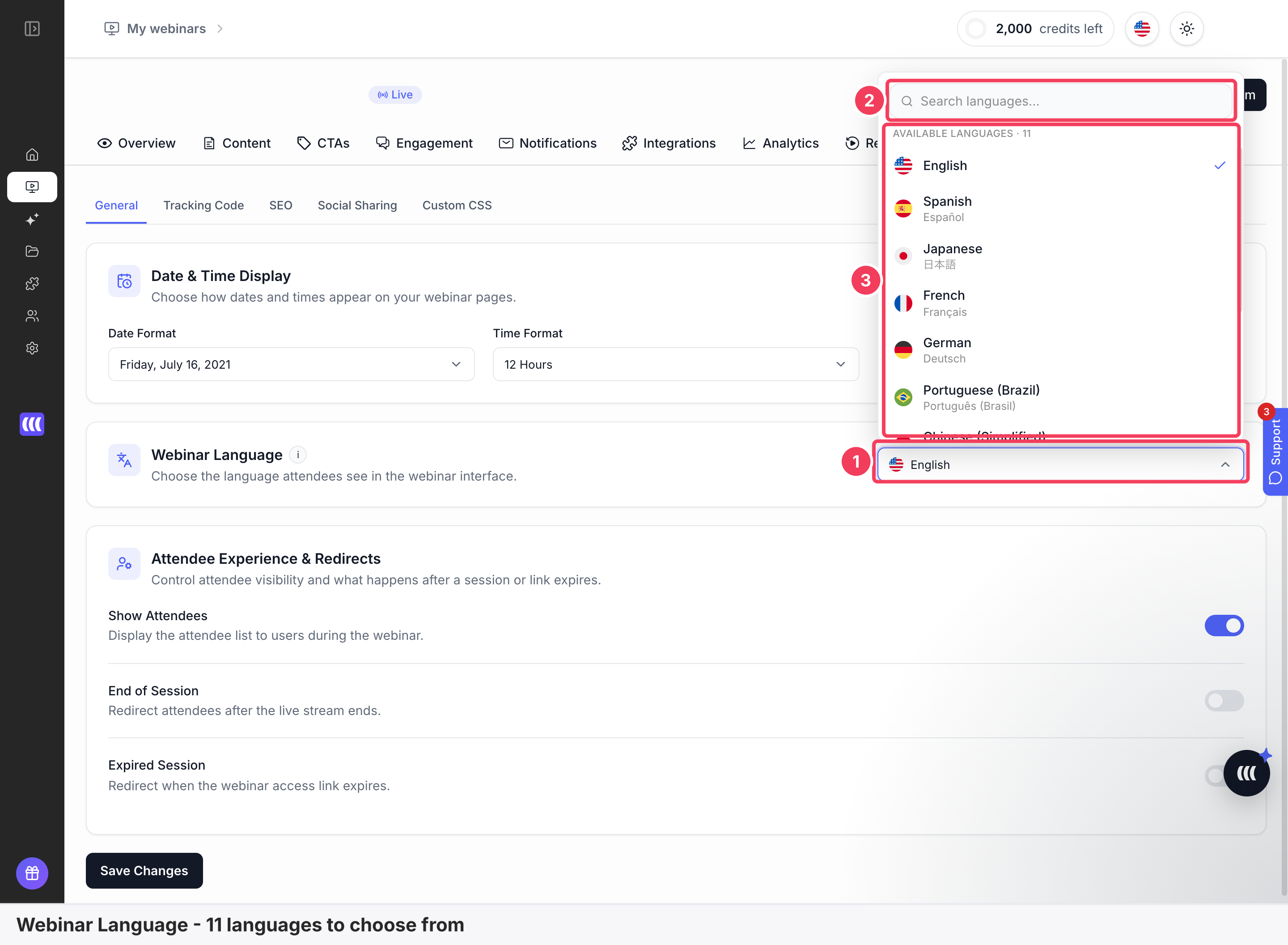
1 Webinar Language · 2 Search languages… · 3 AVAILABLE LANGUAGES · 11, with English ticked.
| Area | What it shows | |
|---|---|---|
| 1 | Webinar Language | The field, showing the current language |
| 2 | Search languages… | The search box at the top of the list |
| 3 | AVAILABLE LANGUAGES · 11 | Each language's English name with its own name underneath, and a tick on the current one |
These are the 11 languages, in list order. They are the same 11 as the dashboard language, and Italian isn't one of them.
| Language | Its own name |
|---|---|
| English | English |
| Spanish | Español |
| Japanese | 日本語 |
| French | Français |
| German | Deutsch |
| Portuguese (Brazil) | Português (Brasil) |
| Chinese (Simplified) | 简体中文 |
| Korean | 한국어 |
| Hindi | हिन्दी |
| Danish | Dansk |
| Arabic | العربية |
Step 3: Save your choice
- Click Save Changes at the bottom of the General sub-tab.
- Wait for the message General settings saved successfully.
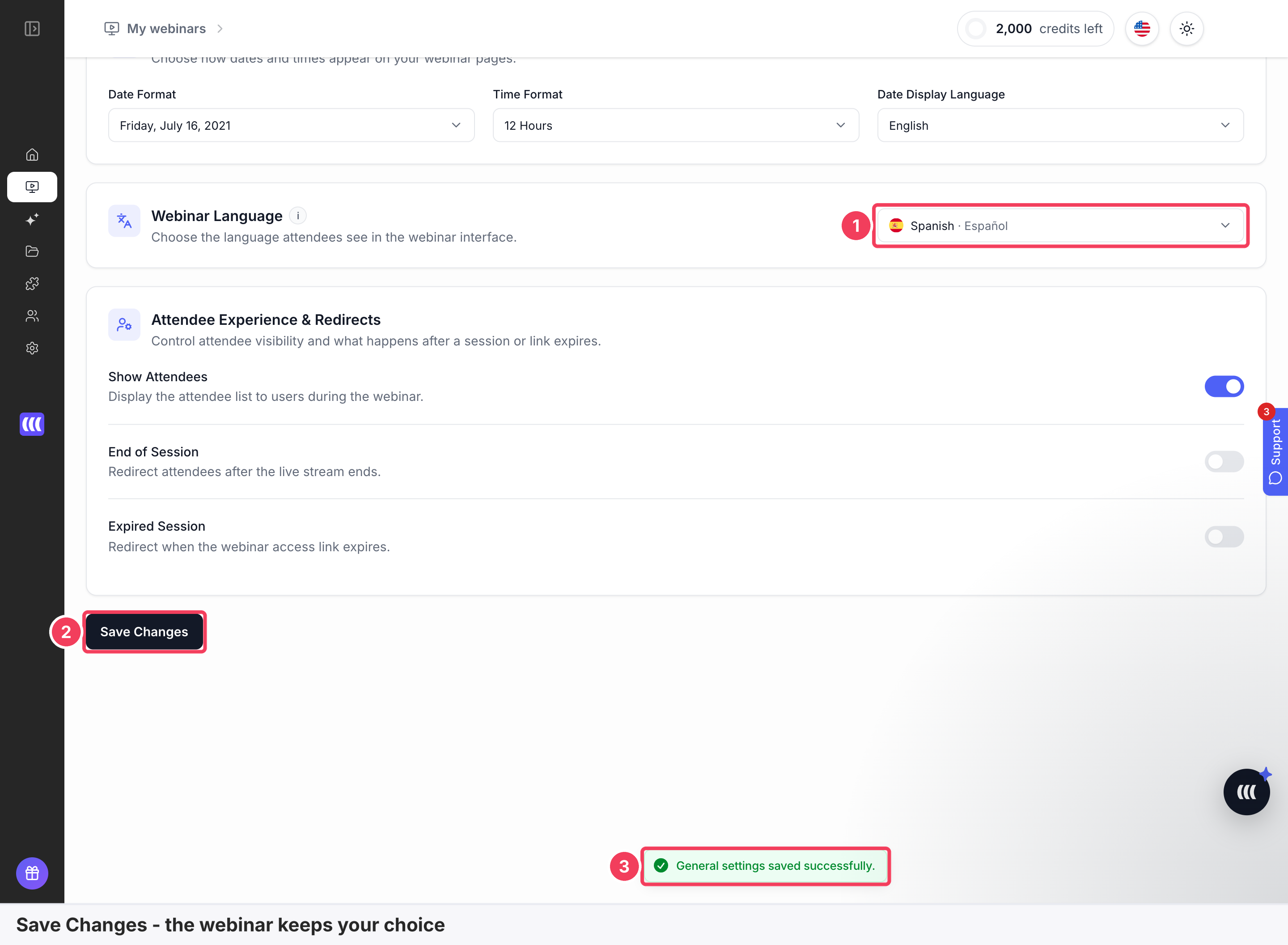
1 Webinar Language, set to Spanish · 2 Save Changes · 3 General settings saved successfully.
Save before you leave
Webinar Language isn't saved until you click Save Changes. Leave the page first and your browser warns you about unsaved changes.
Verify the result
- The field shows your choice. Webinar Language reads the language you picked, such as Spanish · Español.
- The save went through. The message General settings saved successfully. appeared.
- It holds after a reload. Reload the Settings tab and the field still shows your choice.
- The list ticks it. Open the field again and your language has the tick.
What Webinar Language is
Webinar Language is the EasyWebinar setting for the default language attendees get when they join a webinar. The host chooses it from the webinar's settings, without entering the live room. The list holds 11 languages.
The info icon beside Webinar Language opens a note headed What does this change? It says the setting picks "the language attendees see in supported webinar pages and interface text". It adds that it "does not translate spoken audio or uploaded videos". It also says "Exact coverage depends on your webinar configuration."
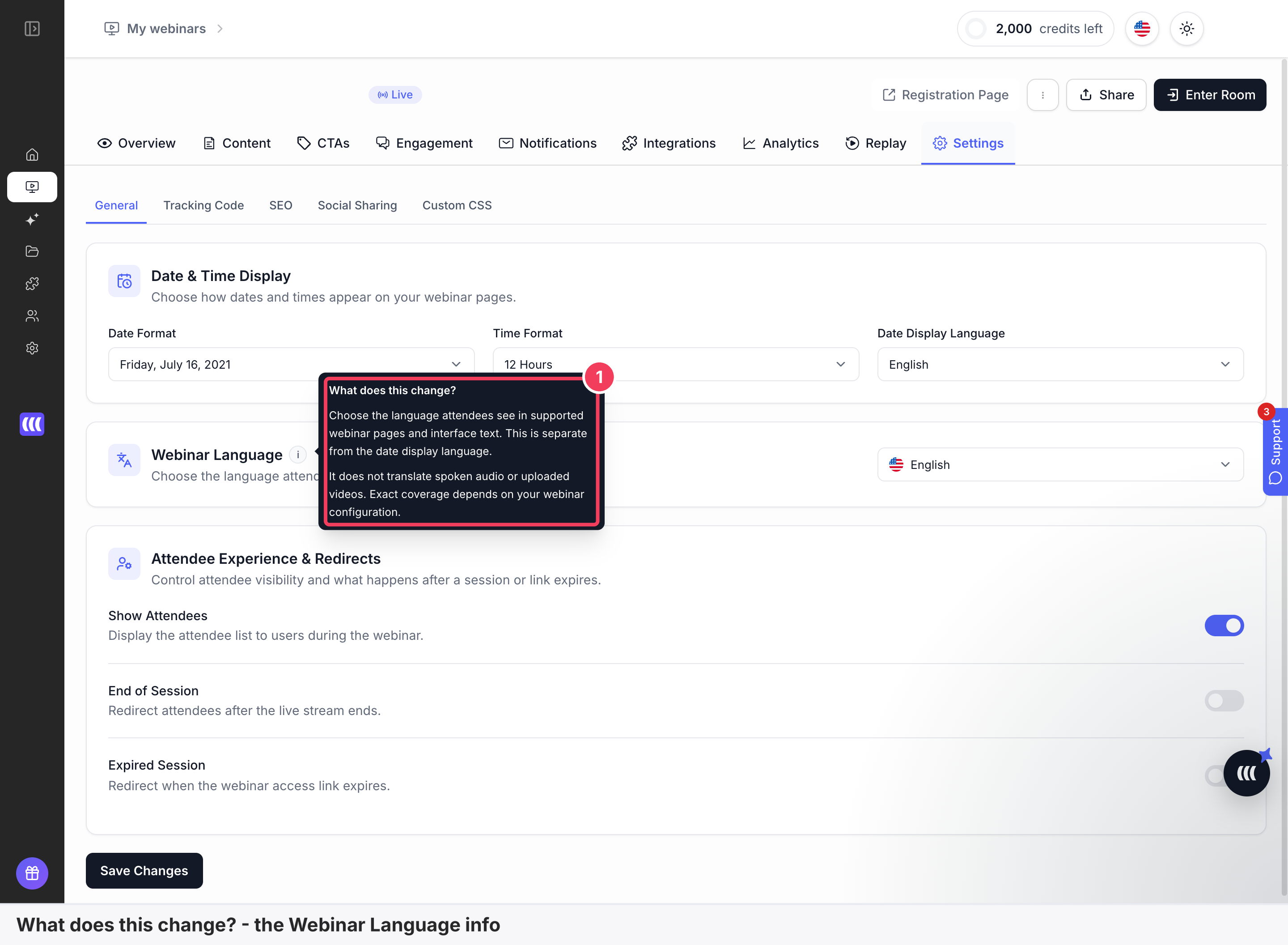
1 What does this change?
Webinar Language is separate from your dashboard language, whose helper text reads Applies to the dashboard interface. Date Display Language is another separate field, in the Date & Time Display section. Each one is set on its own. The table and diagram below set the two language settings side by side, and Change your dashboard language covers the other one.
| Dashboard language | Webinar Language | |
|---|---|---|
| Where you set it | The flag button in the top bar, or Settings → My Profile → General Settings → Language | The webinar's Settings tab → General → Webinar Language |
| Who sets it | You, while signed in to the dashboard | The host |
| What it changes | The dashboard interface, such as the sidebar, top bar, Home, Settings, Library and Integrations | The default language attendees get when they join |
| Applies to | The EasyWebinar dashboard | Live webinars |
| Languages | 11 | The same 11 |
| When it takes effect | At once, with no Save button | When you click Save Changes |
| What stays the same | Your own content, brand and integration names | Your own titles and text: it sets the interface default, not your content |
| Next to it | Theme, a separate field | Date Display Language, a separate field |
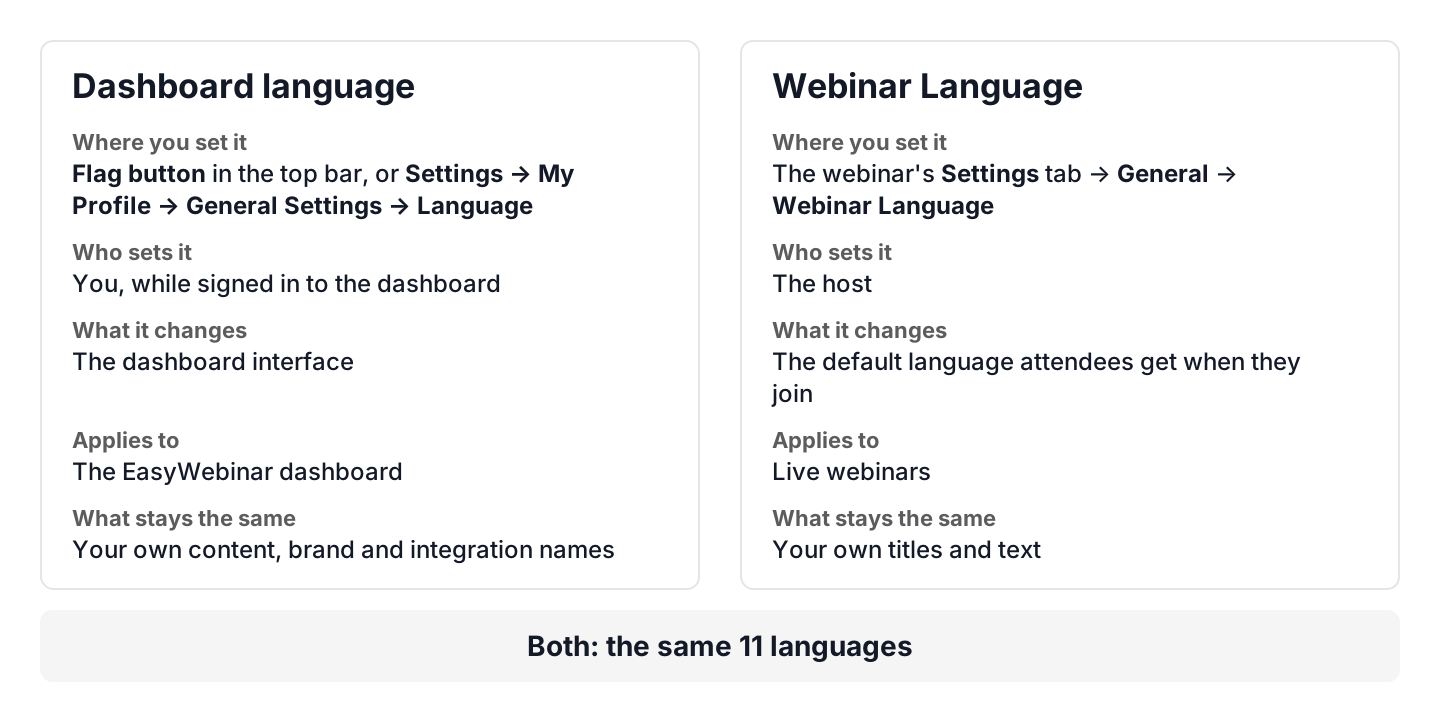
Dashboard language changes your dashboard. Webinar Language sets the default for attendees.
Why Webinar Language matters
What it's for
Webinar Language gives a webinar its own default language for attendees. You set it once, from the webinar's settings, before the session.
How it helps
- Set on each webinar. Webinar Language sits on each webinar's own Settings tab.
- No trip into the room. You choose Webinar Language from the webinar's settings, without entering the live room.
- Your dashboard stays as it is. Your dashboard language is a separate setting under My Profile.
- Languages are easy to spot. The Webinar Language list shows each language's own name underneath its English name.
What happens without it
Without a setting on the webinar, the attendee default would need sorting out somewhere else. Setting it close to the session is easy to forget.
Why buyers care
Webinar Language matters to teams that run webinars for audiences outside their own language. A webinar for coaches in Brazil, run in Portuguese, is one example. Both language settings offer the same 11 languages, so a host can work in the language the audience gets. Buyers comparing platforms should also read the Compare section below, which notes where rivals document more.
The EasyWebinar approach to Webinar Language
Take a typical case. A small team runs webinars for coaches. Its next webinar is for coaches in Brazil, so it runs in Portuguese. The team works in English and keeps its own dashboard in English.
A common approach is to leave the language until the day of the session. Someone then has to remember it while also checking the camera, the slides and the guest speaker.
The problem sits in timing. A setting left to the last minute is easy to miss, and the team's own dashboard language is a separate question.
EasyWebinar puts the setting on the webinar's Settings tab. The host opens General, picks Portuguese (Brazil) under Webinar Language and clicks Save Changes. That happens without entering the live room. The team's dashboard stays in English, under Settings → My Profile → General Settings → Language. The team writes its titles and page text in Portuguese, because Webinar Language sets the interface default, not the content.
The screenshot under Step 1 numbers Settings, General, Webinar Language, Date Display Language and Save Changes. How other platforms handle attendee languages is covered in How Webinar Language compares, below.
How Webinar Language works with other features
Your dashboard language
Your dashboard language is separate from Webinar Language. It sits under Settings → My Profile → General Settings → Language, with the helper text Applies to the dashboard interface. Change your dashboard language covers it.
Date Display Language
Date Display Language is a separate field, set on its own. It sits with Date Format and Time Format in Date & Time Display, a section for how dates and times appear on your webinar pages. All of them are on the Settings tab, one of the webinar tabs the Overview tab page lists.
The Settings tab's other fields
The Attendee Experience & Redirects section holds Show Attendees, End of Session and Expired Session. End of Session redirects attendees after the live stream ends. Run a live webinar explains why to fill it in.
Registration page
Your registration page says whatever you write in the registration page builder. Webinar Language sets the interface default, not your content.
Emails
You write your registration confirmation email and your reminders yourself. Webinar Language sets the interface default, not your content.
Creating a live webinar
Webinar Language sits on a webinar that already exists. Create and schedule a live webinar first, then open its Settings tab.
Who uses Webinar Language, and how
These are typical patterns, shown to illustrate how Webinar Language fits different teams.
Coaches and consultants
A coach running a webinar for coaches in Brazil sets Webinar Language to Portuguese (Brazil). The coach writes the page text in Portuguese too.
Agencies
An agency runs one client's webinar in French and another's in German. It sets Webinar Language on each webinar's own Settings tab.
B2B marketing teams
A marketing team keeps its dashboard in English and sets Webinar Language to Japanese for a launch webinar in Japan.
Course creators
A course creator selling to Spanish speakers picks Spanish, shown with Español underneath.
How Webinar Language compares
EasyWebinar sets a default language for attendees on each webinar, from its settings, without entering the live room. Livestorm, Demio and ON24 state more attendee languages than EasyWebinar's 11. Livestorm, Demio and Zoom also document email language, which this page doesn't cover for EasyWebinar. Livestorm's article says changing the event language translates its landing and registration pages, live event room and automated emails. Demio's account default language sets registration page buttons, dates and times, and system emails. ON24 adds a language dropdown to registration and lobby pages through an AI Translation Package from its account team.
Attendee language settings, from each platform's public documentation:
| Platform | Attendee language set per webinar | Number of attendee languages stated |
|---|---|---|
| EasyWebinar | Yes | Yes (11) |
| Livestorm | Yes (detail) | Yes (34 stated) |
| Demio | Yes (detail) | Yes (22 stated) |
| WebinarJam and EverWebinar | Yes (setup guide) | Partly (no total given) |
| ON24 | Yes (detail) | Yes (34 in the console) |
Yes: documented and built in. Partly: documented with a limit, shown in brackets. Not in docs: not found in the vendor's public documentation.
Why EasyWebinar is the stronger choice for Webinar Language
- Host and attendees share one list. EasyWebinar offers the same 11 languages for the dashboard and for Webinar Language. Demio's help centre says its host dashboard is available only in English. Compare EasyWebinar vs Demio.
- More dashboard languages than Livestorm. EasyWebinar's dashboard comes in the same 11 languages as Webinar Language. Livestorm's article lists its dashboard in English, French, German and Spanish. Compare EasyWebinar vs Livestorm.
- You choose the default for each webinar. In EasyWebinar, the host sets the attendee default on the webinar. Zoom says its registration page is shown in the language of the registrant's Zoom profile, if available. Compare EasyWebinar vs Zoom.
Competitor details checked against each vendor's public documentation on 27 October 2026. Features and plans change, so confirm with the vendor before you decide.
Limits and things to know
- This page covers live webinars. It describes Webinar Language as it appears on a live webinar's Settings tab.
- There are 11 languages. Italian isn't one of them.
- Your own content isn't translated. Webinar Language sets the interface default, not your titles, page text or the emails you write.
- Date Display Language is a separate field. It sits in Date & Time Display and is set on its own.
- It doesn't translate audio or video. The app's own note says Webinar Language "does not translate spoken audio or uploaded videos".
- Coverage depends on the webinar. The same note says exact coverage depends on your webinar configuration.
- Nothing is kept until you save. Click Save Changes before you leave the page.
- It isn't your dashboard language. That's a separate setting under My Profile.
- The default is English. A new live webinar's Webinar Language shows English.
Common questions
Where do I set the webinar language in EasyWebinar?
On the webinar's Settings tab → General → Webinar Language. Open the webinar from My Webinars first.
Do I need to enter the live room to set the webinar language?
No. In EasyWebinar, the host sets Webinar Language from the webinar's settings, without entering the live room.
What does Webinar Language set?
EasyWebinar's Webinar Language sets the default language attendees get when they join. It sets the interface default, not your own content.
How many languages does Webinar Language offer?
EasyWebinar's Webinar Language list is headed AVAILABLE LANGUAGES · 11. The 11 are English, Spanish, Japanese, French, German, Portuguese (Brazil), Chinese (Simplified), Korean, Hindi, Danish and Arabic.
Is Italian available as a webinar language?
No. Italian isn't one of the 11 languages in EasyWebinar's Webinar Language list.
What is the default webinar language?
English. A live webinar's Webinar Language field in EasyWebinar shows English by default.
Is Webinar Language the same as my dashboard language?
No. Your EasyWebinar dashboard language Applies to the dashboard interface and lives under My Profile. Webinar Language is set on each webinar.
Is Date Display Language the same as Webinar Language?
No. Date Display Language is a separate field next to Webinar Language on EasyWebinar's General settings, and you set it on its own.
Will Webinar Language translate my webinar title and page text?
No. EasyWebinar's Webinar Language sets the interface default for attendees, not your content. Your titles and page text stay as you wrote them.
Does each webinar have its own language?
Yes. EasyWebinar's Webinar Language sits on each webinar's own Settings tab, so you set it per webinar.
Do I need to click Save Changes after choosing a webinar language?
Yes. EasyWebinar keeps Webinar Language only after you click Save Changes on the General sub-tab. The app then shows General settings saved successfully.
Which settings sit next to Webinar Language?
On EasyWebinar's General sub-tab, Webinar Language has its own section. Date & Time Display sits above it and Attendee Experience & Redirects below.
Related
- Change your dashboard language: switch the menus you work in to one of 11 languages.
- The webinar Overview tab: open a webinar and find its tabs, Settings among them.
- Create and schedule a live webinar: create the live webinar you'll set the language on.
- Run a live webinar: fill in End of Session and run the session.
- Registration page builder: write your registration page copy in your attendees' language.
- Registration confirmation emails: review the email your registrants get.