
0%On this pageContents
What is EasyWebinar? It is a webinar platform for live, simulive and evergreen webinars that collect leads and sell. This overview gives you the whole product on one page: what it does, who it suits, how the parts connect and where its limits sit.
At a glance
| Question | Short answer |
|---|---|
| What is it? | A webinar platform built for conversions, for live, automated and on-demand webinars |
| Webinar types | Live, Simulive and Evergreen, all using the same pages, emails, polls, offers and analytics |
| How attendees join | From any browser, with nothing to download |
| Selling | Offers with countdown timers in the room, and paid registration through your own Stripe account |
| AI | Drafts your script, pages, emails, polls and offers; from Pro, answers attendee questions from your files |
| CRM | Your CRM or ours: keep the one you use, or use the built-in EasyCRM |
| Streaming out | EasyCast streams a live webinar to YouTube, LinkedIn or a custom RTMP destination |
| Security | EasyWebinar holds a SOC 2 Type II report and follows GDPR-aligned data practices |
| Not for | Hosting or delivering courses: it is the conversion layer in front of your course platform |
| Trial | The standard trial is 7 days and needs a card; current prices are on the pricing page |
What EasyWebinar is
Take a typical case. An independent bookkeeper who works with restaurant owners runs a free live talk each month, and new clients book after it. Between talks, people still land on her site and find nothing to watch, so she asks what kind of platform could run the talk live and then keep it running.
That is the job EasyWebinar is built for. A host builds a webinar with a registration page, emails, polls and offers. It runs live or from a recording, and the host follows up through analytics, integrations or the built-in EasyCRM. The short version of its approach is to run a webinar live, find the version that converts, then turn that session into an automated webinar that runs every day.
In this video, EasyWebinar shows its webinar platform running live and evergreen webinars from one account.
How the parts connect
A webinar's registration page collects registrants and can take payment through your Stripe account. Registrants then get emails from the Notifications tab, with SMS (Beta) and WhatsApp (Beta) as extra channels. They join the room live, or a recording plays at a set time (simulive) or around the clock (evergreen). Attendance, offer clicks and revenue then flow into the webinar's Analytics and the People view, and out to your CRM or into EasyCRM.
Who EasyWebinar is for
EasyWebinar suits people whose webinars have to keep working after the live hour. That covers creators, coaches, consultants, small businesses and marketing teams. In practice, these are the groups that use it most:
- Course creators run the sales webinar for a course they host elsewhere, then let a recorded version sell every day.
- Coaches and consultants run a free talk live, answer questions in the room and follow up the people who clicked an offer.
- SaaS and product teams run product demos and onboarding sessions as evergreen webinars that new users watch when it suits them.
- Agencies run webinars for several clients, each in a separate client workspace.
- Small businesses and solo operators handle the pages, emails and follow-up without a separate marketing stack.
- B2B marketing teams send registrants, attendance and offer clicks into the CRM they already use.
- Customer success teams run release briefings and training live, then keep the recording available.
It sits between a simple meeting room and an enterprise event platform. It is simple enough for a first webinar, and it can run your whole webinar funnel.
The three webinar types
You choose a type when you create a webinar, and the choice decides how the session is delivered. All three use the same pages, emails, polls, offers and analytics; only the delivery differs.
Live
You present in real time at a set date and time. Attendees join at that moment, and chat and Q&A happen as they happen. Choose a live webinar when people come for the interaction: a launch, a workshop or a question session.
Simulive
A recording plays at scheduled times, and everyone watching a session sees the same moment together. The chat still works as a shared room, and you can be in it answering questions. A simulive webinar suits a presentation you give over and over.
Evergreen
A recording runs on a repeating schedule rather than a fixed date. An evergreen (automated) webinar can offer just-in-time sessions that start shortly after each person registers, in their local time. It can also offer instant viewing on demand and recurring sessions.
The type is fixed once you create the webinar. To change it, you clone the webinar and pick a new type. This is also how you turn a session that worked live into an evergreen webinar from a past live recording.
How you set up and run a webinar
Every webinar follows the same order, whichever type you choose. Here is what you do, and what to check at each step.
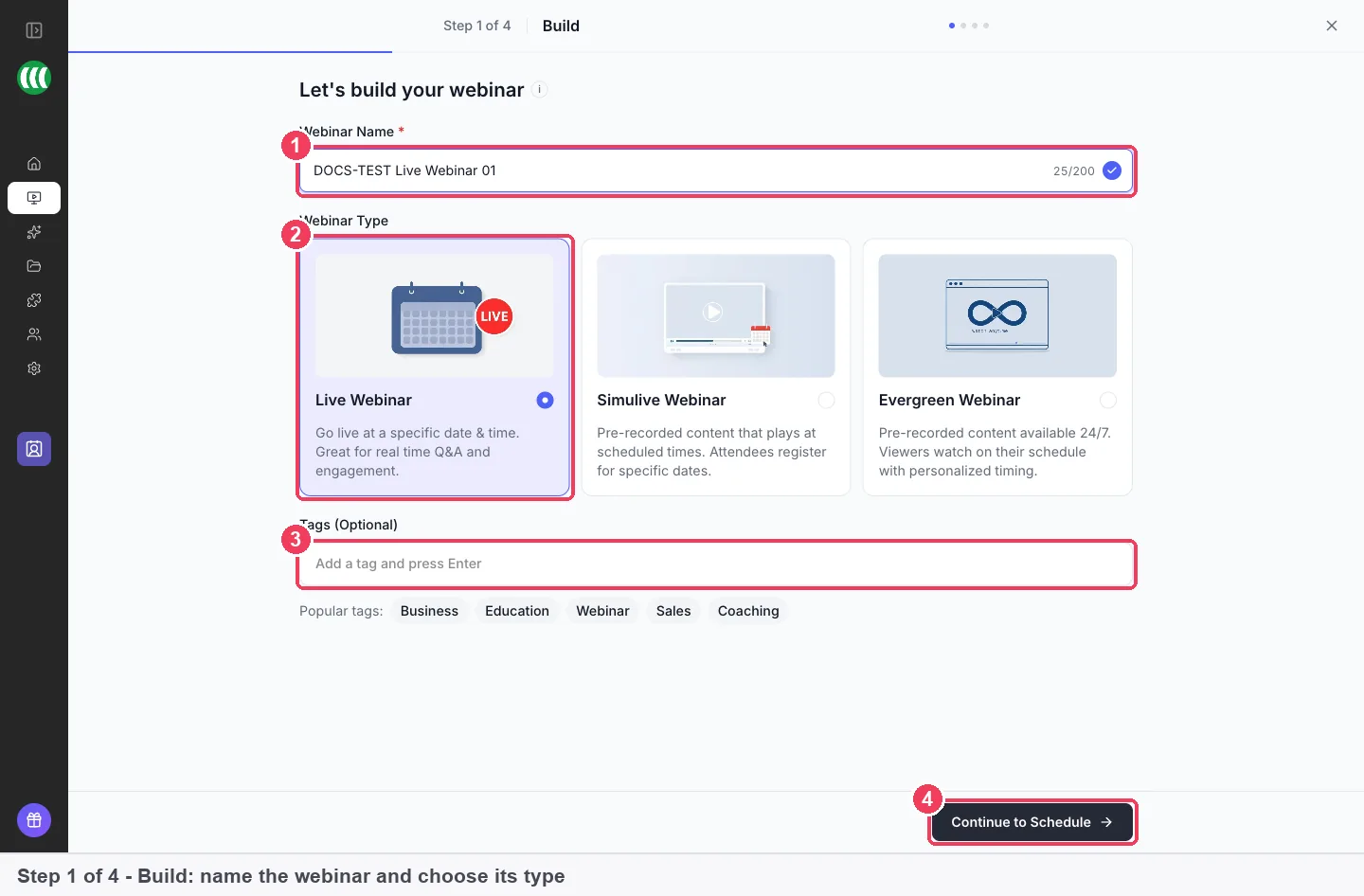
- Create the webinar and choose its type. Name it, pick Live, Simulive or Evergreen, then set the schedule. The live webinar setup guide walks through each step.
- Add the video for recorded types. EasyWebinar can host the video itself, or play one that lives on YouTube, Vimeo or Wistia.
- Build the pages. Use the registration page builder for the registration, thank-you and replay pages.
- Set up polls and offers. Do this on the CTAs tab, and add a countdown timer to an offer if it has a deadline.
- Set up chat and Q&A. These sit on the Engagement tab and are set before the webinar runs, not during it.
- Schedule the emails. A common pattern is reminder emails a day, an hour and fifteen minutes before.
- Run it, then read the results. Go live, or let the recording play, then open Analytics to see where people dropped off.
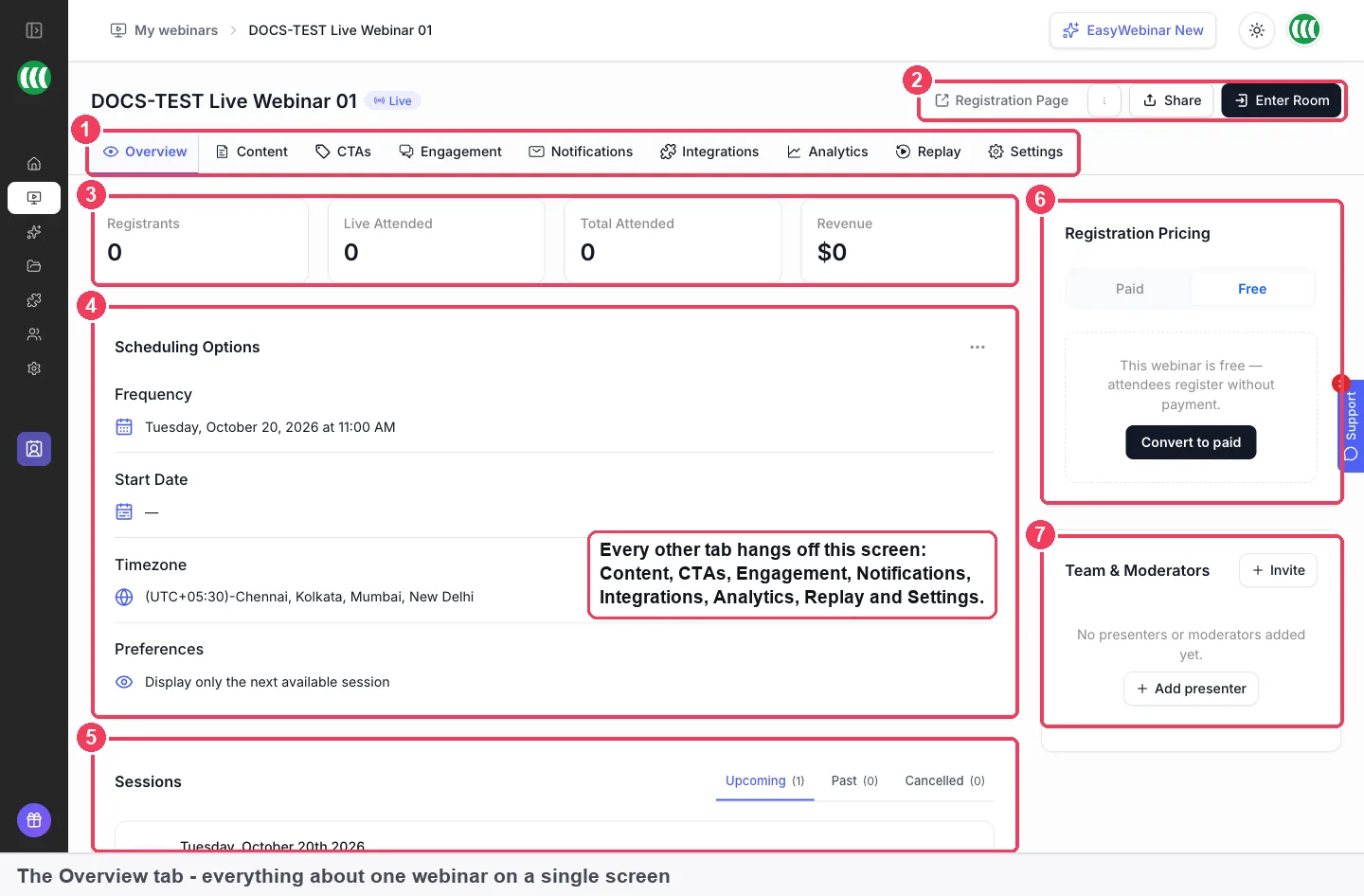
Once the webinar exists, it opens on its Overview tab. This is the home screen for one webinar, with live stats, scheduling, sessions, pricing, presenters and seven share links. The Overview tab guide explains each panel.
What happens in the live room
The live room is where you present. You arrive in a green room where nothing is broadcast, so you can check your camera framing and test your screen share. Co-hosts and moderators wait backstage, and your audience doesn't see or hear them until you bring them on. The live webinar guide covers the room from start to finish.
Two features help when you share a screen or slides:
- Draw on your share. Whoever is sharing their screen or slides can draw on them, and everyone in the session sees each line as it is drawn. Only the person sharing can draw.
- Attendees can zoom in. Attendees in live-room webinars can zoom in and move around a shared screen, video or slides, up to 400%. The zoom happens only in that attendee's browser, so nobody else's view changes.
EasyCast streams your live webinar to YouTube, LinkedIn or a custom RTMP destination at the same time. Use it when part of your audience watches on those channels, and keep the registration page as the place where leads are collected.
Selling and engagement
EasyWebinar is built around webinars that sell, so the selling tools sit inside the room rather than after it.
- Polls keep the audience taking part. Polls work best when they are easy to answer, such as a question about the audience.
- Offers appear in the room with a button that opens your checkout. Offers can carry a countdown timer to add urgency.
- Paid registration lets attendees pay through a secure Stripe checkout, with the money going straight to your Stripe account. Paid webinars need a connected Stripe account first.
- Chat and Q&A let the audience talk to you. You can set live chat for everyone or hosts only, and run questions and answers in public, in private or not at all.
- Chat Simulation (Beta) adds a scripted or AI-written chat to a recorded webinar. You run simulated chat (Beta) as AI Simulation or Manual Simulation, not both.
How AI helps
AI in EasyWebinar works before and during the webinar, while the platform and its results stay the point.
Before the webinar, Create with AI drafts your script, pages, emails, polls and offers. The draft emails arrive with merge tags in place, so dates, times and join links fill themselves in. Create with AI is credit-based, and you still review and edit everything it writes.
During the webinar, the AI Moderator answers attendee questions from documents you give it, such as PDFs and other files. It is available from the Pro plan onward. The AI overview explains what AI drafts, what it answers and what you still check.
In this video, EasyWebinar shows how AI fits into running live and evergreen webinars.
Follow-up: analytics and your CRM or ours
After a webinar, you need to know who came, who left early and who clicked. Webinar analytics shows the funnel from page visitors to registrations, live attendance and replay views. It also counts Missed: people who registered and never showed up, who are often the group most worth emailing.
The People view lists everyone who registered or attended across all your webinars. You can filter by behaviour and source, then export the list.
For the CRM, the rule is your CRM or ours. Keep HubSpot, Salesforce Pardot (Account Engagement), ActiveCampaign, Mailchimp or Kit (formerly ConvertKit), or use EasyCRM natively. Other connections include GoHighLevel, Keap, AWeber, Drip, Ontraport and Zapier. You map your webinar data as rules: when an event happens, then take an action, with a value such as a tag.
EasyCRM is the CRM built into EasyWebinar, and the two share one login. It holds leads, clients, deals, tasks, broadcasts and workflows. You don't need it to run webinars; it helps when your webinar leads outgrow a spreadsheet.
Teams, agencies and security
Each person gets their own login rather than sharing one. Sharing a login means you can't tell who did what, and only one of you can be in the live room as a host. The team members guide covers the Admin and User roles.
Agencies can add client workspaces. Each client gets a separate account you manage, and their webinars, registrants and settings stay apart from yours. Adding a workspace doesn't use a seat.
On security, EasyWebinar holds a SOC 2 Type II report and follows GDPR-aligned data practices.
Limits
These are the boundaries to plan around before you choose EasyWebinar:
- The webinar type is fixed after creation. Clone the webinar to change it.
- Some features start on higher plans. Automation, EasyCRM, checkout and EasyCast start at Growth, and the AI Moderator starts at Pro. The limits and defaults page lists the allowances.
- It is not a course platform. EasyWebinar does not host or deliver courses; it runs the webinar in front of your course platform.
- SMS, WhatsApp and Chat Simulation are in Beta.
- Attendee zoom has a narrow scope. It works on desktop in live-room webinars and the green room. It is off on phones, in windows narrower than 768px and in automated webinars, and recordings never include it.
- Drawings are shared and short-lived. Everyone in the session sees them, and they disappear when the share stops. They are not in the recording, and you can't draw on a video share.
- There is no free plan. The standard trial is 7 days and requires a card.
Common questions
What is EasyWebinar?
EasyWebinar is a webinar platform for live, simulive and evergreen webinars that collect leads and sell. You build pages, emails, polls and offers, run the webinar live or from a recording, then follow up through analytics and your CRM.
Who is EasyWebinar for?
It suits creators, coaches, consultants, small businesses and marketing teams whose webinars have to keep working after the live hour. Agencies use client workspaces, and SaaS and customer success teams run demos and training as evergreen sessions.
What doesn't EasyWebinar do?
It does not host or deliver courses, and it is not a free tool: there is no free plan. Automation, EasyCRM, checkout and EasyCast start at the Growth plan, and the AI Moderator starts at Pro.
Do attendees need to download anything?
No. Attendees join from any browser, with nothing to download, no plugin and no account.
What is the difference between simulive and evergreen?
A simulive webinar plays a recording at set times, so everyone watches together. An evergreen webinar runs on a repeating schedule, with just-in-time, on-demand and recurring sessions that each registrant picks.
Can I keep my current CRM?
Yes. You can keep HubSpot, Salesforce Pardot (Account Engagement), ActiveCampaign, Mailchimp or Kit (formerly ConvertKit), or use EasyCRM natively. EasyCRM is optional for running webinars.
Can I sell a course with EasyWebinar?
Yes, as the conversion layer in front of your course platform. You run the sales webinar, show an offer in the room that opens your checkout, and follow up. The course sales guide shows the set-up.
Can attendees zoom in on my slides?
Yes, in live-room webinars on desktop, up to 400%. The zoom happens only in that attendee's browser. It is off on phones, in narrow windows and in automated webinars, and recordings never include it.
Can I stream my webinar to YouTube or LinkedIn?
Yes, with EasyCast. It streams a live webinar to YouTube, LinkedIn or a custom RTMP destination at the same time, and it starts at the Growth plan.
Is EasyWebinar secure?
EasyWebinar holds a SOC 2 Type II report and follows GDPR-aligned data practices. Ask EasyWebinar directly for any detail beyond that.
How much does EasyWebinar cost?
Prices change, so this page doesn't list them. The pricing page has current plans, and the standard trial is 7 days with a card required.
Where can I read why teams choose it?
The post on why teams choose EasyWebinar sets out the case in more depth.