
0%On this pageContents
An evergreen webinar keeps a session you have already delivered working for people who weren't there on the day. If your best live webinar only reached the people who turned up, EasyWebinar, a webinar platform for live and automated webinars, lets you clone it as an evergreen webinar. You keep the pages, polls, offers and emails you choose, play the recording of the live session, and let each registrant pick a time.
At a glance
| What you do | Clone the live webinar, choose Evergreen as the copy's type, and pick its recording |
| Where it starts | My Webinars, the ⋮ menu on the webinar's card, then Clone Webinar |
| What can come across | Registration pages, schedule, replay settings, embed widgets, polls, offers, email notifications and integration settings |
| What stays behind | Registrants and attendees, which stay with the original webinar |
| The video | The recording of the live session, from the Recordings tab |
| How people watch | Just-in-time sessions, on-demand viewing, set daily or weekly times, or any mix |
| The original | Untouched: cloning only creates a new webinar |
What an evergreen webinar made from a live session is
You ran a live webinar last month, the pitch landed and people bought. Now new visitors arrive on your page every week, and the next live date is weeks away.
An evergreen webinar runs continuously instead of on a fixed date. Someone arriving at your registration page picks a session that suits them, and the recording plays for them at that time. EasyWebinar fixes a webinar's type when you create it, so a live webinar never becomes evergreen in place. You make a copy instead: the clone is set to Evergreen, and it plays the recording of your live session.
What you see when you clone
The Clone Webinar dialog opens from the webinar's card. Its Cloning from section shows the original's type, date and registration count. Clone into shows the type the copy will be, and Choose webinar type offers Live, Simulive or Evergreen.
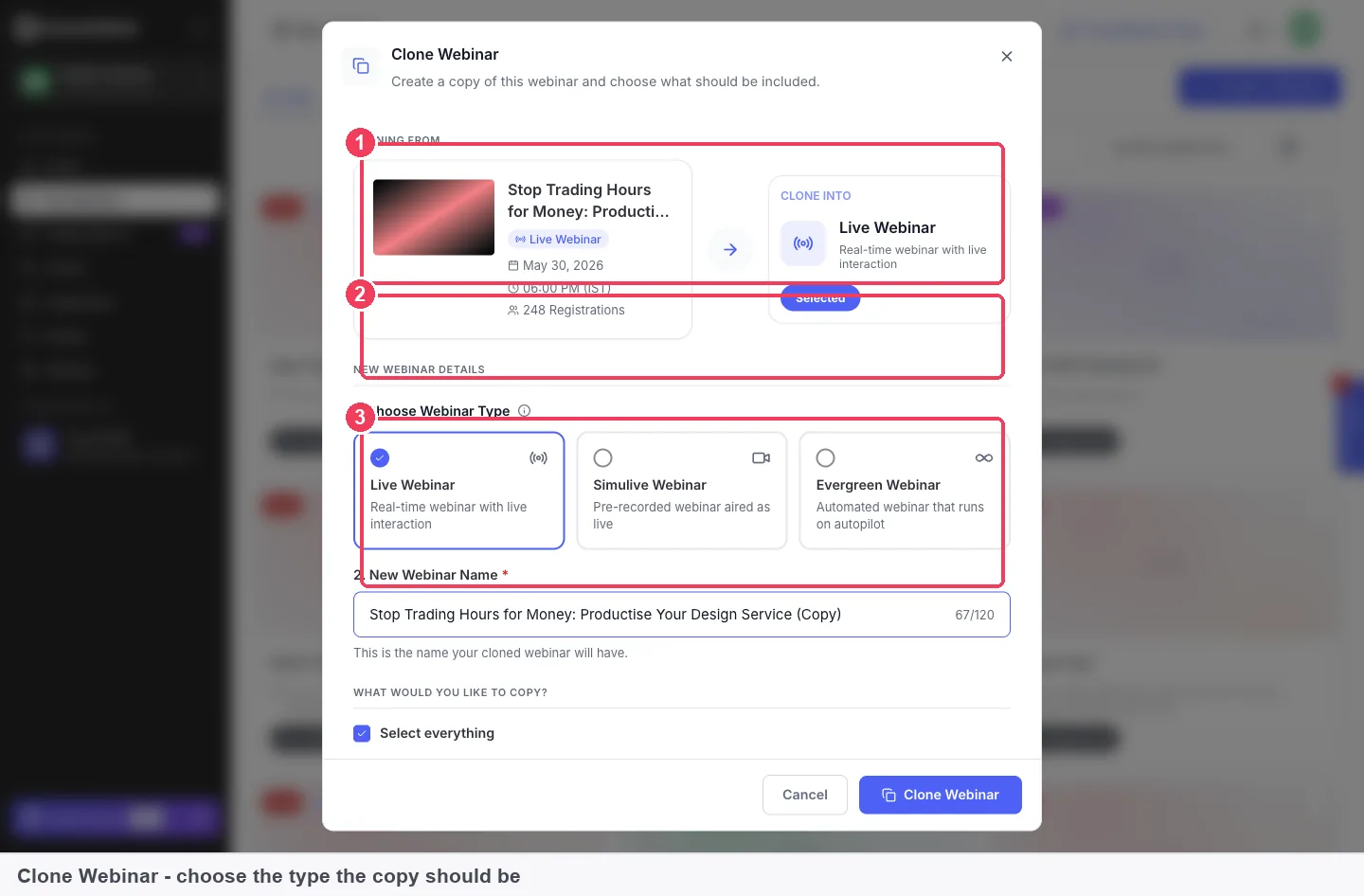
The copy's name is pre-filled with the original's name and "(Copy)". Change it to something you will recognise in your list, such as the topic plus "evergreen".
Why an evergreen webinar made from a live session matters
What it's for
It lets the live session you have already tested keep running for new registrants, without you presenting it again. You reuse the recording and the setup instead of rebuilding them.
How it helps
- You skip the rebuild. The clone can bring across your registration pages, polls, offers and email notifications in one step.
- The proven version runs. The recording is the session that already worked, not a fresh take that might not.
- Registrants choose their time. Just-in-time, on-demand and set times can all run at once.
- The live webinar stays as it was. Its registrants, attendees and results are not touched.
- Your integrations come with it. Integration settings are one of the items you can copy.
What happens without it
Without an evergreen version, your best session is over once the live date passes. Every new visitor waits for the next date you can present, and many of them won't come back for it.
Why buyers care
This matters most to hosts who sell from a webinar and can't present every day. It usually comes up right after a live session that converted well. The host wants the same result next week without blocking the diary again.
The EasyWebinar approach to evergreen webinars
Take a typical case. A course creator who teaches beginner woodworking runs a free live masterclass on building a first workbench. It ends with an offer for the paid course on her course platform. The session sells well, but she can only present once a month.
The usual workaround is to download the recording, create a new automated webinar and rebuild everything around it. That can mean recreating the registration page, re-entering polls and offers, rewriting the reminder emails and reconnecting her email tool. Each step takes time, and a missed detail can quietly break the funnel.
What changed is simple. The live webinar already holds every piece the automated one needs: the pages, the engagement, the emails, the connections and now a recording. Reusing those pieces is faster and safer than copying them out by hand, because the version that sold is the version that keeps running.
EasyWebinar handles this by cloning. She clones the live masterclass, picks Evergreen as the copy's type, ticks what to bring across and selects the session's recording. EasyWebinar then generates sessions from the schedule she sets, and the original live webinar is left as it was.
You can check the choice for yourself: the clone dialog lists eight items in three groups, with a Select everything option. How that choice sits against other platforms is covered in How EasyWebinar compares for evergreen webinars, below.
How a live session becomes an evergreen webinar
There are three common ways to get from a live session to an evergreen webinar. Each one catches different problems and misses others.
Rebuild it from scratch
You create a new automated webinar and set up the pages, polls, offers and emails again. This lets you fix anything you disliked about the live version. It misses consistency: small differences creep in, and integration settings are easy to forget.
Record a fresh, clean take
You present the session again to an empty room and use that recording. This removes live mistakes, dated remarks and long waits at the start. It misses the energy and real audience questions that made the live version work, and the new take is untested.
Reuse the live recording by cloning
You copy the live webinar and play its recording. This keeps the exact session that converted and the setup around it. It can miss things that only made sense live, such as "see you next Thursday", references to today's date, or drawings you made on your slides.
What EasyWebinar is confirmed to do
EasyWebinar supports the third way directly. A webinar's type can only be changed by cloning it, and recordings of live sessions are captured automatically when Auto Recording is on. They appear on the Recordings tab of the video picker, so the copy can play them.
Prepare the live recording before you reuse it
The recording is the whole evergreen webinar, so check it before you clone. Open the Library and go to the Recordings tab. Each recording is named after its webinar, with its duration and the date it was recorded.
Check that the recording exists
Recordings are captured when Auto Recording is on in the live room. If it was off, there is no recording to reuse, so turn it on for your next live run. The automatic recording page covers that setting.
Watch for drawings that won't be there
If you circled numbers or underlined points on your shared screen or slides, those marks are not in the recording. Drawings are removed when you stop sharing, so viewers of the evergreen version won't see them. Listen for lines like "as I've circled here" and plan to explain the point another way.
Watch for time-bound lines
A live session often mentions today's date, a deadline this week or a bonus for people "on the call right now". In an evergreen webinar those lines sound wrong to a viewer on another day. Note where they fall so you can decide whether the recording still works.
Trim the start and end if you need to
Live recordings often begin with minutes of waiting and small talk. If you edit the file outside EasyWebinar, you can cut out the beginning, middle, or end of a video in YouTube Studio without re-uploading it. YouTube's editor works on videos shorter than six hours. EasyWebinar can then play the video from YouTube, or you can upload your trimmed file with Local import.
How to tell whether the evergreen version holds viewers
Two measures tell you whether a reused live recording works as an evergreen webinar: how long people keep watching, and how many act on your offer.
Retention through the recording. YouTube's help describes retention well. It reports what share of viewers still watched after the first 30 seconds, and it treats a dip as the point where viewers abandoning or skipping shows. The weak spot is that a dip tells you where people left, not why. A dated remark or a missing drawing can cause one, and so can a slow section.
Offer response. For a session that sells, the number that matters is how many viewers see the offer and click it. Its weak spot is that a small evergreen audience gives jumpy percentages, so read it over several weeks.
In EasyWebinar, analytics work on an evergreen webinar as they do on every other type. Webinar analytics shows Offers Performance: offers, views, clicks and purchases, with a click rate. Low views-to-clicks means the offer itself isn't landing. Replay views are counted separately from live attendance, so the original live results stay readable.
How to turn a live session into an evergreen webinar by hand
If your platform can't copy a webinar, the job looks like this:
- Download the recording of the live session and trim the waiting time at the start.
- Create a new automated webinar and upload the recording.
- Rebuild the registration page, copying the text and images from the live version.
- Re-enter every poll and offer, with the same wording and timing.
- Rewrite each confirmation, reminder and follow-up email.
- Reconnect your email or CRM tool and remap the fields.
- Set the new schedule and test a full registration.
The same job in EasyWebinar
In EasyWebinar, steps 3 to 6 become ticks in the clone dialog, and step 2 becomes a choice on the Recordings tab. You still check the recording and set the schedule yourself. The original live webinar keeps its own registrants and results.
Worked example: what a clone saves on one masterclass
This is an illustrative calculation with sample figures, not an EasyWebinar output. It counts the setup items the woodworking masterclass would need rebuilt by hand, then the share that cloning covers.
| Item in the live webinar | Count | Rebuilt by hand | Copied by the clone |
|---|---|---|---|
| Registration pages | 2 | 2 | 2 |
| Polls | 3 | 3 | 3 |
| Offers | 1 | 1 | 1 |
| Email notifications | 6 | 6 | 6 |
| Integration settings | 1 | 1 | 1 |
| Replay settings and embed widget | 2 | 2 | 2 |
| Total | 15 | 15 | 15 |
All 15 items come across when every box is ticked, so 15 ÷ 15 = 100% of this setup is copied. What's left is the work no copy can do: checking the recording and setting the evergreen schedule. If she later sees 400 registrants, 240 viewers and 36 offer clicks, that is 240 ÷ 400 = 60% attendance and 36 ÷ 240 = 15% of viewers clicking.
How to turn a live webinar into an evergreen webinar
The steps below take a live webinar you have already run and create an evergreen copy of it. They take a few minutes once the recording is ready.
What to have ready
- The live webinar on My Webinars, with the session already run.
- Its recording on the Recordings tab, or another video you want to play instead.
- A view of how often new registrants should be able to watch.
Clone the live webinar as Evergreen
- On My Webinars, click the ⋮ on the live webinar's card and choose Clone Webinar.
- Under Choose webinar type, select Evergreen.
- Rename the copy so you can tell it apart from the original.
Choose what comes with it
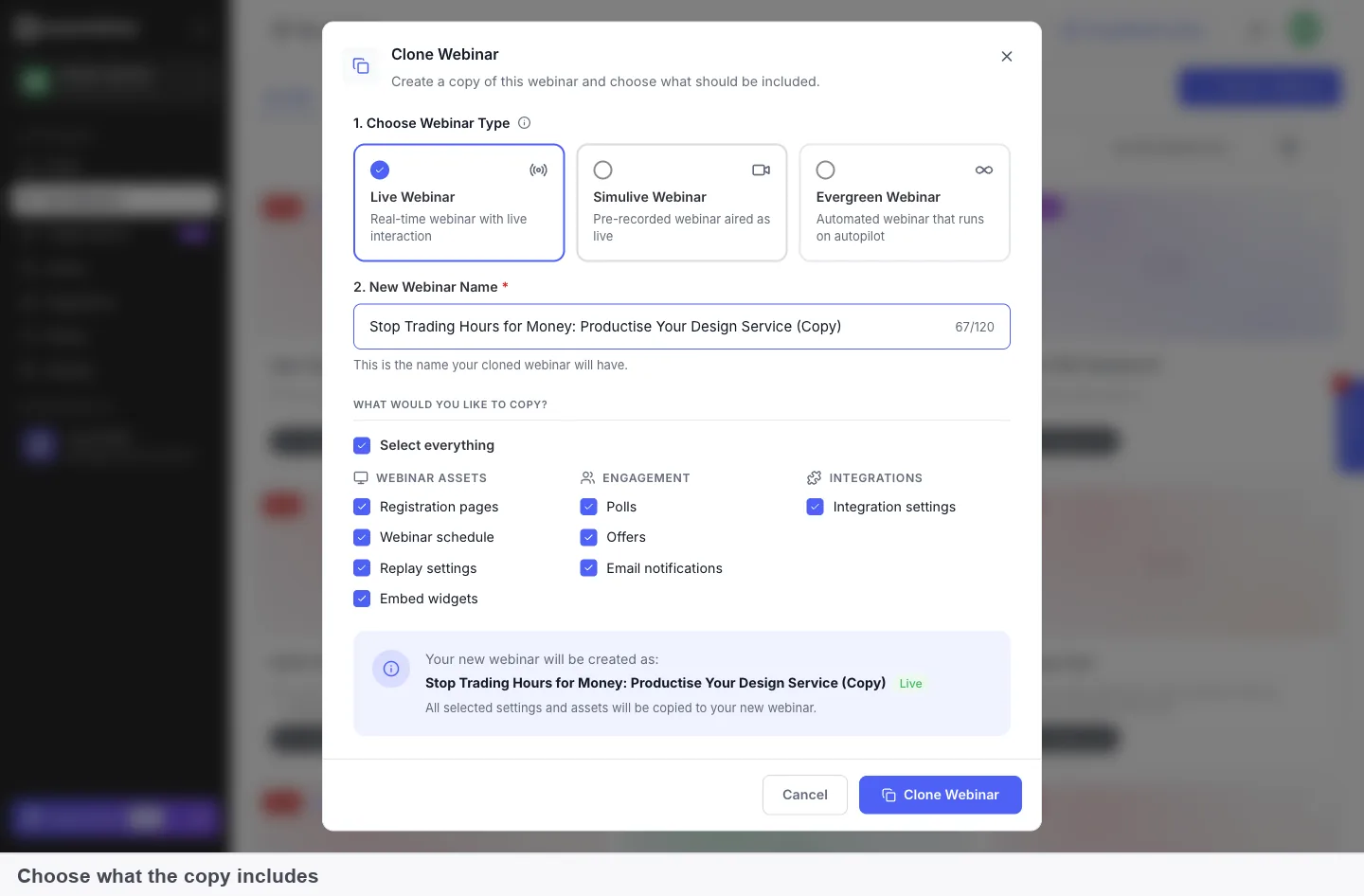
Under What would you like to copy?, click Select everything to take the lot, or tick items one by one. The list has three groups.
| Group | What's included |
|---|---|
| Webinar assets | Registration pages, Webinar schedule, Replay settings, Embed widgets |
| Engagement | Polls, Offers, Email notifications |
| Integrations | Integration settings |
The bottom of the dialog confirms the new name and its type. Click Clone Webinar to create the copy.
Choose the recording
The copy needs a video, and the recording of the original live session is in your library. On the video step, filter the picker with Recordings, click the session, and continue.
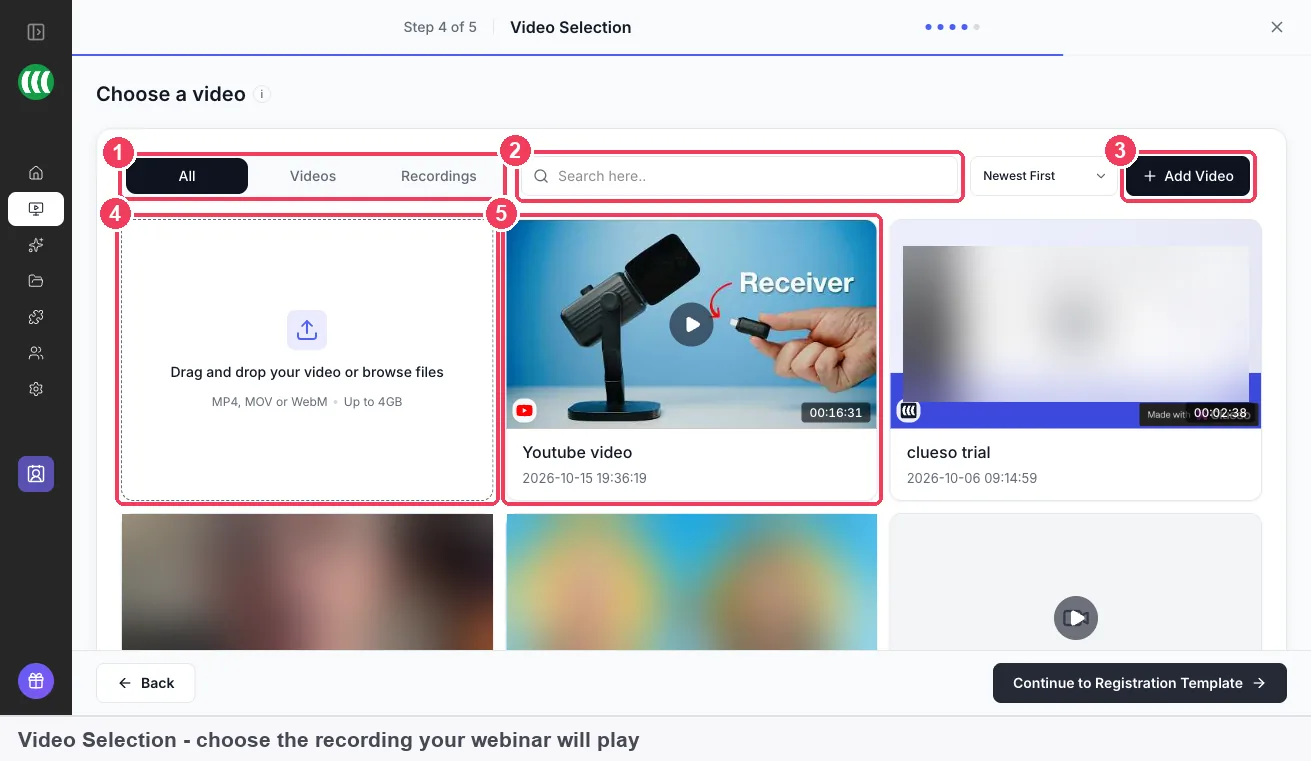
If you trimmed the recording outside EasyWebinar, click Add Video. Local import uploads your file and EasyWebinar hosts it. Import from URL plays a video on YouTube, Vimeo, Wistia or a direct MP4 link, and asks for its length. Video hosting covers both routes. You can swap the recording later from the Webinar Video panel on the Content tab, without disturbing the schedule or registrations.
Set the evergreen schedule
An evergreen webinar offers three ways to watch, and you can use any combination of them.
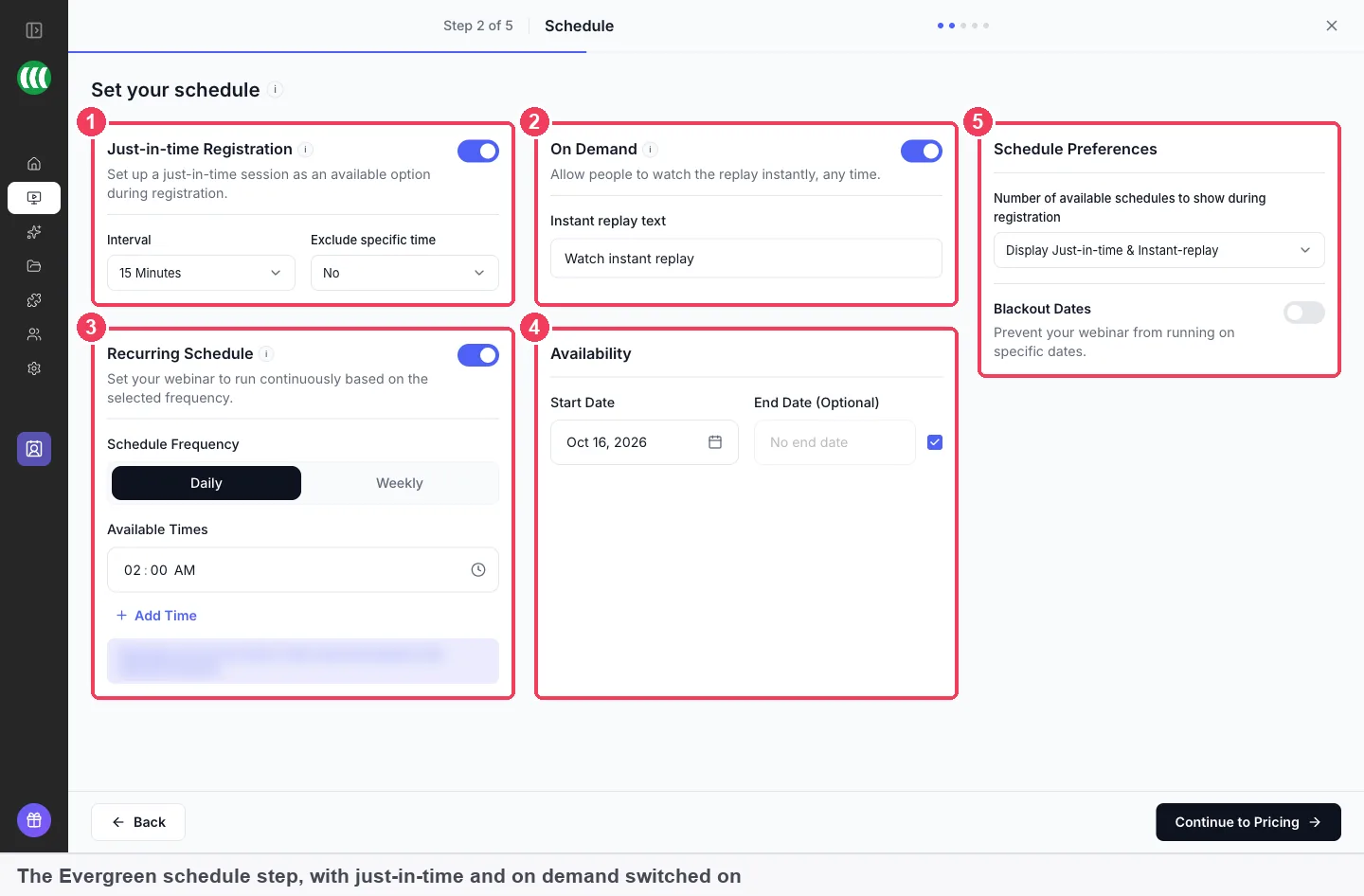
- Just-in-time Registration offers a session starting shortly after someone registers. The just-in-time page explains the settings.
- On Demand lets registrants start watching straight away. Its button reads Watch instant replay unless you change it. On-demand viewing covers when to use it.
- Recurring Schedule runs the webinar Daily or Weekly at times you choose, and Add Time gives more than one slot a day.
Start Date sets when the schedule begins, and No end date keeps it running. Blackout Dates stops it on particular days. Daily and weekly sessions run in the webinar's timezone, while just-in-time sessions start in each attendee's local time.
This video shows how to set up a daily or weekly schedule for a webinar in EasyWebinar.
Check the copy before you share it
Open the new webinar's Overview. The Sessions panel should list sessions generated from your schedule. Then register yourself through the registration page and watch the opening minutes, the drawing moments and the offer.
What doesn't carry over
A clone is a new webinar, not a continuation of the old one, so a few things stay behind.
- Registrants and attendees. They stay with the original, and the copy starts at zero. Your evergreen reminder emails go only to people who register for the copy.
- Drawings. Drawings made on a shared screen or slides are not in the recording, so the evergreen version shows the share without them.
- Anything you untick. Items you leave out of the copy have to be set up again on the new webinar.
What works with an evergreen webinar made from a live session
- Polls and timed offers come across with the clone when ticked, and work as they do everywhere else.
- Chat Simulation (Beta) can be turned on in the Engagement tab if you want the room to feel populated.
- Replay pages and embed widgets can be copied from the live webinar.
- Your CRM or email tool keeps receiving data when you copy the integration settings.
- Simulive webinars are the other option when you clone: they broadcast the recording at set times while you staff the chat live.
Who turns live sessions into evergreen webinars
Course creators
A course creator runs a live masterclass that sells her course, then clones it as evergreen so new followers can watch it any day. Her course sales funnel keeps working between launches.
Coaches and consultants
A business coach who fills discovery calls from a monthly live talk keeps the live talk for his existing audience. The evergreen copy takes new visitors from his website every day.
SaaS and product teams
A product team records a well-received live demo, clones it as evergreen and offers just-in-time sessions to trial users. The team presents live only when the product changes.
Agencies
An agency runs a live session for a client's launch, then hands over an evergreen copy with the same pages, polls and integration settings. The client's leads keep flowing into the same tool.
How EasyWebinar compares for evergreen webinars
EasyWebinar runs live and evergreen webinars in one product, and turns a live session into an evergreen one by cloning it with the items you choose. The recording of the live session is ready in the same library, so the evergreen copy plays the version that worked.
Evergreen webinar features for reusing a live session, from each platform's public documentation:
| Platform | Past live recording as the evergreen video | Choose what the copy includes | Live webinars in the same product | Just-in-time, on-demand and set times in one webinar |
|---|---|---|---|---|
| EasyWebinar | Yes | Yes | Yes | Yes |
| EverWebinar | Partly (needs an active WebinarJam subscription) | Not in docs | Partly (live runs in sister product WebinarJam) | Yes (just-in-time, instant replay and recurring) |
| Demio | Yes (new Automated Event from past sessions) | Partly (sessions not copied) | Yes (Standard Events run live) | Partly (recurring and on-demand only) |
| Livestorm | Yes (recording reused for on-demand) | Not in docs | Yes (recording starts with the live event) | Partly (on-demand blocks extra sessions) |
| StealthSeminar | Partly (manual upload to Library) | Partly (duplicate is a full copy) | Partly (streamed from YouTube Live or Twitch) | Partly (replay is yesterday's session) |
Yes: documented and built in. Partly: documented with a limit, shown in brackets. Not in docs: not found in the vendor's public documentation.
Why EasyWebinar is the stronger choice for evergreen webinars
- One product for live and evergreen. EasyWebinar runs both types side by side, while EverWebinar's live webinars run in WebinarJam, a separate product. See EasyWebinar vs EverWebinar and WebinarJam.
- You choose what the copy brings. EasyWebinar's clone lets you tick pages, schedule, polls, offers, emails and integrations, while a Demio duplicate copies no sessions. See EasyWebinar vs Demio.
- The live recording is already in your library. EasyWebinar records live sessions for reuse when Auto Recording is on, while StealthSeminar says you must manually upload the recording. See EasyWebinar vs StealthSeminar.
- Every way to watch at once. EasyWebinar runs just-in-time, on-demand and set times together, while Livestorm stops adding sessions once someone registers on-demand. See EasyWebinar vs Livestorm.
Competitor details checked against each vendor's public documentation on 4 November 2026. Features and plans change, so confirm with the vendor before you decide.
Limits of turning a live session into an evergreen webinar
- A webinar's type can't be changed in place. The evergreen version is always a new webinar made by cloning.
- Registrants and attendees stay with the original. The evergreen copy starts with no registrations.
- Drawings are not recorded. Marks made on a shared screen or slides won't appear in the evergreen version.
- A recording exists only if Auto Recording was on. Without it, you need another video for the copy.
- Daily and weekly sessions use the webinar's timezone. Only just-in-time sessions start in each attendee's local time.
Common questions
What is an evergreen webinar?
An evergreen webinar is a recorded webinar that runs continuously instead of on a fixed date. A visitor picks a session that suits them, and the recording plays for them at that time.
Can I turn a live webinar into an automated one?
Yes. Clone the live webinar, choose Evergreen as the copy's type, and select the recording of the live session as its video. The original live webinar stays as it was.
Can I change a webinar from live to evergreen directly?
No. A webinar's type is fixed once it exists. Cloning is the supported way to change it, and it's how most people turn a successful live session into an evergreen webinar.
Does cloning copy my registrants?
No. Registrants and attendees stay with the original webinar, and the evergreen copy starts at zero. Only people who register for the copy receive its emails.
Does cloning change my original live webinar?
No. Cloning only creates a new webinar. The original keeps its registrants, attendees, recording and results.
What can the clone copy from my live webinar?
Registration pages, the webinar schedule, replay settings, embed widgets, polls, offers, email notifications and integration settings. Click Select everything or tick them one by one.
Where do I find the recording of my live session?
In the Library, on the Recordings tab, named after its webinar with its duration and date. It also appears on the Recordings tab of the video picker when you set up the copy.
Why is there no recording of my live webinar?
Recordings are captured automatically only when Auto Recording is on in the live room. If it was off, upload your own video instead, and turn it on before your next live run.
Will the drawings from my live session appear in the evergreen version?
No. Drawings made on a shared screen or slides are removed when you stop sharing, and they are not in the recording. Explain those points in words, or re-record that part.
Can I use a trimmed version of the recording instead?
Yes. Upload the trimmed file with Local import and EasyWebinar hosts it, or import it from YouTube, Vimeo or Wistia. Then select it on the video step.
Can I change the recording after the evergreen webinar is running?
Yes. Swap it from the Webinar Video panel on the Content tab. Your schedule and existing registrations are not affected.
Do attendees see session times in their own timezone?
Only for just-in-time sessions, which start shortly after each person registers in their own local time. Daily and weekly sessions run at the times you set, in the webinar's timezone.
Do polls and offers still work in the evergreen version?
Yes, if you leave them ticked when you clone. Chat, Q&A, polls, offers, emails and analytics work on evergreen webinars as they do on live ones.
Should I clone as Simulive or Evergreen?
Choose Simulive to broadcast the recording at set times while you answer in the chat live. Choose Evergreen when each registrant should pick their own time and the webinar should run without you.
Further reading
- Measure key moments for audience retention (YouTube Help): how intros, dips and spikes show where viewers stay or leave a video.
- Trim your videos (YouTube Help): how to cut the start, middle or end of a recording before you reuse it.
- How to turn live webinars into automated funnels (EasyWebinar blog): the wider funnel thinking behind reusing a live session.
Related
Updated 4 November 2026: first published, with recording preparation, a retention guide, a worked example and the evergreen comparison.