
0%On this pageContents
Webinar management gets hard the moment a team runs webinars every month and several people touch each one. Work gets duplicated, settings drift between sessions and nobody is sure who owns the reminders. EasyWebinar is a webinar platform that gives each teammate their own login and role, lets guest presenters join by link, and copies a proven webinar so nobody rebuilds it. The People view then shows every registrant from every webinar in one list.
At a glance
| Job | Who usually does it | Where it happens in EasyWebinar |
|---|---|---|
| Give a colleague access | The account Owner or an Admin | Settings, then Team, then Add user |
| Let a guest present once | Whoever owns that webinar | The Co-presenter Join Link in the Share dialog |
| Start next month's webinar | Whoever owns that webinar | Clone Webinar from the card's menu |
| Find a webinar in a long list | Anyone on the team | The All, Live, Simulive, Evergreen and Archived filters, plus search |
| Check how one webinar did | The webinar's owner | The webinar's Analytics tab |
| Find people across every webinar | Whoever runs follow-up | People in the sidebar |
The short answer to "how do teams manage regular webinars?" is this. Give every person their own login, name one owner per webinar, and start each new webinar as a copy of the last good one.
Where team webinar management fits
Picture the third week of the month. Four webinars are booked for next month and three people are building them. Two of them have just set up the same registration page from scratch. That is the moment a team needs a way to run regular webinars without duplicated work.
What it's for
Team webinar management is the set of habits and settings that lets several people run webinars every month without stepping on each other. It covers who has access, who owns each webinar, and how a proven setup gets reused.
How it helps
- Each person has their own login. You can tell who did what, and more than one host can be in the live room.
- Roles match the work. Admins handle billing and settings, while Users build and run webinars.
- Proven setups get reused. A clone carries the pages, schedule, polls, offers and emails into the next webinar.
- Webinars are easy to find. Type filters, search and archiving keep a long list short.
What happens without it
Without it, one login gets shared and nobody can say who changed the reminder timing. Each webinar is built from nothing, so small differences creep in between sessions. Last quarter's webinars clutter the list, and the replay link goes out from the wrong one.
Why marketing and events leads care
It matters most to the lead who signs off the calendar and answers for the numbers. It starts to bite once you run more than two webinars a month, or once a new colleague joins and needs access on day one.
The EasyWebinar approach to webinar management
Take a typical case. A five-person marketing team at a construction project software company runs four webinars a month. They are a product demo, an onboarding session for new customers, a partner briefing and a topical panel. Each has a different owner, and two outside guests present every month.
The usual workaround is one shared login and a spreadsheet of who does what. That tends to work until two people edit the same webinar, or a guest needs a password just to present for 40 minutes. Each new webinar is then rebuilt by hand, and settings that worked last month are often forgotten.
What changed is the volume. A team running four webinars a month builds around 48 a year, so any step done by hand is done 48 times. Access and reuse stop being admin and start deciding whether the calendar holds.
EasyWebinar gives each teammate their own login with an Admin or User role, set by the Owner or an Admin. Guests join a single webinar with a Co-presenter or Moderator link, with no account needed. It clones a webinar with the parts you choose. It can also change the copy's type on the way, so a live session can become evergreen.
You can check the clone choices on the page: registration pages, the schedule, replay settings, embed widgets, polls, offers, email notifications and integration settings. How those choices stand against other platforms is covered in How EasyWebinar compares for webinar management for teams, below.
How teams divide webinar work
There are four common ways a team splits the work of running webinars every month. Each one catches some problems and misses others.
One shared login
Everyone signs in with the same email and password. It is quick to set up, but you can't tell who changed what, and only one of you can host in the live room. When someone leaves, the password has to change for everyone.
One person builds everything
A single coordinator builds every webinar and hands it to the presenter. This keeps setups consistent, but that person becomes the bottleneck. A holiday or a sick day stops the whole calendar.
A named owner per webinar
Each webinar has one owner who builds it, checks it and answers for it, while others help in set roles. The UK government's service manual makes the same point about service teams: one person should have the decision-making authority to deliver on all aspects of a project. This catches the "I thought you sent it" gap, but it still needs everyone to have access.
A master webinar to copy
The team keeps one well-built webinar for each format and starts every new one as a copy. This stops settings drifting between sessions. It misses nothing on its own, but it only works if the master is kept up to date.
What EasyWebinar confirms
EasyWebinar supports the last two directly. Each teammate gets their own login and role, presenters and moderators can be added per webinar, and Clone Webinar copies a webinar with the parts you tick.
Who does what: roles on the team
A team member is someone with a login on your account. A presenter or moderator is someone running one specific webinar, and they can join with a link without an account. Getting this difference right saves seats and keeps access tidy.
| Role | Where you set it | What it allows | Good fit for |
|---|---|---|---|
| Owner | Fixed, one per account | The account holder | The person who holds the account |
| Admin | Settings, then Team | Full access, including all settings | The marketing lead, or whoever handles billing |
| User | Settings, then Team | Basic access to organisation features | Builders, presenters and moderators on your staff |
| Presenter | The webinar's Team & Moderators panel, or a join link | Appears on camera and presents in that webinar | A guest speaker on one session |
| Moderator | The Moderator Join Link for Live room | Handles chat and questions in that webinar | A colleague or guest who runs the Q&A queue |
Give Admin only to people who need to change billing, team or account settings. Everyone else who builds or runs webinars can be a User. The full set-up is on team members and roles.
Guests who present once
Send a one-off guest the Co-presenter Join Link from the webinar's Share dialog rather than adding them to your team. Treat that link as private, because anyone holding it can join your room in that role. The links meant for your audience are covered on sharing links.
When an agency runs webinars for clients
If your team runs webinars for clients, a client workspace keeps each client's webinars, registrants and settings apart. Each workspace runs on its own plan, and adding one doesn't use a team seat. If you run webinars only for your own business, team members and seats cover what you need.
Keep a master webinar for each format
Cloning copies a webinar you've already built, so the next one starts from a setup that worked. It is also how you change a webinar's type, because type is fixed once a webinar exists. The steps are on clone a webinar.
| Group | What a copy can include |
|---|---|
| Webinar assets | Registration pages, webinar schedule, replay settings and embed widgets |
| Engagement | Polls, offers and email notifications |
| Integrations | Integration settings |
Registrants and attendees stay with the original, so a clone always starts at zero. That is what you want, because it is a new webinar rather than a continuation. Your original is left untouched.
Name the copy straight away
The copy's name is pre-filled with the original's name and "(Copy)". Rename it before you click Clone Webinar, using a pattern the whole team follows, such as format and month. Four "(Copy)" webinars in one list is how the wrong one gets edited.
Clone before you experiment
If you want to try a new registration page or offer on a webinar that's already running, clone it and change the copy. When a live session worked well, clone it as evergreen; it then needs a recording, which you pick on the new webinar's Content tab. That route is covered in turning a live webinar into an evergreen one.
Find any webinar in a busy account
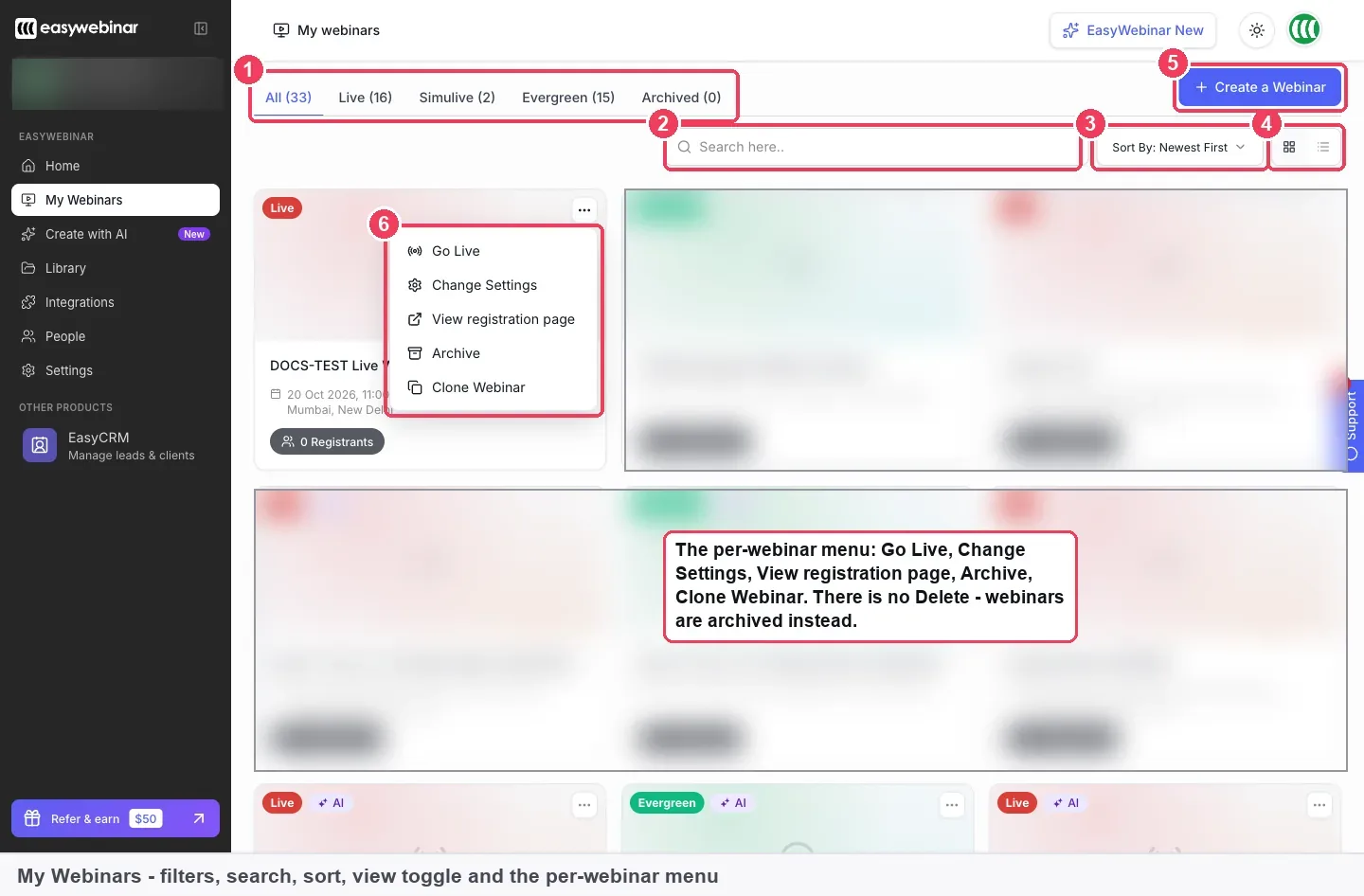
My Webinars lists everything your team has built. Once there are more than a handful, the filters, search and sort get you to the right one quickly.
The tabs across the top are All, Live, Simulive, Evergreen and Archived, and each shows a live count. Search finds a webinar by name, which is why the naming pattern matters. Sort By defaults to Newest First, and a toggle switches between grid and list views.
Every card shows the webinar's type, its name, the next session's date, time and timezone, and its registrant count. Webinars built with Create with AI also carry an AI badge, so the team can see which drafts still need a human edit.
Archive last month's webinars
There is no Delete. Webinars are archived, so the record of past events and their registrants stays intact. Archive each webinar once its follow-up has finished, and the main list then shows only what is live or coming up.
See every registrant in one place
People in the sidebar lists every registrant and attendee across all your webinars in one table. Each row is one person on one webinar, with their status, lead score, watch percentage and whether they clicked your offer.
Add Filter narrows the list by Webinar, Dates, User, Behavior, Source & UTM or Device & Location. Filter first, then Export, so whoever runs follow-up gets just the group they need. The full filter list is on the People view.
An exported list is personal data, so agree who on the team may export and why. UK data protection law expects personal data to be used for specified, explicit purposes and kept for no longer than is necessary.
How to measure whether a webinar is worth cloning
Two measures tell you whether a webinar's setup deserves to become next month's master. Both sit on each webinar's Analytics tab.
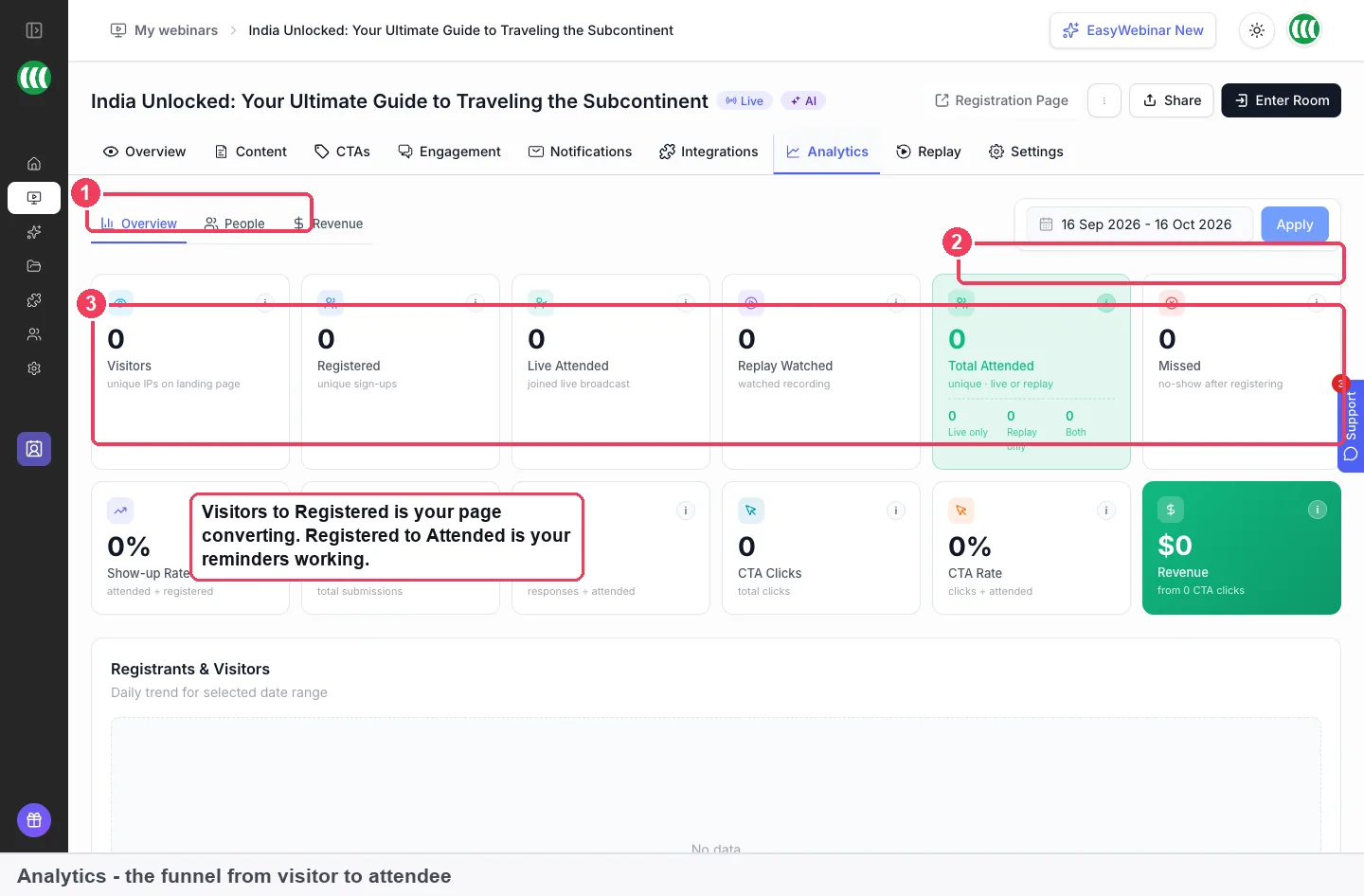
Visitors to registered
This rate shows your registration page doing its job. A low figure is a page problem: the headline, the form or the promise. Its weak spot is that Visitors counts unique IPs, so many people behind one office network can look like one visitor.
Registered to attended
This rate shows your reminders doing their job. A low figure is a notification problem, not a content one. Total Attended counts unique people, live or replay, so check the Live only, Replay only and Both split before you judge the live session.
Where to find them
Open each webinar's Analytics tab and note the two rates. To compare webinars, open them one at a time. Then fix the weak stage on the master before you clone it, using the registration page builder or reminder emails. Each figure is explained on webinar analytics.
How to run regular webinars as a team by hand
Without a platform built for teams, the job looks like this:
- Keep a shared calendar of every webinar, with one owner's name on each.
- Share one login, or ask each person to set up their own tool.
- Copy last month's registration page, emails and polls into a new webinar by hand.
- Email guest presenters the account password, then change it afterwards.
- Download each webinar's registrant list and merge them in a spreadsheet.
- Delete or hide old webinars by hand so nobody edits the wrong one.
Steps 3 and 5 are where most mistakes happen, because they are repeated for every webinar.
The same job in EasyWebinar
The calendar and the owner's name stay with you. Everything else changes: each person gets their own login under Team, guests get a join link, Clone Webinar copies the setup, People holds every registrant in one list, and Archive clears old webinars from view.
Worked example: choosing which webinar to clone next month
This is an illustrative calculation with sample figures, not an EasyWebinar output. It shows how a team might pick the master for next month's demo from last month's two demos.
| Webinar | Visitors | Registered | Visitors to registered | Total attended | Registered to attended |
|---|---|---|---|---|---|
| Demo A | 1,000 | 300 | 300 ÷ 1,000 = 30% | 120 | 120 ÷ 300 = 40% |
| Demo B | 800 | 320 | 320 ÷ 800 = 40% | 96 | 96 ÷ 320 = 30% |
Demo B's registration page converted better, while Demo A's reminders brought more people in. A sensible move is to clone Demo B, then copy Demo A's reminder timing onto the new webinar before it opens. Neither webinar is simply the better one; each was stronger at a different stage.
Set up your team in EasyWebinar
Work through these steps once, then repeat steps 4 to 6 for each new webinar. The preparation checklist covers what to test before each session.
- Add each colleague. Click Settings, then Team, then Add user. Enter their name, email and a password, and choose Admin or User.
- Pass on the login yourself. Nothing is emailed when you add someone, so send them their details and ask them to change the password.
- Check your seats. The Settings overview shows how many seats you've used, such as 2 of 10.
- Pick the master. On My Webinars, open the card menu on the webinar that worked and choose Clone Webinar.
- Choose the type and parts. Pick Live, Simulive or Evergreen, rename the copy, tick what it should include, and click Clone Webinar.
- Add the session team. On the new webinar's Overview tab, use Team & Moderators to add presenters, or send guests their join links.
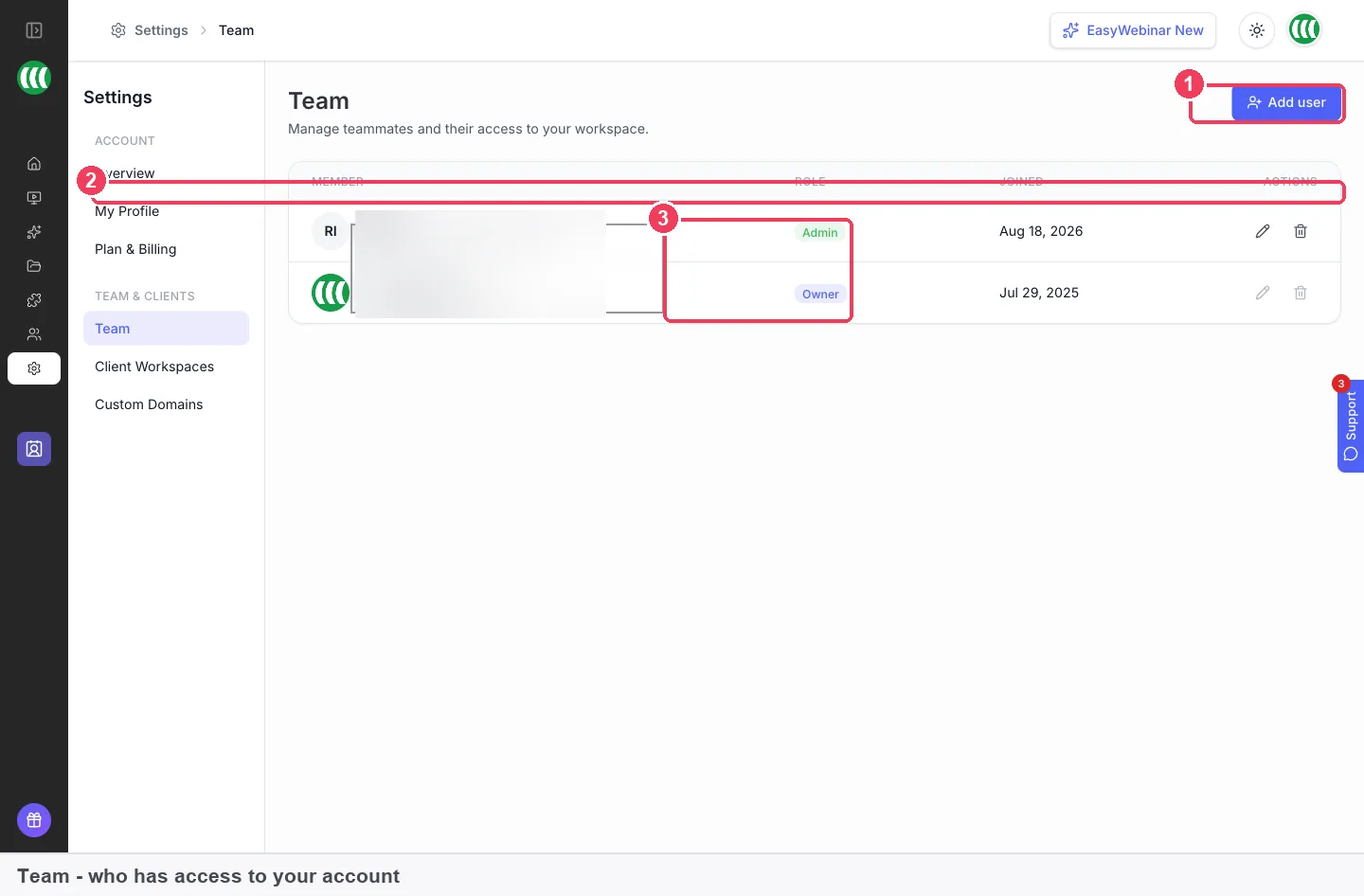
This video shows team roles being set up, then a custom domain added for your webinar pages.
Use your own domain
Custom domain (C-Name) points your own domain at your webinar pages, so links read like webinars.yourcompany.com. Add a CNAME record with your DNS provider first, then enter the domain on your profile. Every webinar the team builds then shares the same address.
Check the copy before anyone shares it
Open the new webinar and check its schedule, its reminder emails and its offer links. A clone carries the old settings, so a stale date or a last-month offer is the most common slip. Then send the registration link out.
If your team needs enterprise checks
Larger teams usually ask about security, roles, capacity and CRM fit before they sign. EasyWebinar holds a SOC 2 Type II report and follows GDPR-aligned data practices. Access is split into Owner, Admin and User roles, as above.
Capacity depends on the plan. Launch covers 50 live attendees, Growth 200 live and 1,000 automated, Pro 500 live and 2,500 automated, and Scale 1,000 live and 5,000 automated. EasyWebinar integrates with HubSpot, Salesforce Pardot (Account Engagement), ActiveCampaign, Mailchimp and Kit (formerly ConvertKit). The enterprise overview covers larger rollouts, and plan details are on the pricing page.
What works with team webinar management
- Live, simulive and evergreen webinars. Cloning works across all three, and can change the type on the way. Start with creating a live webinar.
- Your CRM. Integration settings come across in a clone, so each new webinar keeps sending data where the last one did. The mapping is on connect a CRM.
- The Library. Recordings of past live sessions sit in the Library, ready for an evergreen copy.
- Follow-up. Email notifications come across in a clone, and webinar follow-up emails covers what to send.
Who uses team webinar management
B2B marketing teams
A marketing team running a monthly demo and a quarterly panel keeps one master webinar for each and clones it every time. The owner's name sits on the calendar, and People shows registrants from both in one list. The marketing teams overview covers the wider fit.
Customer success teams
A customer success team runs onboarding sessions every week with a rota of presenters. Each presenter has a User login, and a moderator handles live chat and questions.
Agencies
An agency runs webinars for several clients. Each client gets its own workspace and plan, so registrants and settings never mix, and staff work across them from one place.
SaaS and product teams
A product team runs a release webinar each month, then clones it as evergreen for people who missed it. The demand generation guide covers how those registrants become leads.
How EasyWebinar compares for webinar management for teams
EasyWebinar pairs individual logins with guest join links, so a team pays for seats only for staff. Its clone lets you tick each part a copy includes, and agencies get a separate workspace per client. Together that keeps a monthly calendar moving without rebuilds.
Webinar management features for teams, from each platform's public documentation:
| Platform | Own login for each teammate | Guests present by link, no account | Choose what a copy includes | Separate workspace per client |
|---|---|---|---|---|
| EasyWebinar | Yes | Yes | Yes | Yes |
| Demio | Yes (own login per team member) | Yes (guests join by unique link) | Copies the exact event | Not in docs |
| Livestorm | Yes (team members added to the workspace) | Yes (speakers join by secure link) | Duplicate keeps access settings | Partly (multiple workspaces mentioned) |
| WebinarJam and EverWebinar | Yes (access without sharing a login) | Yes (presenters use a unique link) | Clone used for a live test | Not in docs |
| Kajabi | Yes (own login and role per user) | Not in docs | Duplicate, then edit the date | Not in docs |
Yes: documented and built in. Partly: documented with a limit, shown in brackets. Not in docs: not found in the vendor's public documentation.
Why EasyWebinar is the stronger choice for webinar management for teams
- Any staff member can present. EasyWebinar's User role suits presenters and moderators, and guests join by link. Demio says that on Starter plans only the account owner can be added as a Host. See EasyWebinar vs Demio.
- You choose what a copy takes. EasyWebinar lets you tick pages, schedule, replay settings, polls, offers, emails and integrations one by one. Livestorm documents that a duplicated event keeps its access settings. See EasyWebinar vs Livestorm.
- A copy can change format. EasyWebinar's clone can turn a live webinar into a simulive or evergreen one. WebinarJam's guide uses a cloned webinar to test the full experience in live conditions. See EasyWebinar vs WebinarJam and EverWebinar.
Competitor details checked against each vendor's public documentation on 4 November 2026. Features and plans change, so confirm with the vendor before you decide.
Limits to plan around
- You set each teammate's password. There is no invitation to accept, so you pass the login on yourself.
- The Owner can't be changed from the Team screen. Contact support if ownership needs to move.
- Each member needs their own email address.
- Seats are part of your plan. Adding people beyond your allowance costs more.
- A webinar's type is fixed. To change it, clone the webinar and pick the new type on the copy.
- Registrants stay with the original. A clone always starts with no registrations.
- Webinars are archived, not deleted. They move to the Archived tab and keep their records.
- Analytics are per webinar. You compare webinars by opening each one's Analytics tab. Defaults are listed in limits and defaults.
Common questions about webinar management for teams
How do teams manage regular webinars?
Give every person their own login with the right role, and name one owner per webinar. Start each new webinar as a copy of the last good one, then archive old webinars once their follow-up ends.
What is webinar event management?
It is the work of planning, building, running and following up each webinar: access, pages, reminders, presenters and results. For a team it also means agreeing who owns each step, so nothing is done twice or missed.
How do I give a colleague access to EasyWebinar?
Click Settings, then Team, then Add user. Enter their name, email and a password, choose Admin or User, and send them the login yourself, because nothing is emailed.
What's the difference between Admin and User?
An Admin has full access, including settings and billing. A User gets basic access to organisation features, which suits people who build, present or moderate webinars without touching the account.
Does a guest presenter need an account?
No. Send them the Co-presenter Join Link from the webinar's Share dialog, and they join that webinar without a login. Keep the link private, because anyone holding it can join in that role.
Can a moderator join without a team seat?
Yes. The Moderator Join Link for Live room lets someone handle chat and questions in one webinar without being added to your team, so they don't use a seat.
How many team members can I add?
It depends on your plan. The Settings overview shows how many seats you've used out of your allowance, and adding people only costs more once that allowance is used up.
How do I reuse a webinar that worked?
Open the card menu on My Webinars and choose Clone Webinar. Pick the type, rename the copy, tick the parts to include, such as pages, polls, offers and emails, and click Clone Webinar.
Does cloning copy registrants?
No. Registrants and attendees stay with the original webinar, so the copy starts with no registrations. The original webinar is not changed by cloning.
Can I change a live webinar to evergreen?
Not in place, because a webinar's type is fixed once created. Clone it and choose Evergreen as the copy's type, then pick a recording on the new webinar's Content tab.
How do I delete an old webinar?
You archive it instead. Open the webinar's card menu and choose Archive, and it moves to the Archived tab, out of your main list, with its records kept.
Where can I see registrants from every webinar?
Click People in the sidebar. It lists every registrant and attendee across all your webinars, and Add Filter narrows the list by webinar, dates, behaviour, source or device before you export.
Can agencies keep each client's webinars apart?
Yes. A client workspace gives each client a separate account with its own plan, so webinars, registrants and settings stay apart. Adding a workspace doesn't use one of your team seats.
Can the team's webinars run on our own domain?
Yes. Add a CNAME record with your DNS provider, then enter the domain under Custom domain (C-Name) on your profile, so webinar links use your company's address.
Further reading
- What each role does in a service team, GOV.UK Service Manual: why a team needs one owner with authority, and how other roles help the team organise their own work.
- The UK's data protection legislation, GOV.UK: the principles that apply when your team exports and shares registrant lists.
Related
Updated 4 November 2026: first published with the ways teams divide webinar work, a measurement guide, the manual method and a worked example.