
0%On this pageContents
A paid webinar turns your live online workshop or seminar into something people buy before they get the join link. To run one, you need four things: a price on the registration page, a way to take payment, a room built for teaching, and a clear rule about the replay. EasyWebinar takes payment through your own Stripe account at the moment of registration. It runs the session with chat, Q&A and polls, and lets you sell the replay as its own option.
At a glance
| Stage | What you decide | Where it happens in EasyWebinar |
|---|---|---|
| Before you build | Live, simulive or evergreen, and paid or free | The create flow, where the type and Paid are chosen once |
| Taking payment | The price, what the ticket is called, and whether a replay option is on sale | Step 3 of 4 · Pricing, with Stripe connected |
| Registration | Which details you ask for, and whether a consent box is required | The registration form on the Content tab |
| Getting people there | Confirmation, reminders and, if you have phone numbers, SMS (Beta) | The Notifications tab |
| Teaching | How people talk to you and each other, and when you ask a question | Engagement and CTAs tabs, then the live room |
| The replay | Who gets it, for how long, and what it looks like | The Replay tab |
| Afterwards | What buyers see next, and what you've earned | End of Session, follow-ups and Analytics → Revenue |
Where paid workshops and seminars fit
Picture a trainer who has run free sessions for a year and now wants to charge for a deeper, hands-on one. The questions arrive at once: how do people pay, how do only buyers get in, and what happens to the recording? A paid webinar answers all three in one place.
What they're for
A paid workshop or seminar sells your time and attention live, to a group, for a set price. People pay at registration, so everyone in the room has already said yes to you.
How they help
- Payment and the seat arrive together. A buyer pays on the Stripe checkout and is registered once the payment goes through.
- The money lands in your own account. Stripe pays out to your bank on its usual schedule.
- The replay becomes a second product. You can sell live access alone or live access with the recording.
- One webinar shows its revenue. The Overview tab and the Revenue view show what this workshop took.
What happens without them
Without a paid route, you either give the workshop away or stitch together a payment link, a spreadsheet and a meeting invite. People who paid get missed, and people who didn't pay find the link.
Why trainers and experts care
This matters most to coaches, consultants, wellness practitioners and specialist trainers whose knowledge is the product. It matters most when the first paid session goes on sale.
The EasyWebinar approach to paid workshops and seminars
Take a typical case. A registered nutritionist runs a free monthly talk for new parents and now wants to sell a 90-minute live meal-planning workshop. She wants buyers to ask questions as she goes, and she wants to sell the recording to people who can't make the time.
The usual way to do this joins several tools together. A payment page takes the money, a form or spreadsheet tracks who paid, and someone emails a meeting link by hand. That tends to work for ten people and break at forty. A late payer misses the email, or a forwarded link lets in someone who never paid.
What changed is simple. Once payment and registration happen in the same step, there is no gap between paying and getting the join link. The list of registrants is the list of buyers, so nothing needs to be checked by hand before the session.
EasyWebinar puts the price on the registration page and sends the buyer to a Stripe checkout when they click Register Now. Once payment goes through, it registers them and shows their personal join link. It also lets the nutritionist add a Live + Replay bundle with its own price, so the recording is sold rather than given away.
You can see the split for yourself on any paid webinar. The Revenue by Source view separates paid registrations from offers sold in the room. The way this compares with other platforms is covered in How EasyWebinar compares for paid webinars and workshops, below.
Webinar vs workshop: what changes when people pay
A webinar is usually a talk with questions at the end. A workshop asks the audience to do something during the session: answer, try, decide. A seminar sits between the two, with an expert leading a group through one subject in depth. The guide to seminar types and how to host one covers the formats in more detail.
Charging changes three things, whichever of these you run. First, the promise has to be specific, because people are buying a result rather than attending out of curiosity. Second, the room has to give buyers a voice, so chat and Q&A matter more than on a free talk. Third, the replay stops being a courtesy. It becomes part of what you sell, so you need to decide who gets it before you take the first payment.
The product side is the same in each case. A paid workshop in EasyWebinar is a webinar with Paid chosen on the pricing step, plus the engagement settings that suit teaching.
How people charge for an online workshop
There are four common ways to take money for a live session. Each one catches some problems and misses others, so it helps to see them side by side before you build.
A ticket paid at registration
The buyer pays and registers in one step, and only buyers receive the join link. This catches the biggest risk, which is paid buyers who never get in. It misses anyone who wants to try before they buy, so it suits a known audience or a second, deeper session.
A separate checkout, then an invitation
You sell on a payment page and send the link afterwards. This works with any payment tool. It misses timing: anyone who pays late, or whose email is filtered, depends on you noticing in time.
A course platform or membership that holds the link
You sell access elsewhere and post the join link inside it. This suits hosts who already sell there. It misses the workshop's own numbers, because sales and attendance live in different places.
A free session that sells in the room
The workshop is free, and you sell a paid next step during it with an offer button. This catches the biggest audience. It misses the commitment a paid ticket brings, and it puts the sale at the end rather than the start.
What EasyWebinar is confirmed to do
EasyWebinar does the first and fourth natively. Paid registration takes payment through Stripe before registering the buyer. Offers shown during the session open the button URL you set, which can be your own checkout or booking page. Its paid webinar features cover live, simulive and evergreen webinars.
Choose the format before you build
You choose the webinar type once, when you create it, and the type can't be changed later. Make this choice before you think about pricing.
| If your workshop is | Choose | Why |
|---|---|---|
| Taught in real time, with questions answered as they come | Live | You present, and chat and Q&A happen as they happen |
| A polished recording, played at set times, with you in the chat | Simulive | Everyone watching a session sees the same moment, so the chat still works as a room |
| A recorded seminar that should sell whether or not you're available | Evergreen | It runs on a repeating schedule, and each registrant picks a session |
Simulive and evergreen webinars both offer Free or Paid on their pricing step, so a recorded paid seminar is possible from the start. If you'd rather prove the workshop live first, turn a past live session into an evergreen one by cloning it. The simulive setup explains how a recording plays at set times.
Time zones work differently by type. A live session runs at one fixed time in the timezone you set, and the registration page shows that time with its timezone. If your buyers are spread across regions, add more sessions with Add Session rather than expecting the time to shift for each person.
How to run a paid online workshop by hand
It helps to see the full job without any webinar platform, because each step is something that can go wrong.
- Write the promise: who the workshop is for, what they'll leave with, and how long it runs.
- Set a price, and decide now whether the recording is included, sold separately or not offered.
- Create a payment page and a registration form, and make sure both ask for the same email address.
- After each payment, copy the buyer onto your attendee list and send them the join link.
- Send reminders a day before, an hour before and shortly before the start.
- Check the list against payments before you go live, so nobody unpaid is let in.
- Teach, keeping one person on chat and questions if you can.
- Record the session, upload it somewhere private, and send it to whoever the replay rule covers.
- Send buyers their next step, then add up what came in and how many turned up.
Steps 3, 4 and 6 are where most hand-run workshops fail. A copied email is wrong, a payment arrives at night, or a forwarded link gets through.
The same job in EasyWebinar
EasyWebinar collapses steps 3, 4 and 6 into one. The buyer's email carries over from the registration form to the Stripe checkout, and they are registered only once the payment goes through. Reminders are set once on the Notifications tab. Recording shows as Auto Recording Enabled in the live room when it's switched on. The Replay tab handles step 8, and Analytics → Revenue answers step 9.
Set up a paid workshop in EasyWebinar
The full pricing walkthrough lives on paid webinars and paid registration. This section covers only the choices a workshop host has to get right.
Choose Paid when you create the webinar
Create the webinar from My Webinars → Create a Webinar, as the live webinar setup describes. On Step 3 of 4 · Pricing, Free is selected until you change it.
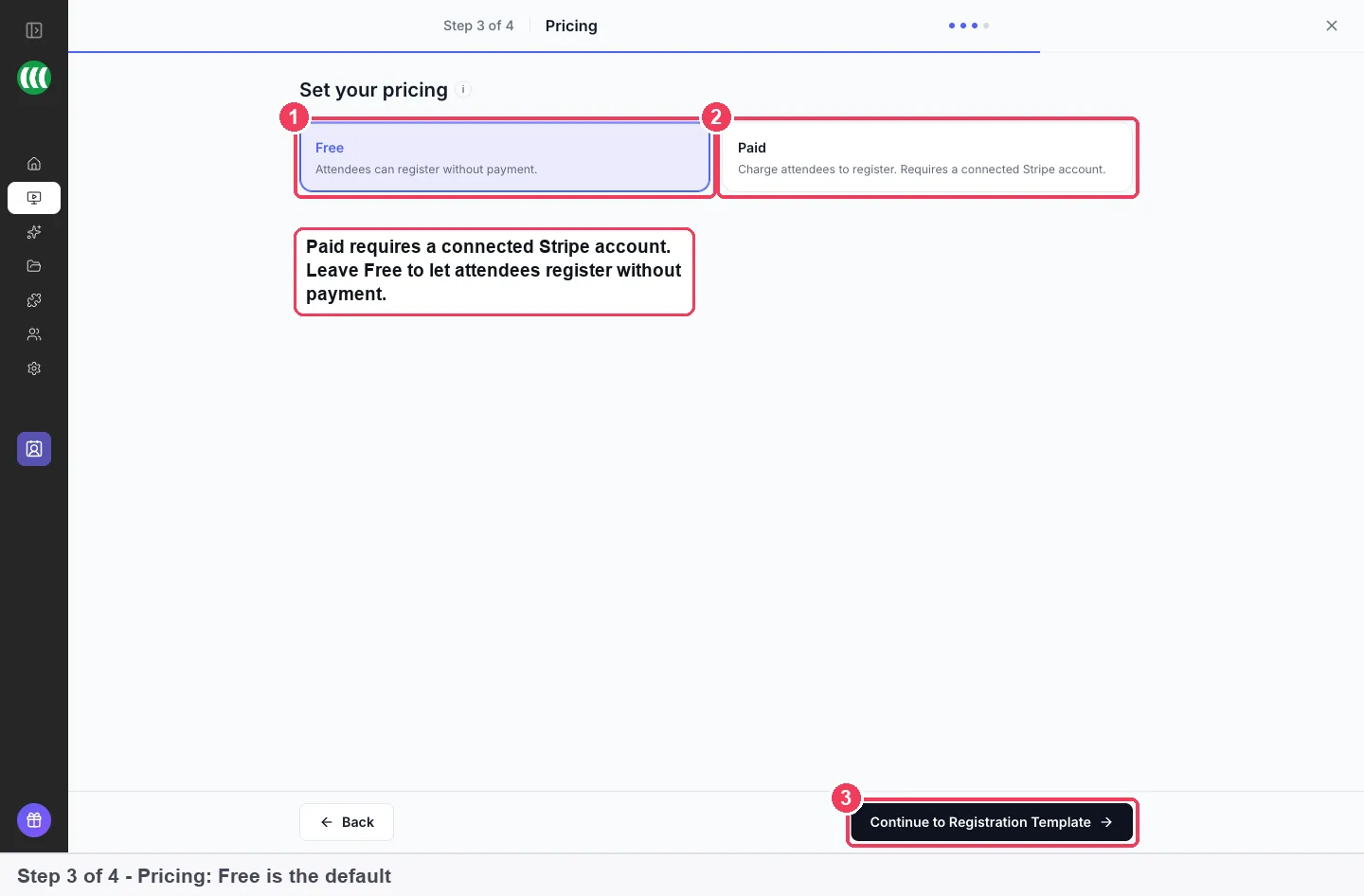
Choose Paid here rather than later. If you switch an existing free webinar to paid, its registration page keeps the free form. In that case, create a new webinar and choose Paid on this step.
Name the ticket and connect Stripe
Choosing Paid reveals the Pricing Title, an optional Description, the Live webinar price in US dollars and the Stripe connection. The title and description appear on your registration page and at checkout, so write them as the buyer would describe the purchase.
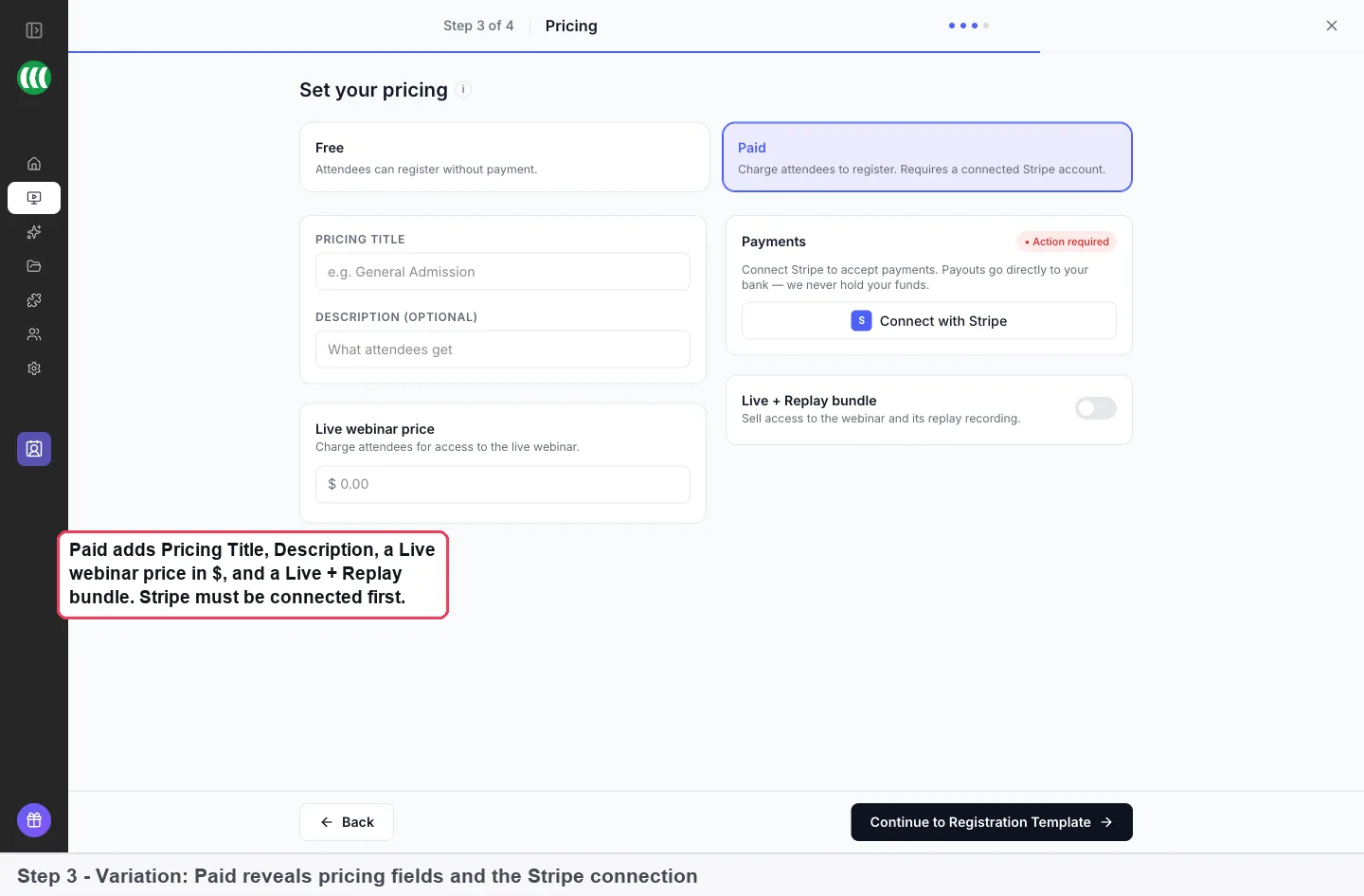
If Stripe isn't connected, a Payments · Action required panel shows a Connect with Stripe button. Payouts go directly to your own bank account, and EasyWebinar never holds your funds. If the paid option isn't behaving as expected, check that Paid Webinars shows as active on the Add-ons tab under Settings → Manage Plan.
Decide on the replay before you publish
Turn on Live + Replay bundle if you want to sell a second option that includes the replay recording, with its own price. The registration page then shows two options to choose from. Make this call before the page goes live, because it changes what your first buyers are promised.
Keep the registration form short
The form starts with Full name and Email. On the Content tab you can add a Phone field, your own custom registration fields, and GDPR Compliance, which adds a consent checkbox you word yourself and can make mandatory.
Ask only for what you'll use. Nielsen Norman Group's form research found that every field you cut increases a form's conversion rate, and a paid form already asks for a payment. The UK's data protection rules also expect personal data to be limited to only what is necessary for your purpose. A phone number earns its place only if you plan to send SMS reminders.
If your workshop needs a disclaimer, for example on financial or health topics, add it as a text block in the registration page builder. Its templates include Coach, Education and Health & Wellness categories.
Confirm the booking and remind people
The Registration Confirmation email goes out the moment someone registers and carries their join link, so leave it on. Add webinar reminder emails on the Notifications tab, each with its own timing before the start. A common pattern is three: a day before, an hour before and fifteen minutes before.
SMS (Beta) works only for people whose phone number you have. Set your sender name in Email Settings to a name buyers will recognise, as the confirmation email settings explain.
Check what buyers see after paying
Once payment goes through, the buyer is registered and sent to your thank-you page. It shows their personal join link and the session date, with calendar buttons.
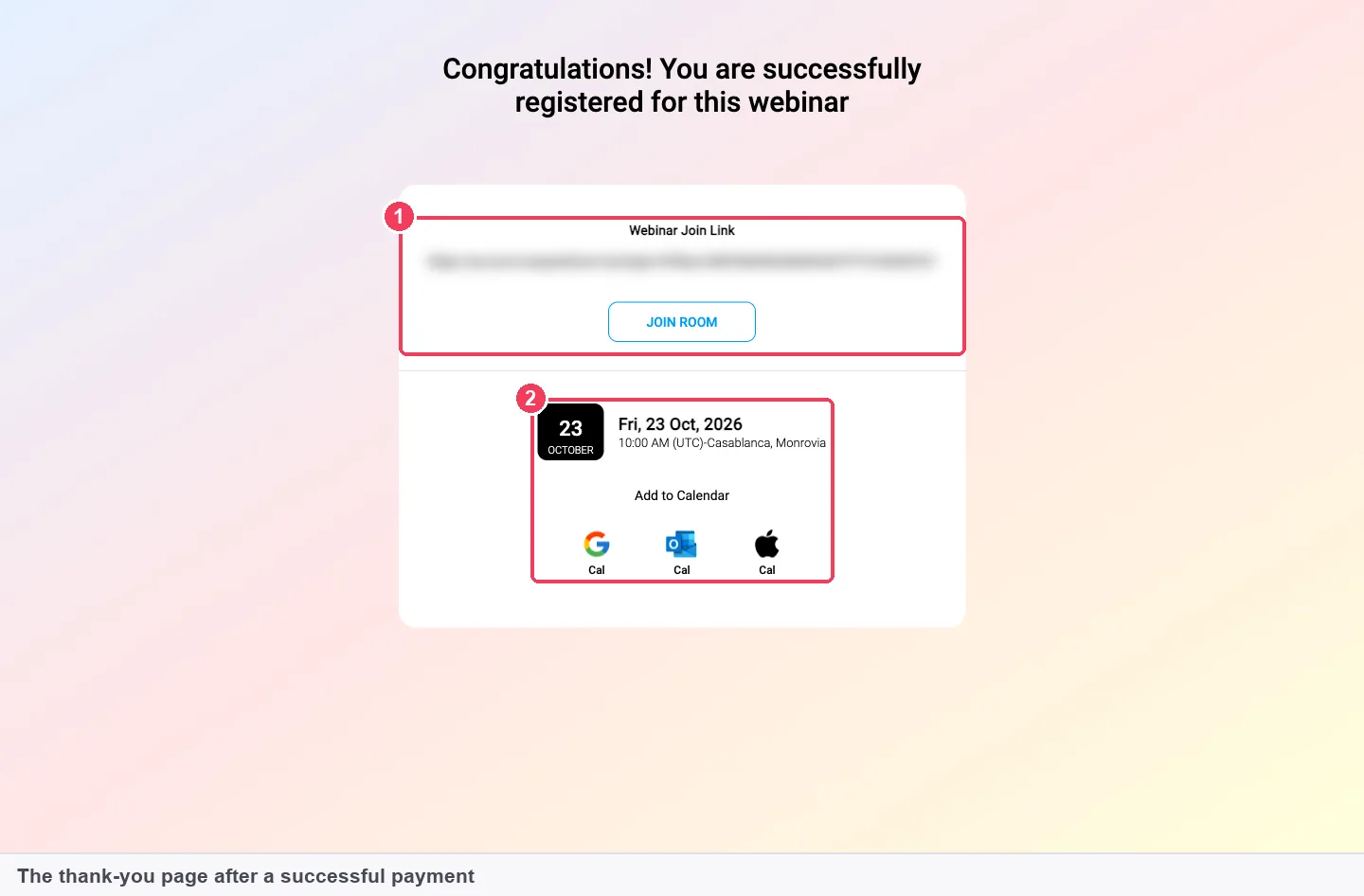
Buyers outside the US may be offered the price in their own currency beside the dollar price, and Stripe handles the conversion. If someone closes the checkout without paying, they are not registered.
Teach the session: chat, Q&A and polls
A paid audience expects to be heard. Set the room up on the Engagement and CTAs tabs before the session, not during it.
Chat that suits the group
Live chat has two visibility settings. Everyone lets attendees see and answer each other, which suits most workshops. Hosts only makes each attendee's messages private to your team. Choose it for sensitive topics, or where buyers shouldn't see each other's questions.
A question queue you work through
Q&A is a separate queue from chat. Private Q&A shows questions only to hosts and moderators, so one person's question doesn't set the agenda. A common workshop setup is Everyone for chat plus Private Q&A.
Polls as the hands-on moments
Polls let you stop and ask the room something. Ask a question about the audience rather than a test, such as which step they're stuck on. The answer tells you where to spend the next ten minutes.
A co-host behind the scenes
You enter through a green room and backstage where nothing is broadcast. A co-host or moderator lands backstage, not on stage. They can watch chat and Q&A until you bring them on. The live webinar walkthrough covers going live and ending the session.
Before you go live, check the header reads Auto Recording Enabled. That recording is what your replay page will show, as the automatic recording guide explains.
Decide who gets the replay
"Do paid attendees get the replay?" is the question buyers ask most, so answer it on the registration page. You have three choices.
| Your rule | How to set it |
|---|---|
| Live only, no replay | Leave Live + Replay bundle off and the replay page off |
| Replay sold as an upgrade | Turn on Live + Replay bundle with its own price |
| Replay for a limited time | Turn on Enable replay page and choose Expire after days or Specific date |
The Replay tab controls the page itself. Always Available keeps it up with no expiry, which suits training that keeps its value. Once the page is on, it reads that anyone with the link can watch, so treat the link as public and share it with care.
Webinar Replica gives replay viewers the same video, offers, polls and chat replay as the live session. Custom Build lets you design a different page. The replay page settings cover both, along with After the replay ends, which sends viewers on when the recording finishes.
After the workshop: send buyers somewhere
When the stream ends, attendees stay on a finished webinar unless you fill in End of Session on the Settings tab. Point it at your booking page, your next workshop or a thank-you page. This is how a seminar that sells a coaching programme or a consultation turns into booked calls.
During the session, an offer can show a button that opens your own checkout or booking page. Offer sales show under Paid Offer in the Revenue view, apart from ticket sales.
On the Notifications tab, Webinar Follow-ups go to registrants, attendees or no-shows after the session. Attendee Action Follow-ups respond to what someone did, such as clicking an offer. The webinar follow-up email templates give wording for each group.
See whether the workshop paid off
Two measures tell you most about a paid workshop. Both sit inside the webinar, so you don't need a spreadsheet.
Checkout completion
This is the share of people who reached checkout and paid. Work it out as completed checkouts divided by completed plus abandoned checkouts. A low figure points at the price, the ticket wording or a surprise at checkout rather than at your marketing.
Find it in the webinar's Analytics tab under Revenue, then Paid Webinar. It lists completed, pending and abandoned checkouts, and a searchable list of every transaction with its status.
Attendance of paid buyers
This is the share of paid registrants who showed up, live or on replay. Paid buyers usually care, but they still forget. A gap here is a reminder problem, not a sales problem.
The webinar analytics funnel shows Live Attended, Replay Watched and Total Attended, which counts each person once. The People view lists who registered and who attended.
How far to trust these numbers
Pending checkouts haven't finished yet, so leave them out until they settle. Replay views are counted apart from live attendance, so a bundle buyer who watched both shows under Both. On a small workshop, a few people can swing either percentage widely, so look across several sessions before you change the price.
You can also check the Revenue total on the webinar Overview tab, next to Registration Pricing.
Worked example: how many visitors fill a 30-seat workshop
This is an illustrative calculation with sample figures, not an EasyWebinar output. Suppose you want 30 people in the live room and you know roughly how your page performs.
| Step | Sample figure | Arithmetic |
|---|---|---|
| Registration page visitors | 1,000 | Starting point |
| Click Register Now and reach checkout | 80 | 1,000 × 8% |
| Complete checkout | 48 | 80 × 60% checkout completion |
| Abandon checkout | 32 | 80 − 48 |
| Choose the Live + Replay bundle | 12 | 48 × 25% |
| Attend live | 36 | 48 × 75% paid attendance |
At these rates, 1,000 visitors fill the room with a little to spare. The bigger lever is checkout, not traffic. Raising checkout completion from 60% to 75% adds 12 paid seats from the same 1,000 visitors, while getting those 12 seats from traffic would take 250 more visitors.
Who runs paid workshops and seminars
A seminar that sells a programme
A real-estate investing trainer charges a small fee for a live seminar, then shows an offer for the full coaching programme. Ticket sales and in-room offer sales appear apart in Revenue by Source.
Paid wellness workshops
A breathwork teacher sells a monthly live workshop with a Live + Replay bundle, so people in other time zones can buy the recording. Hosts only chat keeps personal questions private.
Financial education for the public
An investor-education firm runs a paid seminar with a disclaimer block on the registration page and a required consent box. Replays use Specific date so older material closes on schedule.
Recruitment and nonprofit events
Hiring teams and charities use the same set-up for paid assessment sessions or ticketed donor briefings. Show Attendees can be switched off so guests don't see each other.
How EasyWebinar compares for paid webinars and workshops
EasyWebinar takes payment through Stripe inside the registration step and can sell the replay as its own option. It then shows the workshop's revenue on the webinar itself. Buyers pay once, get their link at once, and you see the result in one place.
Paid webinar features, from each platform's public documentation:
| Platform | Ticket paid inside registration | Replay sold as its own option | Revenue total for the webinar |
|---|---|---|---|
| EasyWebinar | Yes | Yes | Yes |
| Zoom | Yes (payment completes registration) | Partly (viewing included with the ticket) | Partly (order export for paid events) |
| WebinarJam and EverWebinar | Partly (your own checkout, then the form) | Not in docs | Yes (registration revenue in analytics) |
| Livestorm | Yes (charge confirmed before sign-up) | Not in docs | Partly (paid amount per registrant) |
| WebinarNinja | Yes (card charged on the form) | Partly (registrations reopen for the replay) | Not in docs |
| Demio | Partly (payment app plus Zapier) | Not in docs | Not in docs |
Yes: documented and built in. Partly: documented with a limit, shown in brackets. Not in docs: not found in the vendor's public documentation.
Why EasyWebinar is the stronger choice for paid webinars and workshops
- Buyers are registered the moment they pay. EasyWebinar registers the buyer once Stripe payment goes through. WebinarJam's PayPal guide warns that people aren't registered until they complete the post-payment form. See EasyWebinar vs WebinarJam.
- The replay has its own price. EasyWebinar's Live + Replay bundle sells the recording as a second option. Zoom's recording access comes as complimentary viewing included with the ticket. See EasyWebinar vs Zoom.
- Payment is built in. EasyWebinar's checkout is part of the pricing step. Demio's help centre describes paid access through a payment app and a Zapier Zap. See EasyWebinar vs Demio.
Competitor details checked against each vendor's public documentation on 4 November 2026. Features and plans change, so confirm with the vendor before you decide.
Limits and things to know
- Paid is chosen at creation. A free webinar switched to paid keeps its free registration form, so create a new webinar with Paid selected.
- The webinar type is fixed. Live, simulive and evergreen can't be swapped later. Clone the webinar to change it.
- Prices are set in US dollars. Stripe may show buyers outside the US their local currency.
- Payment runs through Stripe only. Connect a Stripe account on the pricing step or from Integrations → Payment.
- A live session runs at one fixed time. Buyers in other regions need another session added with Add Session.
- An open replay page is public to anyone with the link. Use an expiry if access should end.
Common questions about paid webinars
How do I charge for an online workshop?
Create a webinar, choose Paid on Step 3 of 4 · Pricing, set a pricing title and price, and connect Stripe. Buyers then pay at checkout when they click Register Now on your registration page.
Do paid attendees get the replay?
Only if your rule says so. Turn on Live + Replay bundle to sell the recording as its own option, or enable the replay page for a limited time. Say which applies on your registration page.
What is the difference between a webinar and a workshop?
A webinar is mostly a talk with questions. A workshop asks people to take part during the session, so chat, Q&A and polls do more of the work. Both are set up the same way in EasyWebinar.
Where does the money go?
Payments go straight to your own Stripe account, and Stripe pays out to your bank on its usual schedule. EasyWebinar never holds your funds.
Is someone registered if they close the checkout without paying?
No. They appear under Checkout abandoned in the Revenue view and are not registered, so they don't receive a join link.
Can I sell a recorded seminar instead of teaching live?
Yes. Simulive and evergreen webinars both offer Free or Paid on their pricing step. Simulive plays the recording at set times, and evergreen lets each registrant pick a session.
Can I change the price after tickets go on sale?
Yes. Use the pencil beside Registration Pricing on the webinar's Overview tab to edit the title and price.
How do I keep buyers' questions private?
Set chat to Hosts only, so each attendee talks privately to your team, and set Q&A to Private Q&A. Turning off Show Attendees hides the attendee list as well.
Can I add a disclaimer or a consent box?
Yes. Add a text block to the registration page for the disclaimer, and turn on GDPR Compliance in the form to add a consent checkbox you word yourself and can make mandatory.
What happens when the workshop ends?
Attendees go wherever you set in End of Session on the Settings tab. Leave it empty and they stay on the finished webinar, so point it at your booking page or next offer.
Can I send text reminders to buyers?
Yes, with SMS (Beta), for buyers who gave a phone number. Add the Phone field to your registration form first, then set the SMS messages on the Notifications tab.
Where do I see who has paid?
Open Analytics → Revenue → Paid Webinar. It lists every transaction with the buyer's name, email, session, date, amount and status, and you can search it or filter by status.
Can I run paid workshops on health or financial topics?
You can add disclaimers and consent, keep chat private and set the replay to close. EasyWebinar holds a SOC 2 Type II report and follows GDPR-aligned data practices. Check your own sector's rules before you start.
Can I sell something else during a paid workshop?
Yes. Add an offer on the CTAs tab with a button that opens your own checkout or booking page. Offer sales show under Paid Offer, apart from ticket sales.
Further reading
- Website Forms Usability: Top 10 Recommendations, Nielsen Norman Group, 2016: why each extra form field costs completions, and which fields to drop first.
- The UK's data protection legislation, GOV.UK: the principles that apply when you collect buyers' names, emails and phone numbers.
Related
Updated 4 November 2026: added the ways to charge for a workshop, the manual method, a measurement guide, a worked example and a comparison.