
0%On this pageContents
The AI Assistant is EasyWebinar's built-in chat, in the bottom-right corner of the dashboard. Ask in plain words and it does the work in your account: it builds a webinar, edits pages, emails, schedules and engagement, and measures how your webinars performed. Every task that would take several screens is one request away, and you stay in EasyWebinar the whole time.
At a glance
| What it does | Builds, edits and measures webinars from a chat inside EasyWebinar |
| Where it is | The button in the bottom-right corner of the dashboard |
| What it covers | Webinars, pages and emails, engagement, and analytics |
| Across webinars | Answers questions about all your webinars at once |
| Your data | Works on your own account, with your permissions |
| Setup | None: it's part of EasyWebinar |
| Outside the app | The same kind of work from ChatGPT or Claude, with the AI connector |
| Part of | EasyWebinar AI |
What the AI Assistant is
Normally, setting up or changing a webinar means opening it, finding the right tab and working through each screen. Checking results means opening each webinar's analytics. With the AI Assistant you describe what you want, and it does that work in your account.
Ask Which of my webinars needs attention this week? and it looks across your webinars and tells you. Ask it to write the reminders for Spring Launch and it writes them on that webinar.
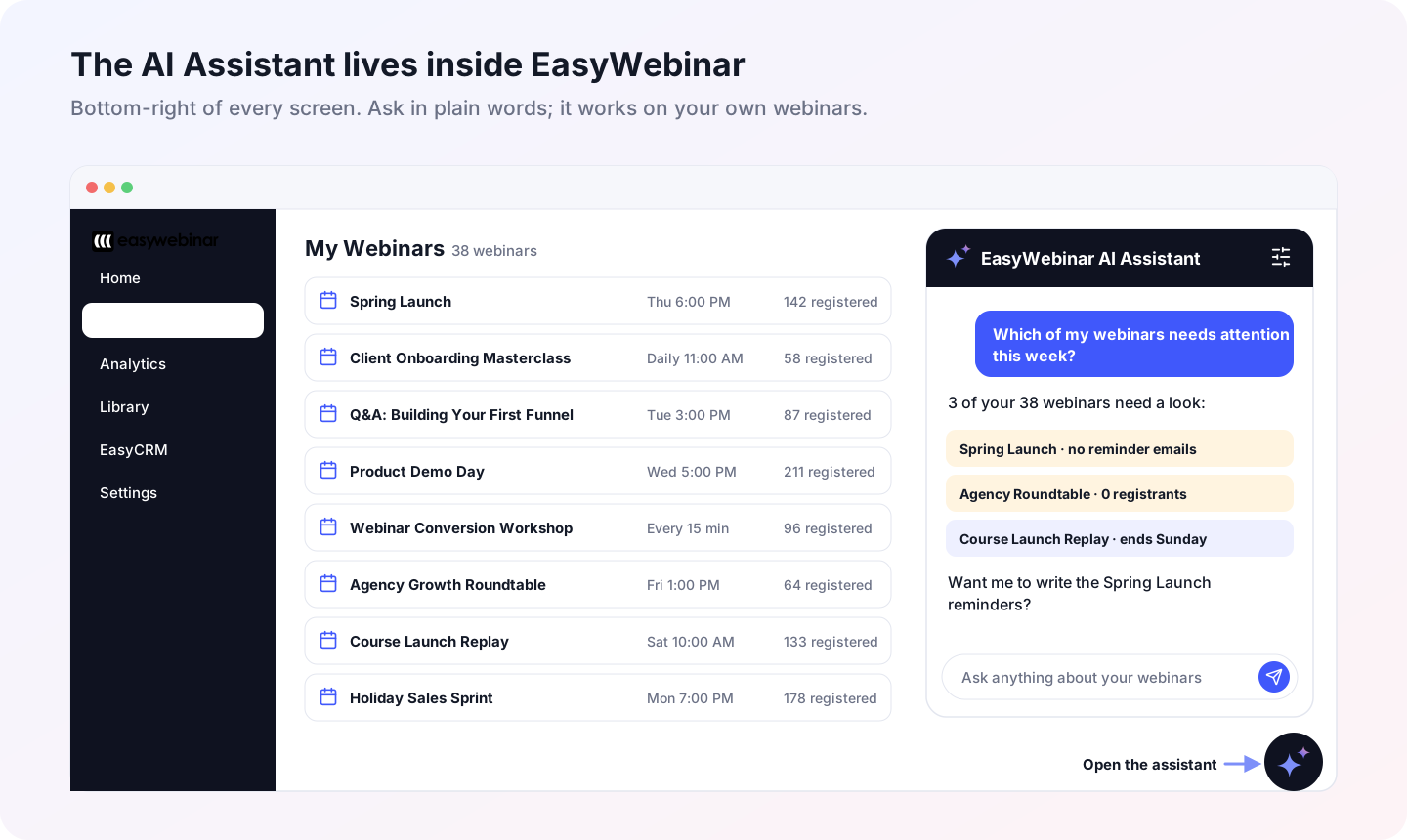
It opens from the bottom-right corner, over the screen you're on. Illustrative account.
There are three kinds of request:
| Request | What it does | Example |
|---|---|---|
| Build | Creates something new: a webinar, its schedule, pages, emails, polls or offers | Build a live webinar called Spring Launch for next Thursday at 6 PM. |
| Edit | Changes something that exists | Move Product Demo Day to Thursday at 7 PM and update its reminders. |
| Measure | Reads your results and compares them | Compare attendance across my last five live webinars. |
Why the AI Assistant matters
What it's for
It's for getting webinar work done without hunting for the screen it lives on. Build the next session, fix a reminder, check last week's attendance: each starts with a sentence, wherever you are in EasyWebinar.
How it helps
- One request instead of many screens. A new webinar with its schedule, page, reminders and poll starts from one sentence.
- Answers across every webinar. Ask about all of them at once instead of opening each one.
- Changes in place. Edits land on the webinar itself, so there's nothing to copy across.
- Right where you work. It sits in the dashboard, so there's nothing to connect or switch to.
What happens without it
Each task is a trip through tabs: create the webinar, set the schedule, write the page, then the emails, then the poll. Comparing results means opening webinars one by one and copying numbers into a sheet. With a few dozen webinars, small jobs like which webinar has no reminders yet? stop getting done.
Why buyers care
Webinars convert when they run often and the follow-up is tight. When building a session, fixing its emails and reading its numbers each take one request, a team runs more webinars, spots the weak ones sooner and spends its time on the content. See how automated webinars keep that cycle running.
The EasyWebinar approach to the AI Assistant
Take a typical case. A marketing team runs 38 webinars: weekly live demos, a handful of evergreen webinars that run around the clock, and a monthly customer roundtable. One person looks after all of them.
A common setup is a spreadsheet of webinars, checked by opening each one. That probably works with five webinars. With 38, a webinar goes out with last month's reminder, or a roundtable sits at zero registrants until the day before.
The webinars themselves don't need to change. What matters is how quickly one person can see the whole account and act on it.
In EasyWebinar, she opens the AI Assistant and asks Which of my webinars needs attention this week? It names three: one with no reminder emails, one with no registrants, one ending on Sunday. She asks it to write the missing reminders, reviews them, and asks which October webinar had the best attendance rate, so the next one copies what worked.
The illustrations under What you can do show build, edit and measure requests. How other webinar platforms use AI is covered in How the AI Assistant compares, below.
Set it up
Open the AI Assistant
- Sign in to EasyWebinar.
- Click the AI Assistant button in the bottom-right corner of the dashboard.
- Type what you want in plain words, and send it.
- Read what it did, and follow up in the same chat.
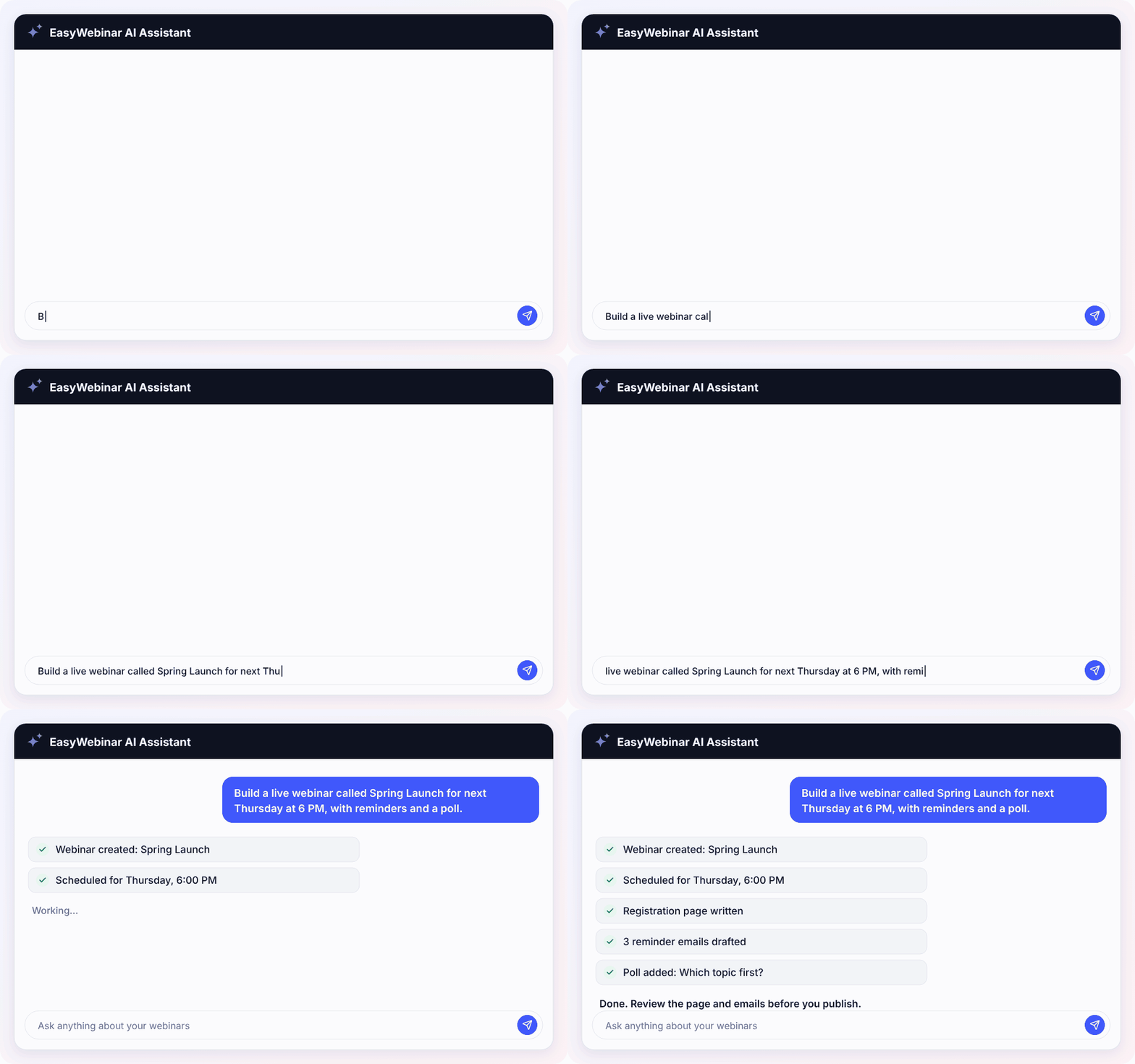
One request, five steps done. Illustrative; your assistant shows your own webinar.
Before you start
| Check | Why |
|---|---|
| Brand and business profile saved | The assistant writes pages and emails from what's saved in EasyWebinar, the same profile Create with AI uses |
| Your role | The assistant works with your permissions. See Team members and roles |
| Webinar names | Naming the webinar in your request (Spring Launch) gets a faster, more exact answer |
What you can do from the chat
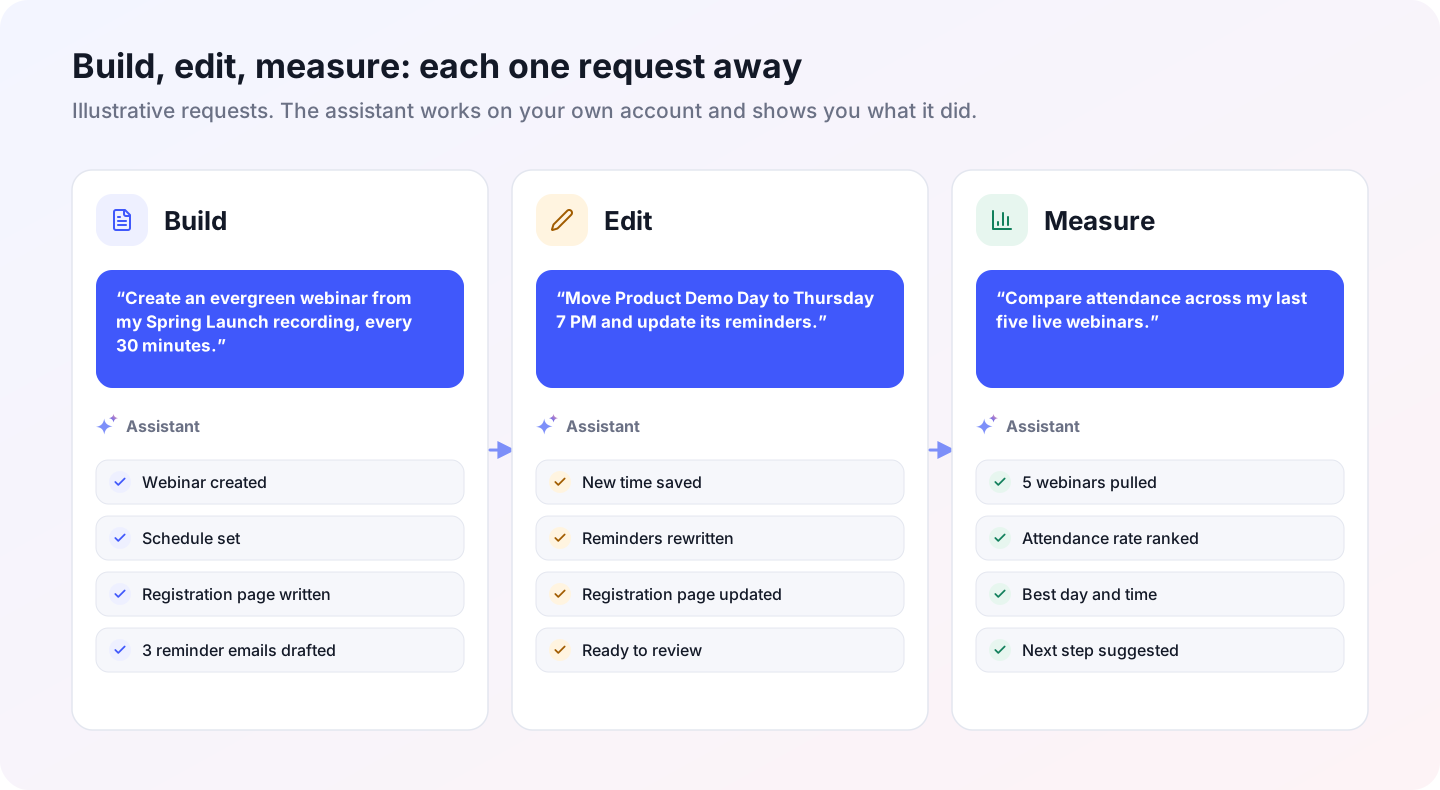
Build, edit and measure, each one request away.
| Area | What you can ask for | Try |
|---|---|---|
| Webinars | Create and schedule live, simulive and evergreen webinars; change times; find registration links | Create an evergreen webinar from my Spring Launch recording. |
| Pages and emails | Write and update registration and thank-you pages; write reminder and follow-up emails | Write three reminders and two follow-ups for Spring Launch. |
| Engagement | Add polls and offers; teach the AI Moderator your FAQs | Add a poll to Spring Launch asking which topic to cover first. |
| Analytics | Registrations, attendance and attendance rate, and comparisons across webinars (Webinar analytics) | How did last Thursday's webinar do? |
Working across many webinars
The assistant is most useful when you have more webinars than you can keep in your head. Ask across all of them at once:
| Ask | What you get |
|---|---|
| Which of my webinars needs attention this week? | Webinars missing reminders, registrants or a schedule |
| Which October webinars had the best attendance rate? | A ranked list with registered, attended and attendance rate |
| Which evergreen webinars haven't had a registrant this month? | The quiet ones, ready to promote or retire |
| What's on this week? | Upcoming sessions across every webinar |
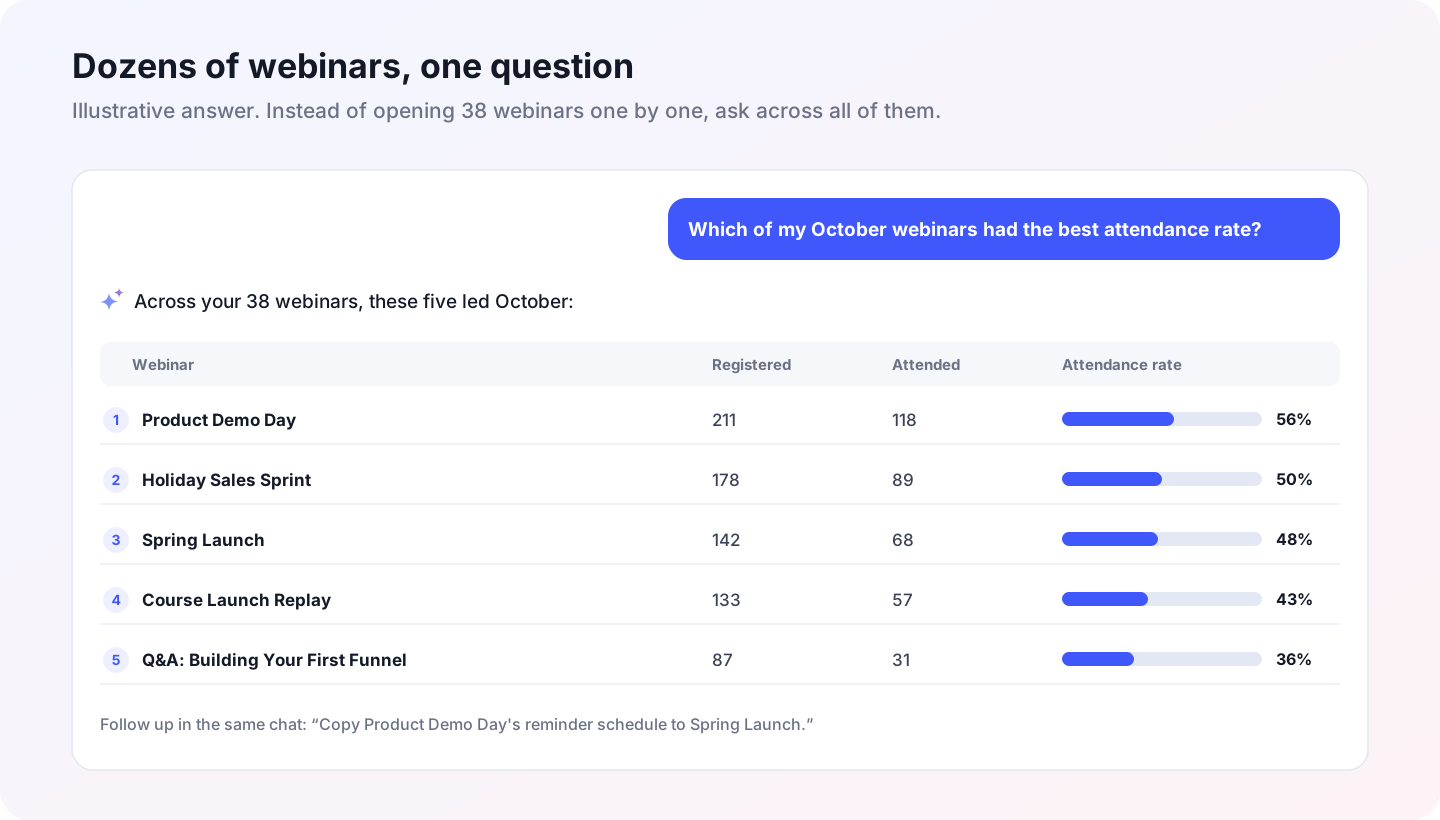
Illustrative answer across 38 webinars.
Review before it goes live
Pages and emails on a webinar are what your registrants see and receive. Before you publish a page or let a new email sequence run:
- Read what the assistant wrote, and ask for changes in the same chat.
- Check the webinar's Overview tab for the schedule and its Sessions panel.
- Open the page or email on the webinar's tabs if you want to fine-tune it by hand.
Test the AI Assistant
The quickest check is a question only your account can answer.
- Open the AI Assistant.
- Ask What's on this week?
- Compare the answer with the Sessions panel on each webinar's Overview tab.
- Ask How did my last webinar do? and compare it with that webinar's analytics.
How the AI Assistant works with other features
The AI connector for ChatGPT and Claude
The AI connector does the same kind of work from ChatGPT or Claude. Use the AI Assistant when you're already in EasyWebinar, and the connector when you're working in your AI assistant.
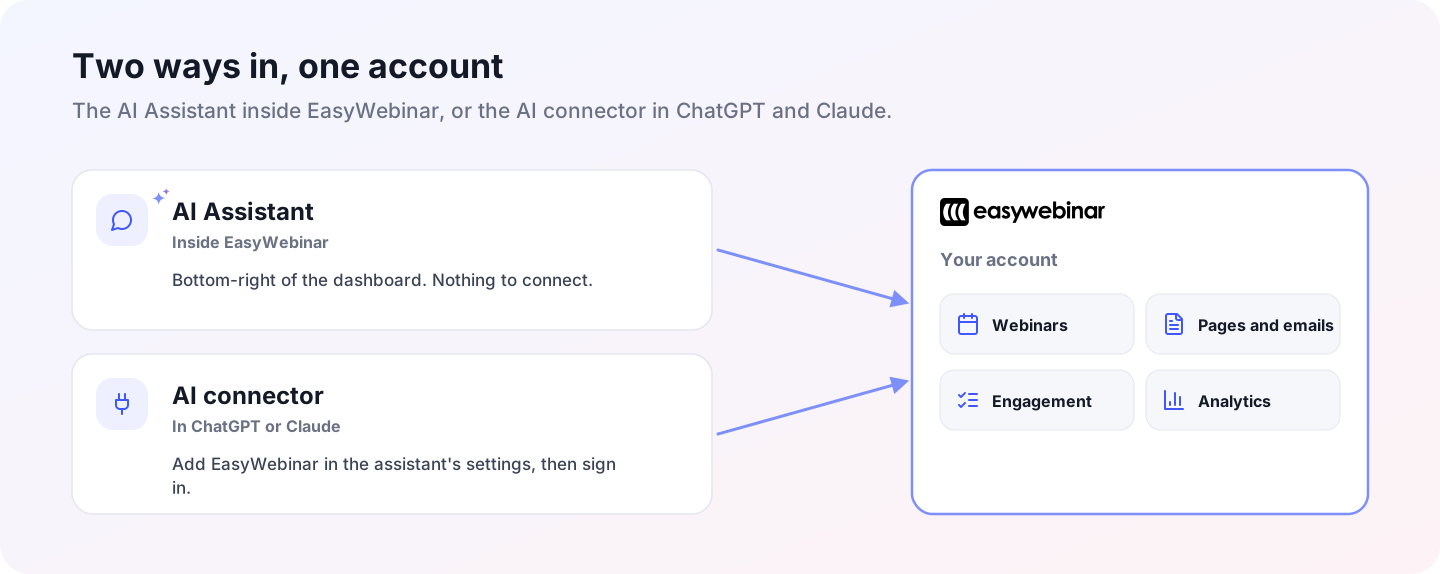
Two ways in, one account.
Create with AI
Create with AI builds a whole webinar funnel in a guided flow. The AI Assistant is for everything after that: changes, additions and questions, one request at a time.
AI Moderator (Beta)
The AI Moderator answers attendee questions in the webinar chat. Ask the assistant to teach it your FAQs and it adds them to what the moderator knows.
Evergreen and just-in-time webinars
The assistant can create and schedule evergreen webinars. Options such as Just-in-time Registration are set on the webinar's schedule, so check them on the Overview tab after it's created.
Your CRM
Registrants still reach your CRM through your integrations, so tags and fields keep working as before.
Who uses the AI Assistant, and how
These are typical patterns, shown to illustrate how the assistant fits different teams.
Marketing teams
A marketing team asks which webinars need attention each Monday, then fixes them in the same chat.
Course creators
A course creator turns a live session's recording into an evergreen webinar and adds an offer for the course.
Coaches and consultants
A coach builds next month's live sessions in one request and has the assistant write their reminders.
Agencies
An agency compares attendance across a client's webinars and copies what worked into the next launch.
How the AI Assistant compares
EasyWebinar's assistant builds, edits and measures webinars from a chat in the app. Other webinar platforms use AI mostly to summarise what already happened.
AI inside the webinar platform, from each vendor's public documentation:
| Platform | AI inside the product | Builds or edits webinars from a chat | Measures across webinars |
|---|---|---|---|
| EasyWebinar | Yes (AI Assistant, Create with AI, AI Moderator) | Yes | Yes |
| Zoom Webinars | Partly (AI webinar summaries with the add-on) | No | No |
| Webex Webinars | Partly (Cisco AI Assistant summaries and questions, admin-enabled) | No | No |
Yes: documented and built in. Partly: documented with a limit, shown in brackets. No: not described in the vendor's documentation.
Why EasyWebinar is the stronger choice for AI in your webinars
- It does the work, not just the summary. The assistant builds and edits webinars in your account. Zoom's help centre describes AI webinar summaries, with an add-on. Compare EasyWebinar vs Zoom.
- No admin switch to find. It's in the dashboard for you. Webex's help centre describes Cisco AI Assistant summaries that an admin enables. Compare EasyWebinar vs Webex.
- AI before, during and after the webinar. Create with AI builds the funnel, the AI Moderator answers attendees, and the AI Assistant keeps every webinar on track. Inside the app or in ChatGPT and Claude.
Competitor details checked against each vendor's public documentation on 10 November 2026. Features and plans change, so confirm with the vendor before you decide.
Limits and things to know
- Review what goes live. Pages and emails reach your registrants, so read what the assistant wrote before you publish.
- Name the webinar. With many similar webinars, a name gets a more exact answer than my webinar.
- One change at a time. Finish one edit before the next, so each change is easy to check.
- Your permissions apply. The assistant can only do what your role allows.
- Illustrations are examples. The webinars and figures on this page are illustrative; the assistant shows your own.
Common questions
Where is the AI Assistant?
In the bottom-right corner of the EasyWebinar dashboard. Click it to open the chat.
What can the AI Assistant do?
It builds webinars, edits pages, emails, schedules, polls and offers, teaches the AI Moderator your FAQs, and reports and compares your results.
Do I need to set anything up?
No. It's part of EasyWebinar. Saving your brand and business profile first helps it write pages and emails that fit your business.
Can it answer questions across all my webinars?
Yes. Ask about all of them at once, such as which webinars need attention this week or which had the best attendance rate last month.
Can it build a whole webinar?
Yes. Describe the webinar, its time and what it needs, such as reminders and a poll, and it builds them on a new webinar.
Does it change my webinars directly?
Yes. Edits are made on the webinar itself, the same as if you'd made them on its tabs. Review pages and emails before you publish them.
Is the AI Assistant the same as the AI connector?
They do the same kind of work. The AI Assistant is inside EasyWebinar; the AI connector brings it to ChatGPT and Claude.
How is it different from Create with AI?
Create with AI builds a whole funnel in a guided flow. The AI Assistant handles everything after that, one request at a time, across all your webinars.
How do I get the best results?
Name the webinar, ask for one change at a time, and save your brand and business profile in EasyWebinar.
Who can use it?
Anyone signed in to EasyWebinar, with the permissions of their own role.