
0%On this pageContents
AI webinar landing pages take on a job many small teams put off: writing the registration page, the thank-you page and the waiting page before a webinar. If you need a webinar landing page live this week and have no designer, you want two answers. Can the AI build it, and how much will you still change? In EasyWebinar, the AI writes all three pages from the script it drafts first, then hands them to the normal page builder, where you check the facts, edit what you like and publish.
At a glance
| What it builds | Your registration page, thank-you page and waiting area |
| What it writes from | The webinar script the AI drafts in the step before |
| What goes on the page | A headline, what attendees will learn and an instructor bio |
| Template | AI picks for you selects one, or Choose manually lets you browse |
| Where you edit | An editor with Edit, Preview, SEO and Scripts tabs during the build, then the normal page builder |
| Credits | 10 for landing pages, and about 23 for a full build of all five parts |
| Time | About ten minutes for the whole build, script included |
| Webinar types | Live, simulive and evergreen |
| Before you publish | Set the schedule, read the copy, and check pricing and what's included |
What an AI-generated webinar landing page covers
Picture a coach with a topic, an offer and a date in mind, but no registration page yet. She can write one from a blank screen tonight, or she can describe the session and let the AI draft it. An AI-generated webinar landing page is the second route: pages written by AI from a description of your webinar, which you then edit like any other page.
In EasyWebinar, page generation is one part of a larger AI build that starts from a single prompt. The AI writes your presentation script first. It then writes the pages, using that script as its source material. Because the build starts from one description, the pages and the talk describe the same session.
The AI covers three of the five pages every webinar has: the registration page, the thank-you page and the waiting area. The other two, the webinar page and the replay page, keep the working default that every page has. All five open in the same drag-and-drop builder, so you can style the last two whenever you're ready.
What you see on the screen
During the build, the pages open in an editor with four tabs: Edit, Preview, SEO and Scripts. A desktop and mobile view lets you check both layouts before you move on. When the build ends, you land on the finished webinar's Overview, and the webinar carries an AI badge in My Webinars. From then on, its pages sit on the Content tab and open in the registration page builder, exactly as they would on a webinar you built by hand.
Why AI webinar landing pages matter
What it's for
Page generation takes you from a webinar idea to working registration, thank-you and waiting pages without a designer or a blank screen. The AI writes the words and picks a layout. You decide what stays.
How it helps
- The pages match the session. The copy comes from your script, so the headline and learning points describe the talk you'll give.
- Three pages arrive in one pass. The registration, thank-you and waiting pages are written together, in one voice.
- A template is chosen for you. You can let the AI pick one or browse the templates yourself.
- Nothing is locked. Every word and every block stays editable in the page builder.
What happens without it
Without it, you write each page yourself, from the headline down to the instructor bio. That's an evening a solo operator may not have, so promotion starts late or the page goes out thin. A thin page shows up later as visitors who look and don't register.
Who this falls to, and when
It matters most to the person who runs webinars alone or with one helper: an owner, a marketer or a consultant. The pressure point is the week before promotion starts. No ad, email or social post can go out until the registration page exists.
The EasyWebinar approach to AI webinar landing pages
Take a typical case. A dog trainer who works alone runs a free 45-minute live session each month on loose-lead walking. Each session ends on an offer for her paid four-week group programme. She promotes it to her email list and in local community groups, and nothing can go out until the registration page is ready.
The usual route is to write the page herself, late in the evening after training clients. She might copy last month's page and change the date, which can leave an old promise or a stale price in place. Starting from an empty template often takes longer than planned, so promotion tends to slip by a few days.
What changed is simple. When she plans a session, she already knows who it's for, what it covers and what she'll sell at the end. That description holds most of what a registration page needs, so the page can be drafted from it rather than from nothing.
EasyWebinar turns her description into a script, then writes her registration page, thank-you page and waiting area from that script. It picks a template unless she chooses one, and it opens every page for editing. She reads the copy, corrects anything about the offer, sets the schedule and publishes.
One fact you can check on this page: the generated pages take their headline, learning points and bio from your script. An error in the script carries into the pages. How this compares with other webinar platforms is covered in How EasyWebinar compares for AI webinar landing pages, below.
How webinar landing pages get made
There are four common ways to get a webinar landing page live. Each one catches some problems and misses others, so it helps to know which route you're on before you judge the result.
Built by hand on a blank page
You control every word and block, and nothing appears that you didn't write. What it misses is speed. The thank-you and waiting pages need writing too, and a busy team often leaves them on their defaults.
Started from a ready-made template
Webinar landing page templates fix the layout and design quickly, with the form already in place. What they miss is the words. Until you replace the sample copy, a template says nothing about your own session.
Written by AI from your script
The copy describes your actual session, because it's drawn from the script for the talk. That catches the gap between what the webinar covers and what the page promises. What it can miss are facts the AI may get wrong or can't know, such as the price, what's included and anything you changed after the script was written.
A form embedded on your own site
The page stays on your own website, in your own design, with the webinar's registration form placed inside it. That keeps the brand consistent. What it misses is the copy around the form, which is still yours to write.
What's confirmed for EasyWebinar
All four routes are documented. Build Your Own starts from a blank page, and the template step lets you filter by categories such as Coach, Education and Lead Magnet. The AI route writes three pages from your script. For your own site, the Registration Widget on the Content tab gives you embed code, covered in registration embeds.
What the AI writes on each page
The AI writes three pages and leaves two on their defaults. Here's what each page is for and what to look at once the build is done.
| Page | When people see it | Written by the AI? | What to check |
|---|---|---|---|
| Registration page | Before signing up; it's the link you promote | Yes: headline, what you'll learn, instructor bio | Price, what's included and the promise in the headline |
| Thank-you page | Straight after registering | Yes, from the same script | That the next steps match your confirmation email |
| Waiting area | Between arriving and the session starting | Yes, from the same script | Tone, and anything time-sensitive |
| Webinar page | During the webinar, around the video | No; it keeps its working default | Optional styling |
| Replay page | Afterwards, for the recording | No; it keeps its working default | Style it next, once the session has run |
The page builder's own advice is that if you only have time for two pages, make them the registration page and the replay page. The AI covers the first, so the replay page is the obvious one to style yourself.
All five pages already carry your webinar's date, time and timezone, so you don't type them into the copy. The build doesn't set the schedule for you, though. Set it before you check the pages, or the dates you see won't be the real ones.
How much of the page you'll change
Expect to edit, not rebuild. The product's own guidance treats the generated pages as a strong first draft, and it singles out pricing and what's included as the things to read closely. The checks below take most people well under an hour, because the layout and most of the copy are already there.
Webinar landing page best practices to check
| Check | Why it matters | Where you change it |
|---|---|---|
| Price and what's included | The AI may describe the offer differently from how you sell it | The registration page copy |
| Date and time | The pages show the schedule, which you set after the build | The schedule, then Preview |
| Headline | Most visitors scan rather than read | The top block of the registration page |
| Form fields | The default asks for Full name and Email, both required | The form block's settings |
| Mobile layout | Most of your registrations will come from phones | The device toggle in the builder |
| Search and sharing | Controls what search results and shared links show | SEO Options and Social Sharing (Open Graph) |
| Ad tracking | Lets your ad platform see sign-ups | Tracking Code on each page |
Read the headline the way a visitor would. In Nielsen Norman Group's early research, 79 percent of test users always scanned a new page instead of reading word by word. Its later eyetracking work advises putting the most important points in the first two paragraphs and starting headings with the words that carry most information. If the generated headline opens with filler, move the promise to the front.
Be slow to add form fields. The same group's form guidance notes that every field you cut raises a form's conversion rate, and it suggests keeping optional fields to one or two. Add a custom registration field only when you'll actually use the answer.
For layout ideas beyond the generated draft, the blog's webinar landing page examples and its guide to high-conversion landing page essentials are worth a look before you edit.
Write a prompt that gives the pages something to say
The pages are only as specific as the prompt behind them. A weak prompt produces generic output, and the generic wording flows through the script into every page. Include these five things:
- Who it's for, specifically. "Owners of young dogs that pull on the lead" gives the AI more than "dog owners".
- What it covers. Name the three or four things you'll actually teach.
- How long it runs.
- The tone you want.
- What you're selling at the end, and the price.
A prompt along these lines gives the pages plenty to work with:
Build a 45-minute live session called "Loose-Lead Walking in Four Weeks" for owners of young, energetic dogs who have already tried harnesses and treats. Cover why dogs pull, the stop-and-wait method, choosing a lead and practising on busy streets. Warm and practical. End with an offer for a four-week group programme with weekly calls.
Read the script before you continue to the pages. It's much easier to fix the script at this point than to fix the pages and emails built from it. If you want the price on the page, add it to your prompt, then check it on the page before you publish.
How to measure a webinar landing page
Two measures tell you whether a landing page is doing its job. Both are about the page itself, not about the webinar that follows.
Registration rate
Registration rate is registered people divided by visitors. In the analytics funnel, Visitors counts unique IPs on your landing page and Registered counts unique sign-ups. A low rate here is a page problem: the headline, the form or the promise.
Its weak spots are worth knowing. Counting by IP means several people on one office network may show as a single visitor. With small numbers, a handful of sign-ups can swing the rate a long way. Compare a session with your own earlier sessions rather than with a figure from elsewhere. You'll find both numbers in webinar analytics.
Sign-ups your ad platform can see
The thank-you page only loads after someone registers, which makes it a reliable conversion signal. Tracking code is set per page: the registration page tells your ad platform who was interested, and the thank-you page tells it who converted. Its weak spot is that it counts sign-ups, not attendance. A low Registered to Attended number is a reminder problem rather than a page one.
If you run search ads to the page, Google Ads rates landing page experience as one of three parts of Quality Score: how relevant and useful the page is to people who click the ad. Google calls Quality Score a diagnostic tool, not a key performance indicator. Treat it as a hint about the page, and keep registration rate as your main number.
How to create a webinar landing page by hand
Here's the manual method, so you can see which steps the AI takes on.
- Write one sentence on who the webinar is for and what they'll leave with.
- Turn that sentence into a headline that leads with the words carrying most information.
- List the three or four things attendees will learn.
- Write a short presenter bio that says why you're the right person to teach this.
- Add the date, time and timezone, and a registration form that asks only what you need.
- Write a thank-you page that confirms the booking and says what happens next.
- Write a waiting page for people who arrive early.
- Check every page on a phone, then publish it and test the registration link.
The same job in EasyWebinar
Steps 1 to 4 come from your prompt and script: the AI writes the headline, learning points and bio from them. Step 5 comes from the webinar itself, because the pages carry its schedule and the default form asks for name and email. The AI writes steps 6 and 7 in the same pass as the registration page. Step 8 stays with you: use the device toggle and Preview, then Publish each page.
Worked example: reading the dog trainer's first registration rate
This is an illustrative calculation with sample figures, not an output from the product. It shows how to read the funnel once the generated pages have been live for one session.
| Measure | Sample figure | How it's worked out |
|---|---|---|
| Visitors to the registration page | 600 | Unique IPs, from the funnel |
| Registered | 90 | Unique sign-ups |
| Registration rate | 15% | 90 ÷ 600 = 0.15 |
| Live attended | 36 | People who joined the live broadcast |
| Registered to attended | 40% | 36 ÷ 90 = 0.40 |
The first rate is the page's job and the second belongs to the reminders. If her 15% looked low against her own past sessions, she'd edit the headline, the form or the promise. If attendance looked low instead, she'd change her reminder emails and leave the page alone.
How to generate and edit a webinar landing page
These steps take you from a prompt to published pages. The whole build takes about ten minutes, and the script is the slowest part.
What to have ready
Before you start, have a clear description of the session and your offer, including what's included. Check your credits, which show at the top right of every step: landing pages use 10, and a full build of all five parts uses about 23. For a simulive or evergreen webinar, have the video ready too, because you'll choose it after the build.
Describe the webinar and keep Landing pages on
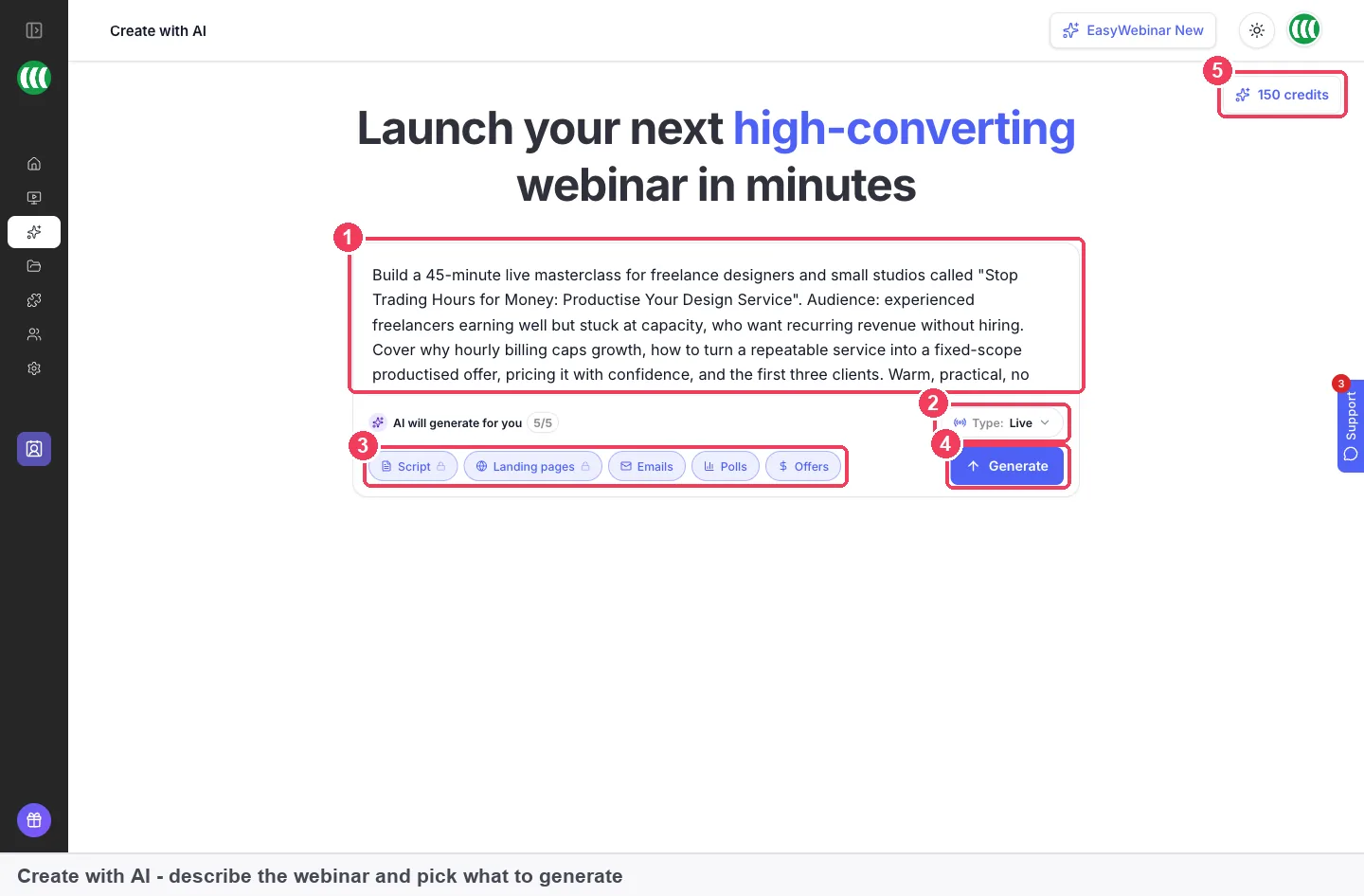
- Click Create with AI in the sidebar.
- Write your prompt in the prompt box.
- Set Type to Live, Simulive or Evergreen.
- Check the output chips. Script, Landing pages and Emails are selected by default, so leave Landing pages on. Click Polls and Offers if you want those too.
- Click Generate.
Review the script first
You're asked for the number of slides and the duration, then the script is written slide by slide. Read it now. Change the slides or duration and click Regenerate if it's off, then click Continue to landing pages.
Pick a template
Choose AI picks for you to have a template selected automatically, or Choose manually to browse. Settle the template before you do detailed editing. Changing a template later replaces that page's layout.
Edit the generated pages
The AI writes your three pages and opens them in the editor. Switch between desktop and mobile, read every line and change what's wrong. Then click Continue.
Afterwards, the same pages open in the normal builder. Click any block to select it: an orange toolbar appears above it, and the right-hand panel shows its settings across Settings and Advanced tabs. Use the orange + below a block to add a new one underneath.
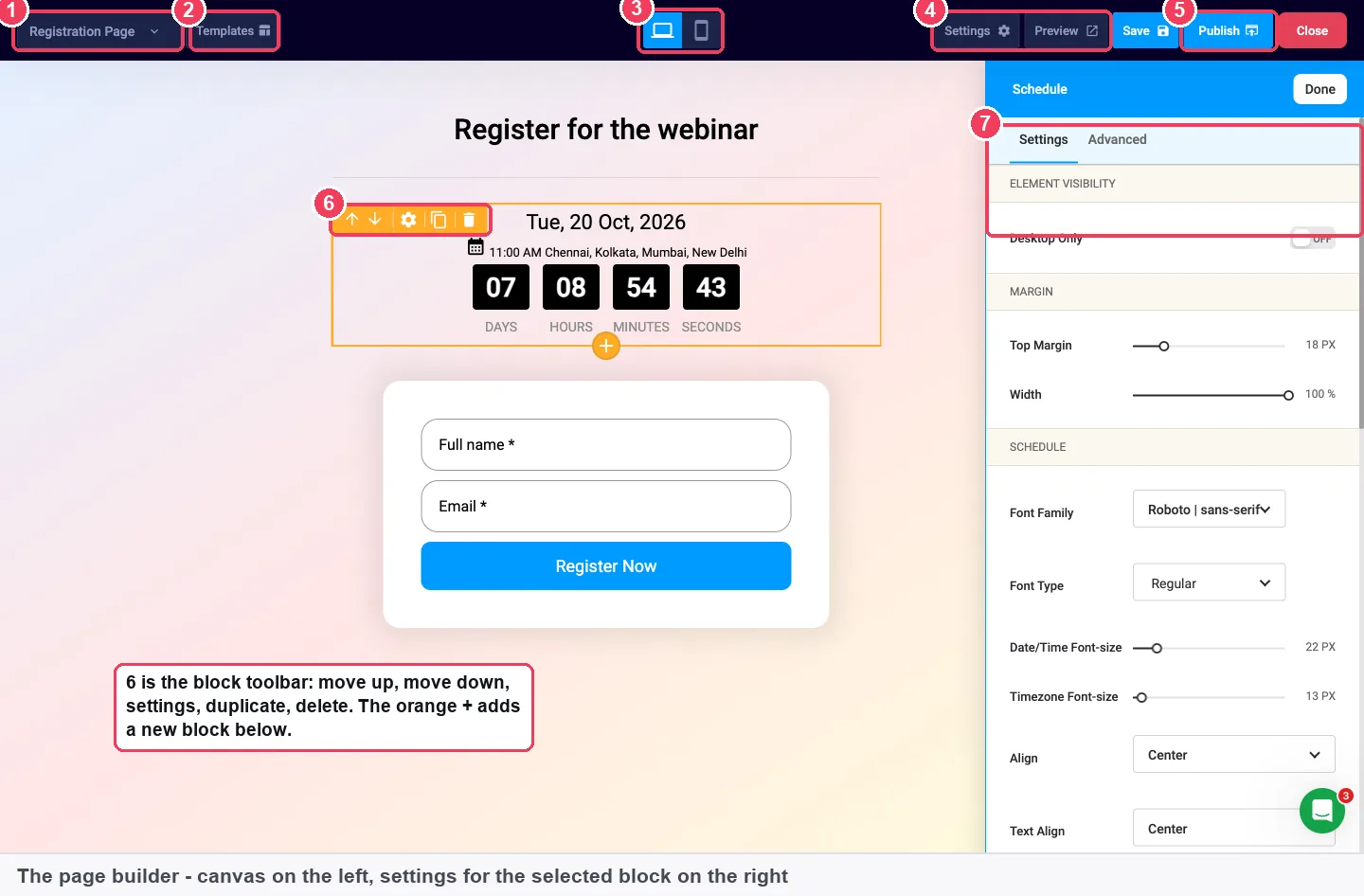
This EasyWebinar video shows how to customize a registration page in the page builder.
Finish the build and find your pages
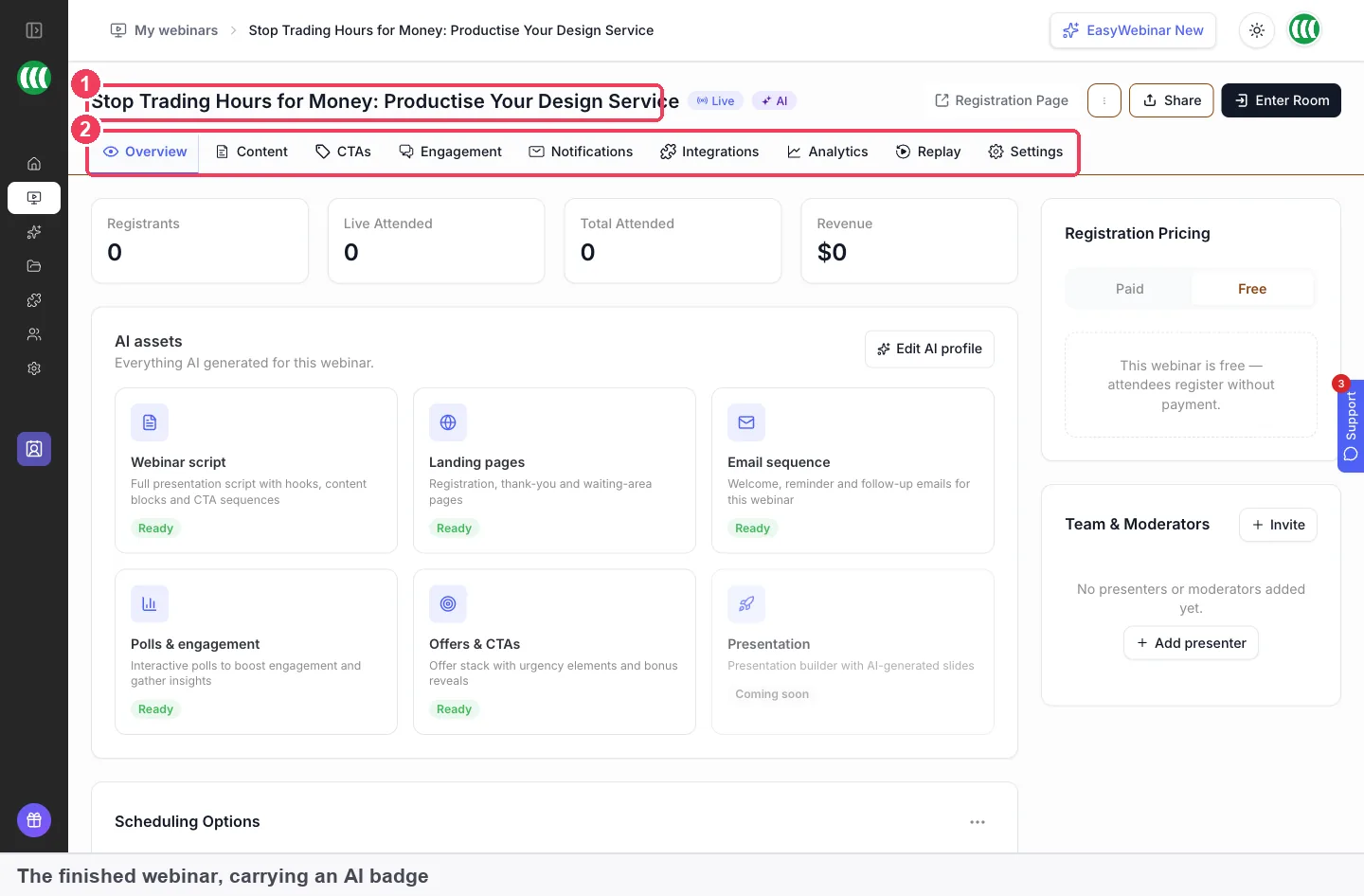
Continue through the emails, polls and offers, or whichever of them you selected. The flow drops you on the finished webinar's Overview, and from here it behaves like a webinar you built by hand, with the same nine tabs. Your pages are on the Content tab, and the Overview tab guide explains the rest of the screen.
Set the schedule, then publish each page
Set your schedule, then click Preview to open each real page in a new tab. Save keeps a draft and Publish makes the page public. Each page has its own Publish button, and your registration link doesn't work until the registration page is published.
What works with AI-generated webinar pages
Generated pages are ordinary webinar pages once the build ends, so everything else in the page builder applies to them.
- The registration form. Add custom registration fields, turn on GDPR Compliance for a consent checkbox, or turn on UTM Params so each registration records the campaign behind it.
- Your own website. Embed the registration form on your site with the Registration Widget instead of sending people to the page.
- Emails. The AI's welcome email goes out on registration; its settings are covered in registration confirmation emails.
- Sharing. Send people a one-click registration link once the page is published.
- Next month's webinar. Clone the webinar to reuse its registration pages, and clone before you try a different page on a webinar that's already running.
- Analytics. Each published page feeds the visitor and registration counts in the People view and the funnel.
Who uses AI webinar landing pages
Small businesses and solo operators
An owner who runs the webinar alone needs the registration page before any promotion can start. Page generation gives them all three pages from one description, so the evening goes on checking the offer and the date rather than writing from scratch.
Coaches and consultants
A coach running a monthly session that ends on an offer can put the programme and its price in the prompt. The registration page then describes the offer, and the coach checks what's included before publishing. The offer itself is set up separately as an in-room offer.
Agencies
An agency building webinars for several clients can generate a first draft for each one and hand it to the client for review. Producers can each have their own login through team members, and next month's webinar starts from a clone.
SaaS and product teams
A product team running an evergreen demo sets Type to Evergreen before generating, then chooses the video afterwards. Tracking code on the thank-you page tells their ad platform which clicks became sign-ups. The rest of the set-up is in creating an evergreen webinar.
How EasyWebinar compares for AI webinar landing pages
EasyWebinar writes your registration, thank-you and waiting pages from the script it has just drafted, in the same build as your emails. The page then promises what the session actually covers, and you edit it in the same builder as every other page.
AI webinar landing page features, from each platform's public documentation:
| Platform | AI writes the page copy | Ready-made page templates | AI writes the webinar script | AI drafts the emails |
|---|---|---|---|---|
| EasyWebinar | Yes | Yes | Yes | Yes |
| eWebinar | Yes (writes landing pages) | Yes (landing page in every template) | Not in docs | Yes (a set of notifications) |
| WebinarKit | Yes (registration page copy, in credits) | Yes (ready-made page templates) | Yes (AI Creator Suite scripts) | Partly (named on its homepage) |
| WebinarJam | Not in docs | Yes (templates for each page type) | Partly (AI Agenda Planner) | Not in docs |
| Livestorm | Partly (AI page generation setting) | Partly (one design for both page styles) | Not in docs | Partly (post-event email drafts) |
Yes: documented and built in. Partly: documented with a limit, shown in brackets. Not in docs: not found in the vendor's public documentation.
Why EasyWebinar is the stronger choice for AI webinar landing pages
- Pages written from your own script. eWebinar documents AI that rewrites registration page sections, while EasyWebinar drafts the script first and writes all three pages from it. See EasyWebinar vs eWebinar.
- Script, pages and emails in one build. WebinarKit documents scripts in its AI Creator Suite, and EasyWebinar carries the same script on into the pages and the email sequence. See EasyWebinar vs WebinarKit.
- The words, not only the layout. WebinarJam documents templates for each page type, and EasyWebinar also writes the copy that goes into the template. See EasyWebinar vs WebinarJam.
- Thank-you and waiting pages written too. Livestorm applies one set of design settings across its registration pages, and EasyWebinar writes the copy for the thank-you and waiting pages as well. See EasyWebinar vs Livestorm.
Competitor details checked against each vendor's public documentation on 4 November 2026. Features and plans change, so confirm with the vendor before you decide.
Limits of AI page generation
- The AI writes the registration page, thank-you page and waiting area. The webinar page and replay page keep their defaults until you edit them.
- The pages are written from the script, so anything wrong in the script carries into the pages. Fix the script before you continue.
- The build doesn't set your schedule, and for simulive or evergreen webinars it doesn't choose the video.
- Each generation uses credits: 10 for landing pages, and about 23 for a full build.
- Changing a page's template replaces its layout, including any edits you've made to it.
- Nothing is public until you publish each page, and the registration link stays inactive until then.
Common questions
Can AI create a webinar landing page?
Yes. In EasyWebinar, the AI writes your registration page, thank-you page and waiting area from the webinar script it drafts. It also picks a template, unless you choose one yourself.
Can I edit a generated page afterwards?
Yes, all of it. Generated pages open in the normal page builder, where you can change any block, swap the template or add new blocks. Treat the output as a strong first draft.
Which pages does the AI write?
It writes three: the registration page, the thank-you page and the waiting area. The webinar page and the replay page keep their working defaults, which you can edit in the same builder.
What does the AI put on the registration page?
It writes the headline, what attendees will learn and an instructor bio, using your script as its source. The default form asks for full name and email, both required.
How many credits does page generation use?
Landing pages use 10 credits. A full build of the script, pages, emails, polls and offers uses about 23, and every step shows your balance before you commit.
Can I choose the webinar landing page template myself?
Yes. Choose Choose manually to browse templates, or AI picks for you to have one selected. Pick before detailed editing, because changing a template replaces that page's layout.
Do I need to type the date and time into the page?
No. Every webinar page carries the webinar's date, time and timezone automatically. You do still need to set the schedule after the AI build, so the pages show the right date.
Is my registration link live as soon as the build finishes?
Not until you publish. Each page has its own Publish button, and saving alone keeps a draft. The registration link doesn't work until the registration page is published.
Will the generated pages work on phones?
The editor has a desktop and mobile view, and the builder has a device toggle. Check the mobile layout before you publish, because most registrations tend to come from phones.
Can I generate the pages without emails, polls or offers?
Yes. Turn off any of the output chips before you click Generate. Script, Landing pages and Emails are on by default, and Polls and Offers are off until you select them.
Does it work for evergreen and simulive webinars?
Yes. Set Type to Evergreen or Simulive before generating. You'll still choose the video afterwards, and you'll set the schedule as you would for any webinar.
How long does the build take?
About ten minutes end to end for the full build. The script is the slowest part, at roughly a minute and a half.
Can I put the registration form on my own website?
Yes. On the Content tab, the Registration Widget gives you embed code to paste into your own site. People can then register without visiting the generated page.
What should I check before publishing a generated page?
Read the copy for pricing and what's included, then set the schedule and confirm the date. Check the mobile layout, the form fields and the SEO and sharing settings, then publish.
Further reading
- How Users Read on the Web, Nielsen Norman Group: why visitors scan a page and what scannable writing looks like.
- F-Shaped Pattern of Reading on the Web, Nielsen Norman Group: where eyes land on a page and how headings change it.
- Website Forms Usability: Top 10 Recommendations, Nielsen Norman Group: how to keep a registration form short and clear.
- About Quality Score for Search campaigns, Google Ads Help: how Google judges the landing page behind a search ad.
Related
Updated 4 November 2026: first version, covering what the AI writes on each page, a pre-publish checklist, how to measure the page and a worked example.