
0%On this pageContents
A coaching webinar is the repeatable way to fill a coaching programme when referrals have stopped being enough. You teach one useful idea, invite the people it helped to apply or book a call, and follow up with everyone else by what they did. EasyWebinar runs that session live, then on a schedule or on repeat, with the booking or application button inside the room. The rest of this page is the full recipe, in the order you'd build it.
At a glance
| Question | Short answer |
|---|---|
| Do webinars work for coaches? | They work when the session teaches one thing well and ends with one clear next step, such as a call or an application |
| What is the next step? | An offer card in the room whose button opens your booking page, application form or checkout |
| Live or recorded? | Run it live first to sharpen the pitch, then clone it as an evergreen webinar so it keeps running |
| Who gets followed up? | Attendees, no-shows and people who clicked your offer, each with their own message |
| How do I spot warm leads? | Sort people by watch percentage and whether they clicked the offer |
| Do I have to change CRM? | No. Keep HubSpot, Salesforce Pardot, ActiveCampaign, Mailchimp or Kit, or use EasyCRM natively |
| Can I charge for a workshop? | Yes, with paid registration through your own Stripe account |
Where coaching webinars fit
Most coaches fill their first programmes through people who already know them. Then the referrals slow down, and every new client means another coffee call that may go nowhere. A coaching webinar is a free or paid teaching session that holds the first conversation at scale. The calls you take afterwards are with people who already want help.
What they're for
A coaching webinar lets a prospect see how you think before they spend an hour with you. It turns a vague interest into a clear choice: book a call, apply, or wait for the next session. Once it works, you can run it again without starting from nothing.
How they help
- One session replaces many first calls. You explain your method once, to everyone who registered.
- The next step is in the room. An offer button opens your booking page or application while interest is highest.
- Warm leads sort themselves. Watch time and offer clicks show who stayed for the pitch.
- It keeps running. A recorded version can play on a schedule while you coach your current clients.
What happens without them
Without a webinar, every prospect hears your method one call at a time. Your calendar fills with people who were never a fit. The months between referral waves stay empty, and you only find out who was serious after you've spent the hour.
Why coaches and consultants care
Coaches, consultants and solo advisers care most when the diary is full of delivery and empty of sales. It matters when a cohort start date is fixed and places are still open. It also matters to anyone who wants new clients from people outside their own network.
The EasyWebinar approach to coaching webinars
Take a typical case. A career coach helps mid-career teachers move into new work, and her six-month group programme has filled through word of mouth for two years. This term, eight places are still open three weeks before the start date, and referrals have gone quiet.
The usual fix is to book more free discovery calls, often from a social post with a calendar link. That can work, but it tends to fill the diary with people who are curious rather than ready. Each of those calls costs an hour she would rather spend with paying clients, and the follow-up notes take longer still.
What changed is simple. Most of a discovery call is the same explanation of the same method, repeated to one person at a time. If people hear that explanation first, in a session they chose to attend, the calls that follow start further along. The prospects who don't book have still learned something useful, and some come back later.
EasyWebinar runs that explanation as a webinar. She teaches it live once and puts an offer card in the room with a button to her application form. When the session ends, everyone lands on her booking page. EasyWebinar then lets her clone the session as an evergreen webinar, so new registrants can watch it on a schedule.
You can check the in-room offer, the countdown on it and the move from live to repeat in the comparison grid. That is covered in How EasyWebinar compares for coaching webinars, below.
How coaches fill a programme from a webinar
There are three common next steps at the end of a coaching webinar. Pick one per session, because two buttons split attention. Each one suits a different kind of programme.
Invite attendees to book a call
A booking link suits a programme where you need to talk before anyone joins. It catches the people who are ready to talk this week. It misses people who want to think it over, so they need a follow-up email with the same link.
Invite attendees to apply
An application suits a programme with limited places or an entry bar. It filters out poor fits before they reach your diary. It also adds a step, so expect fewer people to finish than would click a booking link.
Sell a place directly
A checkout link suits a lower-commitment offer, such as a paid workshop or a short group programme. It catches buyers who already trust you. For a high-commitment programme, most people want a conversation first, so a direct sale often works better as a second offer.
What EasyWebinar is confirmed to do
EasyWebinar's offer button opens any URL you paste, so all three routes work: your booking page, your application form or your checkout. The End of Session setting and the replay redirect can send people to the same page. EasyWebinar can also charge for registration itself through your Stripe account, which suits a paid workshop.
Run a coaching webinar step by step
This is the order to work in if you're building your first coaching webinar this week. Each step links to the page that covers its settings in full.
- Choose one problem to teach. Pick the problem your best clients had before they found you, and teach one way through it.
- Draft the session. Write it yourself, or generate a webinar script and edit it into your own words.
- Create a live webinar. Start with a live session, because your first run is where you find what lands.
- Ask a qualifying question at registration. Add a custom field such as "What are you hoping to change this year?"
- Build the offer. Add one offer card whose button opens your booking page or application.
- Set the end-of-session page. Point End of Session at the same page, so nobody is left on a finished webinar.
- Present, then pitch. Teach first, show the offer when you reach the next step, and stay for questions.
- Follow up the same day. Send attendees and no-shows different messages, and write to offer clickers on their own.
- Clone it as evergreen. Once the pitch works, turn the live session into one that plays on a schedule.
Teach first, then invite the next step
The pitch works best when it feels like the obvious end of the lesson. Teach the method, show one person's situation it applies to, then explain what working together looks like. Put the offer on screen when you start talking about the programme, not before.
Build the offer that invites people to apply or book
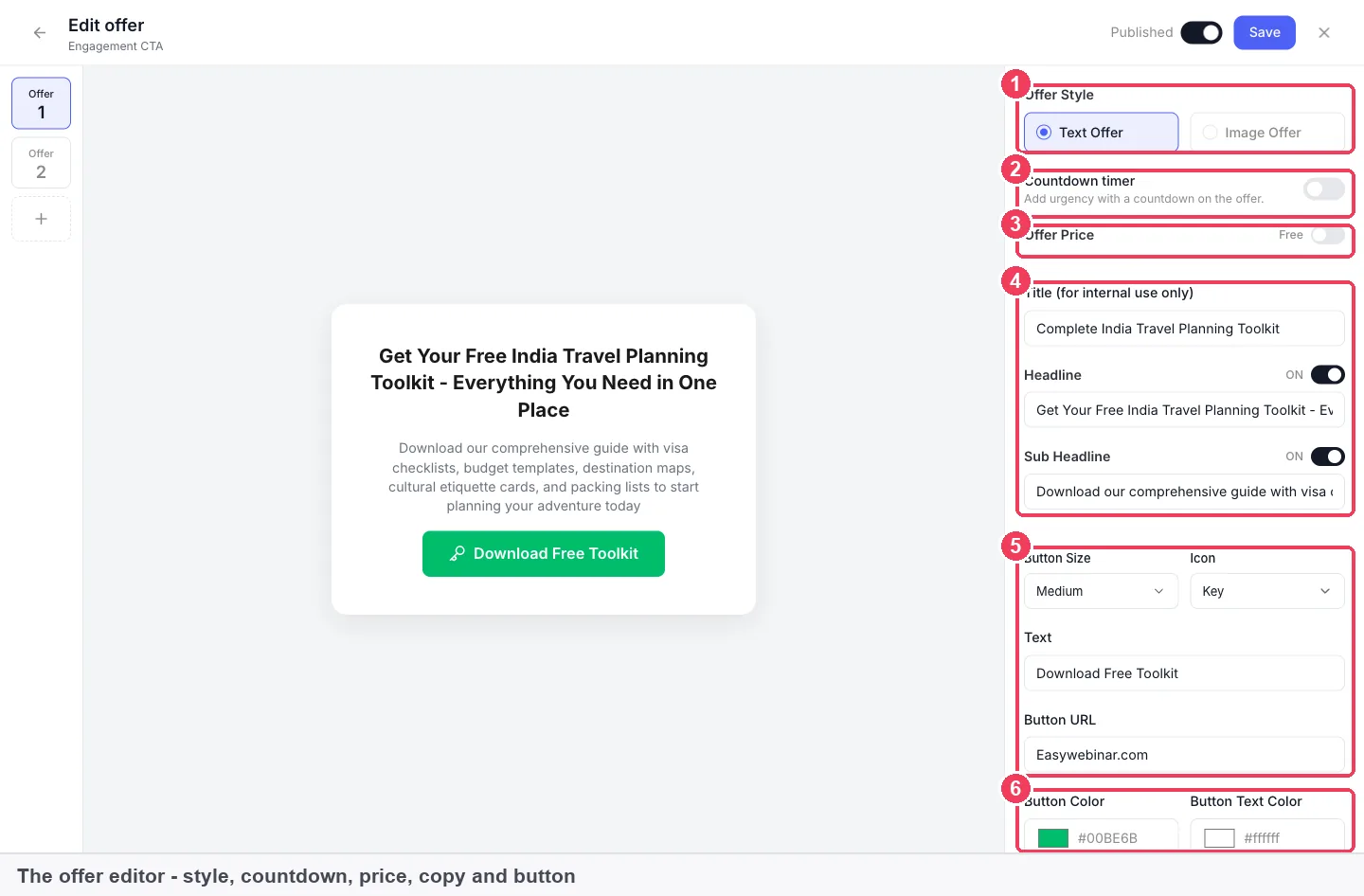
An offer in EasyWebinar is a card with a headline and a button, shown during the webinar. You build it on the CTAs tab, and the offers page covers every setting.
- Open the webinar, click CTAs and add an offer.
- Choose Text Offer or Image Offer under Offer Style.
- Switch Free on under Offer Price if the next step is a free call or an application.
- Write a headline that names the outcome, such as "Book your programme call".
- Paste your booking page, application form or checkout link into Button URL.
- Set the button Text to say what happens next, such as "Apply for a place".
- Turn the offer's toggle off until you're ready to show it, then turn it on in the session.
Add urgency only when it's real
Switching on Countdown timer puts a countdown on the offer card. Use it when something genuinely closes, such as applications for this cohort or a bonus call slot. The countdown timers page explains how it behaves on live and recorded sessions. A countdown on an offer that never closes teaches your audience to ignore the next one.
Bring a client on camera
Coaching webinars often include a short hot-seat, where you coach one person live. In EasyWebinar, presenters and co-hosts wait backstage, and you move someone to the stage when it's their turn. So invite your volunteer as a presenter before the session, using the join links on the People panel. The live room guide covers the stage controls.
Send people to the right page when it ends
Both end-of-session boxes are empty by default, which means attendees are left sitting on a finished webinar. Fill them in before your first run.
- Open the webinar's settings and find End of Session on the General tab.
- Paste the URL you want attendees sent to, such as your booking page.
- Do the same for Expired Session, which catches anyone arriving at a link that has expired.
- Click Save Changes.
Give the replay a deadline
Your replay is part of the pitch, so give it the same closing date as your offer. On the Replay tab, Expire after days closes the replay a set number of days after the session. Specific date closes it at a date and time you choose, which suits a cohort with a fixed start.
Choose Webinar Replica so the replay keeps your offers and polls working as they did live. Then set After the replay ends to your booking or application page. The replay pages guide has every option.
Follow up by what each person did
The people who registered aren't one group. Attendees heard the pitch, no-shows didn't, and offer clickers were close to acting. EasyWebinar's Notifications tab handles each group separately.
- Webinar Follow-ups send after the webinar, to registrants, attendees or no-shows. Send no-shows the replay with its closing date.
- Attendee Action Follow-ups send based on what someone did, including how engaged they were and whether they clicked an offer. Write to clickers who didn't book with the one question that may be holding them back.
- SMS reminders (Beta) only reach people whose phone number you have, so add the Phone field to your registration form. Messages come from an EasyWebinar number, not your own.
The follow-up email templates give wording for attendees, no-shows and offer clickers. If your emails include a sales message, the US CAN-SPAM rules require a clear notice of how to opt out and a valid postal address.
Spot the warm leads
The People view lists everyone across your webinars. Watch percentage and Offer clicked are the two columns worth sorting by. Someone who watched most of the session and clicked your offer is ready for a personal note from you.
Each person also carries a Lead score, calculated from engagement, which makes it a quick way to sort a long list. Export downloads the filtered list, so you can take that segment into your own tool.
Ask only what you need on the form
A qualifying question at registration helps you prepare, but every extra field is personal data you have to look after. UK data protection law says personal information must be used for specified, explicit purposes. So ask one or two questions you'll actually use, and say why you're asking.
Turn the live session into one that runs on repeat
Once the live version has been run a few times and the pitch holds up, make it evergreen. A webinar's type can't change after you create it, so you clone it instead. The guide to cloning a webinar walks through each screen.
- On My Webinars, click the ⋮ on the live webinar's card and choose Clone Webinar.
- Under Clone into, choose Evergreen, and choose what comes across with it.
- Pick the recording of your best live session on the new webinar's video step.
- Set the schedule, as below, then choose a registration template.
Choose how people can watch
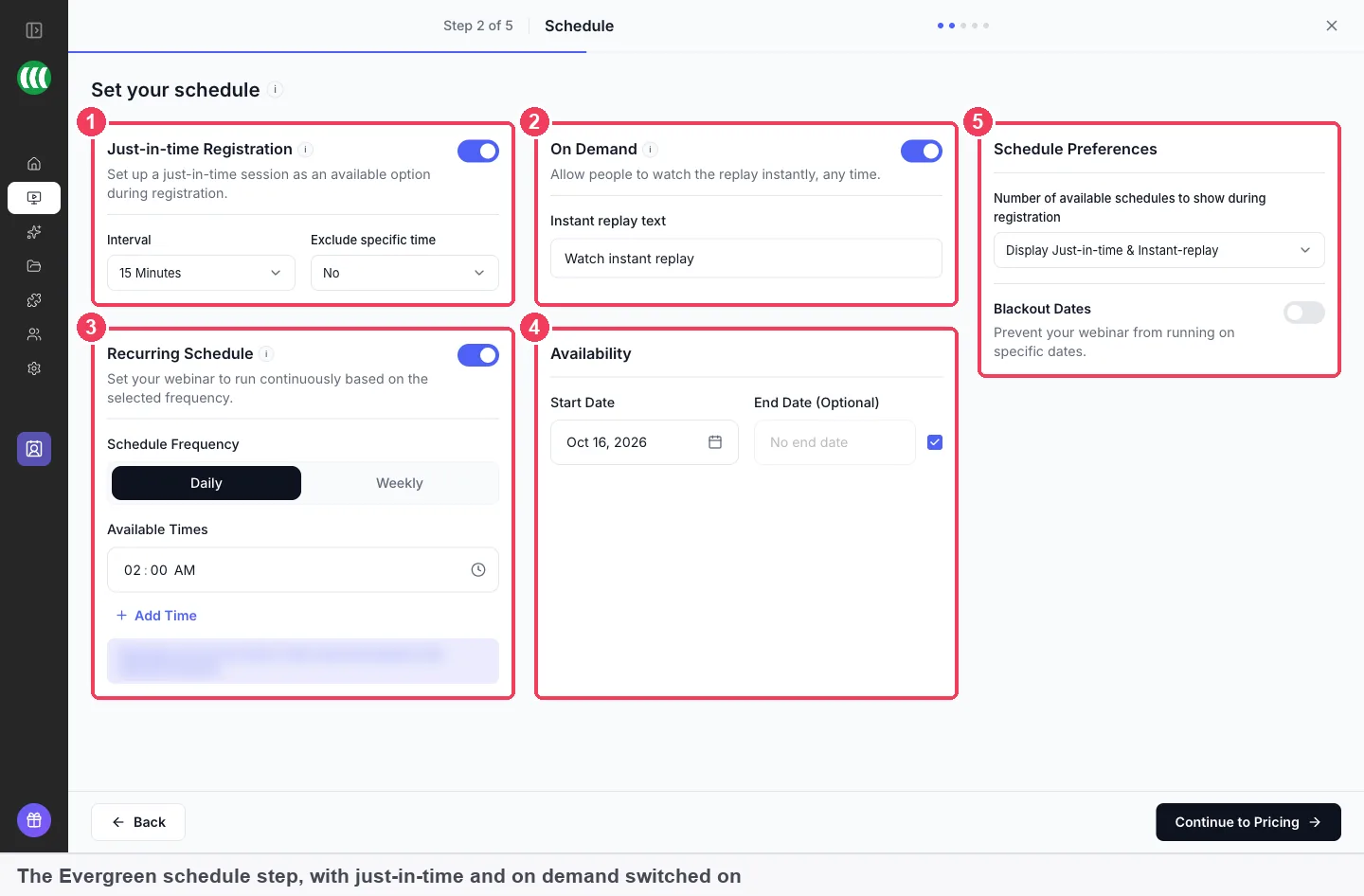
An evergreen webinar runs on a repeating schedule rather than a fixed date. You can offer three ways to watch, in any combination.
- Just-in-time Registration offers a session starting shortly. A just-in-time session starts soon after each person registers, in their own local time, which suits a global audience.
- On Demand lets registrants start watching straight away, with no session to wait for.
- Recurring Schedule runs the webinar daily or weekly at times you choose, in the webinar's timezone.
Blackout Dates stop the webinar running on days you choose, such as the week your cohort starts. The evergreen set-up guide covers availability and preferences.
Pick a registration page
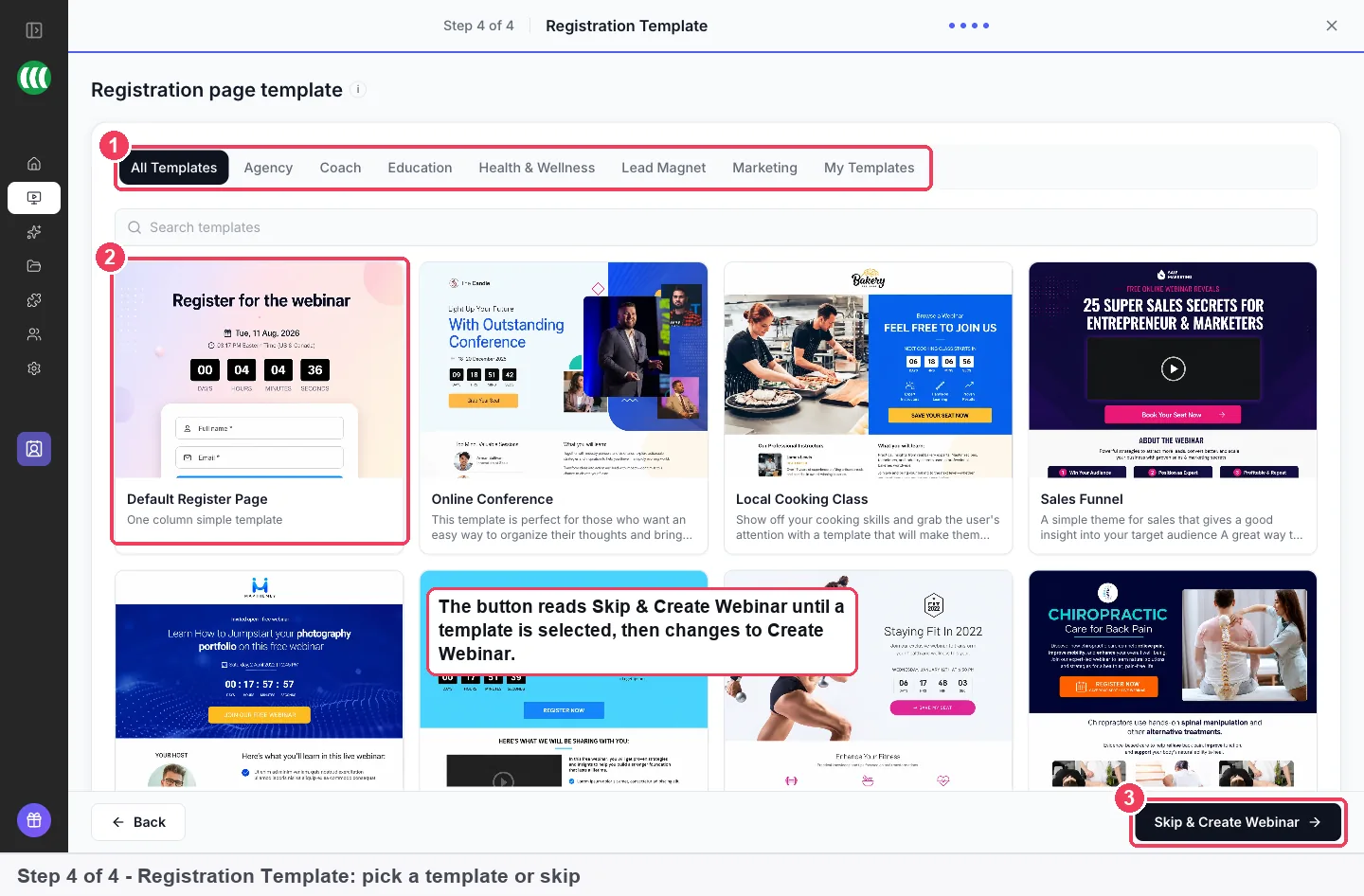
Pick a template, or click Skip & Create Webinar and choose one later. The registration page builder lets you edit it on desktop and mobile views.
Keep a recorded room feeling live
A recorded session can still feel like a shared room. On a simulive webinar, everyone in a session watches together, and you can answer in the chat while the recording plays. On evergreen, you can turn on Chat Simulation (Beta) on the Engagement tab if you want the room to feel populated.
Offers and polls carry over to the replay when it uses Webinar Replica, and the offer on the recording appears as it did live. So the evergreen version sells the same way your best live session did.
See whether the webinar is filling your programme
Two measures tell you most of what you need. The first is the offer click rate: clicks on your offer divided by the people who saw it. The second is how many clickers went on to book or apply, which you count in your booking tool or application form.
The Analytics tab shows how many people visited, registered, attended live, watched the replay and bought. Its offers panel shows each offer's views, clicks and purchases, with a click rate. The webinar analytics guide explains each figure.
How far to trust these numbers
A click isn't a booking. Someone can click, look at your calendar and leave, so always compare clicks with the bookings your calendar shows. Replay views are counted separately from live attendance, and small sessions swing a lot. Judge the pitch over several runs, not one.
If you share your registration link in different places, tag each one with UTM parameters. Google's guidance is to always use utm_source, utm_medium and utm_campaign. UTM filtering in the People view needs UTM capture turned on in your registration form.
How to run a coaching webinar by hand
You can run this whole recipe with a meeting tool, a spreadsheet and your email account. It works, and many coaches start this way.
- Schedule a call in your meeting tool and share the link with your list.
- Teach the session, then paste your booking link into the chat.
- Download the attendee list and copy it into a spreadsheet.
- Mark who stayed to the end and who mentioned your offer.
- Email no-shows the recording link by hand, with a closing date you'll have to remember.
- Run the whole session again, live, next month.
The weak points are the last three steps. The booking link scrolls away in the chat, the spreadsheet only shows who was there, and every run needs you live.
The same job in EasyWebinar
In EasyWebinar, the offer card stays on screen with your booking link, and it can carry a countdown. The People view shows watch percentage and offer clicks without a spreadsheet. Follow-ups send to attendees, no-shows and clickers on their own. Once the session works, you clone it as evergreen so it runs without you presenting.
Worked example: how many sessions fill eight places
This is an illustrative calculation with sample figures, not an EasyWebinar output. It shows how to work out how many runs of your webinar you need.
| Stage | Sample count | How it's worked out |
|---|---|---|
| Registered | 200 | From your list, referrals and posts |
| Watched live or the replay | 80 | 40% of 200 |
| Saw the offer | 60 | 75% of 80 stayed until the pitch |
| Clicked the offer | 15 | 25% of 60 |
| Booked a call | 6 | 40% of 15 |
| Joined the programme | 2 | About a third of 6 |
At these rates, one session fills two places. To fill eight, you'd need four sessions of the same size, or 800 registrants in total (8 ÷ 2 = 4, and 4 × 200 = 800).
That is the case for running the session on repeat. Four live runs take four evenings of your time, but an evergreen version can reach the same number of registrants while you coach. Swap in your own rates after your first live run, because they will differ.
Works with
- Your CRM or ours. EasyWebinar connects to 14 CRM and email tools, including GoHighLevel and Keap, and tags contacts by what they did. The CRM mapping guide shows the event and field mappings. If you'd rather not run a separate CRM, EasyCRM keeps contacts and follow-up beside your webinars.
- Stripe. Paid registration needs a connected Stripe account, and attendees pay through a secure Stripe checkout with the money going to you.
- Your own booking, application and checkout pages. The offer button and end-of-session redirect open any link, so payment plans and booking rules stay in the tools you already use.
- YouTube and LinkedIn. EasyCast streams a live webinar to YouTube, LinkedIn or a custom RTMP destination at the same time. Registered attendees watch in the webinar room, and everyone else can watch on YouTube or LinkedIn.
- Recording. Leave recording on, because the replay is usually watched by more people than the live session. The recording guide shows where each recording goes.
Attendees join from any browser with nothing to install, which matters when your audience isn't used to webinar software. For how webinars fit with the rest of a coaching business, the coaching sales funnel post covers the stages before and after this page.
Who uses coaching webinars
A business coach who works alone
A business coach for first-time founders runs one live session a month and books calls from it. She keeps her contacts in EasyCRM, sorts the People view by offer clicks after each session, and writes a personal note to each clicker.
A consultant with an application
A pricing consultant takes on four retainer clients a quarter. His webinar ends with an offer card that opens his application form, and End of Session points to the same form. His CRM stays where it is, and the integration tags each applicant by what they did.
A wellness coach with a paid workshop
A sleep coach sells a paid two-hour workshop through paid registration, then offers her group programme inside the room. The workshop recording becomes an evergreen version that plays on demand for new registrants.
A coaching team running the same pitch on repeat
A three-coach practice runs its introductory session as a simulive webinar twice a week. The recording plays at set times, and one coach answers in the chat while it runs.
How EasyWebinar compares for coaching webinars
EasyWebinar puts the booking or application button inside the room, with an optional countdown, and runs the same session live or on repeat. That keeps the next step on screen at the moment a prospect decides, whichever way you deliver the session.
Coaching webinar features, from each platform's public documentation (Kajabi for its webinar funnels):
| Platform | Offer button to your booking or checkout page in the room | Live and evergreen sessions in one product | Countdown on the in-room offer |
|---|---|---|---|
| EasyWebinar | Yes | Yes | Yes |
| Kajabi | Partly (button on the page after the event) | Partly (webinar hosted elsewhere) | Partly (countdowns on pages and emails) |
| WebinarJam and EverWebinar | Yes (offer panel with a button) | Partly (two separate products) | Yes (Apply urgency countdown) |
| Demio | Yes (Featured Action link) | Yes (Standard and Automated events) | Not in docs |
| eWebinar | Yes (offer card with a button) | Partly (built around pre-recorded webinars) | Partly (one documented example) |
Yes: documented and built in. Partly: documented with a limit, shown in brackets. Not in docs: not found in the vendor's public documentation.
Why EasyWebinar is the stronger choice for coaching webinars
- The invitation happens in the room. EasyWebinar shows your booking or application button during the session. Kajabi's Zoom webinar funnel makes the pitch afterwards, with follow-up emails that link to the sales page. See EasyWebinar vs Kajabi.
- One product from live to repeat. EasyWebinar runs the live session and its evergreen clone side by side. EverWebinar sessions are recorded in advance, apart from live webinars in WebinarJam. See EasyWebinar vs WebinarJam and EverWebinar.
- A real deadline on the offer. EasyWebinar's offer editor has a Countdown timer switch. Demio's help docs describe the Featured Action without a countdown. See EasyWebinar vs Demio.
- Your pitch setup comes with the clone. Clone a live webinar as evergreen and choose what comes across. Demio's Create On-Demand makes a new event without copying the original settings. See EasyWebinar vs eWebinar for recorded-only platforms.
Competitor details checked against each vendor's public documentation on 20 October 2026. Features and plans change, so confirm with the vendor before you decide.
What a coaching webinar in EasyWebinar doesn't do
EasyWebinar runs the session and the step in front of your programme; it doesn't deliver the coaching itself. Your calendar, application form and client sessions stay in the tools you use now. The offer button opens your own page, so booking rules and payment plans are set there.
A webinar's type is fixed once it exists, so moving from live to evergreen always means a clone. Automation, EasyCRM, checkout and EasyCast start at the Growth plan, and the standard trial is 7 days with a card required. Plan details are on the pricing page.
Common questions about coaching webinars
Do webinars work for coaches?
Webinars work for coaches when the session teaches one useful idea and ends with one clear next step. A booking or application link inside the room gives interested attendees a way to act before their attention moves on.
How do I attract coaching clients with a webinar?
Teach the problem your best clients had before they found you, then invite people to book a call or apply. Follow up attendees, no-shows and offer clickers separately, and run the session again on a schedule once it works.
Can attendees book a call straight from the webinar?
Yes. Add an offer in EasyWebinar and paste your booking page link into Button URL. Any booking page works, including a Calendly page, and End of Session can send everyone there when the session ends.
Can I take applications instead of bookings?
Yes. Point the offer button at your application form. You can also add a short qualifying question to the registration form as a custom field, so you know something about each person before the session.
Can I sell a high-ticket programme from the webinar?
You can put a checkout link on the offer button, so people buy on your own checkout page. For a high-commitment programme, many coaches invite a call or an application first, because buyers usually want to talk before they commit.
Can I offer a payment plan?
Set up the payment plan on your own checkout page, then paste that page's link into the offer button. EasyWebinar's offer opens the checkout you already use, so the payment terms stay where you manage them.
Can I charge for a coaching workshop?
Yes. Choose paid registration when you create the webinar and connect your Stripe account. Attendees pay through a secure Stripe checkout, and the money goes straight to your Stripe account.
Can I run the pitch live and then on repeat?
Yes. Run it live first, then clone the webinar and choose Evergreen as the new type. Pick the recording of your live session as the video, and the clone can bring its offers and emails with it.
Will an evergreen coaching webinar still feel live?
It can. Simulive plays your recording at set times while you answer in the chat. On evergreen, Chat Simulation (Beta) can fill the chat, and offers appear on the recording as they did in your live session.
Can I bring a client on camera for a hot-seat?
Invite your volunteer as a presenter before the session, using the join links on the People panel. Presenters wait backstage, unseen by the audience, until you move them to the stage.
Can I keep GoHighLevel or Keap?
Yes. EasyWebinar connects to GoHighLevel, Keap and other CRM and email tools, and tags contacts by what they did. Keep HubSpot, Salesforce Pardot, ActiveCampaign, Mailchimp or Kit, or use EasyCRM natively.
Do attendees need to download anything?
No. Attendees join from any browser with nothing to install. That helps when your audience is new to webinars and you don't want a download screen between them and your session.
Can I send text reminders so people show up?
Yes, with SMS notifications (Beta). Add the Phone field to your registration form first, because texts only reach people who gave a number. Messages come from an EasyWebinar number, not your own.
Can my replay close on the same day as my offer?
Yes. On the Replay tab, choose a number of days after the session or a specific date and time. Set the redirect for when the replay ends to your booking page, so late viewers still get a next step.
Further reading
- 15 U.S. Code 7704, Legal Information Institute: the US CAN-SPAM rules on opt-outs and postal addresses for follow-up emails with a sales message.
- The UK's data protection legislation, GOV.UK: the principles that apply to the questions you ask on a registration or application form.
- URL builders: collect campaign data with custom URLs, Google Analytics Help: how to tag each place you share your registration link.
Related
Updated 4 November 2026: first version, with the coaching recipe, the three next-step routes, a measurement guide, the manual method and a worked example.