
0%On this pageContents
An AI webinar starts the same way a hand-built one does: you know the topic and the offer, but the script, pages, emails and polls are still blank. AI for webinars in EasyWebinar fills that gap in two places. Before the session it drafts the whole webinar from one prompt, and during the session it can answer attendee questions from Pro onward. This page shows what each part does and what you still need to check yourself.
AI for webinars at a glance
| What the AI does | When it runs | What you still check | Availability |
|---|---|---|---|
| Drafts the script, pages, emails, polls and offers from one prompt | Before the webinar | The script first, then pricing and what's included on pages and emails | Uses credits, about 23 for a full build |
| Writes a simulated chat for recorded webinars | Before the webinar, played during it | The mix of simulated attendees | Beta, simulive and evergreen only |
| Answers attendee questions from your uploaded files, including PDFs | During the webinar | The files you give it to answer from | From Pro onward |
The short answer to "what can AI do for my webinar" is this: it writes the first draft of everything, and you still own the facts, the schedule and the offer.
What an AI webinar is, and where the AI stops
Picture a course creator who sells a self-paced course on another platform and wants a free webinar in front of it. The topic is clear, but writing a script, three pages, six emails and a set of polls takes days. An AI webinar is one where the AI writes those drafts from a description, so the work shifts from writing to reviewing.
EasyWebinar is the webinar platform in front of your course, not the place the course lives. Its AI covers the parts of the webinar that sell it: the script you present, the registration and thank-you pages, the emails, the polls and the offers. You can see the whole flow in the short video below, which walks through an AI-built webinar for live and evergreen sessions.
Everything the AI produces stays editable. The finished webinar behaves exactly like one you built by hand, with the same tabs and settings, so nothing locks you into the draft.
Why AI for webinars matters
What it's for
It gets you from an idea to a webinar you can actually run without starting from a blank page. The AI writes the drafts, and your time goes into checking that they say what you mean.
How it helps
- One prompt, five parts. The script, pages, emails, polls and offers come from the same description, so they tell the same story.
- Pages built from the script. The AI uses the script as source material for your pages, so the headline matches what you teach.
- Polls with a purpose. You choose what the polls are for, such as qualifying leads, and the AI writes questions to suit.
- Help in the room. From Pro onward, the AI answers attendee questions using files you upload.
What happens without it
Every webinar starts from nothing. The script, pages and emails get written one after another, often by the same tired person, and the offer copy drifts away from what the session teaches.
Why buyers care
Course creators and coaches who run webinars alone feel this most. It matters when a new course launches and the webinar has to be ready before the promotion starts.
The EasyWebinar approach to AI for webinars
Take a typical case. A pottery teacher sells a self-paced glazing course on her course platform and wants an evergreen webinar to bring in buyers. She has the course and a price, but no script, no registration page and no follow-up emails.
The usual route is to write each piece separately, perhaps with a general AI chatbot in another browser tab. That tends to mean copying text between tools, and the pages, emails and offer can end up describing slightly different things.
What changed is that the webinar itself can now hold the description. If the same prompt feeds the script, and the script feeds the pages, the pieces stay consistent without any copying.
EasyWebinar builds the whole webinar from one description through Create with AI. It writes the script slide by slide, builds the pages from that script, drafts the emails, and creates polls and offers. During the session, AI Moderator answers attendee questions from uploaded context from Pro onward.
You can check this on the setup screen: five output chips, Script, Landing pages, Emails, Polls and Offers, sit under one prompt box. How that compares with other webinar platforms is covered in How EasyWebinar compares for AI for webinars, below.
What the AI drafts before the webinar
The step-by-step Create with AI guide covers every screen. Here is what each part gives you and what to look at.
The script
You set the number of slides and the duration, and the AI writes the script in named sections, each with timing and speaker notes. Download PDF lets you present from it. This is the part to read most carefully, because the pages and emails are built from it.
The pages
The AI writes your registration page, thank-you page and waiting area, using the script as its source. The pages open in the normal editor, so you can change any line. The AI landing page guide explains the editor tabs.
The emails
You get a welcome email, three reminders and two follow-ups, with merge tags already in place for dates, times and join links. They sit alongside your webinar reminder emails settings, where you can add more.
The polls and offers
For polls, you pick goals such as gauging interest in your offer, and the AI writes five, each with a note on where it fits. For offers, you choose a soft, balanced or direct pitch, and the AI writes the title, headline and button text. You then manage them as polls and offers like any others.
What the AI does during the session
Drafting is only half of it. Two features work while attendees are watching.
Answering attendee questions
From Pro onward, AI Moderator answers attendee questions using context you upload, including PDFs and other files. It works during live, simulive, automated and other webinar types. Upload the files that hold the answers people actually ask for, such as what the course includes. Questions you take yourself still run through questions and answers.
Simulated chat on recorded webinars (Beta)
On a recorded webinar there is no shared conversation, and an empty chat panel looks abandoned. Chat Simulation (Beta) fills it, either with a conversation the AI generates or with messages you script yourself. It works on simulive and evergreen webinars, and the Chat Simulation (Beta) guide covers the setup.
What you still review
Do I still need to edit what the AI writes? Yes. The output is a draft, not a finished product, so work through this list before you publish.
- Read the script before you continue. It is much easier to fix the script than the pages and emails built from it.
- Check pricing and what's included. Read the pages and emails for the price and the contents of your offer.
- Set your schedule. The AI doesn't choose your session times.
- Choose a video for recorded webinars. Simulive and evergreen webinars still need one, uploaded through video hosting.
- Check where the offer button goes. The button sends people to the link you gave the AI, so test it once.
- Look at the simulated chat cast (Beta). A room of uniformly enthusiastic experts reads as fake, so mix beginners, a sceptic and quiet observers.
Set up an AI webinar
- Click Create with AI in the sidebar.
- Describe the webinar: who it's for, what it covers, how long it runs, the tone, and what you're selling at the end.
- Set Type to Live, Simulive or Evergreen before generating.
- Pick the output chips. Script, Landing pages and Emails are on by default; click Polls and Offers to add them.
- Click Generate, then work through the script, pages, emails, polls and offers in turn.
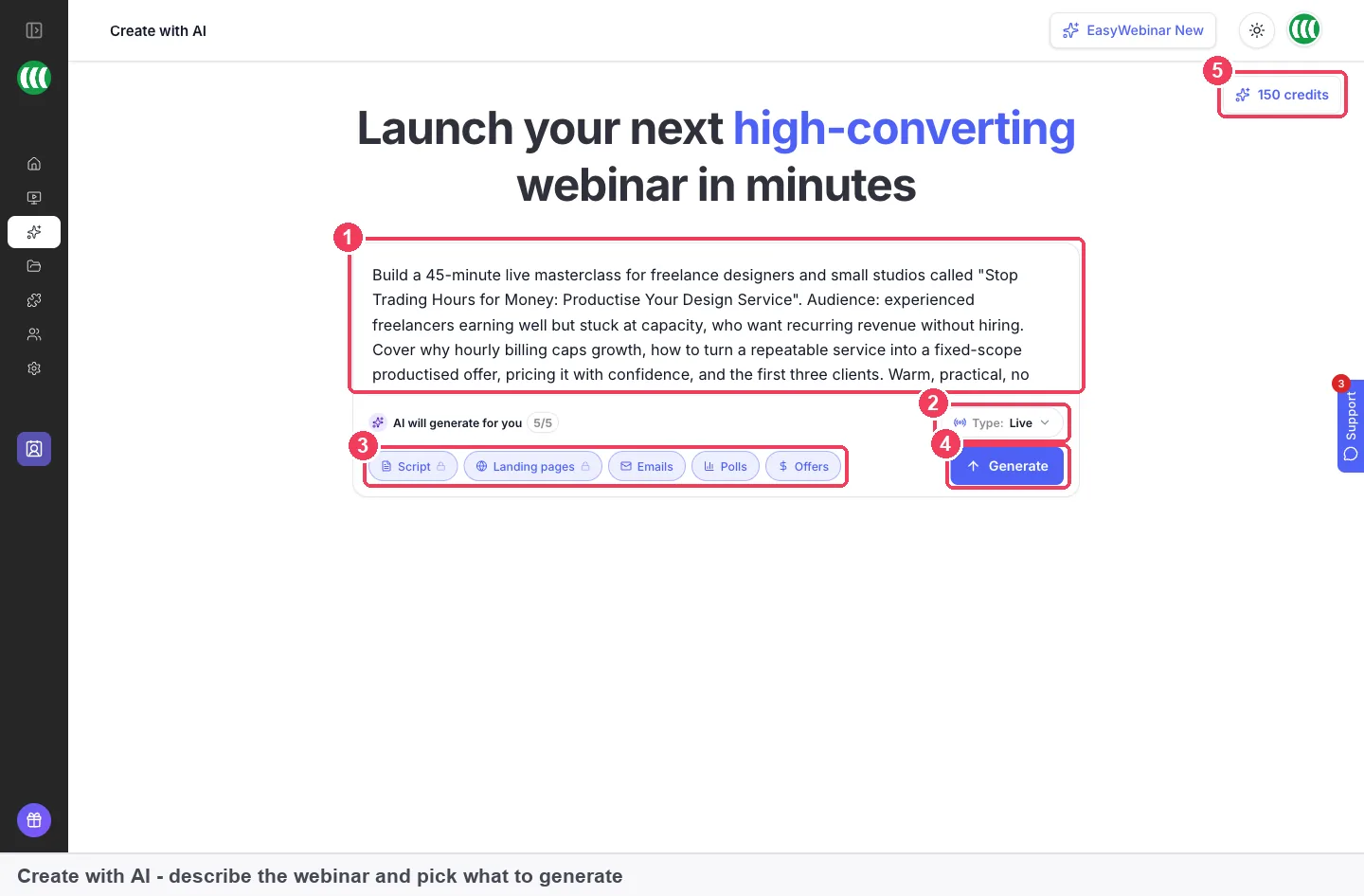
Credits show at the top right of every step. The script and pages cost 10 credits each, and emails, polls and offers cost 1 each.
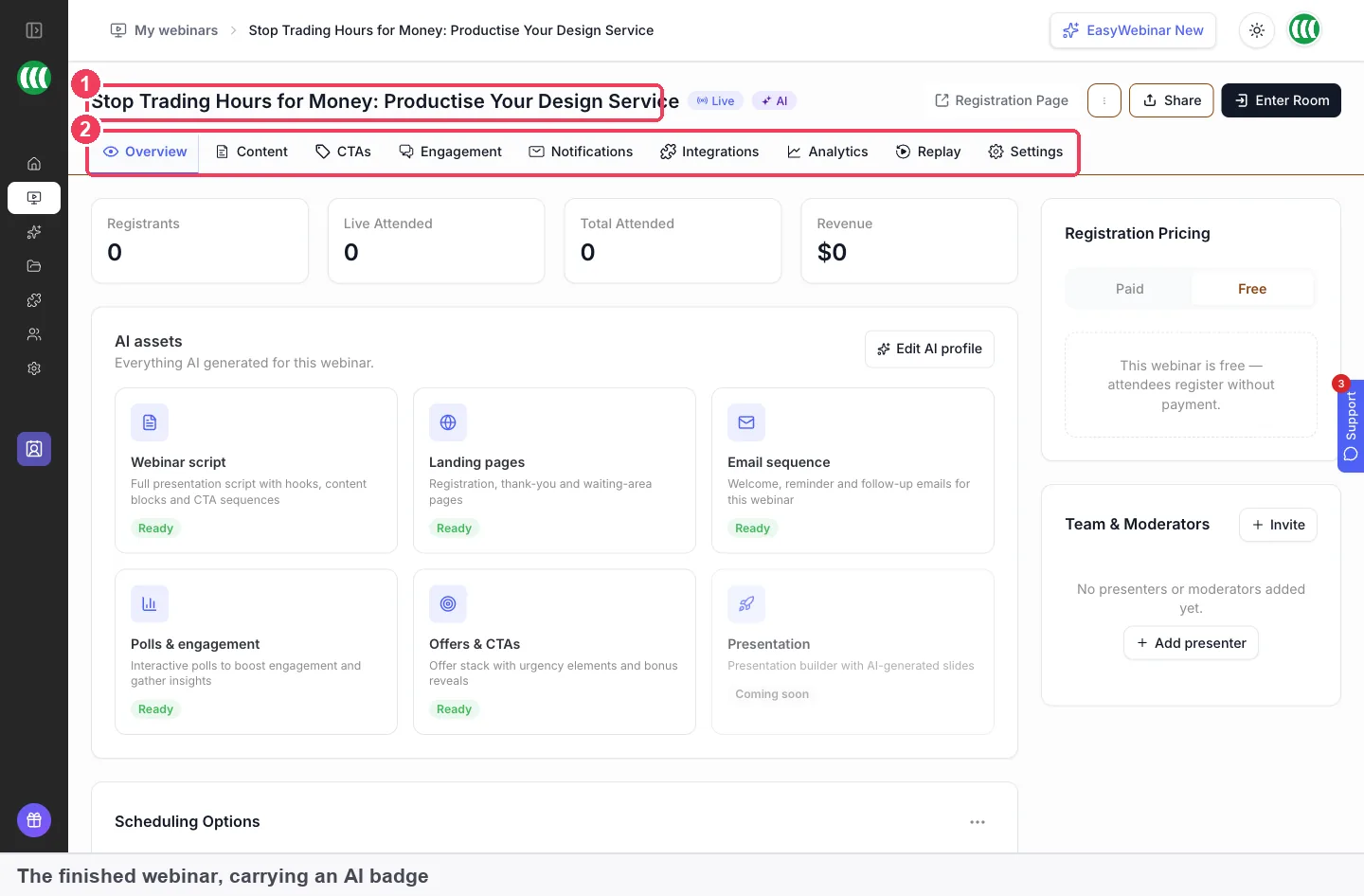
When the flow ends, you land on the finished webinar's Overview. It carries an AI badge in My Webinars, and from here you edit it like any other webinar.
Works with
The AI drafts land in the same places as your own work. Pages open in the normal builder, emails on the Notifications tab, and polls and offers under CTAs. That means you can follow up on attendees with your usual follow-up emails and read results in webinar analytics.
The AI works with all three webinar types. You can create a live webinar, a simulive webinar or an evergreen webinar this way. The webinars overview explains the differences.
Who uses it
A language course creator launching a new level
A creator who sells a self-paced Italian course adds an intermediate level. She describes the new level, its audience and the price, and gets a live webinar draft with pages and emails. Her review time goes into the script and the offer copy.
A photography course creator going evergreen
A creator who sells a beginner photography course wants a webinar that runs without him. He sets the type to Evergreen, generates the drafts, picks his recorded video and adds a simulated chat (Beta) so the room doesn't look empty.
A fitness course creator fielding the same questions
A creator who sells a home workout course gets asked what equipment is needed in every session. On Pro, she uploads a PDF of her course details so the AI can answer those questions while she presents.
The full funnel is covered in selling online courses with webinars, and the AI webinar builder overview shows the AI on the main site.
How EasyWebinar compares for AI for webinars
EasyWebinar's AI covers the webinar before and during the session. It drafts the script, pages, emails and polls from one prompt, writes simulated chat (Beta) for recorded webinars, and answers attendee questions from Pro onward.
AI for webinars features, from each platform's public documentation:
| Platform | AI drafts script, pages, emails and polls from one prompt | AI answers attendee questions in the session | AI writes simulated chat for recorded webinars |
|---|---|---|---|
| EasyWebinar | Yes | Yes (from Pro onward) | Yes (Beta) |
| eWebinar | Partly (pages, notifications and polls, separately) | Partly (eChat, an add-on) | No (not supported by design) |
| WebinarKit | Partly (scripts and slide decks) | Yes (AI Chat Responses) | Partly (claimed on its home page) |
| WebinarJam and EverWebinar | Partly (AI Agenda Planner) | Not in docs | Not in docs |
| Demio | Not in docs | Yes (on-demand sessions) | Not in docs |
| Livestorm | Partly (post-event email drafts) | Not in docs | Not in docs |
Yes: documented and built in. Partly: documented with a limit, shown in brackets. Not in docs: not found in the vendor's public documentation.
Why EasyWebinar is the stronger choice for AI for webinars
- One prompt for the whole webinar. EasyWebinar drafts the script, pages, emails, polls and offers together, while eWebinar's AI works on pages and notifications one area at a time. See EasyWebinar vs eWebinar.
- Questions answered on every webinar type. EasyWebinar's AI Moderator works on live and recorded webinars, while Demio documents its AI moderator for on-demand sessions. See EasyWebinar vs Demio.
- Drafts that go past the agenda. EasyWebinar writes the pages, emails and polls as well as the script, while WebinarJam documents an AI Agenda Planner for the outline. See EasyWebinar vs WebinarJam.
- Polls written by the AI. EasyWebinar's AI writes polls from the goals you pick, while WebinarKit's AI Creator Suite covers scripts and slide decks. See EasyWebinar vs WebinarKit.
Competitor details checked against each vendor's public documentation on 4 November 2026. Features and plans change, so confirm with the vendor before you decide.
Limits
- The output is a draft. Everything is editable, and you still review the script, prices and inclusions before publishing.
- Building uses credits. A full build costs about 23 credits, and the script and pages are the expensive parts, as listed in limits and defaults.
- The AI doesn't set your schedule or video. You add session times, and for simulive or evergreen webinars, a video.
- Simulated chat is for recorded webinars. Chat Simulation (Beta) runs on simulive and evergreen webinars, with AI or manual simulation, not both.
- Answering attendee questions starts at Pro. AI Moderator is available from Pro onward, and the pricing page lists each plan.
Common questions
What can AI do for a webinar?
In EasyWebinar, AI drafts the script, registration and thank-you pages, emails, polls and offers from one prompt. It can write a simulated chat (Beta) for recorded webinars and, from Pro onward, answer attendee questions from your uploaded files.
Do I still need to edit what the AI writes?
Yes. The output is a draft. Read the script first, then check that the pages and emails get your price and inclusions right before you publish.
Can I generate only some parts?
Yes. Turn off any of the five output chips before you click Generate. Script, Landing pages and Emails are on by default.
How many credits does an AI webinar use?
About 23 for all five parts. The script and pages use 10 each, and emails, polls and offers use 1 each. Your balance shows at the top right of every step.
Does it work for evergreen and simulive webinars?
Yes. Set Type before generating. For simulive and evergreen webinars, you still choose a video afterwards.
Can I regenerate just the script?
Yes. Use Regenerate on the script step. If you change the slides or duration first, the new script follows those settings.
Can AI answer attendee questions during a live webinar?
Yes, from Pro onward. AI Moderator answers attendee questions from context you upload, including PDFs and other files, on live, simulive, automated and other webinar types.
Is simulated chat available on live webinars?
No. Chat Simulation (Beta) is for simulive and evergreen webinars, where there is no shared conversation. On a live webinar, attendees use live chat.
What makes a good prompt for an AI webinar?
Be specific about the audience, the three or four things you cover, the length, the tone and what you sell at the end. Vague prompts produce generic webinars.
Can I edit an AI-built webinar later?
Yes. Pages open in the normal builder, emails on the Notifications tab, and polls and offers under CTAs. You can also clone the webinar to reuse it.