
0%On this pageContents
Webinar lead generation is the work of turning each registration into a lead you can follow up, and knowing which webinar and campaign sent it. Most teams can count registrations, but few can say which ad, email or post produced the people who actually stayed. In EasyWebinar you record the campaign on the registration form with UTM parameters, see it beside attendance in People, and send attendees and no-shows their own follow-ups.
At a glance
| Topic | In short |
|---|---|
| The job | Capture each registrant, record the campaign that sent them, and follow up by what they did |
| Who it's for | B2B marketers and demand generation leads who run webinars and report on the leads they bring |
| Capture | The form collects Full name and Email, plus a Phone field and your own custom fields if you add them |
| Source | Turn on UTM Params on the form, and each registration records the campaign that brought it in |
| Where you see it | People, filtered by Source & UTM, beside each person's status, watch percentage and offer clicks |
| Follow-up | Webinar Follow-ups go to registrants, attendees or no-shows; Attendee Action Follow-ups react to engagement and offer clicks |
| Your CRM | Integrations are set per webinar and sync registrants and attendees as separate events |
| Webinar types | Live, simulive and evergreen |
You can keep the tools you already run. Keep HubSpot, Salesforce Pardot (Account Engagement), ActiveCampaign, Mailchimp or Kit (formerly ConvertKit), or use EasyCRM natively: your CRM or ours, both are supported. Connecting a CRM and mapping your webinar data covers the set-up field by field.
Where webinar lead generation fits
Picture the week after a webinar. Your report shows 450 registrations, and someone in sales asks which of them are worth a call and where they came from. Webinar lead generation answers that question: the form captures the person, a campaign tag records the source, and attendance decides the follow-up.
What it's for
It turns a webinar from a one-off event into a lead source you can measure. Each registrant arrives with a name, an email and the campaign that sent them. After the session you know who attended, who missed it and who clicked your offer.
How it helps
- Budget goes to channels that fill the room. You compare campaigns on attendance, not just on sign-ups.
- Sales calls the right people first. Watch percentage and offer clicks separate the interested from the curious.
- No-shows still become leads. They registered, so they get the replay and a second chance.
- Your CRM stays the record. Registrants and attendees sync as separate events, so each group gets its own tag.
What happens without it
Without source tracking you'll know how many people registered, but not which ad, email or post sent them. Budget then follows registration counts, and a channel whose sign-ups never attend can look like the winner. No-shows sit in a list that nobody writes to.
Why B2B marketers care
It matters most to whoever owns the pipeline number. A demand generation lead has to show which webinars produce leads, and that question comes up whenever next quarter's budget is set. It comes up again each time a new channel is tested.
The EasyWebinar approach to webinar lead generation
Take a typical case. A three-person demand generation team at a freight software company runs a live webinar each quarter for warehouse operations managers. It promotes each session through a paid LinkedIn ad, a partner's newsletter and its own email list. Registrations look healthy, but nobody can say which channel sent the people who stayed to the end.
The usual workaround is a spreadsheet. Someone exports the registrant list, exports attendance after the session and matches the two by email address. That can take an afternoon, and without a campaign tag on each registration it may still not show the source. Budget then tends to follow whichever channel produced the most sign-ups.
That measure misses the point of a webinar. A registration that never turns up gives sales nothing to follow up. A smaller channel, meanwhile, can send people who watch most of the session and click the offer. The useful question is which campaign produced attendees and interest, not just form fills.
EasyWebinar records the campaign on the registration itself when UTM Params is on. It keeps that campaign next to each person's status, watch percentage and offer clicks, and it sends follow-ups to attendees and no-shows separately. Its integrations pass each group to your CRM or email tool as its own event, so tagging happens without an export.
The People view shows this in practice. It lists every registrant and attendee across all your webinars, and its Source & UTM filter shows the campaign behind each one. How other webinar platforms record registrant source is covered in How EasyWebinar compares for generating leads with webinars, below.
How webinar leads get traced back to a campaign
There are three common ways to learn where a registrant came from. Each one catches something the others miss, so most teams combine two of them.
Ask on the registration form
A question such as "How did you hear about us?" is simply a custom field on the form. It catches sources that no link can tag, like a colleague forwarding the invitation or a mention at an event. It misses precision, because the answer depends on memory and on the options you offer.
Tag every promotion link with UTM parameters
UTM parameters are short tags added to the end of a link. Google's guidance is to always use utm_source, utm_medium and utm_campaign: the referrer, the marketing medium and the campaign name. Every click on a tagged link carries its source along, so the record doesn't rely on anyone's memory. It misses people who reach the page through a plain link, such as one copied into a chat.
Put ad pixels on the registration and thank-you pages
An ad platform's pixel records who saw your registration page and who reached the thank-you page. The thank-you page only loads after someone registers, which makes it a reliable conversion signal. This catches which ads converted, and it lets you retarget people who looked and didn't sign up. It misses everything after registration, because the data sits in the ad platform rather than beside attendance.
What EasyWebinar is confirmed to do
EasyWebinar supports all three. The form takes your own custom fields, UTM Params records the campaign on each registration, and the Tracking Code settings hold pixels and analytics tags for five webinar pages. Only UTM capture puts the source inside EasyWebinar, where you can read it against real attendance and watch time rather than clicks.
Tag your promotion links before you launch
Decide your tags before the first link goes out, because the campaign is recorded at the moment someone registers. Write the values down in one place and reuse the pattern for every webinar.
| Channel | utm_source | utm_medium | utm_campaign |
|---|---|---|---|
| Paid LinkedIn ad | paid-social | q1-warehouse-webinar | |
| Partner newsletter | partner-newsletter | q1-warehouse-webinar | |
| Your own email list | newsletter | q1-warehouse-webinar | |
| Organic LinkedIn post | social | q1-warehouse-webinar |
These are sample tags for one webinar. The campaign value stays the same on every link, and only source and medium change by channel.
Three rules keep the report clean:
- Use lowercase every time. Values are case sensitive, so "LinkedIn" and "linkedin" count as two different sources.
- Always set source, medium and campaign. A link missing one of them leaves a gap in every report that groups by it.
- Keep one name per campaign. Use the same campaign value on every link for the webinar, and change only source and medium.
Build each link from your webinar's registration link and add the tags to the end. If you promote a form embedded on your own site, make one test registration through a tagged link and check that its campaign shows in People before launch.
How to track webinar lead sources by hand
If your webinar tool doesn't record the source, the job is still possible with a spreadsheet. It usually runs like this:
- List every channel you'll promote on, with the tags you'll use for each one.
- Tag each link, and keep a copy of the full address beside its channel.
- Read the campaign for each registration from your web analytics or form tool, and copy it into the sheet against the email address.
- After the session, export the attendance list and match it to the sheet by email.
- Count registrants, attendees and offer clicks for each campaign, and work out each show-up rate.
- Split the sheet into attendees and no-shows, and send each group its own follow-up from your email tool.
- Upload both lists to your CRM with a tag for the webinar and the source.
The weak point is step 4. Matching by email can break when someone registers with one address and joins with another, and the sheet is out of date by the next morning. Speed matters too: research published in 2011 found most companies weren't responding to online leads nearly fast enough. A sheet that takes an afternoon to build slows that first reply further.
The same job in EasyWebinar
In EasyWebinar the seven steps shrink to set-up you do once per webinar. UTM Params records the campaign at registration, so steps 3 and 4 disappear. People holds every registrant with their status, watch percentage and offer clicks, and its Source & UTM filter does the counting in step 5. Follow-ups to attendees and no-shows send on their own, and the integration tags each group in your CRM without an export.
Capture, track and follow up in EasyWebinar
Do these in order for each webinar you promote. The first three happen before any link goes out.
Turn on UTM capture on the registration form
Open the registration page in the page builder and select the form block. The default form collects Full name and Email, both required. On the same block you can:
- turn on UTM Params, so each registration records the campaign that brought it in;
- add a Phone field if sales will call;
- add your own custom fields, such as company or job title;
- turn on GDPR Compliance, which adds a consent checkbox you can word yourself and make mandatory.
Save keeps your work as a draft, and Publish makes it public. Custom registration fields covers each option. Ask only for what your follow-up will use: UK data protection law expects personal data to be used for specified, explicit purposes, so say on the page why you want a phone number.
Add your pixels and analytics tag
Open the webinar, click Settings, then the Tracking Code sub-tab. Choose the page, paste your script into Header Code and click Save Changes. Put your ad pixel on both the Registration Page and the Thank You Page, and your conversion event on the Thank You Page only.
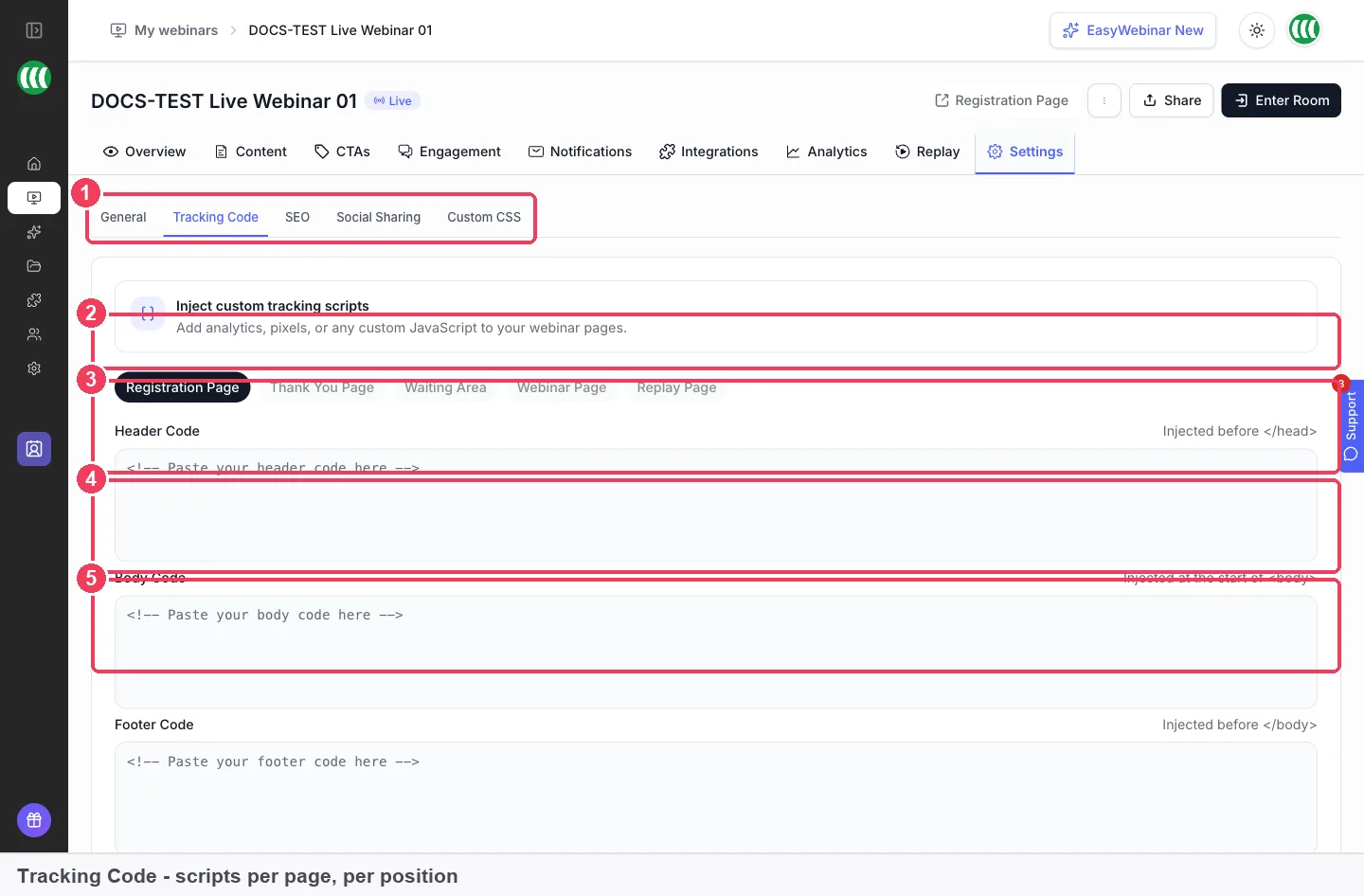
Tracking code is set per page, and nothing applies until you click Save Changes. A Google Analytics tag goes in Header Code in the same way, on each page you want in your reports.
Connect your CRM or email tool
Open the webinar's Integrations tab, find your tool under Available integrations and click Connect. You sign in to that service and allow access when it asks. Then map webinar events to tags in your CRM. Registered, Attended, Missed, Left early, Watched full and Clicked offer are the events lead follow-up usually needs.
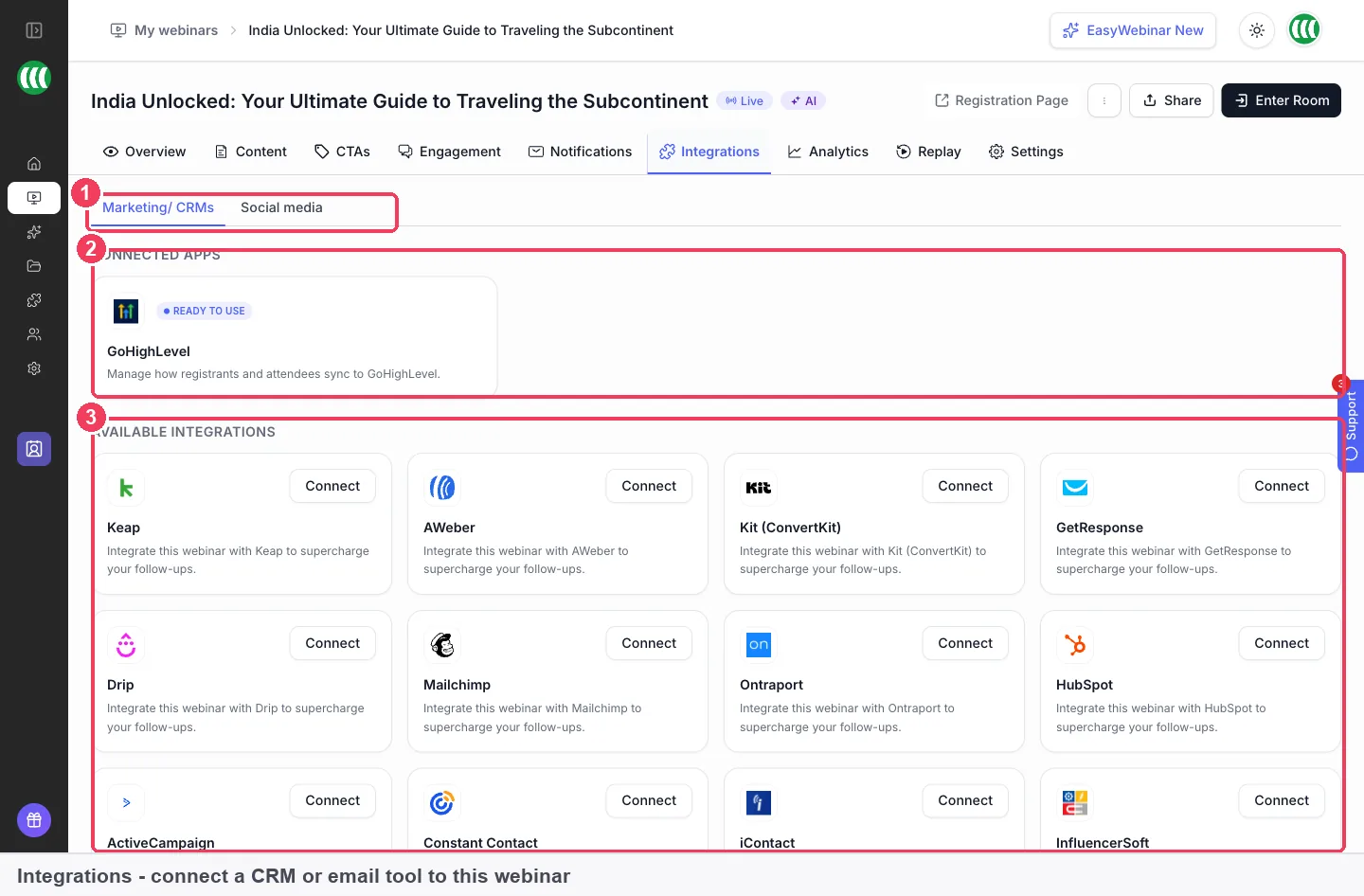
Create your tags in the CRM first, then select them here. Map Webinar Title to a custom field so each contact shows which webinar it came from; the field has to exist in your CRM before you can map to it. The mapping guide lists all eleven events and every field.
This EasyWebinar video shows how to connect your CRM and email tools to a webinar.
Set follow-ups for attendees and no-shows
Open the Notifications tab. Under Webinar Follow-ups, add one email for attendees and one for no-shows, and set the audience on each. No-shows are usually the biggest group, and the replay link is what they want. Under Attendee Action Follow-ups, add an email for people who clicked your offer, so they hear something different from someone who left after five minutes.
Write and time the messages with the attendee and no-show templates. Set up the replay page before you paste its link into a follow-up.
Filter People by source after the session
Click People in the sidebar, then Add Filter. Choose Source & UTM and the campaign you want, then click Apply Filter. Add a Behavior filter for no-shows, or for high watch time plus an offer click.
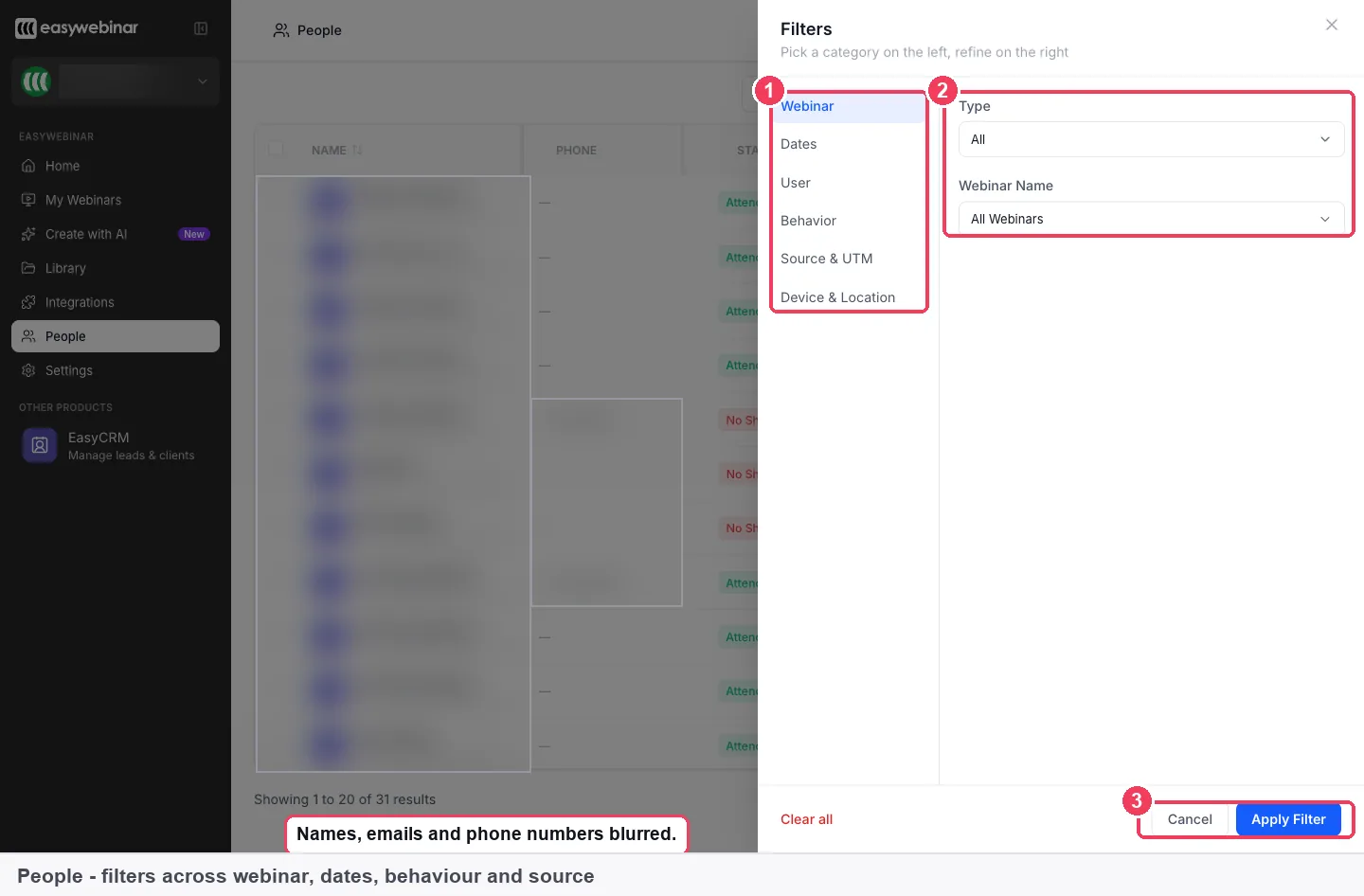
Export downloads the filtered list, so filter first and then export. Each row is one person on one webinar, and the result count below the table shows how far a filter narrowed things. The People view explains every column.
This EasyWebinar video shows how to filter and export registrants in People.
Keep the webinar producing leads
A webinar can keep collecting registrants long after the live date. An evergreen webinar runs continuously instead of on a fixed date, which suits a demo or an offer you run all year. On Demand, also called instant replay, lets someone watch straight after registering. The same UTM capture and follow-ups apply, and the Type column in People shows whether a lead came through a live, simulive or evergreen webinar.
For next quarter's live session, clone this webinar and choose to copy its integration settings, so the new webinar feeds the same CRM.
See which webinar and campaign produced each lead
Two measures show whether webinar lead generation is working: registration rate and show-up rate. Read both for the whole webinar first, then for each campaign.
Registration rate and show-up rate
Registration rate is registrants divided by visitors to the registration page. A low figure here is a page problem: the headline, the form or the promise. Show-up rate is attendees divided by registrants. A low figure there points at your reminder emails, not at the content.
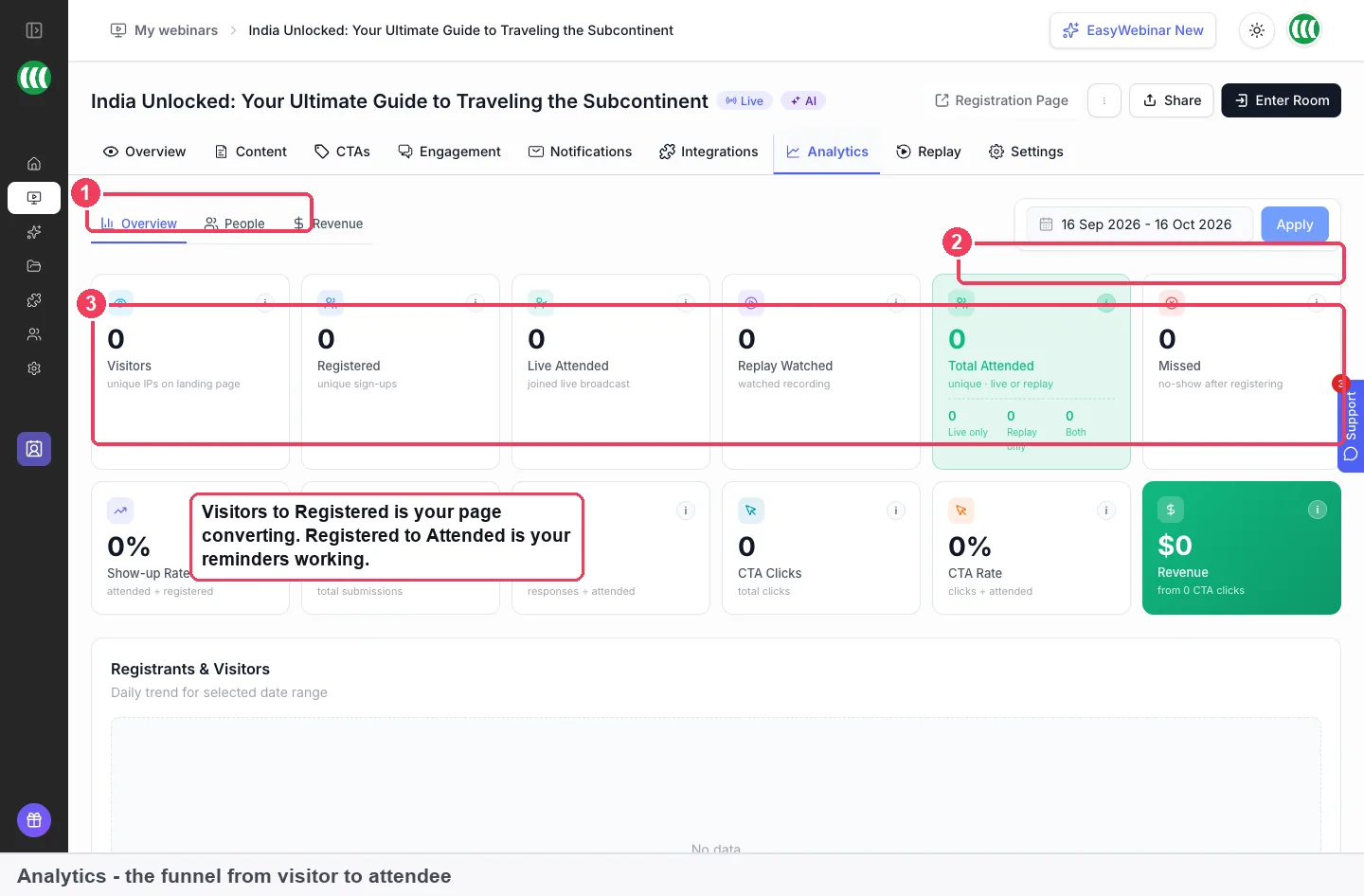
Open the webinar's Analytics tab. Visitors, Registered, Live Attended, Replay Watched, Total Attended and Missed sit along the top, and Total Attended splits into Live only, Replay only and Both. Webinar analytics explains each card.
This EasyWebinar video walks through a webinar's Analytics tab, including revenue.
Per campaign
Analytics covers one webinar as a whole. For a campaign view, filter People by Source & UTM, then read Status, Watch percentage and Offer clicked for that group. Repeat for each campaign and note the counts. Offers Performance in Analytics adds views, clicks and purchases for each offer, with a click rate.
How far to trust these numbers
- Visitors counts unique IPs on the landing page. Several colleagues on one office network may count as one visitor, so treat registration rate as a guide.
- Campaign figures exist only for registrations made while UTM Params was on. Anyone who registered earlier carries no campaign.
- Untagged links show no campaign. People who arrived by a plain link sit outside every campaign filter.
- The date range applies to everything on the page. Widen it if a webinar looks emptier than you expected.
- Replay views are counted separately from live attendance, and someone who did both shows under Both.
Worked example: comparing three campaigns for one webinar
This is an illustrative calculation with sample figures, not an EasyWebinar output. It follows the freight software team from the approach section after one quarterly webinar. The counts come from filtering People by Source & UTM for each campaign.
| Campaign (utm_source) | Registrants | Attended, live or replay | Show-up rate | Offer clicks | Clicks per attendee |
|---|---|---|---|---|---|
| linkedin (paid ad) | 200 | 60 | 60 ÷ 200 = 30% | 6 | 6 ÷ 60 = 10% |
| partner-newsletter | 100 | 45 | 45 ÷ 100 = 45% | 9 | 9 ÷ 45 = 20% |
| newsletter (own list) | 150 | 75 | 75 ÷ 150 = 50% | 6 | 6 ÷ 75 = 8% |
| Total | 450 | 180 | 180 ÷ 450 = 40% | 21 | 21 ÷ 180 ≈ 12% |
The paid ad brought the most registrants but the lowest show-up rate. The partner newsletter brought half as many, yet its attendees clicked the offer at twice the paid ad's rate. The team's own list showed up best but clicked least, which suggests the offer suits new prospects more than existing contacts.
The follow-up lists come from the same numbers. Taking 180 attendees from 450 registrants leaves 270 no-shows, the largest single group for the replay email. The 21 people who clicked the offer are the first calls for sales.
What goes wrong, and what to check
- UTM Params left off. The Source & UTM filter has nothing to show. Make one tagged registration of your own before launch and find it in People.
- Mixed capitalisation. "LinkedIn" and "linkedin" split one channel into two. Fix the links before launch, because the report can't merge them.
- An integration connected on one webinar only. Integrations are per webinar, so a new webinar sends nobody to your CRM until you connect it or clone the settings.
- Tags missing in the CRM. The event mapping can only select tags that already exist there, so create them first.
- One follow-up for everyone. Attendees get "sorry you missed it" and no-shows get "thanks for coming". Set the audience on each email.
- Exporting everything. Cutting a full export down in a spreadsheet wastes the work the filters already do, so filter in People first.
What works with webinar lead generation
- Registration confirmation emails go out immediately after someone registers, which is the first touch in the follow-up.
- Offers put a button in the room, and the Offer clicked column in People marks who used it.
- Polls give you another engagement signal, and the Polls column counts how many each person answered.
- Simulive webinars and just-in-time sessions capture registrants and their campaigns the same way.
- EasyCRM sending setup applies if you run your follow-up sequences in EasyCRM rather than your own CRM.
- Team members let colleagues in sales or operations work in the same account and read the People view.
Who runs webinar lead generation
B2B marketing teams
A demand generation lead tags every promotion link, then reports registrants, attendees and offer clicks per campaign after each webinar. The integration sends attendees and no-shows to the CRM with separate tags, so sales starts with the people who clicked.
SaaS and product teams
A product team turns its standard demo into an evergreen webinar, so prospects can register any day of the week. Tags on the email and in-app links show which route brings people who watch the whole demo.
Agencies
An agency runs webinars for several clients from one account. Because integrations are set per webinar, each client's webinar can feed that client's own list, and a Webinar filter in People keeps their results apart.
Small businesses and solo operators
An owner without a CRM runs a monthly webinar and follows up from the Notifications tab alone. Exporting the filtered no-show list from People gives them a call list for the following week.
How EasyWebinar compares for generating leads with webinars
EasyWebinar records the campaign on each registration and keeps it beside attendance, watch time and offer clicks for every person. It follows up attendees, no-shows and offer clickers with separate emails, and it gives each person a lead score from their engagement.
Webinar lead generation features, from each platform's public documentation:
| Platform | Campaign (UTM) per registrant | Separate no-show follow-up | Follow-up on an offer click | Lead score per person |
|---|---|---|---|---|
| EasyWebinar | Yes | Yes | Yes | Yes |
| Demio | Yes (source and UTMs captured at registration) | Yes (Replay Follow Up to No Shows) | Not in docs | Not in docs |
| Livestorm | Yes (UTMs read at registration) | Partly (replay link for those who missed) | Not in docs | Not in docs |
| WebinarJam and EverWebinar | Yes (recorded at sign-up) | Yes (follow-ups by attendee behaviour) | Partly (filters on orders, not clicks) | Not in docs |
| eWebinar | Yes (tracked per registrant) | Yes (one audience per follow-up) | Partly (counted when tracking code fires) | Yes (engagement scores on the dashboard) |
| WebinarKit | Yes (traffic source through URL parameters) | Yes (did-not-attend follow-ups) | Partly (offer clicks tag contacts in other apps) | Not in docs |
Yes: documented and built in. Partly: documented with a limit, shown in brackets. Not in docs: not found in the vendor's public documentation.
Why EasyWebinar is the stronger choice for generating leads with webinars
- An email for people who clicked your offer. EasyWebinar's Attendee Action Follow-ups send on an offer click, while WebinarJam's mail filters work on whether attendees ordered. EasyWebinar vs WebinarJam
- A lead score on every person. EasyWebinar's People view rates each registrant's engagement, such as Hot, while Demio's People section builds lists by webinar and attendance. EasyWebinar vs Demio
- No-shows get their own email. EasyWebinar sends a follow-up set to no-shows from the webinar's Notifications tab, while Livestorm's docs describe a replay link for registrants who missed the live event. EasyWebinar vs Livestorm
- Source read against attendance. EasyWebinar's Source & UTM filter sits beside status and watch percentage, while WebinarKit tracks traffic source through URL parameters you add. EasyWebinar vs WebinarKit
Competitor details checked against each vendor's public documentation on 4 November 2026. Features and plans change, so confirm with the vendor before you decide.
Limits of webinar lead tracking
- Integrations are set per webinar. Connecting one doesn't connect the rest.
- UTM filtering needs UTM capture turned on on the registration form, and only registrations made while it was on carry a campaign.
- Analytics reports one webinar at a time. People is the view that lists every webinar together.
- Each People row is one person on one webinar, so someone who registers for two webinars appears twice.
- Tracking code is set per page, and none of it applies until you click Save Changes.
- Visitors counts unique IPs on the landing page, not individual people.
Common questions about webinar lead generation
How do you generate leads from a webinar?
Capture each registrant on a form, record the campaign that sent them, and follow up by what they did. In EasyWebinar that means UTM Params on the registration form, separate follow-ups for attendees and no-shows, and an integration that tags each group in your CRM.
How do I know which webinar or campaign a lead came from?
Turn on UTM Params on the registration form and tag every promotion link. Then open People, click Add Filter and choose Source & UTM. The Webinar column shows which webinar each person registered for.
What should I do with leads who registered but did not attend?
Send them the replay. Add a Webinar Follow-up with its audience set to no-shows, and include the replay link. No-shows are usually the biggest group, so this is often your largest follow-up list.
What are UTM parameters?
They're tags added to the end of a link that say where a click came from. The core three are utm_source, utm_medium and utm_campaign. When UTM Params is on, EasyWebinar records the campaign with each registration.
What happens if I turn on UTM capture after promotion starts?
Registrations made before it was on carry no campaign, so they won't appear under any Source & UTM filter. Turn it on and test one tagged registration before the first link goes out.
Where do I put my Facebook Pixel?
Put it in Header Code on the Registration Page and the Thank You Page, under Settings and then Tracking Code. Add your conversion event on the Thank You Page only, because that page loads only after someone registers.
Can registrants go straight to HubSpot or Salesforce Pardot (Account Engagement)?
Yes. HubSpot, ActiveCampaign, Mailchimp, Kit (formerly ConvertKit), Keap and GoHighLevel are among the tools on a webinar's Integrations tab, and EasyWebinar also integrates with Salesforce Pardot (Account Engagement). Registrants and attendees sync as separate events.
Do I have to connect my CRM for every webinar?
Yes. Integrations are set per webinar, so one webinar can feed a different list from another. When you clone a webinar, you can choose to copy its integration settings.
How do I find people who were interested but didn't buy?
In People, filter by Behavior for high watch time plus an offer click. Those people stayed and clicked but didn't buy, which makes them a strong list for a personal follow-up.
What does lead score mean in People?
It's a rating of how engaged someone was, based on attendance, watch time and interaction, for example Hot. Sorting by it is a quick way to work through a long list of registrants.
Can a webinar keep generating leads after the live date?
Yes. An evergreen webinar runs continuously instead of on a fixed date, so people keep registering. On Demand lets them watch straight after registering, and the same UTM capture and follow-ups apply.
Can I export my webinar leads?
Yes. Export in People downloads the filtered list, so filter first. It's the way to hand a segment to a colleague or load it into a tool you haven't connected.
Do I need EasyCRM to follow up webinar leads?
No. EasyCRM is for managing the people your webinars produce if you don't have a CRM. If you already have one, keep it and connect it through Integrations.
Can I collect a phone number or company name at registration?
Yes. Select the form block and add the Phone field, plus your own custom fields for anything else. Ask only for what your follow-up will actually use.
Further reading
- URL builders: Collect campaign data with custom URLs, Google Analytics Help: what each UTM parameter means, and why consistent lowercase values matter.
- The Short Life of Online Sales Leads, Harvard Business Review, March 2011: the case for replying to online leads quickly.
- The UK's data protection legislation, GOV.UK: the principles that apply to the personal details you collect at registration.
Related
Updated 4 November 2026: first published, with the source-tracking methods, a UTM naming table, the manual method, a measurement guide and a worked example.