
0%On this pageContents
A webinar email sequence is the set of messages that confirms a registration, reminds people to turn up and follows up afterwards. Writing all of them by hand for every webinar is slow, so reminders get skipped and follow-ups go out late. EasyWebinar, the webinar platform, drafts six of those emails for you while its AI builds the webinar, with timing and merge tags already set. You then edit the wording and timing on the webinar's Notifications tab, add any emails you need, and check each one before it sends.
At a glance
| What you get | Six drafted emails: a welcome email, three reminders and two follow-ups |
| When the reminders send | A day, an hour and fifteen minutes before the webinar |
| When the follow-ups send | Right after the webinar ends, then a day afterwards |
| What's already filled in | Merge tags, so dates, times and join links fill themselves in |
| What it doesn't draft | An invitation to your own list, or emails based on what attendees did |
| Where you edit them | The webinar's Notifications tab, where every email's subject, content and timing can change |
| What it costs in credits | 1 credit for the email step, inside a full build of about 23 |
| Webinar types | Live, simulive and evergreen |
What an AI-drafted webinar email sequence is
Picture a webinar that's two weeks away. The registration page is live, people are signing up, and nobody has written the reminder emails yet. This feature closes that gap.
When EasyWebinar's AI builds a webinar from your description, one of its five parts is the email sequence. It drafts six emails using the script it has just written as source material. The drafts arrive with merge tags in place and timing already set, so they work as soon as your schedule is set. Every one stays editable, like any email you write yourself.
What you see on the screen
The AI build runs as a series of steps: script, pages, emails, polls and offers. On the emails step, the six drafts are listed with when each one sends, and Add email sits below them. After the build, the same emails appear on the webinar's Notifications tab, grouped by kind.
That tab sorts every email into five groups: Registration Confirmation, Webinar Reminders, Webinar Follow-ups, Attendee Action Follow-ups and Paid Offer — Transaction Success. Each entry shows its trigger, its audience and its subject line, so you can scan the whole sequence on one screen.
Why an AI-drafted email sequence matters
What it's for
It gives every webinar a complete, timed webinar email sequence before the first person registers. You start from six working drafts instead of a blank editor, then spend your time on the wording.
How it helps
- No missing reminders. The day, hour and fifteen-minute reminders exist from the start, so none gets forgotten.
- Consistent with the webinar. The emails draw on the same script as your pages, so the promise matches.
- Ready-made merge tags. Dates, times and join links fill themselves in for each registrant.
- Small credit cost. The email step uses 1 credit, one of the smallest parts of a build.
- Fully editable. Each draft opens like any other email, with its subject, content and timing.
What happens without it
Each webinar starts with a blank set of notifications. Someone has to write the confirmation, every reminder and every follow-up from scratch, and set each send time by hand. Under deadline, the fifteen-minute reminder or the replay follow-up is usually the email that gets dropped.
Why buyers care
It matters most to whoever runs several webinars a month, such as an agency team running sessions for different clients. Each new webinar needs its own sequence in its own voice. Drafting it in the build saves that writing every time.
The EasyWebinar approach to webinar email sequences
Take a typical case. A four-person agency runs a monthly lead-generation webinar for each of five home-improvement clients: a roofer, a window fitter, a kitchen studio and two landscapers. Every session needs a confirmation, three reminders and at least one follow-up, each in that client's voice.
The usual fix is to copy last month's emails and change the names, dates and topic. That tends to work until a reminder still mentions the previous topic, or a join link points at last month's room. Writing fresh copy for every client avoids that, but it can take most of a day each month.
What changed is that the webinar's content now exists before the emails do. Once a script describes the audience, the topics and the offer, a sequence that matches it can be drafted from it. The emails no longer need a separate brief.
EasyWebinar drafts the sequence inside its AI webinar build, straight after the script and pages. It writes a welcome email, reminders a day, an hour and fifteen minutes before, and two follow-ups. Merge tags are already in place. Each email opens on the Notifications tab for editing, so the agency reviews six drafts rather than writing them.
You can check the defaults yourself: the at-a-glance table above lists all six emails and their timing. How that compares with other platforms is covered in How EasyWebinar compares for webinar email sequences, below.
How a webinar email sequence gets written
There are four common ways to produce a webinar email sequence. Each catches some problems and misses others, which is why the AI draft works the way it does.
Writing each email from scratch
You write every email yourself, in the platform's editor. It catches tone and detail, because you know the audience. It misses time: the work repeats for every webinar, and the later emails in the sequence are the ones that get rushed or skipped.
Copying last webinar's emails
You reuse the previous sequence and change the details. It's quick and keeps a format that already worked. It misses stale details: an old topic, date or offer left in one email is easy to overlook when the rest looks right.
Starting from a fixed template set
Some tools ship a standard set of reminder and follow-up emails. It catches timing, because the send times come built in. It misses your content: the wording is generic until you rewrite it around this webinar's topic and offer.
Drafting from the webinar's own script
An AI drafts the emails from the content it has written for the webinar. It catches consistency, since the emails describe the same session as the pages. It misses anything the script got wrong, and it can't know details you never gave it, such as a price change.
What's confirmed for EasyWebinar
EasyWebinar's AI drafts the email sequence using the script as source material, as part of building the webinar. The build also writes the script first, and the AI's help text warns that fixing the script then is much easier than fixing the pages and emails built from it. So the quality of your emails starts with your prompt and your script.
The six emails the AI drafts
The AI drafts this sequence for every webinar it builds:
| When it sends | What it's for | |
|---|---|---|
| Welcome email | On registration | Confirms the place and carries the join link |
| Reminder — 1d | A day before | Puts the session back in the calendar |
| Reminder — 1h | An hour before | Catches people planning their afternoon |
| Reminder — 15m | Fifteen minutes before | The final nudge, with the join link |
| Follow-up — Instant | Right after the webinar ends | Reaches people while the session is fresh |
| Follow-up — 1d | A day afterwards | A second chance to act on the offer or replay |
Notice what isn't on the list. The AI drafts six emails and no invitation, so the message that brings your list to the registration page is still yours to write. The webinar invitation guide covers what to put in it and how to send it.
The drafts also leave out the Attendee Action Follow-ups and Paid Offer — Transaction Success groups. Those depend on what each attendee does, so you add them yourself after the build.
How many emails should a webinar sequence have?
Six is a sound starting point: one confirmation, three reminders and two follow-ups. The three-reminder pattern of a day, an hour and fifteen minutes before is EasyWebinar's own suggested default, and the last one does most of the work.
Add more when the webinar has a specific job. A no-show follow-up with the replay link suits almost every session, because no-shows are usually the biggest group. A follow-up for people who clicked an offer and didn't buy suits any webinar that sells. Use Add email during the build, or Create New in the right group on the Notifications tab. Avoid splitting one message across several emails, though. In usability research on transactional email, companies that spread one transaction over too many messages caused usability problems.
Edit the wording before anything sends
The drafts are a strong first version, not a finished one. Read each email in order, as a registrant would receive it, and check these points.
- The offer and the price. EasyWebinar's own guidance is to check that pages and emails say what you want, especially around pricing and what's included.
- The sender. Set a sender name people will recognise in Email Settings. Nielsen Norman Group found that unrecognisable sender information was the top reason people gave for not opening email.
- The subject lines. Put the useful words first. Inboxes cut subject lines short, and Nielsen Norman Group suggests showing no more than about 40 characters.
- The merge tags. After you rewrite a sentence, make sure the date, time and join link tags are still in it.
- The opening line. Start each email with what the reader needs, such as the time and the link, before any sales copy.
Writing for a client? Read the sequence aloud in their voice once. Six emails from the same script can sound alike, so vary the openings.
Change the timing
Every reminder's timing is set as a period before the webinar, shown as, for example, 1h 0m 0s before webinar or 0h 15m 0s before webinar. Open a reminder on the Notifications tab to change it.
Because the timing counts from the webinar rather than from a clock time, the same reminders work for recurring live sessions and evergreen schedules. You won't need to reset them when a date moves. Follow-ups are different: you choose their audience, whether that's everyone who registered, only attendees or only no-shows. For the follow-up side in depth, the follow-up email guide covers what to send each group.
How to measure whether your sequence works
Two measures show whether the emails are doing their job. Both are on the webinar's analytics, so you can check them after every session.
Registered to attended
This is the share of registrants who turned up. EasyWebinar's analytics guidance calls it your reminders doing their job, and says a low number is a notification problem, not a content one. Its weak spot is that it mixes in things the emails don't control, such as how far ahead people registered. Compare it across webinars with similar lead times.
Use Live Attended for this when you're judging reminders. Total Attended also counts replay viewers, which flatters the figure.
The missed group
Missed counts people who registered and never attended. This is the audience your no-show follow-up and replay link are for. Its weak spot is that it says nothing about whether those people opened the follow-up. Use the People view to see who is in it.
Illustrative calculation with sample figures, not an EasyWebinar output: 400 people register and 160 attend live. Registered to attended is 160 ÷ 400 = 40%, and the missed group is 400 − 160 = 240 people. That 240 is the list your replay follow-up needs to reach. The webinar analytics page explains each funnel metric.
How to write a webinar email sequence by hand
If you build the webinar yourself, the sequence still follows the same order.
- Write the confirmation first, with the date, time and join link at the top.
- Write the three reminders: a day, an hour and fifteen minutes before. Keep each shorter than the last.
- Write an instant follow-up for attendees and a separate one for no-shows, each with the replay link.
- Write a second follow-up for a day later, focused on the offer or the replay.
- Set each send time relative to the webinar, not as a fixed date.
- Insert the merge tags for name, date, time and join link, then send yourself a test.
- Read the whole sequence in order and check every price, date and link.
The same job in EasyWebinar
Steps 1, 2, 4 and 5 come done when the AI builds the webinar: six drafts, timed, with merge tags in place. You still split the follow-ups by audience, add the emails your goal needs, and do the final read in step 7. If a format already works, you can also clone a webinar and edit its emails instead.
Worked example: an agency's month of webinar emails
Illustrative calculation with sample figures, not an EasyWebinar output. The four-person agency from earlier runs one webinar a month for each of five clients.
| Item | Arithmetic | Result |
|---|---|---|
| Emails drafted per webinar | Fixed by the AI build | 6 |
| Webinars per month | One per client × 5 clients | 5 |
| Emails drafted per month | 6 × 5 | 30 |
| Credits for the email step alone | 1 × 5 | 5 |
| Credits for five full builds | 23 × 5 | 115 |
| Extra emails added by hand | 1 no-show follow-up × 5 | 5 |
| Emails to review before sending | 30 + 5 | 35 |
The agency's job shifts from writing 35 emails to reviewing them. It writes just the five no-show follow-ups itself, and the full builds cost far more credits than the emails do.
How to set up an AI-drafted webinar email sequence
You get the sequence by building the webinar with AI, then finish it on the Notifications tab. The AI webinar builder overview covers the whole build.
Describe the webinar
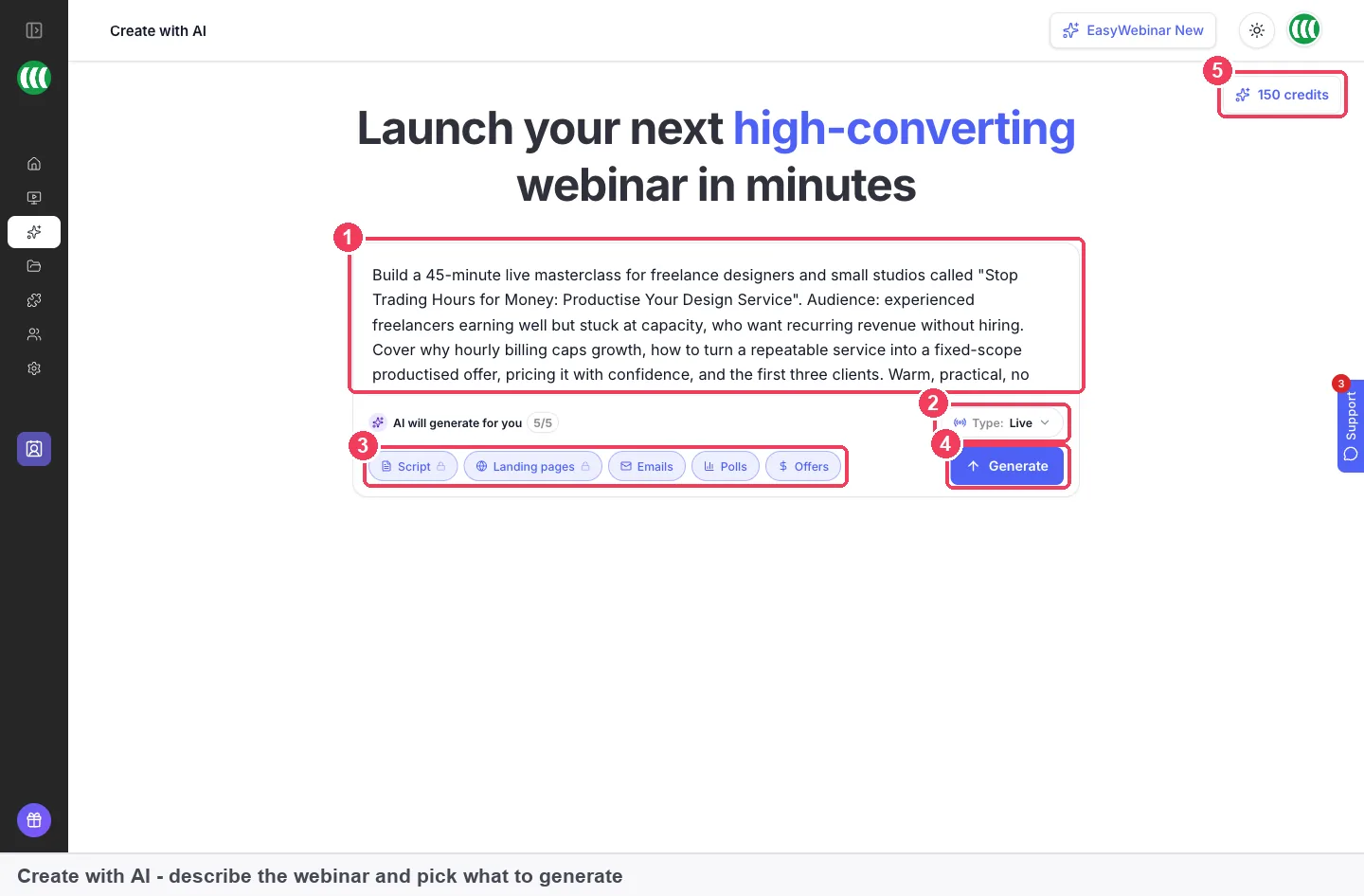
Click Create with AI in the sidebar. In the prompt box, say who the webinar is for, what it covers, how long it runs, the tone and what you're selling at the end. Choose the Type: Live, Simulive or Evergreen.
Emails is one of the output chips, selected by default with Script and Landing pages. Leave it on, then click Generate.
Check the script, then the emails
Read the script before you continue, because the pages and emails are built from it. The page generation guide covers the step after. On the emails step, read the six drafts and use Add email for anything missing. Click Continue to move on to polls and offers.
Open the finished webinar
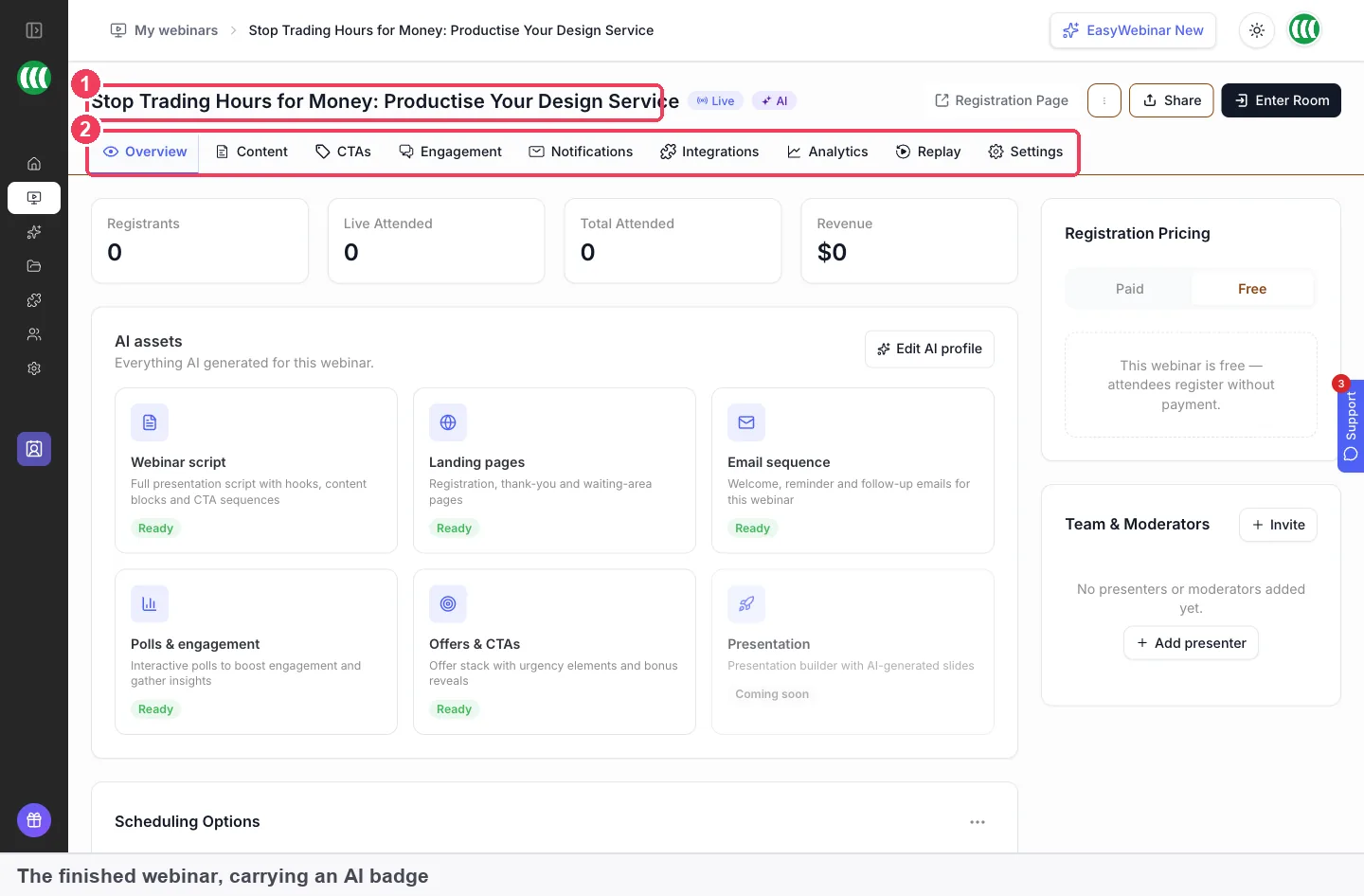
The build drops you on the finished webinar's Overview. It carries an AI badge in My Webinars and behaves exactly like a webinar built by hand. You still need to set the schedule, and for simulive or evergreen, choose a video.
Edit the emails on the Notifications tab
Click the Notifications tab. Your drafts sit in their groups, each showing its trigger, audience and subject. Open any email to change its subject, content or timing, and use Create New in a group to add another.
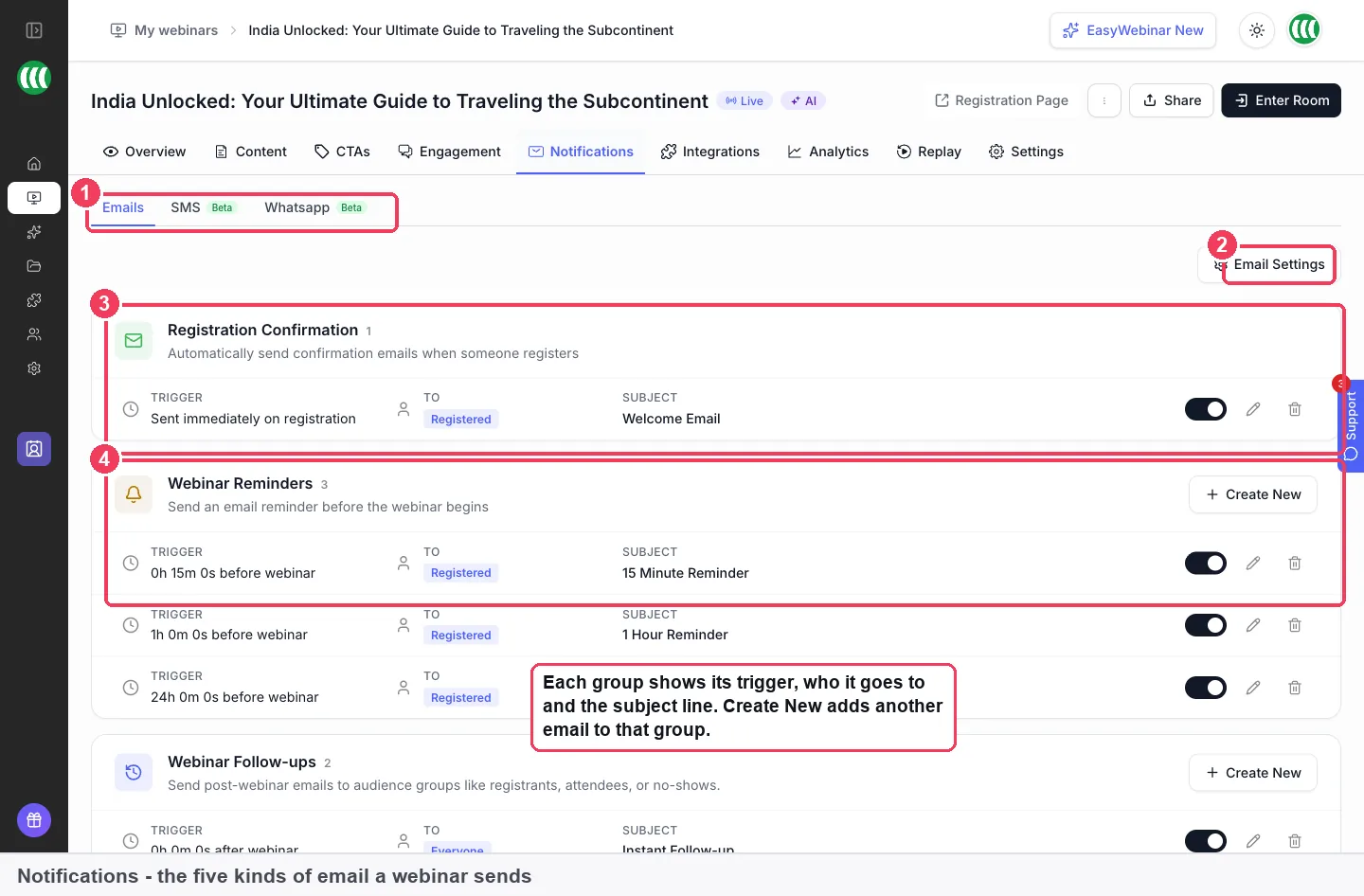
In this EasyWebinar video, you'll see how reminder emails are set up and timed on a webinar's Notifications tab.
Set the sender and reply-to address
Click Email Settings. Set the Sender name to a name registrants recognise, such as yours or your client's. Set Reply-to email to an inbox someone reads, because people do reply to webinar emails. Turn on Notify admin if you want a copy of each registration.
Add texts for the final reminder
SMS (Beta) and WhatsApp (Beta) work alongside email. They suit the last reminder before a session, when an email may sit unread. SMS (Beta) needs the Phone field on your registration form, which you can add with custom registration fields. Send yourself a test before you use either with an audience.
What works with webinar email sequences
- Registration confirmation emails: the welcome draft lives in this group and carries each person's join link.
- Webinar reminder emails: the three drafted reminders, plus SMS (Beta) and WhatsApp (Beta) options.
- Replay pages: the page your follow-ups and no-show emails point to.
- Offers: offer clicks can trigger an attendee action follow-up.
- Polls: drafted in the same AI build, straight after the emails.
- Your CRM: keep the CRM you already use and pass webinar data to it.
Who uses AI-drafted webinar email sequences
Agencies
An agency running a webinar a month for each client builds every one with AI, then rewrites the six drafts in each client's voice. The account lead checks sender names and offers before anything is scheduled.
Course creators
A creator promoting a course with a live webinar uses the drafted reminders as they are, then adds an offer-click follow-up. EasyWebinar handles the webinar and the emails, while the course itself stays on their own course platform.
Coaches and consultants
A solo coach describes a monthly masterclass, keeps the Emails chip on, and edits only the subject lines and sign-off. The sequence is ready in the same sitting as the pages.
B2B marketing teams
A marketing team runs an evergreen product demo and relies on the relative reminder timing. Because each reminder counts back from the session, the same sequence serves every scheduled time.
How EasyWebinar compares for webinar email sequences
EasyWebinar drafts the whole email sequence inside the same AI build that writes the webinar's script and pages, so the emails describe the session you're about to run. The drafts are timed before and after the webinar, and you can add follow-ups for no-shows and for people who clicked an offer.
Webinar email sequence features, from each platform's public documentation:
| Platform | AI drafts the email set | Reminders timed before the webinar | Separate follow-up for no-shows | Follow-up after an offer click |
|---|---|---|---|---|
| EasyWebinar | Yes | Yes | Yes | Yes |
| eWebinar | Yes (AI generates a notification set) | Yes (pre-session reminders) | Partly (default follow-up to completers) | Not in docs |
| Demio | Not in docs | Yes (24 hours before) | Yes (No Shows option) | Not in docs |
| WebinarJam and EverWebinar | Not in docs | Yes (email reminders, plus SMS 15 minutes before) | Yes (those who did not attend) | Partly (filters on purchase, not click) |
| WebinarKit | Not in docs | Yes (one day and 30 minute reminders) | Yes (did not attend follow-ups) | Partly (percentage watched, not clicks) |
| Kajabi | Partly (AI you connect drafts emails) | Yes (4 reminder emails in a template) | Not in docs | Not in docs |
| WebinarNinja | Partly (AI follow-ups after the webinar) | Yes (reminders from the email editor) | Not in docs | Not in docs |
Yes: documented and built in. Partly: documented with a limit, shown in brackets. Not in docs: not found in the vendor's public documentation.
Why EasyWebinar is the stronger choice for webinar email sequences
- Drafted before the webinar runs. EasyWebinar drafts reminders and follow-ups during the build, while WebinarNinja's AI writes follow-up emails once the webinar ends. More in EasyWebinar vs WebinarNinja.
- Drafting built into the product. EasyWebinar's AI drafts the emails itself, while Kajabi describes giving an outside AI permission to draft your emails. More in EasyWebinar vs Kajabi.
- A final reminder fifteen minutes out. EasyWebinar's drafts include reminders a day, an hour and fifteen minutes before, while WebinarKit's defaults are one day and 30 minutes before. More in EasyWebinar vs WebinarKit.
Competitor details checked against each vendor's public documentation on 4 November 2026. Features and plans change, so confirm with the vendor before you decide.
Limits of AI-drafted email sequences
- Six emails, no invitation. The AI drafts the confirmation, reminders and follow-ups, but not the email that invites your list to register.
- No behaviour-based drafts. Attendee action and paid offer emails aren't part of the six, so you add them on the Notifications tab.
- Drafts follow the script. The emails are built from the script, so a vague prompt or an unchecked script carries into them.
- Emails only in the build. The AI step drafts email. SMS (Beta) messages are built from templates on the SMS tab instead.
- Schedule set separately. The drafts are timed relative to the webinar, so they send only once you've set the schedule.
- Credits apply. Each AI step uses credits from your balance, shown at the top right of every step. See pricing for what each plan includes.
Common questions
Can AI write my webinar emails?
Yes. When EasyWebinar's AI builds a webinar, it drafts six emails from the webinar's script: a welcome email, three reminders and two follow-ups. You then edit them on the Notifications tab before anything sends.
How many emails should a webinar sequence have?
Six is a sound start: a confirmation, reminders a day, an hour and fifteen minutes before, and two follow-ups. Add a no-show follow-up with the replay link, and an offer-click follow-up if the webinar sells.
Which emails does the AI draft?
A welcome email on registration, reminders a day, an hour and fifteen minutes before, a follow-up right after the webinar ends and another a day afterwards. All six arrive with merge tags in place.
Does the AI write a webinar invitation email?
No. The AI drafts six emails and no invitation, so the message inviting your list to register is yours to write. The webinar invitation guide explains what to include.
Where do I edit the drafted emails?
On the webinar's Notifications tab. The drafts sit in their groups, and you can open any one to change its subject, content and timing, just like an email you wrote yourself.
Can I change when a reminder sends?
Yes. Open the reminder and change its timing, which is set as a period before the webinar, such as one hour or fifteen minutes. Because it's relative, it works for recurring and evergreen schedules.
Can I add more emails to the sequence?
Yes. Use Add email on the emails step of the build, or Create New in any group on the Notifications tab. Add a no-show follow-up and an offer-click follow-up for most webinars.
Do the merge tags fill in automatically?
Yes. The drafts arrive with merge tags already in place, so dates, times and join links fill themselves in for each registrant. Check the tags are still there after you rewrite a sentence.
How many credits does the email step use?
One credit. A full build of script, pages, emails, polls and offers uses about 23 credits, and your balance shows at the top right of every step before you commit.
Can I generate only the emails?
You can turn off any of the five output chips before generating, so you choose which parts the AI builds. The emails are built from the script, so keeping the script on gives the drafts their source material.
Does it work for evergreen and simulive webinars?
Yes. Choose Live, Simulive or Evergreen as the type before you generate. For simulive and evergreen, you still choose a video afterwards, and the drafted reminders count back from each session.
Can I email only the people who didn't turn up?
Yes. Add a Webinar Follow-up on the Notifications tab and set its audience to no-shows. Include the replay link, since that's usually what no-shows want.
How do I change who the emails come from?
Click Email Settings on the Notifications tab and set the Sender name and Reply-to email. Use a name registrants recognise and an inbox someone reads.
How do I know if my reminders are working?
Check registered to attended on the webinar's analytics, using Live Attended. A low number points to a notification problem rather than the content, so look at reminder timing and subject lines first.
Further reading
- Transactional Email and Confirmation Messages (Nielsen Norman Group): why recognisable senders and leading with what matters get emails opened.
- Email Subject Lines: 5 Tips to Attract Readers (Nielsen Norman Group): how to front-load subject lines and keep them short enough to show in full.
- Automating your webinar email funnel: EasyWebinar's blog post on planning the sequence around your funnel.
Related
Updated 4 November 2026: first published, with the six drafted emails, how sequences get written, how to measure them, the manual method and a worked example.