Webinar Checklist: Everything to Do From 4 Weeks Out to the Day After

Surya Choudhury
Published on Oct 16, 2025 • 17 min read

TL;DR
- A webinar setup checklist runs in five phases: plan at T-28, build and test at T-21, content and tech by T-3, the last-hour countdown, and follow-up at T+1.
- Give every item a due date and an owner. In a one-person business you hold every role, but the owner column still tells you which hat you wear.
- Promote three weeks out but push hardest in the final week. ON24's 2021 data shows 60% of registrants sign up within a week of the event.
- Register yourself before sending invitations, and run one full dry run with every presenter on their own machine. Partial tests pass and still fail live.
- Confirm recording two minutes in. An unrecorded webinar can't be recovered, and about half of attendees watch on demand.
- Within 24 hours send the replay, a short survey, and the numbers. Once a live session converts, run it as Simulated Live or Evergreen on EasyWebinar.
You picked a date. It's in the calendar, the topic feels right, and someone has already asked, "So what do we need to do?" That's the moment a webinar either becomes a plan or becomes a week of late nights.
I've run enough webinars to know the hour on camera is the easy part. The four weeks before it, and the day after, are where things slip. A link that doesn't work. A reminder that never sent. A recording nobody started. This checklist puts every task on a date, with an owner, so nothing depends on memory. If you want the full walkthrough first, start with how to host a webinar, then come back and copy the list.
Q1. What does a complete webinar setup checklist look like?
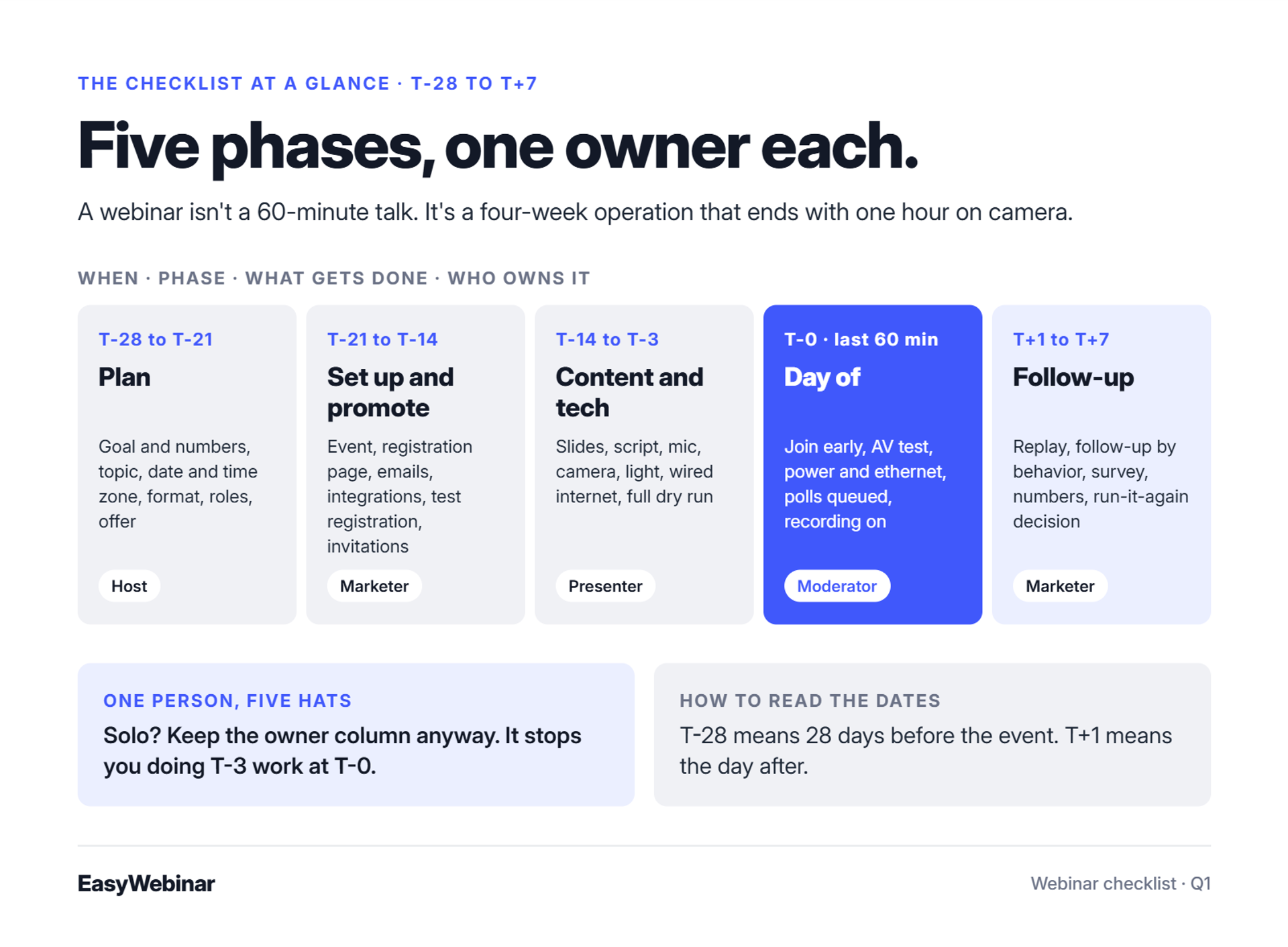
A complete webinar setup checklist runs in five phases. Four weeks out, plan the goal, topic, date, roles, and offer. Three weeks out, build the event, registration page, emails, and integrations, then invite people. In the last two weeks, finish slides, script, and gear, and do one full dry run. On the day, join an hour early and confirm recording. Within 24 hours, send the replay, survey, and numbers.
🗓️ The checklist by phase
"T-28" means 28 days before the event. "T+1" means the day after.
| When | Phase | Items | Owner |
|---|---|---|---|
| T-28 to T-21 | Plan | Goal and numbers, topic, date and time zone, format, roles, offer | Host |
| T-21 to T-14 | Set up and promote | Event, registration page, emails, integrations, test registration, invitations | Marketer |
| T-14 to T-3 | Content and tech | Slides, script, mic, camera, light, wired internet, full dry run | Presenter |
| T-0 (last 60 minutes) | Day of | Join early, AV test, power and ethernet, polls queued, recording on | Moderator |
| T+1 to T+7 | Follow-up | Replay, follow-up by behavior, survey, numbers, run-it-again decision | Marketer |
University IT teams that run webinars at scale split the work the same way. The University of Minnesota's host checklist names separate roles for host, co-hosts, and panelists before anything is scheduled.
🎩 One person, five hats
In a one-person business, you hold every owner column. Keep the column anyway. It tells you which hat you're wearing that day, and it stops you from doing T-3 work at T-0.
Here's how I think about it. A webinar isn't a 60-minute talk. It's a four-week operation that ends with one hour on camera. Live webinars can be unpredictable: you might be off your game, or the tech fails. The checklist is how you make the unpredictable part small.
✅ Where EasyWebinar takes rows off the list
EasyWebinar creates the registration page, reminder emails, and webinar room together when you create the event. It also records every session automatically. So several rows in this table are done the moment the event exists, and your owners spend their time on testing instead of building.
Start your 7-day trial or watch the demo
Q2. What should you do 4 weeks before a webinar?
Four weeks before a webinar, decide what success looks like and who does what. Set one goal and the numbers that prove it, such as registrants, attendees, buyers, or booked calls. Pick a topic your audience already asks about, a date and time in their time zone, and a format: Live, Simulated Live, or Evergreen. Name your host, presenter, moderator, and marketer, and decide the offer.
📝 The six planning items
- Goal and numbers. Write one goal and two or three numbers. A KPI (key performance indicator) is just the number that tells you it worked.
- Topic. Pull it from questions people already send you. Your inbox beats a brainstorm.
- Date, time, and time zone. Pick your audience's time zone, not yours. Check how long a webinar should be while you're at it.
- Format. Live, Simulated Live (a recording played on a schedule with real-time chat), or Evergreen (a recording that runs on many schedules).
- Roles. Host, presenter, moderator (runs chat and Q&A), and marketer. Write a name beside each.
- Offer. Decide what attendees can do next: buy, book a call, or start a trial.
📅 Pick a mid-week slot
ON24's benchmark data shows Tuesday, Wednesday, and Thursday emails drive about two-thirds of registrations. That's a good reason to promote and host mid-week.
🔁 Choose the format on purpose
EasyWebinar's rule of thumb is simple: go Live first when the offer is new. Validate the content and the offer, then move the winning session to Simulated Live or Evergreen. Simulated Live and Evergreen both sit under EasyWebinar's Automated umbrella. Automate what's proven, not what's hoped.
✅ One platform for all three formats
EasyWebinar runs Live, Simulated Live, and Evergreen on one platform and one subscription. So the format you pick at T-28 doesn't lock you into a tool. You can start live this month and run the same session automatically next month.
Q3. What needs setting up 2 to 3 weeks before?
Two to three weeks before, build the event and everything a registrant touches: registration and thank-you pages, confirmation and reminder emails, the calendar invite, and your CRM or email integration. Then register yourself the way a stranger would and check that every email arrives and the join link works. Only then send invitations. ON24 advises promoting three weeks to a month out, because most people sign up in the final one to two weeks.
🧱 What gets built in this phase
- Webinar event with date, time zone, and title
- Registration page and thank-you page
- Confirmation, reminder, and replay emails
- Calendar invite (Google and Outlook)
- Integration to your CRM (customer relationship manager) or email tool
- Invitations to your list, partners, and social channels
🕸️ The old way: three tools and a bridge
For years, this phase meant a page on one tool, emails on another, and Zapier in the middle. Every bridge is a place for data to leak. One webinar agency operator caught a Zapier plan limit four hours before going live. A couple hundred opt-ins had never reached the CRM. His advice was to check the tech during the promotion cycle, not on the day.
🚦 What changed: the test registration is the gate
The fix isn't more tools. It's one rule. Nothing goes out until a fake registrant gets every message. Use a personal email address, register, and check the confirmation, the calendar file, and the join link. Then check your CRM for the new contact.
A plain page that works beats a beautiful page you're still designing. Spend the hours on the test, not the font.
✅ How EasyWebinar handles setup
In EasyWebinar, the registration page, emails, and room are created with the event. So this phase is one setup, then a test. Registrations sync to HubSpot, Salesforce Pardot (Account Engagement), ActiveCampaign, Mailchimp, or Kit (formerly ConvertKit), or into EasyCRM, the built-in CRM.
⭐ What operators say
"I want to run a monthly webinar but was concerned about the many tasks involved - registrations, reminder emails, follow ups, making the recordings available etc etc. Having tested EasyWebinar for the last two weeks I'm blown away with how easy it was to setup a sequence of 10 webinars and have all the steps done that I need." - David L., EasyWebinar customer, 7] [EasyWebinar G2 - Verified Review
Q4. How many reminders should you send, and when?
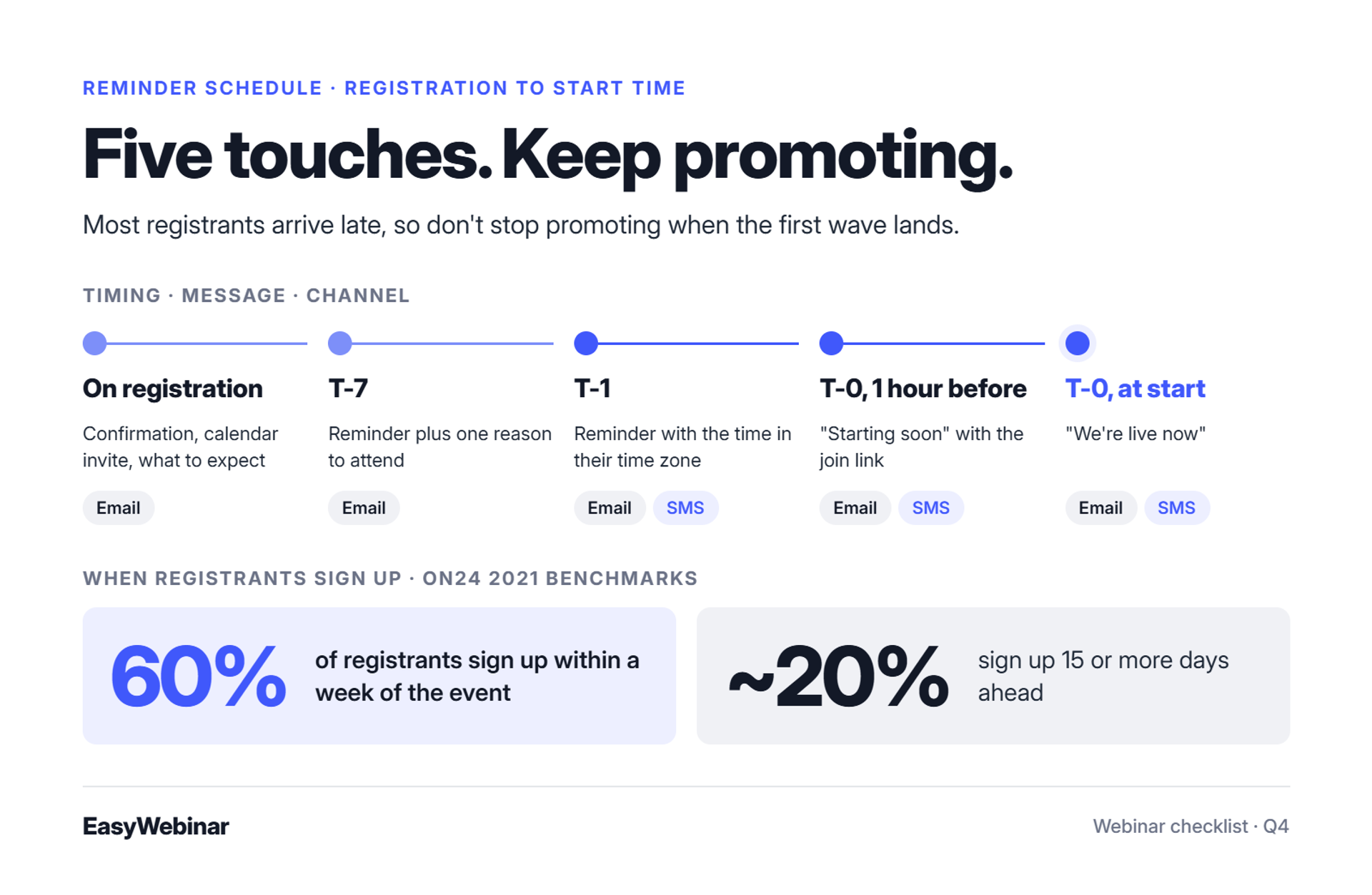
Send a confirmation the moment someone registers. Then send reminders a week out, a day out, an hour out, and at start time. Keep promotion going to the last day. ON24's 2021 data shows 60% of registrants sign up within a week of the event. A new webinar needs a longer promotion window than a proven one, which can often fill in a few days.
⏰ A simple reminder schedule
| Timing | Message | Channel |
|---|---|---|
| On registration | Confirmation, calendar invite, what to expect | |
| T-7 | Reminder plus one reason to attend | |
| T-1 | Reminder with the time in their time zone | Email, SMS |
| T-0, 1 hour before | "Starting soon" with the join link | Email, SMS |
| T-0, at start | "We're live now" | Email, SMS |
📈 Why the last week matters most
Only about 20% of registrants sign up 15 or more days ahead, per ON24's 2021 benchmarks. Most arrive late. So don't stop promoting when the first wave lands.
One webinar agency operator gives a new webinar 10 to 14 days of promotion at most. A proven webinar gets about 3 to 5 days. His reason: people who register closer to the start are more likely to show up.
✅ Reminders inside EasyWebinar
EasyWebinar sends welcome, reminder, and recap emails from the platform, and SMS reminders through Twilio. You set the timing once when you build the event. If you'd rather use your own email tool, the same registrants flow into Mailchimp, ActiveCampaign, or Kit instead.
Q5. What tech and content checks come in the last week?
In the last week, lock the slides and script, then test the gear you'll actually use: microphone, camera, lighting, and a wired internet connection. Run one full dry run on the real platform. Every presenter joins from their own machine, and every poll, offer, and handout gets triggered once. A test that only checks your own audio misses co-host links, browser problems, and timing.
🎬 Content checks (T-14 to T-7)
- Slides final. No new slides after the dry run. Use a webinar presentation layout with one idea per slide.
- Script and agenda. Write the opening, the teaching points, the offer, and Q&A. A webinar script template saves an evening.
- Run time. Time the script out loud. If it runs long, cut content, not the Q&A.
- Polls, offers, and handouts. Write them now so they can be tested in the dry run.
🎙️ Tech checks (T-7 to T-3)
- Microphone. Use the mic you'll present with, not the laptop mic. Digital Samba's tech checklist starts here for a reason: audio problems lose people faster than video ones.
- Camera and light. Face a window or a lamp. Light from behind turns you into a silhouette.
- Internet. Plug in an ethernet cable. Keep a phone hotspot ready as backup.
- Browser. Update it, and close tabs you won't need.
🧪 The dry run, done properly
A dry run means the real platform, the real room, and every presenter on their own machine. Trigger each poll and offer once. Share your screen, switch presenters, and end the session the way you will on the day.
Why so strict? Tests that skip steps pass anyway. One Demio user tested their microphone beforehand, and it still wasn't recognized live. Another host found that co-host invite links led to a 404 page during a trial run. That host had to migrate platforms six days before the event. A full dry run surfaced it in time. A partial one would not have.
⚠️ Don't rebuild the deck the night before
One webinar agency operator tells a costly story here. A client's first webinar was profitable. For the second, the presenter made a brand-new slide deck on his own, and the session ran about three hours. It produced one sale on roughly $20,000 of ad spend. A proven webinar becomes a new, untested one the moment you change the deck.
⭐ What operators say
"Make sure you test your webinar before going live for best results! This allows you to catch any bugs or issues so that you won't have any when you're live with your participants." - Meaghan L., EasyWebinar G2 - Verified Review
✅ One less variable in the EasyWebinar room
EasyWebinar attendees join from any browser, on desktop or mobile, with nothing to download. That removes one dry-run variable: you're testing the room, not whether people can install an app.
Q6. What should you check on the day of the webinar?
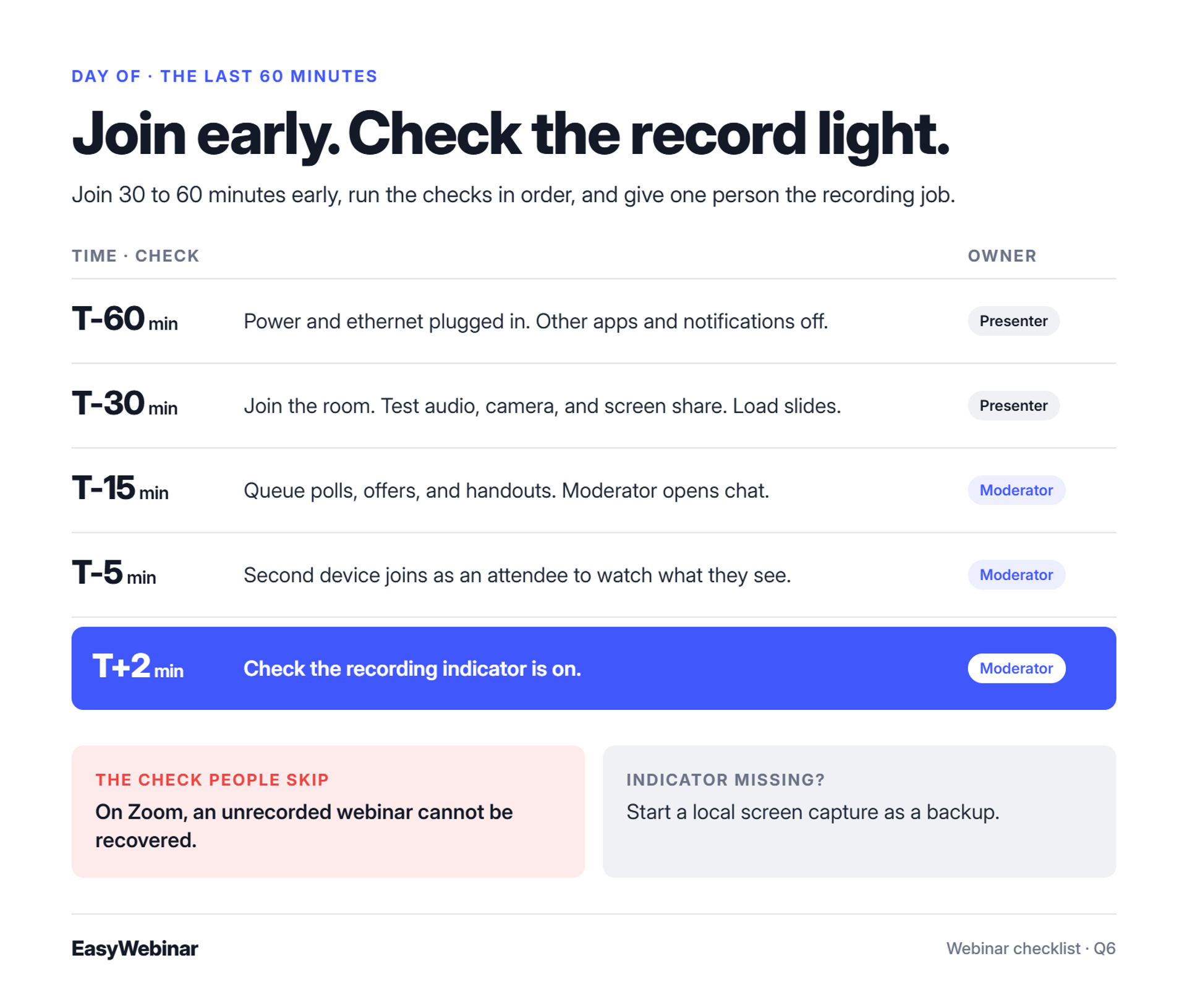
On the day, join 30 to 60 minutes early. Plug in power and ethernet, close other apps, and test audio, camera, and screen share. Load the slides and queue the polls and offers. Brief the moderator on chat and Q&A. Then confirm recording is on: Zoom's own support staff say an unrecorded webinar cannot be recovered.
⏰ The last-hour countdown
| Time | Check | Owner |
|---|---|---|
| T-60 min | Power and ethernet plugged in. Other apps and notifications off. | Presenter |
| T-30 min | Join the room. Test audio, camera, and screen share. Load slides. | Presenter |
| T-15 min | Queue polls, offers, and handouts. Moderator opens chat. | Moderator |
| T-5 min | Second device joins as an attendee to watch what they see. | Moderator |
| T+2 min | Check the recording indicator is on. | Moderator |
The University of Minnesota's host checklist also tells hosts to start about 30 minutes early and run a tech rehearsal first.
🔴 The check people skip: recording
Recording is the item hosts most often assume is handled. On Zoom, if nobody pressed record and auto-record was off, the webinar is gone. That's every no-show who would have watched the replay.
So the moderator owns one job two minutes in: look for the recording indicator. If it's missing, start a local screen capture as a backup.
A second device logged in as an attendee, even a phone, shows lag or a muted mic before the chat does.
✅ Recording is on by default in EasyWebinar
EasyWebinar records every session automatically and stores it in-house, so the most-missed day-of item is covered before you join. EasyWebinar also carries a 99.9% uptime guarantee for the live hour itself.
Q7. What should you do after the webinar?
Within 24 hours, send the replay to everyone, with a different message for attendees and no-shows. Keep the replay window short so people watch now, and send a short survey. Log registrants, attendees, watch time, and buyers or booked calls against the goal you set four weeks ago. A week later, decide whether the session is good enough to run again as Simulated Live or Evergreen.
📬 The T+1 list
- Replay email to attendees ("here's the replay and the offer").
- Replay email to no-shows ("you missed it, here it is").
- Short survey: three questions, one open text box.
- Numbers logged: registrants, attendees, average watch time, offer clicks, sales or calls.
- Replay closes after a few days.
📭 The old way: one email, no numbers
For a long time, follow-up meant one "thanks for coming" email to everyone. The replay page stayed open forever. Nobody wrote down the numbers, so the next webinar started from guesses.
One webinar funnel operator found that longer replay windows backfired. With four to six days, people decided they had plenty of time, and never came back. His team uses a three-day replay campaign instead.
🔄 What changed: the replay is part of the event
ON24's 2025 benchmarks report a 57% registrant-to-attendee rate, and on-demand viewing makes up about half of attendees. So the replay isn't a courtesy. It's the second half of your audience.
That doesn't mean building a maze of email branches. The same operator says his team's heavily segmented "monster funnel" took months and didn't work well. Two or three paths, by what people did, are enough.
✅ What EasyWebinar does after the live hour
EasyWebinar sends no-shows, early leavers, offer-clickers, and replay viewers their own follow-up. It shows attendance, watch time, poll answers, and offer clicks for each attendee. When a session hits its numbers, EasyWebinar turns that exact session into an automated webinar on the same subscription.
⭐ What operators say
"I used to do live webinars to sell my online course. I decided to do an evergreen webinar instead using EasyWebinar. With my live class I used to sell 10-12 courses. With EasyWebinar I sold 25 courses within 3 weeks of my evergreen 'launch'." - Laura C., EasyWebinar G2 - Verified Review
"I do use other email systems to send post-webinar email sequences because I can't track open and click rates on EasyWebinar." - Eliza W., EasyWebinar G2 - Verified Review
Q8. What do hosts forget most often?
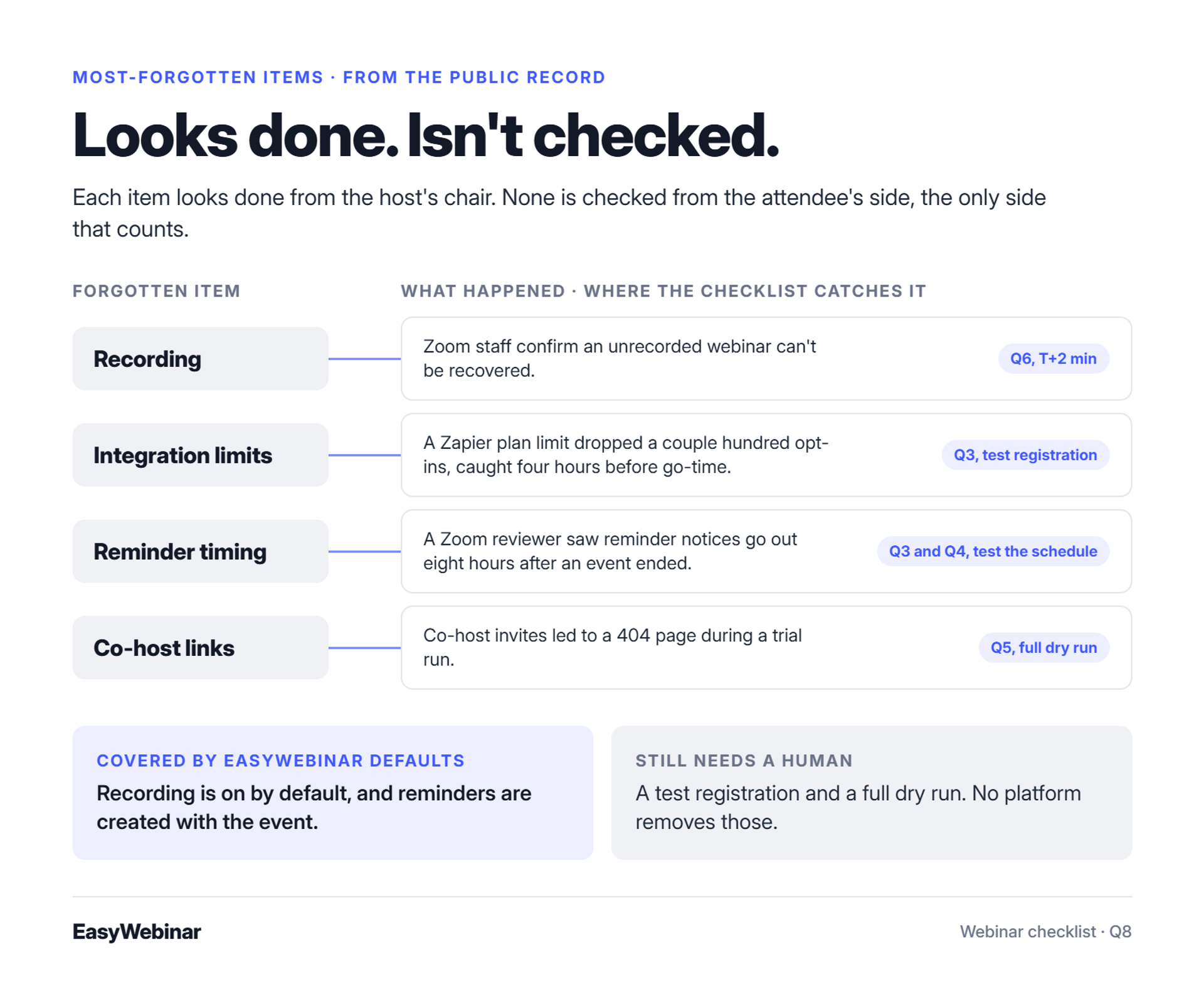
The items hosts forget are rarely the big ones. They are the quiet checks: recording turned on, a test registration before invitations go out, integration and plan limits checked during promotion, and reminder timing verified. The table below lists the ones that come up most often and where this checklist catches each.
🔍 What the public record shows
| Forgotten item | What happened | Checklist row |
|---|---|---|
| Recording | Zoom staff confirm an unrecorded webinar can't be recovered. | Q6, T+2 min |
| Integration limits | A Zapier plan limit dropped a couple hundred opt-ins, caught four hours before go-time. | Q3, test registration |
| Reminder timing | A Zoom reviewer saw reminder notices go out eight hours after an event ended. | Q3 and Q4, test the schedule |
| Co-host links | Co-host invites led to a 404 page during a trial run. | Q5, full dry run |
🧭 Why these slip
Each one looks done from the host's chair. The integration shows "connected." The reminders show "scheduled." The record button exists. None of them is checked from the attendee's side, which is the only side that counts.
"We've had problems with presenters being able to enter the webinar, with reminder notices going out eight hours after an event has concluded, and with broadcast quality." - Casey S., Zoom G2 - Verified Review
✅ Fixed in the EasyWebinar setup
EasyWebinar records every session by default and creates reminders with the event, which covers two of these rows. The other two still need a human: a test registration and a dry run. No platform removes those, and EasyWebinar's support team would rather you run them than skip them.
Q9. How do you reuse this checklist for your next webinar?
Reuse the checklist by changing one thing: the event date. Every due date moves with it. Keep the owners, add a row for anything that went wrong this time, and clone the event instead of rebuilding it. Once a live session hits its numbers, EasyWebinar can run that exact session as Simulated Live or Evergreen, and the checklist shrinks to promotion and follow-up.
🔁 Three steps to run it again
- Re-date. Change the event date, then count every due date back from it again.
- Add a row. Whatever went wrong this time becomes a new line, with a date and an owner. That's how the list gets better each round.
- Clone, don't rebuild. Copy the event, pages, and emails, then change the title and date. Rebuilding from scratch is where new mistakes come from.
📊 When a webinar is ready to automate
EasyWebinar's rule is "automate what's proven." Go live, validate the content and the offer, and aim for about 10% of attendees buying before you automate. Then move the winning session to Simulated Live, which keeps real-time chat, or Evergreen, the deeper automation tier.
Simulated Live runs on a fixed or fixed recurring schedule in one time zone. Evergreen adds just-in-time sessions (a session that starts minutes after someone registers) and time-zone-adjusted scheduling. Both sit under EasyWebinar's Automated umbrella.
✂️ What drops off the checklist
Once a session runs automatically, the T-14 to T-0 rows mostly disappear. No new deck, no new dry run, and no day-of countdown for each session. What stays is promotion (Q3 and Q4) and follow-up (Q7). One thing doesn't change: watch the numbers every week, because a proven webinar still needs someone reading its results.
⭐ What operators say
"Pretty much once I have run one webinar, I can clone and setup multiple in a breeze. We have run close to 30 since we started running it this new year." - Darrin B., EasyWebinar G2 - Verified Review
"My only dislike is their can be some bugs at times that can be frustrating but often, they are solved quick." - Darrin B., EasyWebinar G2 - Verified Review
✅ Clone it, then let it run
EasyWebinar lets you clone a webinar and turn the winning live session into Simulated Live or Evergreen, with one login and one subscription. So the checklist you used for the first live run becomes the setup for every run after it.
So, what's your date? Write it at the top, put a name beside every row, and tell me which item you'd have forgotten. I'd bet it's the recording.
Start your 7-day trial or watch the demo
Frequently Asked Questions

Surya Choudhury
Content Marketing Associate
About Author
Surya Choudhury is a content marketer at EasyWebinar, where he builds content that helps users get the most out of the platform. He focuses on product-led growth, creating content that guides users from discovery to activation and beyond.
Related Posts

How Much to Charge for a Webinar: Price Ranges by Format and Real Ticket Prices
How much to charge for a webinar: real ticket prices from $39 to $199, price ranges by format, and a simple formula to set your own price.
Webinar Examples: 15 Real Webinars, What They Did and the Results
Explore 15 real webinar examples with titles, formats, lengths, offers and results, from a $200K live launch to an Evergreen webinar with 571K sign-ups.

11 Best Community Engagement Platforms in 2026
Compare the 11 best community engagement platforms in 2026. Course creators, evaluate live hosting, analytics, and replay to pick your winner today.
Turn every webinar into a revenue stream
Launch your first paid event in just a few clicks - and start monetizing your expertise.
Book a Call