Interactive Webinar Ideas: 25 Ways to Keep People Engaged (by Minute)

Casey Zeman
Published on May 26, 2026 • 22 min read
TL;DR
- An interactive webinar gives attendees a job every few minutes: chat replies, polls, handouts, questions, and offer clicks, planned by the clock instead of saved for the end.
- Design backwards from the final action: hook, value, offer, call to action, with a small prompt every 4 to 5 minutes and a bigger moment every 10 to 15.
- The 25 ideas are grouped by minute: openers (0 to 5), first lesson (5 to 20), mid-session resets (20 to 40), the offer (40 to 55), and the close.
- Ask permission before you pitch, keep the offer and checkout inside the room, and give people a reason to stay to the end.
- Automate what is proven: Simulated Live keeps real-time chat with timed polls and offers; Evergreen uses a question box with pre-configured polls and offers.
- Measure poll response rate, chat messages per attendee, watch time, offer clicks, and stay-to-end rate by minute, then fix the minute people leave.
By Casey Zeman, Founder of EasyWebinar
Picture a coach at minute 14 of her webinar. She has 80 people in the room. She asks a question in chat, and three people answer. Her stomach drops, because the offer is still 30 minutes away and the room is already cold.
I've sat beside that moment more times than I can count. I've run and consulted on 100-plus webinars that generated eight figures in combined sales. The fix is almost never better slides. It's a plan for what the audience does at each minute. If you're still setting up your first session, start with how to host a webinar. If your people drift off, the 25 ideas below are grouped by the minute they belong to, with the feature that runs each one and the number to watch.
Q1. What Is an Interactive Webinar?
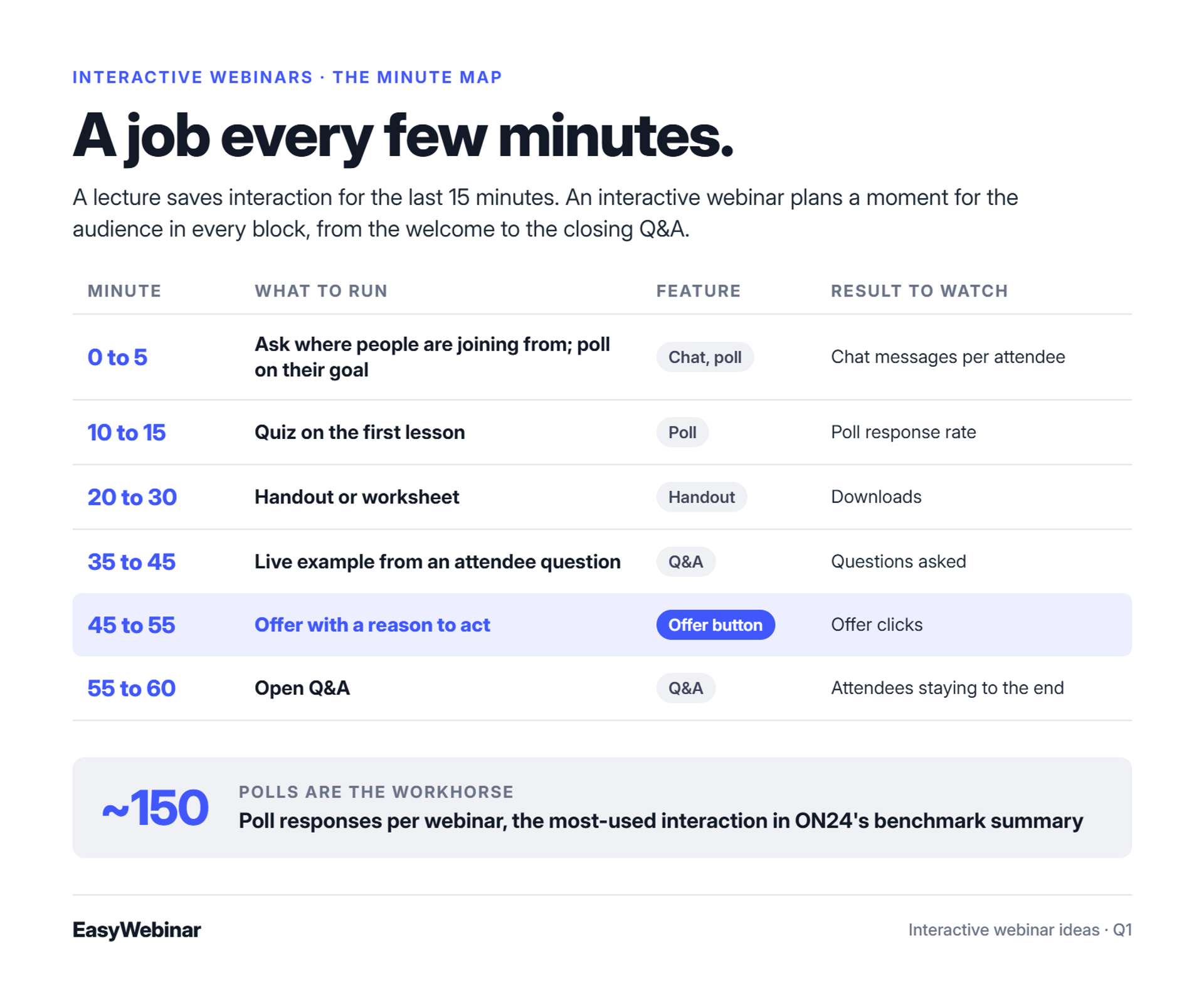
An interactive webinar is one where attendees act, not just watch. They type in chat, answer polls, download handouts, ask questions, and click offers while the session runs. The difference is timing. A lecture saves interaction for the last 15 minutes. An interactive webinar plans a moment for the audience every few minutes, from the first welcome prompt to the closing Q&A.
🔁 One-way versus two-way
A one-way webinar is a broadcast with a chat box nobody uses. A two-way webinar gives each attendee a job at regular intervals. Jono Bacon, who has tested hundreds of sessions, noticed most hosts run "45 minutes of teaching and then 15 minutes of Q&A" and asked why interaction is reserved for the end.
Interaction is separate from delivery mode. A webinar can be Live, Simulated Live, or Evergreen (the last two sit under the Automated umbrella), and each can be interactive. If the formats are new to you, start with what is a webinar.
⏰ The engagement-by-minute map
This table is the spine of the article. Every idea below fits one of these blocks.
| When (minute) | Idea | Feature | Result to watch |
|---|---|---|---|
| 0 to 5 | Ask where people are joining from; poll on their goal | Chat, poll | Chat messages per attendee |
| 10 to 15 | Quiz on the first lesson | Poll | Poll response rate |
| 20 to 30 | Handout or worksheet | Handout | Downloads |
| 35 to 45 | Live example from an attendee question | Q&A | Questions asked |
| 45 to 55 | Offer with a reason to act | Offer button | Offer clicks |
| 55 to 60 | Open Q&A | Q&A | Attendees staying to the end |
Polls are the workhorse here. ON24's summary of its latest benchmark data names polls as the most-used interaction, at about 150 responses per webinar.
✅ Where EasyWebinar fits
EasyWebinar runs chat, polls, Q&A, handouts, and timed offers inside one room that attendees join from any browser, with nothing to download. Every block in the table above maps to a feature on EasyWebinar's attendee experience page.
Q2. How Would You Design a Webinar That Would Be Interactive?
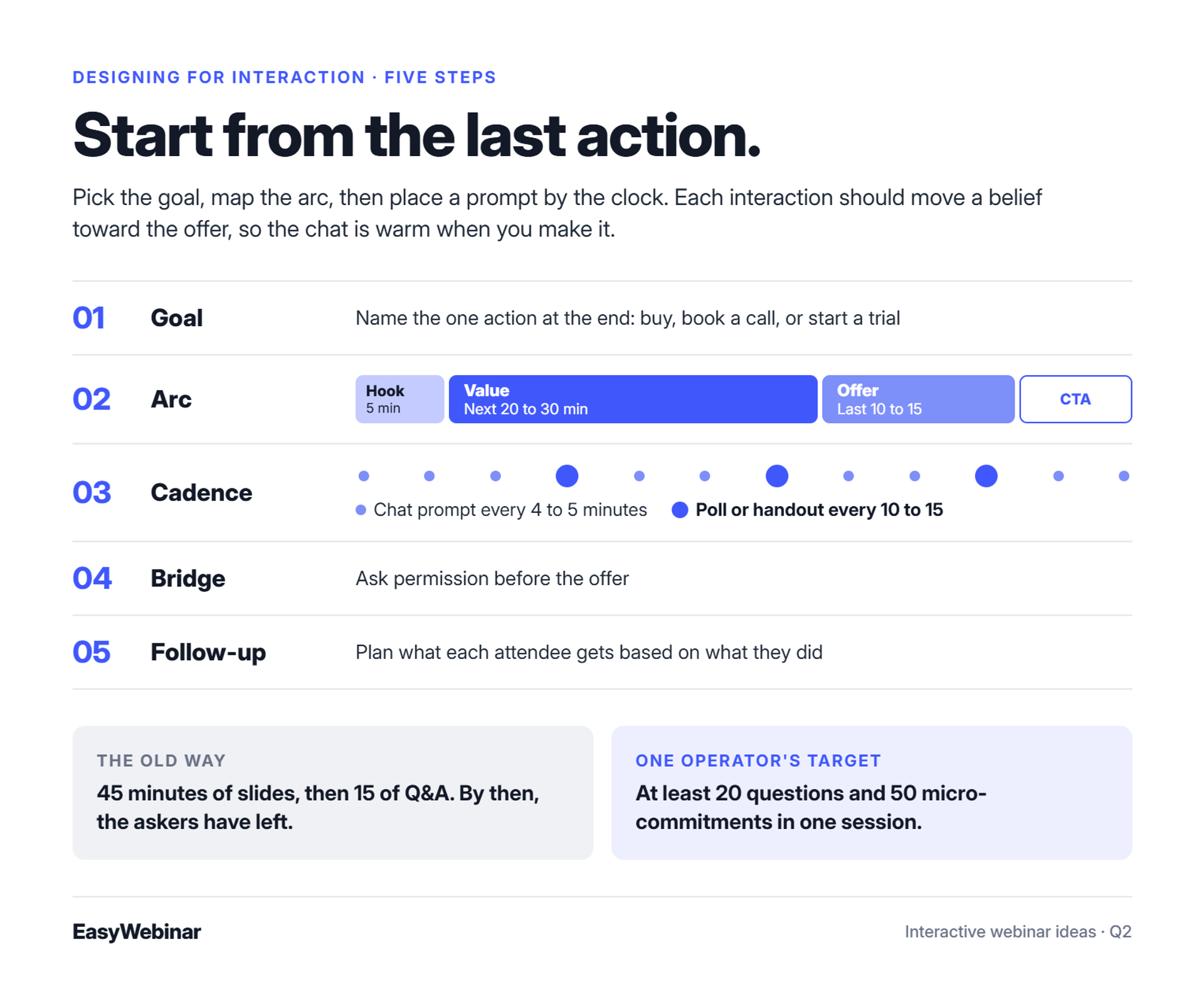
Design an interactive webinar backwards from the action you want at the end. Pick the goal, map a four-part arc (hook, value, offer, call to action), then place a chat prompt or poll every four to five minutes and a bigger moment every 10 to 15. Each interaction should move a belief toward the offer, so the chat is already warm when you make it.
😬 The fear behind the question
Nobody asks how to design an interactive webinar because they love polls. They ask because they've watched people leave. The room fills at minute one, and by minute 15 the attendee list is shrinking while the chat sits silent.
📉 The old way: 45 minutes of slides, 15 of Q&A
For years, the standard plan was a long teaching block, then questions at the end. It treats live attendees like video viewers. By the time Q&A opens, the people who would have asked are already in their inbox. Reviewers notice when the tools don't help either. One Zoom user wrote:
"The polling and survey functions are rudimentary." - Casey S., March 16, 2021, Zoom G2 - Verified Review
"The engagement features were minimal and did not appeal to a large crowd." - Verified User in Education Management, August 4, 2022, Zoom G2 - Verified Review
🔄 What changed: cadence beats content
Operators who test this hard now plan interaction by the clock. Jono Bacon asks a question "at least every four or five minutes." Darius Benders, who ran a $100K webinar, aims for at least 20 questions and 50 micro-commitments in a session. A micro-commitment is any small reply, like typing "yes" or a number.
The other shift is restraint. My own rule: "There is such a thing as too much content. If you overwhelm them, they don't take action." Interaction gives people a reason to process as they go.
🧩 A five-step design framework
- Goal. Name the one action at the end (buy, book a call, start a trial).
- Arc. Hook in the first 5 minutes, value for the next 20 to 30, offer in the last 10 to 15, then a clear call to action.
- Cadence. A chat prompt every 4 to 5 minutes, a poll or handout every 10 to 15.
- Bridge. Ask permission before the offer.
- Follow-up. Plan what each attendee gets based on what they did.
My webinar script template lays this arc out slide by slide.
✅ How EasyWebinar handles the design
EasyWebinar's AI Webinar Builder asks a short set of questions and drafts the script, pages, emails, polls, and offers in about 10 to 15 minutes. After the session, EasyWebinar's drop-off heatmap shows the exact minute attention fell, so your next design fixes that minute instead of guessing.
Q3. What Should You Do in the First 5 Minutes? (Ideas 1-6)
Use the first five minutes to get every attendee to act once. Skip housekeeping, open with a story, ask people to type where they're joining from and their one goal, run a welcome poll on their biggest challenge, and promise what's coming at a named minute. One early response makes the next one far more likely.
1. Open with a story, not housekeeping
"Can everyone hear me?" is where attention goes to die. Jono Bacon replaced his intro slides with a story about how GitLab handled a public crisis. People kept watching to hear the ending, and if they drop in the first minute, he swaps the story.
Feature: your camera and first slide. Watch: attendees still in the room at minute 5.
2. "Type where you're joining from, plus one word for your goal"
This is the easiest first reply on earth. It also tells you who is in the room. Demio's guide to engagement activities treats chat as a core activity in its own right. Read a few names and goals aloud.
Feature: chat. Watch: chat messages per attendee in the first five minutes.
3. Welcome poll on their biggest challenge
Ask one multiple-choice question about the problem your webinar solves. Demio lists live polls and surveys among its main engagement activities. Then say what the results mean for the next 40 minutes. In EasyWebinar live webinars, poll results appear in real time, so you can react while people are still looking.
Feature: poll. Watch: poll response rate.
4. Make the two-agendas deal
Jason Fladlien tells the room he has two agendas: teach the best free solution they've seen, and sell something. If he fails the first, they shouldn't buy. Then he asks, "Do we have a deal?" Ask for a "yes" in chat.
Feature: chat. Watch: share of attendees who type "yes".
5. Announce the show-up bonus
Reward people for being there. I tell hosts to offer a show-up bonus for live attendees and a separate bonus at the end to lift the stick rate (how long people stay before the offer).
Feature: handout or offer. Watch: attendance at minute 45 versus minute 5.
6. Plant a forward hook with a minute attached
"At minute 40, I'll show you the exact poll that doubled my replies." Open loops, meaning promises you pay off later, keep drop-off low.
Feature: your agenda slide. Watch: the drop-off curve around the promised minute.
🎥 Watch where the poll goes
In this demo (starts at 12:32), I place a poll at the 40-minute mark of a webinar and explain why it goes there.
Use the minute-by-minute list in this article the same way.
✅ EasyWebinar in the first five minutes
EasyWebinar streams on Dolby OptiView WebRTC at sub-500ms, so a welcome poll answered at minute two shows results before you move on. Attendees join from the link with one click, which means the first five minutes go to the audience, not to download help.
Q4. How Do You Keep People Engaged From Minute 5 to 20? (Ideas 7-12)
Between minutes 5 and 20, turn every teaching point into a response. Run a quick quiz poll on the first lesson, ask attendees to rate their confidence from 1 to 10 after each point, invite a "type 1 if this is you", and answer a question someone submitted at registration. Small, frequent asks build the habit of replying.
7. Play the fortune-teller game
Jason Fladlien says, "I'm going to pretend to be a fortune teller," then predicts the attendee's next 12 months with their problem and asks how accurate he was. People love talking about themselves, so the chat fills.
Feature: chat. Watch: replies in the two minutes after the prediction.
8. Quiz poll on the first lesson
Teach one idea, then test it with a single poll question. ON24's benchmark summary counts polls as the most-used interaction, so attendees already know how to answer one. Keep it easy enough that most people get it right. The goal is a small win, not a trick.
Feature: poll. Watch: poll response rate compared with your welcome poll.
9. The 1-to-10 confidence check
Darius Benders asks the room after every key point: "1 through 10, how confident are you" that this could change things for you. Numbers are fast to type, and low scores show you what to re-explain.
Feature: chat. Watch: average score and number of replies.
10. "Type 1 if this is you"
Describe a common mistake, then ask anyone who has made it to type 1. It turns a quiet nod into a visible reply. Each one counts toward the 50 micro-commitments Benders aims for.
Feature: chat. Watch: 1s typed per attendee.
11. Call people in by name
Benders once got three answers out of 80 people. He started reading names from the attendee list and asking if they were locked in. The chat came alive. Do it warmly, not as a scolding.
Feature: attendee list and chat. Watch: chat replies after the call-out.
12. Answer a question people sent in advance
Alex Cattoni cites a figure that 92% of webinar attendees want Q&A, and suggests collecting questions at registration so people show up and stay. Answer one early and say who asked it.
Feature: registration form and Q&A. Watch: questions submitted in advance.
⭐ What hosts say about running this in the room
"I love that we can have a poll, offer and countdown right in the event! That's going to be so great for sales and interactions. I'm excited to test it out." - Verified User in Photography, August 26, 2025, EasyWebinar G2 - Verified Review
✅ EasyWebinar from minute 5 to 20
EasyWebinar keeps polls, chat, and Q&A in one room, and stores every poll answer and question against the attendee who gave it. That record feeds follow-up later, so a low confidence score at minute 12 can shape the email that person gets tomorrow.
Start your 7-day trial or watch the demo
Q5. What Interactive Ideas Beat the Mid-Webinar Slump (Minute 20 to 40)? (Ideas 13-18)
Minutes 20 to 40 are where attention sags, so change the mode. Drop a worksheet people fill in as you teach, run a myth-or-truth poll that challenges a belief, work through a real attendee example live, and open a loop for what's coming next. A change of activity resets attention better than more slides.
13. Drop a worksheet they fill in as you teach
A handout people only download is a souvenir. A worksheet they fill in is an activity. Leave blanks for the three numbers or steps you're about to teach. ON24's benchmark summary puts resource downloads at about 101 per webinar, second only to polls.
Feature: handout. Watch: downloads as a share of attendees.
14. Open a loop every few minutes
"In a few minutes, I'm going to show you..." is one of the cheapest retention tools I know. My handbook calls these open loops: foreshadow what's coming, then pay it off.
Feature: your slides and voice. Watch: drop-off just before each promised moment.
15. Tear down an attendee's real example
Ask for a volunteer's headline, offer, or problem in chat. Then fix it live while everyone watches. This one comes from my own sessions, not a study. In EasyWebinar, a host can promote an attendee to presenter so they can share their own screen.
Feature: chat, Q&A, promote to presenter. Watch: questions asked during and after the teardown.
16. Run a myth-or-truth poll
Yuri Elkaim puts it bluntly: "There is no neutral content." Every lesson should shift a belief. Put a common belief on screen and poll "myth or truth?" before you reveal the answer.
Feature: poll. Watch: the split of answers, which shows how many still hold the old belief.
17. Change the screen
Twenty minutes of slides blurs together. Switch to a live screen share, a demo, or a whiteboard sketch for five minutes. The new picture alone wakes people up. Again, this is my own practice rather than a measured result, so test it on your replays.
Feature: screen share. Watch: drop-off in the five minutes after the switch.
18. Run a "still with me?" pulse check
Ask attendees to type one emoji or one word for how they feel about what they've learned so far. It takes ten seconds and tells you if you've lost them. Reactions are a tracked interaction too: ON24's summary counts about 52 per webinar.
Feature: chat. Watch: replies as a share of people in the room.
🧠 What sits behind these six
Each idea swaps passive watching for a small task. My read, after years of watching replays in the EasyWebinar dashboard, is that hosts lose the middle by teaching too much, not too little. For slide-level ideas, see my guide to the webinar presentation.
✅ EasyWebinar in the middle of the session
EasyWebinar lets a host push a handout at a set moment, run polls in real time, and promote any attendee to presenter for a live teardown. The drop-off heatmap then shows whether minute 25 held better than last time.
Q6. How Do You Move Into the Offer Without Losing the Room (Minute 40 to 55)? (Ideas 19-22)
Ask before you pitch. A "type 1 if you want to see how we can do this together" turns the offer into an answer to a request. Then frame two paths, show a timed offer button with a countdown, and announce a bonus for people who stay to the end. EasyWebinar shows the offer and checkout inside the room, so buyers act without leaving the webinar.
🥶 The moment most webinars go cold
Minute 42 is where hosts get nervous. They've taught well, then switch tone and start selling. The chat goes quiet, and a third of the room finds a reason to leave.
❌ The old way: pitch, then send them away
The usual pattern was an abrupt pitch followed by a link to a separate sales page. Two things break. The room hasn't said yes to anything yet. Then the buyer leaves the webinar at the peak moment, and the sale happens somewhere your webinar data can't see.
🔄 What changed: permission and momentum
Hosts who sell well now ask first and keep the buyer in the room. Here are the four ideas I use.
19. Ask permission with a "type 1"
Jeremy Haynes describes a host who asks if the room wants to see how to continue together, and to "drop a one in the chat or say yes." A wall of ones appears, and then he pitches.
Feature: chat. Watch: share of attendees who type 1.
20. Show two futures, then poll
Lay out two paths. Path 1 is doing it alone with trial and error. Path 2 is doing it together with a proven system and support. Then poll which path fits them right now.
Feature: poll. Watch: poll split between path 1 and path 2.
21. Put a timed offer on screen with a countdown
Show the offer as a button with a deadline. Demio reports more than 400,000 clicks on its in-webinar featured actions in 2022, its own usage figure. In EasyWebinar, the offer overlay appears inside the room with a countdown, and buyers pay through Stripe, PayPal, or PayU without a redirect.
Feature: offer overlay, countdown, checkout. Watch: offer clicks per attendee.
22. Announce a bonus for staying to the end
A bonus revealed at the close gives people a reason to stay through the offer and the Q&A. Say what it is and when it appears.
Feature: handout or offer. Watch: attendees still present at minute 55.
⭐ What a host says
"I love the built-in countdown offers and polls as well." - Annette S., October 29, 2024, EasyWebinar G2 - Verified Review
✅ EasyWebinar's answer at the offer
EasyWebinar keeps the sale, the attendee, and the data in one place: the offer lands at the peak of the pitch and checkout happens in the room. For the revenue side of this, see how to make money with webinars.
Q7. How Should You Close: Q&A and After the Webinar? (Ideas 23-25)
Close with open Q&A that answers the objections standing between attendees and the next step, then run a one-question exit poll. Interaction doesn't stop at the end. Send each person the message their behaviour earned, so no-shows, early leavers, and offer-clickers each get a different follow-up and replay.
23. Run Q&A that answers objections
Group the questions you get into themes: price, time, and "will this work for me?" Answer the objection behind each one, not just the literal question. In my own early no-pitch webinars, these questions told me what to build; people started asking, "Where can I buy?"
Feature: Q&A. Watch: questions asked and attendees still present at the end.
24. Ask one exit-poll question
"What's the one thing stopping you from starting this week?" One question, four options. The answers write your next webinar and your follow-up emails. Demio's guide lists post-webinar surveys as a standard follow-up activity.
Feature: poll. Watch: exit poll response rate.
25. Follow up based on what each person did
A person who clicked the offer needs a different email from a person who left at minute 20. Demio's guide also lists follow-up emails and recordings as post-webinar activities. Send a replay with a clear expiry date so it gets watched rather than saved for later.
Feature: behaviour-based follow-up, expiring replay page. Watch: replay views and offer clicks from follow-up.
⏰ Live Q&A on a recorded session
If you automate later, you can keep this close live. My approach: "pre-record the main session and go live for the Q&A at the end for real-time engagement." More on that in Q9.
✅ EasyWebinar after the session
EasyWebinar sends different sequences to no-shows, early leavers, offer-clickers, and replay viewers, and supports expiring replay pages. The full promotion and follow-up plan is in my webinar marketing guide.
Q8. Which Webinar Formats Are Most Engaging?
The most engaging webinar formats give the audience a job: live teardowns, Q&A-only sessions (AMAs, or "ask me anything"), interviews that take audience questions, and hands-on workshops. Panels and demos engage when you build in polls and questions. A hybrid session, live then a pre-recorded segment then live again, keeps the energy of live with the polish of a recording.
📊 Formats compared
| Format | Best for | Interaction built in | Watch |
|---|---|---|---|
| Live teardown (hot seat) | Coaches, consultants, agencies | Attendees submit real examples you fix live | Questions asked |
| Q&A-only session (AMA) | Existing audiences, customers | The whole session is audience questions | Questions per attendee |
| Interview with audience questions | Expert or customer guests | Chat questions fed to the guest | Chat messages per attendee |
| Workshop | Teaching a skill people practise | Worksheets, exercises, check-ins | Handout downloads |
| Product demo | SaaS and product teams | Polls on use case, live questions | Offer or trial clicks |
| Panel | Several viewpoints on one topic | Audience votes on the debate | Poll response rate |
| Hybrid (live, recorded, live) | Polished content with a live close | Live opening and live Q&A | Attendees staying to the end |
🧭 Format is not the same as delivery mode
Any of these formats can run as Live, Simulated Live, or Evergreen. Format is what happens on screen. Delivery mode is when and how it plays. At EasyWebinar, my definition of hybrid is strict: one session that starts live, plays a pre-recorded segment, then returns to live.
⚠️ Where another tool fits better
Multi-track summits built around breakout rooms suit event platforms. EasyWebinar doesn't claim breakout rooms, so plan those events elsewhere. Also check how long a webinar should be before you pick a long format.
✅ Formats in EasyWebinar
EasyWebinar supports multiple co-hosts and moderators, and lets a host promote any attendee to presenter. That covers interviews, panels, and live teardowns in the same browser room attendees already joined.
Q9. How Do You Keep Attendees Engaged in an Automated Webinar?
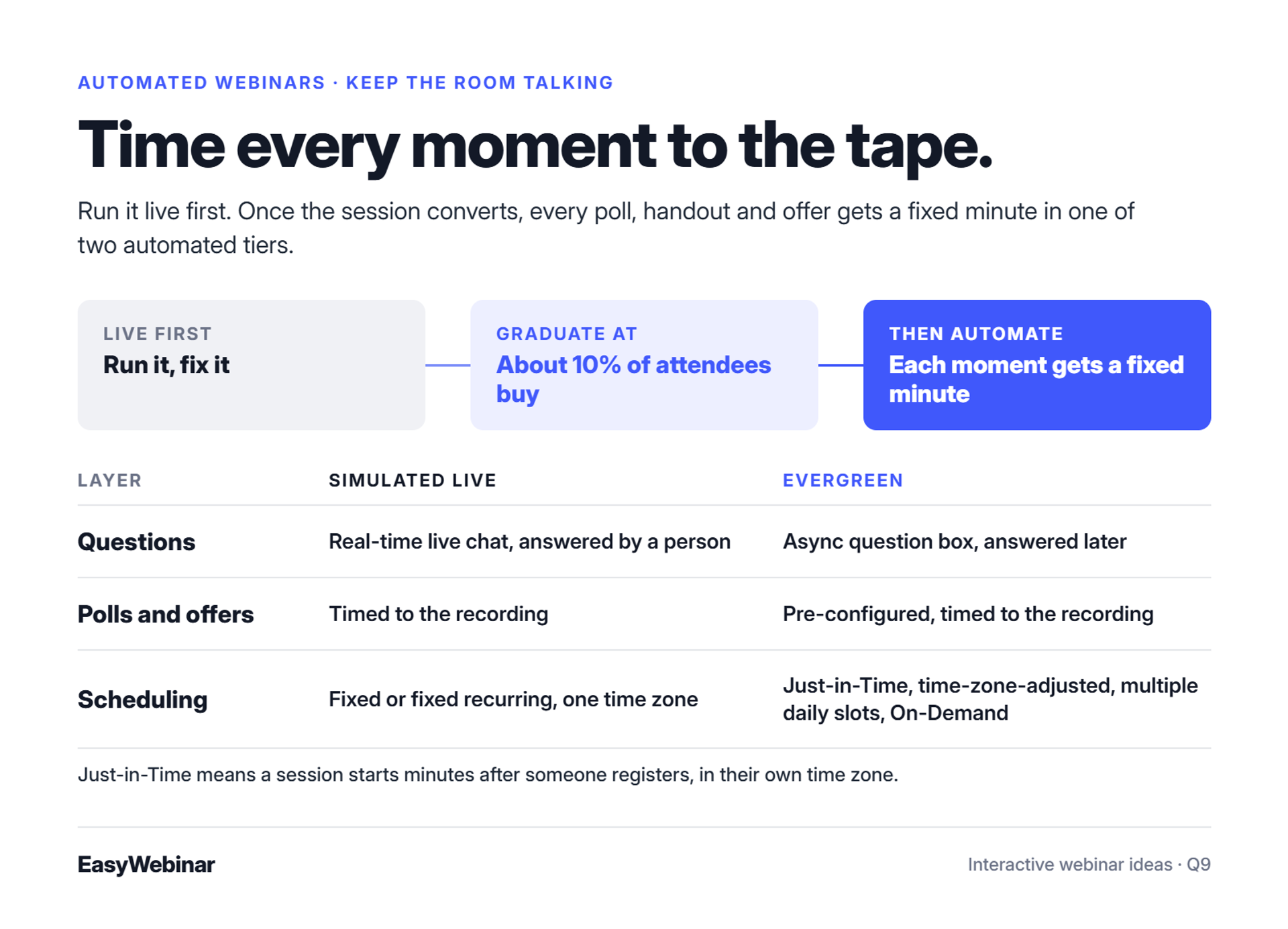
Time every interaction to the recording. In EasyWebinar, Simulated Live keeps real-time live chat with polls and timed offers, so a person can answer while the session plays. Evergreen uses an async question box with pre-configured polls and offers that fire at the same minute for every viewer. Both sit under the Automated umbrella and start from a live session that already converts.
🎬 The worry every host has
You've built a session that sells live. Now you want it to run without you. The fear is fair: will it turn into a video nobody talks to? I said it plainly in our strategy sessions: "Since automated webinars aren't live, you lose that realtime engagement factor."
❌ The old way: a glorified replay
Many automated tools play the video and drop the interaction layer. One Demio user noticed it on replays:
"The replay didn't show the live polls and CTAs." - Ivanhoe S., August 5, 2024, Demio G2 - Verified Review
Without polls or an offer at the right minute, the session the host proved live stops working the way it did.
🔄 What changed: automate what's proven
The better order is live first. Run the webinar live, fix it, and graduate it once it reaches about 10% attendee-to-buyer conversion. Then every poll, handout, and offer gets a fixed minute, because you already know where each one landed best live.
✅ EasyWebinar's answer: two engagement layers
EasyWebinar splits automation into two tiers, and each keeps a different kind of interaction.
| Layer | Simulated Live | Evergreen |
|---|---|---|
| Questions | Real-time live chat, answered by a person | Async question box, answered later |
| Polls and offers | Timed to the recording | Pre-configured, timed to the recording |
| Scheduling | Fixed or fixed recurring, one time zone | Just-in-Time, time-zone-adjusted, multiple daily slots, On-Demand |
Just-in-Time means a session starts minutes after someone registers, in their own time zone. EasyWebinar also has a Simulated Chat feature that can bring prior chat messages into a new event. If you want a live close, pre-record the session and go live for the Q&A. The full setup is in my guide to the automated webinar.
⭐ Proof from a host
"EasyWebinar gives me the ability to multiply my efforts and offer a human touch, without having to be everywhere at once." - Ash A., March 13, 2026, EasyWebinar G2 - Verified Review
Q10. How Do You Measure Webinar Engagement?
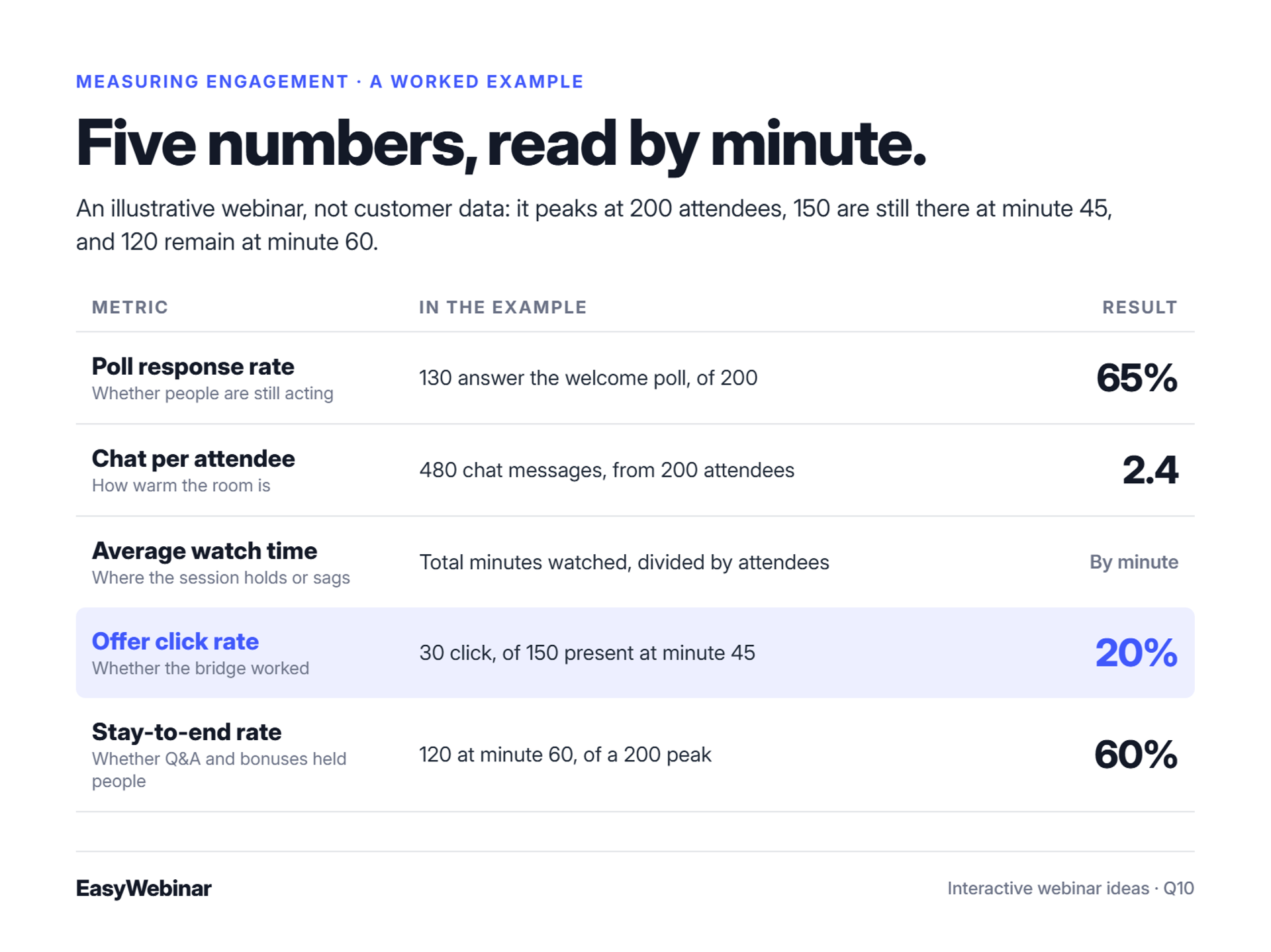
Measure engagement with five numbers: poll response rate, chat messages per attendee, average watch time, offer clicks, and the share of attendees who stay to the end. Read them by minute, not as totals. EasyWebinar reports each one per attendee, and the minute attendees leave tells you which part of the session to fix next.
📏 The five numbers
| Metric | How to calculate | What it tells you |
|---|---|---|
| Poll response rate | Poll answers ÷ attendees present | Whether people are still acting |
| Chat messages per attendee | Chat messages ÷ attendees | How warm the room is |
| Average watch time | Total minutes watched ÷ attendees | Where the session holds or sags |
| Offer click rate | Offer clicks ÷ attendees present at the offer | Whether the bridge worked |
| Stay-to-end rate | Attendees at the last minute ÷ peak attendees | Whether Q&A and bonuses held people |
🧮 A worked example
This is an illustrative example, not customer data. A webinar peaks at 200 attendees. 130 answer the welcome poll, so the poll response rate is 65%. The chat logs 480 messages, which is 2.4 per attendee. At minute 45, 150 people are still there and 30 click the offer, a 20% offer click rate. 120 remain at minute 60, so the stay-to-end rate is 60%.
For an outside reference point, ON24's benchmark summary reports about 150 poll responses per webinar.
⭐ What hosts say about the reporting
"It is easy to set up call to actions and polls and easy to use them in both types of webinars. The analytics also show how many saw or clicked your offer." - Verified User in Professional Training & Coaching, November 1, 2024, EasyWebinar G2 - Verified Review
The same reviewer flagged a gap: "Replay insights aren't currently captured on live webinars (not sure why?)." Check what your plan reports before you set targets.
✅ How EasyWebinar measures it
EasyWebinar reports attendance, watch time, questions, poll responses, offer clicks, and purchases for each attendee, with a drop-off heatmap that shows the minute people left. Pick that minute, swap in one idea from this list, and run it again. Which minute is losing your room right now?
Start your 7-day trial or watch the demo
Frequently Asked Questions

Casey Zeman
Founder of EasyWebinar
About Author
Over the past decade, I've helped thousands of entrepreneurs, coaches, and consultants turn webinars into a predictable, powerful way to grow their audience, build trust, and scale, without the constant hustle. I created EasyWebinar because I couldn't find a system that combined authenticity, engagement, and automation the way I needed. So, I built one.
Related Posts
How Much to Charge for a Webinar: Price Ranges by Format and Real Ticket Prices
How much to charge for a webinar: real ticket prices from $39 to $199, price ranges by format, and a simple formula to set your own price.
Webinar Examples: 15 Real Webinars, What They Did and the Results
Explore 15 real webinar examples with titles, formats, lengths, offers and results, from a $200K live launch to an Evergreen webinar with 571K sign-ups.

11 Best Community Engagement Platforms in 2026
Compare the 11 best community engagement platforms in 2026. Course creators, evaluate live hosting, analytics, and replay to pick your winner today.
Turn every webinar into a revenue stream
Launch your first paid event in just a few clicks - and start monetizing your expertise.
Book a Call