
Integration guide
How to run webinars with HubSpot.
Keep HubSpot as your CRM and run the webinar in EasyWebinar. Attendees register on an EasyWebinar page and join from any browser, with nothing to download. The documented setup adds Registered, Attend Date and Offer Click activity to the HubSpot contact, and the workflows you build in HubSpot decide the follow-up. Run it live, then turn the same session into an automated webinar.
7-day full-access trial. A card is required to start.
Live and automated webinars. One connected follow-up process.
Already using EasyWebinar? Connect with HubSpot ↗

What connects
Your webinar.
Their next step.
Use EasyWebinar for registration and delivery. Bring webinar activity into HubSpot for the follow-up you configure.
Use an EasyWebinar page or embedded widget.
See webinar activity on the HubSpot contact.
Use that activity in your HubSpot workflows.
EasyWebinar with HubSpot · Best for: teams that keep HubSpot as the CRM and want webinar activity to drive HubSpot workflows. Not ideal for: teams that need HubSpot Marketing Events or automatic revenue attribution from the integration alone, or HubSpot Free and Starter accounts that need the full workflow setup. Standout: Registered, Attend Date and Offer Click activity on the contact record, ready for the workflows you configure.
Your CRM or ours: keep HubSpot, or use EasyCRM, built in from Growth.
Live or automated
Your content.
Their moment.
Host a live session or make an automated webinar available. Keep the webinar experience in EasyWebinar and the follow-up context in HubSpot.

Connect in the moment.
Present live, answer questions, and use attendee activity to guide your HubSpot follow-up.
Let your content keep working.
Offer a recorded webinar across scheduled sessions, then follow up in HubSpot based on each attendee’s activity.
See the setup
Four steps.
One connected experience.

Check: the connection points to the correct HubSpot account.
Check: signup creates an EasyWebinar registration and a HubSpot contact activity.
Webinar sessionCheck: enable EasyWebinar in the contact’s activity filters.
Check: the intended contact enrolls and its property value updates.
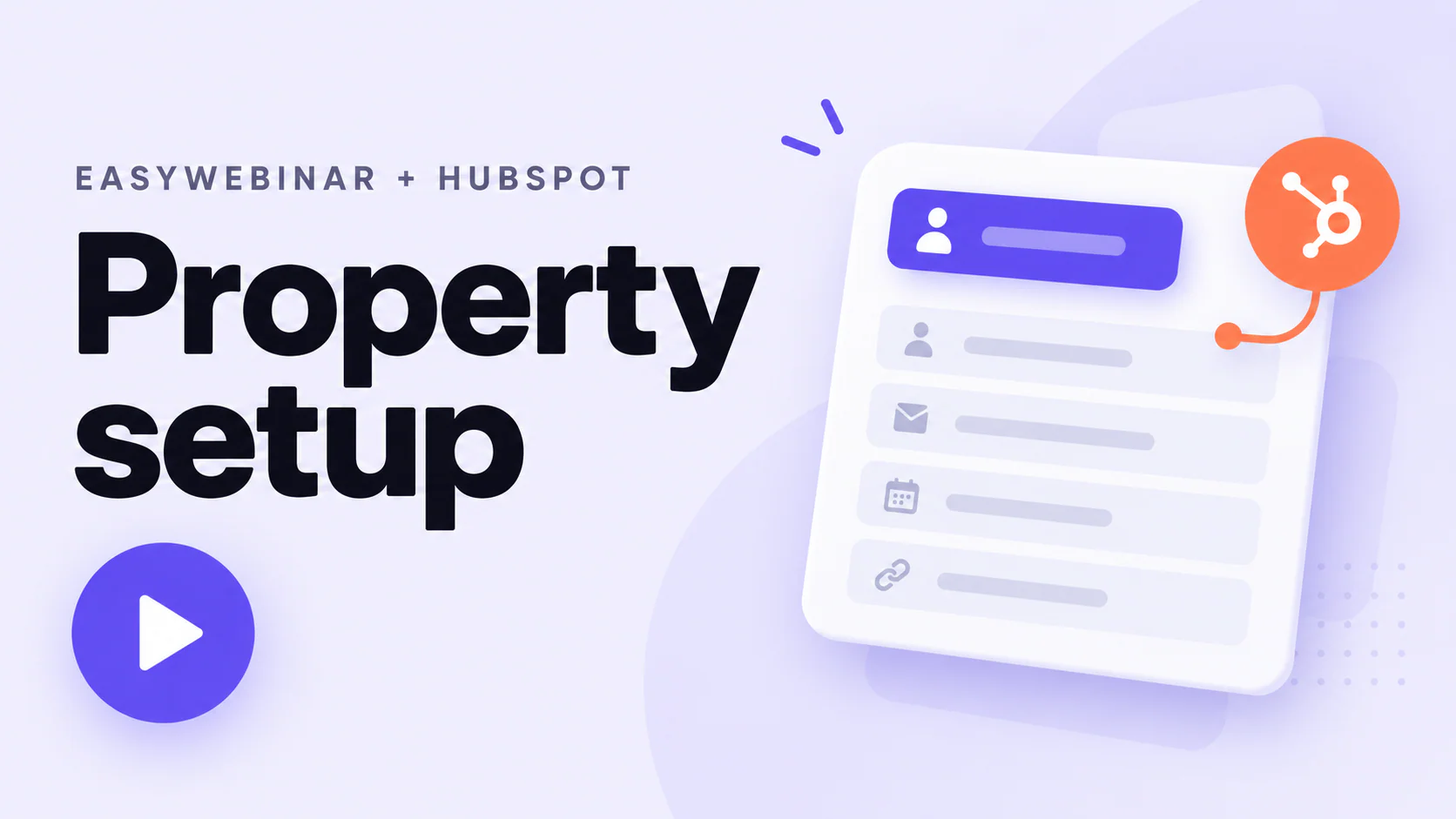
Webinar tags in HubSpot
Turn webinar activity into a contact label.
For HubSpot, use a custom contact property as a label and a workflow to set its value when EasyWebinar activity matches. This is the HubSpot-specific method in the EasyWebinar setup guide.
- STEP 01
Create the property
In HubSpot, create a Contact property in the Contact Activity group. The documented setup uses Single line text. Name it for the label you need, such as “EasyWebinar Registered.”
EWContact settingsObject type: Contact
Property groupContact Activity
Create propertyProperty labelEasyWebinar RegisteredField typeSingle line textStatusProperty ready - STEP 02
Choose the trigger
Create a contact-based workflow using matching filter criteria. Select EasyWebinar activity and the registration event.
EWEasyWebinar activityA contact registers for a webinar
Contact workflowEnroll when the event matches
Choose triggerActivity sourceEasyWebinarEventWebinar registrationStatusTrigger selected - STEP 03
Filter to your webinar
Use the intended webinar title in Webinar Details. Avoid broad OR values that could match other webinars.
EWGrowth WorkshopRegistration event received
Another webinarOutside this workflow’s criteria
Filter activityWebinar DetailsGrowth WorkshopMatch criteriaThis webinar onlyStatusWebinar matched - STEP 04
Set the value
Add an Edit record action targeting your property. Enter a clear value, such as “registered.”
EWMatching contactRegistration criteria met
Contact propertyEasyWebinar Registered
Edit recordActionSet property valueNew valueregisteredStatusValue applied - STEP 05
Test and publish
Check a test contact’s activity and property value. Review any existing contacts selected for enrollment before turning on the workflow.
TCTest contactRegistration activity confirmed
Property checkedEasyWebinar Registered: registered
Review workflowTest contactChecks passedExisting contactsReview enrollmentReviewReady to publish
Let their actions guide yours
Follow up on what each attendee does.
See what each webinar action means in HubSpot, then build the follow-up that fits. Your workflows control the labels, emails, and tasks.
Choose an attendee action to explore its workflow and follow-up.
Attendance activity
With the connection set up, attendance activity is available on the HubSpot contact. Enable EasyWebinar in the contact’s activity filters to see it.
The activity provides context. Your workflow decides what happens next.
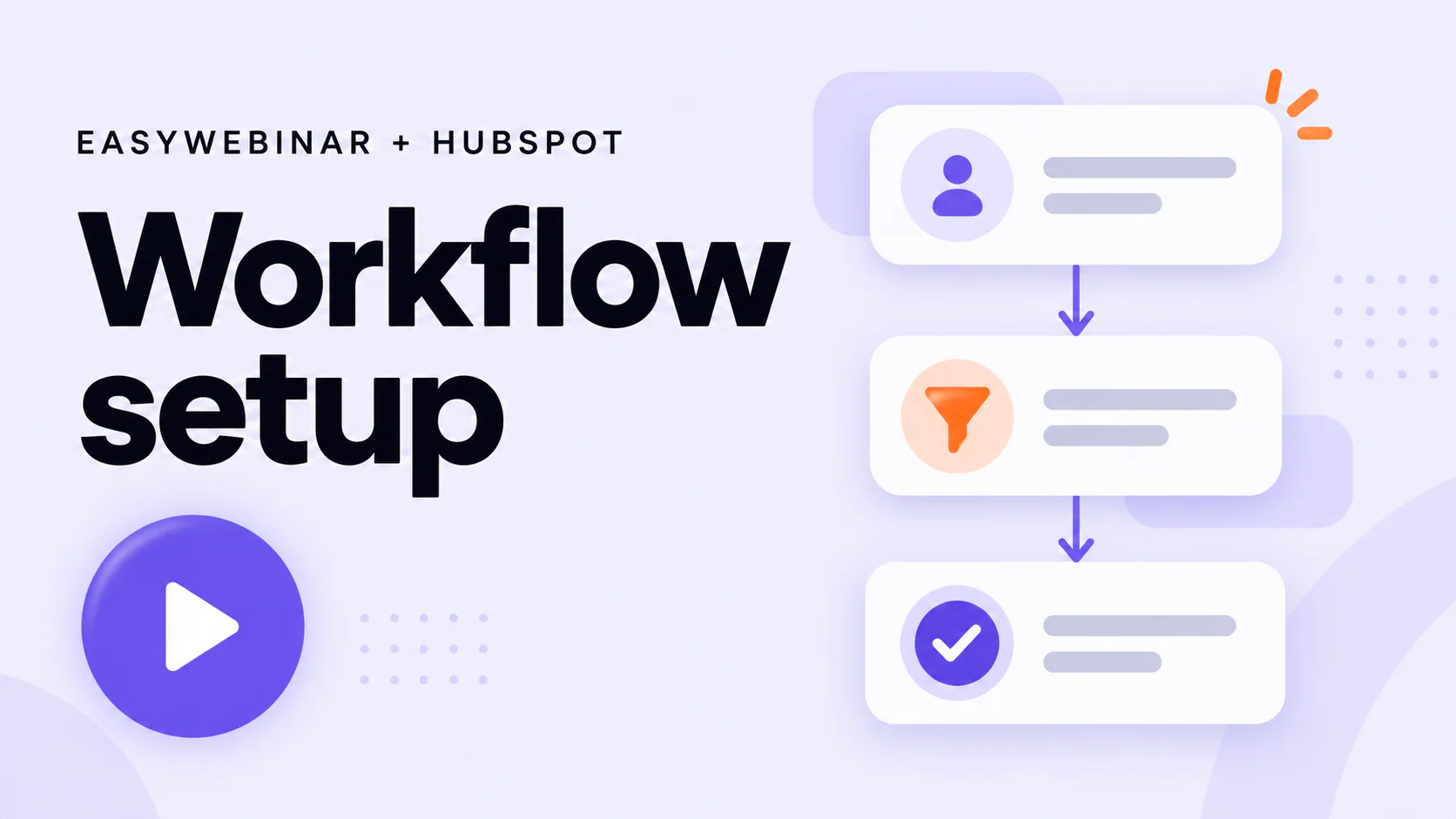
Build the follow-up workflow
- 1Choose the attendance trigger
Create a contact-based workflow using the EasyWebinar attendance activity available in your account. Limit enrollment to the intended webinar.
- 2Set an attendance label
Create a webinar-specific Contact property, then use Edit record to set an attended value.
- 3Add the next message
Add a Send email action with your thank-you message, resources, or next step. Publish the email and test the workflow with a contact who attended.
Test before publishing: Check that the correct contact enrolls, the property updates, and the follow-up links work.
Final attendance outcome
After the session ends, check the registrant’s final attendance outcome. Confirm a no-show before enrolling the contact in a missed-webinar workflow.
A missing attendance event alone is not proof that someone missed the webinar.
Build the follow-up workflow
- 1Confirm who missed the session
Use the integration’s missed-webinar condition if it is available and verified. Otherwise, reconcile registration and attendance for that session before adding confirmed no-shows to a HubSpot segment.
- 2Set the workflow criteria
Enroll that confirmed audience only after the session has ended. Exclude attendees and set your webinar-specific property to missed.
- 3Send a replay invitation
Add your replay or next-session email. Verify the correct access link and test the complete path before publishing.
Test before publishing: Test with both an attendee and a confirmed no-show. Only the no-show should receive this follow-up.
Offer Click activity
EasyWebinar’s Offer Click activity gives the HubSpot contact record context about an attendee’s interest. Enable EasyWebinar in the contact’s activity filters to review it.
A click signals interest. It does not confirm a purchase or create a sales task by itself.
Build the follow-up workflow
- 1Choose the offer-click trigger
Create a contact-based workflow using Offer Click activity. Filter to the webinar and, where the event exposes it, the specific offer.
- 2Record the interest
Use Edit record to update a webinar-specific offer-interest property. Keep this separate from purchase status.
- 3Assign a follow-up task
Add a Create task action for the contact owner, with a due date and webinar context. Choose a fallback assignee for contacts without an owner and check for duplicate tasks.
Test before publishing: Click the offer as a test attendee. Confirm that the right contact enrolls and the task has the intended owner and due date.
Workflow actions depend on your HubSpot subscription. Automated marketing emails require Marketing Hub Professional or Enterprise and eligible recipients. EasyWebinar activity and labels · HubSpot email setup · HubSpot task setup
Comparing webinar platforms
that integrate with HubSpot?
- Registration path
- Activity available
- Workflow access
- Repeat-attendee behavior
Check all four against the follow-up you need.
Common questions
Your HubSpot webinar questions, answered.
Registration, contact activity, workflow access, and what to check before your first webinar.
Can I host a webinar directly in HubSpot?
Which webinar platforms work with HubSpot?
Can I run automated or evergreen webinars with HubSpot?
What HubSpot plan do I need?
How do webinar tags work with HubSpot?
Can I use a HubSpot form for webinar registration?
Will repeat attendees enter the workflow again?
Does this automatically attribute webinar revenue in HubSpot?
Do I have to replace HubSpot to use EasyWebinar?
Based on official EasyWebinar and HubSpot documentation.
Reviewed .
Run the webinar.
Build the next conversation.
Start with EasyWebinar, connect HubSpot, and give every follow-up a reason to happen.
7-day full-access trial. A card is required to start.