# Simulated Live Webinar: Run a Recording at Set Times, With Chat and Offers Beside It
A simulated live webinar plays your recording at set times so attendees watch together while you answer them in chat. This guide covers how it runs, when to choose it over evergreen, and how to set one up in EasyWebinar.
- Applies to: Simulive webinars · a recording played at times you set · chat, Q&A, polls and offers in the room
- Status: Live
- Verified: 2026-11-04
- Canonical page: https://easywebinar.com/product-docs/webinars/automated/simulive/
A simulated live webinar plays a recording you made in advance at times you set, so everyone in a session watches the same moment together. It fits anyone who gives the same presentation every week and is tired of delivering it from scratch each time. In EasyWebinar you choose **Simulive Webinar** when you create the webinar, pick the recording, and set dates or a daily or weekly schedule. You can then sit in the chat while the video plays, or let it run without you.
## At a glance {#at-a-glance}
| Question | Answer |
|---|---|
| What plays | A recording you upload, a past webinar recording, or a YouTube, Vimeo or Wistia video |
| When it plays | At the dates and times you set, or on a daily or weekly schedule, in the webinar's timezone |
| What attendees share | The same moment of the video, so the chat works as one shared room |
| What you do during it | Answer questions in chat and Q&A, or stay away and let it run |
| How it differs from evergreen | Simulive runs at times you choose; evergreen lets each registrant pick a time from a repeating schedule |
| What carries over from live | The same pages, emails, polls, offers and analytics |
| What you can't do | Change the webinar type after you create it; clone it instead |
## What a simulated live webinar is {#what-it-is}
You've run the same 45-minute session on a Tuesday evening for months, and the questions are always the same. Presenting it again costs you the evening, and a bad connection or a cold can still spoil it. A simulated live webinar, often shortened to simulive, swaps the presenting for a recording and keeps the shared room.
The recording plays at times you choose, like a programme scheduled on television. Everyone in a given session sees the same point of the video at the same moment. That's what lets the chat still work as a shared room, with you in it answering questions while the video plays. It's the usual choice for a presentation you give over and over, or a session that runs at a time you don't want to be awake for.
Simulive is one of three webinar types in EasyWebinar, beside live and evergreen. Live means you present in real time. Simulive and evergreen both play a recording, and they differ in who decides when it plays.
### What you see on the screen {#what-you-see}
A simulive webinar has five set-up steps rather than the four a [live webinar](https://easywebinar.com/product-docs/webinars/live/) has, because one extra step is where you pick the recording. Once the webinar exists, its **Content** tab carries a **Webinar Video** panel that live webinars don't have. The panel shows the recording you chose and its length, with **Preview** to play it back and **Change Video** to swap it.
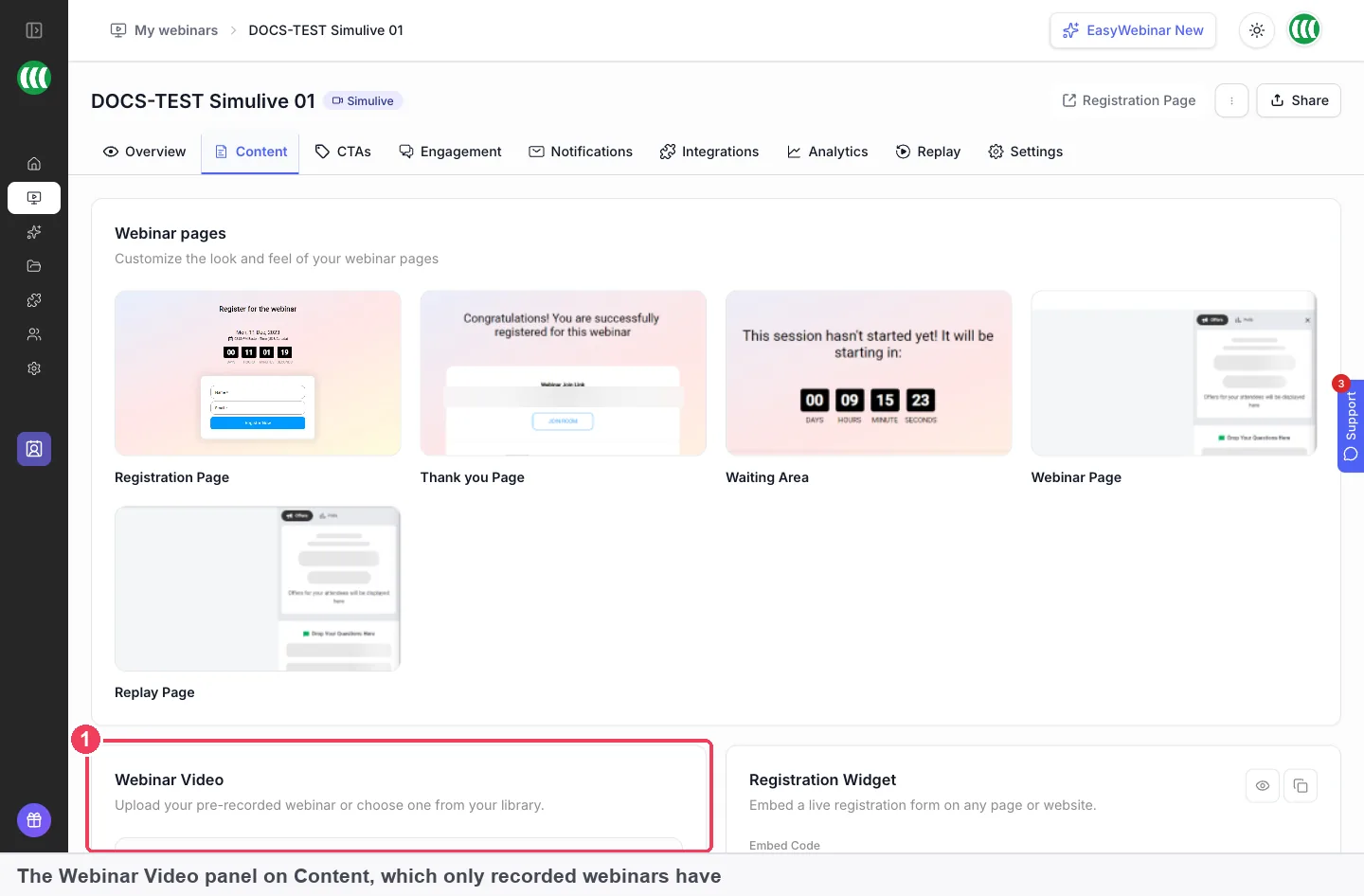
This panel is where you confirm which recording each session will play, and swap it later without touching the schedule.
Changing the video here doesn't affect your schedule, pages or registrations. So you can re-record a weak section and drop the new file in without rebuilding anything.
## Why simulated live webinars matter {#why-it-matters}
### What it's for {#what-its-for}
A simulated live webinar is for a session you'd otherwise present again and again. It gives you the polish and reliability of a recording with the atmosphere of a scheduled event. Attendees still arrive at one time and talk in one room.
### How it helps {#how-it-helps}
- **You stop presenting the same talk.** Record it once, at your best, and let every later session play that version.
- **The room still feels shared.** Everyone watches the same moment, so chat questions make sense to the whole audience.
- **You choose when to show up.** Join the chat for the sessions that matter and skip the rest, because the recording plays either way.
- **Odd hours stop being a problem.** A session can run in a timezone where you'd rather be asleep.
### What happens without it {#without-it}
Without a simulated live webinar, every repeat of a session costs you the full presenting time. The quality also varies from one session to the next, with your energy, your connection and your voice. A strong talk that you can't face giving again simply stops running.
### Why buyers care {#why-buyers-care}
This matters most to marketers and creators whose webinar already works and now needs to run on a calendar. Course creators running weekly taster sessions, coaches with a standing intro talk and product teams with a recurring demo all reach this point. It usually comes the week the session gets booked for a time zone nobody on the team lives in.
## The EasyWebinar approach to simulated live webinars {#approach}
{/* 5P */}
Take a typical case. A nutrition coach who works alone runs a free 40-minute talk on weekly meal planning every Thursday evening. Most of her new clients come from it. She has given it about thirty times. The slides haven't changed in months, and neither have the questions people ask in chat.
The usual workaround is to keep presenting it live, or to send registrants a link to a video they can watch whenever they like. Presenting live may cost her every Thursday evening for the rest of the year. A plain video link tends to lose the sense of a group arriving together. The questions she answers well in the room may then go unasked.
What changed is simple. The talk is finished, so presenting it adds little, while answering questions in the room still adds a lot. She needs a way to separate the two, so the recording does the presenting and she does the answering.
EasyWebinar plays her best recording as a simulive webinar at the times she sets, every Thursday at the same hour. It keeps the chat as one shared room, so she can join and answer questions while the video plays. On weeks she can't attend, the session still runs. Its offers, polls and pages work exactly as they would on a live webinar.
One checkable fact: the extra **Video Selection** step appears only when you choose the simulive type. The recording you pick there is what every session plays. How this compares with other platforms is covered in How EasyWebinar compares for simulated live webinars, below.
## How a webinar reaches its audience: live, simulated live and evergreen {#how-webinars-run}
Every webinar answers two questions: who supplies the content, and who decides when it plays. The three ways of running one answer them differently, and each one catches or misses something for a repeated session.
### Presenting live every time {#presenting-live}
You present in real time, and attendees join at the scheduled moment. Chat and Q&A happen as they happen, and you can react to the room. This catches everything a live audience brings, such as a sharp question that changes the talk. It misses the point of a repeated session, because you pay the full presenting time again for content that hasn't changed.
### Simulated live: a recording at set times {#simulated-live-method}
A recording plays at the times you set, and everyone in a session watches the same moment. The chat stays a shared room, and you can be in it. This catches the group feeling and the chance to answer real questions. It misses the person who can't make any of your set times, unless you add more sessions or a daily or weekly schedule.
### Evergreen: a time each registrant picks {#evergreen-method}
An evergreen webinar runs on a repeating schedule rather than a fixed date. Someone landing on your page picks a session that suits them, and the recording plays for them then. This catches nearly everyone, whatever their timezone, and it runs whether or not you're around. It misses the single shared room, because attendees arrive at different times, so a genuinely shared live chat isn't possible.
### What's confirmed for EasyWebinar {#confirmed-for-easywebinar}
EasyWebinar offers all three as webinar types: **Live**, **Simulive** and **Evergreen**. Simulive and evergreen both need a recording, and live doesn't. All three use the same pages, emails, polls, offers and analytics, so only the delivery differs. You pick the type when you create the webinar, and you can't change it afterwards. The [automated webinar overview](https://easywebinar.com/product-docs/webinars/automated/) covers how recordings, schedules and just-in-time sessions fit together across the recorded types.
## Simulated live or evergreen: which to choose {#simulive-or-evergreen}
Both play a recording, so the choice comes down to the room and the calendar. Simulive broadcasts at times you set, and everyone in a session watches together. Evergreen runs on a repeating schedule and lets each registrant choose a time that suits them.
| If you want | Choose |
|---|---|
| To present in real time and answer questions as they come | Live |
| A polished recording at set times, with you answering in the chat | Simulive |
| A session running continuously, with each registrant picking a time | Evergreen |
| To run the same session weekly without presenting it again | Simulive or evergreen |
| To record once and let it sell while you sleep | Evergreen |
Many people run a session live a few times first to sharpen it. The recording of a past webinar then becomes the simulive video, picked from the **Recordings** tab on the video step. If you later want each registrant to choose their own time, turn the session into an evergreen webinar by cloning it. For a full walk-through of the evergreen build, see [creating an evergreen webinar](https://easywebinar.com/product-docs/webinars/getting-started/create-an-evergreen-webinar/).
Pick carefully, because the type is fixed once the webinar exists. If you choose wrongly, [clone the webinar](https://easywebinar.com/product-docs/webinars/getting-started/clone-a-webinar/) and pick the right type on the copy.
## Plan your session times {#plan-session-times}
Sessions run at the times you set, in the webinar's timezone, so everyone watches together. You set dates and times exactly as you would for a live webinar: a specific date, or a daily or weekly schedule. This video shows how to schedule a daily or weekly webinar in EasyWebinar.
Video: [How to Schedule a Daily or Weekly Webinar in EasyWebinar](https://www.youtube.com/watch?v=0j2OP9vuPWI)
Three checks are worth doing before you publish a long schedule:
1. **Pick the timezone your audience lives in.** The timezone is part of the schedule, so an attendee abroad sees your session at their own local equivalent.
2. **Check the weeks around a clock change.** In the UK, [the clocks go back on 25 October 2026 and forward on 28 March 2027](https://www.gov.uk/when-do-the-clocks-change), according to GOV.UK. If your audience is in a country that changes on a different date, or not at all, your session can move by an hour for them.
3. **Look for holidays on your session days.** GOV.UK lists [the 2027 bank holidays for England and Wales](https://www.gov.uk/bank-holidays), including Monday 3 May and Monday 31 May. A weekly session on a Monday will fall on several of them.
When a session lands on a day your audience is away, add another date nearby rather than leaving the week empty. You can add more sessions on the schedule step at any time.
## Staff the chat while the recording plays {#staff-the-chat}
Chat and Q&A work normally on a simulive webinar. You set them up on the **Engagement** tab as you would for a live webinar. You and your moderators then answer in real time while the recording plays. Being in the chat is most of the value of simulive over evergreen, so plan which sessions you'll attend.
On the Engagement tab, under **Chat**, a recorded webinar offers more than a live one does:
- **Easywebinar Chat** is the built-in panel, described on the [live chat](https://easywebinar.com/product-docs/webinars/engagement/live-chat/) page.
- **Third party** embeds an external chat tool, such as Chatroll or Intercom, from its embed snippet.
- **No Chat** hides chat, while the contact box still takes questions by email.
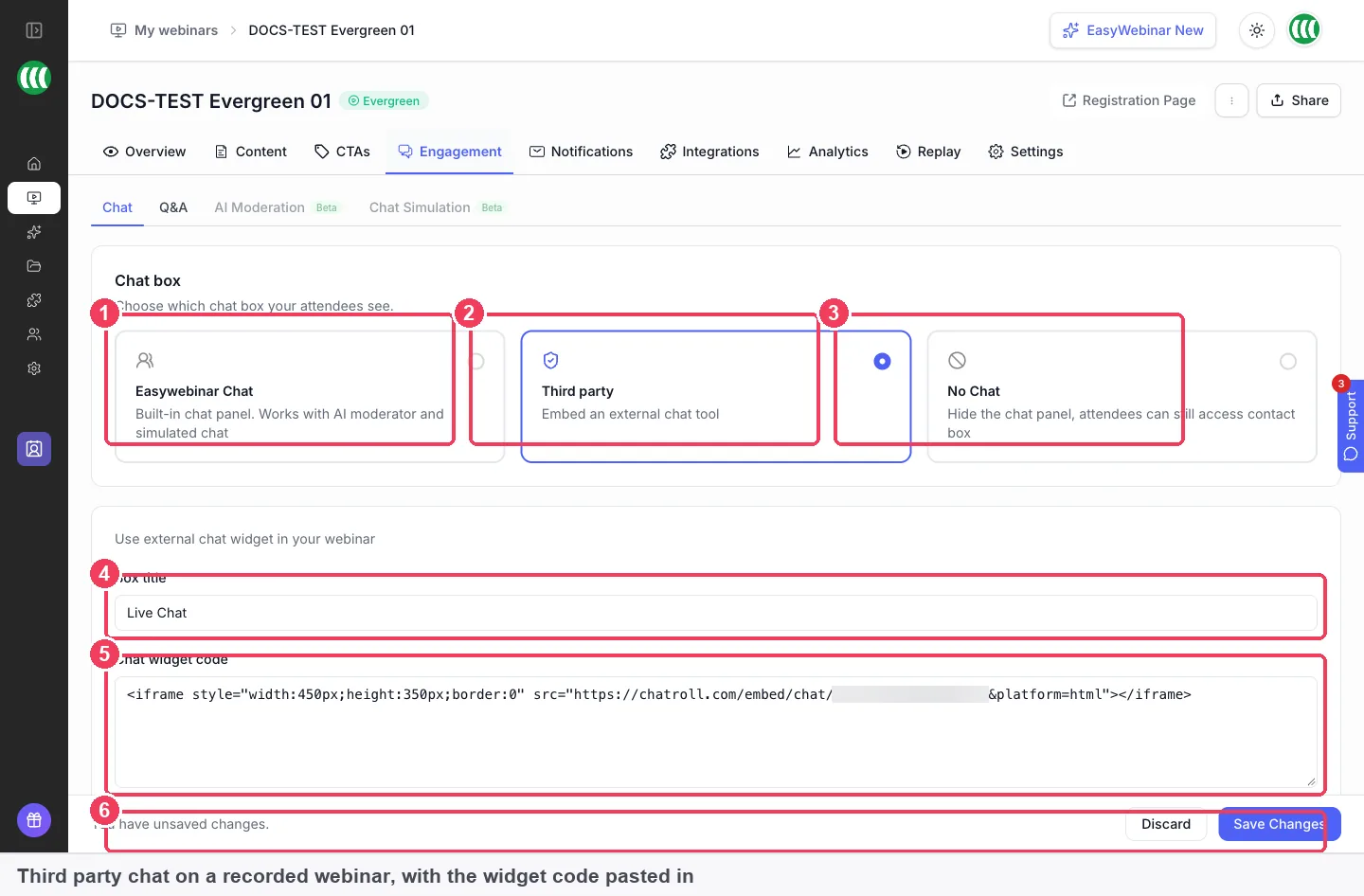
Recorded webinars can embed your own chat tool here, so conversations stay in the software your team already answers.
With the built-in chat selected, a recorded webinar can also play back a pre-written chat with **Simulated Chat**, and show a simulated attendee list. Chat Simulation is in Beta, and the [chat simulation (Beta)](https://easywebinar.com/product-docs/webinars/engagement/chat-simulation/) page covers the script, attendee count and names. Use it honestly: simulated messages shouldn't impersonate real customers or invent testimonials.
AI Moderation also needs the built-in chat. EasyWebinar's AI Moderator answers attendee questions from context you upload, including PDFs and other files, from the Pro plan onward. The [AI webinar features](https://easywebinar.com/product-docs/ai/) page explains what it drafts and answers. Choosing **Third party** replaces the built-in chat, so AI Moderation and simulated chat stop applying.
If you'd rather take questions without an open chat, the [Q&A queue](https://easywebinar.com/product-docs/webinars/engagement/questions-answers/) keeps questions apart from conversation. The contact box is another option, with **Pin in the room** on and an email address you actually monitor.
## How to measure a simulated live webinar {#measure}
Two measures move directly with a simulated live webinar. The first is attendance: the share of registrants who turn up to a session. The second is how long attendees stay, and where in the recording they leave.
Attendance has a weak spot on simulive. It mixes the pull of the session time with the pull of the topic, so a low figure may only mean the time was wrong. Compare attendance across sessions at different times before you change the content.
Watch time has its own trap. Google's YouTube Help describes [how audience retention charts read](https://support.google.com/youtube/answer/9314415): a flat line means people watch that part through, and a dip means they abandon or skip at that point. The same reading works for any recording you play on a schedule. A dip at the same minute in session after session points to a section worth re-recording.
A recording is fixed, so the fix is also fixed. Re-record the weak section, then swap the file with **Change Video** without touching the schedule. Read the figures for your webinar in [webinar analytics](https://easywebinar.com/product-docs/webinars/analytics/webinar-analytics/).
## How to run a recorded talk at set times by hand {#manual-method}
Without a simulive webinar type, a repeated talk is usually run from a video call tool and a calendar:
1. Record the talk once and keep the file somewhere you can reach it.
2. Create a separate meeting for each session time, and copy the join link into your invitations.
3. Join each meeting a few minutes early, share your screen and press play on the video.
4. Watch the chat alongside the video, and answer questions as they come.
5. Paste any offer link into the chat at the right moment, by hand.
6. Send reminders and follow-up from your email tool, one list per session.
The cost is that you're still present for every session, only to press play. If you miss one, the session simply doesn't happen.
### The same job in EasyWebinar {#same-job-in-easywebinar}
In EasyWebinar, the recording is part of the webinar itself, and the schedule plays it. You set the sessions once, as dates or a daily or weekly schedule. Each session plays the chosen video on time, whether or not you join. The registration page, emails, polls and offers all belong to the same webinar, so there's one set of links and one place to read the results.
### Worked example: the nutrition coach's Thursday evenings {#worked-example}
This is an illustrative calculation with sample figures, not an EasyWebinar output. It counts the coach's own time across four weekly sessions in a month.
| Line | Presenting each time | Simulated live |
|---|---|---|
| Sessions in the month | 4 | 4 |
| Minutes per session she must be present | 40 talk + 15 set-up = 55 | 0, or 40 if she joins the chat |
| Sessions she chooses to staff | 4 | 2 |
| Her minutes in sessions | 4 × 55 = 220 | 2 × 40 = 80 |
| One-off recording time | 0 | 60 |
| Total minutes in the first month | 220 | 80 + 60 = 140 |
| Total minutes in later months | 220 | 80 |
In the first month she saves 80 minutes, and from the second month 140 minutes, a cut of about 64%. She can spend part of that time answering chat in the sessions she does attend.
## How to set up a simulated live webinar {#set-up}
### What to have ready {#what-to-have-ready}
You need a recording. EasyWebinar can host it for you, or play one from YouTube, Vimeo or Wistia. You can also add it during set-up without leaving the flow, so a missing file doesn't stop you.
### Create the webinar {#create-the-webinar}
1. On **My Webinars**, click **Create a Webinar**, then **Create Manually**.
2. Give it a name and choose **Simulive Webinar**. Click **Continue to Schedule**.
3. Set the dates and times as you would for a live webinar: a specific date, or a daily or weekly schedule. Click **Continue to Pricing**.
4. Choose **Free** or **Paid**, then click **Continue to Video Selection**. A paid session follows the steps for [paid webinars](https://easywebinar.com/product-docs/webinars/selling/paid-webinars/).
5. Click the video you want, then **Continue to Registration Template**. Pick a template, or click **Skip & Create Webinar** to choose one later.
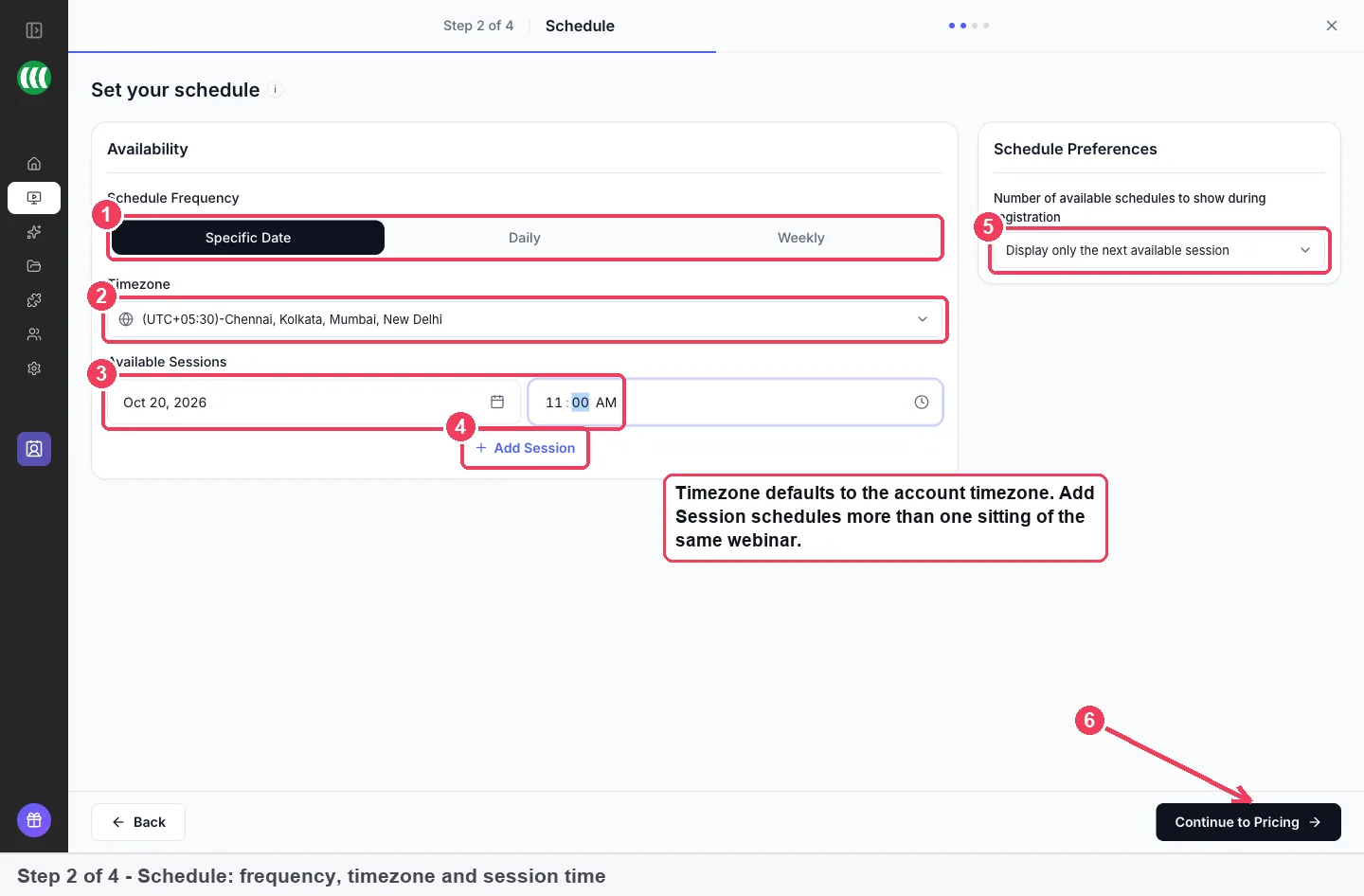
The timezone you set on this step decides when every simulive session plays for attendees around the world.
The [step-by-step simulive guide](https://easywebinar.com/product-docs/webinars/getting-started/create-a-simulive-webinar/) walks through each screen if you want more detail. Once you skip the template, you can design the page later in the [registration page builder](https://easywebinar.com/product-docs/webinars/registration/registration-page-builder/).
### Choose the recording {#choose-the-recording}
The **Video Selection** step lists your library. The **All**, **Videos** and **Recordings** filters switch between uploaded videos and recordings of past webinars, and search finds a video by name.
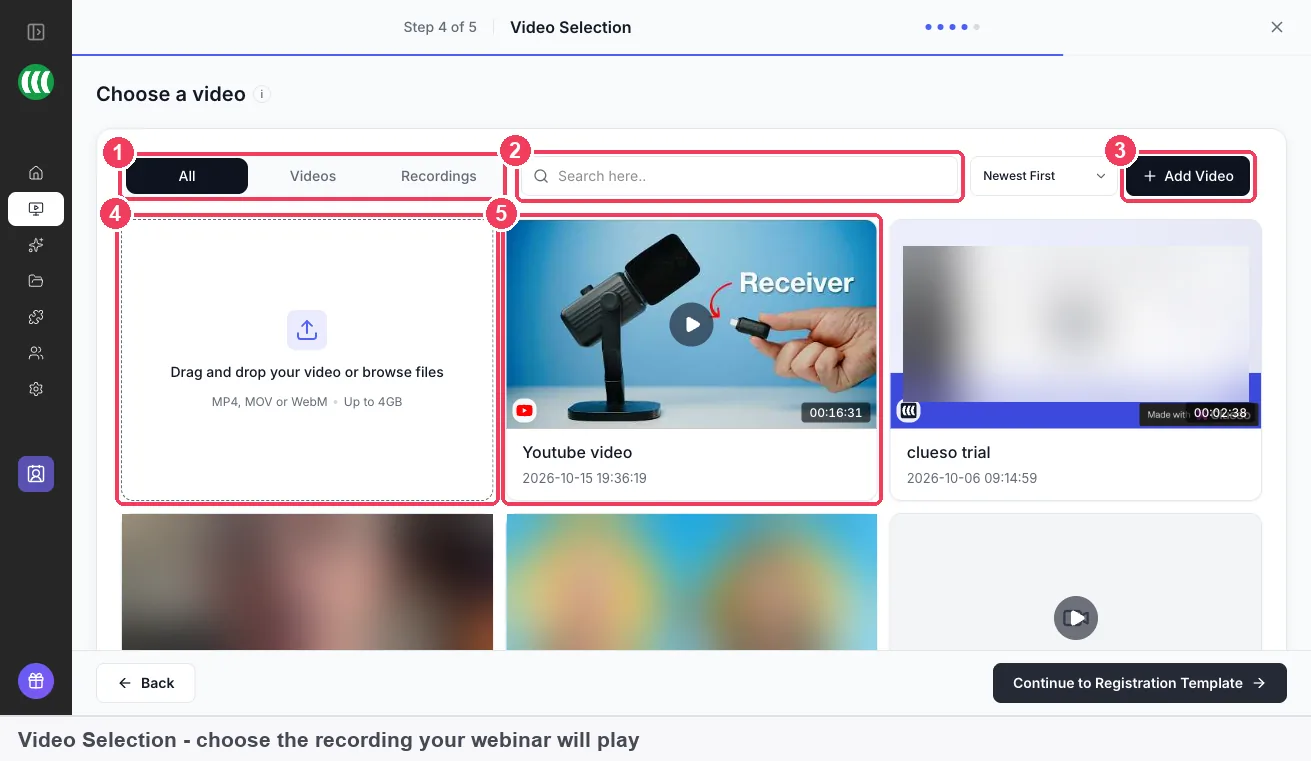
Every session plays the video you click here, so pick the cut you'd be happy to show every audience.
If the video isn't there yet, **Add Video** offers two routes. **Local import** uploads from your computer, and EasyWebinar hosts the video itself, so you don't need a YouTube or Vimeo account. **Import from URL** plays a video already on YouTube, Vimeo, Wistia or a direct MP4 link, and asks for its length as well as the link. Either way, the video is saved to your [library](https://easywebinar.com/product-docs/webinars/media/library/) for reuse. This video shows how to upload webinar videos to the library in EasyWebinar.
Video: [How to Upload Webinar Videos to the Library in EasyWebinar](https://www.youtube.com/watch?v=604P8u9E2gU)
If you play a YouTube video and later trim it, YouTube Help says [the video's URL, view count and comments stay the same](https://support.google.com/youtube/answer/9057455). The length you gave EasyWebinar at import no longer matches, though, so check it before the next session. The [video hosting](https://easywebinar.com/product-docs/webinars/media/video-hosting/) page compares hosting the file yourself with importing a link.
### Change the recording later {#change-the-recording}
Open the webinar's **Content** tab and use the **Webinar Video** panel shown earlier. **Preview** plays the current recording, and **Change Video** swaps it. Your schedule, pages and registrations stay as they are.
## Check a session before attendees arrive {#check-before-session}
A recorded webinar has no live room for you to rehearse in, so you check it by joining a running session:
1. Open the webinar's **Overview**. The Sessions panel has a **Live** tab, and a running session appears there marked **Live now**, with **Enter room**.
2. Join as an attendee, using the registration page or the attendee link, so you see what your audience sees.
3. Post a test message in chat and confirm it appears.
4. If you embedded a third-party chat, open **Contact** in the right-hand rail and its **Chat** tab, then reply from your chat tool's own dashboard.
Entering as an admin from Overview shows your own host tools, not the attendee view, so an embedded widget won't appear there. The [Overview tab](https://easywebinar.com/product-docs/webinars/setup/overview-tab/) page explains the Sessions panel in full.
## What works with a simulated live webinar {#works-with}
A simulive webinar uses the same building blocks as a live one. Only the delivery differs.
- **Registration pages**, built from a template or designed later.
- **Emails**, including [reminder emails](https://easywebinar.com/product-docs/webinars/notifications/reminder-emails/) before each session.
- **Polls**, described on the [polls](https://easywebinar.com/product-docs/webinars/engagement/polls/) page.
- **Offers**, whose buttons open your own checkout or sales page, covered under [offers](https://easywebinar.com/product-docs/webinars/engagement/timed-offers/).
- **Chat, Q&A and the contact box**, set up on the **Engagement** tab.
- **Analytics**, in the same place as your other webinars.
- **Past recordings**, from webinars you've already run, through automatic recording.
## Who runs simulated live webinars {#who-uses-it}
### Course creators {#who-course-creators}
A creator who opens enrolment with a free taster session can record the strongest version once. Simulive then plays it at set times through the enrolment window, with the creator in the chat for the busiest sessions. The [guide to selling courses with webinars](https://easywebinar.com/product-docs/use-cases/sell-courses/) covers the wider launch.
### SaaS and product teams {#who-saas-teams}
A product team with a weekly feature walk-through can stop presenting the same demo each week. A product specialist joins the chat to answer setup questions while the recording runs the tour.
### Agencies {#who-agencies}
An agency running a recurring webinar for a client can record it with the client's speaker once. The agency then schedules the sessions and staffs the chat itself, without booking the speaker again.
### Small businesses and solo operators {#who-small-business}
A one-person business can keep a regular session running during busy weeks or holidays. The recording plays on time, and questions left in the contact box arrive by email.
## How EasyWebinar compares for simulated live webinars {#compare}
EasyWebinar plays a recording at set times with a shared chat you can answer in, and keeps live webinars in the same product. On recorded webinars it can also embed your own chat tool in place of its built-in panel. That lets you keep conversations in the software your team already answers.
Simulated live webinar features, from each platform's public documentation:
| Platform | Recording at set times, chat answered by you | Your own chat tool on a recorded webinar | Live webinars in the same product |
|---|---|---|---|
| **EasyWebinar** | Yes | Yes | Yes |
| **EverWebinar** | Yes ([Hybrid mode staffs the chat](https://everwebinar.com/simulated-live-webinar/)) | Not in docs | Partly ([separate WebinarJam product](https://support.webinarjam.com/en/articles/15369971-getting-started-with-everwebinar)) |
| **Demio** | Yes ([hosts join the chat](https://help.demio.com/en/articles/2303559-automated-vs-standard-event)) | Not in docs | Yes ([Standard events](https://help.demio.com/en/articles/2303559-automated-vs-standard-event)) |
| **Zoom** | Yes ([chat and Q&A during playback](https://support.zoom.com/hc/en/article?id=zm_kb&sysparm_article=KB0058205)) | Not in docs | Yes ([moves to a live session after playback](https://support.zoom.com/hc/en/article?id=zm_kb&sysparm_article=KB0058205)) |
| **ON24** | Partly ([questions answered in the Q&A tool](https://support.on24.com/hc/en-us/articles/21420762825371-Getting-Started-with-Simu-live-On-Demand)) | Not in docs | Partly ([Sim-2-Live rolls over to live mode](https://support.on24.com/hc/en-us/articles/21420788889115-Simu-live-On-Demand-Troubleshooting-FAQs)) |
| **eWebinar** | Yes ([live chat on automated sessions](https://ewebinar.com/automated-webinars)) | Yes ([Intercom replaces the built-in chat](https://ewebinar.com/help/intercom-chat)) | [Pre-recorded only](https://ewebinar.com/automated-webinars) |
| **Kajabi** | Partly ([no chat box with pre-recorded webinars](https://help.kajabi.com/en/articles/17175206-add-a-chat-box-to-a-live-webinar-funnel)) | Not in docs | Partly ([webinar hosted elsewhere, such as Zoom](https://help.kajabi.com/en/articles/17175213-funnel-templates)) |
*Yes: documented and built in. Partly: documented with a limit, shown in brackets. Not in docs: not found in the vendor's public documentation.*
### Why EasyWebinar is the stronger choice for simulated live webinars {#compare-stronger}
- **Live and recorded in one product.** EasyWebinar runs live, simulive and evergreen webinars side by side, with the same pages, emails and offers. [EverWebinar sessions are recorded in advance, and live webinars run in its sister product, WebinarJam](https://support.webinarjam.com/en/articles/15369971-getting-started-with-everwebinar). Compare [EasyWebinar vs EverWebinar](https://easywebinar.com/compare/easywebinar-vs-everwebinar/).
- **Chat stays on a recorded session.** EasyWebinar keeps its chat on simulive webinars, and can embed a tool such as Chatroll instead. [Kajabi's chat box doesn't display with a pre-recorded webinar](https://help.kajabi.com/en/articles/17175206-add-a-chat-box-to-a-live-webinar-funnel). Compare [EasyWebinar vs Kajabi](https://easywebinar.com/compare/easywebinar-vs-kajabi/).
- **A shared chat beside the recording.** Every EasyWebinar simulive session has one chat room that you and your moderators can answer in. [ON24's Simu-live answers audience questions as text in its Q&A tool](https://support.on24.com/hc/en-us/articles/21420762825371-Getting-Started-with-Simu-live-On-Demand). Compare [EasyWebinar vs ON24](https://easywebinar.com/compare/easywebinar-vs-on24/).
*Competitor details checked against each vendor's public documentation on 4 November 2026. Features and plans change, so confirm with the vendor before you decide.*
## Limits of simulated live webinars {#limits}
- **The type is fixed.** You can't convert a simulive webinar to another type. Clone it and choose a different type on the copy.
- **It needs a recording.** A simulive webinar plays a video, so you must upload, import or pick one before sessions can run.
- **Sessions run on your schedule.** Sessions play at the times you set in the webinar's timezone. A registrant who can't make any of them needs an evergreen webinar instead.
- **Third-party chat replaces the built-in chat.** With **Third party** selected, AI Moderation and simulated chat don't apply, and messages go to your chat tool rather than EasyWebinar.
- **Embedded chat shows only to attendees.** Entering as an admin shows your host tools, so you check an embedded widget by joining as an attendee.
## Common questions {#common-questions}
#### Is a simulive webinar live? {#is-simulive-live}
No. A simulive webinar plays a recording you made in advance at the times you set. What's shared in real time is the room: attendees watch the same moment together, and you and your moderators can answer them in chat while the video plays.
#### What's the difference between simulive and evergreen? {#simulive-vs-evergreen}
Both play a recording. A simulive webinar broadcasts it at times you set, so everyone in a session watches together. An evergreen webinar runs on a repeating schedule and lets each registrant choose a time that suits them, so attendees arrive at different times.
#### What's the difference between a live and a pre-recorded webinar? {#live-vs-pre-recorded}
In a live webinar you present in real time, and chat and Q&A happen as they happen. A pre-recorded webinar, simulive or evergreen, plays a video you made earlier. In EasyWebinar all three types use the same pages, emails, polls, offers and analytics.
#### Do I have to be there for a simulive session? {#do-i-have-to-be-there}
No. The recording plays on schedule whether or not you join. Being in the chat is most of the value of simulive over evergreen, though, so join the sessions where questions matter most.
#### Can I use a recording of a previous webinar? {#use-a-previous-recording}
Yes. The **Recordings** tab on the Video Selection step lists recordings of webinars you've already run in EasyWebinar. Pick one there, and every simulive session plays it at the times you set.
#### Do I need to host the video on YouTube or Vimeo first? {#need-youtube-or-vimeo}
No. EasyWebinar hosts video itself: upload it with **Local import** and it's served from your library. Importing from YouTube, Vimeo or Wistia is an option, not a requirement, and EasyWebinar asks for the video's length when you import a link.
#### Can I change the recording after the webinar is set up? {#change-the-recording-later}
Yes. Open the **Content** tab and use **Change Video** on the **Webinar Video** panel. Changing the video doesn't affect the webinar's schedule, pages or registrations, so existing registrants keep their session.
#### Can I run a simulive webinar more than once? {#run-more-than-once}
Yes. Add more sessions on the schedule step, or set a daily or weekly schedule. Each session plays the same recording at its own time, in the webinar's timezone.
#### Can I turn a live webinar into a simulive one? {#live-to-simulive}
Not directly, because the type can't change after you create a webinar. Clone it and choose **Simulive Webinar** on the copy, then pick the live session's recording from the **Recordings** tab on the video step.
#### Can I embed my own chat tool on a simulive webinar? {#embed-own-chat}
Yes. On the **Engagement** tab, under **Chat**, choose **Third party** and paste the embed snippet your chat provider gives you. Messages then go to that tool, not to EasyWebinar, and you answer them from its own dashboard.
#### Can I keep chat off but still take questions? {#chat-off-questions}
Yes. Choose **No Chat** and use the contact box, with **Pin in the room** switched on. Questions go to the email address you set under **Email address to receive questions**, so use an inbox someone checks.
#### Can a simulive webinar be paid? {#paid-simulive}
Yes. The pricing step of a simulive webinar offers **Free** or **Paid**, just as a live webinar does. You choose it before the Video Selection step, and offer buttons during the session open your own checkout page.
#### How do I check a simulive session is working? {#check-a-session}
Open the webinar's **Overview** and the **Live** tab of the Sessions panel. A running session shows **Enter room**. Join through the registration page or attendee link as well, so you see what your audience sees.
## Further reading {#further-reading}
- [When do the clocks change? (GOV.UK)](https://www.gov.uk/when-do-the-clocks-change): the UK's clock change dates for 2026 to 2028, for checking session times.
- [UK bank holidays (GOV.UK)](https://www.gov.uk/bank-holidays): the upcoming bank holidays in England and Wales, for planning a weekly schedule.
- [Measure key moments for audience retention (YouTube Help)](https://support.google.com/youtube/answer/9314415): how to read flat lines, dips and spikes in a recording's watch time.
- [Trim your videos (YouTube Help)](https://support.google.com/youtube/answer/9057455): how to cut a YouTube video without re-uploading it.
## Related {#related}
- [Just-in-time webinars](https://easywebinar.com/product-docs/webinars/automated/just-in-time/): sessions that start shortly after someone registers, on evergreen webinars.
- [On Demand (instant replay)](https://easywebinar.com/product-docs/webinars/on-demand/): letting registrants watch straight away.
- [Replay pages](https://easywebinar.com/product-docs/webinars/media/replay-pages/): giving people a replay after a session.
- [Limits and defaults](https://easywebinar.com/product-docs/reference/limits-and-defaults/): the numbers that apply across webinar types.
- [What is a simulated live webinar?](https://easywebinar.com/blog/simulated-live-webinar/): the longer explanation on the EasyWebinar blog.
- [Simulive webinars at EasyWebinar](https://easywebinar.com/simulive-webinars/): the product overview.
*Updated 4 November 2026: first published, with how webinars reach an audience, session-time checks, a measurement guide, the manual method and a worked example.*