# Webinar Setup Checklist: What to Confirm, Test and Set Before You Press Go Live
A webinar setup checklist for the days before and the hour before a live session: what to confirm, what to test in the green room, and what to set so nothing breaks once you go live.
- Applies to: Hosts and producers preparing a live webinar · live webinars in the live room
- Status: Live
- Verified: 2026-11-04
- Canonical page: https://easywebinar.com/product-docs/use-cases/webinar-preparation-checklist/
A webinar setup checklist is the list you work through before a live session so that the camera, the sound, the links and the timed pieces all work when people arrive. Most of what goes wrong on the day can be caught in a test run a day or two before, and the rest in the last half hour. This page gives you a fill-in checklist for both, says what each check catches, and shows where each one sits in EasyWebinar's live room, which lets you test privately before anything is broadcast.
## At a glance {#at-a-glance}
| When | What to check | Why it matters |
|---|---|---|
| A week before | Join links for co-hosts, reminder timing, the redirect after the session | A missing link or an empty redirect can't be fixed once people are watching |
| Two days before | A full test run with a colleague watching as an attendee | It shows you what attendees will see |
| The day before | Polls and offers switched on or off, slides readable on a phone | Attendees on phones can't zoom in, so small text is lost |
| 30 minutes before | Camera, microphone and speakers, then the green room | You can't enter the room until it sees a camera and a microphone |
| 10 minutes before | Co-hosts backstage, screen share tested, recording on | Nothing in the green room is broadcast, so this is your last private check |
| At Go Live | Offers and polls ready | The confirmation reminds you that everyone waiting is moved in |
If your webinar starts within the hour, skip to the day-of part of the checklist below and work down it.
## Where a webinar setup checklist fits {#where-it-fits}
Picture the hour before a live session. The host is sorting slides, a co-host is still looking for the join link, and nobody has checked that the room is recording.
### What it's for {#fits-what-its-for}
A webinar setup checklist turns that hour into a fixed order of checks. It covers testing and set-up only, not what you will say. For planning the session itself, the [webinar content planning checklist](https://easywebinar.com/blog/webinar-content-strategy-the-ultimate-webinar-content-planning-checklist-for-high-impact-sessions/) on the EasyWebinar blog covers topics, structure and slides.
### How it helps {#fits-how-it-helps}
- **Problems surface while they are private.** You find a muted microphone in the green room, not in the chat.
- **Each person knows their part.** Co-hosts join backstage at a time you set, with their own link.
- **The timed pieces fire.** Reminders, polls and offers are checked before they are needed.
- **The ending is planned.** Attendees are sent to a page you chose, and the recording is waiting in your library.
### What happens without it {#fits-without-it}
Without a fixed list, checks happen in whatever order you remember them. The ones you forget tend to be the ones you can't fix live: an empty redirect, a co-host without a link, or recording switched off. Those cost you the replay, the next step for attendees, or the first five minutes of the session.
### Why customer success teams care {#fits-why}
Customer success teams run the same onboarding or release webinar again and again, often with a different presenter each time. A shared checklist means the session works the same way whoever runs it. It matters most on the first run with a new co-host, and when the team is presenting to its largest customers.
## The EasyWebinar approach to webinar setup checklists {#approach}
{/* 5P */}
Take a typical case. A four-person customer success team at an accounting software company runs a live onboarding webinar for new customers every month. One manager hosts, and a product specialist joins as co-host to answer setup questions in the chat.
The usual way to prepare is a private video call the day before, with the presenters talking through their slides. That can catch a bad microphone. It probably won't catch what attendees see, or whether the reminders arrive. Nor will it show where people land when the session ends.
What changed is simple. The checks that matter most happen inside the webinar platform itself. So the best test is the real room, set up for the real session, before anyone is watching.
EasyWebinar builds that test into the way you enter a live session. It asks you to check your camera, microphone and speakers before you reach the green room. It then keeps you in a green room where nothing is broadcast. Co-hosts wait backstage until you bring them on. Polls and offers can be switched on and off without deleting them, and reminders can be timed relative to the start.
You can see the first part of this on the device check screen, shown in Set up and test in EasyWebinar, below. The button to enter stays greyed out until the room can see both a camera and a microphone. How that compares with other tools is covered in How EasyWebinar compares for webinar setup checklists, below.
## How webinar setups get tested {#how-setups-get-tested}
There are four common ways to test a webinar before going live. Each catches some problems and misses others, which is why the checklist uses more than one.
### A solo device check {#solo-device-check}
You open the room on your own and look at your camera, your microphone level and your speakers. This catches the most common failure, a device the browser can't use. In Chrome, for example, [a site that isn't allowed your camera or microphone won't work for video calls](https://support.google.com/chrome/answer/2693767), and on a work computer [your network administrator may control those settings](https://support.google.com/chrome/answer/2693767). It misses everything attendees see.
### A full test run with a colleague as attendee {#full-test-run}
You run the session end to end, with a colleague registered as an ordinary attendee on a second device. This catches registration, reminders, the attendee view, polls and the redirect at the end. It takes the most time, so do it a day or two before, not on the day.
### A test send of each message {#test-sends}
You send each reminder or text message to yourself before any registrant gets it. This catches wrong times, broken links and messages that read badly on a phone. It misses whether the room itself works.
### A check from a phone {#phone-check}
You open the attendee view on a phone, or in a narrow browser window. This catches slides and shared screens that are too small to read. It matters because attendees on phones, and in browser windows narrower than 768 pixels, can't zoom in on what you share.
### What EasyWebinar is confirmed to do {#confirmed-in-easywebinar}
EasyWebinar asks every presenter to check their camera, microphone and speakers before entering, and keeps the green room private. **Send Test SMS** (Beta) sends a text message to a number you choose, and WhatsApp (Beta) messages can be tested the same way. The full test run and the phone check are things you do yourself, with a colleague.
## Your webinar setup checklist {#checklist}
Copy this checklist into your own document or print it, and fill in the last column as you go. It is a template from this guide; EasyWebinar doesn't generate it for you. Each row names the screen where the check happens.
### The week before {#checklist-week-before}
| Check | Where | Done |
|---|---|---|
| Date, time and time zone confirmed with every presenter | The webinar's **Overview** | ☐ |
| Co-presenter and moderator join links sent to each co-host | **Overview**, then **Share** | ☐ |
| Reminder timings set, for example a day, an hour and 15 minutes before | **Notifications** | ☐ |
| Phone field on the registration form, if you send text reminders (Beta) | Registration page builder | ☐ |
| **End of Session** and **Expired Session** redirects filled in | **Settings**, **General** tab | ☐ |
| Tracking code added, if you measure campaigns | **Settings**, **Tracking Code** | ☐ |
| **Show Attendees** set the way you want | **Settings** | ☐ |
| Chat set to everyone, **Hosts only** or **No Chat** | **Engagement** | ☐ |
### Two days before {#checklist-two-days}
| Check | Where | Done |
|---|---|---|
| Colleague registered with their own email, on a second device | Your registration page | ☐ |
| Confirmation and reminders arrived for the colleague, with working links | Their inbox and phone | ☐ |
| Test text message sent to your own number (Beta) | **Notifications**, **SMS** | ☐ |
| Full run-through in the room, with the colleague watching | Live room | ☐ |
| Each poll and offer previewed | **CTAs** | ☐ |
| Redirect tested after a test session ends | The colleague's browser | ☐ |
| AI answers tested privately, if you use AI moderation | **AI Moderation**, **Test Chat Moderation** | ☐ |
### The day before {#checklist-day-before}
| Check | Where | Done |
|---|---|---|
| Slides readable on a phone, without zooming in | Your own phone | ☐ |
| Offers you'll show later switched off, but kept | **CTAs** | ☐ |
| Polls published and ready to launch by hand | **CTAs** | ☐ |
| Streaming destinations connected, if you stream out | **EasyCast** | ☐ |
| Who moves co-hosts on and off stage, agreed | Your run sheet | ☐ |
### The day itself {#checklist-day-of}
| Check | Where | Done |
|---|---|---|
| Camera, microphone and speakers picked and working | Device check, before the green room | ☐ |
| Camera framing and lighting checked | Green room | ☐ |
| Screen share tested with the first slide | Green room, **Share** | ☐ |
| **Auto Recording Enabled** showing in the header | Green room header | ☐ |
| Every co-host waiting backstage | **Backstage** panel | ☐ |
| Chat and [Q&A](https://easywebinar.com/product-docs/webinars/engagement/questions-answers/) moderation set | **Settings**, **Preferences** | ☐ |
| Offers and polls ready before you confirm **Go Live** | Side rail | ☐ |
## The days before: confirm and set {#days-before}
The week-before and two-days-before parts of the checklist happen outside the room. These are the settings you can't change once the session has started without disturbing it.
### Send each co-host their own link {#co-host-links}
Every webinar's [Overview tab](https://easywebinar.com/product-docs/webinars/setup/overview-tab/) has its own share links, including a **Co-presenter Join Link** and a **Moderator Join Link for Live room**. Send each person the link for their role, and keep the **Attendee Join Link** for registrants. A co-host who joins on an attendee link watches the session instead of joining it. The [sharing links](https://easywebinar.com/product-docs/webinars/registration/sharing-links/) page lists every link and who it is for.
### Time the reminders around the start {#reminder-timing}
Reminders are set as a time before the webinar, such as one hour or 15 minutes before. A common pattern is three: a day before, an hour before and 15 minutes before. Because the timing is relative to the start, it still works if you move the date.
This video shows where reminder emails are set and how their timing works.
Video: [How to Set Up Webinar Reminder Emails in EasyWebinar](https://www.youtube.com/watch?v=lnEm0LfbXT8)
If you send text reminders, SMS (Beta) needs the **Phone** field on your registration form, added in the [registration page builder](https://easywebinar.com/product-docs/webinars/registration/registration-page-builder/), or there is nobody to text. The [reminder emails](https://easywebinar.com/product-docs/webinars/notifications/reminder-emails/) page covers each setting, and [confirmation emails](https://easywebinar.com/product-docs/webinars/notifications/confirmation-emails/) covers the first message registrants get.
### Fill in where attendees go at the end {#end-redirect}
The **End of Session** and **Expired Session** boxes on the **General** tab are empty by default. Left empty, attendees sit on a finished webinar with nowhere to go. Paste your offer, booking page or thank-you page into **End of Session**, do the same for **Expired Session**, and click **Save Changes**.
This video shows how to set the redirects and add tracking code to the webinar.
Video: [How to Set Webinar Redirects and Tracking in EasyWebinar](https://www.youtube.com/watch?v=Q3JbSUaUylA)
### Decide what attendees can see and say {#attendee-controls}
Two settings decide what attendees can do, and both are set before the session. **Show Attendees** on the webinar's Settings tab controls whether the attendee list is visible. Chat is set on the **Engagement** tab, where **Hosts only** makes every message private to your team and **No Chat** removes the panel. The [live chat](https://easywebinar.com/product-docs/webinars/engagement/live-chat/) page explains each option.
## The test run: what to try and in what order {#test-run}
Run the full test a day or two before, so there is time to fix what it finds. Use the real webinar, not a copy, so the links and settings are the ones attendees will get.
### Test as an attendee, not only as the host {#test-as-attendee}
Ask a colleague to register with their own email address on a different device. They should receive the [registration confirmation](https://easywebinar.com/product-docs/webinars/notifications/confirmation-emails/) and the reminders you set, and each link should open the right page. Their device is also where you check the attendee view of your slides and polls.
### Send yourself each text message {#test-texts}
If you use SMS (Beta), select a template, click **Send Test SMS**, pick your country from the flag dropdown and type your number. Choose the country from the list rather than typing a dialling code. The message arrives from your EasyWebinar number, exactly as a registrant would see it. WhatsApp (Beta) messages can be tested on your own number in the same way.
### Preview every poll and offer {#preview-ctas}
On the **CTAs** tab, the poll editor previews each poll exactly as attendees will see it. Use the toggle on each row to keep an offer ready but switched off until you need it. On a live webinar you launch polls by hand, so decide in the test run who launches each one and when. The [polls](https://easywebinar.com/product-docs/webinars/engagement/polls/) and [offers](https://easywebinar.com/product-docs/webinars/engagement/timed-offers/) pages cover the settings.
### Test AI answers before anyone sees them {#test-ai-answers}
If you use [AI moderation](https://easywebinar.com/product-docs/ai/create-with-ai/), open **Test Chat Moderation** and ask it the hard questions your customers ask. It opens a private conversation, so nothing reaches attendees. It retrains each time you add a document to its knowledge base, so give it a moment after an upload before you test.
## Make slides readable without zooming in {#readable-slides}
Attendees watching on a phone can't zoom in on a shared screen or a shared file. The same is true in any browser window narrower than 768 pixels, which the room treats as a phone. So the real test is whether your slides can be read at the size a phone shows them.
Small text is the first thing to go. Nielsen Norman Group's guidance on legibility says that [tiny text dooms legibility](https://www.nngroup.com/articles/legibility-readability-comprehension/), and that text needs [high contrast between characters and background](https://www.nngroup.com/articles/legibility-readability-comprehension/). On a slide, that means fewer words in larger type, dark text on a plain light background or the reverse, and no fine print in the corners.
To check, open your slides on your own phone at the size they fill the screen. If you have to squint, enlarge the type or split the slide in two. Do the same for any screen you plan to share, such as a spreadsheet or a product screen: zoom your own browser in before you share it, so the text is large when it arrives.
## How to run a webinar test by hand {#by-hand}
Without a private room, a test run takes more people and more steps. This is the manual method many teams use.
1. Book a 30-minute call with every presenter a day or two before.
2. Ask each presenter to join from the computer and browser they will use on the day.
3. Have each one turn on their camera and microphone, and fix any the browser blocks.
4. Ask each presenter to share their screen and show their first slide.
5. Register a colleague with their own email, and wait for the reminders to arrive.
6. Check every link in each reminder by hand.
7. Agree who speaks when, who answers questions and who ends the session.
8. On the day, join early and repeat steps 3 and 4.
The weak point is that the call isn't the webinar, so the [replay page](https://easywebinar.com/product-docs/webinars/media/replay-pages/) and the redirect go untested too. A microphone that works in one tool may still need permission in another, and nothing in the call tests the attendee view.
### The same job in EasyWebinar {#same-job}
In EasyWebinar, steps 3, 4 and 8 happen in the live room itself. From the webinar's **Overview**, click **Enter Room**, check your devices, and continue to the green room. Your co-hosts join backstage on their own link and sort out their audio there. A guest co-host needs only a join link, not an account, while regular presenters can be added as [team members](https://easywebinar.com/product-docs/account/team-members/). Steps 5 and 6 stay the same, and SMS (Beta) adds a test send to your own number.
## Set up and test in EasyWebinar {#build-it}
Work through these screens in order on the day, starting about half an hour before the start.
### Check your camera, microphone and speakers {#device-check}
From the webinar's **Overview**, click **Enter Room**. You're asked to check your camera, microphone and speakers, then click **Continue to Green Room**.
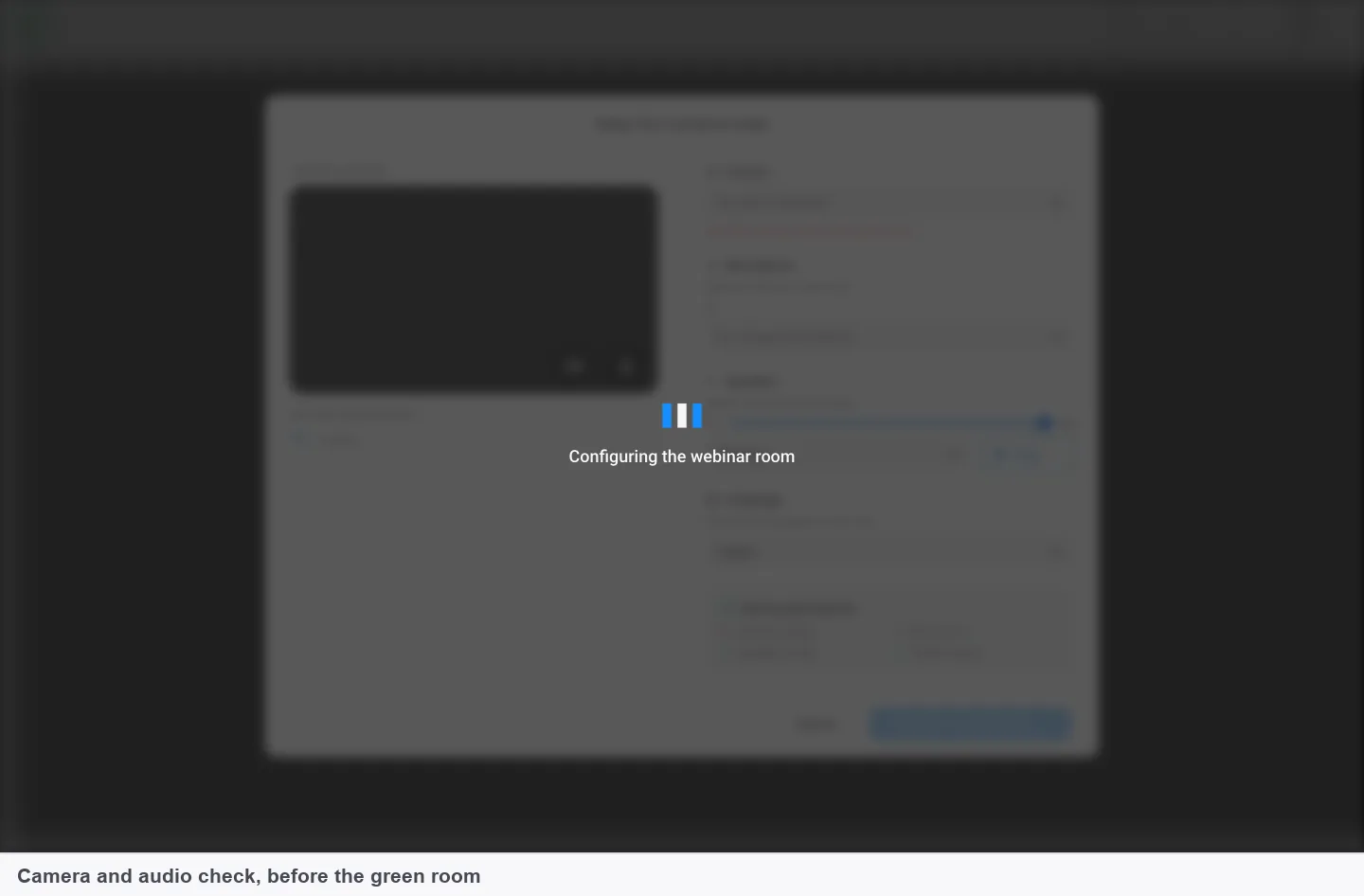
The device check comes first, and the button to the green room stays greyed out until a camera and microphone are found.
The button stays greyed out until the room can see both a camera and a microphone. You need both to enter, even if you turn them off afterwards. If your camera isn't found, the [camera not detected](https://easywebinar.com/product-docs/troubleshooting/camera-not-detected/) page walks through the fixes.
### Use the green room for your last private checks {#green-room}
The green room header reads **Not Live**, and nothing here reaches your audience. Check your camera framing, test your screen share with **Share**, and get your co-hosts in place before you press anything.
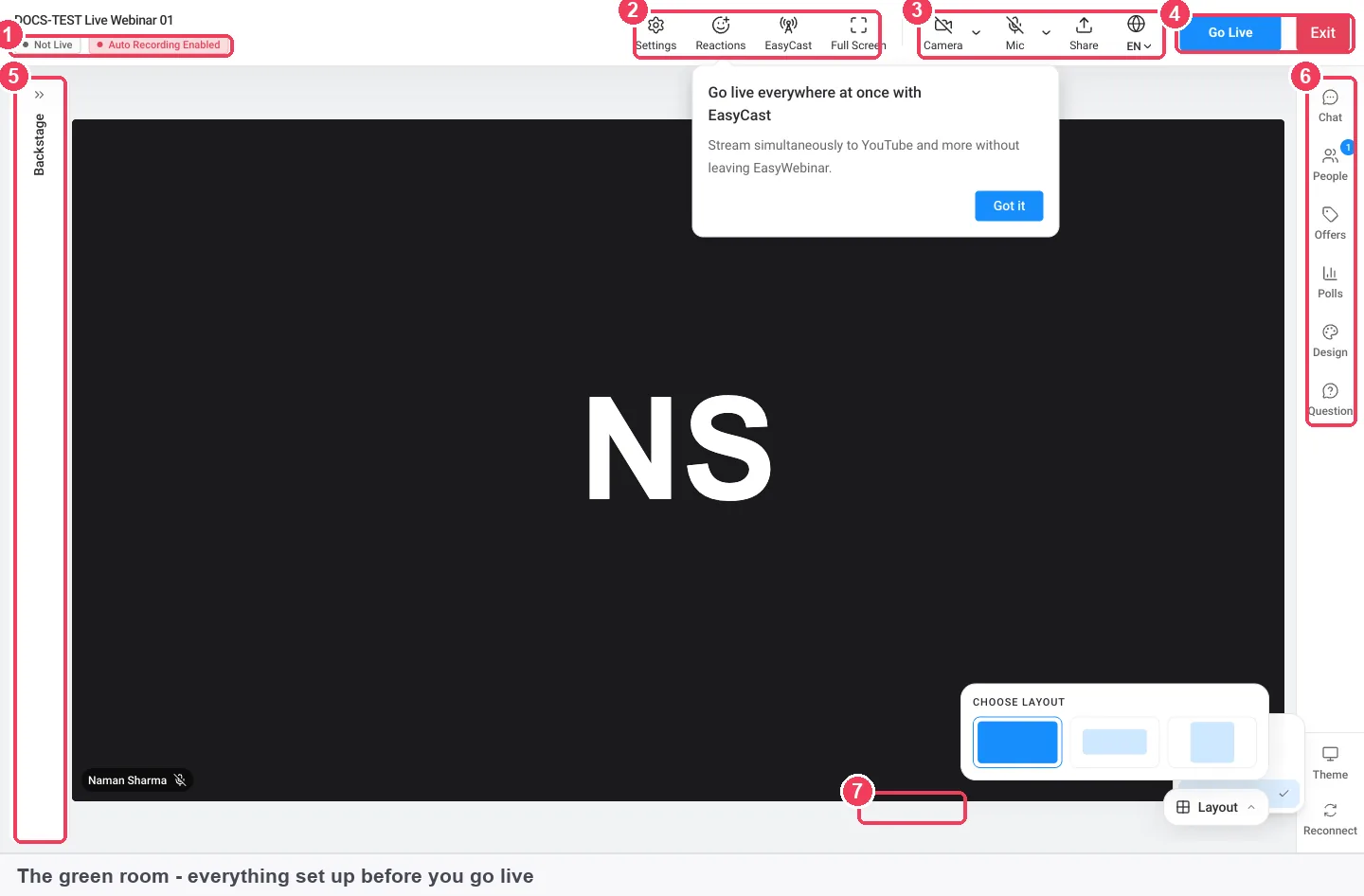
Everything in the green room stays private, so this is where the day-of half of the checklist gets done.
The side rail holds **Chat**, **People**, **Offers**, **Polls**, **Design**, **Question** and **Theme**. Open **Polls** and **Offers** now, so you know where they are when you need them. The [green room and backstage](https://easywebinar.com/product-docs/webinars/live-room/green-room/) page describes each control.
### Confirm every presenter is backstage {#people-check}
Co-hosts and moderators land backstage, not on stage, and your audience doesn't see or hear them until you bring them on. Open **People** to see the presenters, with the host marked, and the attendees.
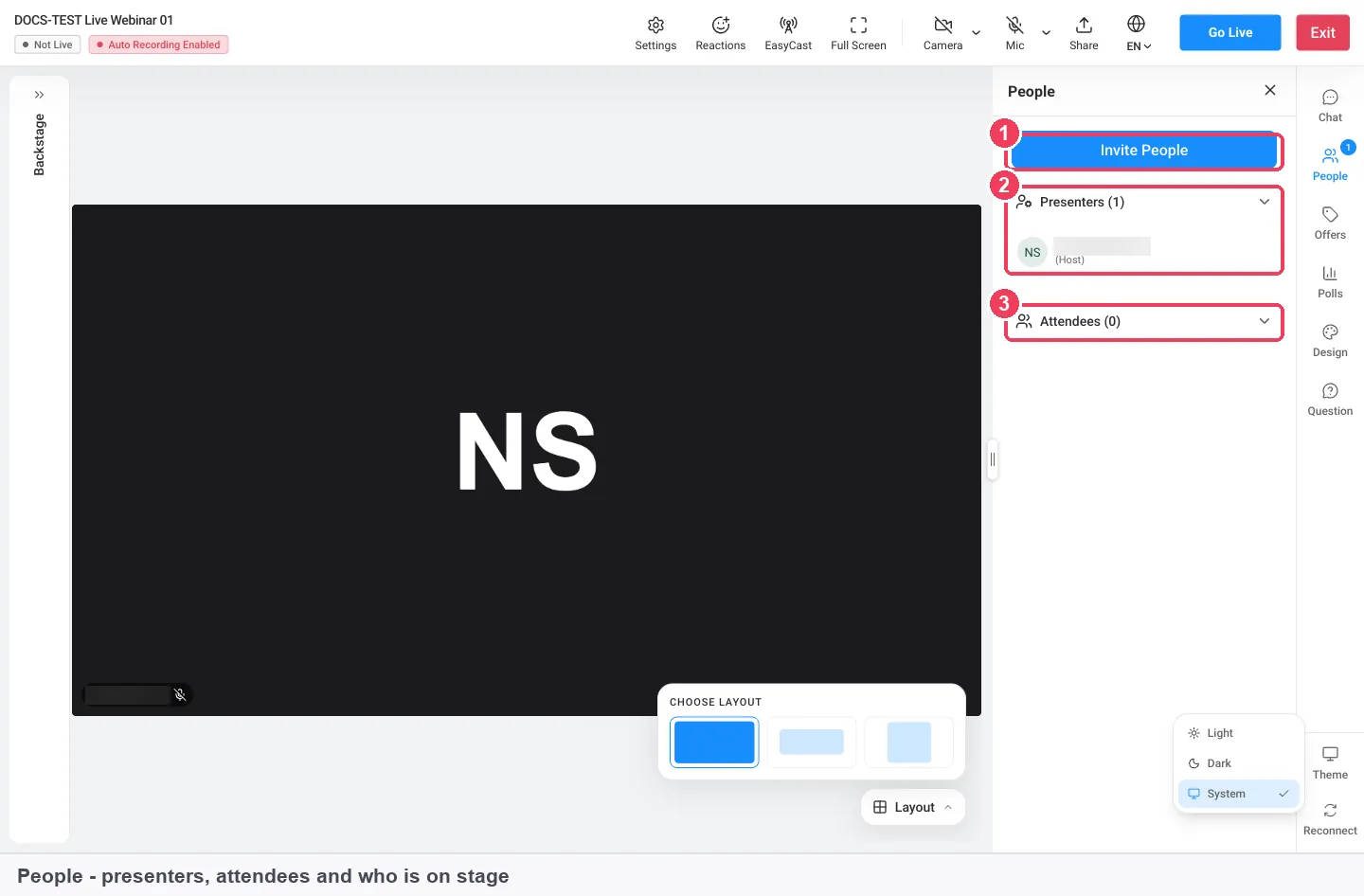
Check this list before going live, so a missing co-host can still be sent their join link through Invite People.
If someone is missing, use **Invite People** to share their join link again. Move each person to the stage when it is their turn, and back when they're done.
### Check recording and moderation {#settings-check}
The header shows **Auto Recording Enabled** when recording is on. To change it, or to check your devices and moderation, click **Settings**.
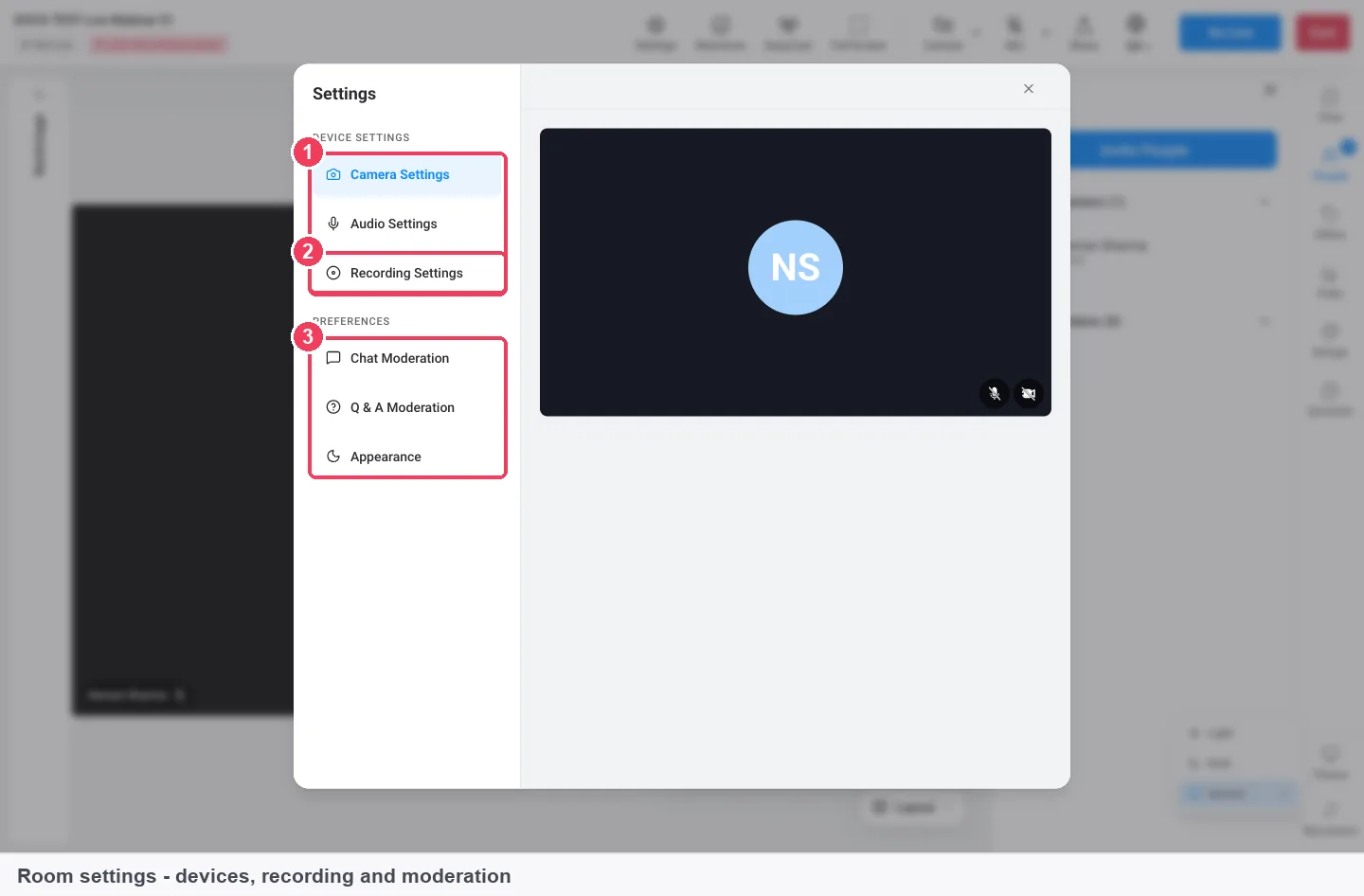
One dialog covers the last three checks: the devices you're using, whether the session records, and how chat and questions are moderated.
Recorded sessions land in [the Library](https://easywebinar.com/product-docs/webinars/media/library/), under **Recordings**. Leave recording on unless you have a reason not to, because the replay is often watched by more people than the live session. The [automatic recording](https://easywebinar.com/product-docs/webinars/media/automatic-recording/) page shows where to find it afterwards.
### Press Go Live {#go-live}
**Go Live** asks you to confirm, and reminds you that anyone in the waiting area will be moved in automatically and that offers and polls should be ready. Once live, the header shows **LIVE** with a timer, and **Go Live** becomes **End Session**. Ending disconnects everyone and nobody can rejoin, so end only when you're finished.
### If you stream to YouTube or LinkedIn {#streaming-check}
EasyCast, on Growth plans and above (see [pricing](https://easywebinar.com/pricing/)), streams a live webinar to YouTube, LinkedIn or a custom RTMP destination at the same time. Connect each destination the day before. For YouTube, connect the Google account that actually owns the channel.
## How to tell your test run passed {#test-passed}
A test run passes when the colleague who played the attendee could do everything a real attendee will. Two measures tell you most of it.
The first is whether every message arrived. Count the confirmation and reminders your colleague received against the number you set up. If you set three reminders and two arrived, look at the timing of the missing one before the day. This only tells you about one inbox, so it can't show whether messages land in other people's spam folders.
The second is whether every step worked from the attendee's side. Your colleague should have entered the room, seen your slides, answered a poll and been sent to your redirect at the end. Ask them to read one line from your smallest slide off their phone. If they can't, your slides fail the phone check.
After the real session, the [webinar analytics](https://easywebinar.com/product-docs/webinars/analytics/webinar-analytics/) page shows how many registrants attended, which tells you whether the reminders did their job.
## Worked example: how big your slide text looks on a phone {#worked-example}
This is an illustrative calculation with sample figures, not an EasyWebinar output. Shared slides arrive as images about 1,500 pixels wide. When a phone shows the whole slide across a screen 375 pixels wide, every part of it shrinks to a quarter of its size.
| Text on the slide | Height on the slide | Shown 375 pixels wide (1,500 ÷ 375 = 4) | Shown 750 pixels wide (1,500 ÷ 750 = 2) |
|---|---|---|---|
| Footnote | 20 pixels | 20 ÷ 4 = 5 pixels | 20 ÷ 2 = 10 pixels |
| Body text | 40 pixels | 40 ÷ 4 = 10 pixels | 40 ÷ 2 = 20 pixels |
| Heading | 80 pixels | 80 ÷ 4 = 20 pixels | 80 ÷ 2 = 40 pixels |
On the phone, the footnote ends up a quarter of its slide size, and the attendee can't zoom in to read it. Size every line of text you need people to read as if it will be shown four times smaller, and cut the rest.
## Who uses a webinar setup checklist {#who-uses-it}
### Customer success teams {#who-customer-success}
A customer success team at a healthcare software company runs a monthly release briefing, hosted by whichever manager owns the release. The checklist is shared, so a first-time host follows the same steps as the regular one. Co-hosts get their own join link a week before.
### B2B marketing teams {#who-b2b-marketing}
A marketing team runs a live product webinar with an outside guest speaker. The guest has never used the platform, so the two-days-before test run is when they meet the device check and the green room for the first time.
### Course creators {#who-course-creators}
A course creator runs a live session before opening enrolment, alone. With no colleague to watch, they register a second email on their phone and use it as the attendee view.
## How EasyWebinar compares for webinar setup checklists {#compare}
EasyWebinar puts three of the day-of checks into the way you enter a live session: a device check, a private green room, and a backstage area for co-hosts. It also lets you test AI answers in private before the session. Each of these turns a step on your checklist into something the room does with you.
Webinar setup and testing features, from each platform's public documentation:
| Platform | Device check before you enter | Private room before going live | Co-hosts wait backstage, unseen | Private test of AI chat answers |
|---|---|---|---|---|
| **EasyWebinar** | Yes | Yes | Yes | Yes |
| **Demio** | Yes ([System Check for devices](https://help.demio.com/en/articles/8995638-troubleshoot-device-issues-microphone-camera-headphones-speaker)) | Not in docs | Not in docs | Partly ([AI Moderator for on-demand events](https://help.demio.com/en/articles/1837026-demio-s-free-trial)) |
| **Livestorm** | Yes ([test devices in the lobby](https://support.livestorm.co/article/join-a-livestorm-event-as-a-guest-speaker)) | Yes ([green room](https://support.livestorm.co/article/315-share-link-event-room)) | Not in docs | Not in docs |
| **WebinarNinja** | Yes ([device test window](https://help.webinarninja.com/pre-broadcast-checklist-for-live-sessions)) | Partly ([practice session listed on plans](https://webinarninja.com/pricing/)) | Not in docs | Not in docs |
| **eWebinar** | Not in docs | Partly ([test room for chat and interactions](https://ewebinar.com/help/preview-and-test)) | Not in docs | Partly ([AI moderator through Chatbase](https://ewebinar.com/help/chatbase)) |
*Yes: documented and built in. Partly: documented with a limit, shown in brackets. Not in docs: not found in the vendor's public documentation.*
### Why EasyWebinar is the stronger choice for webinar setup checklists {#compare-stronger}
- **Co-hosts can get ready unseen.** EasyWebinar's co-hosts land backstage and sort out their audio before you bring them on. [Livestorm documents a lobby where guest speakers test their devices](https://support.livestorm.co/article/join-a-livestorm-event-as-a-guest-speaker). See [EasyWebinar vs Livestorm](https://easywebinar.com/compare/easywebinar-vs-livestorm/).
- **The device check is part of entering.** EasyWebinar won't let you into the green room until it can see a camera and a microphone. [Demio's device troubleshooting starts with running a System Check](https://help.demio.com/en/articles/8995638-troubleshoot-device-issues-microphone-camera-headphones-speaker) as a separate step. See [EasyWebinar vs Demio](https://easywebinar.com/compare/easywebinar-vs-demio/).
- **AI answers are tested in the product.** EasyWebinar's **Test Chat Moderation** opens a private conversation with its own AI moderator. [eWebinar's AI moderator is configured through Chatbase](https://ewebinar.com/help/chatbase), a separate service. See [EasyWebinar vs eWebinar](https://easywebinar.com/compare/easywebinar-vs-ewebinar/).
- **The private room is a standard step.** Every EasyWebinar live session starts in a green room that broadcasts nothing. [WebinarNinja lists a practice session on its plans](https://webinarninja.com/pricing/). See [EasyWebinar vs WebinarNinja](https://easywebinar.com/compare/easywebinar-vs-webinar-ninja/).
*Competitor details checked against each vendor's public documentation on 4 November 2026. Features and plans change, so confirm with the vendor before you decide.*
## Limits of testing in the live room {#limits}
- **Polls are launched by hand on a live webinar.** Plan who launches each one, because they don't appear on their own.
- **A camera and a microphone are required to enter the room**, even if you turn them off once you're in.
- **Ending a session can't be undone.** **End Session** disconnects everyone, and nobody can rejoin.
- **Attendees on phones can't zoom in** on a shared screen or file, and nor can anyone in a browser window narrower than 768 pixels.
- **AI moderation needs the built-in chat.** Choosing a third-party chat tool turns it off.
## Common questions about webinar setup {#common-questions}
#### What should I check before a webinar? {#faq-what-to-check}
Check your camera, microphone and speakers, your screen share, your co-hosts' join links, your reminders, your polls and offers, and where attendees go when it ends. Check recording last, in the room, before you go live.
#### How long before a webinar should I test my setup? {#faq-how-long-before}
Run a full test a day or two before, so there is time to fix what you find. Then enter the room about half an hour before the start for the device check and the green room.
#### How do I prepare for a webinar on the day? {#faq-prepare-on-the-day}
Enter the room, pick your camera, microphone and speakers, and continue to the green room. Check your framing and screen share, make sure co-hosts are backstage and recording is on, then go live.
#### Is anything in the green room broadcast? {#faq-green-room-broadcast}
No. The header reads **Not Live** until you click **Go Live**, and nothing in the green room reaches your audience. It is the place for your last private checks.
#### Why can't I get into the green room? {#faq-cant-enter}
The **Continue to Green Room** button stays greyed out until the room can see both a camera and a microphone. Allow both in your browser, pick them on the device check, and try again.
#### Where do co-hosts appear when they join? {#faq-co-hosts}
Co-hosts and moderators land backstage, not on stage. Your audience doesn't see or hear them until you move them to the stage, and you can move them back when they're done.
#### Can attendees zoom in on my slides? {#faq-zoom-in}
Not on a phone, and not in a browser window narrower than 768 pixels. Make your slides readable at phone size without zooming in, and test them on your own phone the day before.
#### Can I send myself a test reminder? {#faq-test-reminder}
For SMS (Beta), yes: select a template and click **Send Test SMS**. WhatsApp (Beta) can be tested on your own number too. For email reminders, register with your own address and check what arrives.
#### How many reminders should I set? {#faq-how-many-reminders}
A common pattern is three: a day before, an hour before and 15 minutes before. Each reminder's timing is set relative to the start, so it still works if the date moves.
#### How do I keep an offer ready but hidden? {#faq-hide-offer}
On the **CTAs** tab, turn the toggle on that offer's row off. The offer is kept but not shown, so you can switch it on when you reach it in the session.
#### Is my live webinar recorded automatically? {#faq-recording}
When recording is on, the header shows **Auto Recording Enabled**. You can change it under **Settings**, then **Recording Settings**, and the recording lands in your library under **Recordings**.
#### What happens if I forget the redirect? {#faq-redirect}
The **End of Session** box is empty by default, so attendees stay on a finished webinar. Paste your next-step page into it on the **General** tab before the session and click **Save Changes**.
#### Can I test AI answers before a webinar? {#faq-test-ai}
Yes. **Test Chat Moderation** opens a private conversation with the AI moderator, so you can ask it what customers ask. Give it a moment after each new document, because it retrains.
#### Is this checklist built into EasyWebinar? {#faq-checklist-built-in}
No. The checklist on this page is a template to copy into your own document or print. EasyWebinar's part is the device check, the green room, backstage and the test sends.
## Further reading {#further-reading}
- [Use your camera and microphone in Chrome](https://support.google.com/chrome/answer/2693767), Google Chrome Help: how to allow a site your camera and microphone, and why a work computer may not let you.
- [Legibility, Readability, and Comprehension](https://www.nngroup.com/articles/legibility-readability-comprehension/), Nielsen Norman Group, 2015: why text size and contrast decide whether people can read your words at all.
## Related {#related}
- [Run a live webinar](https://easywebinar.com/product-docs/webinars/live-room/run-a-live-webinar/): everything in the live room once you've pressed **Go Live**, from chat to ending the session.
- [Create and schedule a live webinar](https://easywebinar.com/product-docs/webinars/getting-started/create-a-live-webinar/): set the date, time and presenters this checklist starts from.
- [Webinar invitation emails](https://easywebinar.com/product-docs/use-cases/webinar-invitation-emails/): how to get people registered before you start testing.
- [Webinar follow-up emails](https://easywebinar.com/product-docs/use-cases/webinar-follow-up-emails/): what to send attendees and no-shows once the session ends.
- [Clone a webinar](https://easywebinar.com/product-docs/webinars/getting-started/clone-a-webinar/): copy a webinar you have already tested, so the next one starts from working settings.
*Updated 4 November 2026: first published, with a fill-in checklist, the test-run method, the phone readability check and a worked example.*