# Webinar Follow Up Email: What to Send Attendees and No-Shows, and When to Send It
Not sure what to send after a webinar ends? A webinar follow up email has to fit what each person did, so this guide gives real templates for attendees and no-shows, says when to send each one and how to schedule them per webinar, so every registrant gets the right next step.
- Applies to: Course creators and marketing managers writing follow-ups after a webinar · live, simulive and evergreen webinars
- Status: Live
- Verified: 2026-11-02
- Canonical page: https://easywebinar.com/product-docs/use-cases/webinar-follow-up-emails/
Webinar follow-up emails have one job: to give each person the right next step while your session is still fresh. A webinar follow up email only helps if it fits what that person did, so attendees and no-shows need different messages. Send attendees a thank-you with the replay and your offer right after the session, and send no-shows the replay at the same moment. Follow each group a day later, then send a last call before your deadline. EasyWebinar schedules these per webinar and by audience, so you write each one once.
## At a glance {#at-a-glance}
| Email | Who gets it | When to send it | What it must do |
|---|---|---|---|
| Thank-you with the replay | Attendees | Right after the session | Thank them, name the one idea, give the replay and the offer |
| The replay you missed | No-shows | Right after the session | Give the replay without any guilt, and say how long it stays up |
| The answer I owed you | Attendees | A day later | Answer a real question from the session, then point at the next step |
| The part to watch first | No-shows | A day later | Point to one moment in the recording that is worth their time |
| You looked at the offer | People who clicked your offer | When they click | Answer what might be holding them back |
| The part you missed | People who left early | A day later | Tell them what came after they left |
| Last call | Attendees and no-shows, in separate versions | The day before your deadline, or that morning | State the deadline and the link, and nothing else |
The first two rows and the day-after rows follow the same timing as the [follow-ups an AI-built webinar drafts](https://easywebinar.com/product-docs/ai/create-with-ai/). The rest are sensible starting points, so move them to fit your own deadline. If you have to send today, go straight to Write them in this order, further down.
## Where webinar follow-up emails fit {#where-it-fits}
Your session has just ended. Some people attended and some never made it, and each group needs a different next message.
### What they're for {#fits-what-its-for}
Webinar follow-up emails turn the end of a session into a next step. Some people have just heard you teach, and others meant to and couldn't. The email tells each group what to do next, and by when.
### How they help {#fits-how-it-helps}
- **Attendees get a reason to act.** The thank-you repeats the idea they came for and points at your offer.
- **No-shows get a second chance.** The replay email lets them catch up before your deadline.
- **Your deadline stays visible.** A short last call tells people when the replay or offer closes.
- **Nobody gets the wrong message.** Separate audiences mean no one is thanked for a session they missed.
### What happens without them {#fits-without-it}
Without follow-ups, the webinar ends and so does the conversation. Attendees who meant to decide later get no nudge. Registrants who couldn't make it never learn that a replay exists, even though they asked to hear from you.
### Why course creators and marketers care {#fits-why}
It matters most on the day of the session, when you have to write several emails at once. A course creator needs them out before an enrolment window closes. A marketing manager needs them out before interest cools and new leads go quiet.
## The EasyWebinar approach to webinar follow-up emails {#approach}
{/* 5P */}
Take a typical case. A watercolour teacher sells a six-week online course, and this morning she ran a free live class on mixing skin tones. She closed with an offer, and enrolment stays open until Friday. It's now lunchtime, and she still has to write her follow-ups.
A common route is to write one email, paste in the replay link and send it to the whole list. That's quick, but it tends to read wrong for someone. People who watched get a recording they may not need, and people who missed it get thanked for coming. Splitting the list by hand can mean exporting names from one tool and pasting them into another.
The session has already sorted her list. Some people came, some didn't, and some clicked the offer. She doesn't need one better email, just a short message for each of those groups, timed around Friday.
EasyWebinar handles that split on the webinar's **Notifications** tab. She adds a **Webinar Follow-up** for attendees and another for no-shows, each with its own timing. An **Attendee Action Follow-up** covers people who clicked the offer. She also sets the replay to close on Friday, so her emails and the page tell the same story.
One detail is worth a look before anything goes out. Each email on that tab shows its trigger, its audience and its subject line, so she can spot one aimed at the wrong group. How other platforms handle this is covered in How EasyWebinar compares for webinar follow-up emails, below.
## When to send each follow-up email {#when-to-send}
Send the first webinar follow-up email right after the session ends. Attendees still remember what you said, and no-shows still remember why they signed up. EasyWebinar's own examples for this group of emails are instantly and one day after, and you can change the timing on every email.
After that, your deadline sets the schedule. Count back from the moment the offer or the replay closes, not forward from the session.
| Your situation | First email | Second email | Last email |
|---|---|---|---|
| Offer or replay closes in five days or more | Right after the session | A day later | The day before the deadline |
| Offer or replay closes within 48 hours | Right after the session | Skip it | The morning of the deadline |
| No deadline, such as customer training | Right after the session | A day later, if you have something useful to add | None needed |
| Recorded webinar, where people watch on different days | Right after the session | A day later | Just before a rolling deadline, written as a number of days |
The last row needs care. A fixed date can't be true for everyone when people watch [an evergreen webinar](https://easywebinar.com/product-docs/webinars/getting-started/create-an-evergreen-webinar/) on different days. Set the replay to **Expire after days**, then write "in three days" in your email rather than a date.
Three emails per group is enough for most sessions. If you can only write two, keep the first and the last. The first delivers what people signed up for, and the last tells them what is about to close. For more on how the wider sequence fits together, read our guide to [webinar retention and post-webinar follow-up](https://easywebinar.com/blog/webinar-retention-strategies-for-post-webinar-follow-up/).
## What makes a webinar follow-up email work {#how-they-work}
Usability research hasn't studied webinar follow-ups as such, but it has tested how people handle email. Five findings apply directly to what you're writing today. Some of this research is old, so each one carries its date, and the studies looked at other kinds of email.
### A sender people recognise {#sender}
In [Nielsen Norman Group's 2008 study of transactional email](https://www.nngroup.com/articles/transactional-and-confirmation-email/), an unrecognised sender was the main reason people gave for leaving a message unread. The study also advises a descriptive sender name alongside the address. So use the name people saw when they registered, whether that's yours or your company's.
### A subject line that says what's inside {#subject-line}
[Nielsen Norman Group's 2014 subject line guidance](https://www.nngroup.com/articles/email-subject-lines/) puts the useful words first and recommends about 40 characters, because inboxes cut long lines off. It also advises against putting the recipient's name in the subject. That's why the templates on this page start with the replay, the course or the deadline. If your webinar title is long, use a shorter version.
### What the reader came for, first {#reader-first}
The 2008 study's guidance is to [start with what matters most to the reader](https://www.nngroup.com/articles/transactional-and-confirmation-email/). It warns that email opening with marketing risks being deleted before people reach what they need. A person who registered came for the session, so the replay link sits above the offer in these templates.
### Few messages, each with its own job {#few-messages}
The same study found that spreading one transaction across too many messages caused problems: people lost track and overlooked what mattered. Follow-ups aren't transactions, but the lesson carries over. That's the reason for stopping at about three emails per group, each with one next step.
### A quick first message {#quick-first}
A 2011 Harvard Business Review article on online sales enquiries reported that [most companies weren't responding nearly fast enough](https://hbr.org/2011/03/the-short-life-of-online-sales-leads). It looked at companies handling online queries, not webinars, and it's an old study. Registering is still a similar first move, which is one more reason to send your first email today.
### What you control in EasyWebinar {#what-you-control}
EasyWebinar gives you each of these controls on the webinar itself. **Email Settings** holds the **Sender name** and **Reply-to email**. Each email has its own subject, content, timing and audience.
## Write them in this order if you're sending today {#write-today}
You don't need to write these in the order they send. This order gets the most important messages finished first.
1. **Set your deadlines.** Decide when the offer closes and when the replay closes, and write both down.
2. **Write the no-show replay email.** It's the shortest, and no-shows are usually your biggest group.
3. **Write the attendee thank-you.** Reuse the replay line, then add the one idea and the offer.
4. **Write the last call.** Make one version for attendees and one for no-shows.
5. **Write the two day-after emails.** Pull one real question from your session for the attendee version, and one strong moment from the recording for the no-show version.
6. **Add the behaviour emails** if you have time. The offer-click email comes first.
## Webinar follow-up email templates for attendees {#attendee-emails}
Each template below is a complete email. Replace the words in square brackets, then cut anything that doesn't sound like you. Any version that promotes your offer also needs the opt-out notice and postal address described under What the law says, below. The examples assume a course offer, and the table further down shows what to swap for other kinds of webinar.
### Thank-you email after a webinar {#attendee-thank-you}
Send this right after the session, to attendees only. Its job is to thank them once, give them the replay and show them one next step.
> **Subject:** Your [webinar title] replay, and thanks for coming
>
> Hi [first name],
>
> Thanks for joining me today. I hope [the one idea from the session] was useful.
>
> Here's the replay if you want to go back over anything: [replay link]. It stays up until [replay deadline].
>
> If you'd like to take this further, [course name] is open until [offer deadline]. It's where we [what the course helps them do]. You can read the details and enrol here: [checkout link].
>
> Got a question after today? Just hit reply. I read these myself.
>
> [Your name]
So what should a thank-you email after a webinar say? Say thanks once, name the single idea people came for, give the replay and offer one next step. Leave out the full summary, because they were there. Only keep the reply line if the reply-to address is one [somebody actually reads](https://easywebinar.com/product-docs/webinars/notifications/confirmation-emails/).
### The day-after email for attendees {#attendee-day-after}
Send this a day later. Its job is to give people something new, so the email earns its place. A question you didn't get to is the easiest source. Your webinar's analytics show [how many questions you answered](https://easywebinar.com/product-docs/webinars/engagement/questions-answers/), and the session's chat will remind you what people wanted to know.
> **Subject:** The question I didn't get to yesterday
>
> Hi [first name],
>
> We ran out of time on one question yesterday: [the question].
>
> Here's my short answer: [two or three sentences].
>
> This is the kind of thing we work through in [course name]. Enrolment closes on [offer deadline], and you can see everything that's included here: [sales page link].
>
> [Your name]
### The last-call email for attendees {#attendee-last-call}
Send this the day before your deadline, or that morning if the window is short. Its job is to state the deadline clearly. The closing date should match any [countdown on your offer](https://easywebinar.com/product-docs/webinars/engagement/countdown-timers/), so the room and the inbox agree.
> **Subject:** [Course name] closes on [day]
>
> Hi [first name],
>
> A quick reminder: enrolment for [course name] closes at [time] on [day].
>
> If you've been weighing it up, here's the question I'd ask yourself: [the deciding question]. If the answer is yes, this is the link: [checkout link].
>
> If now isn't the right time, that's fine. I'll keep sending you [what you send next].
>
> And if you've already enrolled, thank you. Please ignore this one.
>
> [Your name]
## Webinar follow-up email templates for no-shows {#no-show-emails}
Yes, no-shows should get a different email from attendees. They signed up and something got in the way, so a thank-you reads as careless and a telling-off reads as worse. Give them the recording and a reason to watch it. **Missed** is the group most people ignore, and the replay link is what they want.
### The replay email for no-shows {#no-show-replay}
Send this right after the session. Its job is to hand over the recording and say how long it lasts.
> **Subject:** [Webinar title] replay: sorry we missed you
>
> Hi [first name],
>
> You signed up for [webinar title] and couldn't make it today. That happens, so here's the full recording: [replay link].
>
> It runs for [length], and it's up until [replay deadline].
>
> Short on time? Jump to [minute mark], where I cover [the most useful part].
>
> [Your name]
### The day-after email for no-shows {#no-show-day-after}
Send this a day later. Its job is to make the recording feel smaller, because a full session is a big ask on a busy day. Point to one moment instead.
> **Subject:** [Webinar title]: the part I'd watch first
>
> Hi [first name],
>
> If you haven't had time for the replay yet, you don't need to watch it all today.
>
> Start at [minute mark]. In about [number] minutes I show [what they will learn], and it's the part people asked about most.
>
> Here's the link: [replay link].
>
> [Your name]
Only use "the part people asked about most" if it's true. Your chat and questions from the session will tell you.
### The last-call email for no-shows {#no-show-last-call}
Send this the day before the replay closes. Its job is to give a plain reason to watch now. It works best when the offer sits on the replay page itself, which the **Webinar Replica** option provides.
> **Subject:** Replay closes [day]: [webinar title]
>
> Hi [first name],
>
> The replay of [webinar title] comes down at [time] on [day]. After that, I won't be sharing it again.
>
> Here's the link if you still want to watch: [replay link].
>
> I also explain [course name] towards the end, in case it's what you're looking for. Enrolment closes on [offer deadline].
>
> Already watched or enrolled? Thank you, and please ignore this one.
>
> [Your name]
Only write "I won't be sharing it again" if you mean it. A deadline you quietly extend teaches your list to wait.
## Follow-up templates for people who clicked or left early {#behaviour-emails}
Attendance is only the first split. **Attendee Action Follow-ups** send based on what someone actually did, including how engaged they were and whether they clicked an offer. Someone who clicked your offer and didn't buy needs a different email from someone who left after five minutes. If you want the reasoning behind these splits, our post on [segmenting webinar follow-ups](https://easywebinar.com/blog/email-segmentation-for-webinar-follow-ups/) covers it.
### The offer-click email {#offer-click-email}
This sends on the action, so it can arrive while the person is still deciding. Write it to make sense whenever it lands, and don't assume they left without buying. The [offer's button](https://easywebinar.com/product-docs/webinars/engagement/timed-offers/) decides where they went, so link the same page here.
> **Subject:** A quick note on [course name]
>
> Hi [first name],
>
> I saw you had a look at [course name]. I'm happy to answer anything before you decide.
>
> People usually ask me two things at this point: [question one] and [question two]. The short answers are [answer one] and [answer two].
>
> Here's the page again: [checkout link]. Enrolment closes on [offer deadline].
>
> If you've already enrolled, welcome. Your next step is [what buyers do next].
>
> [Your name]
### The left-early email {#left-early-email}
Send this a day later. Its job is to tell people what they missed, without commenting on the fact that they left.
> **Subject:** [Webinar title]: what came after the first half
>
> Hi [first name],
>
> Thanks for joining me for [webinar title]. In case you had to drop off, the second half covered [what came later].
>
> The replay is here: [replay link]. Skip to [minute mark] to pick it up from there.
>
> [Your name]
### People who bought {#buyers}
Anyone who buys from an offer gets the **Paid Offer — Transaction Success** email, the receipt-style confirmation. Use that email to say what happens next. Your course stays on your own course platform, so point buyers there for their login and first lesson.
## Swap in your own next step {#next-step}
The templates above use a course because it's the clearest case, and our [webinars for course creators](https://easywebinar.com/solutions/course-creator/) page covers that audience in full. Everything in square brackets changes with the webinar. Keep the structure and change these parts.
| If you run | [course name] becomes | [checkout link] becomes | [offer deadline] becomes |
|---|---|---|---|
| A course launch | Your course or cohort | Your course checkout | The date enrolment closes |
| A coaching or consulting webinar | Your programme | Your booking page | The date your next intake fills or starts |
| A SaaS or product demo | Your product or trial | Your demo booking or sign-up page | A date only if there's a real one, such as a trial offer ending |
| A B2B marketing webinar | The next conversation or resource | Your booking or content page | Often none, so drop the last call |
| Customer training | The feature you taught | The help or setup page | None, so drop the last call |
Keep to one next step per email. An email that offers a course, a discount and a free call gives the reader three things to think about and no clear place to click.
## Follow-up mistakes that are easy to make today {#mistakes}
These are the errors that come from writing fast on the day of a session.
- **Thanking people who didn't come.** Check who each email goes to before you paste in the words. "Thanks for joining me" sent to a no-show undoes the rest of the message.
- **Two different deadlines.** The date in your email has to match the replay page's closing date and the offer. Check all three together.
- **A replay link that isn't live.** The link only works once the replay page is on, and the page then says it's live. Open it yourself after the session.
- **Pitching people who already bought.** That's why the last-call templates above carry a line for buyers. It costs one sentence and saves an awkward reply.
- **A reply line nobody reads.** People do reply to webinar emails, so set the reply-to address to an inbox someone checks.
- **Repeating your reminders.** The [reminder emails you sent before the session](https://easywebinar.com/product-docs/webinars/notifications/reminder-emails/) were about turning up. Follow-ups should talk about what happens next.
## What the law says about follow-up emails {#the-law}
Whether you may send a follow-up depends on where you and your registrants are. This summary reflects the sources as we read them on 2 November 2026, and it isn't legal advice. An email that promotes your course is the kind these rules are written for, so check your attendee and last-call emails first.
### United States: a way to opt out {#law-opt-out}
The CAN-SPAM Act requires a commercial email to carry [a "clear and conspicuous notice"](https://www.law.cornell.edu/uscode/text/15/7704) that people can decline further messages. Once someone asks, you have 10 business days to stop sending them commercial email. Put a visible unsubscribe line at the foot of every follow-up that pitches something.
### United States: a postal address and an honest subject {#law-address-subject}
The same section requires [a valid physical postal address](https://www.law.cornell.edu/uscode/text/15/7704) in commercial email. It also prohibits a subject line you know is likely to mislead a reader about the message. So "Replay closes Friday" is only safe to send if the replay really closes on Friday. Check each email for both, and add them if they aren't there.
### United Kingdom: a stated purpose {#law-uk}
UK data protection rules say personal data must be [used for "specified, explicit purposes"](https://www.gov.uk/data-protection), and used fairly and transparently. A replay email is what people expect after registering for a session. An unrelated promotion is harder to justify, so say on your registration form what else you'll send. **GDPR Compliance** on the [registration form adds a consent checkbox](https://easywebinar.com/product-docs/webinars/registration/custom-fields/#gdpr-consent) that you word yourself.
## How to send webinar follow-up emails by hand {#by-hand}
If your webinar ran somewhere with no follow-up settings, the job looks like this.
1. Download the list of registrants and the attendance report from the tool that ran your webinar.
2. Match the two lists to sort people into attended and missed.
3. Note who clicked your offer and who has already bought, if your tools record it.
4. Import each group into your email tool as its own list.
5. Paste the replay link into each email, and schedule the first email, the day-after email and the last call for each list.
6. Do it all again after your next session, with new dates and links.
The cost is time on the day you can least spare it, and the lists start to age the moment you export them. Someone who watches the replay this evening still gets tomorrow's "you missed it" email.
### The same job in EasyWebinar {#same-job}
| By hand | In EasyWebinar |
|---|---|
| Match registrants against attendance | **Missed** and **Live Attended** are counted for you on the **Analytics** tab |
| Build a separate list for each group | Choose the audience on each **Webinar Follow-up** |
| Find who clicked your offer | **Attendee Action Follow-ups**, or filter **People** and use **Export** |
| Schedule each email in another tool | Set each email's timing on the **Notifications** tab |
| Rebuild it for the next session | Clone the webinar and update the dates and links |
The full steps are in the next section.
## Schedule your follow-ups in EasyWebinar {#build-it}
The emails live on each webinar's **Notifications** tab, and the replay settings live on its **Replay** tab. Set the replay first, because your emails depend on it.
### Set the replay before you paste the link {#replay-first}
1. Open your webinar and click the **Replay** tab.
2. Turn on **Enable replay page**.
3. Under **Availability**, choose **Always Available**, **Expire after days** or **Specific date**.
4. Under **Experience**, choose **Webinar Replica** to keep the same video, offers, polls and chat replay.
5. Set **After the replay ends** if you want viewers sent to your offer when the recording finishes.
6. Copy the **Replay Page Link** into your templates.
You'll find fuller guidance on these options in [setting up a replay page](https://easywebinar.com/product-docs/webinars/media/replay-pages/#availability), and the same link also sits in the webinar's [Share dialog](https://easywebinar.com/product-docs/webinars/setup/overview-tab/). Anyone with that link can watch while the page is on, so treat it as public. A replay isn't the same as [instant viewing on demand](https://easywebinar.com/product-docs/webinars/on-demand/), which lets someone watch as soon as they register. Our post on [using replays to increase sales](https://easywebinar.com/blog/using-webinar-replays-to-increase-sales/) goes further on the selling side.
This EasyWebinar video shows how to set up a replay that expires.
Video: [How to Set Up an Expiring Webinar Replay in EasyWebinar](https://www.youtube.com/watch?v=lc89dKUnfsQ)
### Add each follow-up {#add-follow-ups}
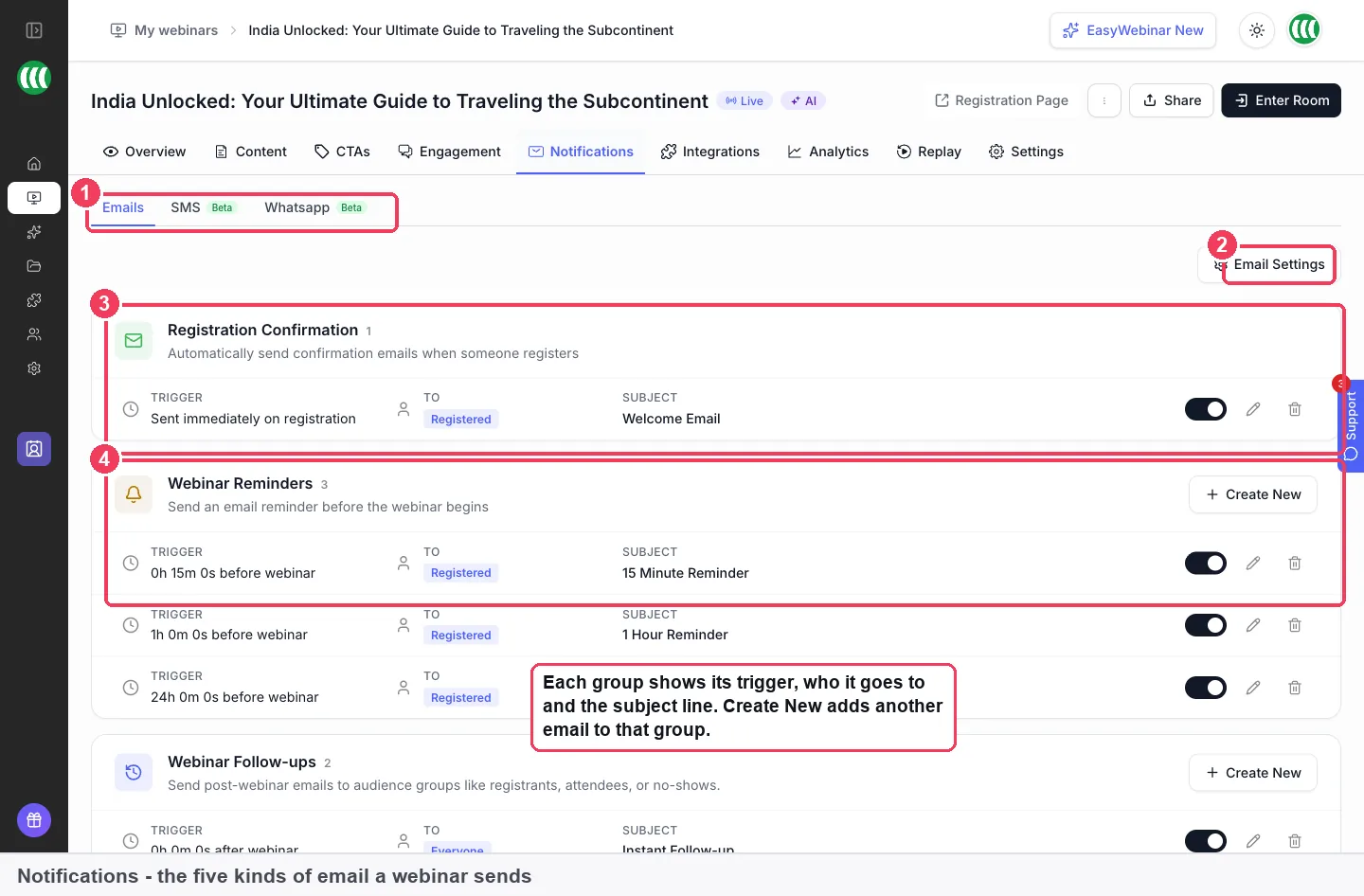
The To column is the one to check today. On this sample webinar the instant follow-up goes to Everyone, so change it before pasting in an attendee-only thank-you.
1. Open your webinar and click the **Notifications** tab.
2. In **Webinar Follow-ups**, click **Create New**.
3. Choose the audience: everyone who registered, only those who attended, or only the no-shows.
4. Set the timing, then add your subject line and your email.
5. Repeat for each email, and use **Attendee Action Follow-ups** for the offer-click and left-early versions.
6. Click **Email Settings** and check the **Sender name** and **Reply-to email**.
When you've finished, read down the list. Each entry shows its trigger, the audience it goes to and its subject, so a mismatch is easy to spot. Our [feature overview of follow-up by behaviour](https://easywebinar.com/features/webinar-follow-up/) describes the same groups from the product side.
### If AI drafted your emails {#ai-drafts}
A webinar built with [**Create with AI**](https://easywebinar.com/product-docs/ai/create-with-ai/#generate-emails) already has **Follow-up — Instant** and **Follow-up — 1d** in its sequence, and **Add email** adds more. Those drafts arrive with merge tags in place, so dates, times and join links fill themselves in. Keep the tags and edit the words around them, then use the templates above to tighten the copy and split the audience.
### Use them again next time {#reuse}
Follow-ups belong to one webinar, so your next session needs its own set. [Cloning the webinar](https://easywebinar.com/product-docs/webinars/getting-started/clone-a-webinar/) can bring its email notifications with it, as well as its polls and offers. After cloning, update the dates, the replay link and the deadline in every email.
### If you run the sequence in EasyCRM {#workflows}
If you'd rather run follow-ups as an automated sequence, [EasyCRM](https://easywebinar.com/easycrm/) has **Workflows**. Our guide to [automating webinar follow-ups with CRM tools](https://easywebinar.com/blog/how-to-automate-webinar-follow-ups-with-crm-tools/) walks through the thinking. The simplest version gives attendees one message and no-shows the replay, and it runs after every webinar.
It's your CRM or ours. Follow-ups can also run through the Mailchimp, ActiveCampaign or Kit (formerly ConvertKit) account you already use, so keep it, and connect it on your webinar's **Integrations** tab to tag who attended and who missed.
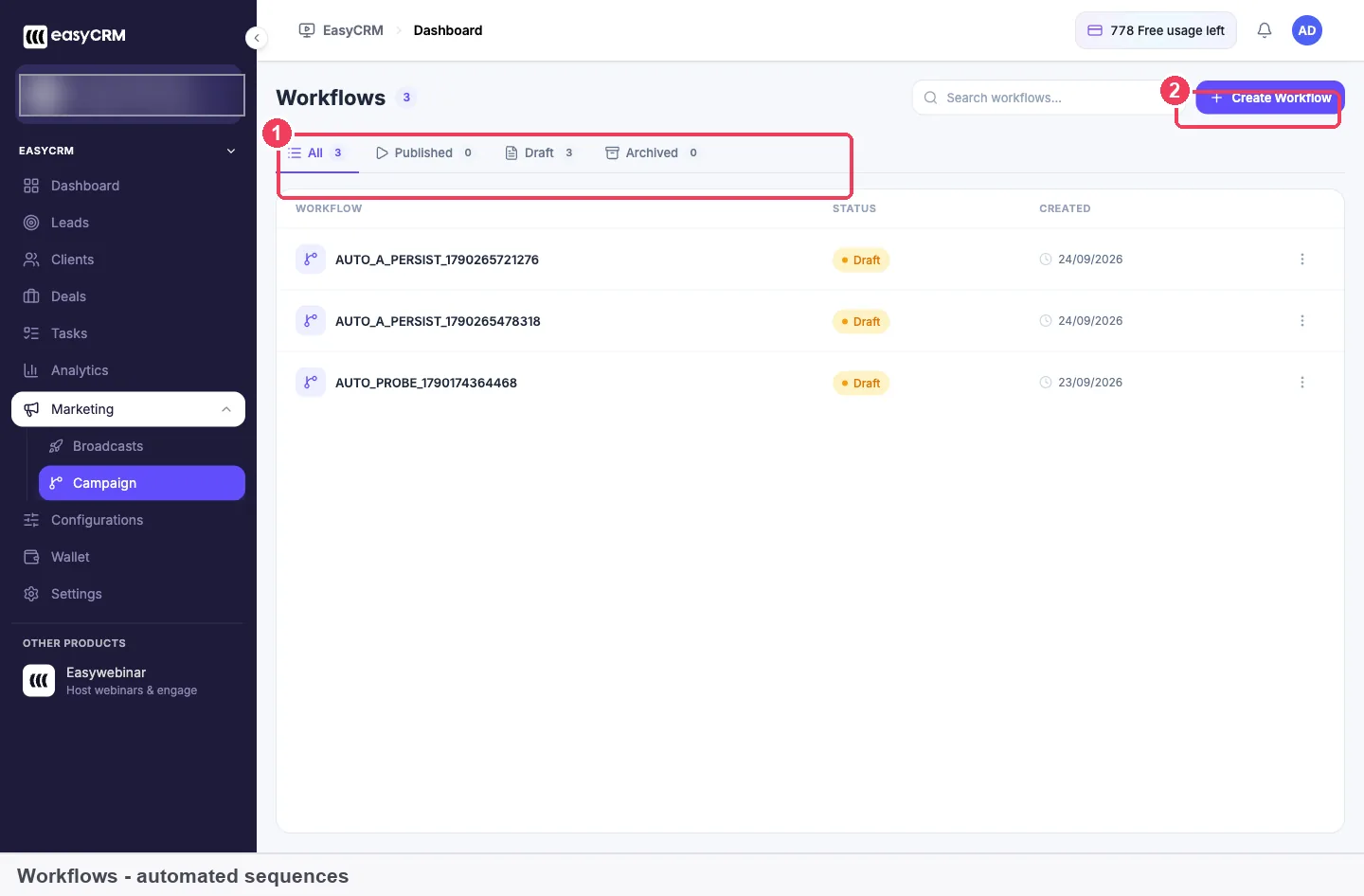
A workflow stays in Draft until you publish it, so you can paste in these templates and revise them before anything reaches a contact.
Go to **Marketing → Campaign** and click **Create Workflow**. Nothing sends while a workflow is in draft, and nothing sends until sending is set up, including a connected email provider and a verified sender. For a one-off message, such as a replay link after a webinar or an offer closing on Friday, use **Marketing → Broadcasts** instead. A broadcast goes to a list you pick, and it can go now or on a schedule. EasyCRM is a plan add-on, and sends count against your **Wallet** allowance, so check [plans and add-ons](https://easywebinar.com/pricing/) first.
This EasyWebinar video shows EasyCRM follow-up that reacts to what each attendee did.
Video: [EasyCRM: Webinar Follow-Up That Reacts to What Each Attendee Did](https://www.youtube.com/watch?v=hI8YUCKw59s)
### If your list lives in an email tool {#email-tool}
You can also send follow-ups from your own email tool. [Map webinar events to tags](https://easywebinar.com/product-docs/integrations/map-webinar-data/#map-events-to-tags) so it knows what each person did, and create the tags in that tool first.
| Webinar event | Fires when someone | Which template it starts |
|---|---|---|
| **Attended** | Joins the session | Attendee thank-you |
| **Missed** | Registers and never shows | No-show replay |
| **Clicked offer** | Clicks your offer | Offer-click email |
| **Left early** | Leaves before the end | Left-early email |
You can send each person's replay link across as well, using the **Webinar Replay Link** field on the [custom fields tab](https://easywebinar.com/product-docs/integrations/map-webinar-data/#map-custom-fields). Your email tool then fills it into the template.
### A short text nudge (Beta) {#text-nudge}
**Follow-Up SMS** (Beta) and the WhatsApp **Follow-Up Message** (Beta) both send after the webinar ends. They work alongside email rather than replacing it: email carries the detail and the text carries the nudge. You'll need people's numbers, so the [**Phone** field has to be on your registration form](https://easywebinar.com/product-docs/webinars/registration/custom-fields/).
## See whether your follow-ups moved people {#measure-it}
Judge a follow-up by what people did next. Open the webinar's [**Analytics** tab](https://easywebinar.com/product-docs/webinars/analytics/webinar-analytics/) a day or two after each send, and again after your deadline.
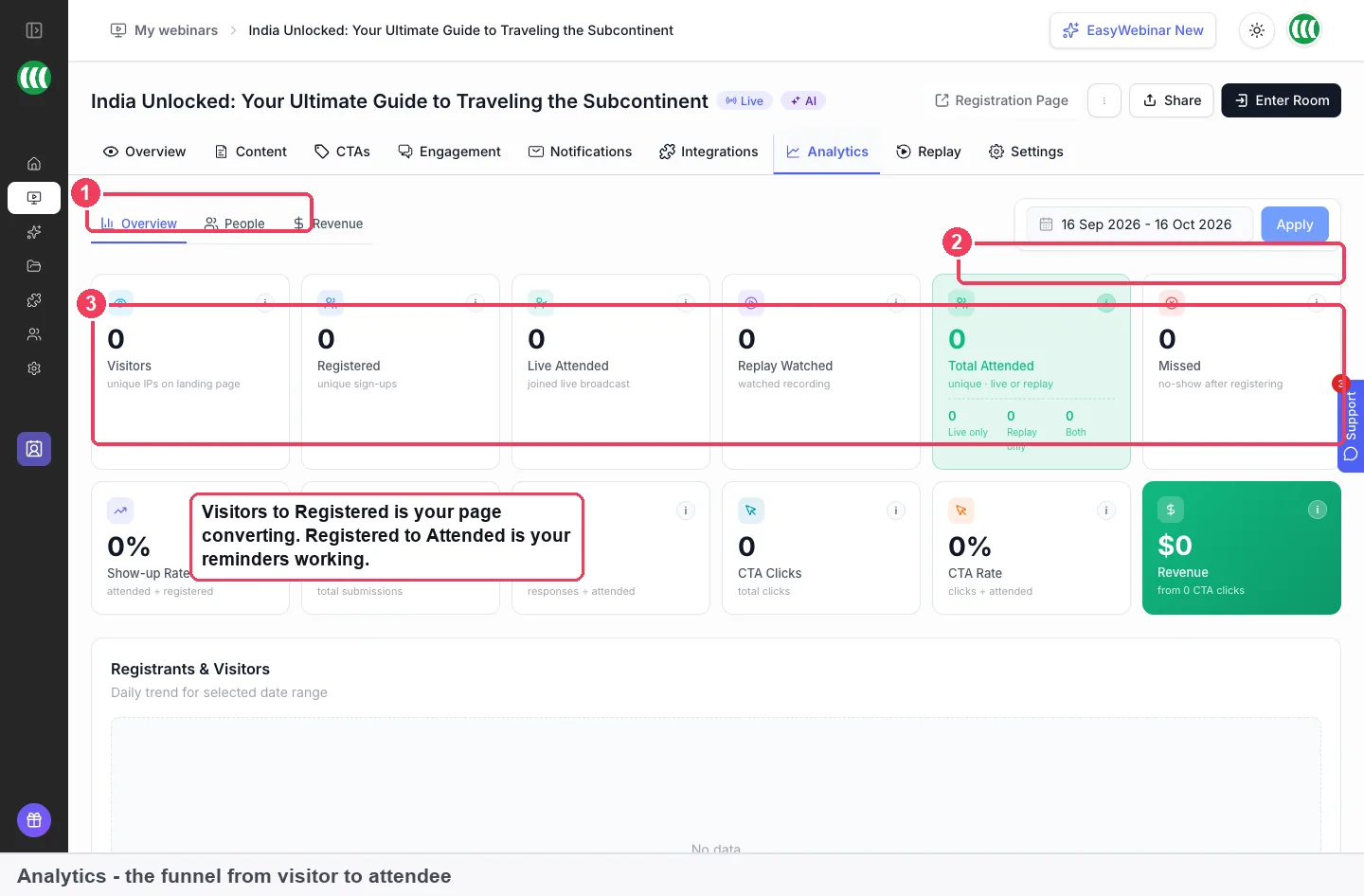
Every tile reads zero here because this sample webinar hasn't run. After your session, Replay Watched and Missed are the two to compare once the no-show emails have gone.
| What to check | What it tells you about your follow-ups |
|---|---|
| **Missed** | How many people belong on your no-show list |
| **Replay Watched** | How many people watched the recording |
| **Total Attended**, split into **Live only**, **Replay only** and **Both** | How many people the replay reached who didn't come live |
| **Offers Performance** | Views, clicks and purchases for each offer |
| **Views to Clicks** and **Clicks to Purchases** | Whether the offer or the checkout is losing people |
The [**People** view](https://easywebinar.com/product-docs/webinars/analytics/people/) shows the individuals behind those numbers. Filter by **Behavior → no-show** for one webinar to see who still needs the replay. Filter by high watch time plus offer clicked to find people who were interested and didn't buy, then check their **Replay watch percentage** before you write to them again.
### How far to trust these numbers {#measure-limits}
The useful measures for this job are the ones that show someone taking the next step: watching the replay, clicking the offer in the room, and buying. They have weak spots, so read them with care.
- **They count people, not emails.** **Replay Watched** tells you someone watched. It can't show on its own which email brought them back.
- **Deadlines bunch the activity.** A rush just before the replay closes could come from the last call, the deadline itself or both.
- **Small lists swing.** On a list of 50, three extra purchases can look like a big change. Look across several webinars before you rewrite a template.
- **Change one thing at a time.** Between webinars, keep the schedule steady while you change one email, and keep the same date range. The range applies to everything on the page, so a different one will skew the comparison.
## Worked example: sizing your follow-up lists {#worked-example}
This is an illustrative calculation with sample figures, not an EasyWebinar output. Take the watercolour class from earlier, with 200 registrants, and the send plan from this page. Three emails go to each main group, and one goes to each behaviour group.
| Group | People | Emails each | Total sends |
|---|---:|---:|---:|
| Attendees | 80 | 3 | 80 × 3 = 240 |
| No-shows | 200 − 80 = 120 | 3 | 120 × 3 = 360 |
| Clicked the offer in the room | 20 | 1 | 20 × 1 = 20 |
| Left early | 15 | 1 | 15 × 1 = 15 |
| **Total** | | | 240 + 360 + 20 + 15 = 635 |
No-shows take 360 of the 635 sends, which is about 57%. So the no-show emails deserve as much care as the attendee thank-you, and they're the ones to write first. If you send through EasyCRM, this total also tells you what the sequence will use from your **Wallet** allowance.
Now suppose 30 of those no-shows watch the replay. That's 30 ÷ 120 = 25% of the no-show list, and it takes total attendance from 80 to 110. As a share of registrants, that's a move from 80 ÷ 200 = 40% to 110 ÷ 200 = 55%. Those are the figures to compare on your next webinar.
## How EasyWebinar compares for webinar follow-up emails {#compare}
EasyWebinar sends one follow-up to attendees and another to no-shows, and a further email when someone clicks your offer. Its built-in CRM can then run a longer sequence under the same login. Every attendee gets the next message their behaviour earned.
Webinar follow-up email features, from each platform's public documentation:
| Platform | Separate emails for attendees and no-shows | Email sent when someone clicks an offer | Built-in CRM that runs sequences |
|---|---|---|---|
| **EasyWebinar** | Yes | Yes | Yes |
| **Zoom** | Yes ([attendee and absentee emails](https://support.zoom.com/hc/en/article?id=zm_kb&sysparm_article=KB0065074)) | Not in docs | Not in docs |
| **Demio** | Yes ([replay email by audience](https://help.demio.com/en/articles/2303558-event-notifications)) | Not in docs | Not in docs |
| **WebinarJam and EverWebinar** | Yes ([follow-ups by attendee behaviour](https://support.webinarjam.com/en/articles/15369988-manage-webinar-notifications-and-reminders)) | Partly ([filters on orders, needs tracking codes](https://support.webinarjam.com/en/articles/15369989-send-notifications-using-webinarjam-mail)) | Not in docs |
| **WebinarKit** | Yes ([attended or did not attend](https://help.webinarkit.com/help/how-to-build-webinar-funnels)) | Partly ([tags offer clicks in other apps](https://help.webinarkit.com/help/using-webinarkit-s-3rd-party-integrations)) | Not in docs |
| **eWebinar** | Yes ([one audience per email](https://ewebinar.com/help/email-verification-and-notifications)) | Partly ([tracked conversions, not the click](https://ewebinar.com/help/email-verification-and-notifications)) | Not in docs |
| **Kajabi** | Not in docs | Not in docs | Yes ([email sequences around an Event](https://help.kajabi.com/en/articles/17175822-video-create-an-event)) |
*Yes: documented and built in. Partly: documented with a limit, shown in brackets. Not in docs: not found in the vendor's public documentation.*
### Why EasyWebinar is the stronger choice for webinar follow-up emails {#compare-stronger}
- **The first email can go today.** EasyWebinar's follow-ups can send right after the webinar ends. [Zoom's follow-up email can be sent 1 to 7 days after the webinar start time](https://support.zoom.com/hc/en/article?id=zm_kb&sysparm_article=KB0065074). See [EasyWebinar vs Zoom](https://easywebinar.com/compare/easywebinar-vs-zoom/).
- **Follow-ups on recorded webinars too.** EasyWebinar drafts the same follow-ups for live, simulive and evergreen builds. [Demio's best-practices guide says its Replay Follow-Up isn't available on Automated events](https://help.demio.com/en/articles/5451298-demio-webinars-best-practices). See [EasyWebinar vs Demio](https://easywebinar.com/compare/easywebinar-vs-demio/).
- **The click is enough.** EasyWebinar's **Attendee Action Follow-ups** respond to the offer click. [WebinarJam's purchase filters need tracking codes in your sales funnel](https://support.webinarjam.com/en/articles/15369989-send-notifications-using-webinarjam-mail). See [EasyWebinar vs WebinarJam and EverWebinar](https://easywebinar.com/compare/easywebinar-vs-everwebinar-webinarjam/).
*Competitor details checked against each vendor's public documentation on 2 November 2026. Features and plans change, so confirm with the vendor before you decide.*
## What EasyWebinar's follow-up emails don't do {#what-it-doesnt-do}
Follow-ups are set per webinar, so a new webinar needs its own set or a clone of an earlier one. The replay link is public while the replay page is on, so anyone you forward it to can watch. EasyWebinar also doesn't host or deliver your course: the offer button and any redirect send people to your own checkout or sales page. SMS (Beta) and WhatsApp (Beta) messages come from an EasyWebinar number, so replies don't reach your phone.
## Common questions about webinar follow-up emails {#common-questions}
#### What should you say in a thank-you email after a webinar? {#faq-thank-you}
Thank people once, name the one idea they came for, share the replay link and offer a single next step. Keep it short, because attendees don't need a summary of a session they just watched.
#### When should you send the first webinar follow-up email? {#faq-first-email}
Send it right after the session ends. Attendees still remember what you said, and no-shows still remember why they signed up. EasyWebinar's timing can be set to send as soon as the webinar finishes.
#### Should no-shows get a different email from attendees? {#faq-no-shows-different}
Yes. A no-show needs the recording and a reason to watch it, while an attendee needs a thank-you and a next step. Sending one email to both means it reads wrong for one of them.
#### How many follow-up emails should I send after a webinar? {#faq-how-many}
Three per group is enough for most sessions: one right after, one a day later and a last call before your deadline. If nothing is closing, you can stop at two.
#### Should the replay link go in the first follow-up? {#faq-replay-first}
Yes, for both groups. Attendees may want to go back over a part, and no-shows want the recording most of all. Turn on the replay page first so the link works.
#### How long should a webinar replay stay up? {#faq-replay-length}
Match it to your offer. Use **Expire after days** or **Specific date** when a deadline applies, and **Always Available** for training or anything that keeps its value. Your emails should state the same closing time.
#### Can I email only the people who didn't turn up? {#faq-only-no-shows}
Yes. On the **Notifications** tab, add a **Webinar Follow-up** and set its audience to no-shows, then include the replay link in the email.
#### Can someone who clicked my offer get a different email? {#faq-offer-click}
Yes. **Attendee Action Follow-ups** send based on what someone did, including whether they clicked an offer. If you use your own email tool, tag them with the **Clicked offer** event instead.
#### Where do I find the replay link? {#faq-replay-link}
On the webinar's **Replay** tab, under **Replay Page Link**, once **Enable replay page** is on. It's also in the Share dialog as **Attendee Replay link**.
#### Can I reuse my follow-ups on my next webinar? {#faq-reuse}
Yes. [Clone the webinar with its email notifications](https://easywebinar.com/product-docs/webinars/getting-started/clone-a-webinar/#choose-what-to-copy), then update the dates, the replay link and any deadlines in each email before it goes out.
#### Can AI write my follow-up emails? {#faq-ai}
Yes. When **Create with AI** builds a webinar, the email sequence includes an instant follow-up and one a day later. Every email stays editable, so you can split the audience and change the wording.
#### Can I send follow-ups from my own email tool? {#faq-own-tool}
Yes. Connect it on the webinar's **Integrations** tab and tag people by what they did, such as **Missed** or **Clicked offer**. Your tool then starts the right sequence.
#### Do webinar follow-up emails need an unsubscribe link? {#faq-unsubscribe}
If the email promotes something and goes to US recipients, the CAN-SPAM Act requires a clear way to opt out and a postal address. Other countries have their own rules, so take advice if you're unsure.
#### How long should a follow-up subject line be? {#faq-subject-length}
Aim for about 40 characters, with the useful words first, such as the replay or the deadline. That's Nielsen Norman Group's 2014 guidance, because inboxes can cut longer lines off.
## Further reading {#further-reading}
- [Transactional Email and Confirmation Messages](https://www.nngroup.com/articles/transactional-and-confirmation-email/), Nielsen Norman Group, 2008: how people sort a crowded inbox, and what they look for first in an email.
- [Email Subject Lines: 5 Tips to Attract Readers](https://www.nngroup.com/articles/email-subject-lines/), Nielsen Norman Group, 2014: why useful words go first, and why names and symbols rarely help.
- [The Short Life of Online Sales Leads](https://hbr.org/2011/03/the-short-life-of-online-sales-leads), Harvard Business Review, March 2011: the case for answering online enquiries quickly. One co-author ran a sales software company, and the full article is behind a paywall.
- [15 U.S. Code 7704](https://www.law.cornell.edu/uscode/text/15/7704), Legal Information Institute: the CAN-SPAM rules on opt-outs, postal addresses and subject lines, in full.
- [The UK's data protection legislation](https://www.gov.uk/data-protection), GOV.UK: the data protection principles that apply to anyone using registrants' details.
## Related {#related}
- [Selling online courses with webinars](https://easywebinar.com/product-docs/use-cases/sell-courses/): how these follow-ups fit into a full course launch, from the first build to the sales numbers.
- [Replay deadlines and experience](https://easywebinar.com/product-docs/webinars/media/replay-pages/#experience): the settings behind every replay link and closing date in these templates.
- [Find people by what they did](https://easywebinar.com/product-docs/webinars/analytics/people/#use-it): the filters to use when you want to write to one group by hand.
- [Reading the webinar funnel](https://easywebinar.com/product-docs/webinars/analytics/webinar-analytics/#read-your-analytics): what each figure counts, and how to tell a page problem from a reminder problem.
*Updated 2 November 2026: added the research on what makes a follow-up work, the legal rules, the manual method, a measurement guide and a worked example.*