# Webinar Marketing Automation: Build CRM Workflows for Attendees, No-Shows and Leads
Webinar marketing automation keeps follow-up running after every session. This guide shows how to create a workflow in EasyCRM, keep it in draft, publish and archive it, and when a workflow suits a group better than a broadcast.
- Applies to: EasyCRM workflows · Marketing → Campaign · EasyCRM starts at the Growth plan
- Status: Live
- Verified: 2026-11-04
- Canonical page: https://easywebinar.com/product-docs/easycrm/workflows/
Webinar marketing automation is how you keep following up with every registrant after the session ends, without sending each email by hand. Done by hand, follow-up slips: attendees wait days, no-shows never get the replay, and new leads go cold. In EasyWebinar you build that follow-up as a workflow in its built-in CRM, [EasyCRM](https://easywebinar.com/easycrm/), which stays in draft until you publish it and then keeps running on its own. It's your CRM or ours: keep HubSpot, Salesforce Pardot (Account Engagement), ActiveCampaign, Mailchimp or Kit (formerly ConvertKit), or use EasyCRM natively.
## At a glance {#at-a-glance}
| | |
|---|---|
| **What a workflow is** | An automated sequence that keeps sending after you set it up, unlike a broadcast, which goes out once |
| **Where you build one** | EasyCRM → **Marketing** → **Campaign** → **Create Workflow** |
| **The three states** | **Draft** (nothing sends), **Published** (live and running) and **Archived** (retired, kept for reference) |
| **Who it sends to** | Lists you save on the **Leads** screen, such as one list for attendees and one for no-shows |
| **Before anything sends** | Sending has to be set up and your sender verified under **Configurations** |
| **What it uses** | Your monthly **Wallet** allowance, which broadcasts draw on too |
| **Plan** | EasyCRM and automated follow-up start at Growth; check [the pricing page](https://easywebinar.com/pricing/) for what each plan includes |
## What a CRM workflow does for webinar follow-up {#what-it-is}
Picture the morning after a webinar. You have a list of people who came, a longer list of people who didn't, and a day of other work. A workflow is how that follow-up happens without you sitting down to send it.
In EasyCRM, a **workflow** is an automated sequence. Where a broadcast goes out once, a workflow keeps running and sends the right message when someone does something, without you being there. You build it in draft, publish it when it's ready, and archive it when the campaign ends.
Workflows live beside broadcasts under **Marketing** in the EasyCRM sidebar. Together they handle the communication side of the CRM, after webinar registrants arrive in **Leads** and before the people who buy become **Clients**.
### What you see on the screen {#what-you-see}
The **Workflows** screen opens from **Marketing → Campaign**. Across the top are four status tabs, **All**, **Published**, **Draft** and **Archived**, each with a count, so you can see at a glance how many sequences are live. The **Create Workflow** button starts a new one. The screen is shown in the set-up steps below.
## Keep your CRM or use ours {#your-crm-or-ours}
You don't need EasyCRM to run webinars. If your follow-up already runs in HubSpot, Salesforce Pardot (Account Engagement), ActiveCampaign, Mailchimp or Kit, you can [connect that CRM and map your webinar data](https://easywebinar.com/product-docs/integrations/map-webinar-data/) instead. Connected contacts can be tagged by what they did, such as attended, missed or clicked your offer, and your own CRM's automation takes it from there.
EasyCRM is the option when you'd rather not run a separate tool, or when your list has outgrown a spreadsheet. It shares one login with EasyWebinar, and registrants come across with **Import from EasyWebinar**.
## Why webinar marketing automation matters {#why-it-matters}
### What it's for {#what-its-for}
Webinar marketing automation makes sure every registrant hears from you after the session, whatever they did. A workflow carries the follow-up you'd otherwise send by hand, so it goes out after every webinar and nobody gets missed.
### How it helps {#how-it-helps}
- **Every group gets its own message.** Attendees get one follow-up and no-shows get the replay, because each list gets its own sequence.
- **Follow-up keeps going after day one.** A nurture sequence can run over the following fortnight without another send from you.
- **Nothing reaches a contact before you're ready.** A draft sends nothing, so you can build and revise in peace.
- **Old campaigns stay on record.** Archiving retires a workflow but keeps it, so you can reuse its structure.
### What happens without it {#without-it}
Without automation, follow-up depends on someone remembering to send it. The no-shows, usually the biggest group, are the first to be dropped. Leads who were interested on the day hear nothing for a week, and by then the webinar has faded from their mind.
### Who this falls to, and when {#why-buyers-care}
On a small team, the person who presents the webinar usually sends the follow-up too. It matters most in the week after a session, when that person is also answering questions and planning the next one. A published workflow takes the follow-up off their list.
## The EasyWebinar approach to webinar marketing automation {#approach}
{/* 5P */}
Take a typical case. A one-person bike repair workshop runs a free monthly webinar on home bike maintenance, then offers a yearly servicing plan. About 300 people register each month, and fewer than half turn up. The owner wants every one of them to hear back the next morning.
The usual workaround is a spreadsheet export and a batch of emails written late at night. It tends to work in the first month and fade by the third. The no-shows rarely get their replay link, and a lead who asked a good question can wait a week for a reply.
What changed is volume. Once a webinar runs every month, follow-up stops being a one-off task and becomes a repeating job. A repeating job is better done by a sequence that runs on its own than by a person working through the same steps each time.
EasyWebinar gives the owner a CRM that sits under the same login as the webinars. They import registrants and attendees, save one list for attendees and one for no-shows, and build a workflow for each. Each stays in draft until it's checked, and is published once the first webinar's lists are in place.
One fact you can check on the screen is the status tabs on the Workflows list, which count every workflow as **Published**, **Draft** or **Archived**. How the workflow approach sits beside other webinar platforms is covered in How EasyWebinar compares for webinar marketing automation, below.
## How webinar follow-up gets automated {#how-follow-up-gets-automated}
There are four common ways to follow up after a webinar. Each catches some people and misses others, which is why the choice between them matters.
### Sending each email by hand {#by-hand}
You export the list and write the emails yourself. It catches whoever you remember, on the day you get to it. It misses anyone who needed a second message, and it stops entirely in a busy week.
### The webinar's own follow-up emails {#webinar-follow-ups}
Each webinar has its own notifications, including **Webinar Follow-ups** sent after the session to registrants, attendees or no-shows. These catch the first message well and are the quickest way to send the replay to no-shows. They're tied to one webinar, so they don't carry a lead through a longer sequence afterwards.
### Automation in your own CRM {#own-crm-automation}
You pass webinar activity to a connected CRM as tags, and that CRM's automation sends the sequence. This catches everything your CRM can act on. The cost is a second tool to set up, and a sequence that only works if the mapping is right.
### A workflow in the CRM attached to the webinar {#crm-workflow}
You import registrants into EasyCRM, save them as lists and build a workflow for each list. This catches people across the weeks after a webinar, not just the next day. Like any automation, it sends exactly what you built, to everyone on the list, so it needs checking before it goes live.
### What's confirmed for EasyCRM {#confirmed-for-easycrm}
EasyCRM's sources confirm the workflow states (draft, published, archived), that a draft sends nothing, that workflows send to saved lists, and that sends draw on the Wallet allowance. Which triggers and steps the workflow builder offers is not covered here; those details are listed for confirmation with EasyWebinar.
## Workflow or broadcast: which to use {#workflow-or-broadcast}
A broadcast is a one-off send to a list: a replay link after a webinar, an offer closing on Friday, or an announcement. A workflow is for anything that repeats or reacts to behaviour. If you'd send the same message again after the next webinar, it belongs in a workflow.
| You want to | Use |
|---|---|
| Send one replay link to last night's no-shows, once | A broadcast |
| Send attendees and no-shows their own follow-up after every webinar | A workflow |
| Announce a date change to everyone on a list | A broadcast |
| Give each new lead a short sequence over the next fortnight | A workflow |
| Reach someone who hasn't opened anything in ninety days | A workflow |
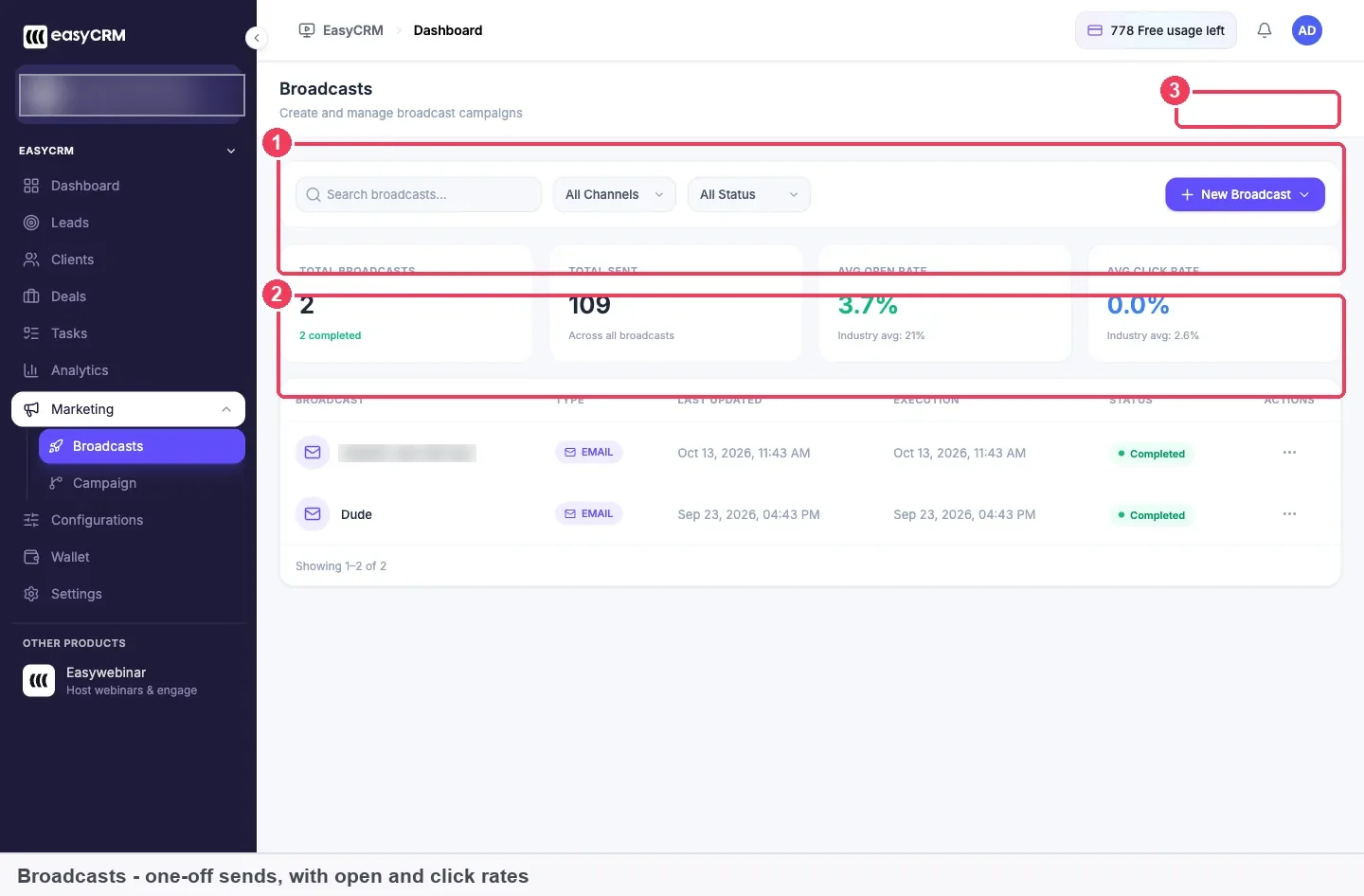
Broadcasts sit beside workflows under Marketing, and this is where one-off sends are listed. The figures shown are sample data.
Both draw on the same allowance, and both send to lists. The difference is time: a broadcast runs once, while a workflow keeps sending for as long as it's published.
## What to automate first {#what-to-automate-first}
EasyWebinar's own guidance names three workflows that earn their place. Build one, publish it, and watch it for a full cycle before adding the next. A workflow that sends the wrong thing sends it to everyone.
1. **Webinar follow-up.** Attendees get one message and no-shows get the replay. It runs after every webinar without you touching it.
2. **Nurture.** A new lead receives a short sequence over the following fortnight.
3. **Re-engagement.** Someone who hasn't opened anything in ninety days gets one last message.
In this EasyWebinar video, you'll see webinar follow-up that changes with what each attendee did during the session.
Video: [EasyCRM: Webinar Follow-Up That Reacts to What Each Attendee Did](https://www.youtube.com/watch?v=hI8YUCKw59s)
For what to write in each message, the [guide to automating webinar follow-ups with CRM tools](https://easywebinar.com/blog/how-to-automate-webinar-follow-ups-with-crm-tools/) walks through the timing and content.
## Build the lists your workflows send to {#build-lists}
Workflows send to lists, so the lists come first. A filter on the **Leads** screen narrows the view for now, while a list is saved and can be sent to again. If you want to send to a filtered view, save it as a list first.
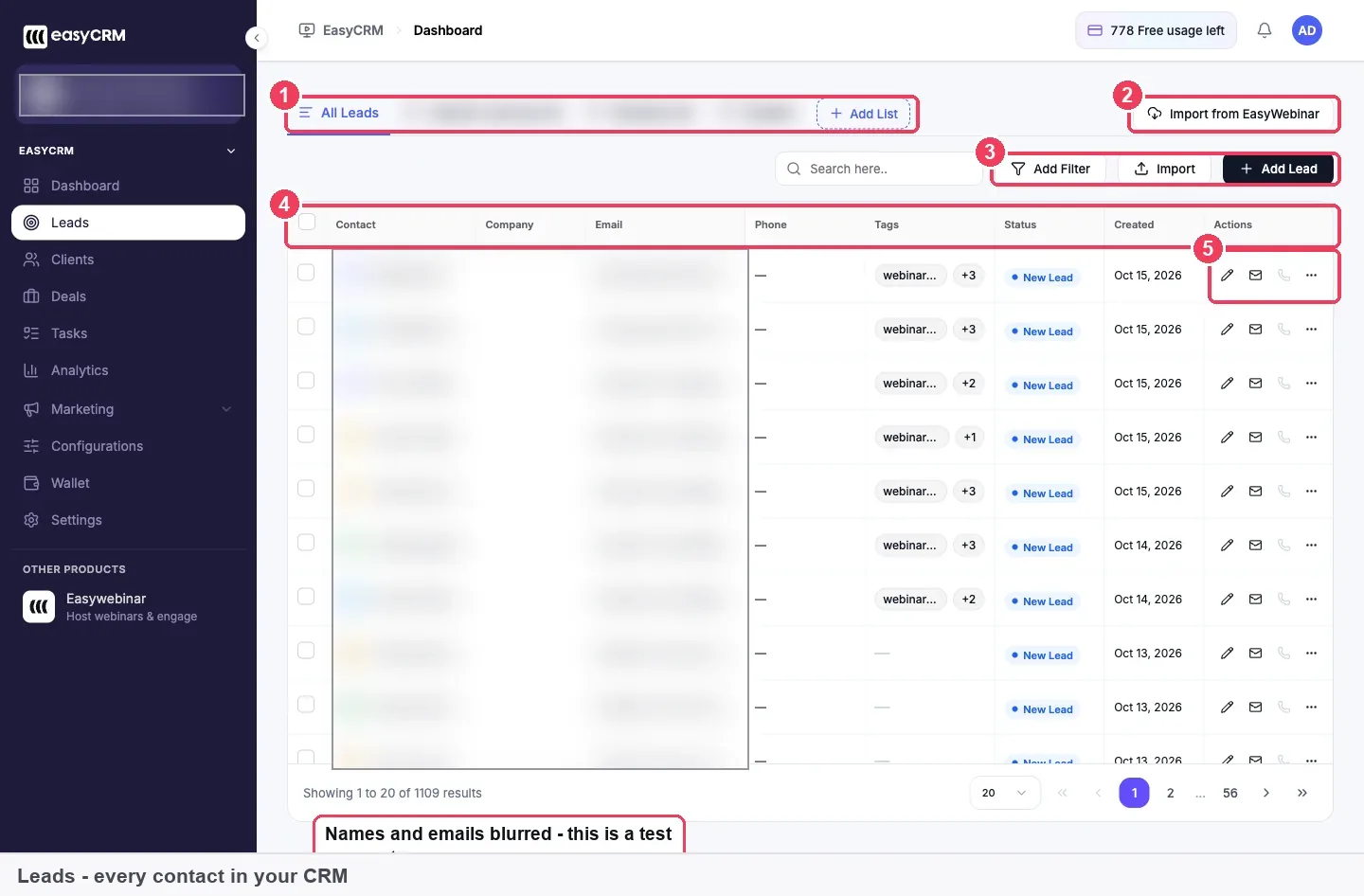
Saved lists appear as tabs beside All Leads, and those tabs are what a workflow sends to. Contacts shown are sample data.
These patterns hold up for webinar follow-up:
- **One list per webinar**, so you can follow up on a specific event.
- **A list for attendees and another for no-shows**, with a different message and different timing for each.
- **A list for people who clicked an offer**, which is your warmest group.
Leads from a webinar arrive tagged with that webinar, which makes these lists quick to build. Every import is also kept as an audience you can send to again without importing it twice. A lead can sit on more than one list.
## How to automate webinar follow-up by hand {#manual-method}
Before a workflow, most small teams follow up like this after each session:
1. Export the registrant list from the webinar's [People view](https://easywebinar.com/product-docs/webinars/analytics/people/).
2. Split it into attendees and no-shows in a spreadsheet.
3. Write a thank-you email for attendees and a replay email for no-shows.
4. Send both, then set a reminder to send the next message in a few days.
5. Repeat every step after the next webinar.
Each step is a chance to slip. The split is redone every month, and the reminder in step 4 is the one most often missed.
### The same job in EasyWebinar {#same-job-in-easywebinar}
In EasyCRM, steps 1 and 2 become **Import from EasyWebinar** and two saved lists. Steps 3 and 4 become a workflow for each list, built once in draft and then published. Step 5 disappears, because a published workflow keeps running after every webinar until you archive it.
### Worked example: fitting a month of workflows into your allowance {#worked-example}
This is an illustrative calculation with sample figures, not an EasyWebinar output. It uses the bike workshop above and the 1,000 emails a month that the Wallet screen lists as included.
| Step | Calculation | Emails |
|---|---|---|
| Registrants this month | 300 people, 40% attend | 120 attendees, 180 no-shows |
| Attendee follow-up | 120 × 1 email | 120 |
| No-show replay email | 180 × 1 email | 180 |
| Nurture to everyone | 300 × 3 emails | 900 |
| Total if nurture goes to everyone | 120 + 180 + 900 | 1,200 |
| Nurture to attendees only | 120 × 3 emails | 360 |
| Total with targeted nurture | 120 + 180 + 360 | 660 |
Sending the nurture to everyone needs 1,200 emails, which is over the allowance before any broadcast goes out. Sending it to the attendee list only needs 660, which leaves 340 for broadcasts. A targeted list costs less and is more likely to be opened.
## How to set up a webinar follow-up workflow {#set-up}
1. Set up sending and verify who you send as under **Configurations**.
2. Import your webinar's registrants and attendees into **Leads**.
3. Save the lists the workflow will send to.
4. Open **Marketing → Campaign** and click **Create Workflow**.
5. Build the workflow and leave it in draft while you check it.
6. Publish it, then watch one full cycle before adding another.
### What to have ready {#what-to-have-ready}
Sending must be set up first, or nothing goes out. [Set up EasyCRM sending](https://easywebinar.com/product-docs/easycrm/sending-setup/) to connect a provider and verify your domain or business address. You'll also need the webinar's registrants in the CRM and the lists saved, and an idea of how much of your Wallet allowance the sequence will use.
### Open EasyCRM {#open-easycrm}
Click **EasyCRM** under **Other Products** in the EasyWebinar sidebar. The two share one login, and you can switch back from the same place.
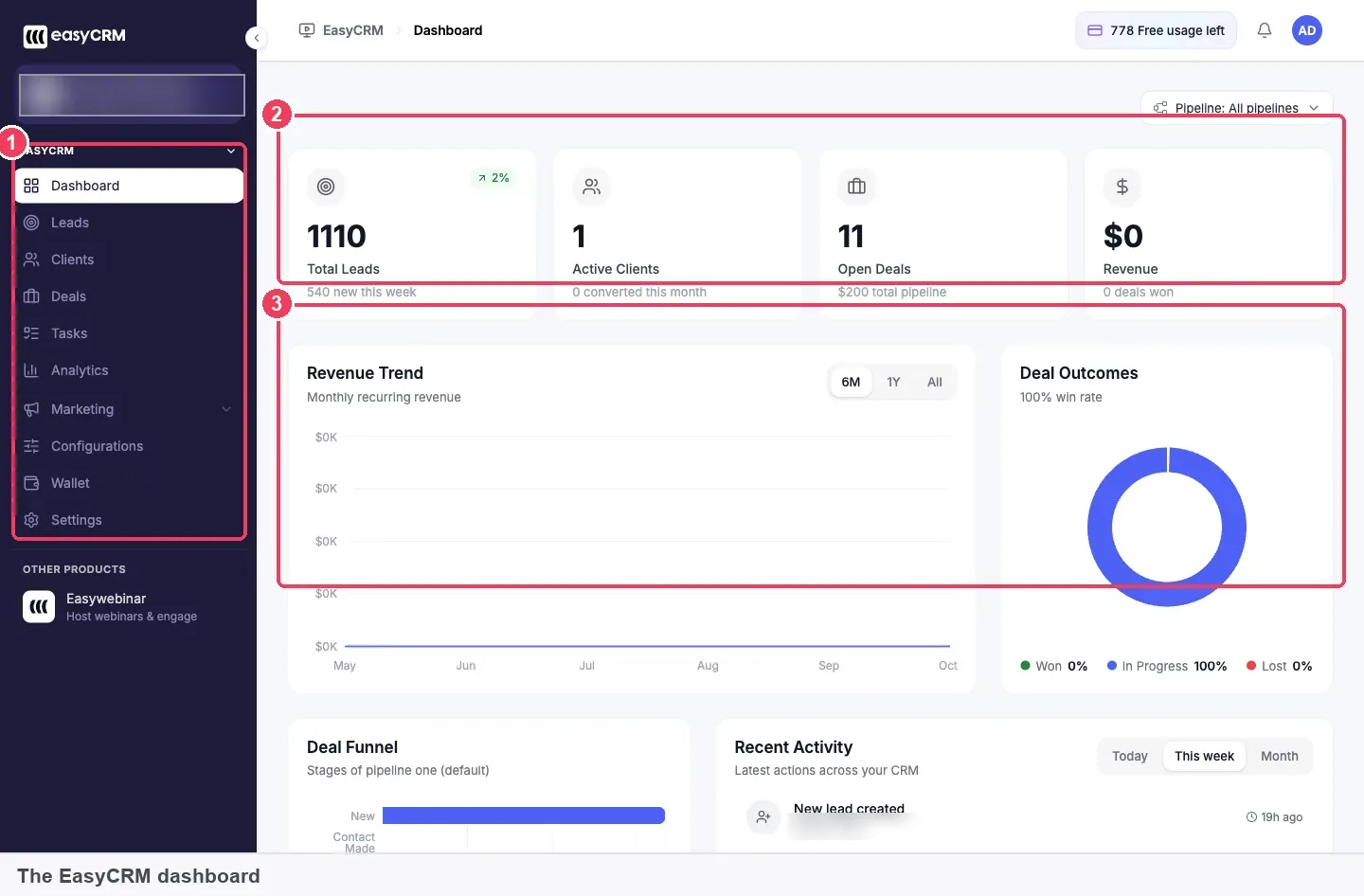
The dashboard is where you land in EasyCRM, and Marketing in its sidebar leads to your workflows. The figures shown are sample data.
### Create the workflow {#create-workflow}
Click **Marketing → Campaign** in the EasyCRM sidebar, then **Create Workflow**. The new workflow starts in draft, so nothing reaches a contact while you build and revise it.
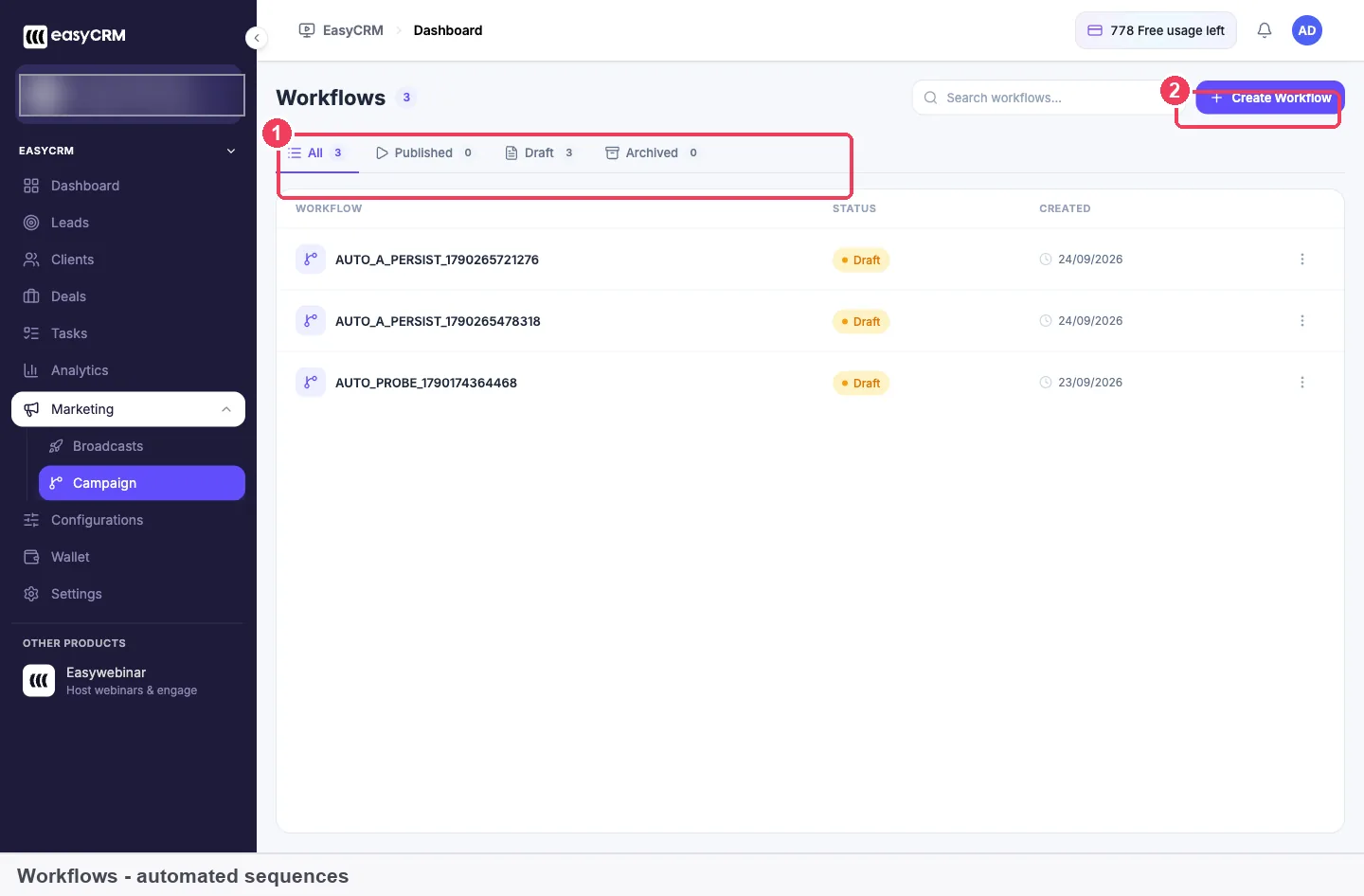
The status tabs show at a glance which follow-up sequences are live, which are still drafts and which you have retired.
### Publish when it's ready {#publish}
A workflow only sends once it's published. Before you publish, check which list it sends to, read every message once more, and confirm your sender is verified. Once published, it moves to the **Published** tab and starts running.
### Archive when the campaign ends {#archive}
To stop a workflow that's running, archive it. Archive rather than delete when a campaign ends: you keep the record, and you can reuse the structure for the next one.
## Check a workflow before and after you publish {#check-before-publish}
Because a workflow sends the same thing to everyone on its list, the checks matter more than for a single broadcast. Go through these before you publish:
- **The list is the right one.** Open the list tab and check who is on it, especially the no-show list.
- **Sending is set up.** The sender is verified, or nothing goes out.
- **The allowance will cover it.** Count the emails the sequence sends this cycle, as in the worked example.
- **People can opt out.** Gmail asks bulk senders to support [one-click unsubscribe](https://support.google.com/a/answer/81126) with a visible unsubscribe link. Yahoo asks senders to [honour unsubscribes within two days](https://senders.yahooinc.com/best-practices/).
In the United States, the CAN-SPAM Act bars commercial email to someone [more than 10 business days after they opt out](https://www.law.cornell.edu/uscode/text/15/7704). A sequence that keeps running is where a missed opt-out is most likely, so check how your list handles them.
## How to tell a workflow is working {#measuring-workflows}
Two measures matter most for an automated sequence: how many people it reached, and whether those people engaged. Each has a weak spot.
The number sent tells you the workflow is running, but not whether anyone read it. Open and click rates tell you about engagement, but a low open rate is usually a subject line or sender problem rather than a bad offer. A good open rate with a low click rate means the email was opened and the offer didn't land.
Watch your complaint rate too. Gmail asks senders to keep spam rates [below 0.3% in Postmaster Tools](https://support.google.com/a/answer/81126), and Yahoo sets [the same 0.3% line](https://senders.yahooinc.com/best-practices/). An automated sequence sent to the wrong list can push that number up quickly.
In EasyCRM, the Wallet's **Recent activity** log shows what was sent and when, split by channel. It's the place to look when a meter has moved more than you expected, which is usually a workflow running on its own. Open and click averages, with benchmarks of 21% and 2.6% beside them, appear on the **Broadcasts** screen.
## What works with webinar CRM workflows {#works-with}
- **Webinar follow-up emails.** Each webinar's own **Webinar Follow-ups** cover the first message, and a workflow carries the sequence after it. [Reminder emails](https://easywebinar.com/product-docs/webinars/notifications/reminder-emails/) handle the days before the session.
- **Replay pages.** The no-show workflow is where your [replay page](https://easywebinar.com/product-docs/webinars/media/replay-pages/) link earns its keep.
- **Offers.** People who clicked an [offer during the webinar](https://easywebinar.com/product-docs/webinars/engagement/timed-offers/) make the warmest list to follow up.
- **Automated webinars.** An [evergreen webinar](https://easywebinar.com/product-docs/webinars/getting-started/create-an-evergreen-webinar/) brings in registrants every day, which is when follow-up has to run on its own.
- **Connected CRMs.** If you keep your own CRM, [webinar data mapping](https://easywebinar.com/product-docs/integrations/map-webinar-data/) sends it the tags its automation needs.
- **Wallet.** Workflows and broadcasts draw on the same monthly allowance for emails, SMS (Beta) and call minutes.
## Who uses webinar CRM workflows {#who-uses-it}
### Small businesses and solo operators {#who-small-business}
A shop owner or tradesperson who runs one webinar a month has no one else to send the follow-up. A published workflow sends it after every session, which frees the owner to answer the questions that came in.
### Coaches and consultants {#who-coaches}
A coach running [just-in-time sessions](https://easywebinar.com/product-docs/webinars/automated/just-in-time/) on an automated webinar gets new registrants every day. A nurture workflow gives each one the same short sequence over the next fortnight, whenever they joined.
### Course creators {#who-course-creators}
A creator who opens enrolment with a webinar can follow up on the offer-click list separately from everyone else. The [course-selling use case](https://easywebinar.com/product-docs/use-cases/sell-courses/) shows how the webinar and the offer fit together.
### B2B marketing teams {#who-b2b-marketing}
A team running monthly prospect webinars can keep its own CRM and pass tags across, or use EasyCRM for a single product line. The [webinar lead generation guide](https://easywebinar.com/product-docs/use-cases/webinar-demand-generation/) covers capturing and scoring those leads.
## How EasyWebinar compares for webinar marketing automation {#compare}
EasyWebinar sends follow-up from the webinar itself and runs longer sequences in a CRM under the same login. You can also pass webinar activity to your own CRM's automation. Either way, follow-up keeps running after every session.
Webinar marketing automation features, from each platform's public documentation:
| Platform | Automated follow-up after the webinar | Built-in CRM that runs workflows | Activity sent to your own CRM's automation |
|---|---|---|---|
| **EasyWebinar** | Yes | Yes | Yes |
| **Zoom** | Yes ([absentee follow-up email](https://support.zoom.com/hc/en/article?id=zm_kb&sysparm_article=KB0065074)) | Not in docs | Yes ([no-shows as HubSpot workflow triggers](https://support.zoom.com/hc/en/article?id=zm_kb&sysparm_article=KB0057755)) |
| **Demio** | Yes ([replay email by audience](https://help.demio.com/en/articles/2303558-event-notifications)) | Not in docs | Yes ([HubSpot workflow branches](https://help.demio.com/en/articles/9104413-hubspot-active-lists-workflow-branches)) |
| **WebinarJam and EverWebinar** | Yes ([follow-ups by attendee behaviour](https://support.webinarjam.com/en/articles/15369988-manage-webinar-notifications-and-reminders)) | Not in docs | Yes ([automation rules to a CRM](https://support.webinarjam.com/en/articles/15369997-create-autoresponder-automation-rules-for-your-webinar)) |
| **WebinarKit** | Yes ([attended or did not attend](https://help.webinarkit.com/help/how-to-build-webinar-funnels)) | Not in docs | Yes ([behaviour-based automations](https://help.webinarkit.com/help/using-webinarkit-s-3rd-party-integrations)) |
| **eWebinar** | Yes ([one audience per follow-up](https://ewebinar.com/help/email-verification-and-notifications)) | Not in docs | Yes ([properties passed to your CRM](https://ewebinar.com/help/properties)) |
*Yes: documented and built in. Partly: documented with a limit, shown in brackets. Not in docs: not found in the vendor's public documentation.*
### Why EasyWebinar is the stronger choice for webinar marketing automation {#compare-stronger}
- **A CRM under the same login.** EasyWebinar runs workflows in EasyCRM, while Zoom [passes no-shows to HubSpot workflow triggers](https://support.zoom.com/hc/en/article?id=zm_kb&sysparm_article=KB0057755) in a separate tool. [EasyWebinar vs Zoom](https://easywebinar.com/compare/easywebinar-vs-zoom/).
- **Sequences that outlast the first email.** Demio sends a [replay follow-up by audience](https://help.demio.com/en/articles/2303558-event-notifications), and EasyWebinar adds a published workflow that keeps running for weeks. [EasyWebinar vs Demio](https://easywebinar.com/compare/easywebinar-vs-demio/).
- **Your CRM or ours.** WebinarJam [sends data to a connected CRM by rule](https://support.webinarjam.com/en/articles/15369997-create-autoresponder-automation-rules-for-your-webinar), and EasyWebinar does that too while also offering its own CRM. [EasyWebinar vs WebinarJam](https://easywebinar.com/compare/easywebinar-vs-everwebinar-webinarjam/).
- **Lists built from the webinar.** eWebinar [passes properties to your CRM](https://ewebinar.com/help/properties), while EasyWebinar imports registrants into lists a workflow sends to straight away. [EasyWebinar vs eWebinar](https://easywebinar.com/compare/easywebinar-vs-ewebinar/).
*Competitor details checked against each vendor's public documentation on 4 November 2026. Features and plans change, so confirm with the vendor before you decide.*
## Limits of CRM workflows {#limits}
- **Workflows send only once published.** A draft sends nothing, by design.
- **Sending must be set up first.** Until a provider is connected and your sender verified, no workflow goes out.
- **Workflows send to saved lists.** A filtered view has to be saved as a list before a workflow can use it.
- **Sends count against your Wallet.** Workflows and broadcasts share one monthly allowance, and an automated sequence uses more over time than a one-off send.
- **The allowance resets on your signup date**, not the first of the month. When a channel runs out, it stops sending until the cycle resets.
- **Archiving is how you stop a workflow.** It keeps the record where deleting doesn't.
## Common questions {#common-questions}
#### How do I automate webinar follow-up? {#faq-automate-follow-up}
Import your registrants into EasyCRM, save a list for attendees and one for no-shows, then build a workflow for each under Marketing → Campaign. Publish each workflow when it's ready, and it runs after every webinar.
#### When should I use a workflow instead of a broadcast? {#faq-workflow-vs-broadcast}
Use a workflow for anything that repeats or reacts to behaviour, such as follow-up after every webinar. Use a broadcast for a one-off send, such as an announcement or an offer closing on Friday.
#### Will a draft workflow send anything? {#faq-draft-sends}
No. A workflow in draft sends nothing to any contact. You can build and revise it as often as you like, and it only starts sending once you publish it.
#### Where do I create a workflow? {#faq-where-create}
In EasyCRM, click Marketing → Campaign in the sidebar, then Create Workflow. The Workflows screen also shows every workflow you have under the All, Published, Draft and Archived tabs.
#### How do I stop a workflow that's running? {#faq-stop-workflow}
Archive it. Archiving retires the workflow so it stops running, but keeps the record, so you can look back at it or reuse its structure for the next campaign.
#### Do workflow emails count against my allowance? {#faq-allowance}
Yes. Every workflow send draws on your monthly Wallet allowance, which broadcasts share. The Wallet screen lists 1,000 emails, 100 SMS (Beta) and 100 call minutes as included each month.
#### Why has my email allowance dropped when I haven't sent anything? {#faq-allowance-dropped}
A published workflow keeps sending on its own, so it's usually the cause. Check the Wallet's Recent activity log, which splits sends by channel and shows when each went out.
#### What should I automate first? {#faq-automate-first}
Start with webinar follow-up: one message for attendees and the replay for no-shows. It runs after every webinar and takes no effort once built. Watch it for a full cycle before adding a nurture sequence.
#### Can a workflow send to a filtered view of my leads? {#faq-filtered-view}
Not directly. Workflows send to saved lists, so save the filtered view as a list first with Add List on the Leads screen. The list then appears as a tab beside All Leads.
#### Do I need EasyCRM to automate webinar follow-up? {#faq-need-easycrm}
No. Each webinar has its own follow-up emails, and you can keep HubSpot, Salesforce Pardot (Account Engagement), ActiveCampaign, Mailchimp or Kit and pass webinar activity to it. EasyCRM is the option if you'd rather not run a separate tool.
#### Which plan includes EasyCRM workflows? {#faq-plan}
EasyCRM, sequences and automated follow-up start at the Growth plan. The EasyWebinar pricing page lists what each plan includes, so check it before you choose.
#### What's a webinar nurture sequence? {#faq-nurture-sequence}
It's a short series of messages a new lead receives over the weeks after a webinar, such as over the following fortnight. In EasyCRM you build it as a workflow that sends to the list of new leads.
#### Why isn't my workflow sending? {#faq-not-sending}
Check three things. The workflow must be published, not in draft. Sending must be set up with a verified sender under Configurations. Your Wallet allowance for that channel must not have run out this cycle.
## Further reading {#further-reading}
- [Email sender guidelines, Gmail Help](https://support.google.com/a/answer/81126): what Gmail asks of bulk senders, including one-click unsubscribe and the spam rate to stay under.
- [Sender Best Practices, Yahoo Sender Hub](https://senders.yahooinc.com/best-practices/): Yahoo's spam rate threshold and how quickly it expects unsubscribes to be honoured.
- [15 U.S. Code 7704, Legal Information Institute](https://www.law.cornell.edu/uscode/text/15/7704): the CAN-SPAM rules on opt-out requests for commercial email.
## Related {#related}
- [Email domain authentication and CRM sending setup](https://easywebinar.com/product-docs/easycrm/sending-setup/)
- [Webinar analytics](https://easywebinar.com/product-docs/webinars/analytics/webinar-analytics/)
- [Limits and defaults](https://easywebinar.com/product-docs/reference/limits-and-defaults/)
- [Webinar marketing automation platforms compared](https://easywebinar.com/blog/webinar-marketing-automation/)
- [EasyWebinar product documentation](https://easywebinar.com/product-docs/)
*Updated 4 November 2026: first published, with how follow-up gets automated, a workflow or broadcast guide, the manual method, a worked example and how to tell a workflow is working.*