# Webinar CRM: Keep Contacts, Deals and Follow-Up Beside Webinars, or Keep Your Own
A webinar CRM holds the people your webinars produce. This guide shows how EasyCRM imports registrants and attendees, keeps leads, clients and deals, and sends broadcasts and workflows, or how to keep the CRM you already use.
- Applies to: EasyCRM, built into EasyWebinar from the Growth plan · shares your EasyWebinar login · or connect your own CRM instead
- Status: Live
- Verified: 2026-11-04
- Canonical page: https://easywebinar.com/product-docs/easycrm/
A webinar CRM is where the people your webinars produce get worked: registrants and attendees become leads, the promising ones get a deal, and follow-up goes out on time. The question most small teams ask is whether they need a separate CRM for that. With EasyWebinar you don't have to decide in one direction. It's your CRM or ours: keep HubSpot, Salesforce Pardot (Account Engagement), ActiveCampaign, Mailchimp or Kit (formerly ConvertKit), or use [EasyCRM](https://easywebinar.com/easycrm/), the CRM built into EasyWebinar, natively.
## At a glance {#at-a-glance}
| | |
|---|---|
| **Do you need a separate CRM?** | No. EasyCRM is built in, and you can still connect your own CRM instead |
| **What it holds** | Leads, clients, deals and pipelines, lists, broadcasts and workflows |
| **How webinar people get in** | **Import from EasyWebinar** pulls registrants and attendees across from a webinar |
| **Other ways in** | Upload a CSV or XLSX file, or add one person with **Add Lead** |
| **Where you open it** | **EasyCRM** under **Other Products** in the EasyWebinar sidebar, with the same login |
| **Before anything sends** | Set up email, SMS (Beta) and calling under **Configurations** |
| **What sends count against** | A monthly **Wallet** allowance of emails, SMS (Beta) messages and call minutes |
| **Plan** | EasyCRM starts at the Growth plan; check the [pricing page](https://easywebinar.com/pricing/) |
| **Keep your own CRM** | EasyWebinar connects to fourteen integrations, EasyCRM included |
## What a webinar CRM does here {#what-it-is}
Picture the morning after a webinar. You have a registrant list in one tool, an attendee list in another and a spreadsheet of who clicked the offer. Someone has to merge them before anyone gets a follow-up.
EasyCRM is the CRM built into EasyWebinar for that job. Webinars generate leads, and EasyCRM is where you work them. You organise contacts, track deals, send campaigns and keep follow-up from slipping. You don't need it to run webinars. You need it when the number of people coming out of your webinars is more than a spreadsheet can handle.
Leads that arrive from a webinar come in tagged with that webinar. So you can always tell which event produced which contact, months later.
### What you see on the dashboard {#what-you-see}
The dashboard is the first screen when you open EasyCRM. Four headline numbers run across the top: total leads, active clients, open deals and revenue. Each carries a comparison, such as new leads this week or deals converted this month, so you see direction as well as totals. Charts below show the revenue trend, deal outcomes and your pipeline.
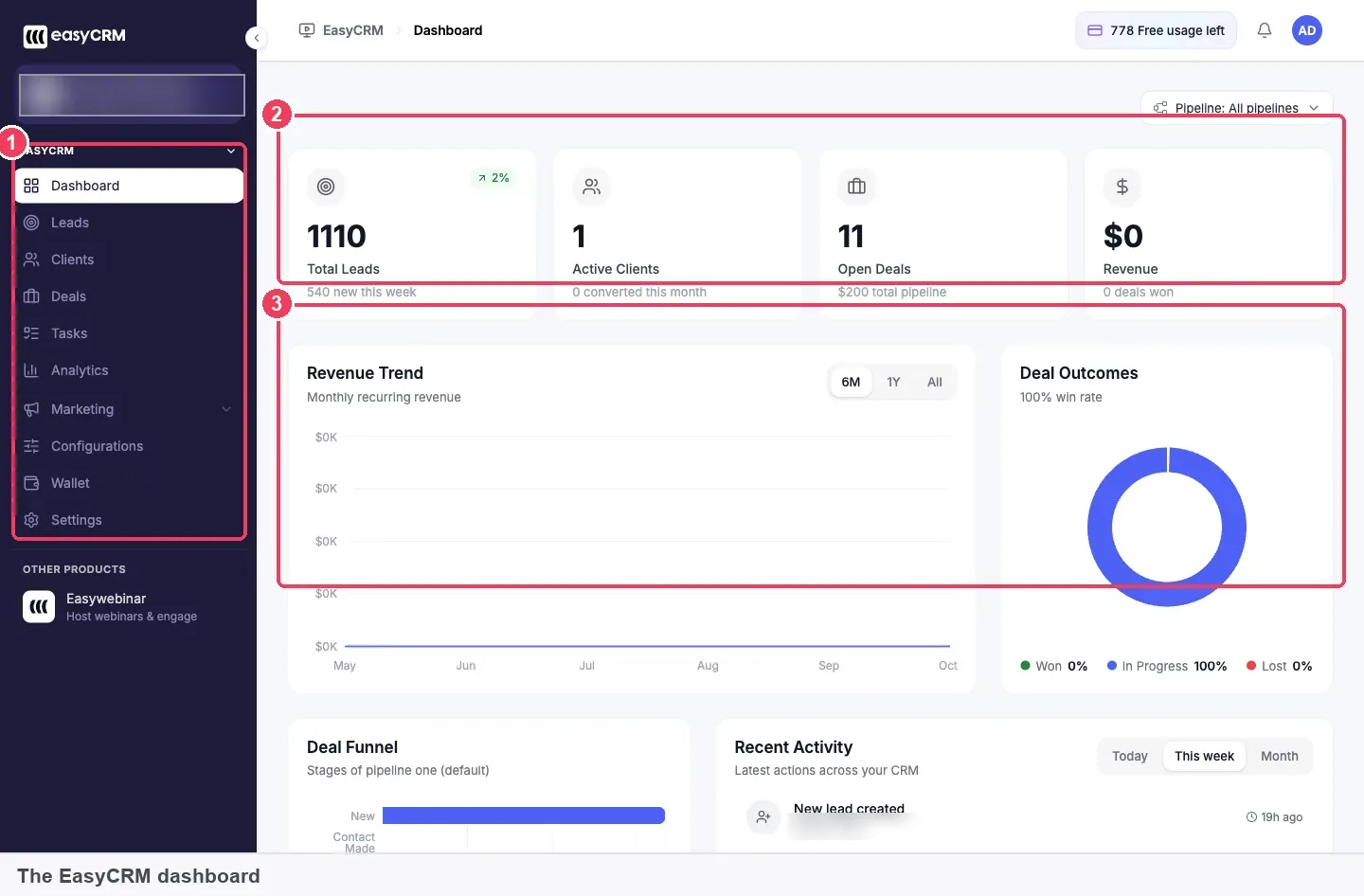
The dashboard is where you check whether last month's webinars turned into deals. The figures shown are sample data.
## Keep your CRM or use ours {#your-crm-or-ours}
If your team already runs a CRM, keep it. EasyWebinar connects to fourteen integrations, including HubSpot, ActiveCampaign, Mailchimp, Kit (formerly ConvertKit), GoHighLevel and AWeber. You map your webinar data to that CRM's fields, which is covered in [connecting a CRM and mapping your webinar data](https://easywebinar.com/product-docs/integrations/map-webinar-data/). The full list is on the [integrations page](https://easywebinar.com/integrations/).
EasyCRM is the option if you'd rather not run a separate tool. It suits teams that don't have a CRM yet, and it adds lead scoring and an auto-dialer beside your webinars. The [webinar CRM vs traditional CRM post](https://easywebinar.com/blog/webinar-crm/) walks through how the two approaches differ.
This EasyWebinar video shows how to connect your CRM and email tools to a webinar.
Video: [How to Connect Your CRM and Email Tools to EasyWebinar](https://www.youtube.com/watch?v=W_D_8xaQ9Bs)
## Why a webinar CRM matters {#why-it-matters}
### What it's for {#what-its-for}
A webinar CRM keeps the people a webinar produces in one place, with a next step attached. It turns "we had a good webinar" into deals you can count.
### How it helps {#how-it-helps}
- **Fewer hand-offs.** Registrants and attendees come across from the webinar instead of through an export and a re-upload.
- **Clean lists.** Re-importing a webinar doesn't create duplicates, because the import reports who was already there.
- **A visible pipeline.** Deals sit in stage columns, so you see where follow-up has stalled.
- **Follow-up that runs.** Broadcasts handle one-off sends and workflows keep sending after every webinar.
### What happens without it {#without-it}
Without a CRM, webinar leads sit in exports and inboxes. Nobody owns the follow-up, so attendees and no-shows get the same message or none at all. The interest a webinar created fades before anyone acts on it.
### Who this matters to, and when {#why-buyers-care}
It matters most to small teams that sell through webinars and don't have a CRM yet. It also matters at the point a team's monthly webinars produce more contacts than a spreadsheet can track.
## The EasyWebinar approach to webinar CRM {#approach}
{/* 5P */}
Take a typical case. A two-person marketing team at an office furniture supplier runs a monthly webinar for facilities managers. Each session brings a few hundred registrants. Their sales lead wants to know who attended, who asked for a quote and who should get a call.
The usual workaround is an export after every session. Someone downloads the attendee list, cleans it in a spreadsheet and uploads it to a separate CRM. That step can take an afternoon, and it tends to slip in a busy month. When it slips, the warmest leads may wait days for a reply.
The logic of the situation is simple. The webinar platform already knows who registered and who attended. Moving that data by hand adds a step every time a session ends, and every step is a chance to lose someone.
EasyWebinar puts the CRM next to the webinars. EasyCRM imports registrants and attendees with **Import from EasyWebinar** and tags each lead with its webinar. It keeps leads, clients and deals in one place, and it sends broadcasts and workflows to saved lists. A team that already has a CRM can connect it instead and skip all of this.
One fact you can check on this page: EasyCRM sits in a grid beside other webinar platforms, with a deal pipeline and email broadcasts to lists alongside the webinar data. That is covered in How EasyWebinar compares for webinar CRM, below.
## The sections of the CRM {#set-up}
EasyCRM's sidebar lists every section. Here is what each one is for and the order most teams use them in.
| Section | What it's for |
|---|---|
| **Dashboard** | Headline numbers and charts for leads, clients, deals and revenue |
| **Leads** | Everyone who has come in but hasn't bought |
| **Clients** | Leads that converted, with their deals and revenue |
| **Deals** | Opportunities moving through a pipeline |
| **Marketing** | **Broadcasts** for one-off sends and workflows for automated sequences |
| **Configurations** | Connecting email, SMS (Beta) and calling so things can send |
| **Wallet** | Your monthly allowances for emails, SMS (Beta) and call minutes |
| **Settings** | Account settings for the CRM |
A typical sequence runs like this:
1. A webinar runs and generates registrants.
2. Those registrants arrive in **Leads**.
3. The interesting ones get a **Deal** and move through your pipeline.
4. **Broadcasts** and workflows handle the communication.
5. When someone buys, they become a **Client**.
### Leads: bring webinar people in {#leads}
A lead is anyone who has come into your orbit but hasn't bought. The **Leads** table shows each contact's company, email, phone, tags, status and the date they arrived. There are three ways to add leads:
- **Import from EasyWebinar** brings registrants and attendees across from a webinar. This is the main route.
- **Import** uploads a CSV or XLSX file in four steps: **Start**, **Upload**, **Map** and **Verify**. **Map** matches your file's columns to EasyCRM's fields.
- **Add Lead** adds one person by hand, for a contact from a conversation rather than a list.
Every import is kept as an **audience** with its source, member count and status. If an import fails, open the audience's **Details**. It's usually a column that didn't map to a field.
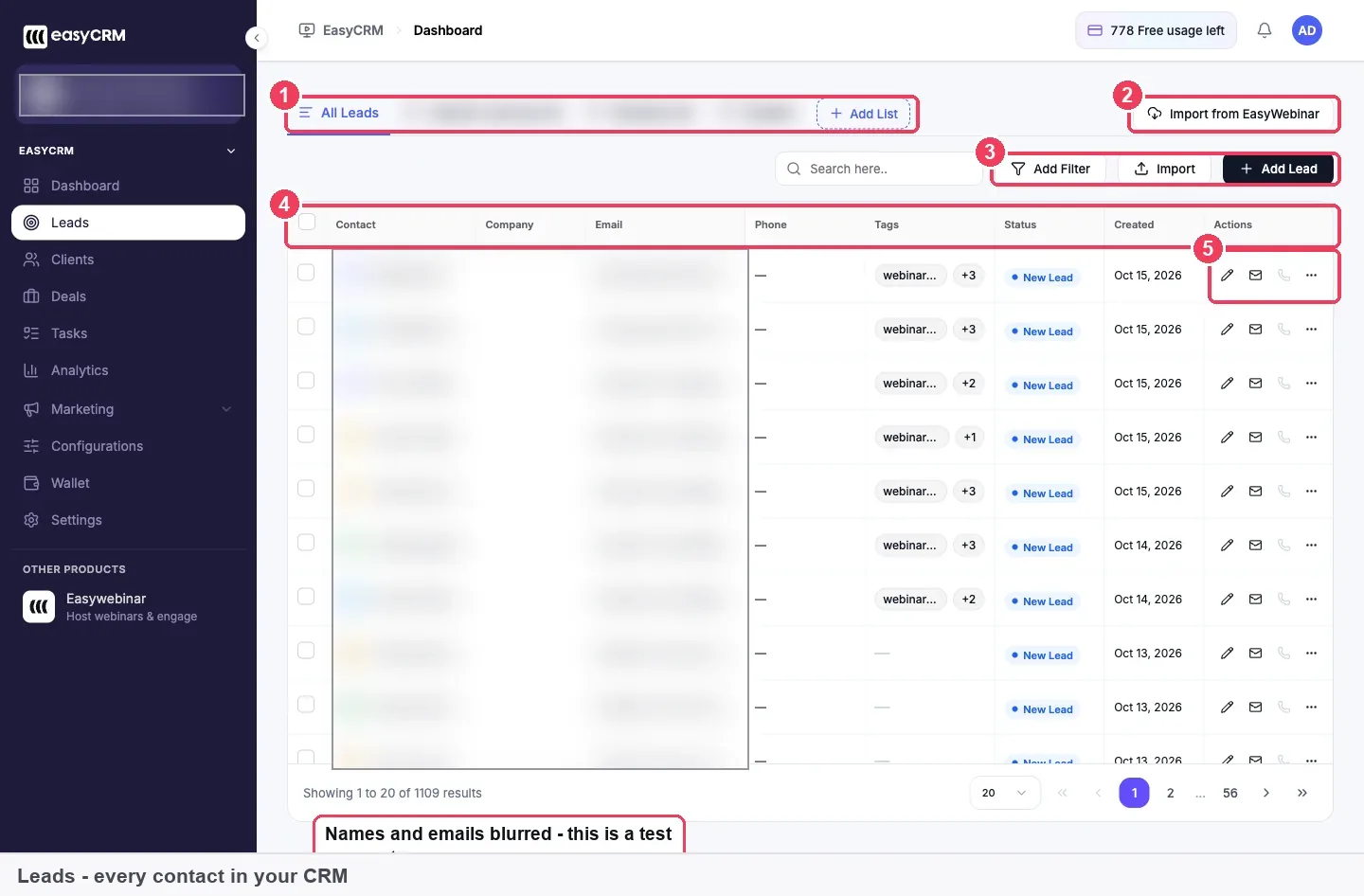
Leads is where webinar registrants land after an import, each tagged with the webinar that produced them.
### Lists and filters: pick who to contact {#lists}
With a few hundred leads you can scroll. With a few thousand you can't. **Add Filter** narrows the table once, by status, tags, company or date created. **Add List** saves a group as a tab you can come back to and send to.
Lists are what broadcasts and workflows send to, so build them deliberately. A few patterns hold up: one list per webinar, a list for attendees and another for no-shows, and a list for people who clicked an offer. The people view in your webinar's analytics shows who [watched and clicked on each session](https://easywebinar.com/product-docs/webinars/analytics/people/).
### Clients: keep customers apart {#clients}
A client is a lead who bought. The **Clients** table adds two columns that leads don't have, **Deals** and **Revenue**. Sorting by revenue tells you who to look after. **Add Client** creates one directly, for a customer who came from somewhere other than a webinar.
### Deals and pipelines: track what's open {#deals}
A deal is a potential sale, and a pipeline is the set of stages it passes through to won or lost. Deals won't work until a pipeline exists, so create one first from the **Pipelines** tab. A webinar-led business often runs stages like New, Contacted, Demo booked, Proposal, then Won or Lost.
Deals show as cards in one column per stage. Each column shows how many deals it holds and its share of the pipeline. A column that fills up and never empties is where your process is stuck. The **Offers** tab holds the things you sell, so a deal records its value the same way every time.
### Broadcasts and workflows: send the follow-up {#marketing}
A broadcast is a one-off send to a list, such as a replay link after a webinar. You open it from **Marketing → Broadcasts**, choose the channel, pick the list, write the message, then send or schedule it. The screen shows average open and click rates beside benchmarks of 21% for opens and 2.6% for clicks.
A workflow is an automated sequence that keeps running after you build it. You open it from **Marketing → Campaign**. A workflow stays in **Draft** until you publish it, so nothing reaches a contact while you're building. A good first workflow sends attendees one message and no-shows the replay. Our guide to webinar follow-up emails covers what to write in each.
This EasyWebinar video shows EasyCRM follow-up that changes with what each attendee did.
Video: [EasyCRM: Webinar Follow-Up That Reacts to What Each Attendee Did](https://www.youtube.com/watch?v=hI8YUCKw59s)
### Configurations: set up sending first {#configurations}
Email, SMS (Beta) and calling need setting up in **Configurations** before anything sends. That includes verifying who you send as. Nothing goes out until it's done. The steps are in [email domain authentication for EasyCRM](https://easywebinar.com/product-docs/easycrm/sending-setup/).
### Wallet: watch what sending uses {#wallet}
Everything EasyCRM sends draws on a monthly allowance, and **Wallet** shows what's left. The Wallet screen lists 1,000 emails, 100 SMS (Beta) messages and 100 call minutes a month. The cycle resets on your signup date, not the first of the month. Workflows use more than broadcasts over time, because they keep sending every day.
## What works with a webinar CRM {#works-with}
- **Registration forms.** The fields on your form come across with each lead, including any [custom registration fields](https://easywebinar.com/product-docs/webinars/registration/custom-fields/) you add.
- **Offers in the room.** People who click an [offer during the webinar](https://easywebinar.com/product-docs/webinars/engagement/timed-offers/) make your warmest list.
- **Replays.** A broadcast is a natural way to send the link to your [replay page](https://easywebinar.com/product-docs/webinars/media/replay-pages/).
- **Automated webinars.** An [evergreen webinar](https://easywebinar.com/product-docs/webinars/getting-started/create-an-evergreen-webinar/) keeps producing registrants every day, so a workflow follows up without you.
- **Your own CRM.** Any of the fourteen integrations can take the webinar data instead. The [CRM integration tracking post](https://easywebinar.com/blog/tracking-webinar-leads-with-crm-integration/) explains how teams track leads that way.
- **Team members.** Colleagues sign in with their own [team member logins](https://easywebinar.com/product-docs/account/team-members/).
## Who uses a webinar CRM {#who-uses-it}
### B2B marketing teams {#who-b2b-marketing}
A B2B marketing team runs prospect webinars and hands the warm ones to sales. It imports each session's attendees, builds a list of offer clickers and opens a deal for each one. The pipeline board then shows sales where the follow-up is stuck. The guide to [webinar lead generation](https://easywebinar.com/product-docs/use-cases/webinar-demand-generation/) covers the earlier steps.
### Small businesses and solo operators {#who-small-business}
A small business without a CRM can start in EasyCRM instead of buying another tool. One webinar list, one broadcast with the replay and one follow-up workflow cover most of the work.
### Coaches and consultants {#who-coaches}
A consultant who fills a calendar from a monthly session can keep each booked call as a deal. The **Clients** table then shows what each client has been worth.
### Teams that already have a CRM {#who-own-crm}
A team on HubSpot or ActiveCampaign keeps it and maps its webinar data across. It doesn't need EasyCRM at all, and nothing on this page changes how its webinars run.
## How EasyWebinar compares for webinar CRM {#compare}
EasyWebinar keeps contacts, a deal pipeline and email broadcasts beside the webinars that produce the leads. It also sends webinar data to an outside CRM when a team prefers its own. You get to choose either route without changing platforms.
Webinar CRM features, from each platform's public documentation:
| Platform | Contacts kept beside webinars | Deal pipeline with stages | Webinar data sent to another CRM | Email broadcasts to lists |
|---|---|---|---|---|
| **EasyWebinar** | Yes | Yes | Yes (fourteen integrations) | Yes |
| **eWebinar** | Not in docs | Not in docs | Yes ([HubSpot and MailChimp integrations](https://ewebinar.com/help/integrate-ewebinar-with-crm)) | Not in docs |
| **Demio** | Not in docs | Not in docs | Yes ([integration to a CRM tag or list](https://help.demio.com/en/articles/2953788-setting-up-an-integration)) | Not in docs |
| **Livestorm** | Not in docs | Not in docs | Yes ([registrants and attendees to Brevo](https://support.livestorm.co/article/connect-brevo-crm-livestorm)) | Not in docs |
| **WebinarJam + EverWebinar** | Not in docs | Not in docs | Yes ([autoresponder or CRM connection](https://support.webinarjam.com/en/articles/15370078-connect-an-autoresponder-or-crm)) | Not in docs |
| **ON24** | Not in docs | Not in docs | Yes ([SugarCRM integration](https://support.on24.com/hc/en-us/articles/21420785308315-SugarCRM-Integrations-Overview)) | Not in docs |
| **Kajabi** | Yes ([CRM tools for contacts](https://help.kajabi.com/en/articles/17175763-explore-available-crm-tools)) | Not in docs | Not in docs | Yes ([Email Broadcasts](https://help.kajabi.com/en/articles/17175756-kajabi-glossary)) |
*Yes: documented and built in. Partly: documented with a limit, shown in brackets. Not in docs: not found in the vendor's public documentation.*
### Why EasyWebinar is the stronger choice for webinar CRM {#compare-stronger}
- **Your CRM or ours.** eWebinar documents [direct integrations with HubSpot and MailChimp](https://ewebinar.com/help/integrate-ewebinar-with-crm). EasyWebinar connects to fourteen integrations and adds EasyCRM for teams without one. [EasyWebinar vs eWebinar](https://easywebinar.com/compare/easywebinar-vs-ewebinar/)
- **Imports that skip duplicates.** Livestorm sends [registrants and attendees to Brevo](https://support.livestorm.co/article/connect-brevo-crm-livestorm). EasyWebinar imports them into its own Leads, and a re-import reports who was already there. [EasyWebinar vs Livestorm](https://easywebinar.com/compare/easywebinar-vs-livestorm/)
- **Deals beside the webinar.** Kajabi offers [CRM tools to track contacts](https://help.kajabi.com/en/articles/17175763-explore-available-crm-tools). EasyCRM adds deals that move through pipeline stages, next to the webinars that produced them. [EasyWebinar vs Kajabi](https://easywebinar.com/compare/easywebinar-vs-kajabi/)
- **Follow-up from the same login.** WebinarJam connects [an autoresponder or CRM](https://support.webinarjam.com/en/articles/15370078-connect-an-autoresponder-or-crm) for follow-up. EasyCRM sends broadcasts and workflows to saved lists with your EasyWebinar login. [EasyWebinar vs WebinarJam](https://easywebinar.com/compare/easywebinar-vs-everwebinar-webinarjam/)
*Competitor details checked against each vendor's public documentation on 4 November 2026. Features and plans change, so confirm with the vendor before you decide.*
## Limits of a built-in webinar CRM {#limits}
- **Plan.** EasyCRM starts at the Growth plan. Live webinars are on every plan.
- **Sending setup comes first.** No broadcast or workflow goes out until email, SMS (Beta) or calling is set up under **Configurations**.
- **Deals need a pipeline.** The **Deals** screen stays empty of deals until you create at least one pipeline.
- **A monthly allowance.** Sends draw on the **Wallet**, which resets on your signup date rather than the calendar month.
- **Pardot, not Sales Cloud.** The connection for Salesforce Pardot (Account Engagement) covers that product, not Sales Cloud.
## Common questions {#common-questions}
#### Do I need a separate CRM for my webinars? {#need-separate-crm}
No. EasyCRM is built into EasyWebinar from the Growth plan and holds leads, clients, deals and follow-up. If you already use a CRM, you can keep it and connect it instead.
#### Can I keep HubSpot or ActiveCampaign? {#keep-my-crm}
Yes. It's your CRM or ours. Keep HubSpot, Salesforce Pardot (Account Engagement), ActiveCampaign, Mailchimp or Kit (formerly ConvertKit), or use EasyCRM natively.
#### How do webinar registrants get into the CRM? {#registrants-in}
Use **Import from EasyWebinar** on the **Leads** screen. It brings registrants and attendees across from a webinar, tagged with that webinar.
#### Will importing the same webinar twice create duplicates? {#duplicates}
No. The import tells you how many people were new and how many were already in your leads.
#### What file types can I upload? {#file-types}
CSV or XLSX. The **Map** step matches each column in your file to the right EasyCRM field.
#### What's the difference between a lead and a client? {#lead-vs-client}
A lead hasn't bought yet. A client has, and carries deals and revenue in the **Clients** table.
#### Why can't I add a deal? {#cant-add-deal}
Deals won't work until a pipeline exists. Create one from the **Pipelines** tab, then add deals to its stages.
#### What's the difference between a broadcast and a workflow? {#broadcast-vs-workflow}
A broadcast is a one-off send to a list. A workflow is an automated sequence that keeps sending when people do something, without you being there.
#### Why isn't my broadcast sending? {#not-sending}
Sending has to be set up under **Configurations** first, including verifying who you send as. Nothing goes out until that's done.
#### Why does my Wallet look wrong? {#wallet-wrong}
The allowance resets on your signup date, not the first of the month. The activity log marks rows outside the current cycle as **Not counted**.
#### How do I open EasyCRM? {#open-easycrm}
Click **EasyCRM** under **Other Products** in the EasyWebinar sidebar. The two share one login, and you can switch back from the same place.
## Related {#related}
- [Email domain authentication for EasyCRM](https://easywebinar.com/product-docs/easycrm/sending-setup/)
- [Connect a CRM and map your webinar data](https://easywebinar.com/product-docs/integrations/map-webinar-data/)
- [People view in webinar analytics](https://easywebinar.com/product-docs/webinars/analytics/people/)
- [Webinar analytics](https://easywebinar.com/product-docs/webinars/analytics/webinar-analytics/)
- [EasyWebinar product documentation](https://easywebinar.com/product-docs/)